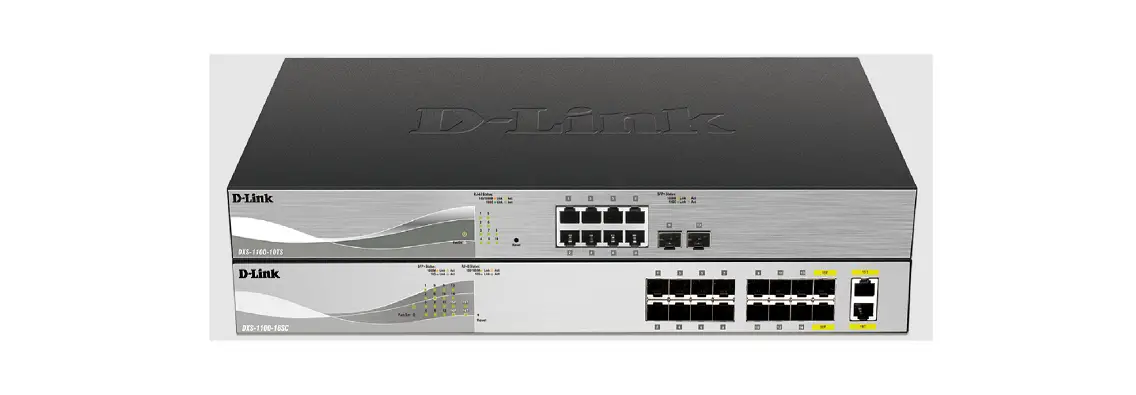
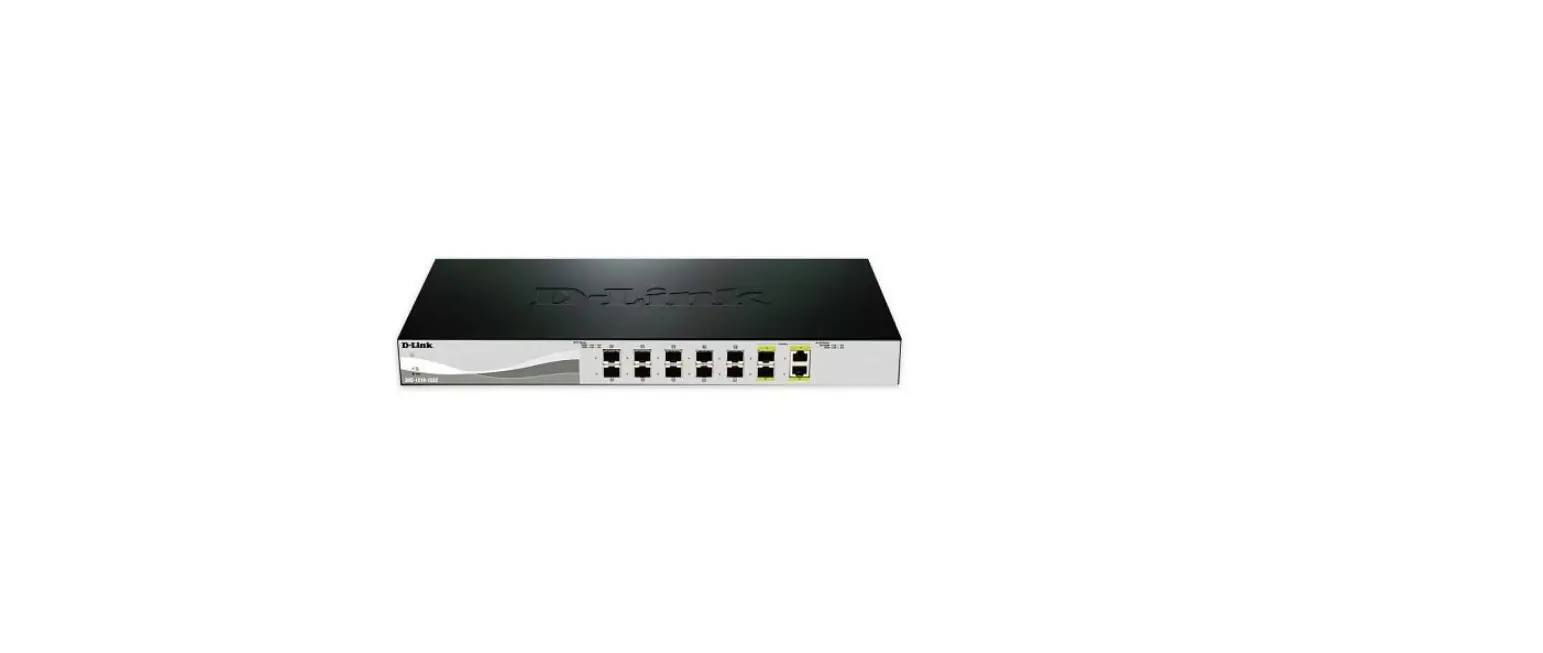
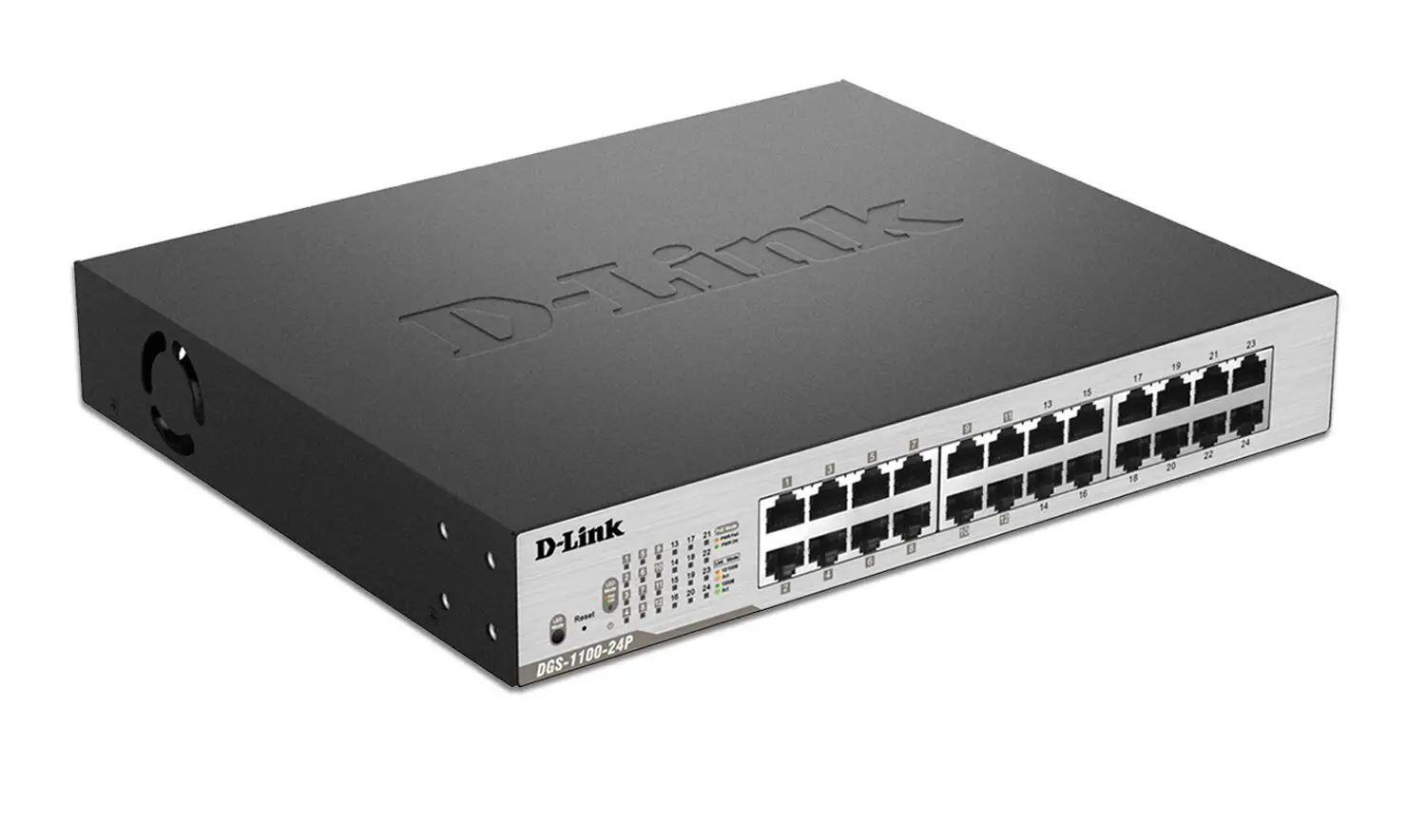
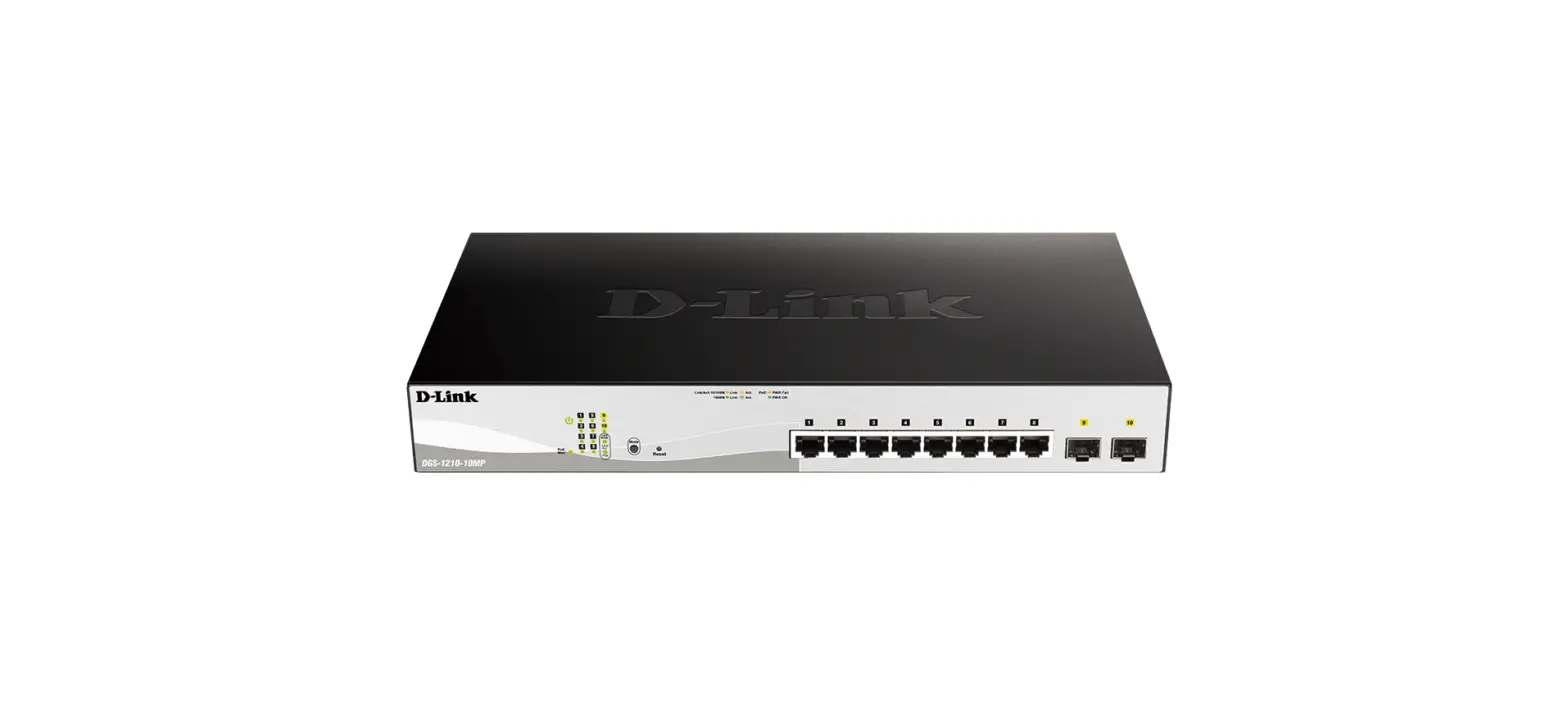
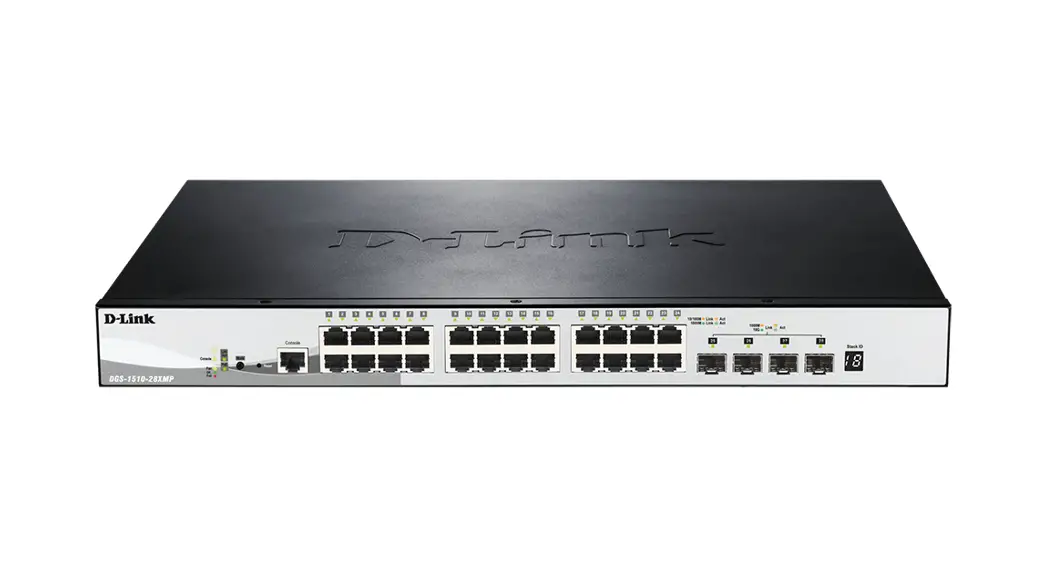
DXS-1210-10TS Layer 2+ SmartPro Switch
DXS-1210-10TS Layer 2+ SmartPro Switch
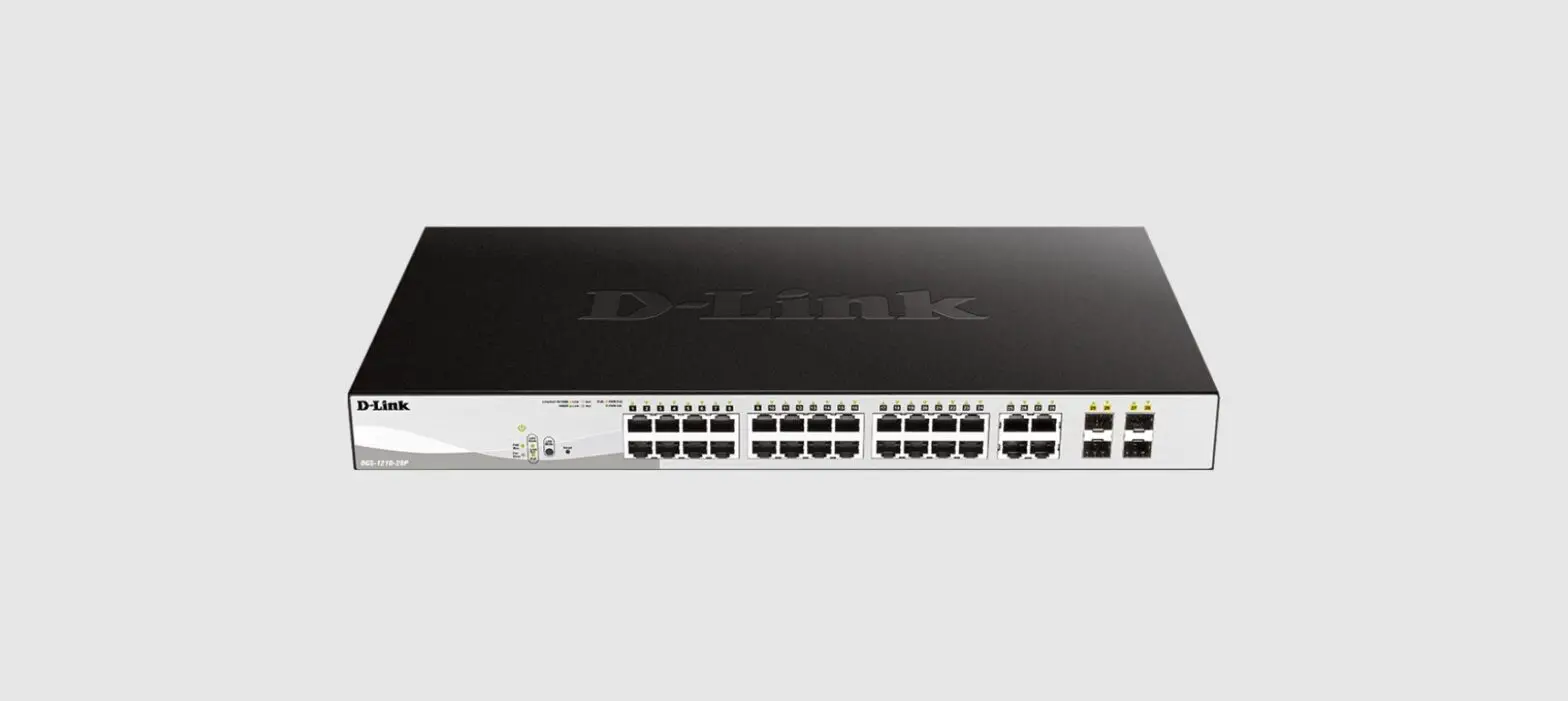
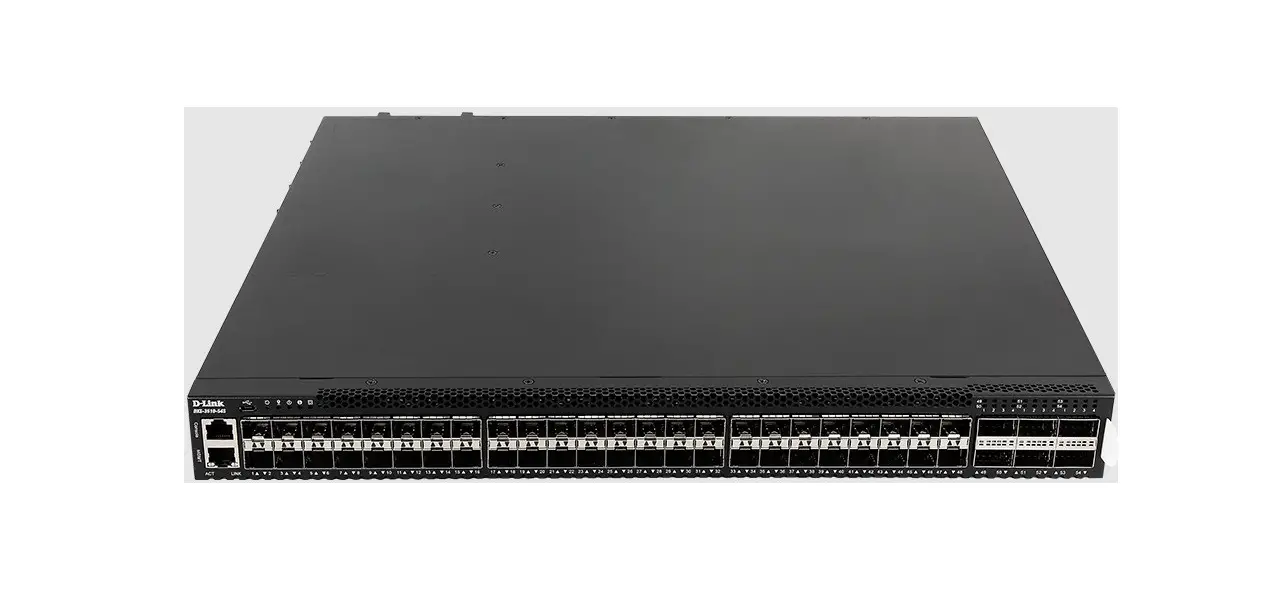
The DXS-1210-10TS is a Layer 2+ SmartPro Switch with 8 10GBase-T
Ports and 2 10GBase-X SFP+ Ports. It is designed to provide
high-performance connectivity for small-to-medium-sized
businesses.
About This Guide
This guide provides step-by-step instructions for setting up the
switch and includes information on warranty, safety, regulatory,
and environmental notices. Please note that the model you have
purchased may appear slightly different from those shown in the
illustrations. For more detailed information about your switch, its
components, making network connections, and technical
specifications, please refer to the User’s Guide included with your
switch.
Package Contents
The following items are included in the package:
- One D-Link Switch
- Rack mounting bracket
- Power cord
- Power cord retainer
- User’s Guide CD with DNA (D-Link Network Assistant) program
(optional) - One multilingual Getting Started Guide
- An accessory kit for one ground screw
Installation
Desktop or Shelf Installation
When installing the switch on a desktop or shelf, attach the
rubber feet included with the device on the bottom at each corner
of the device’s base. Allow enough ventilation space between the
device and the objects around it.
Grounding the Switch (depending on the purchased model)
To connect the switch to ground, follow these steps:
- Connect a grounding cable to the grounding screw on the
switch.
Installing Power Cord Retainer
To prevent accidental removal of the AC power cord, it is
recommended to install the power cord retainer together with the
power cord. Follow these steps:
- Insert the Tie Wrap into the hole below the power socket with
the rough side facing down. - Plug the AC power cord into the power socket of the
switch. - Slide the Retainer through the Tie Wrap until the end of the
cord. - Circle the tie of the Retainer around the power cord and into
the locker of the Retainer. - Fasten the tie of the Retainer until the power cord is
secured.
Rack Installation
The switch can be mounted in an EIA standard size 19-inch rack.
To install, attach the mounting brackets to the switch’s side
panels (one on each side) and secure them with the screws provided.
Then, use the screws provided with the equipment rack to mount the
switch in the rack.
Power Failure
As a precaution, unplug the switch in case of power failure.
When power is resumed, plug the switch back in.
Getting Started Guide
DXS-1210-10TS
Layer 2+ SmartPro Switch with 8 10GBase-T Ports and 2 10GBase-X SFP+ Ports
SmartPro 2+ 8 10GBase-T 2 10GBase-X SFP+
ENGLISH
About This Guide
This guide gives step-by-step instructions for setting up switches and relative Warranty, Safety, Regulatory, and Environment Notice. Please note that the model you have purchased may appear slightly different from those shown in the illustrations.
For more detailed information about your switch, its components, making network connections, and technical specifications, please refer to the User’s Guide included with your switch.
Step 1 Unpacking
Open the shipping carton and carefully unpack its contents. Please consult the packing list located in the User Guide to make sure all items are present and undamaged. If any item is missing or damaged, please contact your local D-Link reseller for replacement.
– One D-Link Switch
– Rack mounting bracket
– Power cord
– Power cord retainer
– User’s Guide CD with DNA (D-Link Network Assistant) program (optional)
– One multilingual Getting Started Guide
– An accessory kit for one ground screw
Step 2 Switch Installation
For safe switch installation and operation, it is recommended that you: · Visually inspect the power cord to see that it is secured
fully to the AC power connector. · Make sure that there is proper heat dissipation and
adequate ventilation around the switch. · Do not place heavy objects on the switch
Desktop or Shelf Installation
When installing the switch on a desktop or shelf, the rubber feet included with the device must be attached on the bottom at each corner of the device’s base. Allow enough ventilation space between the device and the objects around it.
Grounding the Switch (depending on the purchased model)
This section describes how to connect the Switch to ground. You must complete this procedure before powering on your Switch.
Required Tools and Equipment · Grounding screws (included in the accessory kit):
One M4 x 6 mm (metric) pan-head screw · Grounding cable (not included in the accessory kit):
The grounding cable should be sized according to local and national installation requirements. Depending on the power supply and system, a 12 to 6 AWG copper conductor is required for installation. Commercially available 6 AWG wire is recommended. The length of the cable depends on the proximity of the Switch to proper grounding facilities. · A screwdriver (not included in the accessory kit) You can connect the Switch to a protective ground by following the steps below: 1. Verify if the system power is off. 2. Use the grounding cable to place the #8 terminal lug ring on top of the ground-screw opening. 3. Insert the grounding screw into the ground-screw opening. 4. Using a screwdriver, tighten the grounding screw to secure the grounding cable to the Switch. 5. Attach the terminal lug ring at the other end of the grounding cable to an appropriate grounding stud or bolt on rack where the Switch is installed. 6. Verify if the connections at the ground connector on the Switch and the rack are securely attached.
Figure 2. Connect a Grounding Cable
Figure 1. Attaching the rubber feet 2
ENGLISH
Installing Power Cord Retainer
To prevent accidental removal of the AC power cord, it is recommended to install the power cord retainer together with the power cord. 1. With the rough side facing down, insert the Tie Wrap
into the hole below the power socket.
Figure 3-1. Insert Tie Wrap to the Switch 2. Plug the AC power cord into the power socket of the
Switch.
5. Fasten the tie of the Retainer until the power cord is secured.
Figure 3-5. Secure the power cord
Rack Installation
The switch can be mounted in an EIA standard size 19-inch rack, which can be placed in a wiring closet with other equipment. To install, attach the mounting brackets to the switch’s side panels (one on each side) and secure them with the screws provided.
Figure 3-2. Connect the power cord to the Switch
3. Slide the Retainer through the Tie Wrap until the end of the cord.
Figure 4. Attaching the mounting brackets
Then, use the screws provided with the equipment rack to mount the switch in the rack.
Figure 3-3. Slide the Retainer through the Tie Wrap
4. Circle the tie of the Retainer around the power cord and into the locker of the Retainer.
Figure 5. Installing the switch in a standard-sized equipment rack
Step 3 Plugging in the AC Power Cord
You can now connect the AC power cord into the rear of the switch and to an electrical outlet (preferably one that is grounded and surge protected).
Figure 3-4. Circle around the power cord
Figure 6. Plugging the switch into an outlet 3
ENGLISH
Power Failure
As a precaution, the switch should be unplugged in case of power failure. When power is resumed, plug the switch back in.
Management Options
The D-Link Switch can be managed in-band by using Telnet. The user may also choose the Web-based Management, accessible through a web browser or through any PC using the DNA (D-Link Network Assistant).
If you want to manage only one D-Link Switch, the WebBased Management is the better option. Each switch must be assigned its own IP Address, which is used for communication with Web-Based Management or an SNMP network manager and the PC should have an IP address in the same range as the switch.
However, if you want to manage multiple D-Link Switches, the DNA (D-Link Network Assistant) is the better option. Using the DNA (D-Link Network Assistant), you don’t need to change the IP address of your PC and it is easy to start the initial setting of multiple Switches.
Please refer to the following detailed installation instructions for the Web-Based Management, DNA (D-Link Network Assistant), Telnet Management and SNMP-Based Management.
Web-based Management Interface
After a successful physical installation, you can configure the switch, monitor the LED panel, and display statistics graphically using a web browser, such as Microsoft® Internet Explorer version 7.0 and higher, Firefox, Chrome or Safari.
You need the following equipment to begin the web configuration of your device:
· A PC with a RJ-45 Ethernet connection
· A standard Ethernet cable
Step 1
Connect the Ethernet cable to any of the ports in front panel of the switch and to the Ethernet port on the PC.
Step 2
In order to login and configure the switch via an Ethernet connection, the PC must have an IP address in the same range as the switch. For example, if the switch has an IP address of 10.90.90.90, the PC should have an IP address of 10.x.y.z (where x/y is a number between 0 ~ 254 and z is a number between 1 ~254), and a subnet mask of 255.0.0.0. Open your web browser and enter http://10.90.90.90 (the factory-default IP address) in the address box. Then press <Enter>.
Figure 8. Enter the IP address 10.90.90.90 in the web browser
The web configuration can also be accessed through the DNA. You can click the IP hyper link in the device list in the DNA to open the web GUI of devices.
NOTE: The switch’s factory default IP address is 10.90.90.90 with a subnet mask of 255.0.0.0 and a default gateway of 0.0.0.0
Step 3
When the following logon box appears, enter “admin” for the password. Press OK to enter the main configuration window.
Figure 9. Enter Network Password window
Figure 7. Connected Ethernet cable
Step 4
Before entering the Web-based Management, the Smart Wizard will guide you to quickly configure some functions, such as Password Settings, SNMP Settings, and System Settings. If you don’t plan to change anything, click Exit to exit the Wizard and enter the Webbased Management. For a detailed look at the Smart Wizard’s functions, please refer to the Smart Wizard introduction in the user manual.
4
ENGLISH
DNA (D-Link Network Assistant)
The DNA (D-Link Network Assistant) is a program for discovering Switches with the same L2 network segment connected to your PC. This tool can support Windows 2000, XP, Vista, and Windows 7. There are two options for the installation of DNA (D-Link Network Assistant), one is through the autorun program on the installation CD and the other is manual installation.
switch, enter the “admin” for the default user name and password for the Switch and press the Enter key.
SNMP-Based Management (depending on the purchased model)
You can manage the Switch with D-Link D-View or any SNMP-compatible program. The SNMP function is default Disabled.
OOppttiioonn 11:: FFoollllooww tthheessee sstteeppssttooiinnsstatlal llDtNhAe DvNiaAthe ai(nDust-toLarliulnantkiopNnreoCtgDwraoimsrkinocAnlusdstheieds)t:ainnstt)alvlaiatiotnheCaDut(oinrucnase the program on the installation CD.
1. Insert the CD into your CD-ROM Drive. 12.. ITnhseeratuthtoeruCnDpirnotgoryaomuwr CillDp-oRpoumpDauritvoem. atically. 32.. TShimepaluytocrluicnkporongrtahme w”IinllsptoaplluDp NauAto(mDa-LticinakllyNetwork
Assistant)” button and an installation wizard will 3. gSuimidpelyyoculictkhroonugthheth”IensptraolcleDsNs.A (D-Link Network 4. Afstesrisstauncct)e”sbsufuttlolyn iannsdtaallninignstthaellaDtioNnAw, iyzoaurdcwainll gfiunideit
uyonudethr rSotuagrth>thPeropgrroacmess>. D-Link > DNA. 5. Just connect the Switch to the same L2 network 4. Aseftgemr seunctceosfsfyuolluyrinsPtCallinagndtheuDseNAt,hyeouDcNanAfin(dD-itLink
NunedtweroSrktaArts>siPsrtoagnrta)mtosd>isDco-Lvienrkth>eDSNwAi.tches.
5. Just connect the Switch to the same L2 network Opsteiognme2n: tFoofllyoowurthPeCseasntdepussetothinesDtaNllADN(DA-Lminaknually (in casNeetthweoirnksAtasllsaitisotnanCtD) toisdiniscclouvdeerdt)h: e Switches.
1. Insert the CD into your CD-ROM drive. O2.pFtrioomn t2h:eFSotallrot wmethnuesoen sthteepWsintodoiwnsstdaellskthtoepDchNoAose
(DC-LoimnkpuNteert.work Assistant) manually.
3. Double click on your CD-ROM/DVD-Rom Drive to start
1. ItnhseeartutthoeruUntimlityenCuD, oinrtorigyohut rcClicDk-RonomthDerDivreiv. e to open the folder. Select DNA (D-Link Network Assistant) and
2. FdoroumblethceliScktaortnmtheenuseotnupth.eexWe ifnilde.ows desktop, choose
4. FCoolmlopwuttheer.on-screen instructions to install the utility.
53.. 6.
DDUJthuopNesuoAtabnulacectnooocdnrmluniconpekplcemeottnnieotnDyhnuoe,N,ugAoroSrC(wtDroDiig-t-cLShRhittnoackmrtlitoNc/>DkettVhoPwenDroo-trRhgskearoAammDsmesrDisivsreLti>av2tneoDtt)n-oo.Lepsitenwtankorrt>k
segthmeefonltdoefry. oSuerlePcCt DaNndAu(Dse-LDinNkANteotwdiosrckoAvessr itshteanSt)waitncdh.
double click on the setup.exe file.
4O.pFtoiollnow3:th(ienocna-ssecrteheenininsstatrlluactitoionnCs Dtoiisnnstoatllinthceluudteildit)y:.
5D.oUwpnolonacdomDNplAeti(oDn-,LginoktoNSettwarotrk> PArsosgisrtaamnt)sf>roDm-LGinokog>le PlaDyNaAt ahnttpdso:/p/pelnayth.geoDogNleA.c(oDm-L/sintokreN/eaptwpos/rkaAnsdsfisotllaonwt).the
6o.nJ-sucsrteceonninnesctrtuthcteioSnwsittochintsotathllethseamuteiliLty2. network
segment of your PC and use the DNA (D-Link
For detailed information of DNA, please refer the user manual.
Additional Information
If you are encountering problems setting up your network, please refer to the user manual that came with the switch. It contains many more rules, charts, explanations, and examples to help you get your network up and running.
Additional help is available through our offices listed at the back of the user manual or online. To find out more about D-Link products or marketing information, please visit the website http://www.dlink.com.
Warranty Information
The D-Link Limited Lifetime Warranty information is available at http://warranty.dlink.com/
Telnet Management (depending on the purchased model)
Users may also access the switch through Telnet using your PC’s Command Prompt. To access it from your computer, users must first ensure that a valid connection is made through the Ethernet port of the Switch and your PC, and then click Start > Programs > Accessories > Command Prompt on your computer. Once the console window opens, enter the command telnet 10.90.90.90 (depending on configured IP address) and press Enter on your keyboard. You should be directed to the opening console screen for the Command Line Interface of the
5
. , ..
,,
.
,,, ,
,,
.. .. .. . .
-5+50°. -5 +50 °.
,,
.
!!
.. ..
////
. …
,,
..
.
– 55 .
cc . . 2 , 6()7() 2,, . : 69 (-200)9, A7-(2010,B) -2011,-2012, D-2013, E- 2,014, F-2015, G- 2016,H-2017. :1- , 2- ., …, 9 – , A – , B – , – . : 9 – 2009, A – 2010, B – 2011, – 2012, D – 2013, E – 2014, F – 2015, G-2016, H- 2017,I-2018. :1- ,2 D- -Link. , …, 9 – , A – , B – , – .
6 6
1
. , . – , .
– DXS-1210-10TS – – – RJ-45 – – – – DNA (D-Link Network Assistant) () –
2
: ·
. · . · .
– , . .
. .
: · M4 x 6 (
). · (
): . ( 12 6 AWG). 6 AWG. . · ( ).
, : 1. , . 2.
. 3.
, . 4. .
. 2.
. 1.
7
. 1. ,
.
. 3-1.
2. .
5. .
. 3-5.
19- EIA, , , . .
. 3-2.
3. .
. 4.
, .
. 5.
. 3-3.
4. .
3
( ).
. 3-4. 8
. 6.
. .
Web-, D-Link Network Assistant (DNA), Telnet SNMP. D-Link Smart, Web-. IP-, Web-. D-Link, DNA. IP- . . Web-, DNA Telnet.
Web-
, Web-. : Microsoft®Internet Explorer 7.0 , Firefox, Chrome Safari.
Web- :
· RJ-45
· Ethernet-
. 7. Ethernet-
2
Web- IP- , IP- . , IP- 10.90.90.90 255.0.0.0, IP- 10.x.y.z ( x/y 0 255, z 1 254) 255.0.0.0.
. 8. http://10.90.90.90 Web-
Web- DNA, IP- .
: IP- – 10.90.90.90, – 255.0.0.0, – 0.0.0.0.
3
, “admin” . OK, .
1
Ethernet- Ethernet- .
. 9. 9
4
Web- Smart Wizard , , SNMP . , “”, Smart Wizard Web-. Smart Wizard, .
25.. 3.
ADPsr-oLsgiinsrktaam>ntsD).>NAD)-Link>.DNA(DNA(D>-LSinektuNpe.e,twxeoS.rkt>art>
46.. L2 > ,>D-Link>DN A” , D-LinkNetworkADssNisAta(Dnt-.Link Network Assistant)
Smart. DNA . DNA,
.
DNA (D-Link Network Assistant)
Telnet
DDN-LAin(kD-NLeintwk oNrektwAosrskisAtasnstis(tDanNt)A-) L2L2,, .. WWininddoowwss220000, X, PX,PV, iVstias,ta7,. 7. DDNNAA
..
1: 1:, ,
DDNNAA (. – DNA ): 1. -,
1. , C-D-RO, M.
2. 2.
,.”InsCtaDll-RDONMA.(D.-LinkNetwork
3. Assistant)”(“”InstallDNA D(DN-LAi”n)k
NetworkAssistant)” (“. DNA”)
3. D. NA ” > > D-Link >
4. DNA”. DNA Start > Programs > D-Link > DNA (
>2:>D-Link> DNA). ,
5.,DDNNAA(L):2,-
1. ,DNA-CD(D–RL,OinMk.NetworSkmAasrsti.stant)
23..”2:”DNA””..WinCd,Dow-RsOM,
1. -,,
, CD-RO M.,
2. 4.
.««»DNA»(.D-LsinektupN.eeWxtweio.nrdkowAsssistant)
3. . CD-ROM/ 5. DVD-ROM, “, >
>D-Link>DNADNA.,
Assistant)., DLN2A(D-sLeitnukpN.eexteDw.No,rAk
4. ,Smart.
. 3: ( –
DNA ):
Telnet . Ethernet. Start () > Programs () > Accessories () > Command Prompt ( ). telnet 10.90.90.90 ( IP-) Enter . ( “admin”). Enter.
Web- http://www.dlink.ru.
1. http://www.dlink.ru/ru/products/1/ “” .
10
8 10GBase-T 2 10GBase-X SFP+ RJ-45
Power Fan Error Console Link/Activity/Speed ( 10GBase-T 10GBase-X SFP+)
IEEE 802.3 10Base-T IEEE 802.3u 100Base-TX IEEE 802.3ab 1000Base-T IEEE 802.3an 10GBase-T IEEE 802.3z 1000Base-X IEEE 802.3ae 10GBase-X MDI/MDIX 1000/10GBase-T IEEE 802.3az Energy Efficient Ethernet
: 200 / : Store-and-forward . 64- : 148,8 Mpps MAC-: 16K : 256 : 2 Flash-: 64 Jumbo-: 9
( x x ) 440 x 210 x 44
3,1
100 240 , 50/60
: 31,59 . : 68,67
235,607 /
MTBF () 284 314
: 44,6 : 52,7
2 Smart
: -5 50 CO : -40 70 oC
: 0% 95% : 0% 95%
EMI CE FCC C-Ticket VCCI BSMI CCC
cUL CB CE CCC BSMI
11
– D-Link. D-Link . D-Link .
D-Link , . .
D-Link:
8-800-700-5465
:
http://www.dlink.ru e-mail: [email protected]
:
– , 114, , , , 3-, N o- 289
, :
“- ” 390043, . , . , .16 .: +7 (4912) 575-305
, , 14 . : +7 (495) 744-00-99 E-mail: [email protected]
, . , 87- .: +38 (044) 545-64-40 E-mail: [email protected]
Moldova Chisinau; str.C.Negruzzi-8 Tel: +373 (22) 80-81-07 E-mail:[email protected]
, – , 169 .: +375 (17) 218-13-65 E-mail: [email protected]
, -c,143 .: +7 (727) 378-55-90 E-mail: [email protected]
, 3- , 23/5 . +374 (10) 39-86-67 . [email protected]
Latvija Rga, Lielirbes iela 27 Tel.: +371 (6) 761-87-03 E-mail: [email protected]
‘ 20
072-2575555
[email protected]
Lietuva Vilnius, Zirmn 139-303 Tel.: +370 (5) 236-36-29 E-mail: [email protected]
Eesti E-mail: [email protected]
Türkiye Uphill Towers Residence A/99 Ataehir /ISTANBUL Tel: +90 (216) 492-99-99
Email: [email protected]
1.0 2017-12-15 12
 warranty.dlink.com/
 For Home| D-Link
 D-Link Главная