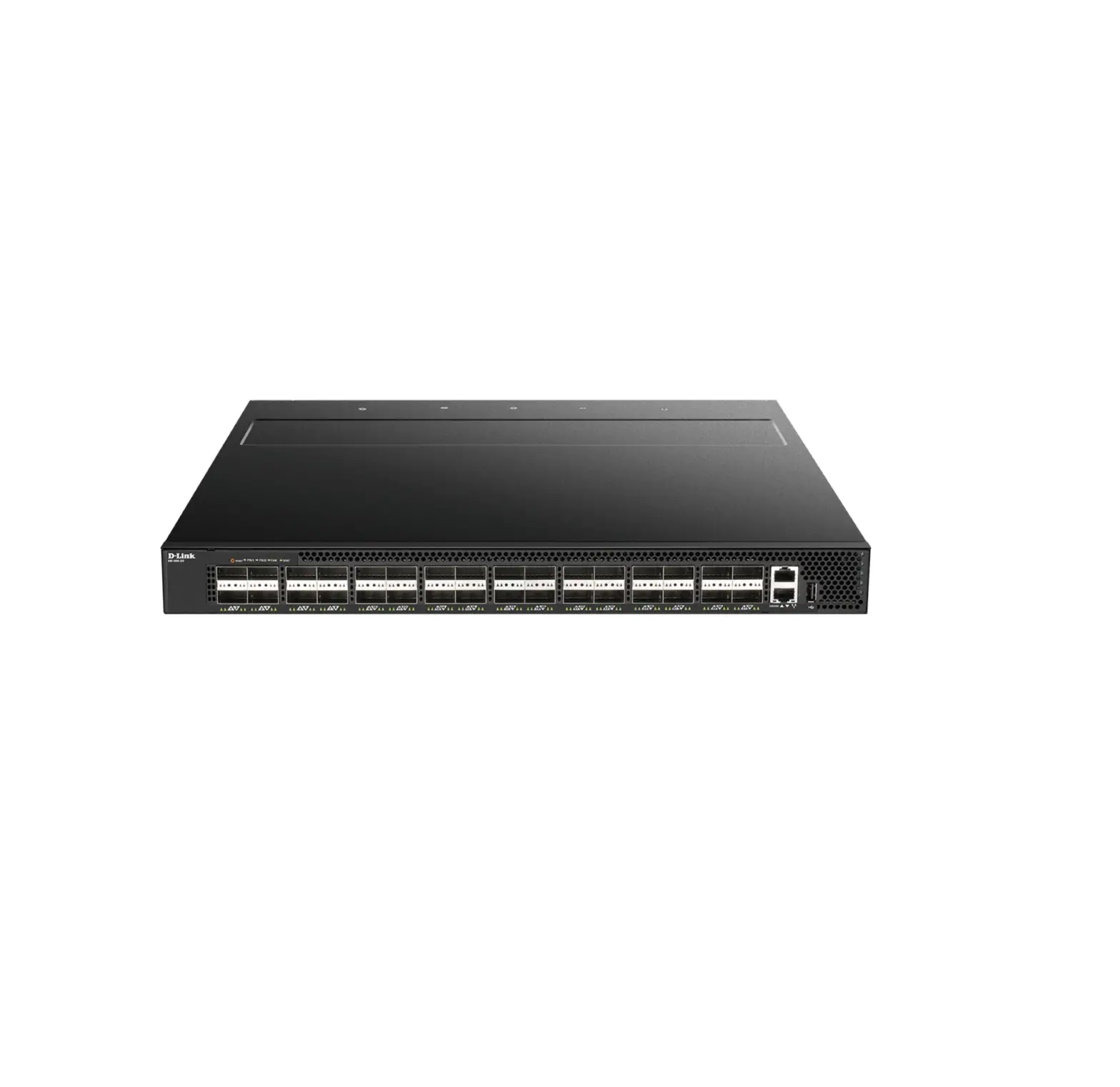
DXS-5000-54S Data Center Switch
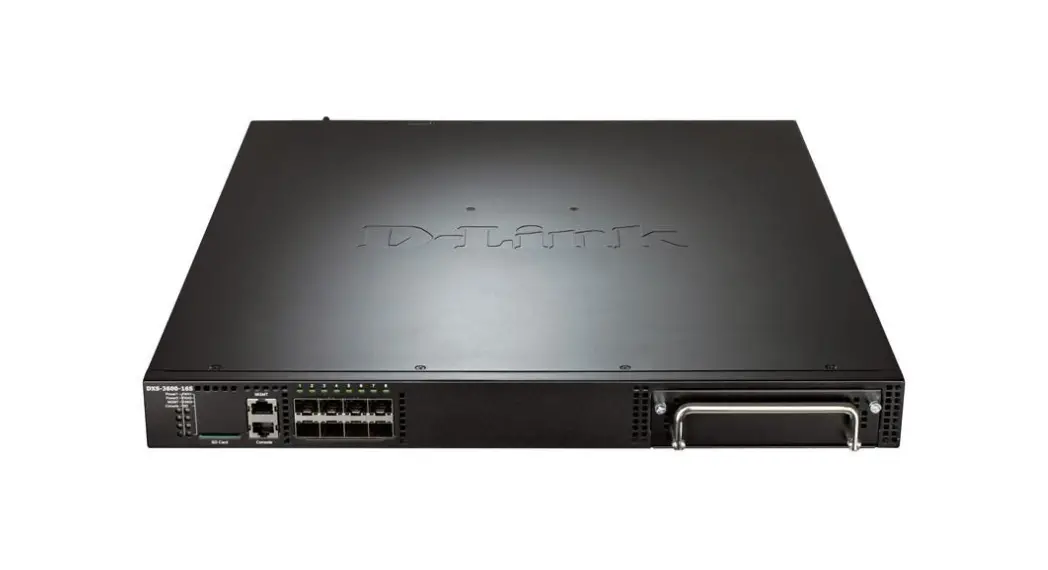
Product Information: D-Link DXS-5000-54S
The D-Link DXS-5000-54S is a data center switch that comes with
48-port 10G SFP+ and 6-port 40G QSFP+ interfaces. It also features
2 front-to-back AC PSUs and 4 front-to-back fan modules. The switch
is L3 and has a total of 48 10GBase-X SFP+ ports and 6 40GBase-X
QSFP+ ports. The package includes two AC power cords, one console
cable (RJ-45 to RS-232), one console cable (mini-USB to RS-232),
one console cable extension, one rack mounting kit (two brackets
and screws), four rubber feet with adhesive backing, and one Quick
Installation Guide.
Product Usage Instructions
- Open the shipping carton and carefully unpack the switch and
all its contents. - Check the packing list to ensure all items are present and
undamaged. If any item is missing or damaged, contact your local
reseller for replacement. - Visually inspect the power cord to ensure it is fully secured
to both the power connector on the switch and the electrical outlet
that supplies power. - Install the switch in a cool and dry place within the
acceptable operating temperature and humidity ranges. - Install the switch in a site free from strong electromagnetic
field generators such as motors, vibration, dust, and direct
exposure to sunlight. - If installing the switch on a desktop or shelf, attach the four
rubber feet included with the device on the bottom at each corner
of the device’s base as shown in Figure 1. - Connect the USB storage device to the USB 2.0 Type-A port.
- Connect the mini-USB console port to a PC with the miniUSB
console cable included in the package. Use the Command Line
Interface (CLI) to configure the switch. - Connect the out-of-band management port to configure the switch
without being connected to the network. The management port has a
10/100/1000Base-T RJ-45 connection speed. - Refer to the LED indicators to monitor the status of the
switch. The LEDs indicate power supply status, fan status, and
link/activity/speed per optical and RJ-45 ports.
D-Link DXS-5000-54S
48-port 10G SFP+, 6-port 40G QSFP+ interfaces data center switch with 2 front-to-back AC PSUs, 4 front-to-back fan modules
L3 48 10GBase-X SFP+, 6 40GBase-X QSFP+,
2 AC 4
Quick Installation Guide
Package Contents
Open the shipping carton of the switch and carefully unpack its contents. Please consult the packing list to make sure all items are present and undamaged. If any item is missing or damaged, please contact your local reseller for replacement.
One DXS-5000-54S switch Two AC power cords One console cable (RJ-45 to RS-232) One console cable (mini-USB to RS-232) One console cable extension One rack mounting kit (two brackets and screws) Four rubber feet with adhesive backing One Quick Installation Guide
Note: the model you have purchased may appear slightly different from those shown in the illustrations.
Device Interfaces
Model DXS-5000-54S
Port
Description
10GBase-X SFP+ ports 48 SFP+ ports (10 Gbps connection speed).
40GBase-X QSFP+ ports 6 QSFP+ ports (40 Gbps connection speed).
USB 2.0 port
USB 2.0 Type-A port for connecting a USB storage device.
Mini-USB console port
Mini-USB console port for connecting to a PC with a miniUSB console cable (included in the package). The Command Line Interface (CLI) is used for configuring the switch.
10/100/1000Base-T RJ-45 Out-of-band management port for configuring the switch
management port
without being connected to the network (10/100/1000
Mbps connection speed).
LEDs
LED PSU 1
PSU 2
FAN
Status Solid green Solid amber Light off Solid green Solid amber Light off Solid green Solid amber
Light off
Description The switch is powered on and functioning normally. The switch’s power supply has failed or is not working properly. The switch is turned off. The switch is powered on and functioning normally. The switch’s power supply has failed or is not working properly. The switch is turned off. The fans are operating normally. A fan has failed. Check the FAN Status LED on the rear panel to identify which fan is malfunctioning. The fans are powered off.
2
STAT
Solid green Solid amber Light off
Link/Activity/Speed (per optical port)
Solid green Blinking green
Solid amber
Blinking amber
Light off
Link/Activity (per RJ- Solid green
45 port)
Blinking green
Solid amber
Blinking amber
Light off
The diagnostic test was successfully completed. The self-diagnostics system has detected a fault. The system is down, the switch is booting up, or the network OS did not boot up normally. There is a secure 10/40 Gbps connection at the port. There is reception or transmission occuring at the port. There is a secure 1000 Mbps connection at the port. There is reception or transmission occuring at the port. No link. There is a secure 1000 Mbps connection at the port. There is reception or transmission occuring at the port. There is a secure 10/100 Mbps connection at the port There is reception or transmission occuring at the port. No link.
Installation Guidelines
This section will discuss the hardware installation guidelines that the user must follow in order to properly and safely install this switch into the appropriate environment.
Visually inspect the power cord and see that it is fully secured to both the power connector, on the switch, and the electrical outlet that supplies power.
Install the switch in a fairly cool and dry place within the acceptable operating temperature and humidity ranges.
Install the switch in a site free from strong electromagnetic field generators such as motors, vibration, dust, and direct exposure to sunlight.
Installing the Switch without a Rack When installing the switch on a desktop or shelf, the rubber feet included with the device must be attached on the bottom at each corner of the device’s base.
Figure 1 — Attaching rubber feet to the switch
Install the switch on a sturdy, level surface that can support the weight of the switch. Do not place any heavy objects on the switch. Make sure that there is proper heat dissipation from and adequate ventilation around the switch. Leave at least 10 cm (4 inches) of space at the front, sides, and rear of the switch for ventilation.
3
Installing the Switch in a Standard 19” Rack The switch can be mounted in a standard 19″(1U) rack using the provided mounting brackets. Fasten the mounting brackets to the sides of the switch using the screws provided.
Figure 2 — Attaching rack-mount brackets to the switch
Fasten the mounting brackets in any available open space in the rack using the rackmounting screws.
Figure 3 — Installing the switch in a rack
Installing Transceivers into the Transceiver Ports
The DXS-5000-54S switch is equipped with the SFP+ and QSFP+ ports for connecting the transceivers.
4
Figure 4 — Inserting transceivers into the transceiver ports
Grounding the Switch
This section describes how to connect the switch to the ground. You must complete this procedure before powering on the switch. 1. Verify if the switch power is off. 2. Attach the terminal lug ring of the grounding cable to the ground screw opening of the switch with the grounding screw. 3. Attach the terminal lug ring at the other end of the grounding cable to an appropriate grounding stud or bolt on the rack where the switch is installed. 4. Verify that the ground connections on the switch and the rack are securely attached.
Plugging in the AC Power Cord
Plug one end of the AC power cord into the power socket of the switch and the other end into the electrical outlet.
Power Failure In the event of a power failure, just as a precaution, unplug the power cord from the switch. After the power returns, plug the power cord back into the power socket of the switch.
Management Options
The DXS-5000-54S switch can be managed with the Command Line Interface (CLI) and SNMP.
Command Line Interface (CLI) The switch can be managed with the CLI by connecting a PC to the console port or management port on the switch.
5
SNMP-based Management The switch can be managed with an SNMP-compatible console program. The switch supports SNMP v1, SNMPv2c and SNMPv3.
Connecting to the Console Port
The front panel of the switch provides a mini-USB console port to connect a remote system for monitoring and configuring the switch. Note: to use the mini-USB console port, you may be required to install a mini-USB driver. To use the mini-USB console port, the following equipment is needed:
A terminal or a computer with both an RS-232 serial port and terminal emulation software
A console cable with a male DB9 connector on one end and a mini-USB connection on the other
To connect the mini-USB console port on the switch to the computer: Connect the male DB9 connector on the console cable (shipped with the switch) to the RS-232 serial port on the computer running terminal emulation software, then insert the mini-USB connector into the console port on the front of the switch.
To configure the terminal emulation software as follows: Select the appropriate serial port (COM1 or COM2). Set the data rate to 115200 baud. Set the data format to 8 data bits, 1 stop bit, and no parity. Set flow control to none. Select VT100 for Emulation mode. Select Terminal keys for Function, Arrow and Ctrl keys.
Figure 5 — COM port configuration
To be able to view the boot procedure, the switch needs to be rebooted. The simplest way,
6
at this stage, to reboot the switch is to unplug and re-insert the power cable from and into the power receptacle on the back of the switch. Then select an operating system to boot the switch in, either D-Link OS or ONIE.
7
. , . , . , , , . . . . 0 +45 °. , . ! . . / / . . , . .
5 .
c . 2 , 6 () 7 () , . : – 2012, D – 2013, E – 2014, F – 2015, G – 2016, H – 2017, I – 2018, J – 2019, 0 – 2020, 1 – 2021, 2 – 2022. : 1 – , 2 – , …, 9 – , A – , B – , – .
D-Link.
8
. , . – , .
DXS-5000-54S 2 RJ-45 mini-USB 4 2 19-
: .
DXS-5000-54S
10GBase-X SFP+ 48 SFP+ ( 10 /).
40GBase-X QSFP+ 6 QSFP+ ( 40 /).
USB 2.0
USB 2.0 Type-A USB-.
mini-USB
mini-USB mini-USB ( ). (CLI).
Out-of-band
10/100/1000Base-T
RJ-45
( 10/100/1000 /).
PSU 1
PSU 2
.
.
.
.
.
9
.
FAN
.
.
,
, ,
.
.
STAT
.
.
, .
Link/Activity/Speed 10/40 /.
(
)
.
1000 /.
.
.
Link/Activity ( 1000 /.
RJ-45)
.
10/100 /.
.
.
: , . . , , , .
– , .
10
1 —
, . . , . 10 , . 19- . .
2 —
.
3 —
11
DXS-5000-54S SFP+ QSFP+.
4 —
. . 1. , . 2. . 3. . 4. .
. . .
DXS-5000-54S (CLI) SNMP.
12
(CLI) CLI, .
SNMP- , SNMP. DXS-5000-54S SNMP 1, 2c, 3.
mini-USB , .
: mini-USB, , mini-USB.
mini-USB :
RS-232 RS-232 mini-USB
: 1. RS-232 . 2. mini-USB .
:
COM1 COM2 115200 8 1 VT100 Terminal keys
13
5 — COM-
. . : ONIE D-Link.
14
8
Flash-
64
48 10GBase-X SFP+ 6 40GBase-X QSFP+ USB 2.0 mini-USB 10/100/1000Base-T RJ-45 (Out-of-band)
PSU 1 PSU 2 FAN STAT Link/Activity/Speed ( ) Link/Activity ( RJ-45)
Reset
( )
IEEE 802.3z 1000Base-X IEEE 802.3ae 10GBase-X IEEE 802.3ba 40GBase-X
( )
IEEE 802.3 10Base-T IEEE 802.3u 100Base-TX IEEE 802.3ab 1000Base-T
1,44 /
– 288K
. 64
1 071 Mpps
12
Jumbo-
9
( x x ) 440 x 406 x 44
9
1 + 1 100 240 , 50/60
295 140
15
294,83 (1 006,58 /)
MTBF ()
205 000
: 74 : 62
4
: 0 45 °C : -40 70 °C
: 5% 95% : 5% 95%
cULus CCC BSMI CB CE
EMI/EMC
FCC/IC CCC CB CE BSMI
16
– D-Link. D-Link . D-Link .
D-Link , . .
D-Link:
8-800-700-5465
:
http://www.dlink.ru e-mail: [email protected]
:
– , 11494, , , , 3-, 289
, :
“- ” 390043, . , . , .16 .: +7 (4912) 575-305
, , 14 . : +7 (495) 744-00-99 E-mail: [email protected]
, . , 87- .: +38 (044) 545-64-40 E-mail: [email protected]
Moldova Chisinau; str.C.Negruzzi-8 Tel: +373 (22) 80-81-07 E-mail:[email protected]
, – , 169 .: +375 (17) 218-13-65 E-mail: [email protected]
, -c,143 .: +7 (727) 378-55-90 E-mail: [email protected]
, 3- , 23/5 . +374 (10) 39-86-67 . [email protected]
Lietuva Vilnius, Zirmn 139-303 Tel.: +370 (5) 236-36-29 E-mail: [email protected]
Eesti E-mail: [email protected]
Türkiye Uphill Towers Residence A/99 Ataehir /ISTANBUL Tel: +90 (216) 492-99-99 Email: [email protected]
20 ‘
072-2575555 [email protected]
1.0 2022-10-26 8
 D-Link Главная