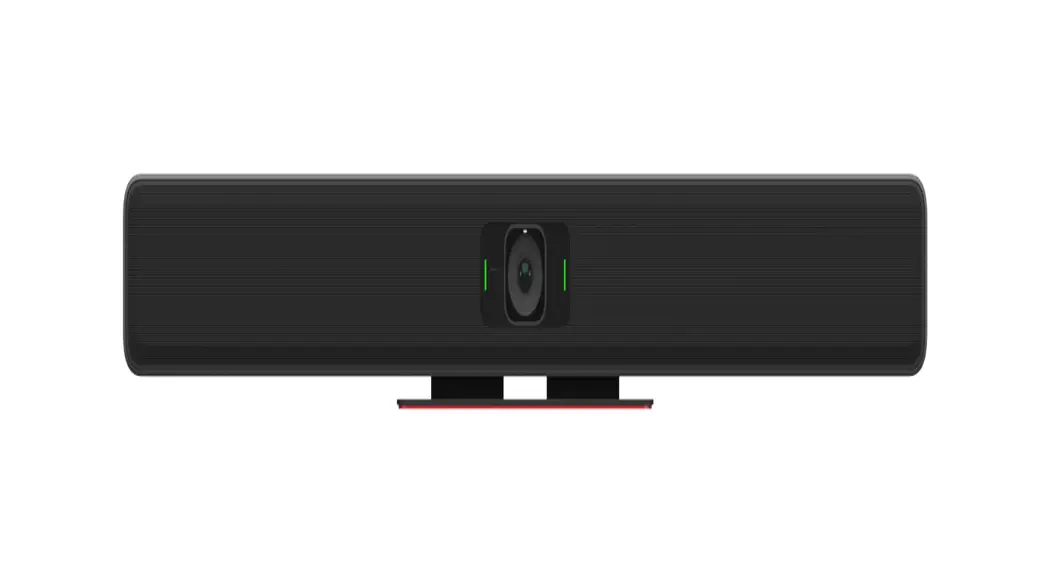
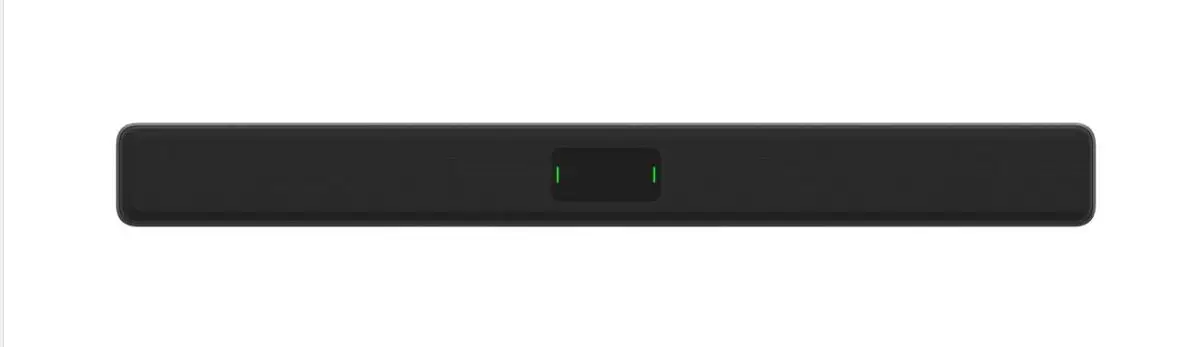
VBC 2500 series Parlé Conferencing Bars
Product Information
The VBC 2500 series and ABC 2500 series are audio and video bars
that can be mounted on tables or walls. The bars have a front panel
with connection ports and status indicators, and a back panel with
cable strain relief aids and a Kensington Lock connection. The bars
can be powered through the USB-C port, but if the host device
cannot provide 60W, the included Biamp auxiliary power supply
(PS-12-60) must be used. The ABC bar has a motion sensor and a
light sensor, while the VBC bar has a camera stream active
indicator and a camera LED indicator. Optional accessories include
a display mount (PMA 2000-DM) and a replacement power supply
(PS-12-60).
Product Usage Instructions
Tabletop Installation
- Clear an area on a table or stand.
- Pull out and remove the back panel cover to expose the power
connections. - Connect the USB-C cable to the bar and secure with the screw.
Connect the other end to the host device. - If auxiliary power is necessary, connect and fully screw the
power supply onto the threaded port, then plug the power supply
into the wall. - Reinstall the input cover, routing the cords through the
plastic stubs and the opening at the bottom of the cover. The stubs
will provide strain relief for the cables. - Position the bar facing the conference table / occupants, and
remove the film covering the center glass. - Press the Launch button and allow Launch to optimize the audio
for the room.
Wall Installation
- Remove the table stand and reserve the (4) screws for
reattachment to the wall plate. - Attach the wall plate to the wall using screws (not
included). - Connect the USB-C cable to the bar and secure with the screw.
Connect the other end to the host device. - If auxiliary power is necessary, connect and fully screw the
power supply onto the threaded port, then plug the power supply
into the wall. - Hang the bar on the wall plate knobs and move it down to
capture the knobs. Secure the bar with screws (2 on each
hinge). - Rotate the bar up – back into position, and remove the film
covering the center glass. - Press the Launch button and allow Launch to optimize the audio
for the room.
Maintenance
To factory reset the bar, press and hold the Launch button for
10 seconds. To clean the bar, use a soft cloth to wipe off dust. Do
not spray any cleaning product directly on the bar.
Parlé Video / Audio Conferencing Bars
Installation & Operation Guide
Models VBC 2500 series ABC 2500 series
Wall and Table mounting options included
PRODUCT DESCRIPTION
FEATURES
Parlé VBC 2500 and ABC 2500 series models are all-inone conferencing bars featuring Biamp Audio Intelligence to deliver premium audiovisual experiences for small and medium conference rooms.
Parlé VBC/ABC 2500 series bars have 3 mounting options:
· Table Mount – comes attached to the bar in the box
· Wall Mount Plate – (included) Allows the bar to be permanently mounted to the wall (table stand must be removed for attachment).
· Display Mount (optional accessory) – Allows the bar to be positioned above or below a TV, Monitor or other video device.
· Beamtracking microphone technology actively tracks and intelligently mixes conversations
· Deep learning noise reduction algorithm for clear voice reproduction
· Stereo smart speakers
· LED indicators for audio and video status
· Biamp Launch automated tuning system to optimize audio
· VBC 2500 series – Electric Pan/Tilt/Zoom with 5x zoom and auto framing technology to keep participants in frame
· VBC/ABC 2500a models include support and connectivity for Assisted Listening Systems (ALS) (3.5mm jack)
CONTENTS
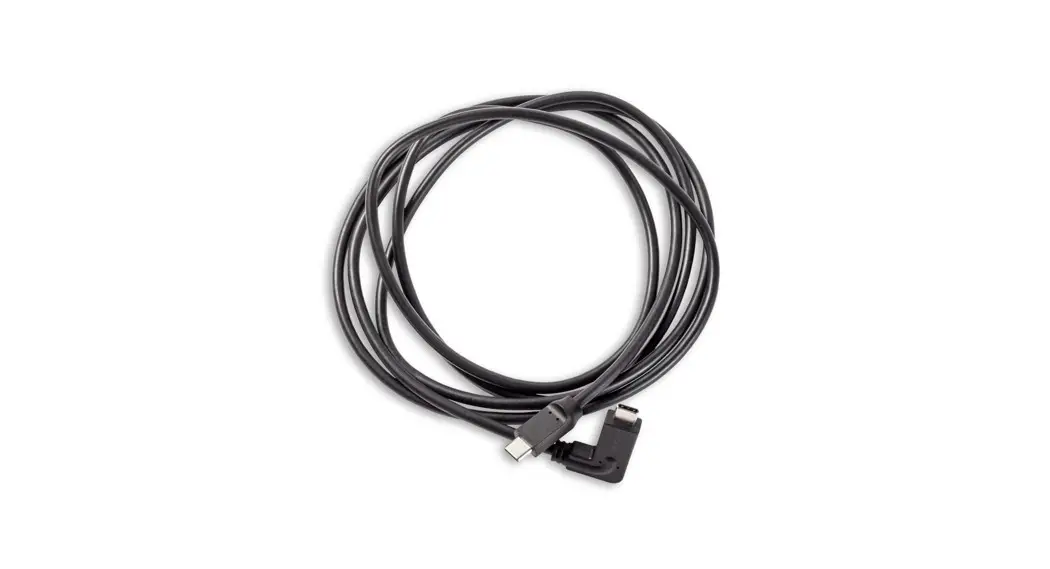
· Parlé VBC or ABC 2500 series conferencing bar · Table stand (attached) · Wall bracket and hardware · USB-C cable · 60 W Power supply with cord
x4
Wall Mount
A: 9300 S.W. Gemini Drive Beaverton, OR 97008 USA
W: www.biamp.com
PRODUCT DETAILS
Front Panel
Front
The bars can be powered through the USB-C port, but the host device must be able to supply 60W over USB-C. If the host device cannot provide 60W, the included Biamp auxiliary power supply (PS-12-60) must be used.
Connection ports
Back Panel Cover
Rear
Table Stand
ALS 3.5mm Port (2500a Models)
DC Power In
Locking USB-C Port
Launch Button Power Indicator (LED)
Rear / Back Panel Detail
Cable Strain Relief Aids
Kensington Lock connection
Front Panel / Status Indicators
ABC Bar
Motion Sensor
Light Sensor
VBC Bar Camera Stream Active
Camera LED ON
Camera Stream Inactive
Camera LED OFF
Light Sensor
Microphone LEDs
Microphone LEDs
Motion Sensor
See Status Indicators section (pg 5) for behavior and the associated LED state.
Shutters
page 2
Installation and Operation Guide
Parlé ABC-VBC
Tabletop Installation
The bar is shipped with the table mount attached. Clear an area on a table or stand. Pull out and remove the back panel cover to expose the power connections.
1. Connect the USB-C cable and secure with the screw. Connect the other end to the host device. If auxiliary power is necessary, connect and fully screw the power supply onto the threaded port, then plug the power supply into the wall.
2. Reinstall the input cover, routing the cords through the plastic stubs and the opening at the bottom of the cover. The stubs will provide strain relief for the cables.
3. Position the bar facing the conference table / occupants, and remove the film covering the center glass.
4. Press the Launch button (location shown), and allow Launch to optimize the audio for the room.
1
2 3
4
5
Parlé ABC-VBC
Installation and Operation Guide
page 3
Wall Installation
1. Remove the table stand as shown. Reserve the (4) screws for reattachment to the wall plate.
2. Use the wall plate to mark the locations, and install the anchors in the wall. 3. Attach the plate to the wall. 4. Position the bar face down and rotate the hinge plates up 90°. Hang the
bar on the wall plate knobs and move it down to capture the knobs. 5. Secure the bar with screws as shown (2 on each hinge).
Note: Connect cables and power as noted in Steps 1-3 on the previous page. 6. Rotate the bar up – back into position, and remove the film covering the
center glass. 7. Press the Launch button (location shown), and allow Launch to optimize
the audio for the room.
1
2
3
4
5
6
page 4
7
Installation and Operation Guide
Parlé ABC-VBC
Operation
The Parlé Conference bars act as USB peripherals that are connected to USB host devices. Audio and video control is available to the connected host device’s operating system and conferencing apps. Biamp’s Camera Controller software can be downloaded (here). This software is used to facilitate firmware updates to both bar models, and can provide additional camera controls for the VBC bar. The file must be downloaded from the Biamp website first and then the firmware update can be initiated from the software. Biamp Launch is the smart technology to optimize the audio for the room. Pressing the Launch button customizes the audio coverage based on the room’s characteristics. The LEDs on the front panel will flash red/green slowly until Lanuch is initiated, and then during the Launch process. If necessary, the Launch process can be interrupted by following the factory reset procedure below.
Status Indicators (Images page 2) Audio – Microphone LEDs: center front (behind the glass)
Active with mic UNMUTED – Green Active with mic MUTED – Red Inactive – OFF Flashing slow Red/Green – Factory reset, ready for Launch. Video – Camera LED: VBC only – above camera (behind the glass) Active with camera ON – LED ON – White, shutter open Active with camera OFF – LED OFF, shutter open Inactive – LED OFF, shutter closed
Optional Accessories
Display Mount: (PMA 2000-DM) allows bar to be mounted on a VESA-mounted video display (above or below the display). Instructions available here. Replacement Power Supply: (PS-12-60) 60 W power supply with cord
Maintenance
Factory reset: Press & hold the Launch button for 10 seconds to revert the bar to factory settings. Cleaning: Use a soft cloth to wipe off dust. Do not spray any cleaning product directly on the bar.
Resources
Informational Articles on Cornerstone: Parlé Biamp Camera Controller Help: help file
Parlé ABC-VBC
Installation and Operation Guide
page 5
TECHNICAL DRAWINGS
TOP
Top, Front and upper Side views show bar attached to table stand
300 [11.82″] FRONT
940 [37.04″]
64 [2.51″] 100 [3.94″] 116 [4.57″]
SIDE
178 [7.01″] REAR
80 [3.16″]
SIDE
50 [1.96″]
40.0 [1.57″]
100.0 [3.93″] 215.0 [8.46″] WALL PLATE
70.0 [2.75″]
15.3 [0.6″]
14.7 [0.58″]
SIDE
Side View above shows bar attached to wall mount
CONTACT US
Email: [email protected] Web: support.biamp.com
Warranty: biamp.com/legal/warranty-information Safety & Compliance: biamp.com/compliance
A: 9300 S.W. Gemini Drive Beaverton, OR 97008 USA
W: www.biamp.com
11APR2023
 Biamp-Downloads
 Home - Biamp Cornerstone
 Biamp - Connecting People Through Extraordinary Audiovisual Experiences
 Camera Controller Software Help