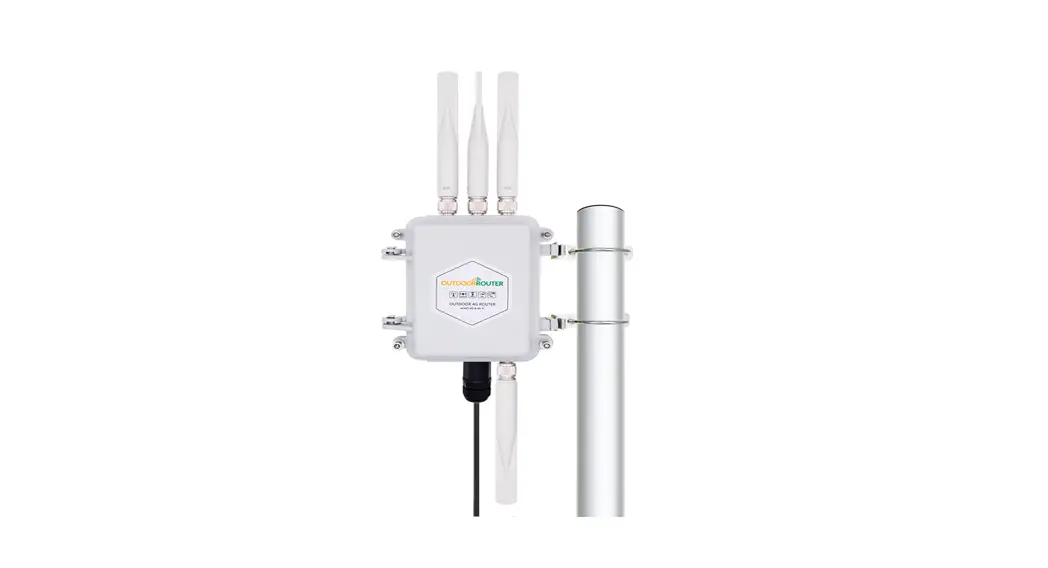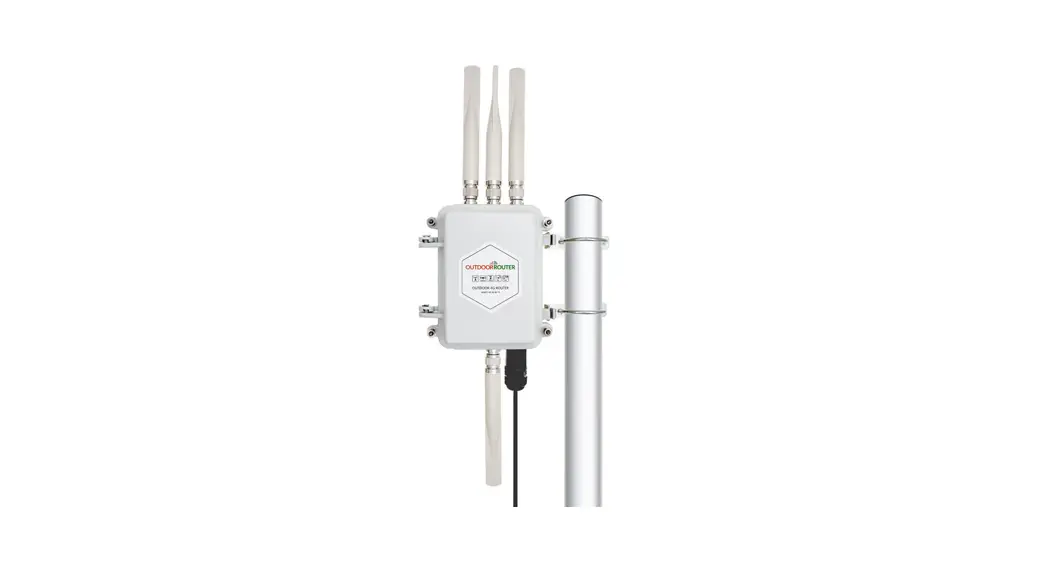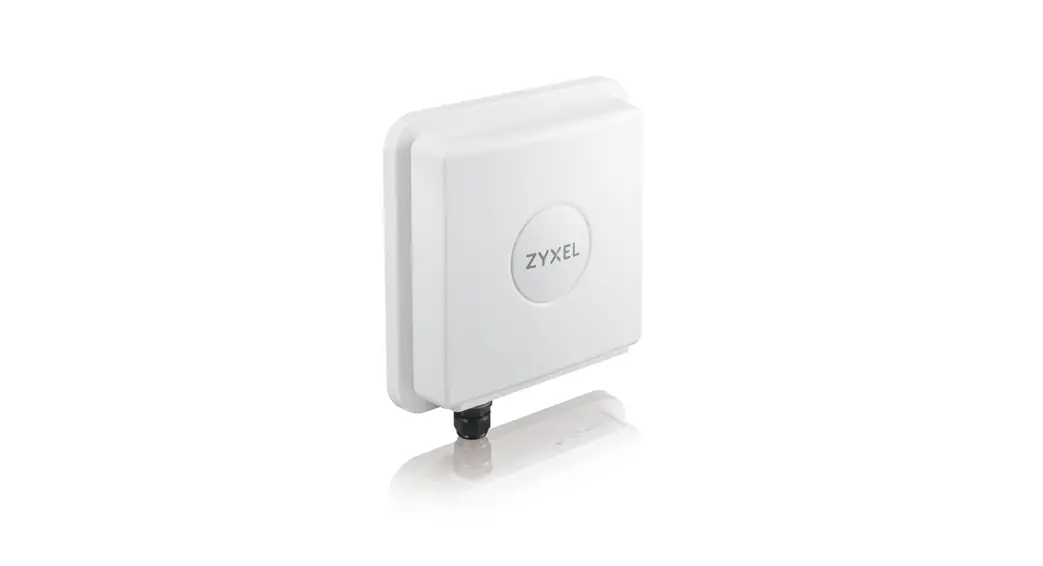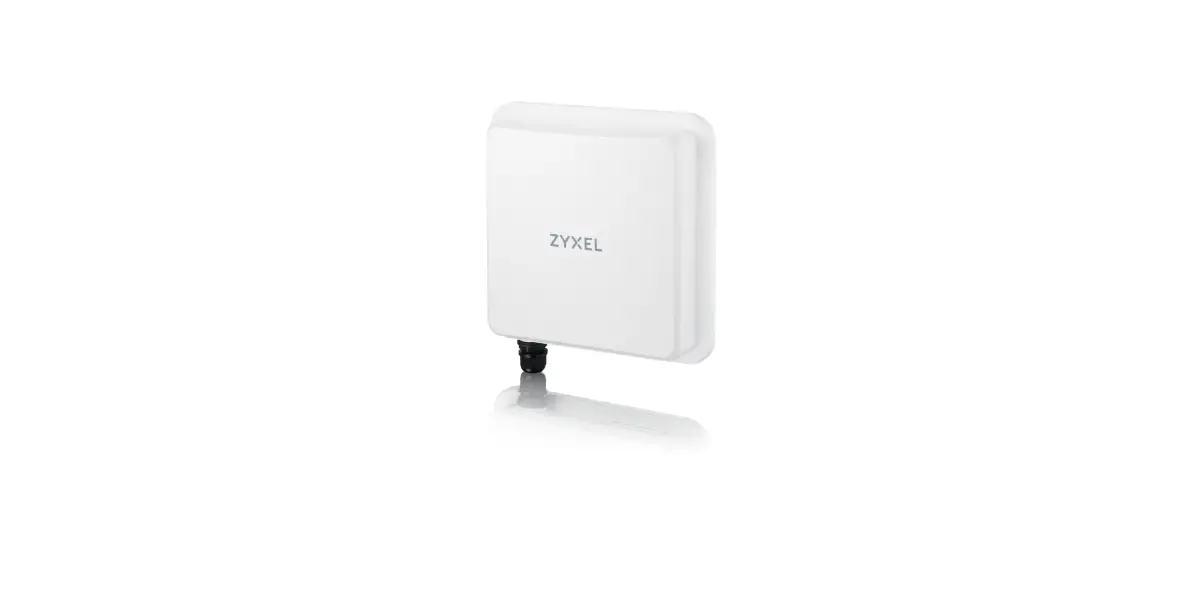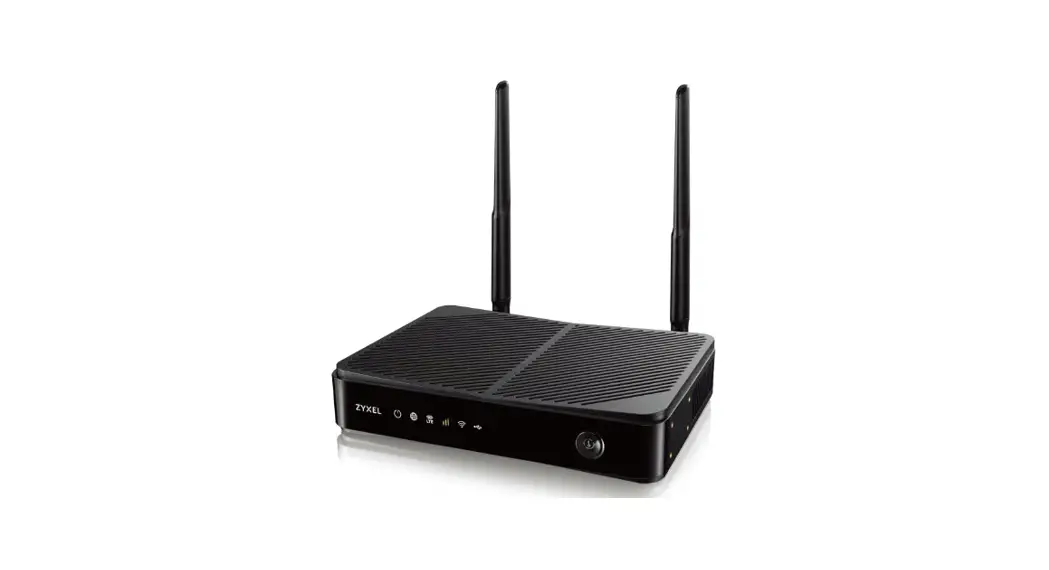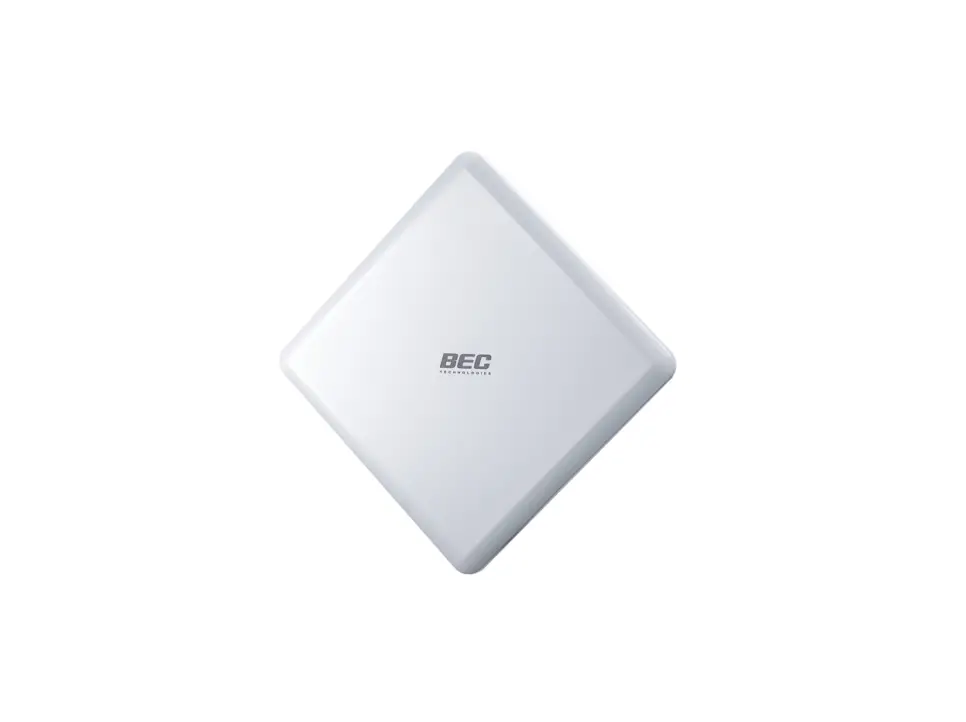

EZR33L SERIES QUICK GUIDANCE

https://ezr33.outdoorrouter.com/v/33l
Scan QR code or visit URL link to see the complete edition of the online manual.
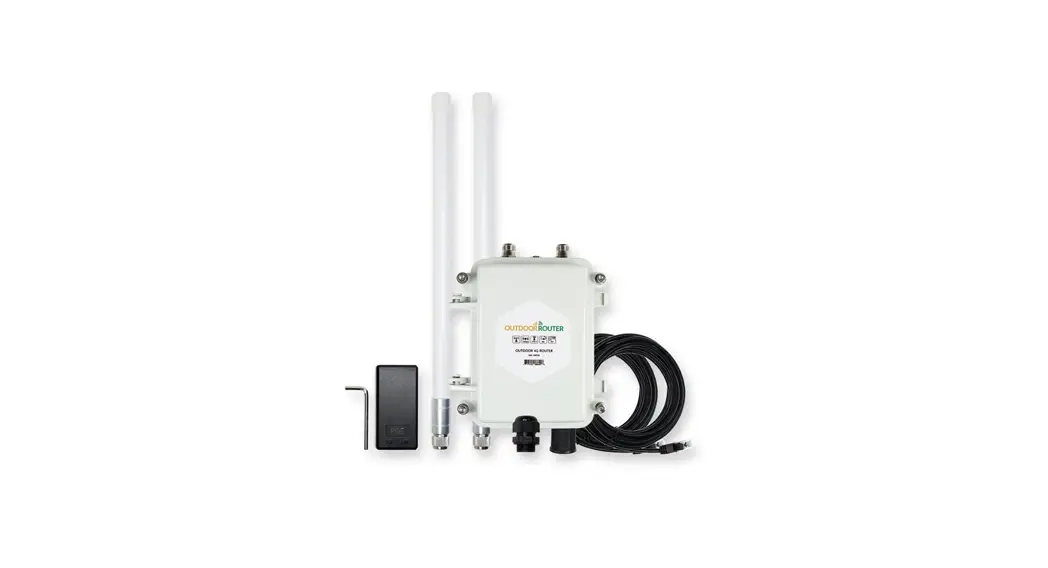
PACKAGE CONTENTS
STEP 1.1 Check and count the package contents.
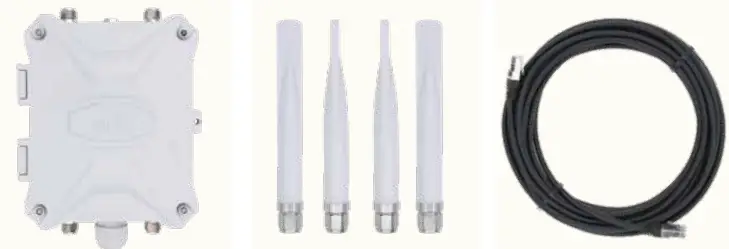 | ||
| Outdoor Router | 4G & Wi-Fi Antennas | 10-Meter LAN Cable |
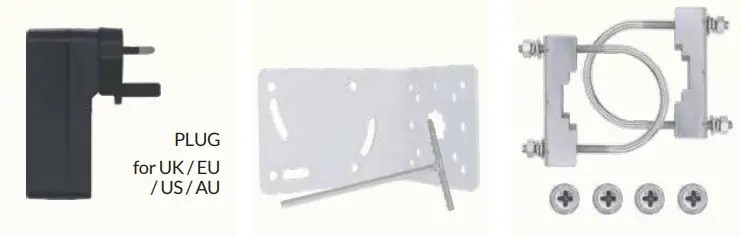 | ||
| PoE Injector | L-Bracket & T-Wrench | Mounting Kit |
INTERFACE OVERVIEW
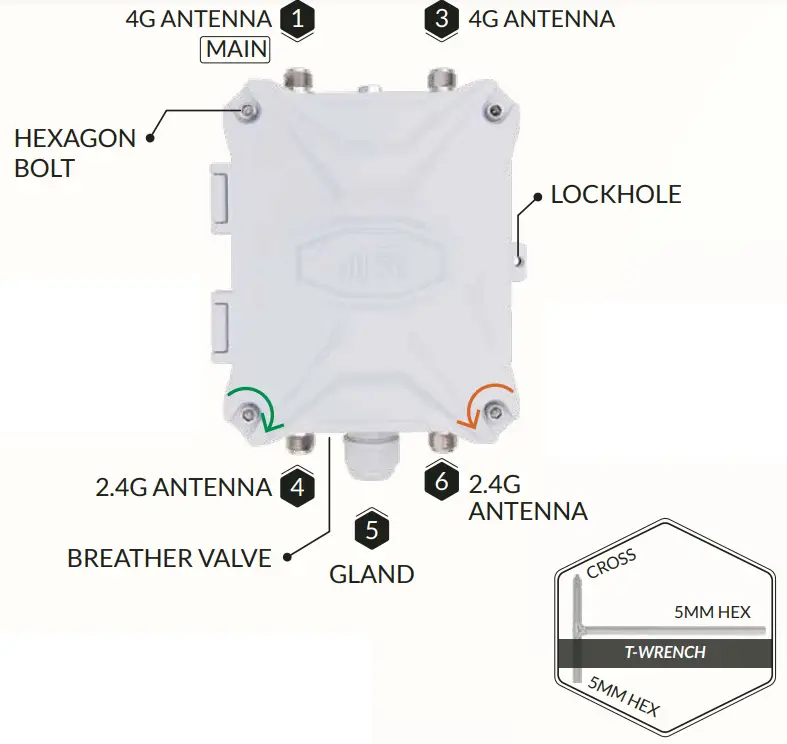
STEP 2.4 CLOSE THE ENCLOSURE
Use T-wrench to tighten bolts in a clockwise direction
STEP 1.2 OPEN THE ENCLOSURE
Use hexagon head on the T-wrench to loose bolts in an anti-clockwise direction
1 ~ 6 ARE EMBOSSED NUMBERS ON THE ENCLOSURE
MOTHERBOARD | SIM CARD & PoE
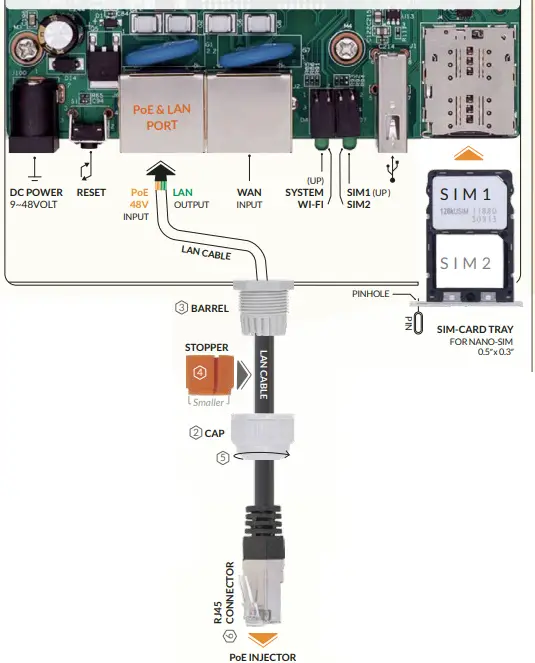
SIM CARD STEP 2.1
TURN OFF POWER BEFORE
INSERTING THE SIM CARD
- Use the pin to push the pinhole until the SIM card tray pops out
- Insert a SIM card in the SIM1 slot
- Reposition the SIM card tray in the slot and push it back
* WARNINGS *
Use activated SIM card in the router Make sure the SIM card is working well Insert SIM card in the SIM1 slot
STEP 2.2
Make sure the mobile carrier has a strong enough signal in your areaThe modem sensitivity is -101dBm equals to approx. 2-bar on a phone Refer to https://ezen.link/signal-test
STEP 2.3 PoE
- Take the cap off from the gland. Push out the stopper from the inside of the gland.
- Take one end of the LAN cable through the cap.
- Put LAN cable through the barrel screw and plug in the PoE & LAN port on the motherboard.
- Clamp the stopper on the LAN cable and settle it in the barrel.
- Turn the cap in the clockwise direction to tighten it on the barrel screw.
* The smaller end faces the outside. - Connect another end of the LAN cable to the PoE port on the PoE injector.
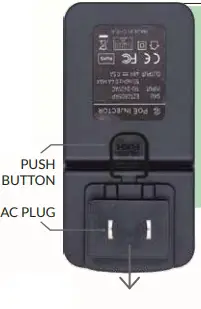
- Connect AC plug on the PoE injector to an electrical outlet until set up all the below steps (to 3.3).
NOTE
To exchange the AC plug, press and hold the Push button then push the AC plug upward to take it off. PUSH - ETHERNET
I. Connect a computer to the LAN port on the PoE injector to get the Ethernet connection.
ii. To use another router, connect its Wport to the LAN port on the PoE injector
STEP 2.4
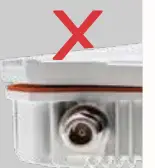
Close the lid & press it with your hand. Use T-wrench to tighten four pieces of hexagon bolts on the lid. Ensure no gap after tightening the screws!
ANTENNAS
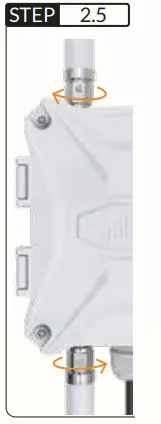
Locate embossed numbers
1~6 on the top & bottom sides
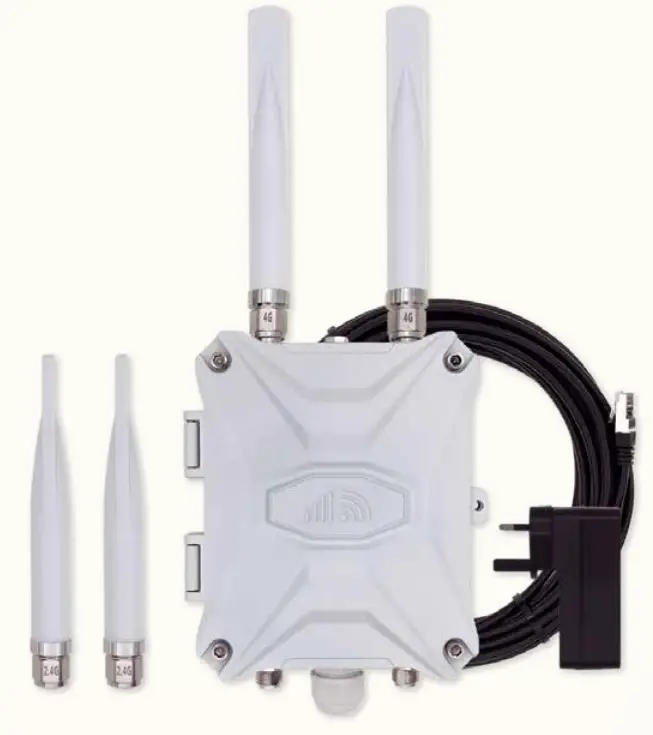
1 & 3 for 4G antennas
4 & 6 for Wi-Fi antennas
Turn the hex part on the antennas in the clockwise direction to tighten them
BRACKET & MOUNTING
STEP 3.1
Walk around with a mobile phone and check the network type and signal bars.
Then choose a location with a 4G LTE network reception and strong signal reception.
STEP 3.2
Use the cross end on T-wrench and M6 cross-head screws to install the L-shape bracket on the backside of the enclosure.
** Turn the bracket to be parallel with the pole if it’s horizontal.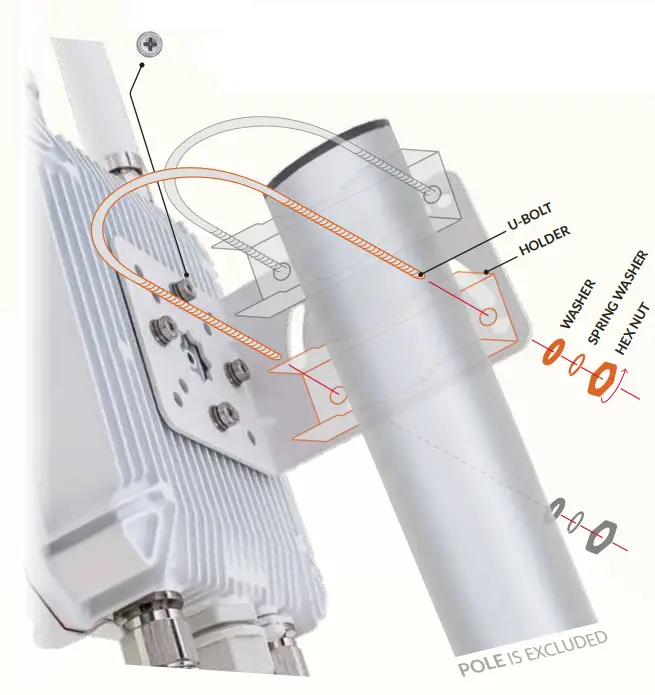
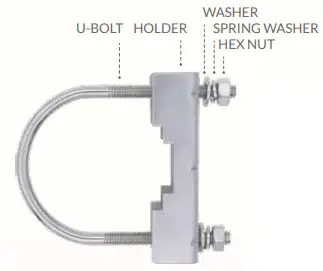
STEP 3.3 INSTALL ON A POLE
Find a pole with a diameter of Ø35~50mm.
- Clasp the pole with U-bolts and holders, attach them on either side of the L-shape bracket.
- On another side of the bracket, put washers, spring washers, and hex nuts on U-bolts. Tighten the nuts with an M10 spanner.
FIRMWARE CONFIGURATION
STEP 4.1
After turning on power (step 2.3.7), use a phone or computer to join the Wi-Fi hotspot
Outdoor-WiFi-xxx or connect the computer to the LAN port on the PoE injector (step 2.3.8).
Open a web browser, enter the router IP http://192.168.30.1ontheaddressbar.
Click the Login button to access the admin panel. If unable to access, recheck the Wi-Fi and LAN connections and clean the web browser cache.
http://192.168.30.1
AUTHORIZATION REQUIRED
Please enter your router password!
Password Default has no password!
Login
STEP 4.2
After accessing the router admin panel, navigate to System > System from the top menu. Under the tab of General Settings, click the Sync with browser button to sync the time.
Go to System > Administration, input new custom router password twice, and save settings.
*Keep the new password in a safe place.
STEP 4.3
Go to Network > Wireless, click the Edit button on SSID: Outdoor-WiFi-xxx (Mode: Master).
Scroll down to Interface Configuration, change Wi-Fi SSID on ESSID field.
Wi-Fi SSID
& password
Click the tab of Wireless Security, choose WPA-PSK/WPA2-PSK on Encryption.
Input the Wi-Fi password on the Key field, then save settings.
It will use 1-2 minutes to reboot the Wi-Fi hotspot.
STEP 4.4 MOBILE MODEM
| 1. Status | On the front page, check the modem status and the signal strength on the right-side DEVICE section. |
| 2. Interface | Go to Network > Interfaces, check the IP, and traffic flow of the MOBILE interface. |
| 3. APN | It is non-necessary to change APN unless the mobile carrier requires to do so. Click the Edit button on the MOBILE. Tap the Primary SIM1 (or SIM2) tab to change APN. * Check the APN tutorial on https://ezen.link/APN. |
| 4. Protocol | It is also not necessary to change the protocol unless the default one is not supported. * Check the protocol tutorial on https://ezen.link/protocol. |
| 5. Debug | Status | Solution |
| A disabled connection attempt failed The network device is not present Connected but no internet | Check if the SIM card is locked. Re-insert the SIM card and check the signal strength. The Guardian module is resetting. Wait for 2-3 minutes. Check if the data plan supports use on a 4G router. |
STEP 4.5 LOCAL NETWORKS
Turn on DHCP mode on the phone or computer to obtain a local IP address from the 4G router. To use a static IP address, please comply with the below format.
Computer IP 192.168.30.100~249 ( pick one IP from 100~249 )
Subnet mask 255.255.255.0 ( 24 on Windows )
Gateway (Router IP) 192.168.30.1
STEP 4.6 RECOVERY
Reboot
The router might have glitches after running for days or weeks.
Rebooting the router could solve most of the issues.
You may go to System > Reboot or unplug the PoE injector to reboot the router.
Soft Reset
If the router works unstable after making changes to the firmware, please go to System > Backup / Flash Firmware. Click the Perform reset button to run a soft reset.
Hard Reset
If unable to access the router admin panel, please run a hard reset.
When the device is powered on, tap and hold the round Reset button for 5 seconds.
Then release it and wait for 4 minutes to boot up.
! IMPORTANT! DO NOT TURN OFF POWER WHILE RESETTING THE ROUTER!
 Thanks for reading! If you have questions while using the router, please check the online manual at ezr33.outdoorrouter.com/v/33l Please feel free to contact us if you need any further assistance.
 OutdoorRouter
www.outdoorrouter.com
Feel free to contact us if you need any further assistance.
Call Us
United Kingdom +44 020 3575 1156
United States +1 323 521 4621
Australia +61 02 8205 3116
Send An E-Mail
[email protected]
 EZR33L (2021 New) 4G Router - EZR33L Router