
M0030403 IM00 – 12/2022 www.metalwork.eu
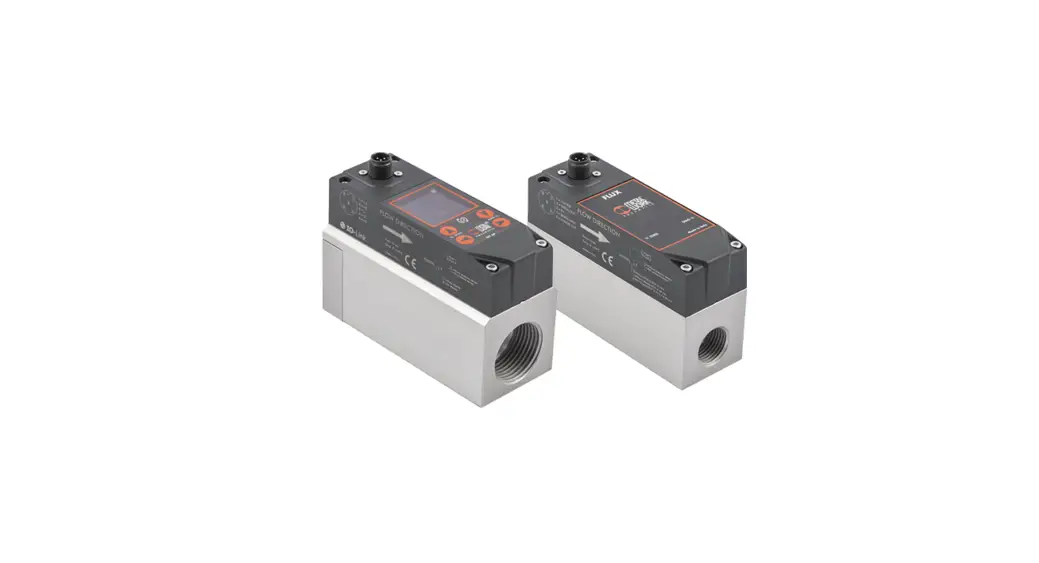
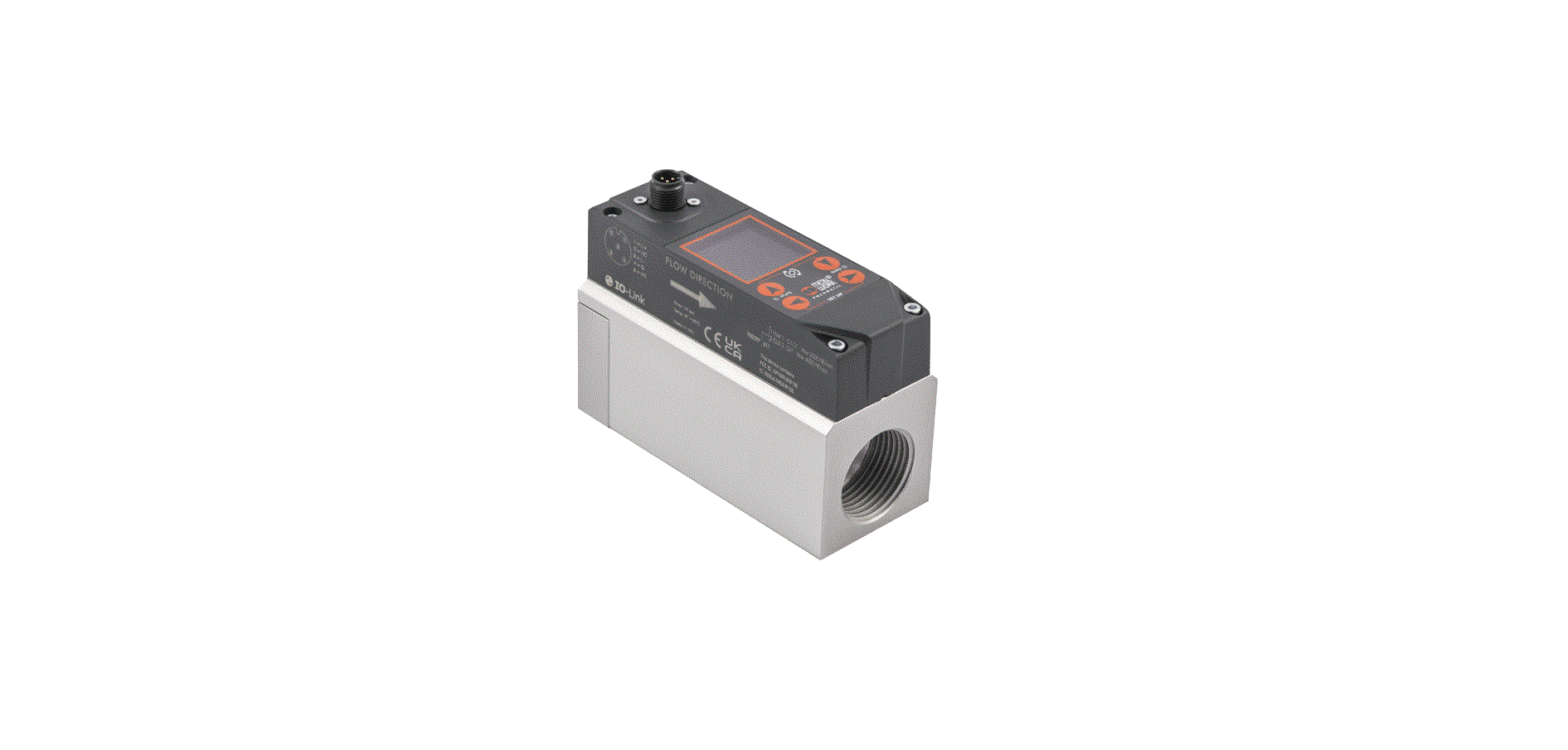
Metal Work FluxUp
USER MANUAL
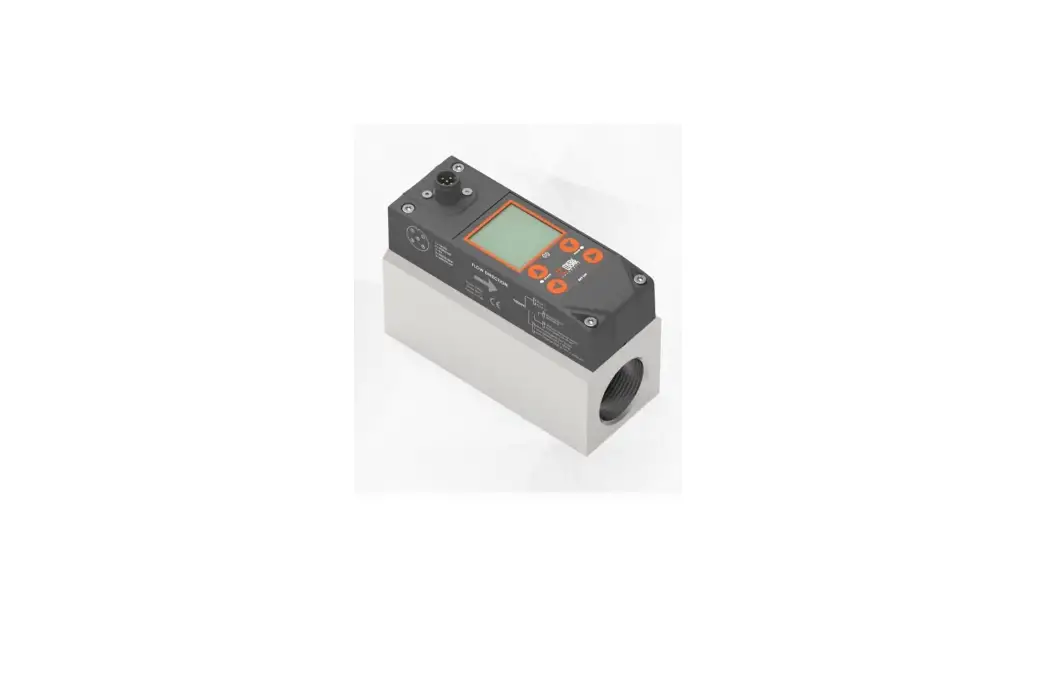
The Metal Work FluxUp App can be used for connection via Bluetooth to Metal Work flow meters in the FLUX 1 and 2 series with a wireless interface, from Android smartphone and iOS.
With the Metal Work FluxUp App, you can view all data recorded by the FLUX and set all operating parameters in real time.
1. INSTALLATION
1.1 ANDROID DEVICES
Download the app from the Play Store and install it on your smartphone.
The minimum supported version is Android 6.0 MarshMallow (II) for communication with the FLUX, the device requires Bluetooth LE.
1.2 iOS DEVICES
Download the app from the Apple Store and install it on your smartphone.
The minimum supported version is iOS 11 for communication with the FLUX – the device requires Bluetooth LE.
2. APPLICATION
2.1 INTRODUCTION
This App allows you to:
– scan nearby devices FLUX 1 and 2;
– connect and view device information in real time;
– set wireless network parameters;
– save and view saved data for offline viewing.
2.2 OPERATION
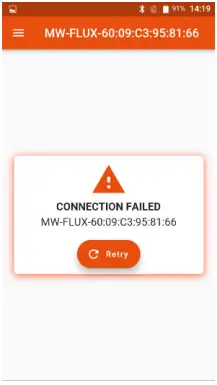
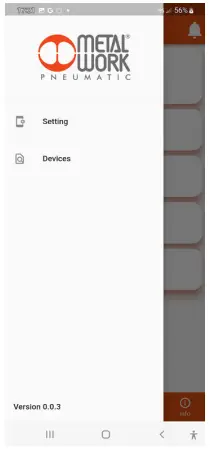
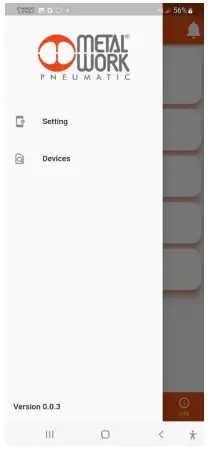
Run the App and scan the devices the first time it is started. Afterwards, each time it is started, the App will attempt to reconnect to the last connected device. If the device is available, in case of an error, press the Retry button to connect again. To rescan, open the top left menu and select ‘Devices‘, All previously associated devices will be displayed.
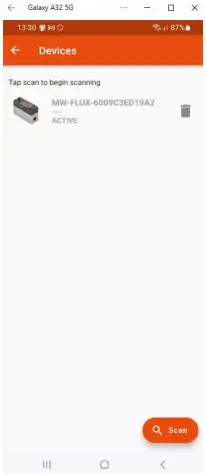
Press the Scan button to start searching for new devices.
The devices recognised will be displayed in green.
The RSSI value indicates the signal strength, the higher the negative value, the stronger the signal.
Press on the device to make the connection.
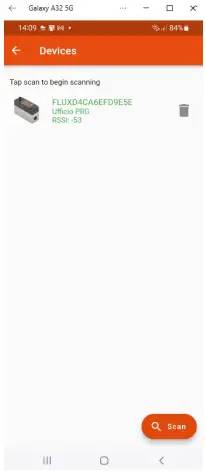
To remove non-connected devices from the list, press the Bin icon.
2.3 DASHBOARD
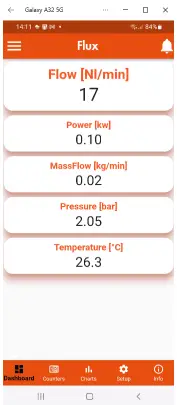
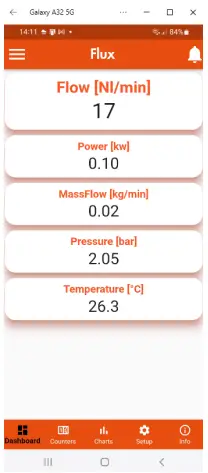
The dashboard page displays measurement data in real time.
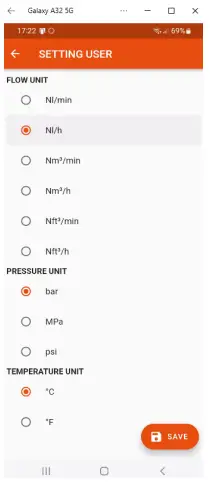
The units of measurement can be entered in the Setting menu, irrespective of the units set on the FLUX.
The top bar displays the name of the device being connected.
The bottom bar displays the function menu.
2.4 COUNTERS
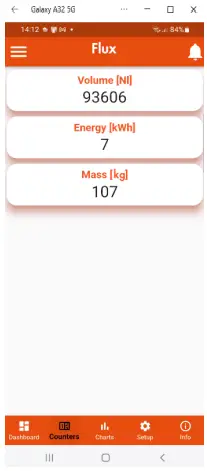
The Counters page displays the values of Volume, Energy and Mass consumed since the last reset on the FLUX.
2.5 CHARTS
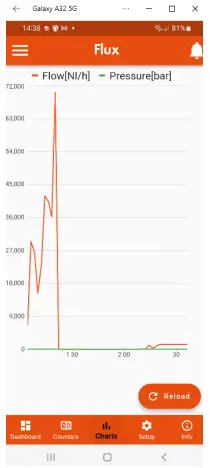
The Charts page displays the graphs of saved flow rate and pressure values.
Each time a connection is made, the pressure and flow rate data saved by the FLUX are requested.
The data are saved at intervals of 2 minutes and refer to the last 24 hours of operation.
2.6 SETUP
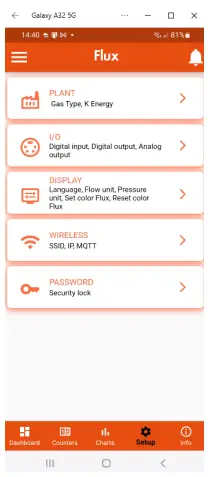
In the Setup page, you can set the operating parameters and the wireless connection parameters.
To enable the changes made, you need to save them before exiting the page.
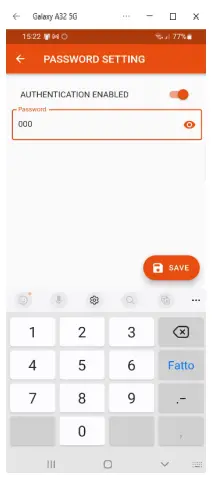
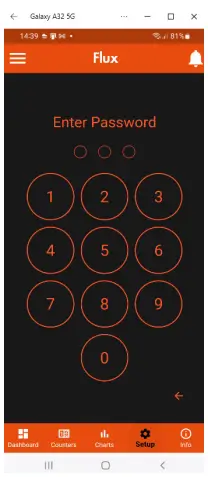
The access to the Setup menu is protected by the password set in FLUX 1-2.
After the access can be modified in the field Password.
If you forget the password, contact the manufacturer to obtain a password reset code.
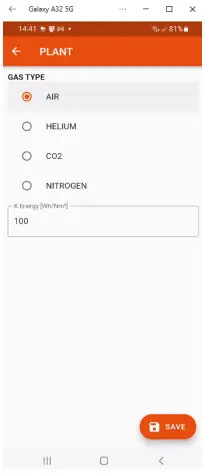
2.6.1 PLANT
Used to set the type of gas used and the coefficient for calculating the energy consumed.
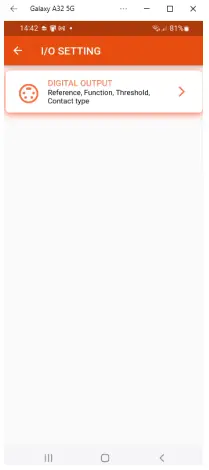
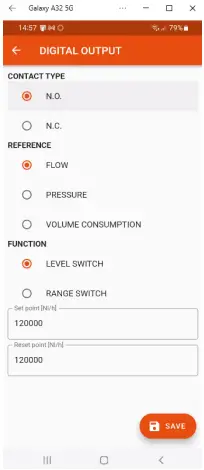
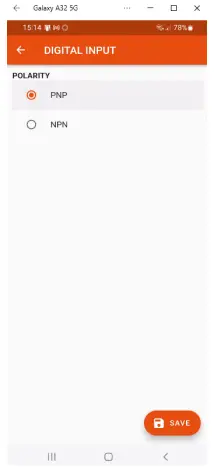
2.6.2 I/O
Used to set the operating parameters of the digital input and output.
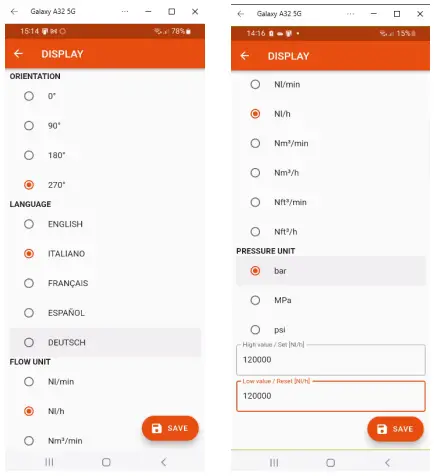
2.6.3 DISPLAY
Can be used to set:
– display orientation;
– language;
– flow rate measuring unit;
– pressure measuring unit;
– flow rate display colour change values.
2.6.4 WIRELESS
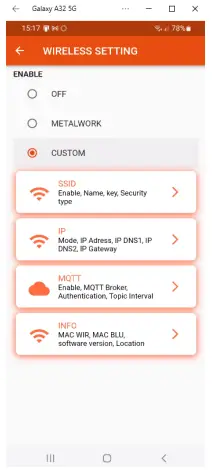
Can be used to set wireless network connection parameters:
– Enable via server selection
For the METALWORK server, the parameters are already set.
For the Custom server, the following parameters must be set:
SSID IP address MQTT
– INFO displays the MAC addresses, the software version
– The LOCATION field can be used to set the device name, 11 characters are allowed.
2.6.4.1 SSID
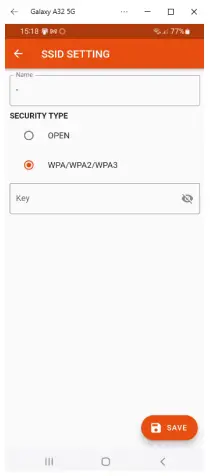
– Name: enter the name of the network you wish to connect to
– Security type: select whether the network is protected or open
– Key: select whether the network password is to be protected or open
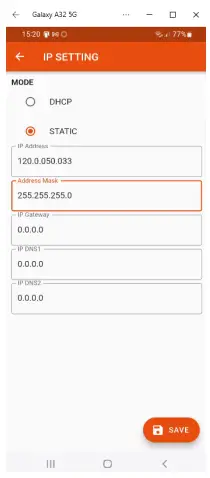
2.6.4.2 IP
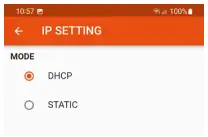
– DHCP: the IP address is assigned by the DHCP server
– STATIC: the IP address is assigned permanently
IP address, set the IP address of the device in the same network class as the link Gateway.
Address mask, Set the mask according to the IP address range in the given subnetwork.
IP DNS 1 and 2, Set the DNS server address, visible in the properties of the Wi-Fi network in use.
2.6.5 MQTT
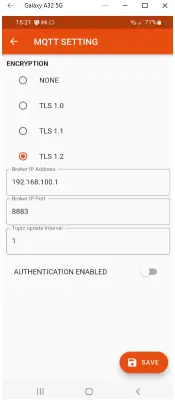
Can be used to set the parameters for connection to an MQTT Broker
– Type of encryption used
– Broker IP Address
– Port Used by the Broker - 8883
– Update interval
– Enabling activation
2.6.6 INFO WIRELESS
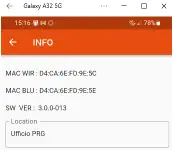
– MAC WIR: MAC address for the Wireless protocol
– MAC BLU: MAC address for connection via the FluxUp
– SW VER: software version of the radio communication software
– Location
2.7 INFO
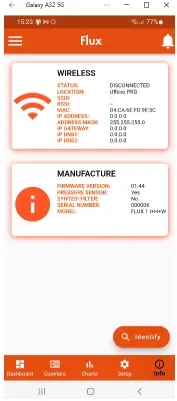
The info page displays device information:
– network status, network parameters (IP address, GATEWAY, DNS1, DNS2);
– firmware version;
– the presence of the pressure sensor;
– if integrated with the Syntesi filter;
– serial number;
– model, with size and functions.
Moreover, if more than one FLUX is present, it is possible to Identify the connected FLUX using the Identify button: the FLUX left green LED will then flash for 5 seconds.
3. WIRELESS CONNECTION
With the Wireless version of FLUX 1 and 2, you can establish a connection to a Wi-Fi network via an access point or gateway to monitor and collect all the measured gas values.
LINK STRUCTURE WITH THE METAL WORK GATEWAY
The Metal Work Gateway handles the collection, formatting and analysis of data, displaying them in a browser-viewable web page. The data is resident and stored in the Gateway, thus always viewable by any authorised user.
MQTT WEB APP

GATEWAY
CONNECTION TO A MQTT BROKER VIA AN ACCESS POINT
MQTT Broker MQTT
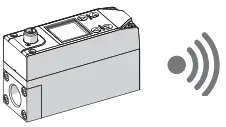
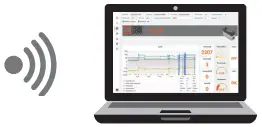
Gathering data from the field makes it possible to:
– carry out a predictive diagnosis of the system;
– monitor the operating parameters at all times and optimize the operation of the machines and the pneumatic system;
– detect any leaks and prevent energy wastage.
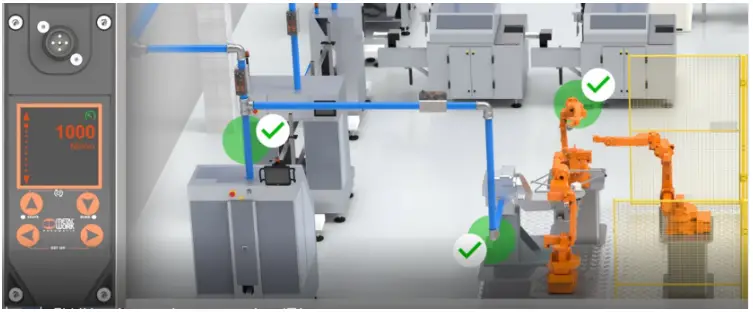
The software can be implemented with analysis functions that provide:
– machine efficiency monitoring;
– consumption trends and long-term forecasting (plant improvement evaluation).
WIRELESS CONNECTION FEATURES
Gateway
SSID_SECURITY nessuna o WPA/WPA2/WPA3
SSID_NAME max. 31 characters
SSID_KEY max. 62 characters
IP static / DHCP
Broker MQTT
ENCRYPTION none, TLS 1.0, 1.1, 1.2 (require certificate = false)
BROKER IP ADDRESS
BROKER IP PORT 1883,8883
User authentication (optional):
AUTH_NAME max. 8 characters
AUTH_KEY max. 8 characters
Data structure in MQTT format (JSON data packet structure)
TOPIC: MW-FLUX/AABBCCDDEEFF/DATE
Where AABBCCDDEEFF is the MAC-ADDRESS of the device.
Two data models are sent:
1. Instant values (iv) is sent every second with the current device data.
iv: object of type values
f: Flow (Nl/min)
w: Power (W)
mf: Mass flow (g/min)
p: Pressure (mbar)
t: Temperature (dC)
V: Volume (Nl)
E: Energy (kWh)
M: Mass (kg)
o: Digital Output
a: Alarms
Example:
{“iv{“f”:1500,”w”:00450,”mf”:32200,”p”:05000,”t”:232,”V”:999999999,”E”:999999999,”M”:999999999,”o”:0,”a”:65535}}
2. Info (i) is sent upon switch-on and each change.
i: object of type info
tg: taglia
sn: serial number
sv: sw version
wv: wireless version
mod: model version
l: localization
pp: presence of pressure sensor
pf: presence of Syntesi filter
gas: type of gas (air, CO2, He, N)
ke: electricity conversion (Wh/Nm³)
Example:
{“i”:{“tg”:”FLUX 1″, sn”:1,”sv”:”01.00″,”wv”:”4.0.0006″,” mod”:”A+H+W”,”l”:”PRODUCTION01″,”pp”:1,” pf”:0,”gas”: “co2″,”ke”:999}}
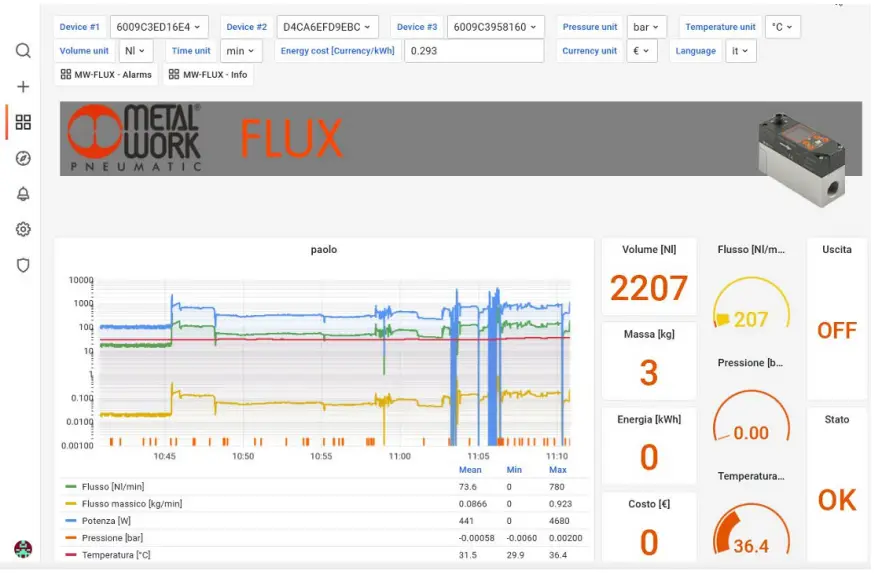
Example: Dashboard
4. QUALIFICATION AND APPROVALS
This device contains
FCC ID: XPYNINAW106
IC: 8595A-NINAW106
The NINA-W15 module series is certified for use in the following countries/regions:
- Europe (RED)
- USA (FCC)
- Canada (IC)
- Japan (MIC)
- Taiwan (NCC)
- South Korea (KCC)
- Brazil (ANATEL)
- Australia and New Zeeland (ACMA)
- South Africa (ICASA)
| European Union regulatory compliance | Radio Equipment Directive (RED) 2014/53/EU NINA-W15 series modules comply with the essential requirements and other relevant provisions of Radio Equipment Directive (RED) 2014/53/EU. |
| USA – Canada FCC/IC compliance | This device complies with Part 15 of the FCC Rules and with Industry Canada license-exempt RSS standard(s). |
| Japan radio equipment compliance Giteki mark, R and the NINA-W156 MIC certification number | 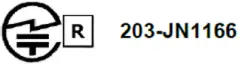 |
| NCC Taiwan compliance | Contains Transmitter Module
|
| KCC South Korea compliance | 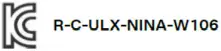 |
| Brazil compliance | 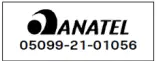 |
| Australia and New Zealand regulatory compliance |  NINA-W151, NINA-W152 and NINA-W156 modules are compliant with the standards made by the Australian Communications and Media Authority (ACMA). NINA-W151, NINA-W152 and NINA-W156 modules are compliant with the standards made by the Australian Communications and Media Authority (ACMA). |
| South Africa regulatory compliance | 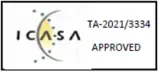 |
| Bluetooth Declaration ID D062365 |  ® ® |

Trademarks:
- Bluetooth® is a registered trademark of Bluetooth SIG, Inc. worldwide.
- Wi-Fi® is a registered trademark of the Wi-Fi Alliance.
- All other trademarks and copyrights are the property of their respective owners.
NOTES