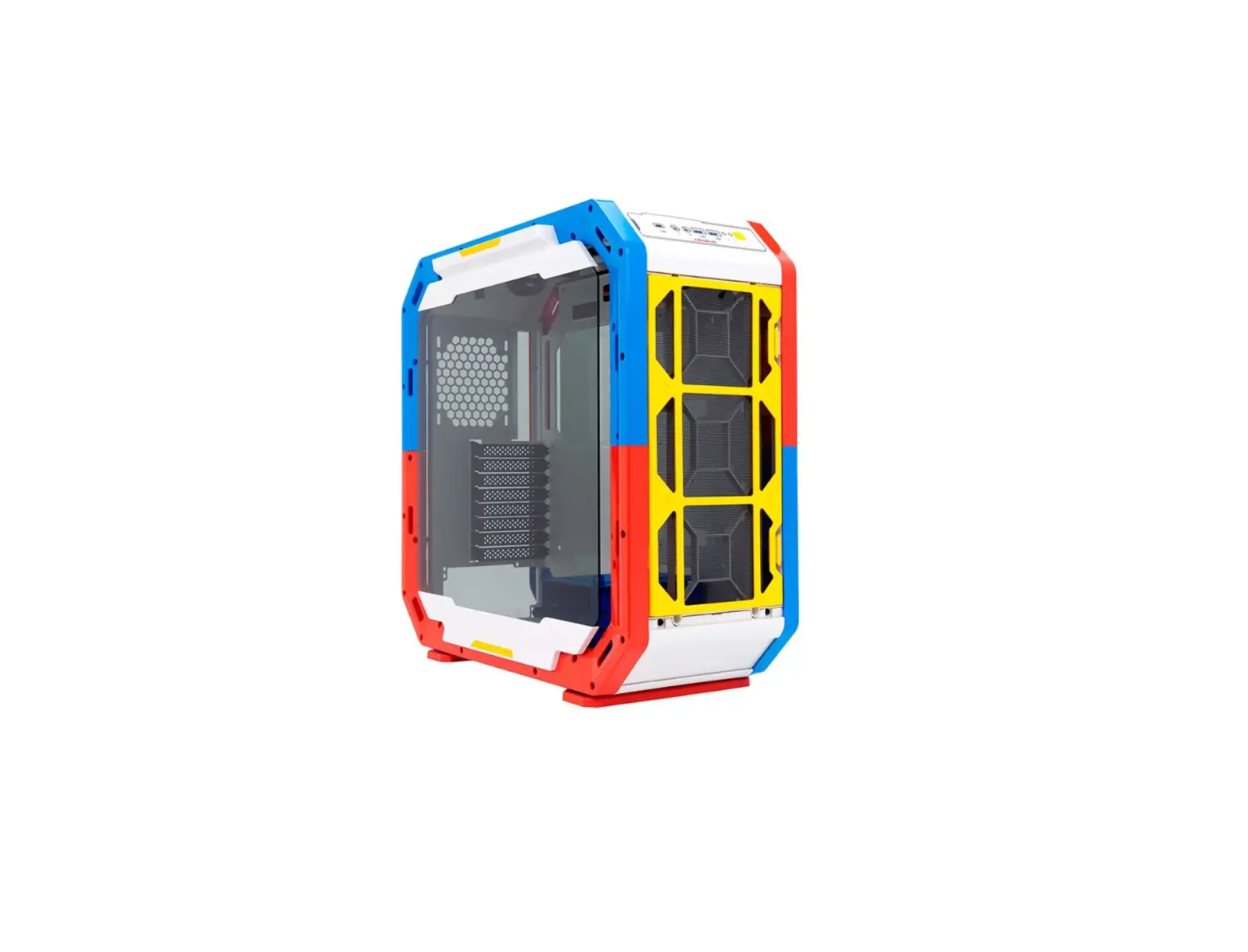
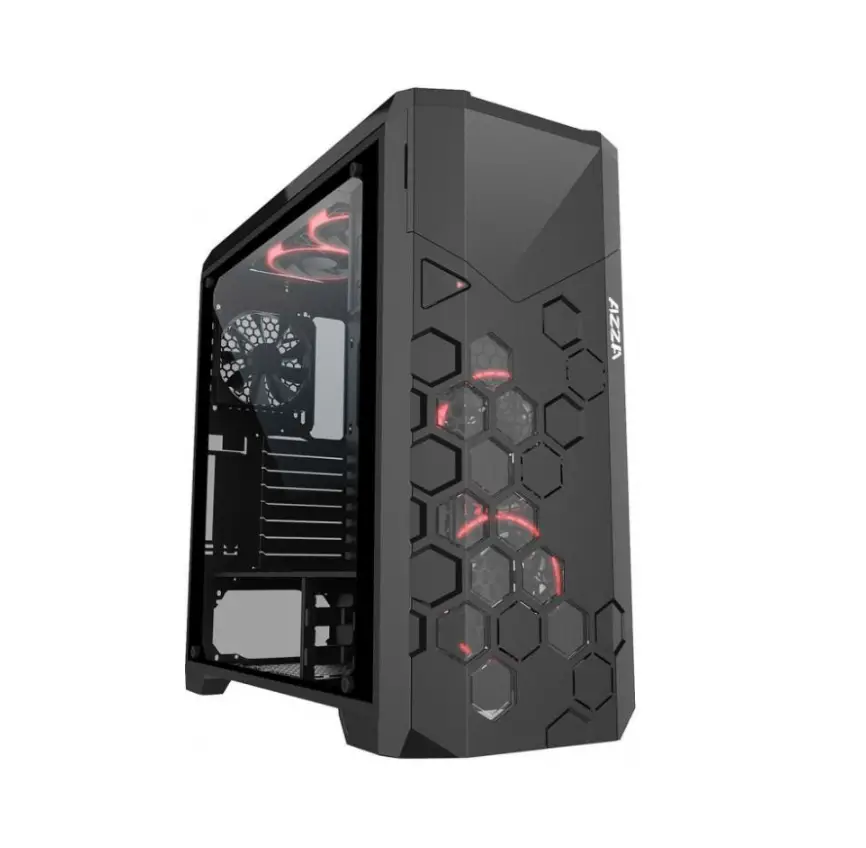
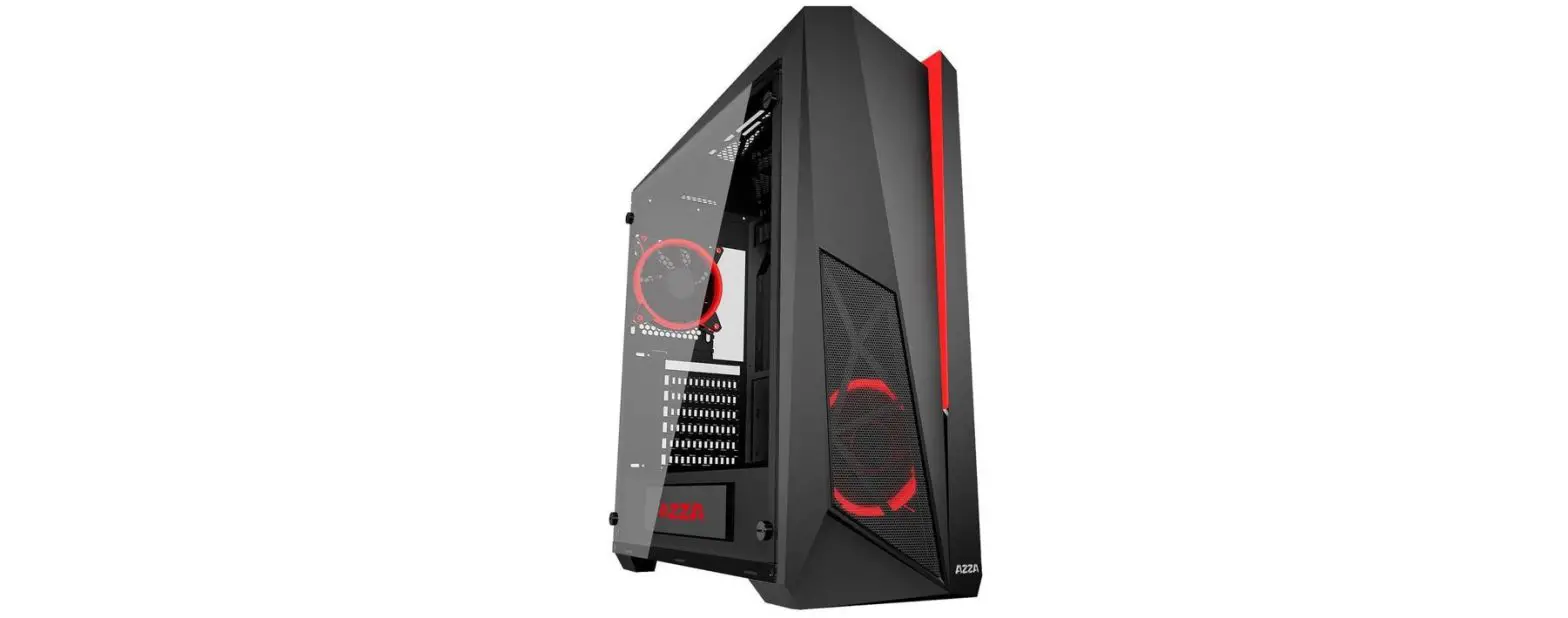
AB812111W Danube Mura BX300 White ARGB Tower
Product Information
The product is a computer case with the following part
numbers:
- P/N.: AB812111B
- P/N.: AB812111W
- P/N.: AB812113
The product design and specifications may be revised without
notice to improve quality and performance.
Please read the user manual carefully before using the device
and save it for future reference.
The product supports the installation of 2.5″ SSDs and 3.5″
HDDs, either beside the motherboard, on the bottom plate, on the
motherboard bracket, or on the PSU cover. It also supports the
installation of six 2.5″ SSDs or 3.5″ HDDs with optional
brackets.
The product allows for the installation of fans on the front,
rear, top, and PSU cover.
It also supports the installation of VGA cards, either
transversely or vertically. The power supply can be installed in a
designated location.
There are USB 3.0 ports and HD audio ports on the top of the
product.
Product Usage Instructions
Motherboard Installation
- Open the left panel and right panel by unscrewing them.
- Fit the I/O into the I/O slot.
- Put the motherboard in the designated location and fix it with
screws.
2.5″ SSD and 3.5″ HDD Installation
Choose one of the following installation options:
- Pull the front panel from the bottom.
- Put the SSD or HDD in the designated location and fix it with
M/B screws from the back. - Take out the bracket from the bottom plate, put the SSD in the
location, and fix it with M/B screws from the back. - Put the HDD on top of the bracket, remove the bracket, and fix
it with M/B screws from the back of the bracket. - Put two 2.5″ SSDs on the bracket, fix them with M/B screws from
the back of the bracket, and remove the bracket. - Put one 3.5″ HDD or two 2.5″ SSDs on the bracket, fix them with
M/B screws from the back of the bracket, and remove the
bracket. - Fix the bracket with screws and put one 3.5″ HDD on it, fixing
it with HDD screws from the back of the bracket. - Fix the bracket with screws and put one 3.5″ HDD on it, fixing
it with HDD screws from the back of the bracket.
Fan Installation
Choose one of the following fan installation options:
- Put three 120 mm or 140 mm fans in the front fan location and
fix them with screws. - Put one 120 mm fan in the rear fan location and fix it with
screws. - Put three 120 mm or two 140 mm fans in the top fan location and
fix them with screws. - Put three 120 mm fans in the PSU cover fan location and fix
them with screws.
VGA Card Installation
Choose one of the following VGA card installation options:
- Remove the PCI card slot, put the VGA card in the slot, and fix
it with screws. - Put the VGA card in the slot, fix it with screws, and remove
the PCI card slot. Then, put the extension cable in the designated
location, put the other side of the cable in the slot, and fix the
VGA card to the location with screws.
Power Supply Installation
Put the power supply in the designated location and fix it with
screws.
USB 3.0 Installation
Put the power supply in the designated location and plug in the
USB 3.0 connector to the motherboard. Fix it with screws.
HD Audio Installation
Plug in the HD Audio connector to the motherboard.
Cable Connection
Follow these steps for cable connection:
- Insert the hard disk indicator onto the pins marked with HDD
LED, HD LED, HLED, or IED LED. - Insert the power switch indicator onto the pins marked with PWR
LED on the mainboard. - Insert the reset switch key onto the pins marked with RST SW /
RES SW / RST. - Insert the power switch key onto the pins marked with PWP SW,
PWR BTN, or RWR on the mainboard.
For more information, please visit www.abysmgaming.com.
ENG
COMPUTER CASE P/N.: AB812111B P/N.: AB812111W P/N.: AB812113
USER MANUAL
CAUTIONS · Please read this manual carefully before proceeding with the installation. · Check the product and components before starting the installation. If you find an abnormality, please contact the place where you purchased
the product for a replacement or refund. · Wear gloves to avoid accidents when installing the product. · Serious damage can occur when mounting the system, so do not apply excessive force. · Incorrect connection of wires may cause a fire due to a short circuit. Be sure to check the manual when connecting cables. · Be careful not to block the ventilation ducts when using the product. · Avoid places with direct sunlight, water, humidity, oil and excessive dust. Store and use the product in a well-ventilated place. · Do not clean the surface of the product with chemicals (organic solvents such as alcohol or acetone). · Do not insert your hand or any other object into the product during operation, as this may hurt your hand or damage the object. · Our company does not assume any responsibility for any problems that occur due to the use of the product for purposes other than those
designated and / or the carelessness of the consumer.
* Product design and specifications may be revised to improve quality and performance without notice.
INSTALLATION MANUAL
Open left panel & right panel by screws
MOTHERBOARD INSTALLATION
Pull front panel from the bottom
2,5” SSD AND 3,5” HDD INSTALLATION BESIDE MOTHERBOARD (OPTIONAL)
2,5” SSD AND 3,5” HDD INSTALLATION ON THE BOTTOM PLATE
2,5” SSD AND 3,5” HDD INSTALLATION ON THE MOTHERBOARD BRACKET
2,5” SSD AND 3,5” HDD INSTALLATION ON THE PSU COVER
Support six 2.5” SSD or 3.5” HDD brackets (optional)
Put SSD to the location
Fix SSD with M/B screws from the back
Take out bracket from bottom plate
Put SSD to the location
Fix SSD with M/B screws from the back
Put HDD to the location on the top of the bracket
Remove the bracket
1×3.5” HDD or 2×2.5” SSD location
Put 2×2.2”5 SSD to bracket
Fix them with M/B screws from the back of bracket
1×3.5” HDD or 2×2.5” SSD location
Unscrew the screws and remove the bracket
Put 2×2.2”5 SSD to bracket
Fix them with M/B screws from the back of bracket
www.abysmgaming.com
Please read this manual carefully before using the device. Save the same for future reference.
Motherboard location
Fit I/O into I/O slot
Put motherboard to the location and fix it with screws
Or put HDD to the location
Fix HDD with HDD screws from the two sides
Fix the bracket with SDD or HDD into the location
Fix HDD with HDD screws from inside of the bracket
Push HDD into the bracket
Fix HDD with HDD screws from the sides
Push the bracket back to bottom plate
Put 1×3.5” HDD to bracket
Fix it with HDD screws from the back of bracket
Fix the bracket with screws
Put 1×3.5” HDD to bracket
Fix it with HDD screws from the back of bracket
Fix the bracket with screws
The left HDD as shown
FANS ON THE FRONT
Fan location
FANS ON THE REAR
Put 3×120 mm or 3×140 mm fans to fan location
Fix fans with screws
Fan location
Put 1×120 mm fan to fan location
Fix fans with screws
FANS ON THE TOP
Fan location
FANS ON PSU COVER
Put 3×120 mm or 2×140 mm fans to fan location
Fix fans with screws
Fan location
Put 3×120 mm fans to fan location
Fix fans with long screws from the top of fan
TRANSVERSE VGA CARD INSTALLATION
VGA card location
Remove the PCI card slot
VERTICAL VGA CARD INSTALLATION
Put VGA card to the slot
Fix it with screws
Remove the PCI cars slot
Put the extension cable to the location
Put the other side to the slot
Fix the VGA card to the location and fix it with screws
POWER SUPPLY INSTALLATION
Power Supply location
USB 3.0 INSTALLATION
Put the Power Supply to the location
Plug in USB3.0 connector to the motherboard
I/O ports on the top
Fix it with screws
HD AUDIO INSTALLATION
Plug in HD Audio connector to the motherboard
CABLE CONNECTION
Insert the hard disk indicator onto the pins marked with “HDD LED”, “HD LED”, “HLED” or “IED LED”.
Insert the power switch indicator onto the pins marked with “PWR LED” on the mainboard
Insert the Reset switch key onto the pins marked with RST SW / RES SW / RST.
Insert the power switch key onto the pins marked with “PWP SW”, “PWR BTN” or “RWR” on the mainboard
NOTE: Follow the positive electrode -positive electrode, negative electrode – negative electrode connection. Reverse connection is prohibited
HUB ARGB
Specification
· 6 port (ARGB HUB-B) or 4 port (ARGB HUB-A) x 5V 3 pin connector of fan
· 6 port (ARGB HUB-B) or 4 port (ARGB HUB-A) x regular 3 pin connector of fan
· 2 port x 3 pin connector of LED strip
· 1 port x PWM (ARGB HUB-B) · 1 port x 5V 3pin connect to M/B · 1 port x SATA connect to power supply
Conectores para restablecer el lnterruptor RESET o el lnterruptor LED
· 1 port x 2 pin connect to LED switch
Conectores de LED de 3 pines
Conectores para ventilador de 5V, 3 pines
LED 1
LED 2
LED 3
LED 4
LED 5
LED 6 FAN 4
FAN 3
FAN 2
FAN 1
ALIMENTACION DEL PC
Function
1. Manual control by pressing LED button 2. Press LED button for 3 seconds change mode to motherboard control 3. Press LED button for 5 seconds to turn off LED power 4. Press LED button back to manual control by LED button 5. Support PWM (ARGB HUB-B) 6. Up to 6 pcs (ARGB HUB-B) or 4 pcs (ARGB HUB-A) of ARGB fan, 2 pcs of LED strip to be connected 7. With memory function 8. Random effect from the first start
How to use manual control:
Step 1 Connect reset switch/led switch to 2 pin connector
Step 2 Connect regular fan 3 pin to B regular fan connector
Step 4 Connect 3 pin ARGB trip to led connector
Step 5 Connect SATA connector
Para conectores de
placas base a placa base flecha a +5V
Conectores normales para ventilador de 3 pines
Step 3 Connect 5V 3 pin to 5V 3 pin connector
Step 6 Start manual control by pressing Reset/LED button
MEANING OF THE DUSTBIN SYMBOL
Protect our environment: do not dispose of electrical equipment in your domestic waste. Please return any electrical equipment that you will no longer use to the collection points provided for their disposal. These simple steps can help to avoid the potential effects that incorrect waste disposal can cause on the environment and human health. This will contribute to recycling and other forms of re-use of electrical and electronic equipment. Information concerning where the equipment can be disposed of can be obtained from your local authorities.
MADE IN CHINA Imported by: COLORS Information Technology, SL. C/ Morse, 49 – Pol. Ind. San Marcos · 28906 Getafe (Madrid) CIF: B-84045574 · www.colors-it.es
SPA
COMPUTER CASE P/N.: AB812111B P/N.: AB812111W P/N.: AB812113
MANUAL DE
USUARIO
PRECAUCIONES · Lee este manual detenidamente antes de proceder con la instalación. · Verifica el producto y los componentes antes de comenzr con la instalación. Si encuentras alguna anomalía, comunica con el lugar donde compraste el producto para obtener un reemplazo o un reembolso. · Usa guantes para evitar accidentes al instalar el producto. · Pueden producirse daños graves al montar el sistema, por lo que no apliques una fuerza excesiva. · La conexión incorrecta de cables puede provocar un incendio debido a un cortocircuito. Asegúrate de consultar el manual cuando conectes cables. · Ten cuidado de no bloquear los conductos de ventilación cuando utilices el producto. · Evita lugares con luz solar directa, agua, humedad, aceite y polvo excesivo. Almacena y usa el producto en un lugar bien ventilado. · No limpies la superficie del producto con productos químicos (disolventes orgánicos como alcohol o acetona). · No insertes la mano ni ningún otro objeto en el producto durante el funcionamiento, ya que esto podría lastimar tu mano o dañar el objeto. · Nuestra empresa no asume ninguna responsabilidad por cualquier problema que se produzca debido al uso del producto para fines distintos a los designados y / o el descuido del consumido
* El diseño y las especificaciones del producto pueden revisarse para mejorar la calidad y el rendimiento sin previo aviso.
INSTALACIÓN
Abre el panel izquierdo y el panel derecho retirando los tornillos
INSTALACIÓN DE LA PLACA BASE
Tira del panel frontal desde la parte inferior
INSTALACIÓN SSD 2,5” Y HDD 3,5” JUNTO A LA PLACA BASE (OPCIONAL)
INSTALACIÓN DE SSD DE 2,5” Y HDD DE 3,5” EN EL SOPORTE INFERIOR
INSTALACIÓN SSD DE 2,5” Y HDD DE 3,5” EN EL SOPORTE DE LA PLACA BASE
INSTALACIÓN SSD DE 2,5” Y HDD 3,5” EN LA TAPA DE LA PSU
Admite seis SSD de 2,5″ o soportes HDD de 3,5″ (opcional)
Coloca el SSD en la ubicación
Fija el SSD a la M/B con tornillos desde la parte posterior
Retira el soporte de la parte inferior
Coloca el SSD en la ubicación
Fija el SSD a la M/B con tornillos desde la parte posterior
Coloca el disco duro en la parte superior del soporte
Retira el soporte
Ubicación para 1 HDD de 3,5″ ó 2 SSD de 2,5″
Coloca 2×2.2”5 SSD en el soporte
Fíjalos a la M/B con tornillos desde la parte posterior del soporte
Ubicación para 1 HDD de 3,5″ ó 2 SSD de 2,5″
Desatornilla y retira el soporte.
Coloca 2×2.2”5 SSD en el soporte
Fíjalos a la M/B con tornillos desde la parte posterior del soporte
www.abysmgaming.com
Por favor lea detenidamente este manual antes de utilizar el dispositivo. Guarde el mismo para futuras consultas.
Ubicación de la placa base
Coloca E/S en la ranura de E/S
Coloca la placa base en su ubicación y fíjala con tornillos
O coloca el HDD en su ubicación
Sujeta el HDD con tornillos desde los dos lados
Fija el soporte con SSD o HDD en la ubicación
Fija el HDD con tornillos desde el interior del soporte
Empuja el HDD en el soporte
Sujeta el HDD con tornillos desde los dos lados
Empuja el soporte hacia la placa inferior
Coloca un disco duro de 1×3,5″ en el soporte
Fíjalo con tornillos desde la parte posterior del soporte
Sujeta el soporte con tornillos
Coloca un disco duro de 1×3,5″ en el soporte
Fíjalo con tornillos desde la parte posterior del soporte
Sujeta el soporte con tornillos
El lado izquierdo del HDD como en la imagen
VENTILADORES FRONTALES
Ubicación del ventilador
VENTILADORES POSTERIORES
Coloca 3×120 mm ó 3×140 mm ventiladores en la ubicación
Sujeta los ventiladores con tornillos
Ubicación del ventilador
Coloca un ventilador de 120 mm en la ubicación
Sujeta el ventilador con tornillos
VENTILADORES EN LA PARTE SUPERIOR
Ubicación del ventilador
Coloca 3×120 mm ó 2×140 mm ventiladores en la ubicación
VENTILADORES EN LA CUBIERTA DE LA PSU
Sujeta los ventiladores con tornillos
Ubicación del ventilador
Coloca tres ventiladores de 120 mm en la ubicación
Fija los ventiladores con tornillos largos desde la parte superior del ventilador
INSTALACIÓN TRANSVERSAL VGA
INSTALACIÓN DE LA FUENTE DE ALIMENTACIÓN
Ubicación de la tarjeta VGA
Retire la ranura de la tarjeta PCI Coloca la tarjeta VGA en la ranura
Sujéta con tornillos
INSTALACIÓN VERTICAL VGA
Ubicación de la fuente de alimentación
INSTALACIÓN USB 3.0
Coloca la fuente de alimentación en la ubicación
Retire la ranura de la tarjeta PCI
Coloca el cable de extensión en la ubicación
Pon el otro lado en la ranura
Ajusta la tarjeta VGA en la ubicación y fíjala con tornillos
Enchufa el conector USB3.0 a la placa base
Puertos de E/S en la parte superior
Sujéta con tornillos
INSTALACIÓN HD AUDIO
Enchufa el conector de audio HD a la placa base
CONEXIÓN CABLEADO
Inserte el terminal de disco duro en el conector de la placa base marcado con HDD LED / HD LED / HLED / IED LED.
Inserte el terminal de luz indicadora de encendido en el pin de la placa base marcado como PWR LED.
Inserte el terminal de Reset de encendido en el pin de la placa base marcado como RST SW / RES SW / RST.
Inserte el terminal de encendido en el pin de la placa base marcado como PWP SW / PWR BTN / RWR.
IMPORTANTE: positivo a positivo y negativo a negativo. Nunca de otra manera.
HUB ARGB
Especificaciones
· Conector de ventilador de 5V, 3 pines y 4 puertos (HUB ARGB)
· Conector normal para ventilador de 3 pines y 4 puertos (HUB ARGB)
· Conector de 2 puertos y 3 pines de tira de luces LED
· Conector a placa base de 5V, 3 pines y 1 puerto · Conector SATA a fuente de alimentación de 1 puerto · Conector a interruptor de LED de 1 puerto y 2 pines
Conectores para restablecer el lnterruptor RESET o el lnterruptor LED
Conectores para ventilador de 5V, 3 pines
LED 1
LED 2
LED 3
LED 4
ALIMENTACION DEL PC
Conectores de LED de 3 pines
LED 5
LED 6 FAN 4
FAN 3
FAN 2
FAN 1
Funciones
1. Control manual pulsando el botón LED 2. Pulsar el botón LED durante 3 segundos para cambiar al modo de control de placa base 3. Pulsar el botón LED durante 5 segundos para interrumpir la alimentación LED 4. Pulsar el botón LED para recuperar el control manual mediante el botón LED 5. Admite 4 pzs (ARGB HUB) de ventilador ARGB, 2 pzs de tira de luces LED 6. Con función de memoria 7. Efecto aleatorio desde el primer inicio
Primeros pasos:
Paso 1
Conecte el interruptor de reinicio/interruptor LED al conector de 2 pines
Paso 2
Conecte el ventilador normal de 3 pines al conector de ventilador normal
Paso 4
Conecte la tira ARGB de 3 pines al conector LED
Paso 5 Conecte el conector SATA
Para conectores de
placas base a placa base flecha a +5V
Conectores normales para ventilador de 3 pines
Paso 3 Conecte el conector de 5V y 3 pines al conector de 5V y 3 pines
Paso 6 Inicie el control manual pulsando el botón REINICIAR / LED
SIGNIFICADO DEL SÍMBOLO CUBO DE BASURA
Proteger nuestro medio ambiente: no tire los aparatos eléctricos a la basura doméstica. Por favor devuelva cualquier equipo eléctrico que ya no utilice a los puntos de recogida previstos para su eliminación. Estos pasos simples pueden ayudar a evitar los posibles efectos que la eliminación de residuos incorrecta puede causar sobre el medio ambiente y la salud humana. Esto contribuirá al reciclado y otras formas de re-uso de aparatos eléctricos y electrónicos. La información relativa al lugar en que el equipo puede ser eliminado se puede obtener de las autoridades locales.
FABRICADO EN CHINA Importado por: COLORS Information Technology, SL. C/ Morse, 49 – Pol. Ind. San Marcos · 28906 Getafe (Madrid) CIF: B-84045574 · www.colors-it.es
 Inicio - ABYSM GAMING
 Home - COLORS IT