 TWR-K40D100M Low Power MCU with
USB and Segment LCD
User Guide
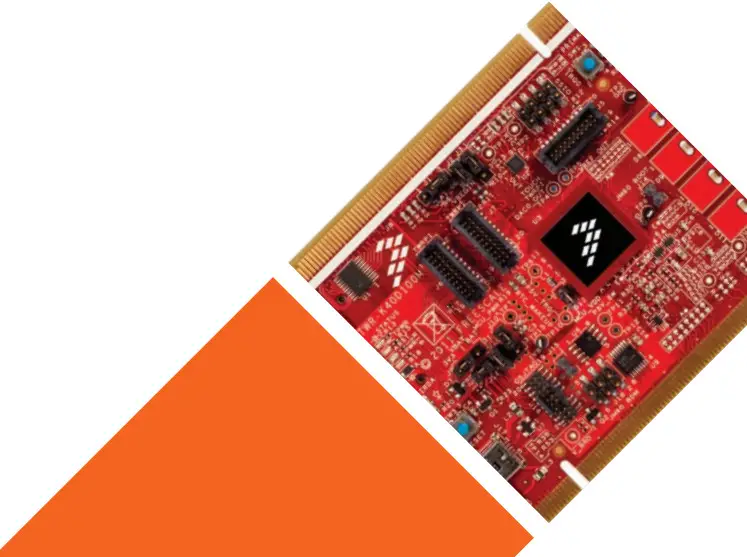
Low-Power MCU with USB and Segment LCD
Tower System
Development Board Platform
Get to Know the TWR-K40D100M Board
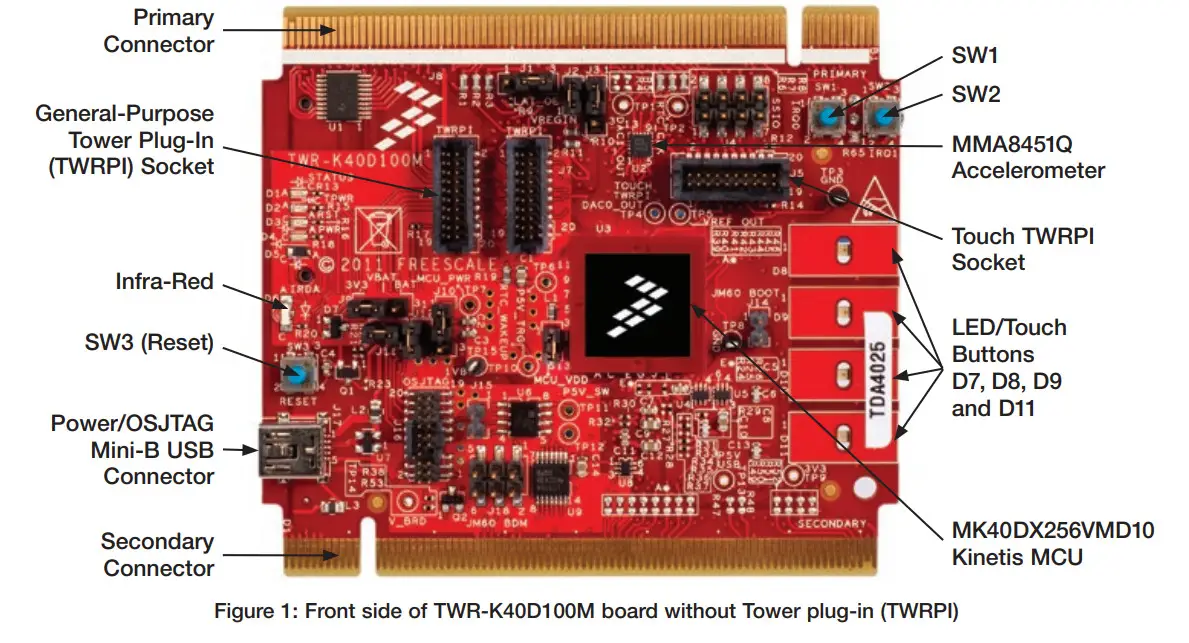
TWR-K40D100M Freescale Tower System
Development Board Platform
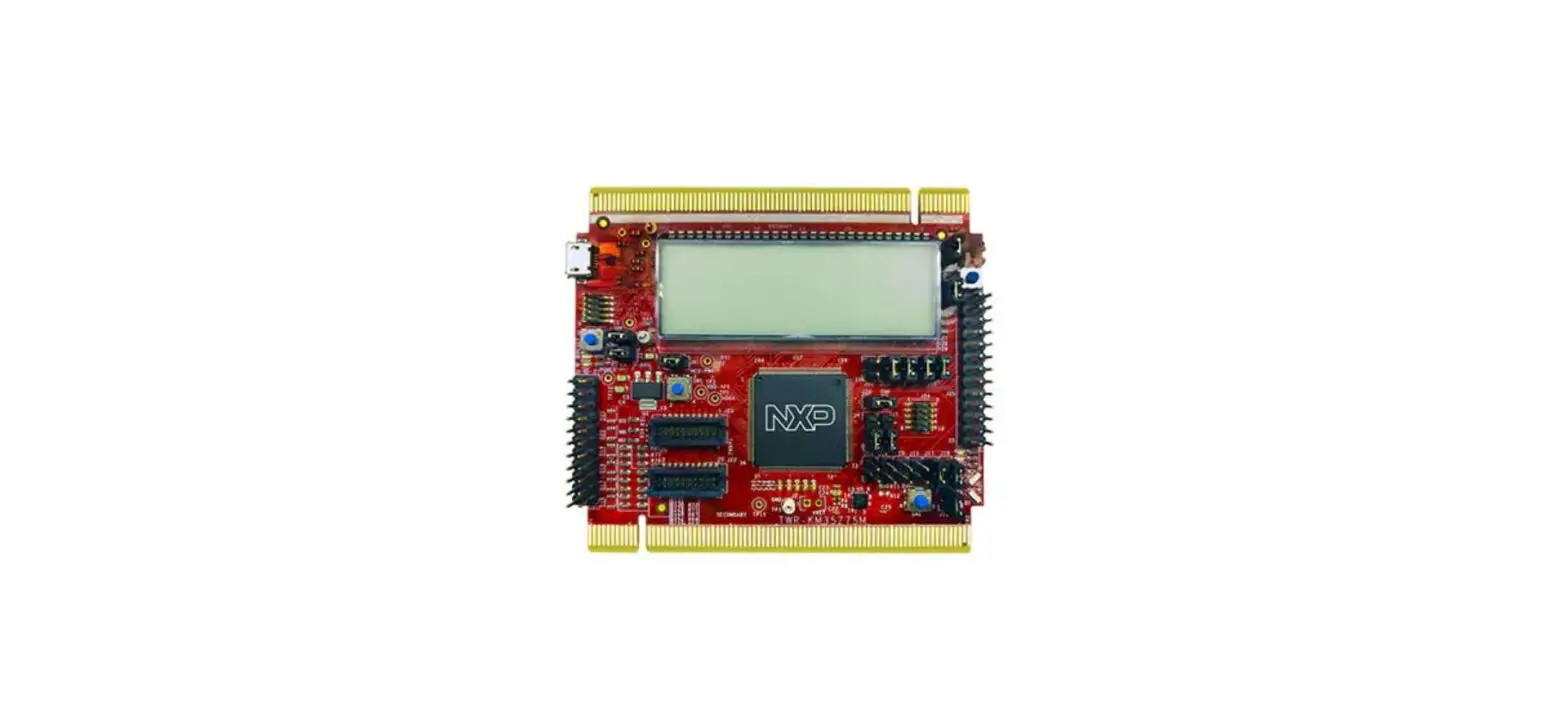
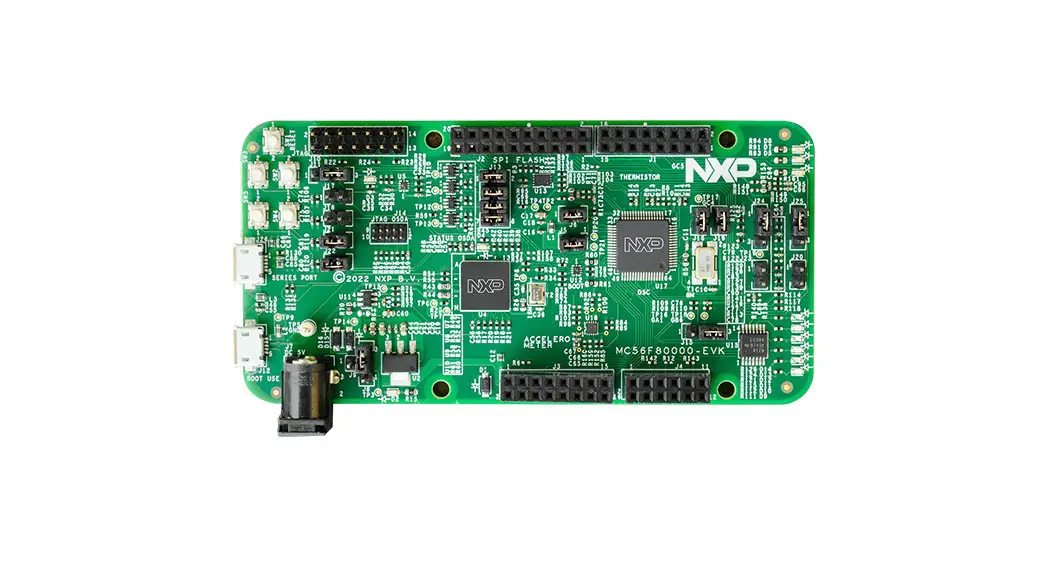
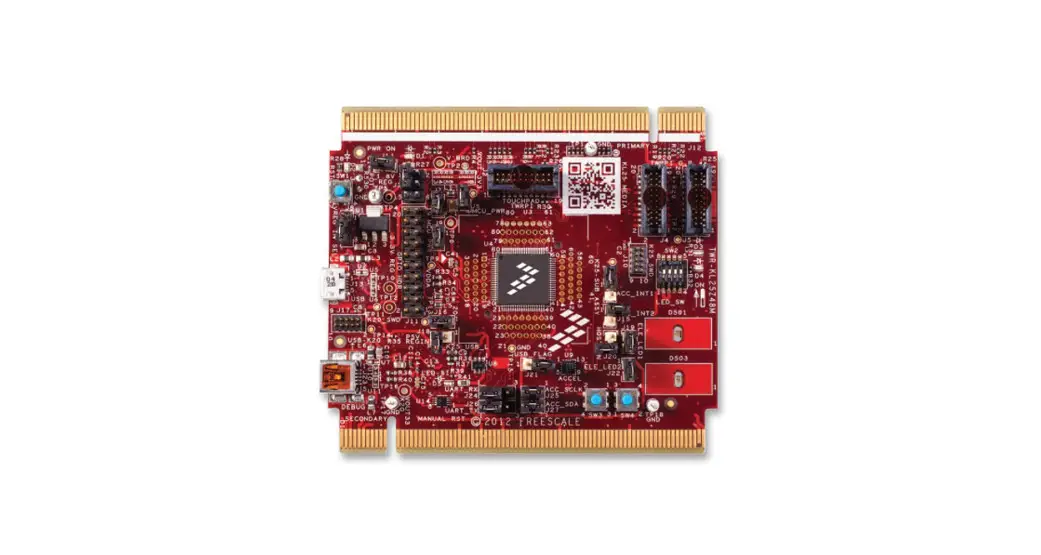
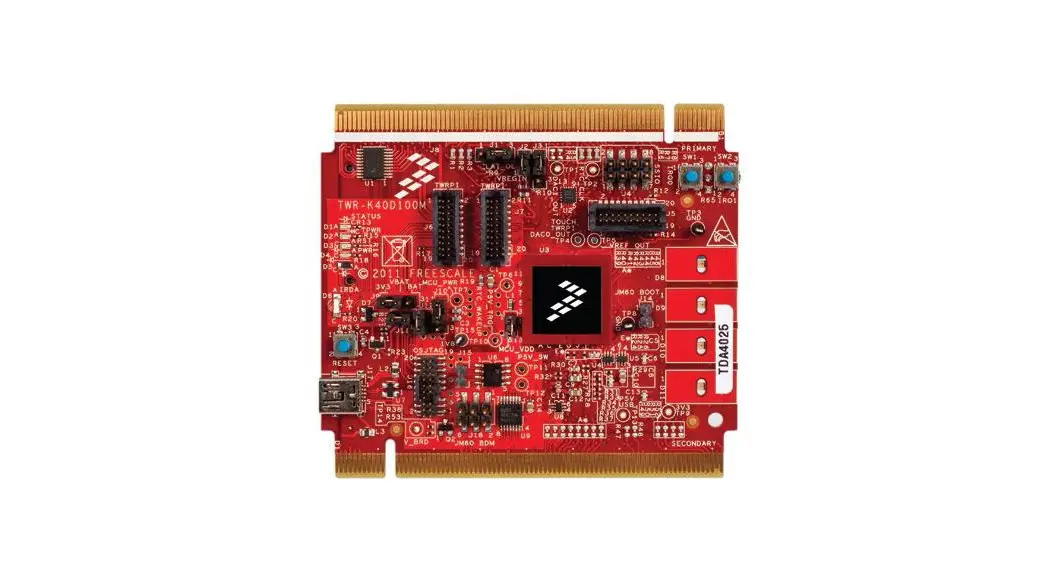
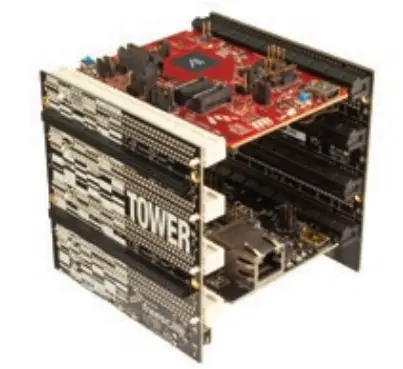
The TWR-K40D100M board is part of the Freescale Tower System, a modular development board platform that enables rapid prototyping and tool re-use through reconfigurable hardware. The TWR-K40D100M can be used with a broad selection of Tower System peripheral boards.
TWR-K40D100M Features
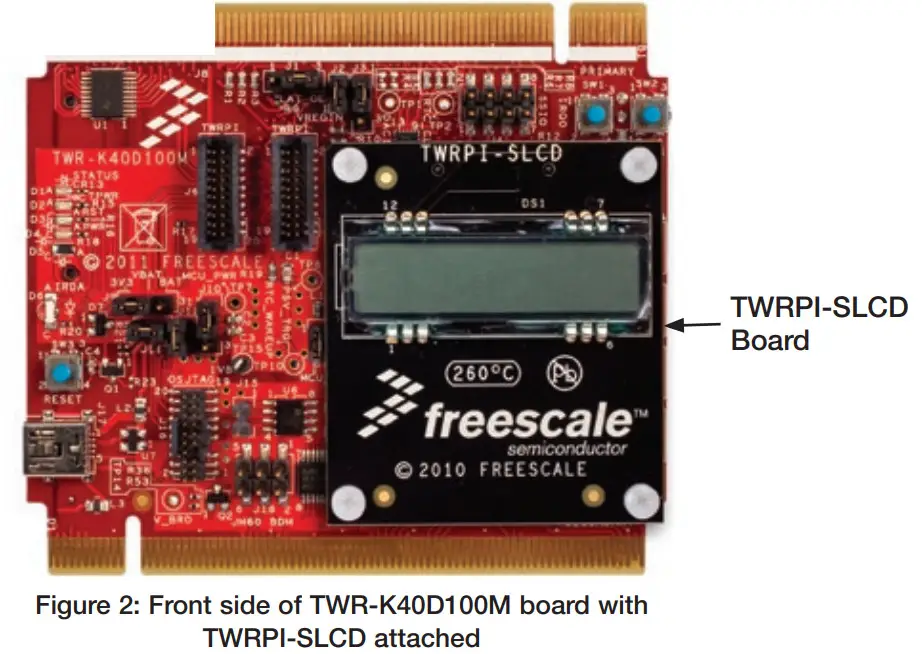
- MK40DX256VMD10 MCU (100 MHz ARM® Cortex® -M4 core, 512 KB flash, SLCD, USB FS OTG, 144 MAPBGA)
- Integrated open source JTAG (OSJTAG) circuit
- MMA8451Q 3-axis accelerometer
- Four user-controlled status LEDs
- Four capacitive touchpads and two mechanical pushbuttons
- General-purpose TWRPI socket (Tower plug-in module)
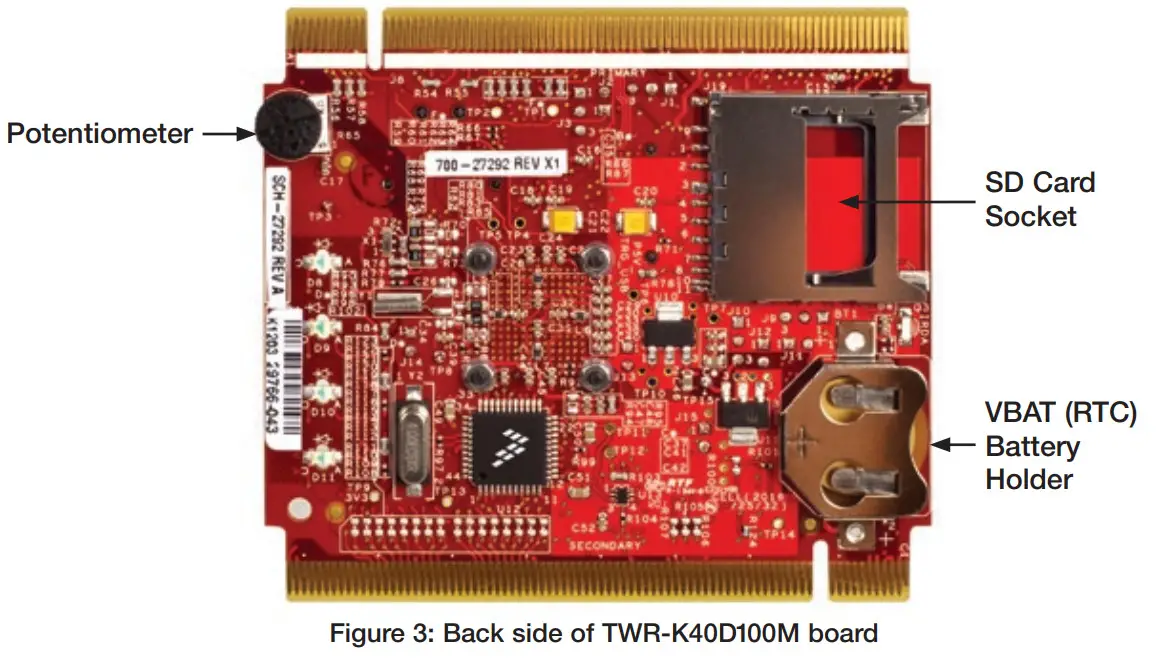
- Potentiometer, SD card socket and coin-cell battery holder
Step-by-Step
Installation Instructions
In this Quick Start Guide, you will learn how to set up the TWR-K40D100M module and run the default demonstration.
- Install the Software and Tools
Install the P&E Micro
Kinetis Tower toolkit. The toolkit includes the OSJTAG and USB-to-serial drivers.
These can be found online at freescale.com/TWR-K40D100M.
- Configure the Hardware
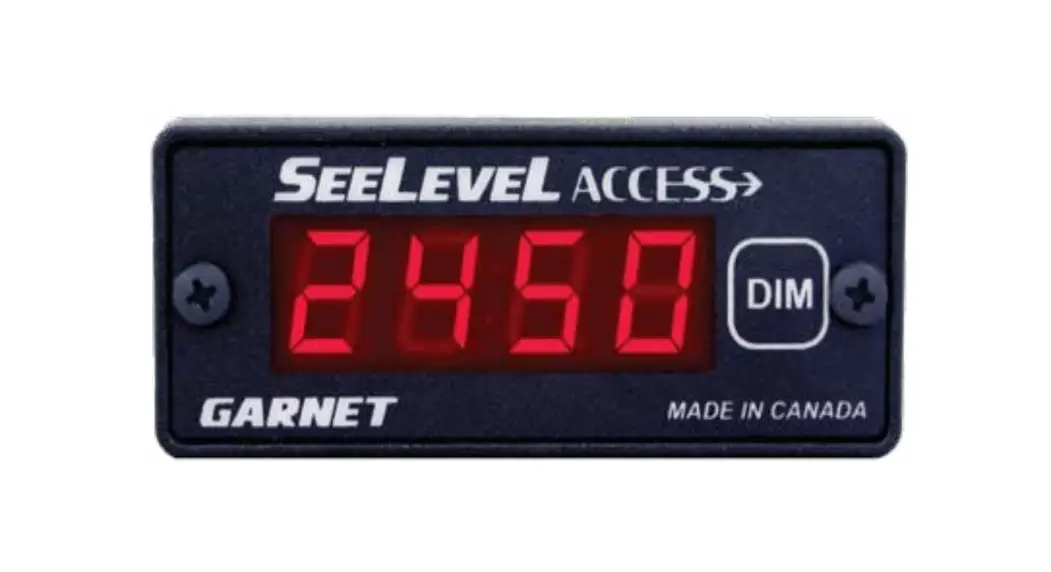
Install the included battery into the VBAT (RTC) battery holder. Then, plug the included segment LDC TWRPI-SLCD into the TWRPI socket. Finally, connect one end of the USB cable to the PC and the other end to the power/OSJTAG mini-B connector on the TWR-K40D100M module. Allow the PC to automatically configure the USB drivers if needed. - Tilt the Board
Tilt the board side to side to see the LEDs on D8, D9, D10 and D11 light up as it is tilted. - Navigate the Segment LDC
The segment LDC will display the seconds elapsed since boot-up. Press SW2 to toggle between viewing the seconds, hours and minutes, potentiometer and temperature. - Explore Further
Explore all of the features and capabilities of the preprogrammed demo by reviewing the lab document located at freescale.com/TWR-K40D100M. - Learn More About Kinetis K40 MCUs
Find more MQX™ RTOS and bare-metal labs and software for the Kinetis 40 MCUs at freescale.com/TWR-K40D100M.

TWR-K40D100M Jumper Options
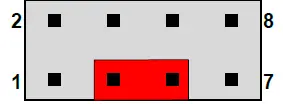
The following is a list of all jumper options. The default installed jumper settings are shown in shaded boxes.
| Jumper | Option | Setting | Description |
| J10 | V_BRD Voltage Selection | 1-2 | Onboard power supply set to 3.3 V |
| 2-3 | Onboard power supply set to 1.8 V (Some onboard peripherals may not operate) | ||
| J13 | MCU Power Connection | ON | Connect MCU to onboard power supply (V_BRD) |
| OFF | Isolate MCU from power (Connect to ammeter to measure current) | ||
| J9 | VBAT Power Selection | 1-2 | Connect VBAT to onboard power supply |
| 2-3 | Connect VBAT to the higher voltage between onboard power supply or coin-cell supply |
| Jumper | Option | Setting | Description |
| J14 | OSJTAG Bootloader Selection | ON | OSJTAG bootloader mode (OSJTAG firmware reprogramming) |
| OFF | Debugger mode | ||
| J15 | JTAG Board Power Connection | ON | Connect onboard 5 V supply to JTAG port (supports powering board from JTAG pod supporting 5 V supply ouput) |
| OFF | Disconnect onboard 5 V supply from JTAG port | ||
| J12 | IR Transmitter Connection | ON | Connect PTD7/CMT_IRO to IR transmitter (D5) |
| OFF | Disconnect PTD7/CMT_IRO from IR transmitter (D5) | ||
| J11 | IR Receiver Connection | ON | Connect PTC6/CMPO _INO to IR receiver (Q2) |
| OFF | Disconnect PTC6/CMPO _INO from IR receiver (02) | ||
| J2 | VREGIN Power Connection | ON | Connect USBO_VBUS from elevator to VREGIN |
| OFF | Disconnect USBO_VBUS from elevator to VREGIN | ||
| J3 | GPIO to Drive RSTOUT | 1-2 | PTE27 to drive RSTOUT |
| 2-3 | PTB9 to drive RSTOUT | ||
| J1 | FlexBus Address Latch Selection | 1-2 | FlexBus address latch disabled |
| 2-3 | FlexBus address latch enabled |
Visit freescale.com/TWR-K40D100M, freescale.com/K40 or freescale.com/Kinetis for information on the TWR-K40D100M module, including:
- TWR-K40D100M user manual
- TWR-K40D100M schematics
- Tower System fact sheet
Support
Visit freescale.com/support for a list of phone numbers within your region.
Warranty
Visit freescale.com/warranty for complete warranty information.
For more information, visit freescale.com/Tower
Join the online Tower community at towergeeks.org
Freescale, the Freescale logo, the Energy Efficient Solutions logo and Kinetis are trademarks of Freescale Semiconductor, Inc., Reg. U.S. Pat. & Tm. Off. Tower is a trademark of Freescale Semiconductor, Inc. All other product or service names are the property of their respective owners. ARM and Cortex are registered trademarks of ARM Limited (or its subsidiaries) in the EU and/or elsewhere. All rights reserved.
© 2013, 2014 Freescale Semiconductor, Inc. Doc Number: K40D100MQSG REV 2 Agile Number: 926-78685 REV C
 Downloaded from Arrow.com.
References
 Kinetis® K4x USB and Segment LCD Microcontrollers (MCUs) based on Arm® Cortex®-M4 Core | NXP Semiconductors
-
General Purpose Microcontrollers | NXP Semiconductors
-
Support | NXP Semiconductors
-
TWR-K40D100M|Tower System Board|Kinetis MCUs | NXP Semiconductors
-
Returns and Warranty Information | NXP Semiconductors
 Kinetis® K4x USB and Segment LCD Microcontrollers (MCUs) based on Arm® Cortex®-M4 Core | NXP Semiconductors