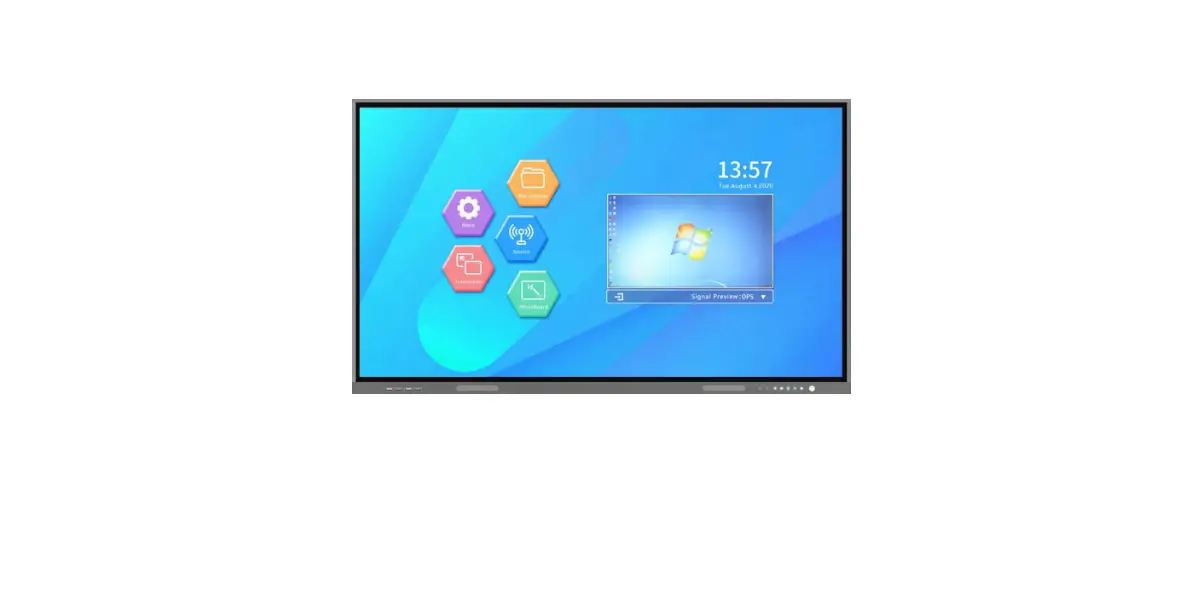
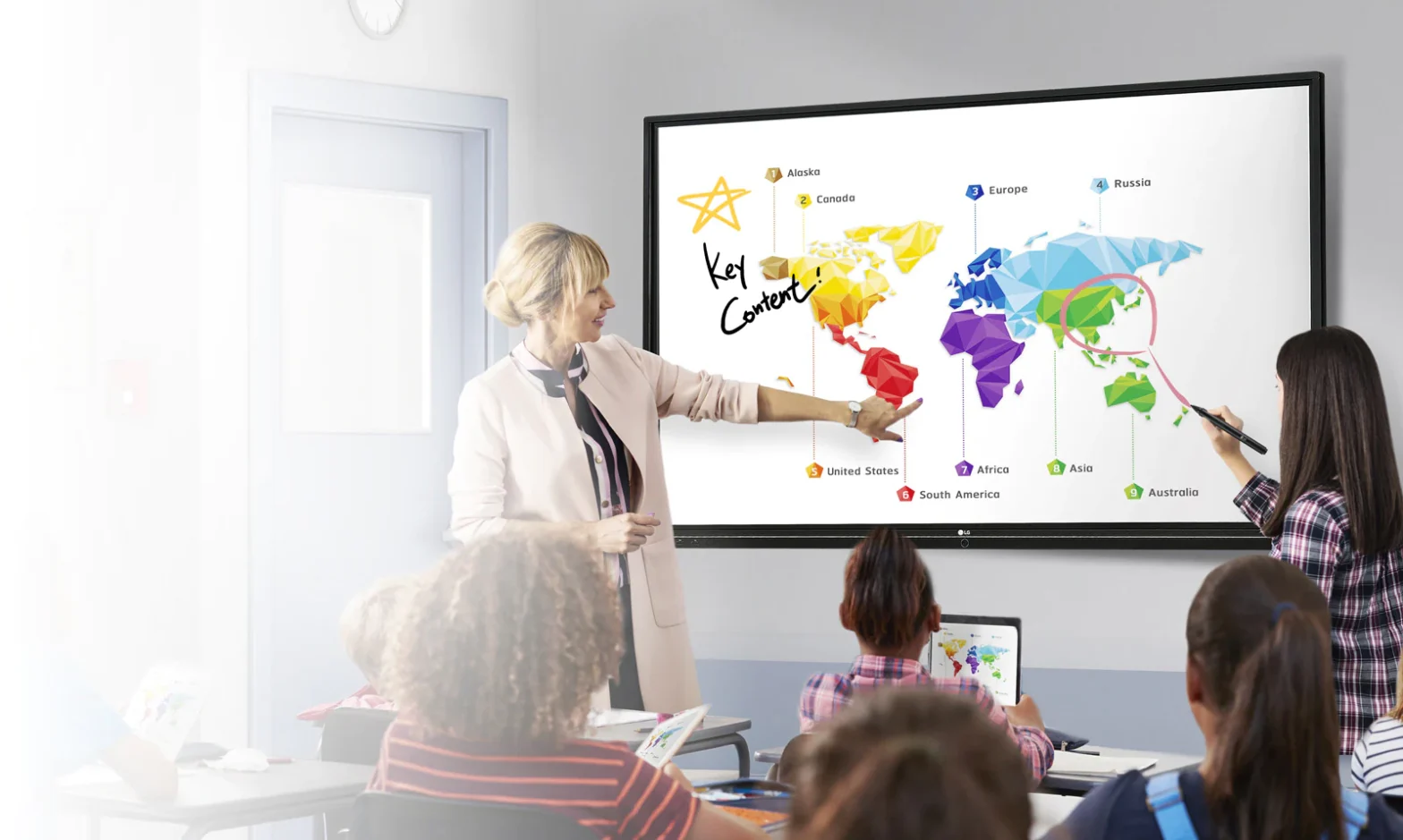
Interactive Flat Panel
Product Information
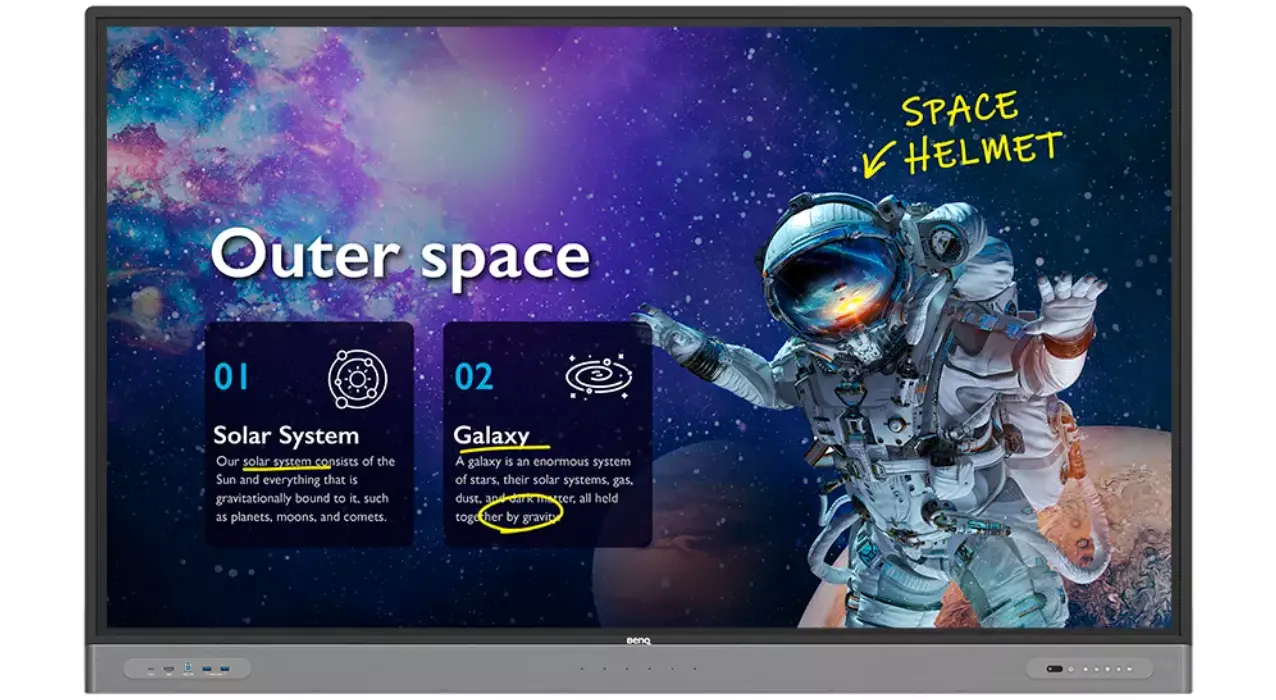
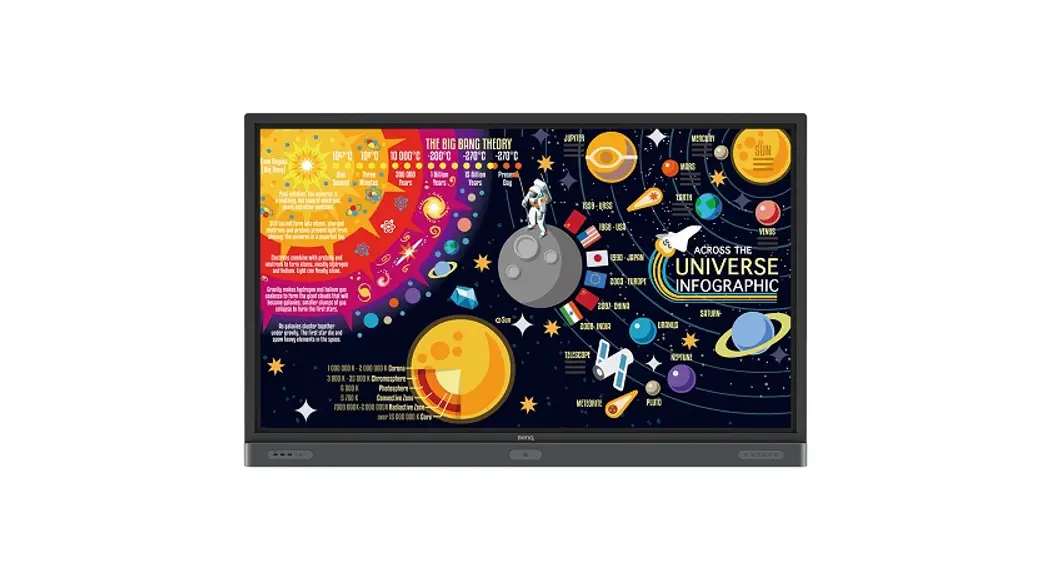
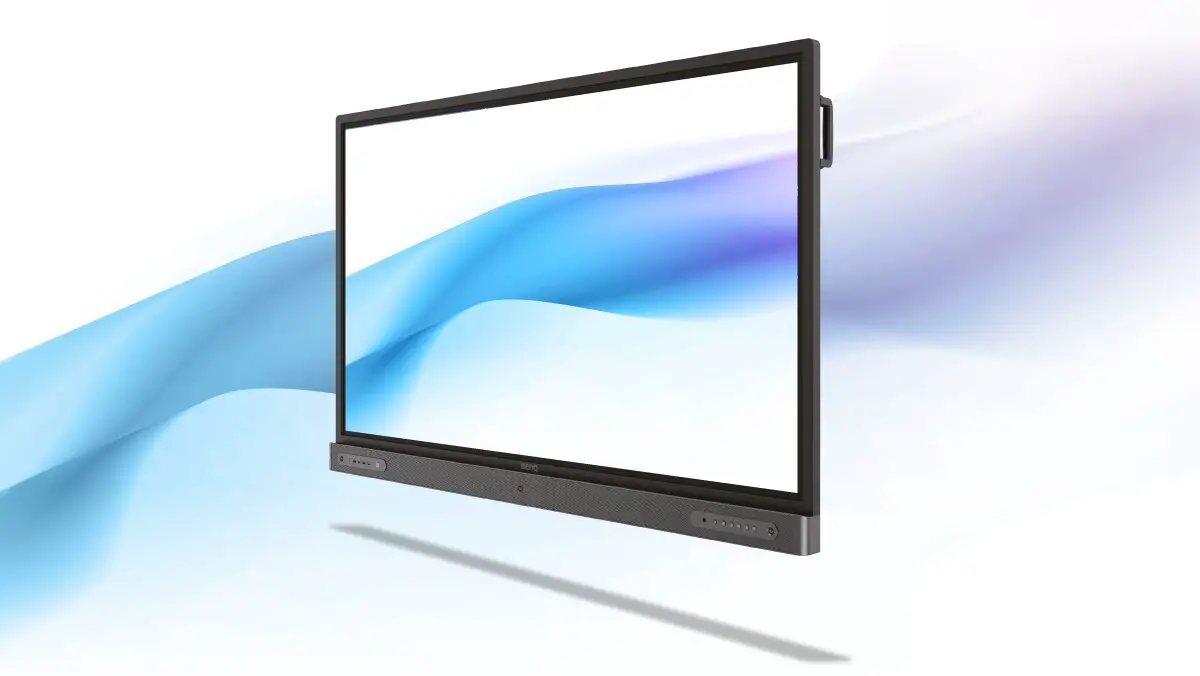
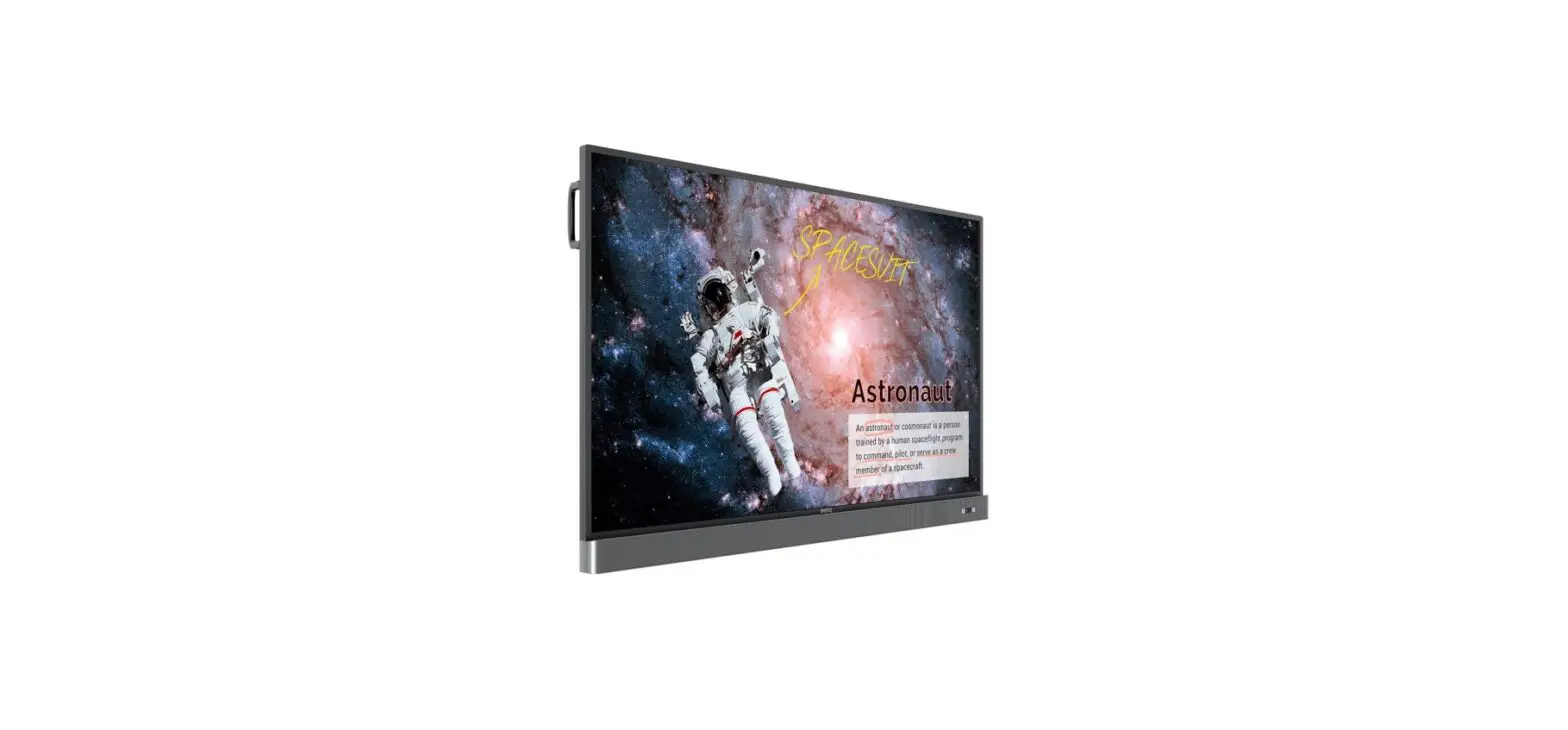
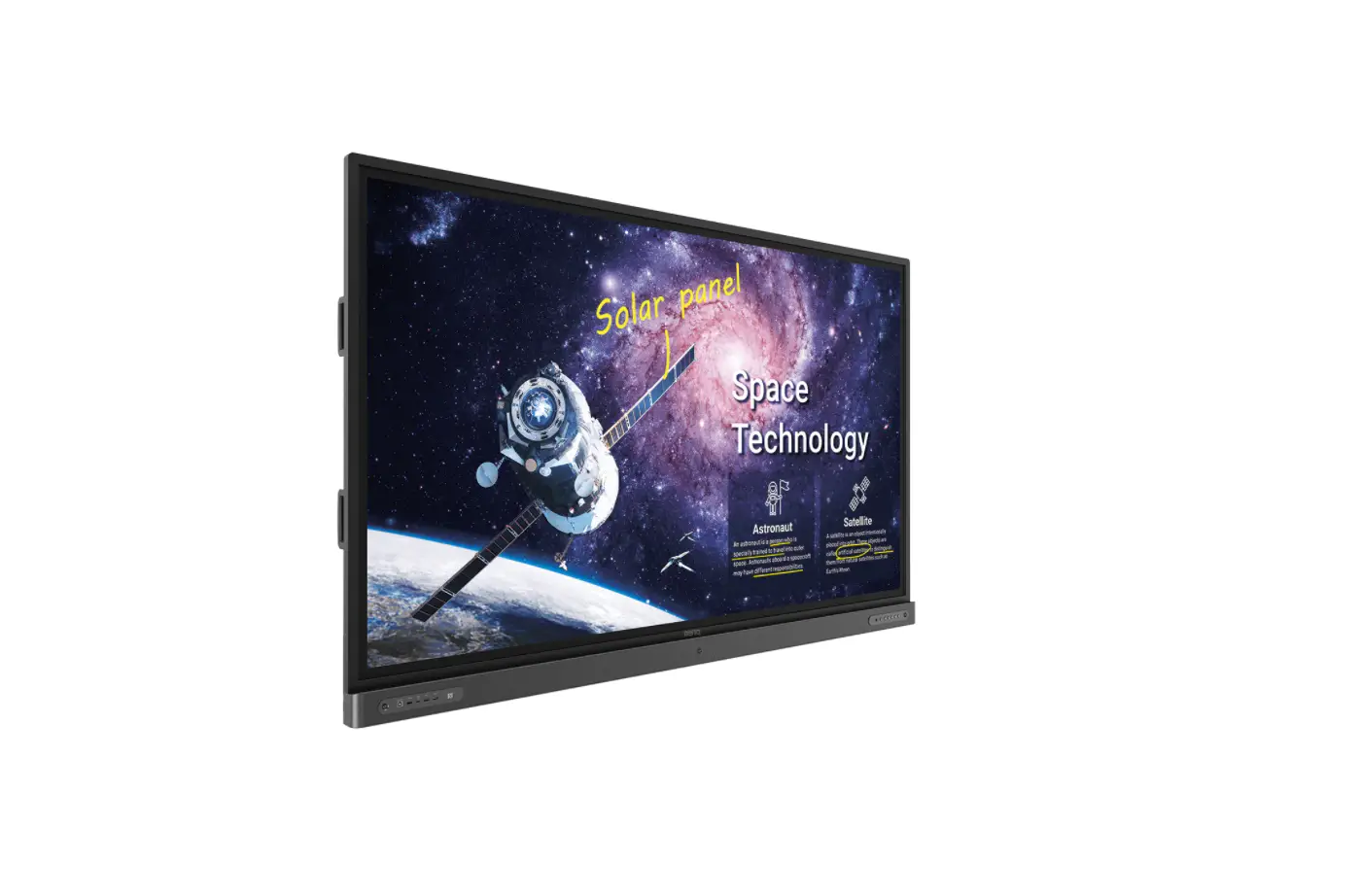
This product is an Interactive Flat Panel, designed to provide
an all-in-one interactive experience. It comes with a user manual
that contains important information, safety precautions,
installation instructions, ports and keys instructions, remote
control function introduction, basic operation guidelines, quick
use guide, troubleshooting guide, and more.
Important Information and Safety Cautions
- Please read the instructions carefully before using and keep it
for future reference. - Install the device on a stable place to prevent falling and
injuries, especially for children. When mounting the device on a
wall, follow the manufacturer’s recommended method for
installation. - Avoid exposing the product to high temperature and humidity
environments. - Regularly clean the machine by turning off the power and
unplugging the power cord. - To clean the screen effectively, use a small amount of softener
or cleaner mixed with warm water. Wipe the screen with a soft cloth
and ensure it air dries before turning on the machine. - To remove dirt or dust from the machine case, use a soft, dry
flannelette. Do not use a wet cloth. - If you are not using the machine for a period of time, it is
recommended to unplug the power cord to prevent any damage caused
by lightning or radio waves. - Only use attachments recommended by the manufacturer. Using
improper attachments can result in accidents. If repairs are
needed, ensure that the replacement parts have the same
characteristics and performance as the original parts. - In case of damage requiring service, unplug the power cord and
contact customer service or maintenance personnel for
assistance.
Installation Instructions
2.1 How to Install Wall Mounted Stand
Step 1: Place the equipment on a flat surface
with the screen facing down. Ensure there is a soft object space
(e.g., rubber pad, cotton, foam) between the equipment and the
surface to avoid bruising the equipment.
Step 2: Before installing, check the assembling
accessories. Different models and sizes may require different
accessories. Refer to the provided pictures for reference and
follow the specific instructions for your model.
Please note that the above instructions are a summary of the
text-extract from the user manual. For complete and accurate
information, refer to the actual user manual provided with the
product.
Interactive Flat Panel
All in One Interactive Flat Panel
USER MANUAL
USER MANUAL
Table of Contents
1. Important information and safety cautions
1
2. How to install
2
2.1 How to install wall mounted stand
2
2.2 How to intsall floor stand
4
3. Ports and keys instructions
7
4. Remote control function Introduction
11
5. Basic Operation
12
6. Quick use guide
13
6.1 Free accessories list
13
6.2 How to turn on-off device
13
6.3 How to Install WIFI antenna
14
6.4 How to connect PC
14
7. Troubleshooting Guide
15
1.Important information and safety cautions
1. Please read the instructions carefully before using and keep it for future reference.
2. Installing the device on stable place in case of falling and injuries, especially for children. When mounting the device on a wall, be sure to install the product according to the method recommended by the manufacturer. This is a safety issue.
3. Keep the product away from high temperature and humidity environment.
4. Regular cleaning can prolong the service life of the machine. Before cleaning, be sure to turn off the power and unplug the power cord.
5. The way to keep the screen clean and effective is to add a small amount of softener or cleaner in warm water, wet it with a soft cloth, wring it out and wipe it with it. If there is extra water on the screen, make sure it air drying before you open the machine.
6. To remove dirt or dust from the machine case, wipe with soft, dry, flannelette. Be sure not to use wet cloth.
7. If you want your machine to rest for a period of time, it is best to unplug the power to prevent any damage caused by lightning or radio waves.
8. Do not use attachments which are not recommended by the manufacturer. Use of improper attachments can result in accidents. If machine need to repair, make sure the replacement the same characteristics and performance as the original parts. Use of unauthorized parts can result in fire, electric shock or other danger.
9. When damage requiring service, just unplug the power cord from the AC outlet. Do not open the machine arbitrarily. If you have any questions, please contact the relevant customer service personnel or maintenance personnel.
CAUTION 1. Changes or modifications not expressly approved by the party responsible for compliance could void the user’s authority to operate the equipment. 2. This user manual includes detailed usage instructions for your product. Please read this manual thoroughly. 3. Figures and illustrations in this user manual are provided for reference only and may differ from actual equipment appearance. 4. Equipment design and specifications may be changed without notice.
1
2.How to install
2.1 How to install wall mounted stand
Step1 Please put the equipment on flat surface(down the screen), between the equipment and the mesa, there should be a soft object space (e.g. rubber pad, cotton, foam, etc.) in order to avoid the equipment surface to be bruised as shown in the figure below:
Step2 Please check the assembling accessories before installing. Different model and size different accessories. The picture is for reference only, the specific kind prevail. Please refer to following pictures to installing.
Step 3 Take out 4pcs screws from inside the backside of device, add 2pcs hanging arm b on the relevant place, turn 4pcs screws tightly to fasten b. Then put the 2pcs screws d into the associated location, no fixed temporarily.
2
Step 4 Advising to choose solid wall or concrete wall, use hanging plate a to adjust the reached height, confirming 4 holes, it is recommended to use 10 mm drill bit punch, hole depth is greater than the sum of inflation rubber plug length plus the wall surface coating thickness. Put 4pcs e into holes completely by hammering. If it is not tighten, need to replace the right drill bit. As shown below:
Step 5 Turning 4pcs screws c into 4pcs e to fasten a by screwdriver. As shown below:
Step 6 Place the device horizontally and vertically by hanging arm on the wall panel. Adjusting the device in the middle of hanging plate a. Finally turn the 2pcs screws d to fix the device.
3
2.2 How to install floor stand (optional)
32-60 inch advise to use small floor stand. 65-98inch advise to use big floor stand. Step1 Please put the equipment on flat surface(down the screen), between the equipment and the mesa, there should be a soft object space (e.g. rubber pad, cotton, foam, etc.) in order to avoid the equipment surface to be bruised as shown in the figure below:
Step 2: Please check the assembling accessories before installing. Different model and size different accessories. The picture is for reference only, the specific kind prevail. Please refer to following pictures to installing.
Step 3: Take out 4pcs screws from inside the backside of device, add 2pcs hanging arm b on the relevant place, turn 4pcs screws tightly to fasten b. In order to ensure the stability and safety of the equipment, it is forbidden to hang the equipment upside down. If this step already done, please ignore.
4
Step 4: Assembling 4pcs wheels i into base plate h by only turning. Step 5: Connecting 2pcs holders f and base plate h by turning 4pcs s1-k2, no fixed temporarily. (In order to better assemble middle plate and hanging plate) Step 6: Fasten middle plate g and 2pcs holders f by turning 4pcs s2-k1, then fasten hanging plate a and 2pcs holders f by turning 4pcs s3-k2-j Step 7: Fasten 4pcs screws s1-k2 under the base plate by wrench Step 8: Place the device horizontally and vertically by hanging arm on the wall panel. Adjusting the device in the middle of hanging plate a. Finally turn the 2pcs screws s4 to fix the device.
DISCLAIMER
According to the following situation (one of the following), the company does not assume the responsibility for free warranty.
Incorrect using methods, product damage caused by violation of product instructions. Unauthorized alteration or maintenance. Hardware damage caused by improper assembly. Exceeding the permitted using environment. Because of the abnormal external forces. Natural disaster or other irresistible force. Unable to provide valid purchase vouchers.
Any personal or property damage caused by any improper installation or improper use, we do not assume the responsibility. If you have any questions about installing stand,please contact our after-sales service dep. anytime.
5
6
3.Ports and keys instructions
1. Model size 55″
2. Model Sizes65″,75″,85″,86″
Interface POWER Indicator /Remote Sensor USB USB
Function Description Turn On
Indicator Light / Remote controller sensor TV/PC USB Input PC USB Input
Interface Indicator /Remote Sensor USB TOUCH HDMI ECO POWER HOME VOL VOL+ MENU SOURCE
Function Description Indicator Light / Remote controller sensor TV/PC USB Input Touch Signal Output HDMI Input Energy saving Turn On/Off One key to Homepage VolumeVolume+ Menu Signal source
3. Model Size65″,75″,85″,86″
Interface Indicator /Remote Sensor USB TOUCH HDMI POWER
Function Description Indicator Light / Remote controller sensor TV/PC USB Input Touch Signal Output HDMI Input Turn On/Off
7
Display and Interfaces
1. Android System ConnectionsPictures for reference only, subject to our available products.
8
Display and Interfaces
WiFi
Interface
TOUCH
HDMI
LAN IN
AUDIO IN
VGA IN
YPBPR IN
AV OUT
AV IN
EARPHONE
RF IN
SPDIF OUT
SD card
RS232 UART
TV-USB IN
AC IN
Power
Function Description WiFi signal receiving bar Touch Signal Output HDMI Input Internet InputOnly for Android system Video signal Audio Interface Connect with equipment with VGA Output YPBPR Input AV Output AV Input Audio collection interface Radio Frequency Input and TV signal interface Coaxial output Memory extension interfaceTF card Connect Central Control Devices with RS232 USB, suggest using for system upgrading Connect AC Input Power On/Off
9
OPS Interfaces
2. PC Interfaces Different configs OPS interfaces may has little difference , subject to real product.
WiFi RS232 DC LAN USB VGA OUT HDMI OUT AUDIO MIC-IN RST
WiFi signal receiving bar Serial port 12V DC Input Internet Interfacesconnect RJ45 to Internet Connect USB devicessuch as USB keyboard , mouse , U disk , etc VGA Output HDMI Output Audio Output Connect to devices with Microphone sound collection (For recording ) System Reset
Remarks If without PC modual , don’t have the interfaces above.
10
4. Wireless Transmitter
(The image is only a reference)
Connect by USB port Need to buy separately Support Android System ONLY
11
5.Basic Operation
1. Turn on the Monitor
Step 1: Use 100V-240V 50/60Hz AC as the monitor power supply. The power plug is fully plugged in and the outlet ground wire is well connected.
Step 2: Turn on the Rocker switch (back side of the monitor, next to power outlet). Enter standby state, the power indicator turns to red color.
Step 3: Press the “Power” button on the front panel or the remote control standby button to turn on the monitor. The OPS (built-in computer) will be turned on together. The power indicator will be blue after turning on.
2. Turn off the Monitor
Step 1: Press the PC power to turn of the OPS in advance. Step 2: Press the “Power” button on the front panel or the remote control standby button to turn off the monitor. The power indicator will be red after turning off. Step 3: Turn off the Rocker switch or plug off the power cable. Notices: Be sure to turn off the PC power before turning off the power, otherwise it may damage the monitor. Be sure to turn off the Rocker switch or unplug the power cable, otherwise it may damage the monitor. Do not switch the machine on and off in a short time, otherwise it may damage the monitor.
12
6.Quick use guide
6.1 Free accessories list
If any items missed or damaged, please contact your customer service immediately.
CONTENTS:
No. 1 2 3 4 5 6 7 8 9
Part Name Wall mounted stand
Screws Antenna Remote control Writing pen User manual Wireless Transmitter(optional) Floor stand(optional) Floor stand quick installing guide(optional)
Qty 1set 1bag 2pcs 1pcs 1pcs 1pcs 1pcs 1pcs 1pcs
6.2 How to turn on-off device
The device power line is on the right of device, plug the power, turn on side power key, the front power light which on the right of device turn blue, that shows device turn on successfully.
Press the front power key on the middle of device or press remote control power key, the power light turn red, which shows the device turn off, if press front power key on the middle of device again, then turn on device again.
If device need to turn off for a long time, please turn off the side power key and unplug power line.
NOTES: 1. Avoiding restarting many times in a short time. 2. Different size different appearance, the side power key maybe different location, please refer to the specific device.
13
6.3 How to install WIFI antenna
Directly turning WIFI antenna on the antenna location tightly, the pictures is only for reference, specific WIFI location and quantity please refer to real object.
6.4 How to connect PC
There are two methods to connect PC, one is by VGA cable (prepared by yourself), another is by HDMI cable (prepared by yourself or free accessory) Method 1 Connect device VGA input port (on the right of device) and PC VGA port by VGA cable.
Method 2 Connect device HDMI input port ( on the right of device or on the front of device) and PC HDMI port by HDMI cable. Advising that if use front HDMI input port, the cable 3 M, if use side HDMI input port, the cable 5 M. NOTES: If need touch screen function, please connect device USB touch out port (on the right of device) and PC USB port by USB cable. (Please refer to method 1 picture)
14
7. Troubleshooting Guide
Problem No power
There is no signal on the blue screen after the device is turned on
Solution 1. Please check power socket, whether plug into the socket. 2. If still no power, please unplug waiting 1 minute, restart to plug and turn on device again
Please turn on-off device, restart.
No pictures
1. Check the WIFI antenna connect well or not 2. Switching to other channels for a try
Pictures is clear but no voice(PC mode)
The voice is loud, but screen color is not good
1. Check the device is under mute state. 2. Choose the audio icon on the right of screen desktop–right click–click broadcast equipment–appear two loudspeakers-choose the one that no checking–confirming
Please add the brightness and contrast ratio
The WIFI can not connect in Windows system
1. Check whether the WIFI antenna connect well or not
2. Check whether install WLAN card driver, if not, please download, then install into computer by USB flash disk.
4k screen no display 4K resolution(3840*2160)
1. Please confirm the computer support 4K solution firstly.
2. Then click right key on blank of computer desktop–click screen resolution–adjust screen resolution–click advance setting–click monitor–refresh rate, become 30Hz–confirming and saving changes
Kindly contact our after-sales service dep. or authorized agency If any question you have.
15
FCC Statement This equipment has been tested and found to comply with the limits for a Class B digital device, pursuant to part 15 of the FCC Rules. These limits are designed to provide reasonable protection against harmful interference in a residential installation. This equipment generates, uses and can radiate radio frequency energy and, if not installed and used in accordance with the instructions, may cause harmful interference to radio communications. However, there is no guarantee that interference will not occur in a particular installation. If this equipment does cause harmful interference to radio or television reception, which can be determined by turning the equipment off and on, the user is encouraged to try to correct the interference by one or more of the following measures: –Reorient or relocate the receiving antenna. –Increase the separation between the equipment and receiver. –Connect the equipment into an outlet on a circuit different from that to which the receiver is connected. –Consult the dealer or an experienced radio/ TV technician for help. This device complies with part 15 of the FCC Rules. Operation is subject to the following two conditions: (1) This device may not cause harmful interference, and (2) this device must accept any interference received, including interference that may cause undesired operation. Caution Any changes or modifications not expressly approved by the party responsible for compliance could void the user’s authority to operate the equipment. FCC Radiation Exposure Statement This equipment must be installed and operated in accordance with provided instructions and the antenna(s) used for this transmitter must be installed to provide a separation distance of at least 20 cm from all persons and must not be co-located or operating in conjunction with any other antenna or transmitter. End-users and installers must be provide with antenna installation instructions and transmitter operating conditions for satisfying RF exposure com