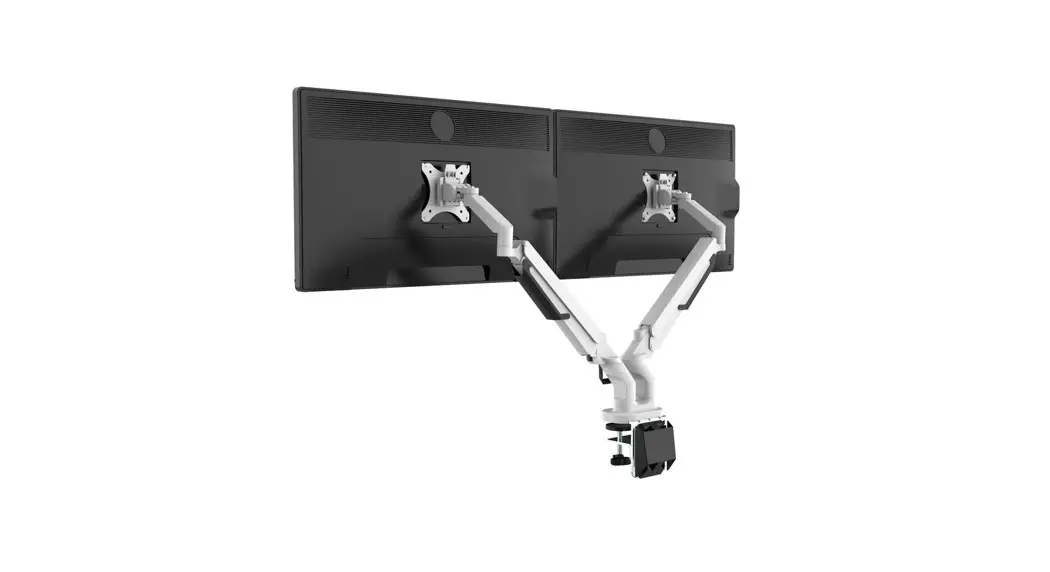
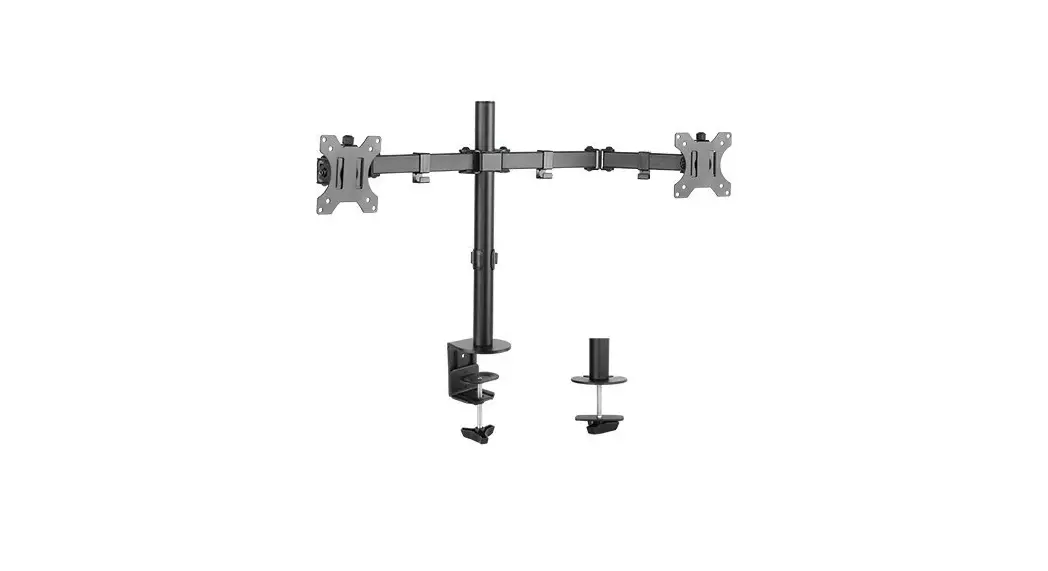
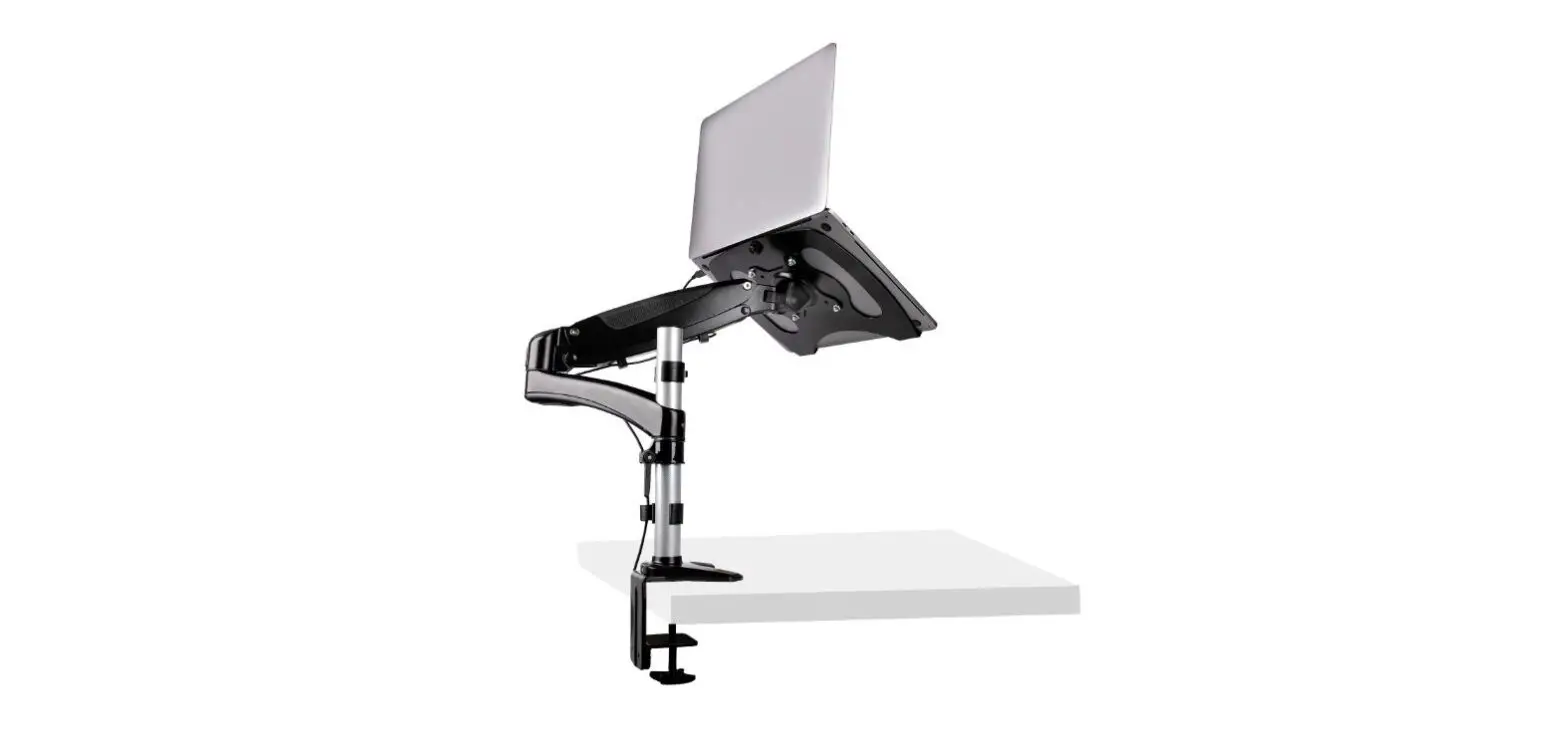
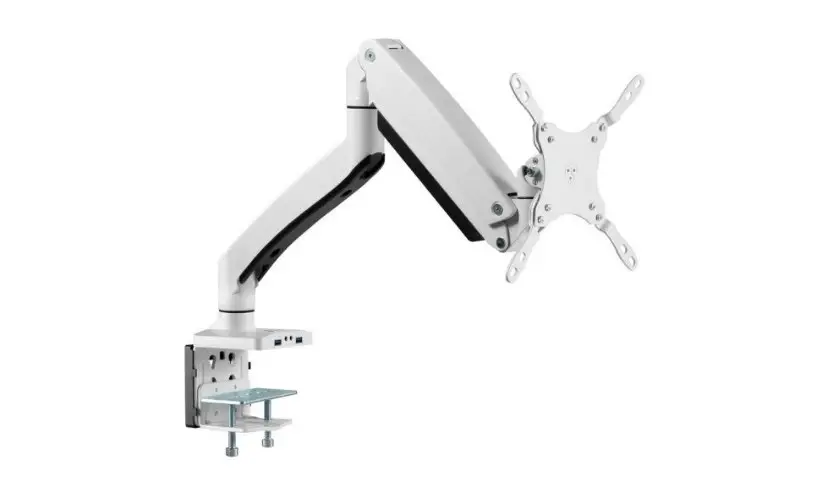
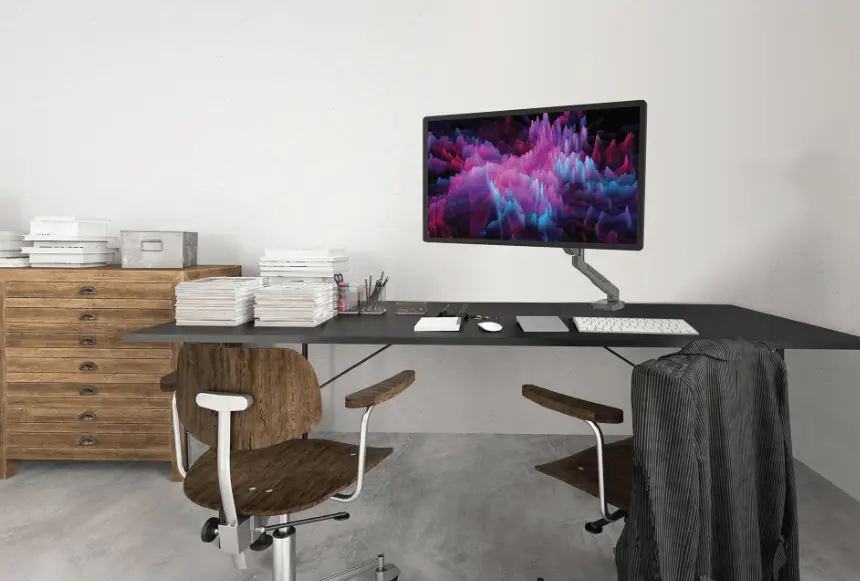
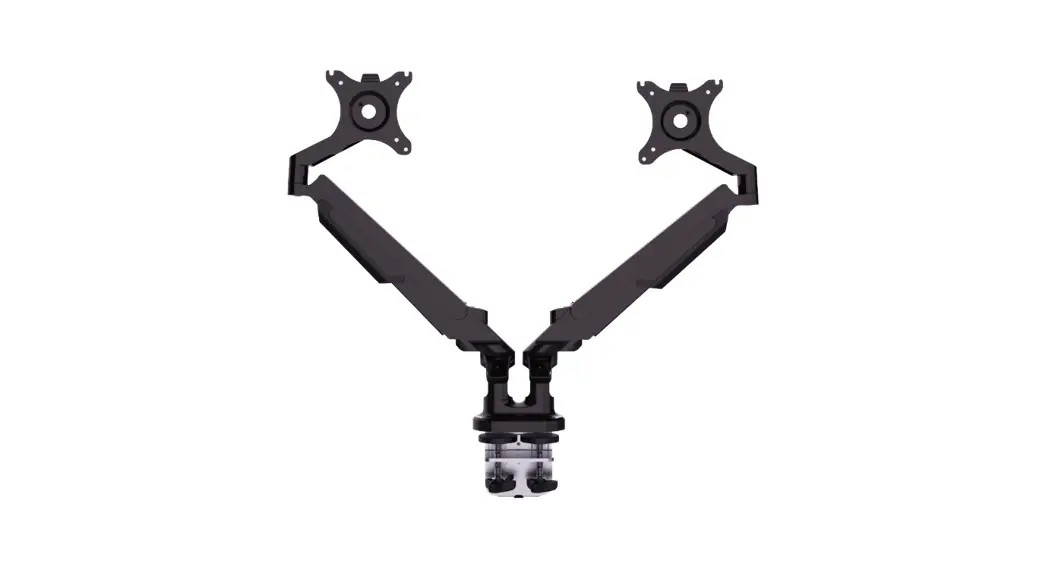
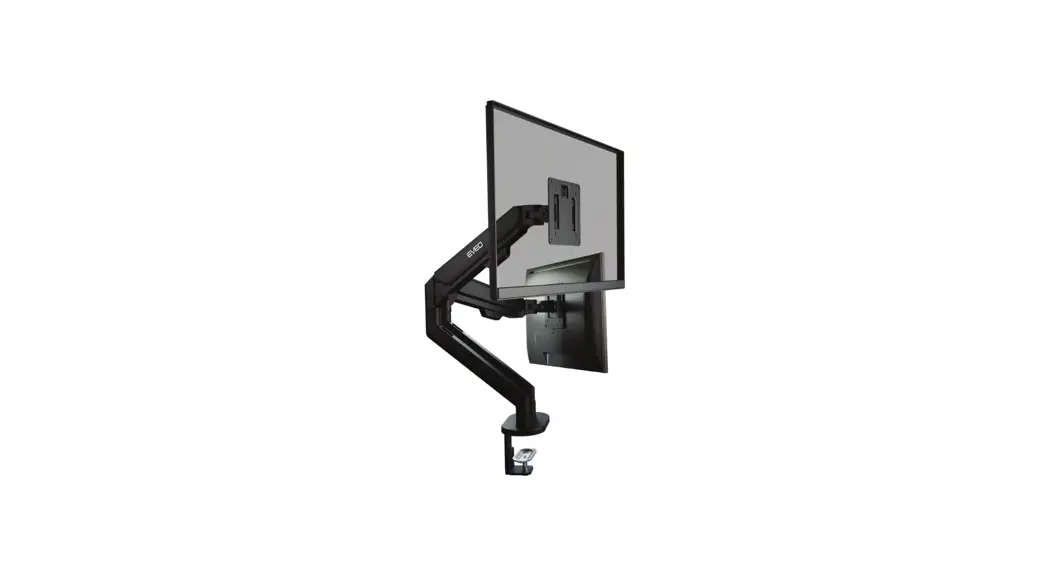
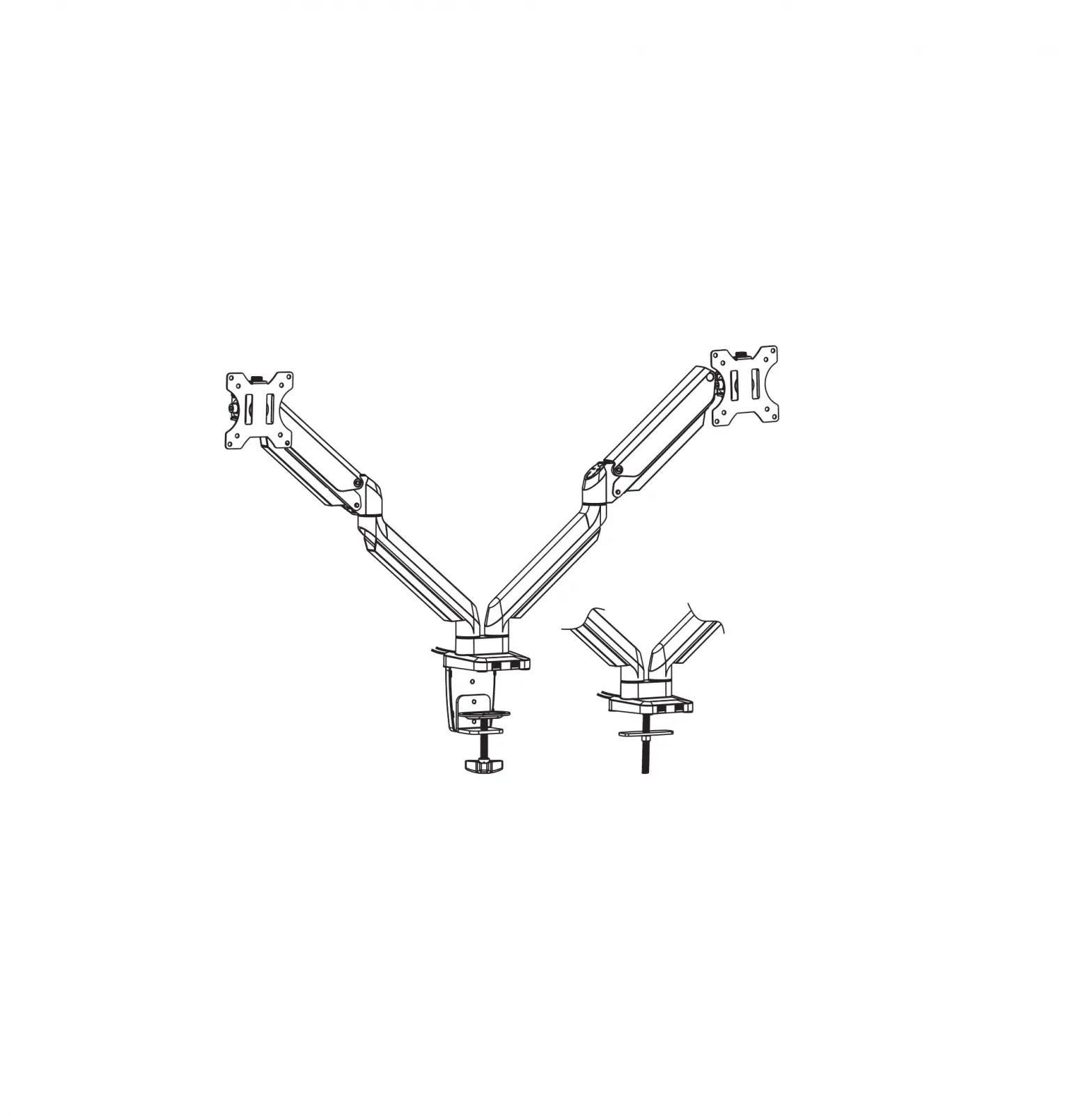
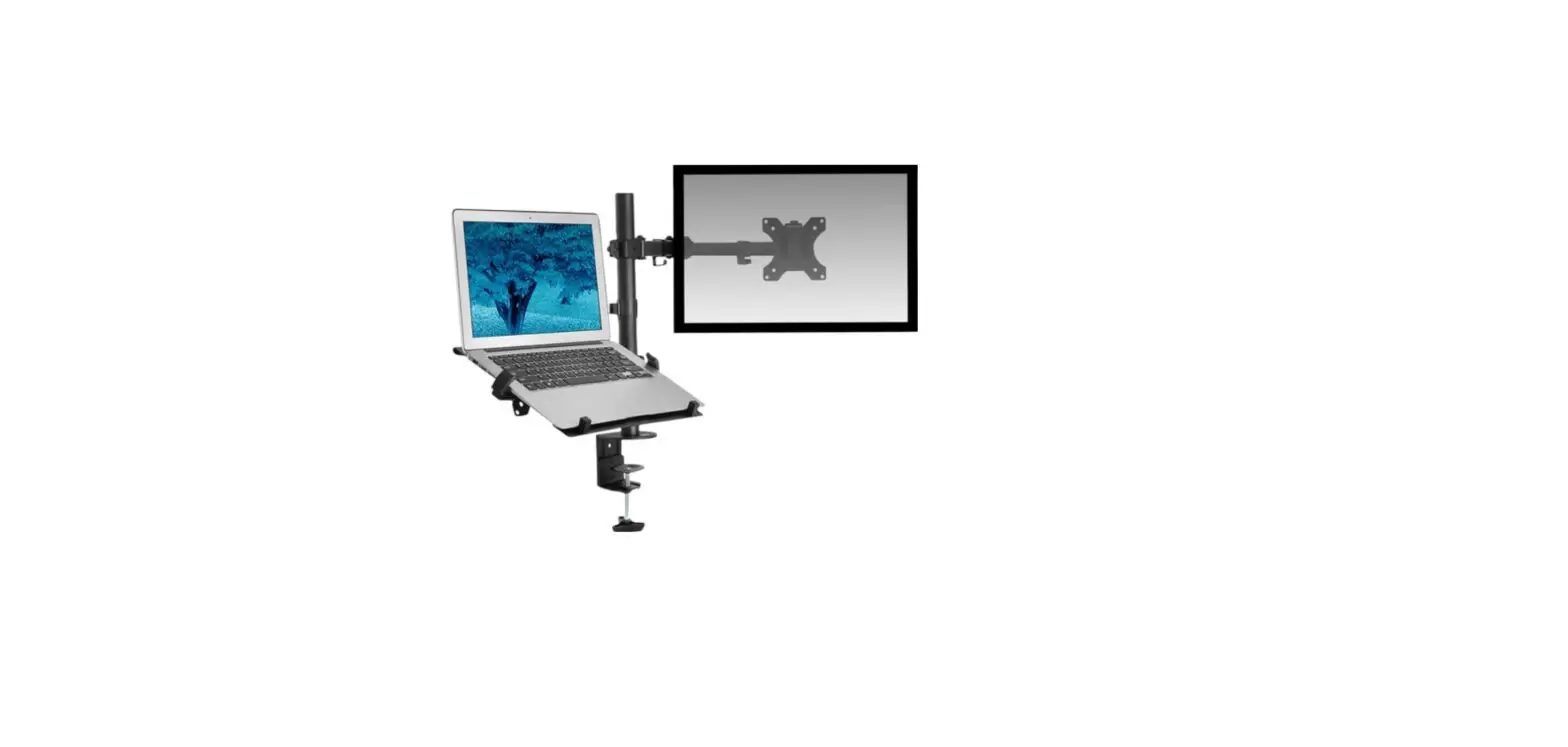
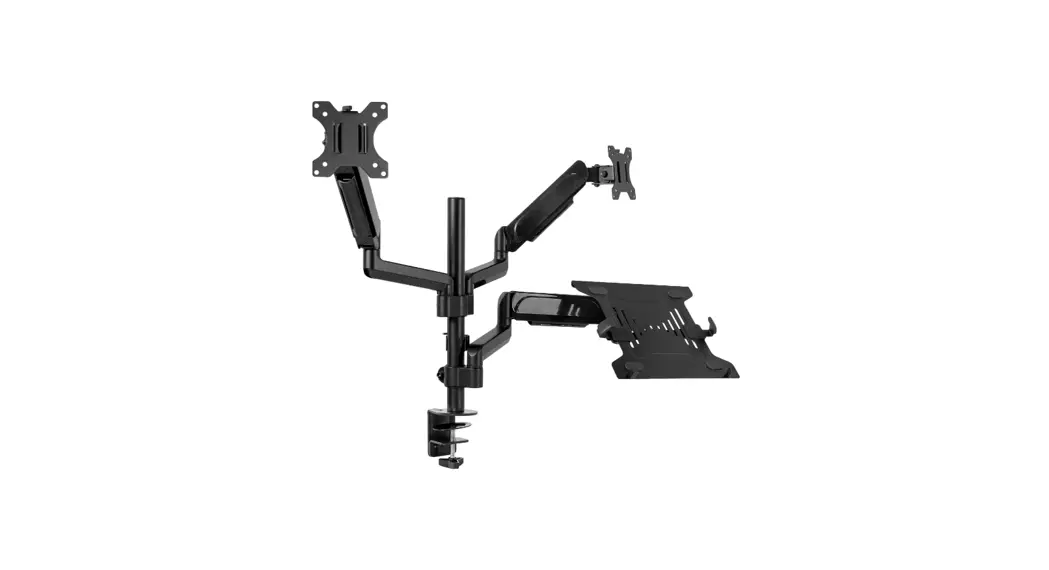
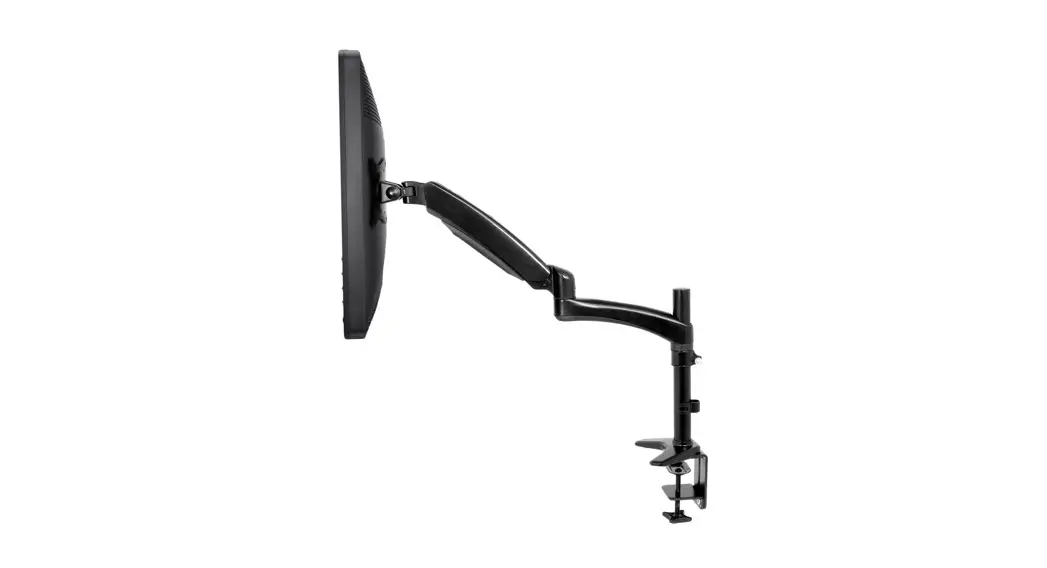
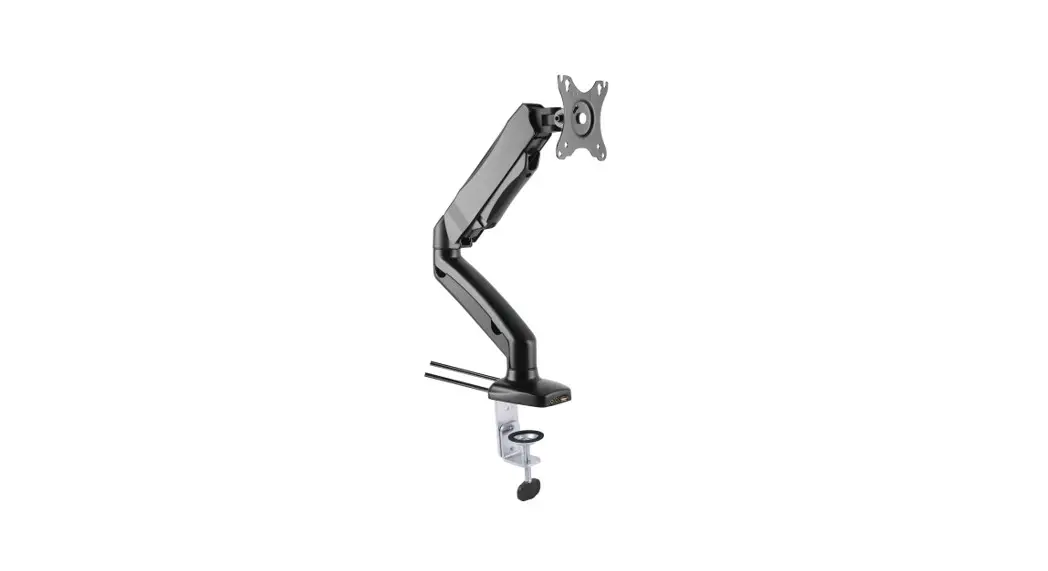
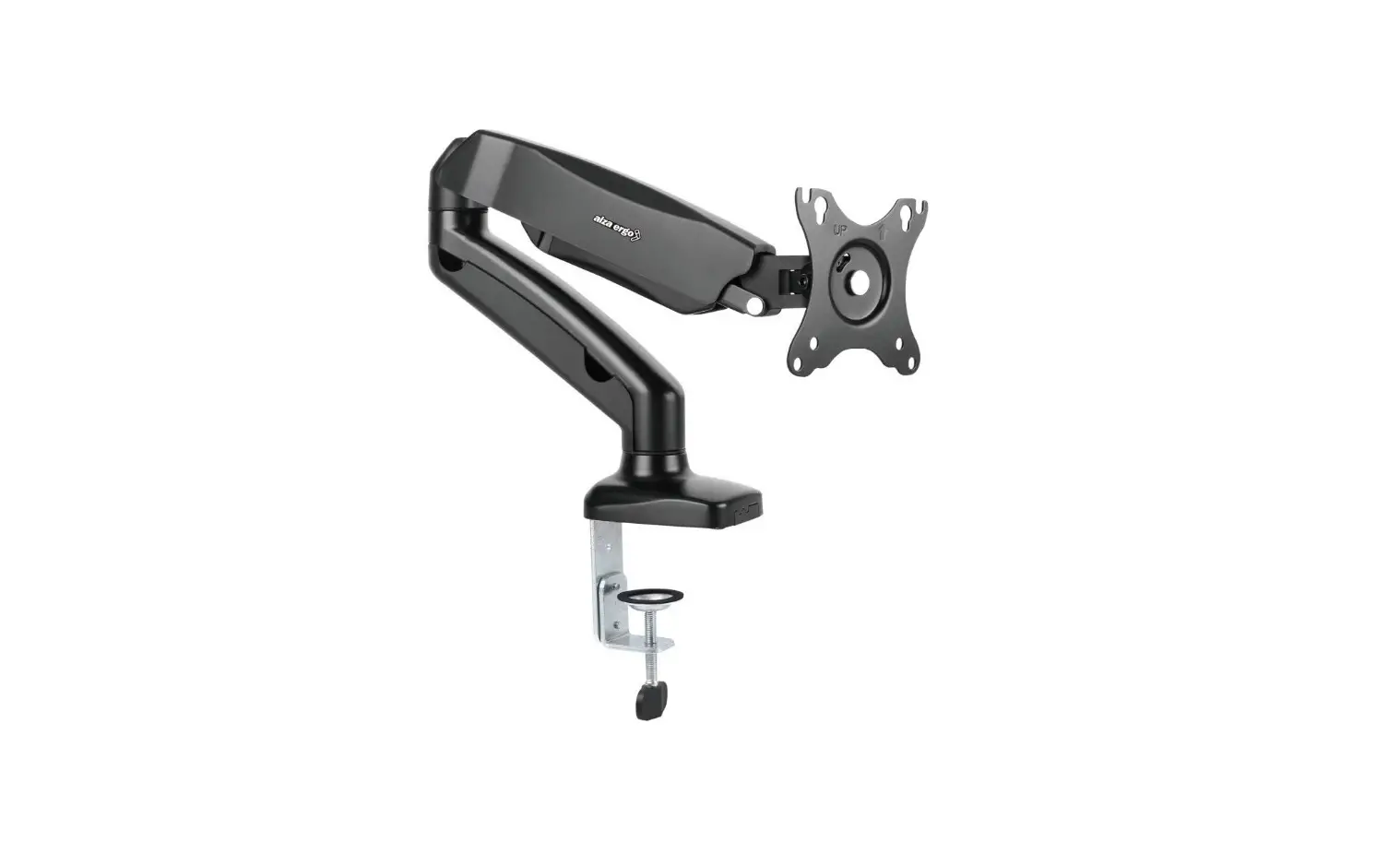
ADMAB-0222 Dual Monitor Arm with Gas Lift and Laptop Holder
Product Information
Model: ADMAB-0222
Product Name: Dual Monitor Arm with Gas Lift
and Laptop Holder
Package Contents:
- A. Dual Gas Spring Monitor Bracket with USB ports
- B. Bracket Clamp
- C. Laptop Holder
- D. M4 x 8mm Screws (8)
- E. M4 x 12mm Screws (8)
- F. Screw Spacers (8)
- G. M5 Nut (4)
- H. M6 x 12mm Cap Screws (3)
- I. M5 x 12mm Cap Screws (4)
- J. 4mm Hex Key
- K. 5mm Hex Key
- L. Bracket Cover
- M. Bracket Clamp Cover
- N. Cable Cover (2)
- O. Warranty Certificate
- P. General Safety Warnings
- Q. Installation Guide
Product Usage Instructions
Installation Guide:
Attach to your desk (Mounting to edge of
desk):
- Attach the bracket clamp to the base with the 3 M6 x 12mm cap
screws. Use the 4mm hex key to tighten. - Adhere the bracket cover and the bracket clamp cover to the
support block of the bracket clamp. - Tighten the securing bracket by turning the adjuster
anti-clockwise and make sure it’s tight. If your desk is too thick,
adjust the clamp down a notch and re-tighten. Be careful not to
overtighten the clamp or you might cause surface damage to your
desk or table.
Attach to your desk (mounting to desk cable
opening):
- Loosen the two screws that connect the two parts of the
clamp. - Put the arm through the hole in your table.
- Install the lower part of the clamp with the two screws.
Tighten the clamp until it is securely fastened to the desk.
Mount your monitors:
- Install the upper two screws but don’t screw them completely
just yet. Hang the monitor on the mounting plate. - Install the lower two screws. Now you can fasten the upper two
screws all the way. - If your monitor is 75 x 75mm mounting pattern, use the inner 4
holes on the monitor mounts. - We have included two sizes of screws and spacers to suit most
monitors. Select the appropriate screw length to best suit your
installation. If you need to use the spacers, place them between
your monitor and the mounting plate. - This bracket can handle monitors that weigh 6.5kg or less!
Attaching the Laptop Holder:
- Install the supplied M5 x 12mm cap screws and M5 nut to join
the laptop holder onto the bracket using the 4mm hex key. - Adjust the position of the laptop holder to the desired
position. - Place the laptop onto the laptop holder.
Adjust to your space:
It’s important to make your workspace as ergonomic as possible.
This bracket allows you to adjust the height, tilt, and swivel of
your monitor and laptop’s position, so that it’s truly fitted to
your space and sitting.
- To lock in your adjusted position, you will need to tighten the
bolt on the mounting plate using the supplied 5mm hex key. - Use the 5mm hex key to adjust the height tension of the gas
spring arm. This keeps monitors stable at any position. The heavier
the monitor, the further you’ll need to turn to the “+”
symbol.
Installation Guide
Model: ADMAB-0222
Dual Monitor Arm with Gas Lift and Laptop Holder
Hey! Let’s get your new monitor bracket ready to use, fast!
Have you got everything?
UP UP
x 8
x 8
MN N
F x 8
G x 4
H x 3
I x 4
J
K
Q
O
P
x 2
You will also need a Phillips-head screwdriver to secure your monitors and the laptop holder to the bracket
Unpack the box (be gentle) and make sure all of these items are there:
A. Dual Gas Spring Monitor Bracket with USB ports B. Bracket Clamp C. Laptop Holder
D. M4 x 8mm Screws (8) E. M4 x 12mm Screws (8) F. Screw Spacers (8) G. M5 Nut (4) H. M6 x 12mm Cap Screws (3)
I. M5 x 12mm Cap Screws (4) J. 4mm Hex Key K. 5mm Hex Key L. Bracket Cover M. Bracket Clamp Cover
N. Cable Cover (2) O. Warranty Certificate
P. General Safety Warnings
Q. Installation Guide
1
Attach to your desk
(Mounting to edge of desk)
2
Attach the bracket clamp to the base with the 3 M6 x
12mm cap screws. Use the 4mm hex key to tighten.
Adhere the bracket cover and the bracket clamp cover to the support block of the bracket clamp.
Tighten the securing bracket by turning
3
the adjuster anti-clockwise and make sure
it’s tight. If your desk is too thick, adjust the
clamp down a notch and re-tighten.
Be careful not to overtighten the clamp or you might cause surface damage to your desk or table
1
Attach to your desk
(mounting to desk cable opening)
2
Loosen the two screws that connect the two parts of
the clamp.
Put the arm through the hole in your table.
Install the lower part of the clamp with the two screws. Tighten the clamp until it is securely fastened to the desk.
3
Nearly done! Just a bit more on the other side
of this page…
Mount your monitors
Install the upper two screws but don’t screw them completely just yet. Hang the monitor on the mounting plate.
Install the lower two screws. Now you can fasten the upper two screws all the way.
If your monitor is 75 x 75mm mounting pattern, use the inner 4 holes on the monitor mounts.
We have included two sizes of screws and spacers to suit most monitors. Select the appropriate screw length to best suit your installation. If you need to use the spacers, place them between your monitor and the mounting plate.
This bracket can handle monitors that weigh 6.5kg or less!
Attaching the Laptop Holder
You can also hold your laptop with the included laptop holder instead of having a
dual monitor setup.
Install the supplied M5 x 12mm cap screws and M5 nut to join the
laptop holder onto the bracket using the 4mm hex key.
Adjust the position of the laptop holder to desired position.
Place the laptop onto the laptop holder.
UP UP
Adjust to your space
It’s important to make your workspace as ergonomic as possible.
This bracket allows you to adjust the height,
tilt and swivel of your monitor and laptops position, so that it’s truly fitted to your space
and sitting.
To lock in your adjusted position, you will need to tighten the bolt on the mounting plate using the supplied 5mm hex key.
Use the 5mm hex key to adjust the height
tension of the gas spring arm. This keeps
monitors stable at any position.
3
The heavier the monitor, the further
you’ll need to turn to the + symbol.
At the back of the bracket, connect the USB cables to your computer. This allows for the bracket to act
as an adaptor for plugging in your USB devices!
7 Hide those cables
You can tuck away those unsightly cables into the bracket arm itself.
Tuck the cables into the underside of the lower bracket arm.
Run the cables along the arm until they reach the compartment on the upper part of the arm.
Secure the cables by locking the compartment cover onto the arm.
Give us a call
What? You mean this Installation Guide didn’t have ALL the answers? Speak to us! We’d love to help you get up and running as quickly as possible. Call our After Sales Support on 1300 002 534. Operating hours: Monday-Friday, 8:30am-6pm; Saturday, 9am-6pm AEST
Your new Monitor Bracket is ready to enjoy!
Well done, you made it. Now sit back and relax… your new monitor bracket is automatically covered by a 1-year warranty. How nice!