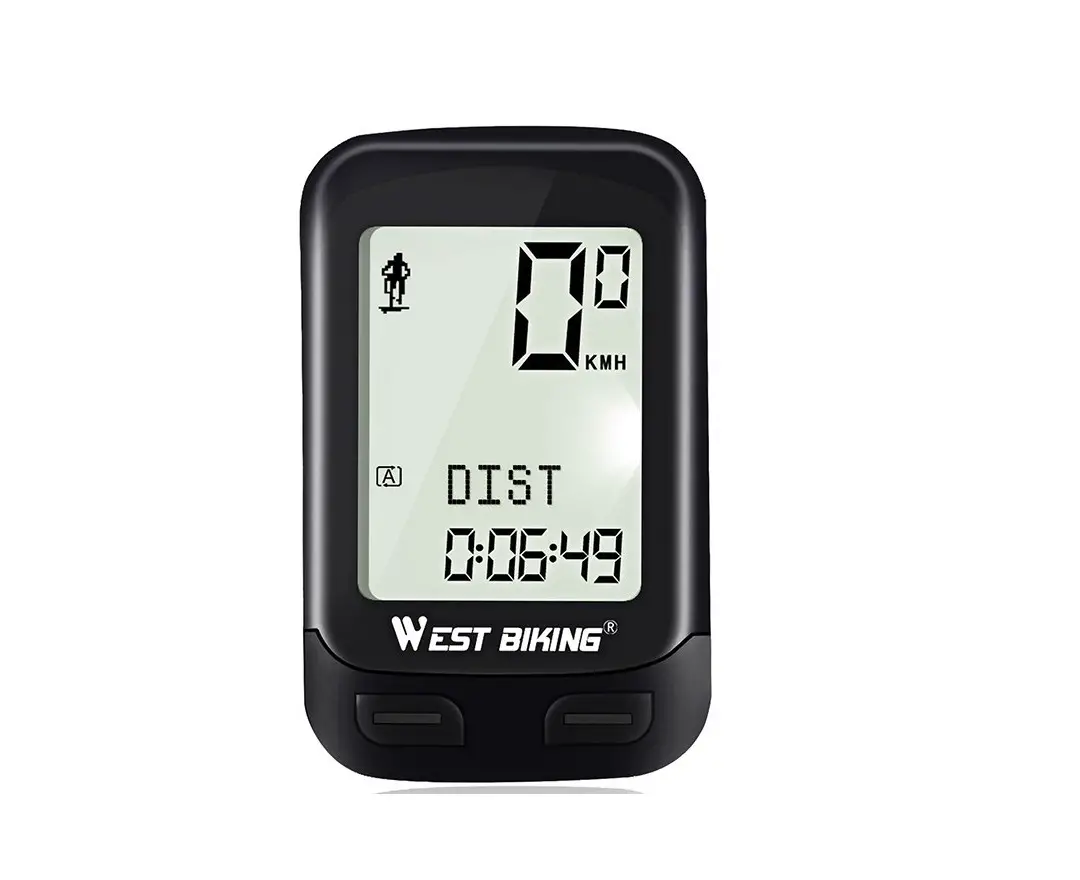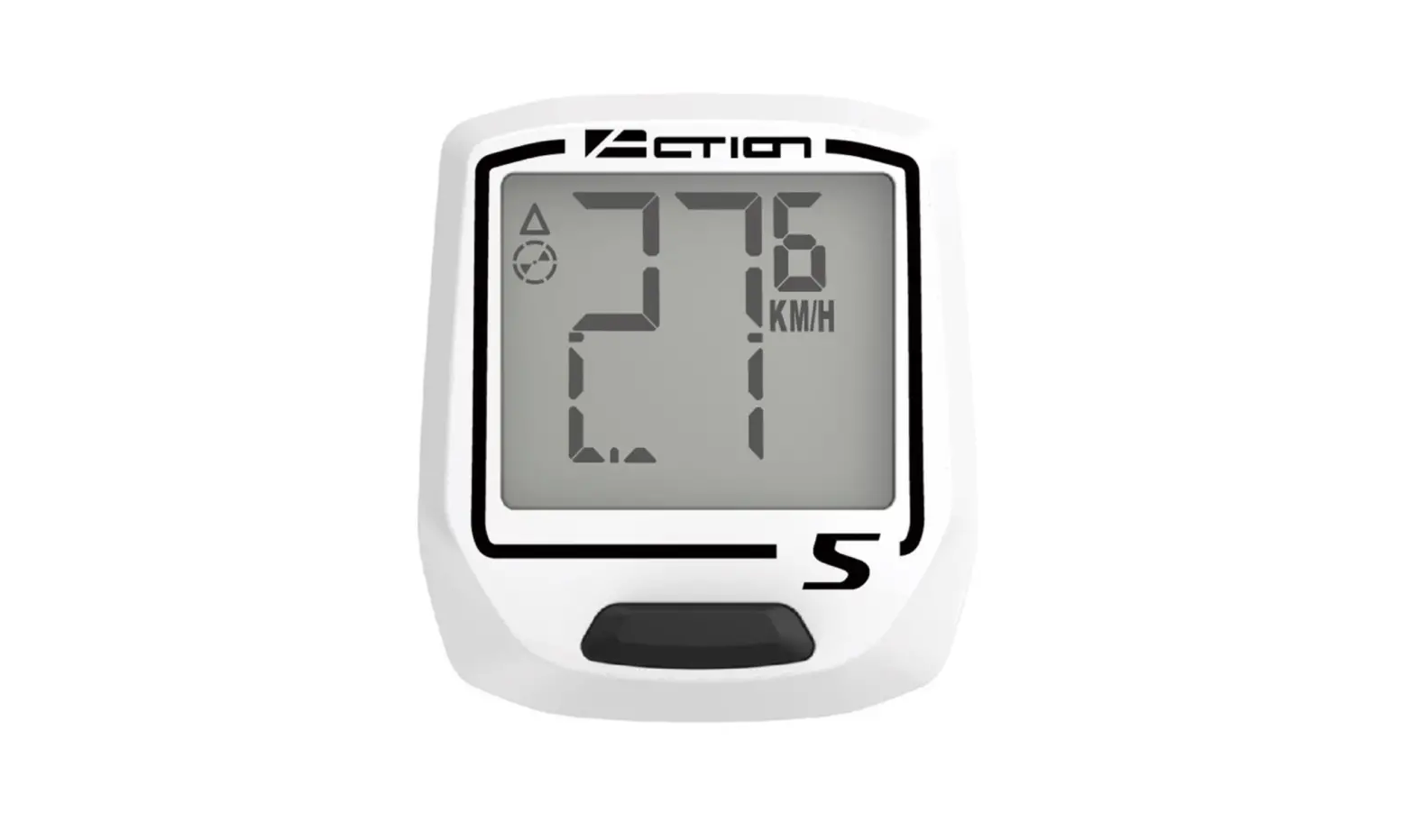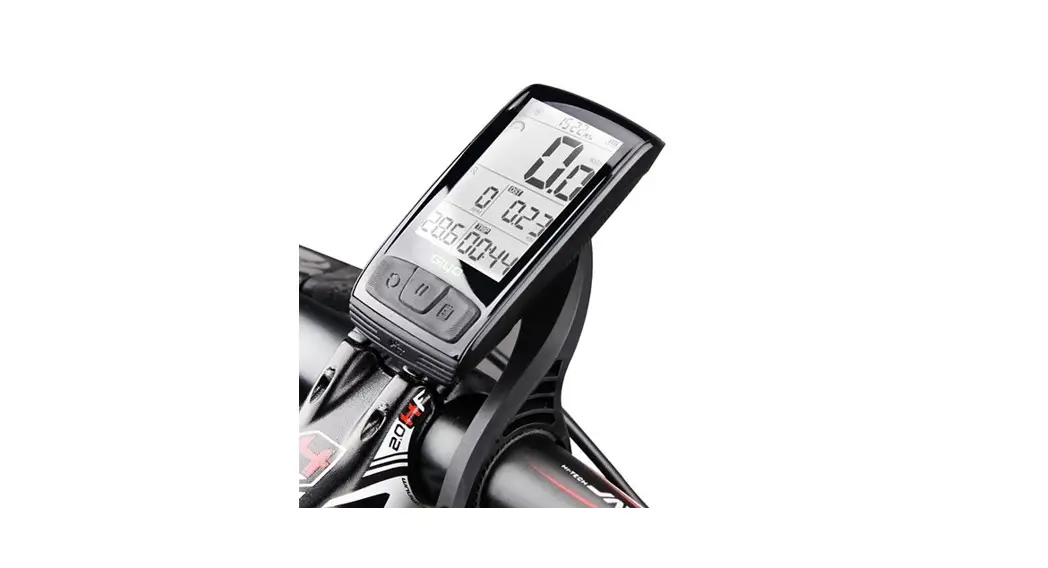
 Wireless Bicycle Computer
Thank you for purchasing the Wireless Bicycle Computer. We hope you will be satisfied with your purchase. Note: A slight rattle sound in the product is normal. It is part of the design of wireless automatic functions.
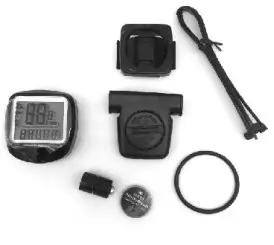
What’s included
I * Computer
I * Sensor Transmitter
1* Pad bracket
4 * Cable ties
I* CR2032 battery
I • Magnet I Rubber band
1 * Instruction sheet
 Note:
Note:
When attaching the sensor transmitter, battery cover, and computer mounting holder, do not tear off the shim especially the shim on the back of the computer battery cover. It is a part of the product and should not be torn off.
Installation
Computer Battery Installation
Remove the battery cover from the bottom of the computer by using a flat blade screwdriver, install one CR2032 battery with the positive (+) pole facing the battery cover and replace the cover. Should the LCD show irregular figures, take out the battery and reinstall it. ‘2060’ appears on the screen means installation correctly.
Sensor Transmitter Battery Installation
Remove the battery cover from the bottom of the computer by using a flat blade screwdriver, install one 2032 battery with the positive (+) pole facing the battery cover and replace the cover. Should the LCD show irregular figures, take out the battery and re-install it.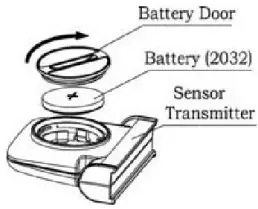 Sensor Transmitter Installation
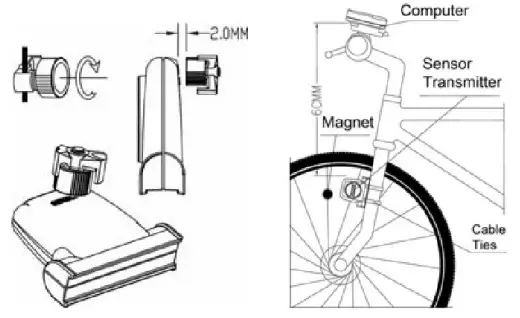
Attach the sensor transmitter to the left fork blade, the distance between the computer and the sensor can not exceed 60cm, the closer the better. Using the shims to adjust the diameter, and using the cable ties(shown above) to tie it with the fork(once diameter, please tear off the yellow paper on the tape for fixing). Position the sensor transmitter and magnet as shows, make sure that the arc of the magnet intersects the alignment mark on the sensor transmitter with 1mm clearance.
Mounting Ring Instaiiations
Attach the mounting ring with the cable ties to the handlebar, adjust the mounting Ring on the handlebar with the shims to hold its position.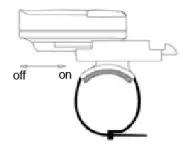
Computer Installation
Attach the computer to the mounting shoe by sliding the unit until it snaps firmly into its position. To remove it, press the button on it in the opposite direction.
To check for proper speed function and sensor alignment, spin the front wheel with a computer in speed mode. Adjust the position of the sensor and magnet when there is no or weak reaction.
Setting of Parameters
Once you have set the wheel size parameter to ‘km/h or m/h, the rest of the parameters will change automatically while your tire is running.
If you need to re-set the settings once the computer is working, press both rights and left buttons at the same time for at least 5 seconds. The “2060” code should appear and then you can re-set the wheel size. After this is done you can then set up km/h or m/h.
Wheel Size Input
`2060′ appears on the screen when the battery has been installed, with one figure flashing, choose the correct wheel circumference from the table below. Press the RIGHT button to advance digits as needed and the LEFT button to confirm and advance. (The circumference ranges Omm-9999nun), press the LEFT button to enter KM/M mode.
| TIRE SIZE | CIR | TIRE SIZE | CIR | TIRE SIZE | CIR |
| 29″x2.3″ | 2326 | 27″x 1(630) | 2145 | 24″x 1(520)” | 1753 |
| 29″x2.2″ | 2298 | 650c x 38Amm | 2125 | 24″x 2.125″ | 1965 |
| 29″x2.I” | 2288 | 650c x 38Bmm | 2105 | 24″x 2.00″ | 1925 |
| 700c x 47mm | 2268 | 650c x 25Cmm | 1952 | 24″ x 1.9″ | 1910 |
| 700c x 45mm | 2242 | 650c x 23mm | 1944 | 24″x 1.75″ | 1890 |
| 700c x 44mm | 2235 | 650c x 20mm | 1938 | 22″x 1-1/2″ | 1785 |
| 700c x 42mm | 2224 | 650cTubulari | 1920 | 22″x 1-3/8″ | 1770 |
| 700c x 40mm | 2200 | 26″x 1-1/2″ | 2100 | 20″ x 1-3/8″ | 1615 |
| 700c x 38mm | 2180 | 26″x 1-3/8″ | 2068 | 20″ x 1-1/8″ | 1545 |
| 700cTubulari | 2130 | 26″x 1-1/8″ | 1970 | 20″ x 1.95″ | 1565 |
| 700c x 35mm | 2168 | 26″x 3.00″ | 2170 | 20″x 1.35″ | 1460 |
| 700c x 32mm | 2155 | 26″x 2.35″ | 2083 | 20″ x 1.25″ | 1450 |
| 700c x 30mm | 2146 | 26″ x 2.25″ | 2070 | 18″ x 1.75″ | 1350 |
| 700c x 28mm | 2136 | 26″ x 2.10″ | 2068 | 18″ x 1.50″ | 1340 |
| 700c x 25mm | 2105 | 26″ x 2.0″ | 2062 | 17″ x 1-1/4″ | 1340 |
| 700c x 23mm | 2096 | 26″ x 1.95″ | 2050 | 16″ x 1-3/8″ | 1300 |
| 700c x 20mm | 2086 | 26″ x 1.90″ | 2045 | 16″ x 1-1/8 | 1290 |
| 700c x 19mm | 2080 | 26″x 1.75″ | 2023 | 16″ x 2.0″ | 1245 |
| 700c x 18mm | 2070 | 26″x 1.50″ | 2010 | 16″ x 1.95″ | 1240 |
| 27.5″x 2.25″ | 2182 | 26″x 140″ | 2005 | 16″ x 1.75″ | 1195 |
| 27.5″x 2.1″ | 2148 | 26″x 1.25″ | 1950 | 16″ x 1.50″ | 1185 |
| 27.5″x 1.50″ | 2079 | 26″x 1.0″ | 1913 | 14″ x 1.75″ | 1055 |
| 27″x 1-3/8″ | 2169 | 24″x 1-1/4″ | 1905 | 14″ x 1.50″ | 1020 |
| 27″x 1-1/4″ | 2161 | 24″x 1-1/8″ | 1795 | 12″ x 1.95″ | 940 |
| 27″x 1-1/8″ | 2155 | 24″x3/4″ | 1785 | 12″x 1.75″ | 935 |
Setting ( km/h ) / ( m/h )
Press the RIGHT button to choose km/h or m/h. Press the LEFT button to enter CLOCK mode.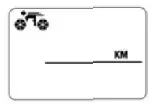 CLK Mode(12H/24H)
In CLOCK Mode, press the LEFT button for 3 seconds to enter 12/24H selection. Re-press the LEFT button for 12/24 exchanging. Press the RIGHT button to enter Hour setting mode, when the figure indicating HOUR start to flash, press the LEFT button to adjust it. Continue to press the RIGHT button to enter Minute setting mode, when the figure indicating MINUTE start to flash, press the LEFT button to adjust it and the RIGHT button to confirm, press the RIGHT button again to ODO mode.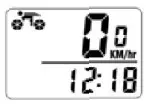 Setting the Last Valu of Odometer
In ODO mode, press the LEFT button for 2 seconds to set the ODO value, its initial value is 0000.0. when one figure flashing, press the RIGHT button to adjust it and the LEFT button to confirm it and start to set the next figure. (After the battery has been re-installed, the latest value can be inputted according to the value before pre-installation of the battery. )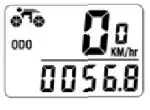 Reset of Mlileatie Parameter
In ODO mode, press and hold both RIGHT and LEFT buttons simultaneously for 3 seconds to clear the tire circumference and (km/m) setting, The user needs to reset the tire circumference and (km/m), the original ODO value, and CLOCK will remain unaffected.
Speedometer
Speed is shown all the time on the screen, its maximum reading is 99.9km/h(m/h), and it’s accurate to +/- 0.1km/h (in/h)•
Speed Computer
During riding, ‘ + ‘ and ‘ -‘ indicates the current speed is higher or lower than the average speed(AVS).
Odometer
In ODO mode, the total distance is -. I indicated on the screen, its mileage range is 0.001 — 99999km(m). the _ • display will be back to 0 when the value exceeds its maximum limit, press the RIGHT button to enter DST mode..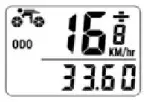 Trip Distance (DST)
In DST mode, the distance for one trip is indicated on the bottom line. DST ranges from 0.001 –9999km(m), when the value exceeds the range limit, it -restarts from 0 automatically. Both the time and the distance records will be cleared when the time of one trip exceeds the range limits.
Press the LEFT button for 5 seconds to clear the records of DST, MXS, AVS, and TM.
Press the RIGHT button to enter MXS mode.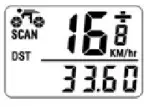 Maximum S wed (MXS)
In MXS mode, maximum speed is indicated on the bottom line. Press the LEFT button for 5 seconds to clear the records of MXS, DST, AVS, and TM. Press the RIGHT button to enter AVS mode.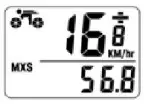 Average Speed
In AVS mode, the average speed is indicated on the bottom line. Press the LEFT button for 5 seconds to clear the records of AVS, DST, MXS, and TM. Press the RIGHT button to enter TM mode.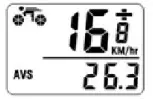 Trip Time
In TM mode, trip time is indicated on the bottom line.TM ranges 0 :00 :00 99 :59 :59. It will be back to 0 when the value exceeds the limits.
Press the LEFT button for 5 seconds to clear the records of TM, DST, MXS, and AVS. Press the RIGHT button to enter SCAN mode.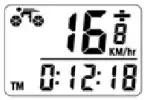 SCAN
SCAN
In Scan mode, DST, MXS, AVS, and TM • mode are indicated in tum every 4 seconds. Press the RIGHT button to enter CLOCK Mode.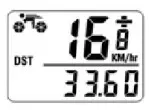 Sleep Mode
If no signal has been inputted for 300 seconds, the computer will enter into Sleep Mode, and the CLK value remains. It will turn back to the former model with all the data collected when any signal is inputted or any button is pressed.
FREEZE FRAME MEMORY
Press the LEFT button at any time will enter into freeze-frame memory mode. Flashing TM data will appear on the screen. Press the RIGHT button to view the records of DST, MXS, AVS, and TM. Press the LEFT button to end it.
Press the RIGHT button to choose any mode below: ODO, DST, MXS, AVS, TM, SCAN (DST. MXS, AVS. TM), and CLOCK. It’s unnecessary to press the LEFT button except to choose the Freeze frame Memory mode. In Freeze Frame Memory mode, press the RIGHT button, several data will display, re-press the LEFT button to turn back to other modes.
Malfunctions and Problems
| Malfunctions | Problems |
| No speedometer | Improper magnet/sensor alignment Distance between computer and sensor transmitter exceed 60cm The low battery voltage of the sensor transmitter or computer. |
| A short distance of the transmitter or no receiving | Lower battery voltage, need to change for a new one. |
| Display Abnormal figures | Too much Electromagnetic interference around |
| An inaccurate value is indicated | Improper input, such as wheel circumference. |
| Slow display response | Temperature exceeds operating limits(Ot —55 C). |
| Black display | Temperature too high, or put in direct sunlight for too long time. Need to take back to shadow place for a period. |
| Weak display | Poor battery contact or dead battery |
| The display shows irregular figures | Take out the battery and re-install it after 10 seconds. |
| Sensor without reaction | Put off the insulation film of the sensor transmitter |
Back Light
The backlight is only on when you press any button from 6 pm to 7 am.
 Product Code: J192101
Made in China for S&S Enterprises Ltd. 26 Perivale Park Middlesex UB6 7RL