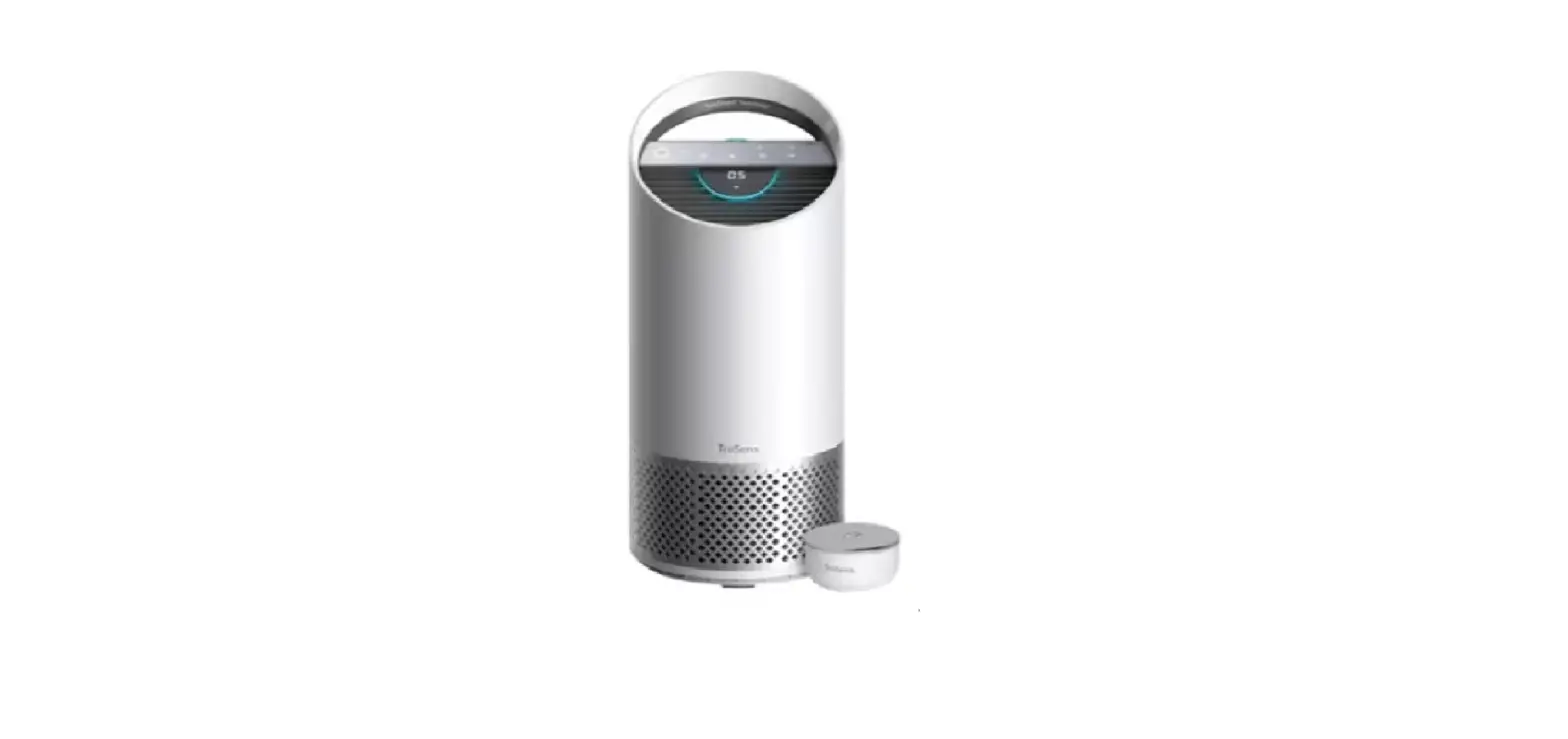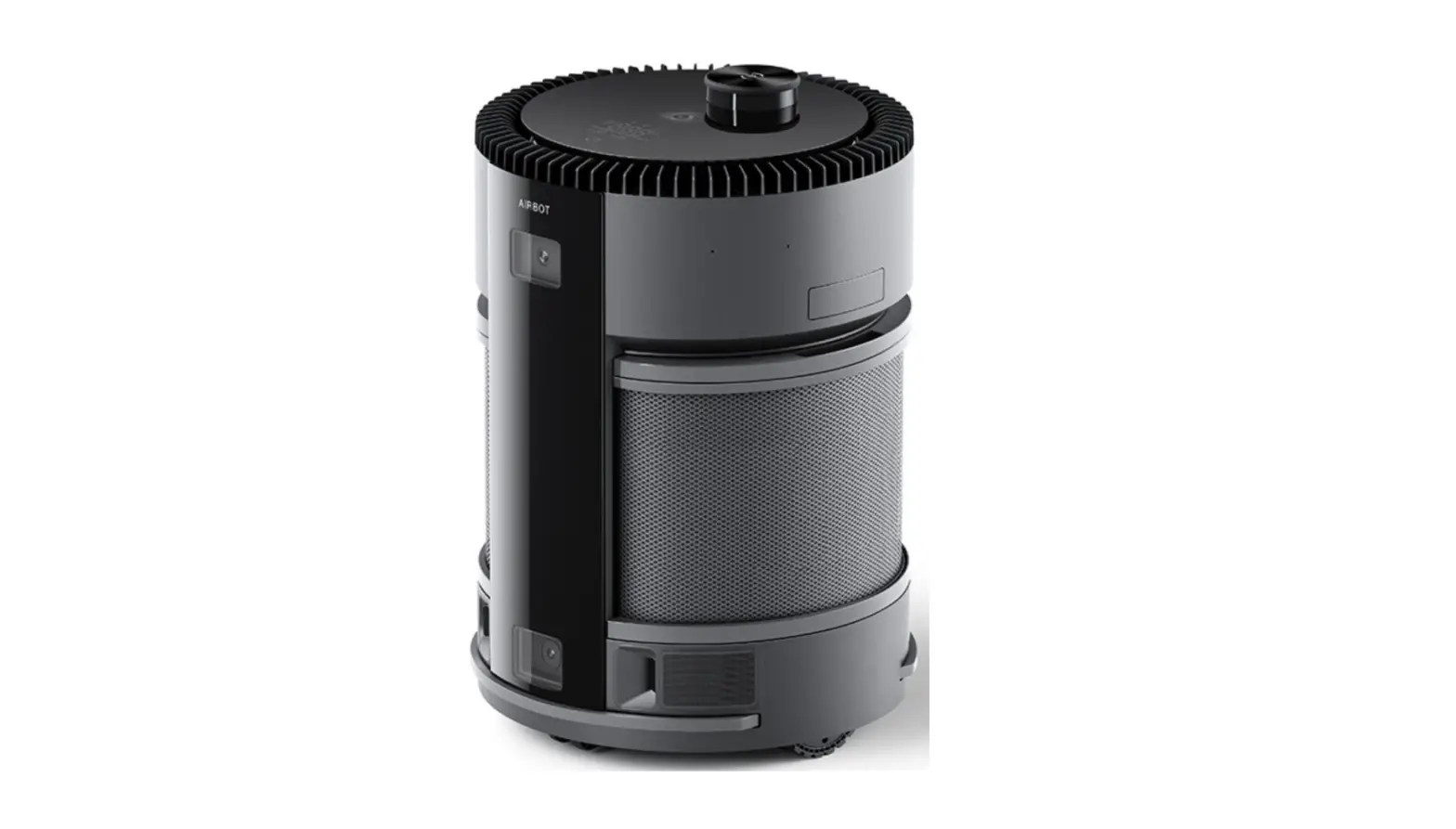
Airbot Z1 Air Purifying Robot
AIRBOT IZ1
Quick Start Guide
 Video Guide
How to use AIRBOT

Read Safety Instructions before use. Follow the below Instructions strictly. Figures and illustrations are for reference only and may differ from actual product appearance.
STEP 1 Preparation Before Use
1 Remove Protective Materials of AIRBOT
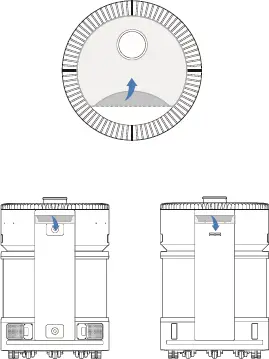
2 Pull out the Handle and Take out the Filter
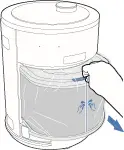
3 Remove the Package of Filter
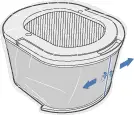
4 Install Air Freshener Module (Sold Separately)
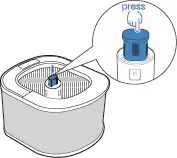
* Press again to remove Air Freshener Module (Sold Separately).
Note:
- When unpacking AIRBOT for the first time, please put it in an indoor ventilated environment for 12 to 24 hours before use.
- When purifying, please avoid using insecticide aerosols, alcohol and other substances that may affect air monitoring.
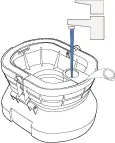
5 Add Water to Fog–free Humidification Module (Sold Separately)
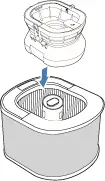
6 Install Fog–free Humidification Module (Sold Separately)
7 Power ON and Install Filter AIRBOT is powered ON when the control panel is illuminated.
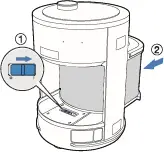
* “I”= ON; “O”=OFF.
8 Remove Protective Materials of Charging Dock
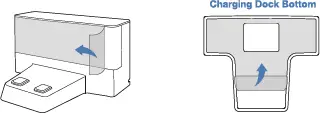
9 Open the Back Cover and Adjust the Length of Power Cord
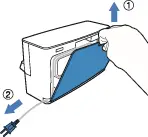
10 Place Charging Dock
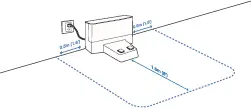
Place the Charging Dock on a level floor surface against a wall with the base perpendicular to the ground. Keep the immediate area 1.5m/5‘ in front of and 0.5m/1.6‘ on both sides clear of objects and reflective surfaces.
Charge AIRBOT
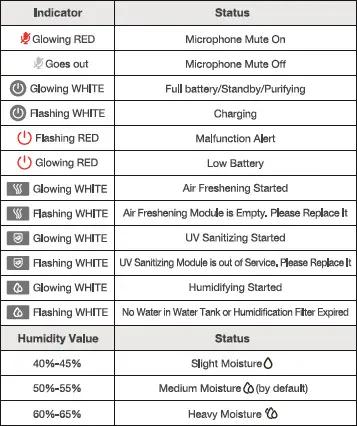
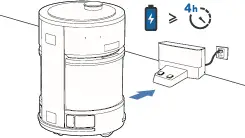
Place AIRBOT near the Charging Dock. Press and hold on the control panel for 3 seconds. AIRBOT will return to charge automatically. flashes when charging starts. U glows solid WHITE when AIRBOT is fully charged.
appears when the battery is low.
Note:
- Before charging AIRBOT, please power it ON.
- Charge AIRBOT for a minimum of 4 hours before the first use.
Power the Air Quality Monitor
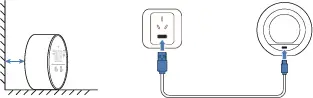
1. Choose the room to monitor and connect Air Quality Monitor to a home USB port (Rated Input: 5V 1A) with the USB cable.
Note:
The Air Quality Monitor might not be able to be powered via computer USB ports. Please place Air Quality Monitor vertically, and avoid placing it against the wall.
2. After the USB connection is completed, Air Quality Monitor starts to monitor the air quality.
STEP 1 Preparation Before Use
ECOVACS HOME App
AIRBOT can be operated via ECOVACS HOME App. Download ECOVACS HOME App to access more features: Mobile Purification, Area Purification, Basic Purification, and Linked Purification.
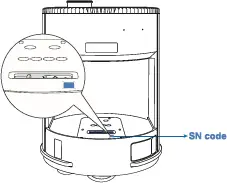
Method 1: Scan the SN code to download ECOVACS HOME App.
Note:
- Before network setup, please make sure your mobile phone is connected to home Wi–Fi.
- After installing ECOVACS HOME App, please complete the network setup according to App guidance.
Method 2: Search the App Store for “ECOVACS HOME” to download ECOVACS HOME App.
STEP 2 Quick Use
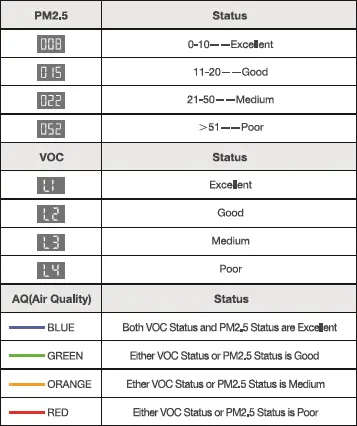
1 Control Panel
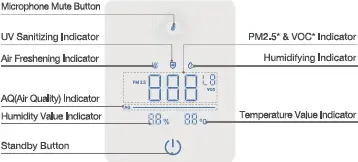
- PM2.5 means particulate matter in the atmosphere less than or equal to 2.5 microns in diameter.
- VOC means Volatile Organic Compounds, such as benzene, toluene, formaldehyde, etc.
AQ(Air Quality)represents the comprehensive value of PM2.5 status and VOC status.
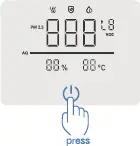
2 Press to turn on default Basic Purification.
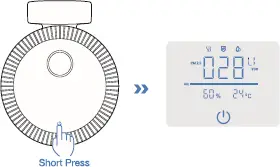
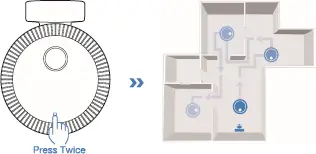
3 Mobile Purification
Press twice to switch to Mobile Purification. You also can switch mode by voice control.
Make sure AIRBOT stays connected to the Charging Dock and keeps charging before the first Mobile Purification. When purification is enabled, AIRBOT will firstly explore the home environment to create a map. Please do not follow in case of affecting AIRBOT’s recognition of the surrounding environment.
4 Airflow Switch
You can switch on Airflow in ECOVACS App or by voice control.
5 Bind Purification Areas through Air Quality Monitor
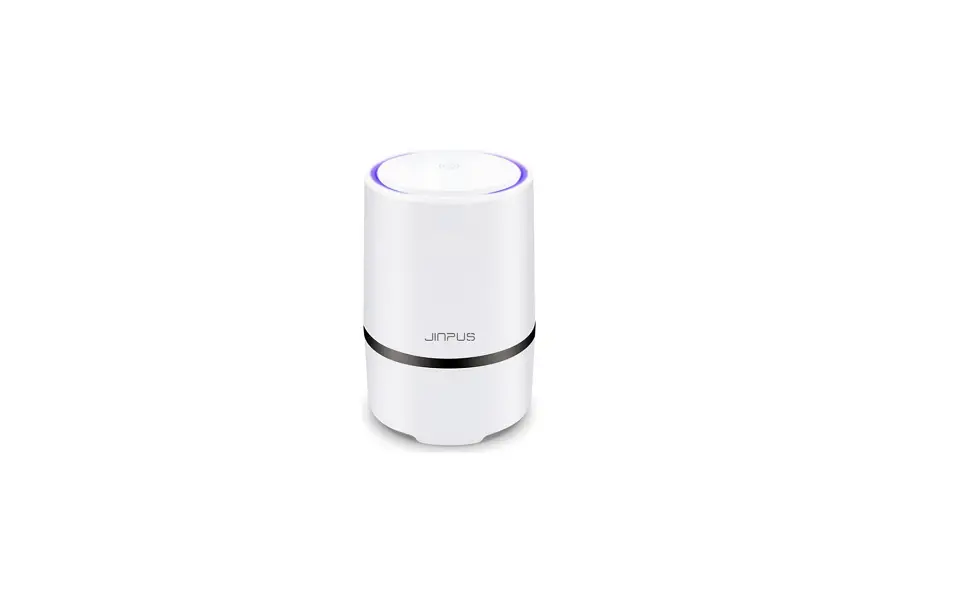
Air Quality Monitor can monitor the real–time air quality and call for AIRBOT to turn on Linked Purification.
Scan the QR Code on the Air Quality Monitor. Complete the network setup according to the instruction. Then, return to AIRBOT main screen in ECOVACS App and enter into “Map Management — Air Quality Monitor” to select the corresponding purification area to complete the binding.
Note: The PM2.5 value and VOC value will be displayed in the App after binding. * Click the unbinding button in the App to complete unbinding between the Air Quality Monitor.
You can use several Air Quality Monitors to monitor the air quality of more rooms. If necessary, please visit https://www.ecovacs.com/global.
6 Linked Purification through Air Quality Monitor
AIRBOT can automatically turn on Mobile Purification when Air Quality Monitor detects pollution based on data interconnection. When Air Quality Monitor detects excessive value of PM2.5 or VOC, AIRBOT will turn on the Linked Purification and automatically go to the purification area bound with Air Quality Monitor to purify. You can change setting value in ECOVACS HOME App.
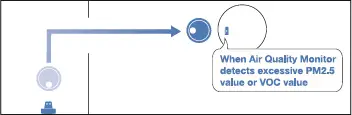
When both PM2.5 value and VOC value reach the standard, AIRBOT will automatically return to the charging dock.
7 Manually Call for AIRBOT to Purify
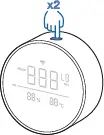
Double–click the Function Button on top of Air Quality Monitor to call for AIRBOT to go to the purification area bound with Air Quality Monitor and purify.
8 Pause/End Purification
Basic Purification: Press to end purification while AIRBOT is purifying. Press again to wake up AIRBOT to purify.
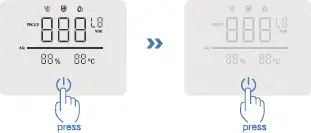
Mobile Purification: When AIRBOT is in Mobile Purification, press to pause purification; Press again to resume Mobile Purification.
9 Start Air Freshening/UV SanitizingTurn on Air Freshening/UV Sanitizing via ECOVACS HOME App.
STEP 2 Quick Use