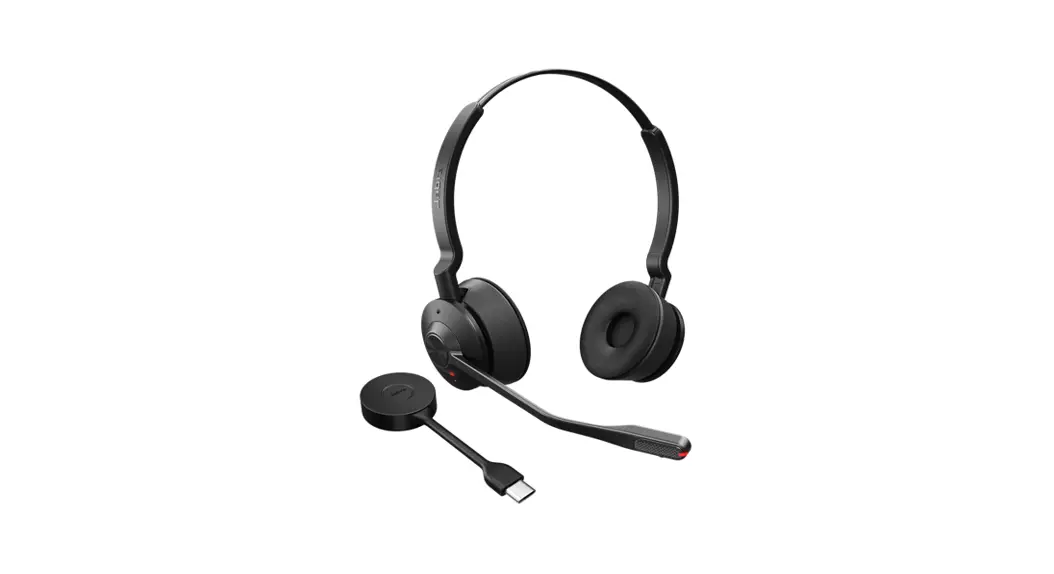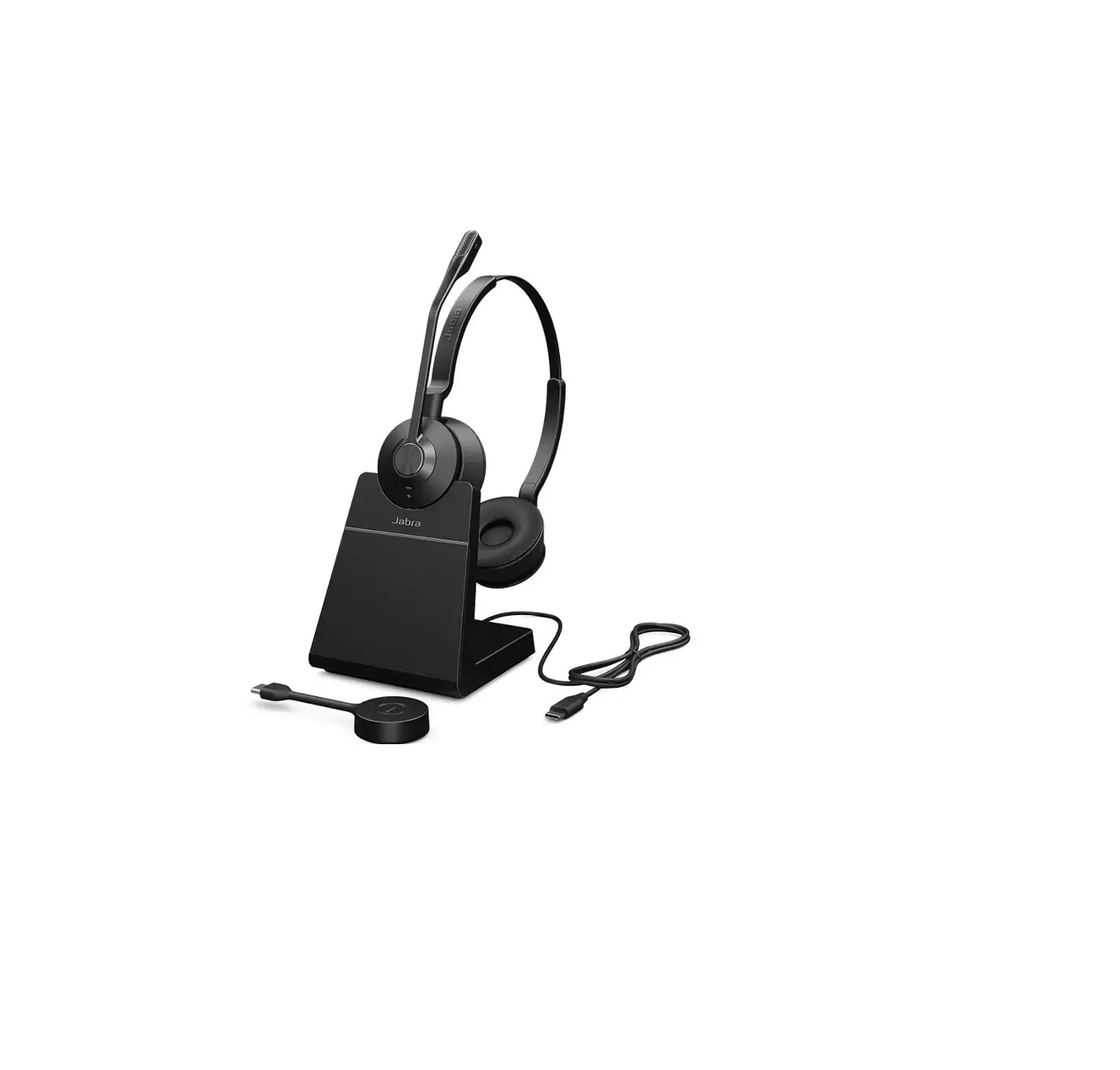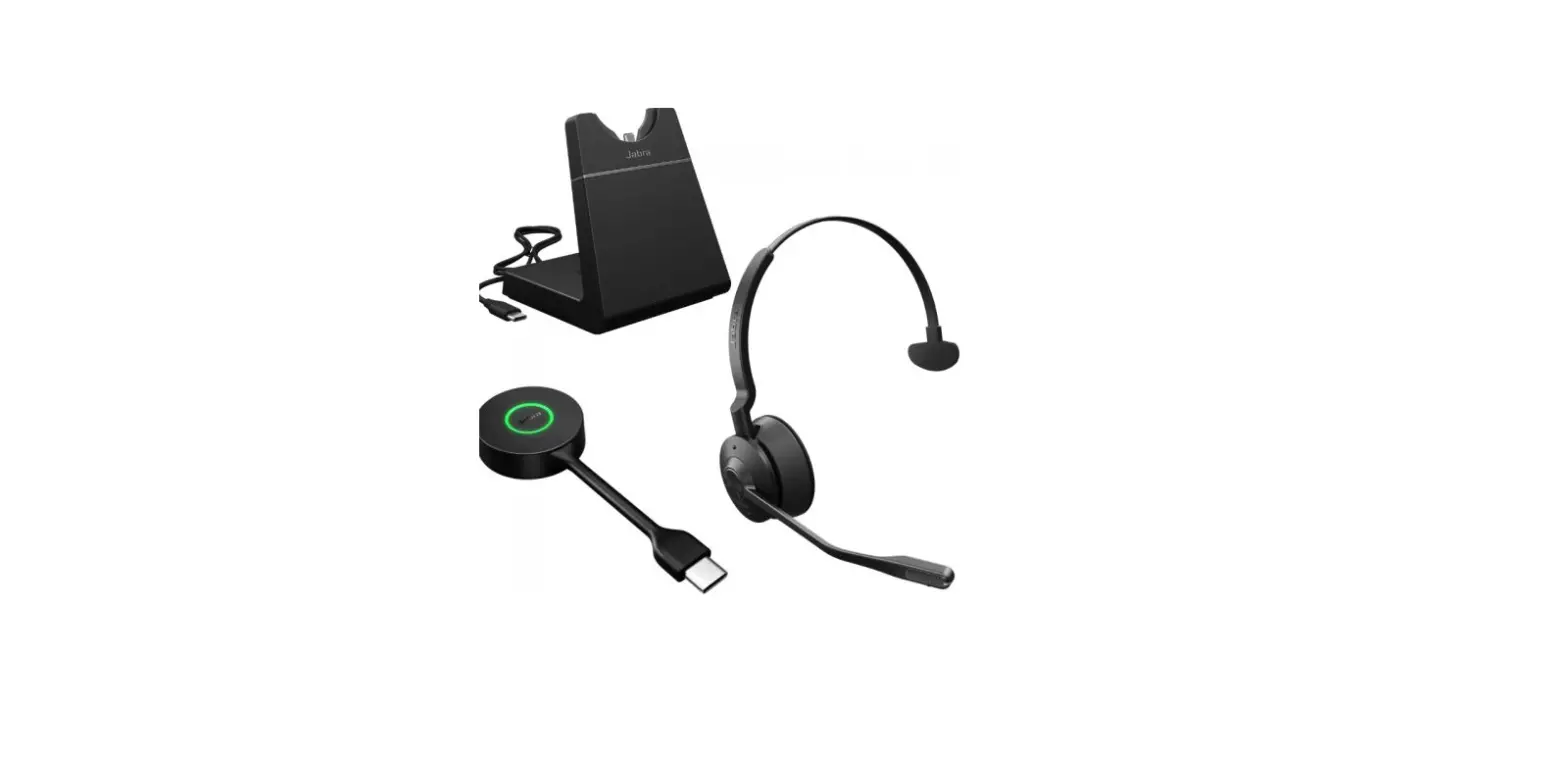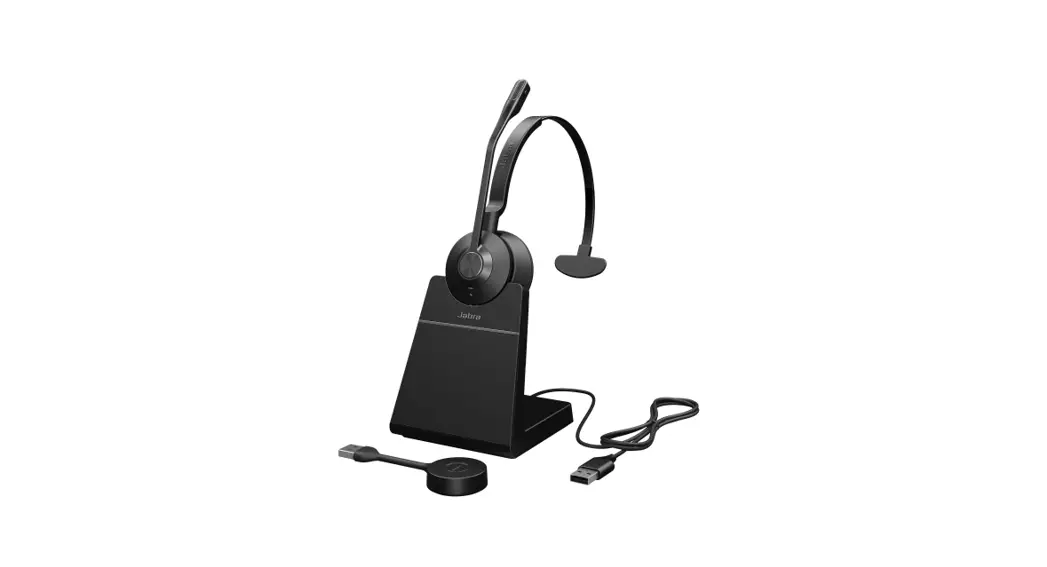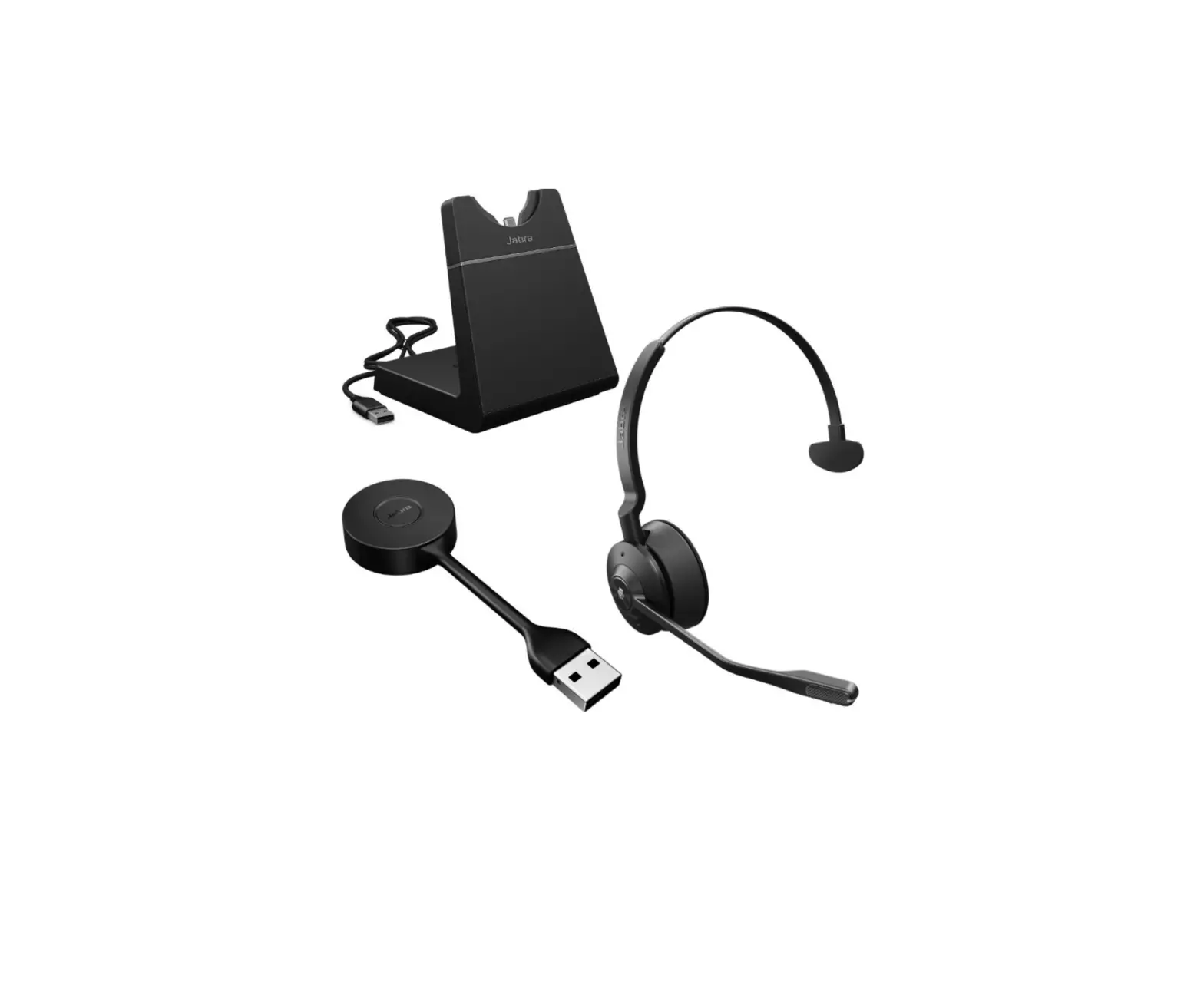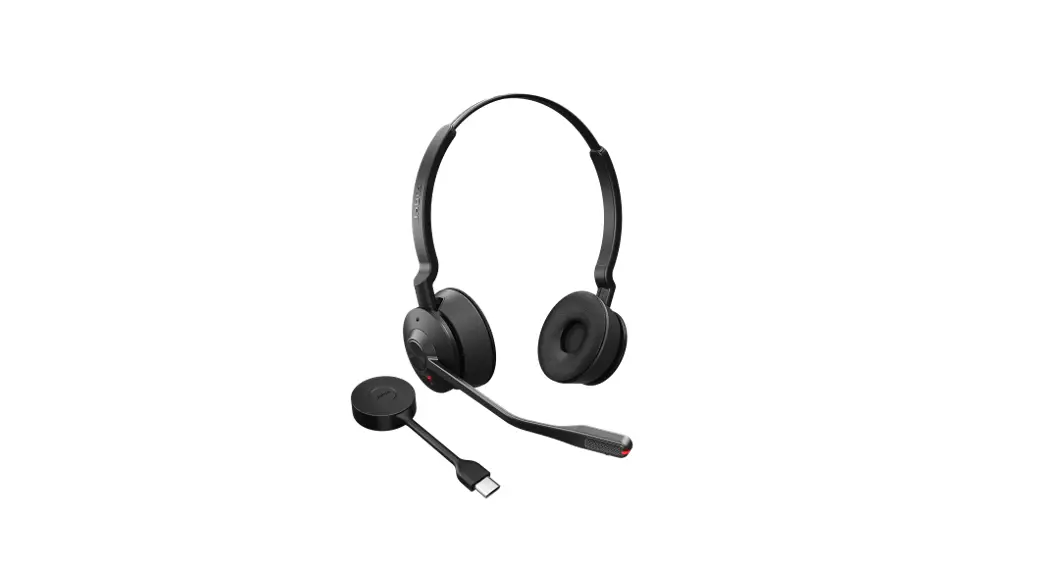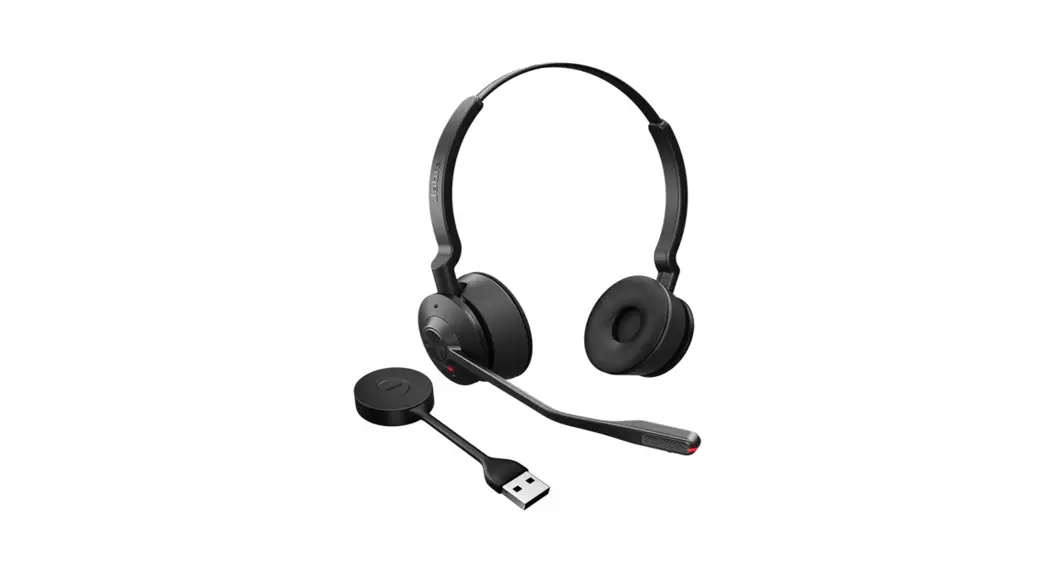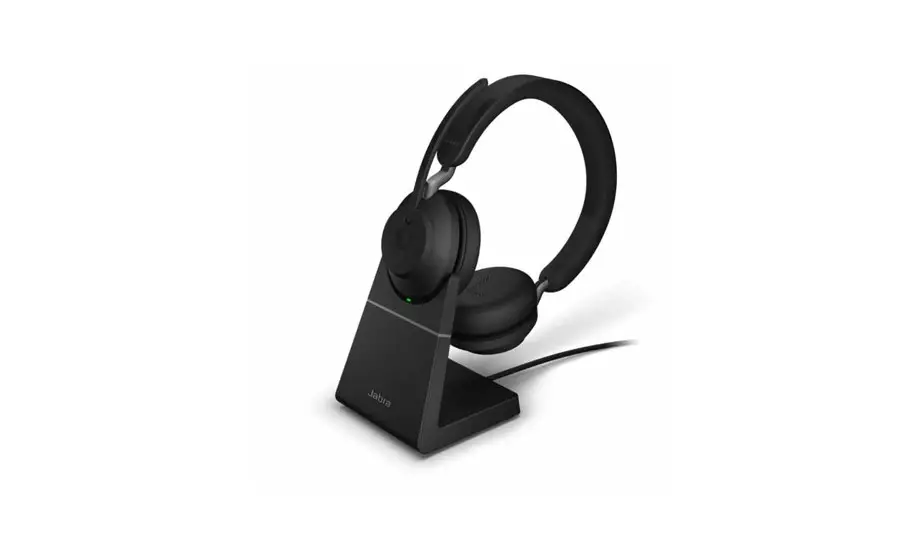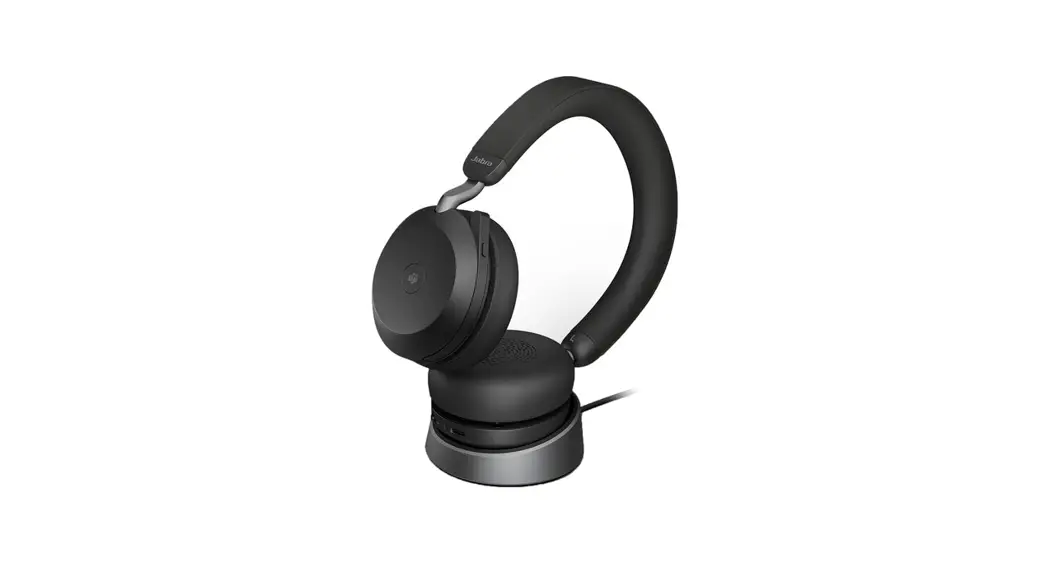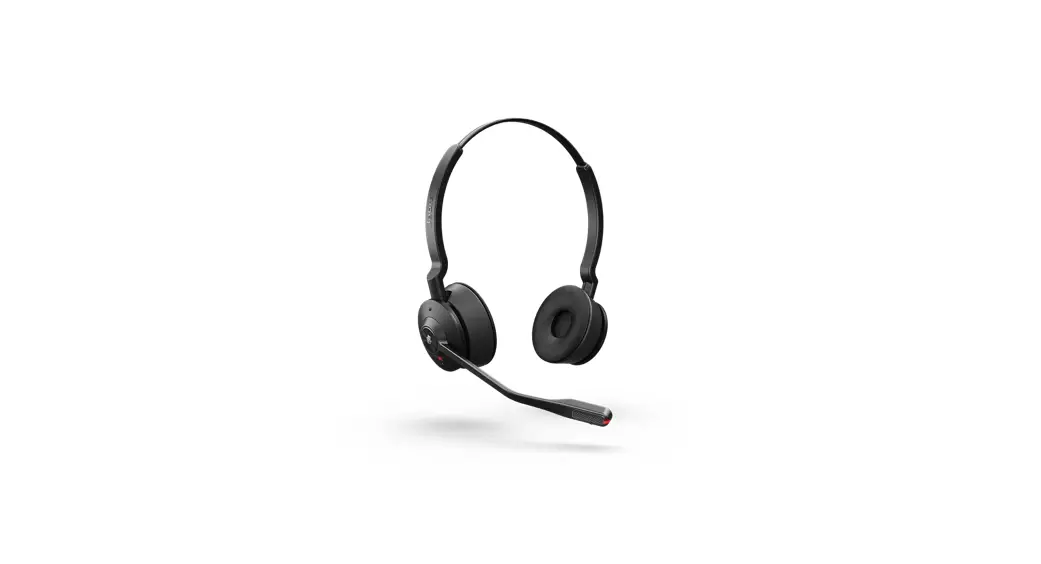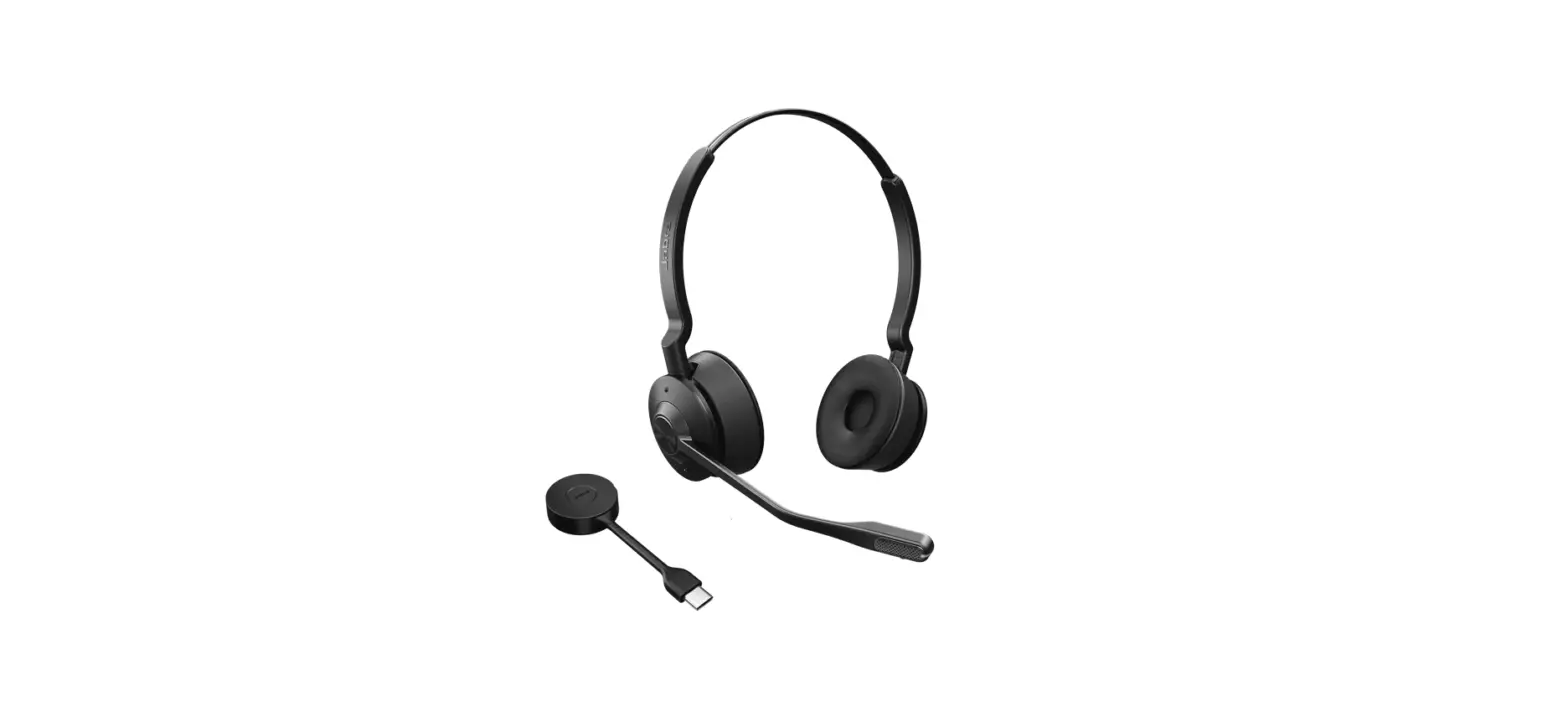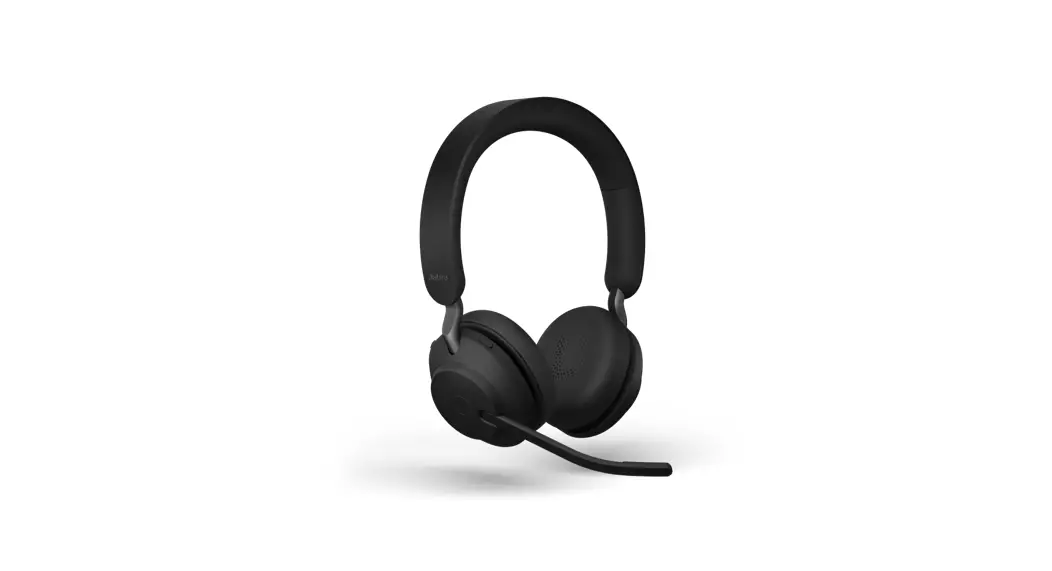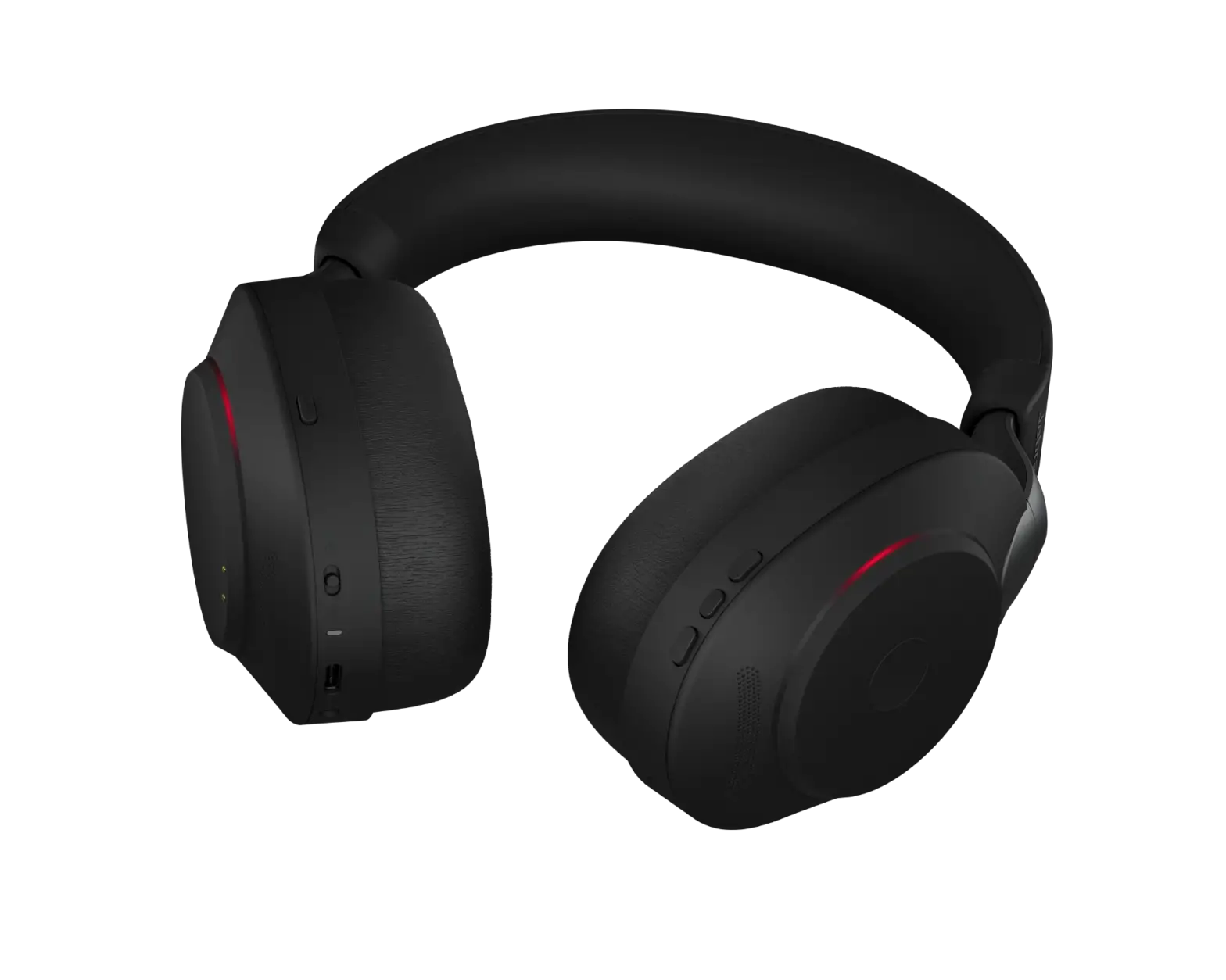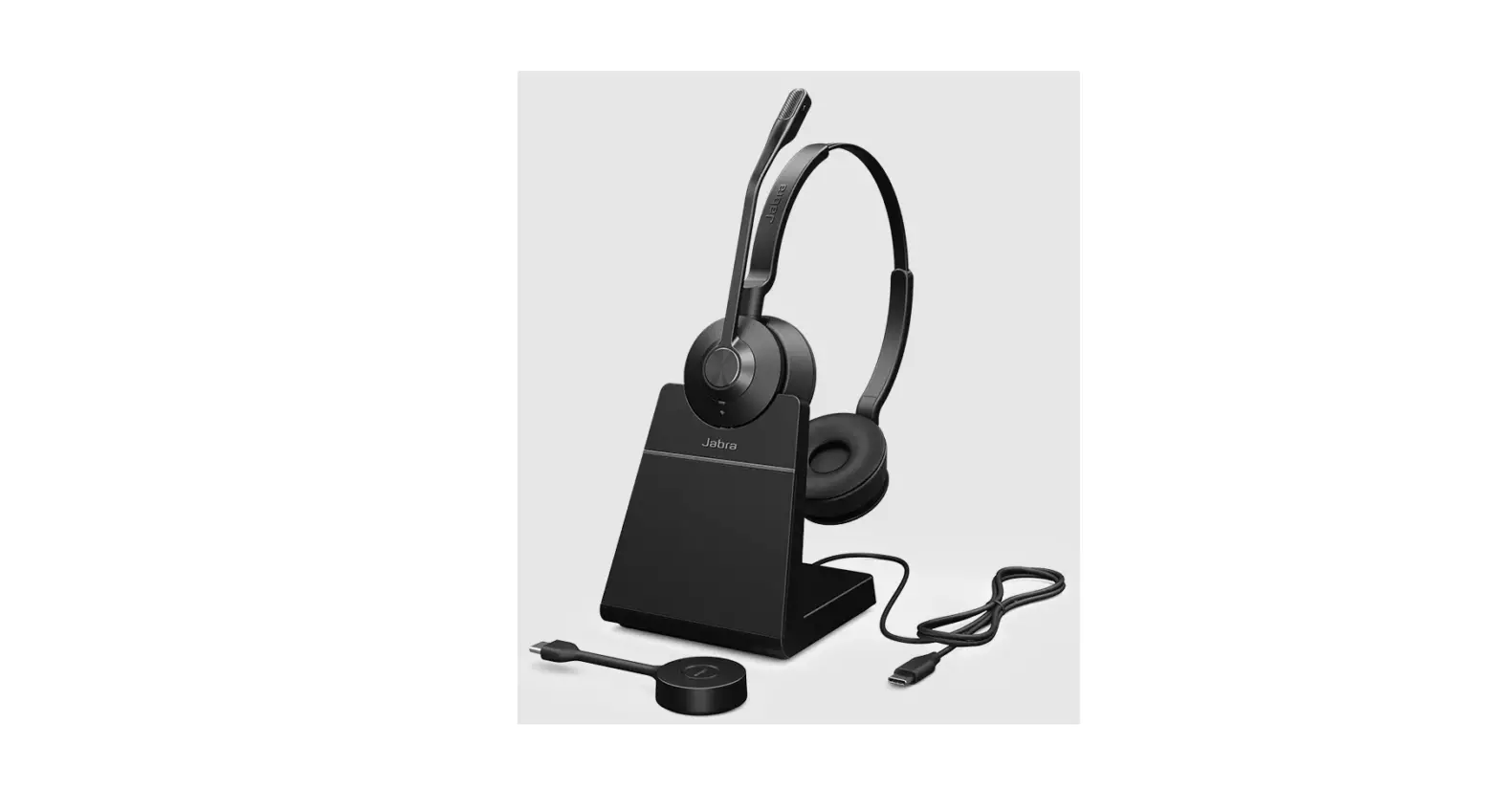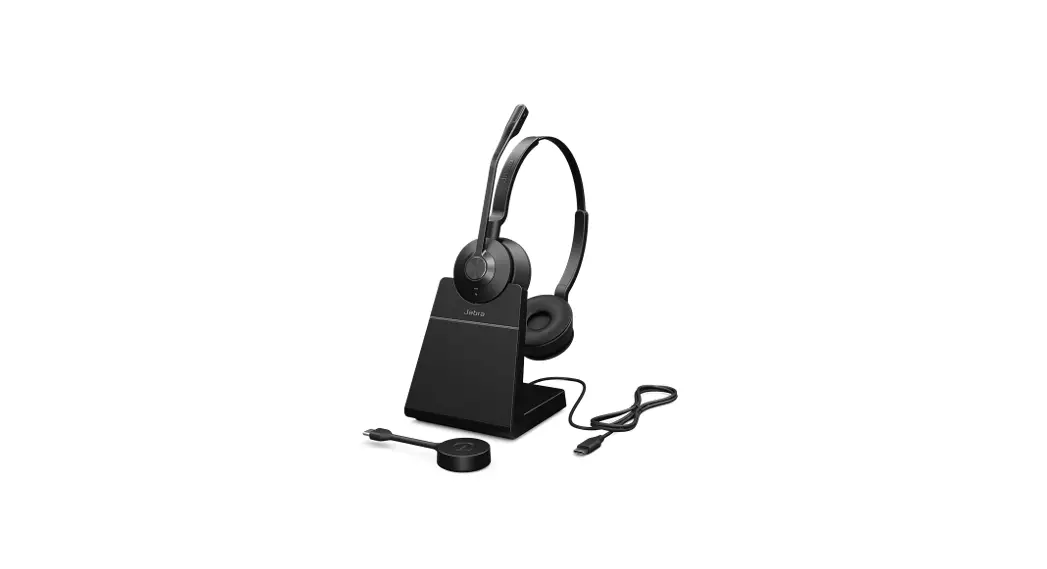

Jabra Engage 55 – USB-C MS Stereo with
Charging Stand
Engage 55 USB-C MS Stereo with Charging Stand
How do I manually change headset settings using the voice guided settings menu?
You can manually change headset and call settings using the voice guided settings menu. Alternatively, you can change all settings using Jabra Direct.
The following table describes how to use the headset controls to access the voice guided settings menu.
Note The overview is in English only. For versions in other languages, refer to the translated user manual in the Product documents section on the product support page.
menu Navigation
| Access the voice guided settings menu | Press and hold both the Volume up and the Volume down buttons simultaneously for 2 Seconds | ||
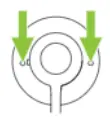 Cycle through Cycle throughsetting option | Press The Volume up or the Volume down button | ||
| Exit the voice guided settings menu | Press and hold both the Volume up and the Volume down buttons simultaneously for 2 seconds | ||
 Accept setting option Accept setting option | Press the Call button to accept the announced setting option. You will cycle to the next setting |
The following table describes the settings that you can change using the voice guided settings menu.
Settings
| Voice prompt Language | Select the headset voice language from a list of 5 languages |
| Voice prompts | Enables voice prompts on the headset |
| Mute reminder tone | Enables a periodic audio reminder when the microphone is muted |
| BusyUght | Enables the busylight function on the headset |
| Equalizer for calls | Select an equalizer setting for calls |
| Sidetone | Enables Sidetone for calls |
| Ringtone in headset | Enables a ringtone to be played in the headset |
 [FAQTitle] | Jabra Engage 55 - USB-C MS Stereo with Charging Stand | FAQ | Jabra Support