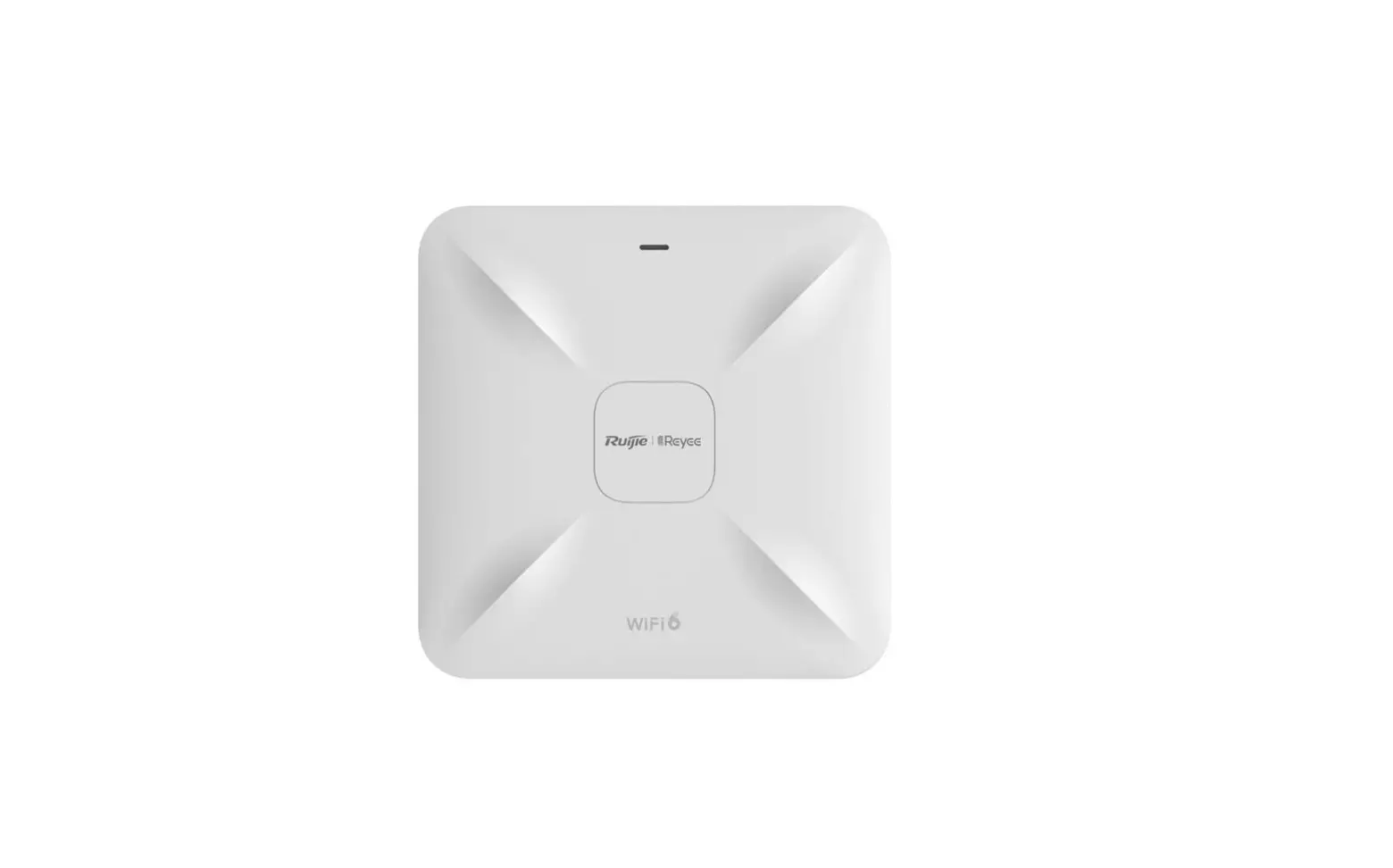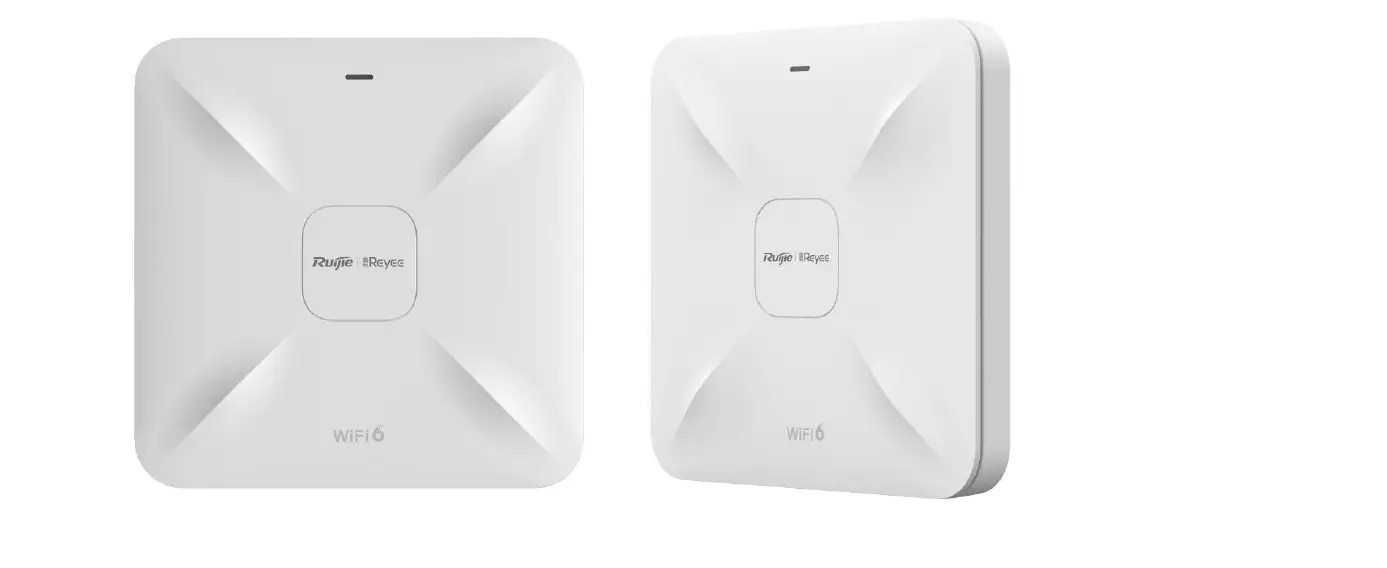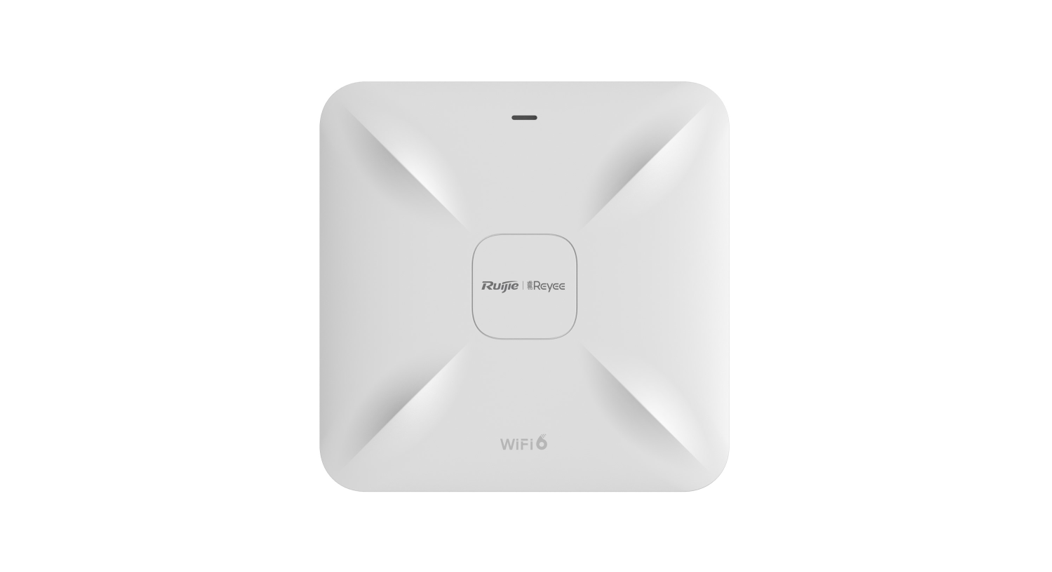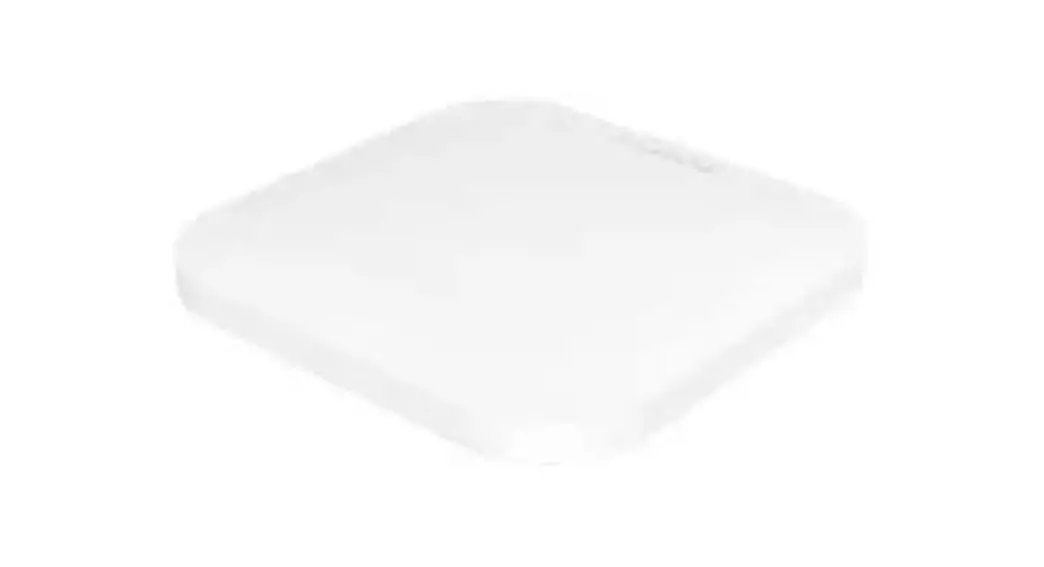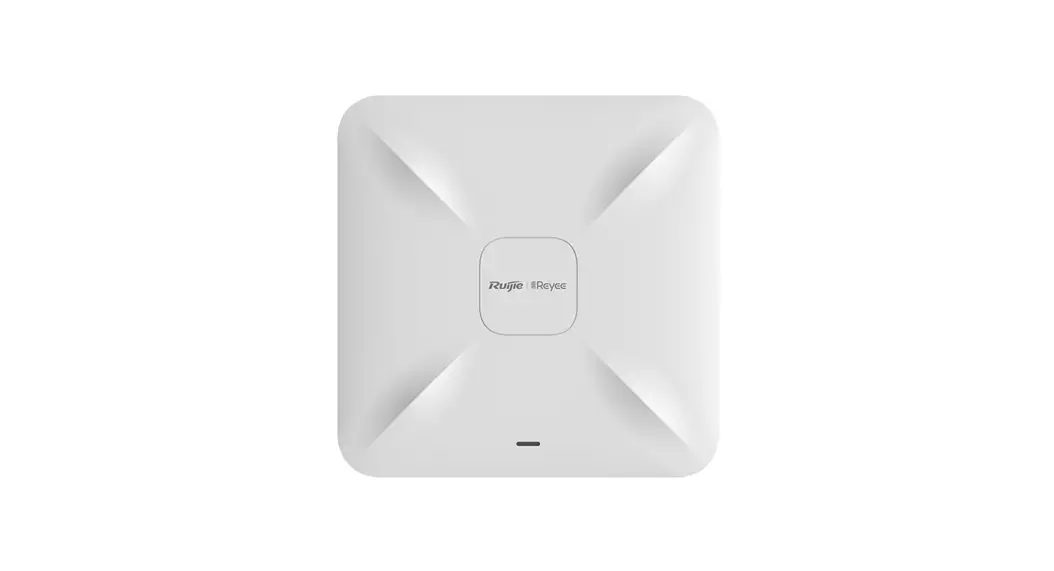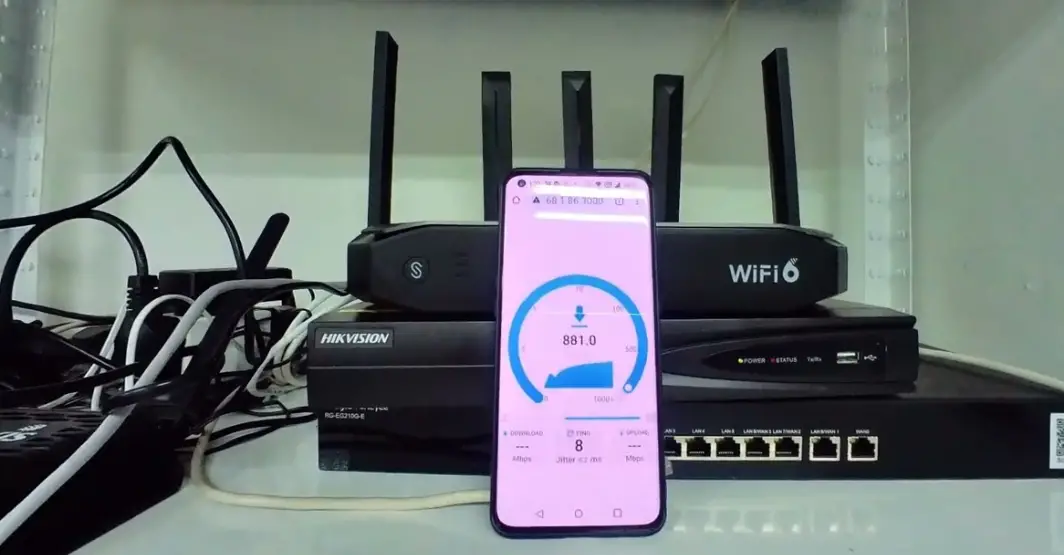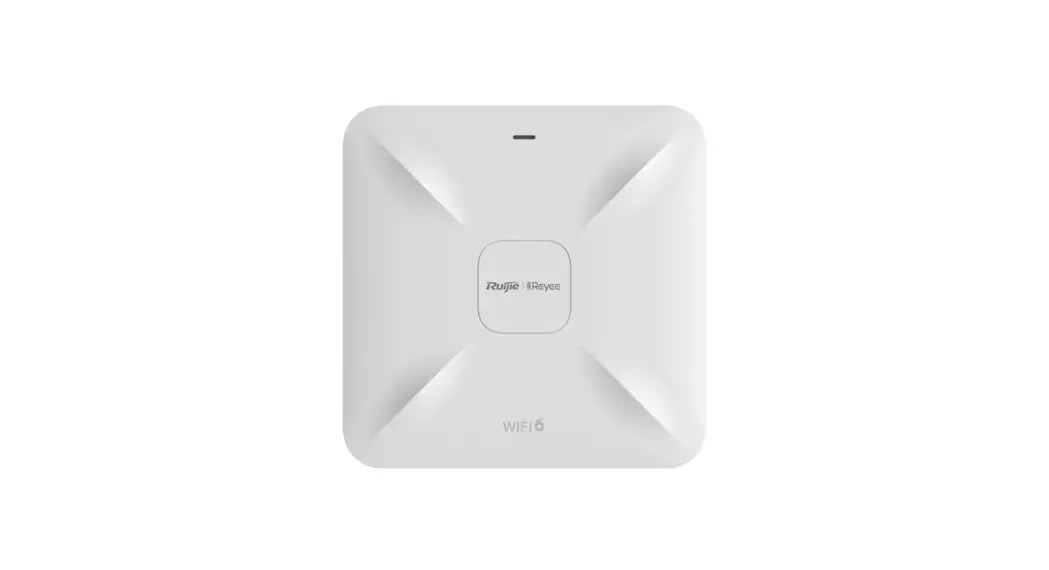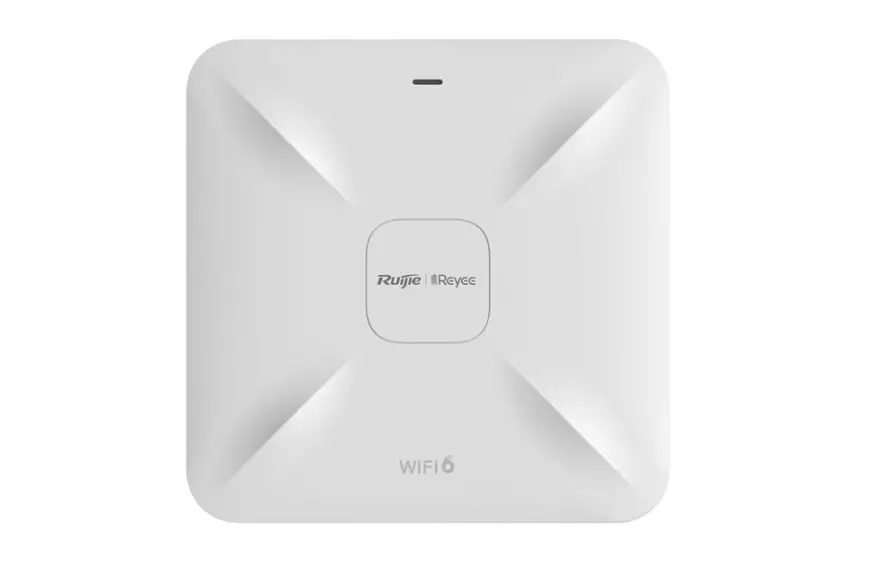

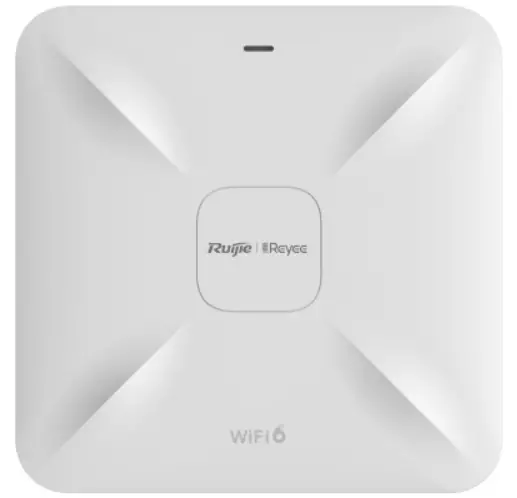
Ruijie RG-RAP2260H Wireless Access Point
Package Contents
| Item | Quantity |
| RG-RAP2260(H) Access Point | 1 |
| Mounting Bracket | 1 |
| Phillips Screw | 4 |
| Wall Anchor | 4 |
| User Manual | 1 |
| Certificate of Quality | 1 |
Hardware Features
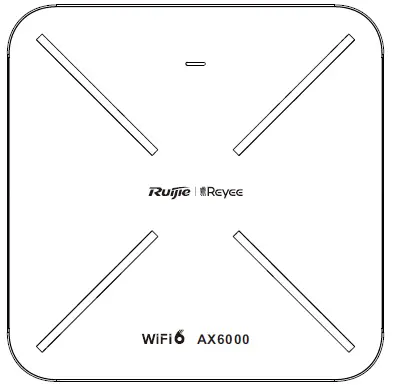
Top View
Bottom View
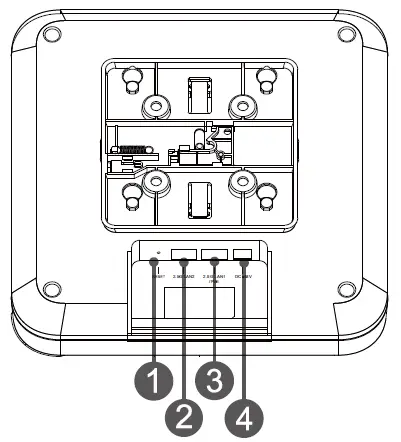
Note: RESET Hole LAN1/2.5G/PoE Port LAN2/2.5G Pot 48 V DC input plug
PoE power supply: Connect one end of the Ethernet cable to the LAN1/2.5G/PoE port of the access point, and the other end to a PoE-capable switch or other power source equipment (PSE).
DC power supply: Connect the DC power adapter (48 V/1A) to the DC input plug on the access point.
Technical Specifications
| Item | Specification |
| Dimensions (W x D x H) | 230 mm x 230 mm x 48mm (9.06 inch x 9.06 inch x 1.89 inch, without the mounting bracket) |
| Data Rate | 2.4 GHz: up to 1148 Mbps 5 GHz: up to 4804 Mbps Combined: 5952 Mbps |
| Operating Radio | 802.11 b/g/n/ax: 2.4 GHz to 2.4835 GHz 802.11 a/n/ac/ax: 5.150 GHz to 5.350 GHz, 5.470 GHz to 5.850 GHz |
| Antenna | Built-in omnidirectional antenna |
| Service Ports | Two 10/100/1000/2500 Mbps self-adaptive Ethernet ports |
| Restart/Reset | Supported |
| Status LED | Supported |
| Power Supply | There are three power supply modes available: • Standard PoE: IEEE 802.3bt standard, backward compatible with the IEEE 802.3at standard • 60 W Passive PoE adapter (Optional accessory) • Local power supply: 48 V DC /1 A Note: The access point is not 802.3af-compliant. (See Appendix for power supply modes and respective data rate.) |
| Max Power Consumption | 40W |
| Environment | Operating temperature: 0°C to 40°C (32°F to 104°F) |
| Storage temperature: -40°C to 70°C (-40°F to 158°F) | |
| Operating humidity: 5% to 95% (non-condensing) | |
| Storage humidity: 5% to 95% (non-condensing) | |
| Weight | 1.8 kg (3.97 lbs, without the mounting bracket) |
| Color | Warm white |
LED and Reset Hole
|
LED | Status | Description |
| Solid blue | The access point is functioning properly with no alarms. | |
| Off | The access point is not receiving power. | |
| Slow blinking | The access point is functioning properly but there is an alarm generated. | |
| Fast blinking | Possible cases: 1. Restoring the access point to factory settings. 2. Upgrading the firmware. 3. Handling alarms automatically. 4. Starting up the access point. |
| Reset Hole | Press and hold the pin to the Reset hole for less than 2 seconds. | Restart the access point. |
| Press and hold the pin to the Reset hole for more than 5 seconds. | Restore the access point to factory settings. |
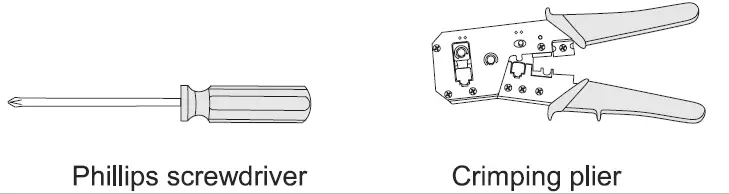
Tools (Customer-supplied)
Mounting the Access Point without Security Lock
To mount the AP with the security lock, see Mounting the Access Point with Security Lock.
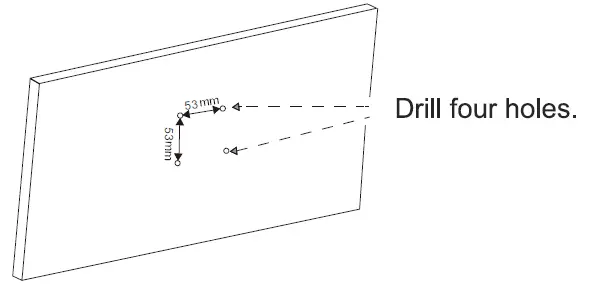
- Drill four holes at 53 mm (2.09 in) spacing on the wall or ceiling.

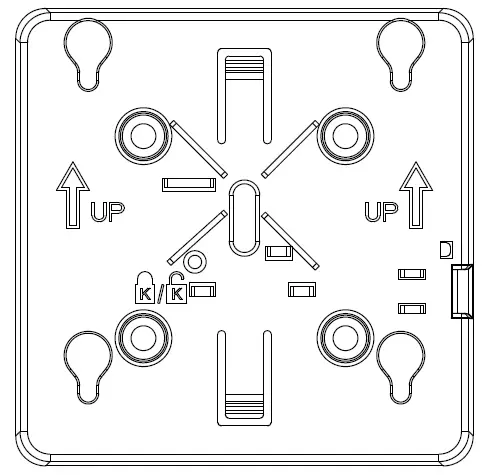
- Take out the mounting bracket from the packaging material.

- Secure the mounting bracket on the ceiling or wall by using screws.

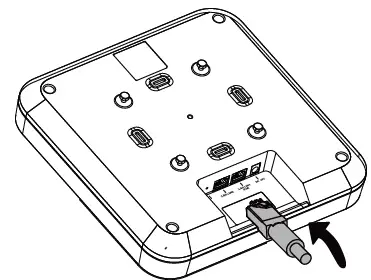
- Connect the Ethernet cable to the LAN port on the rear of the AP.

- Align the square feet on the rear of the AP over the mounting holes on the bracket. Slide the AP into the holes until it clicks into place.

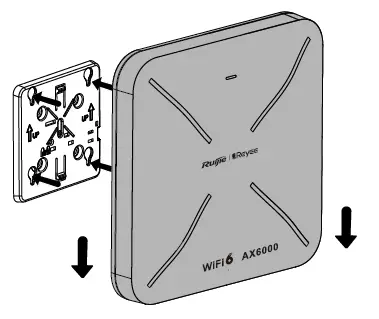
Mounting the Access Point with Security Lock (Optional)
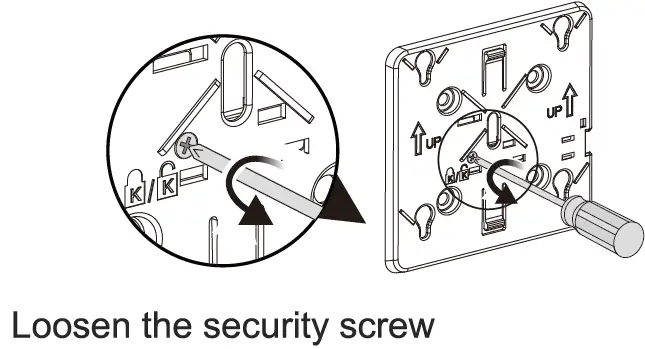
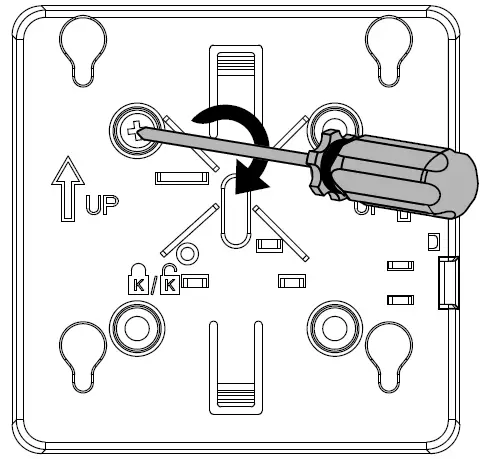
Loosen the security screw to engage the security lock.
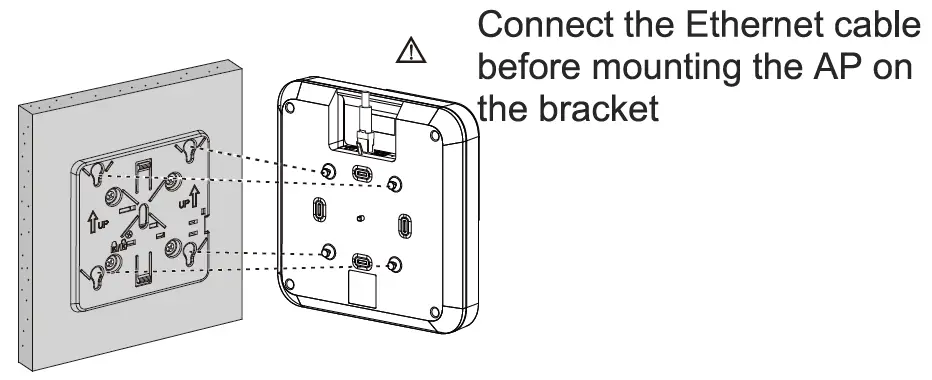 Align the square feet on the rear of the AP over the mounting holes on the bracket. Slide the AP into the mounting holes.
Caution:
Slide the AP into the mounting holes in the opposite orientation of the arrow (UP) indicated on the bracket until it clicks into place. Do not forcibly slide the Pinto the mounting holes on the brackets. After installation, verify that the AP is properly secured on the bracket.
Removing the Access Point
- If the security lock is used, keep the top of the key against the edge of the mounting bracket (with the Ruijie logo on the key pointed upwards). Slide the key along with the four edges of the mounting bracket.
- Attempt to insert the key into the keyhole. It can only be inserted into one marked keyhole.
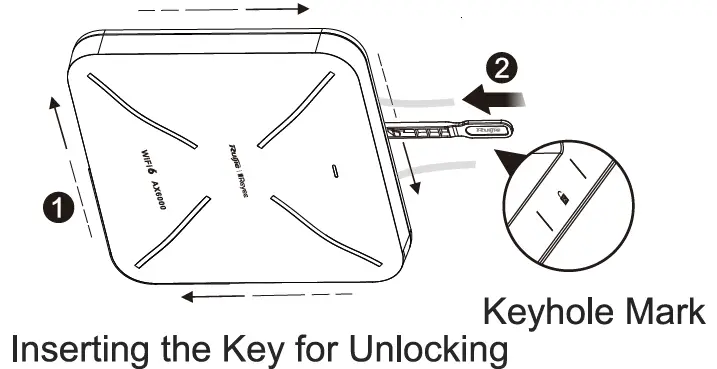
Removing the Wall-Mount AP
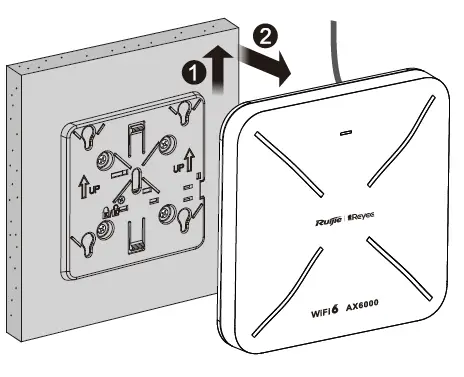
Hold the AP in your hands and push it upward and away from the bracket. Removing the Ceiling-Mount AP
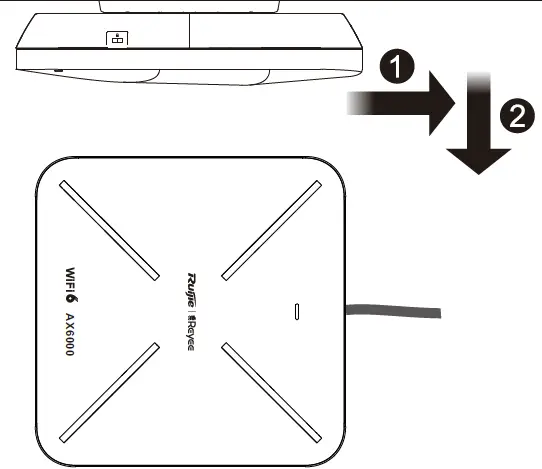
Hold the AP in your hands and attempt to push it away from the bracket in each orientation.
The AP can only be pushed out in one of the four orientations.
Configuring the Access Point
Method 1 (Recommended)
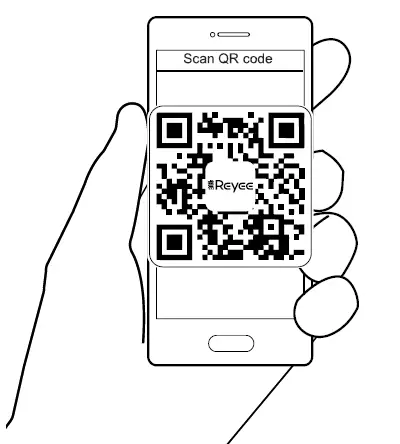
Scan the QR-code in the manual or on the device to download Ruijie Cloud App. Find First time use Ruijie Cloud? Follow the guide on the App to configure the network.
Method 2
- Connect the access point to the SSID. If multiple devices exist in the network, use SSID @Ruijie-mXXXX. If only one device exists in the network, use SSID @Ruijie-sXXXX. You can also create a wired connection by connecting your PC to the Ethernet port of the access point with an Ethernet cable.
- If there is only one Reyee device in the network, access http:/1192.168.120.1 via the browser. Otherwise, access http:/110.44.77.253.
In the latter case, configure your phone or PC with an IP address in the same network segment as 10.44.77.253, for example, 10.44.77.250. - Click Start Setup to create network projects.
Appendix
| Power Input | Local power supply: 48 V DC/1 A | |||
| Standard PoE: IEEE 802.3bt standard, backward compatible with the IEEE 802.3at standard | ||||
| Power Supply Mode | 2.4 GHz | 5 GHz | Data Rate | Max. Power Consumption |
| IEEE 802.3bt Standard (Recommended) | 4×4 | 4×4 | 5952 Mbps | 40W |
| 60 W Passive PoE Adapter (Optional Accessory) | 4×4 | 4×4 | 5952 Mbps | 40W |
| Local Power Supply (48 V DC /1 A) | 4×4 | 4×4 | 5952 Mbps | 40W |
| IEEE 802.3at Standard | 2×2 | 2×2 | 2976 Mbps | 25W |
| Note: The access point is not 802.3af-compliant. | ||||