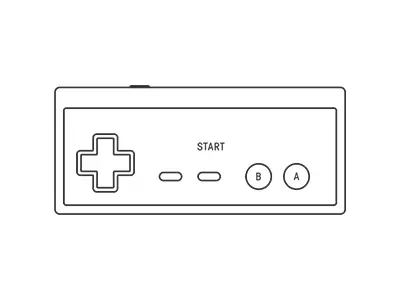
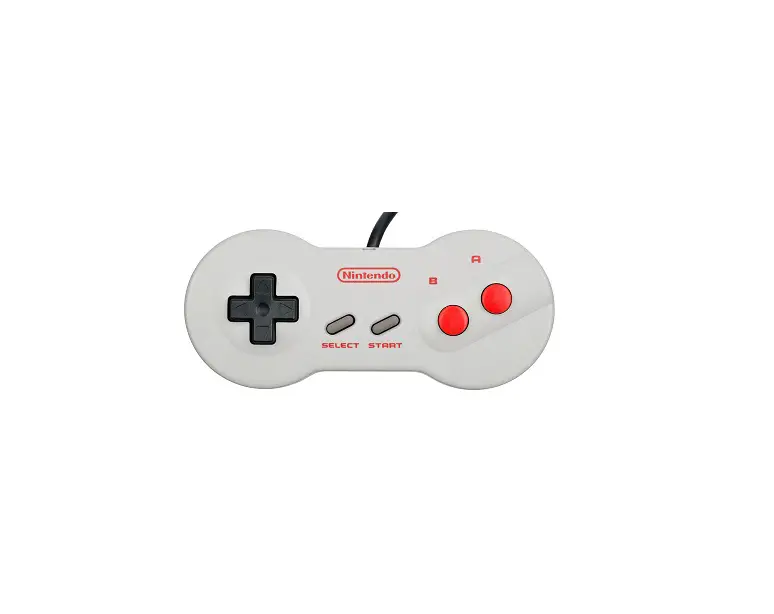
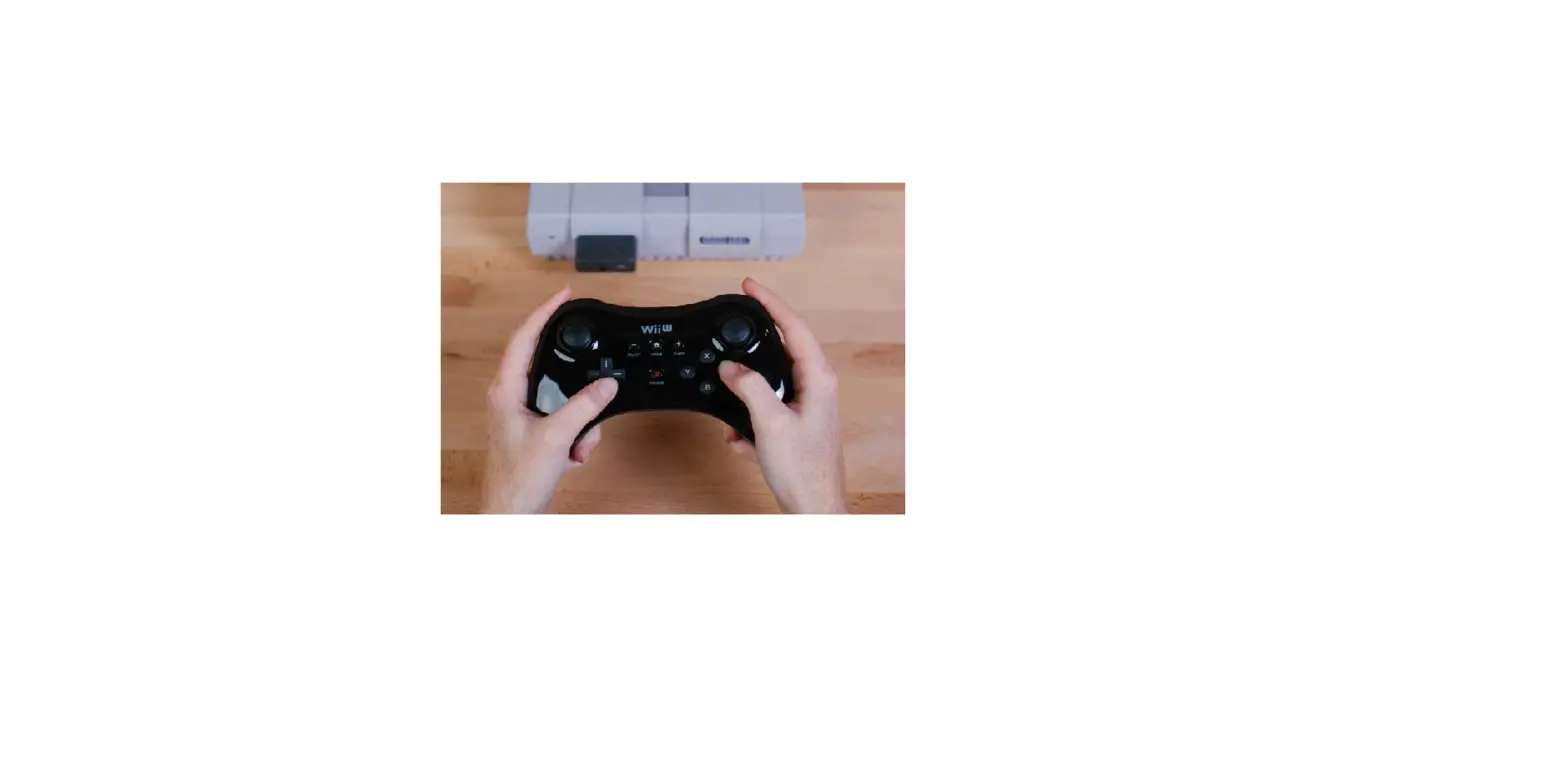
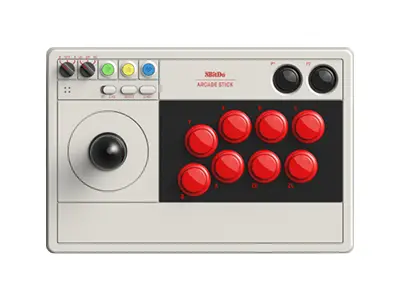
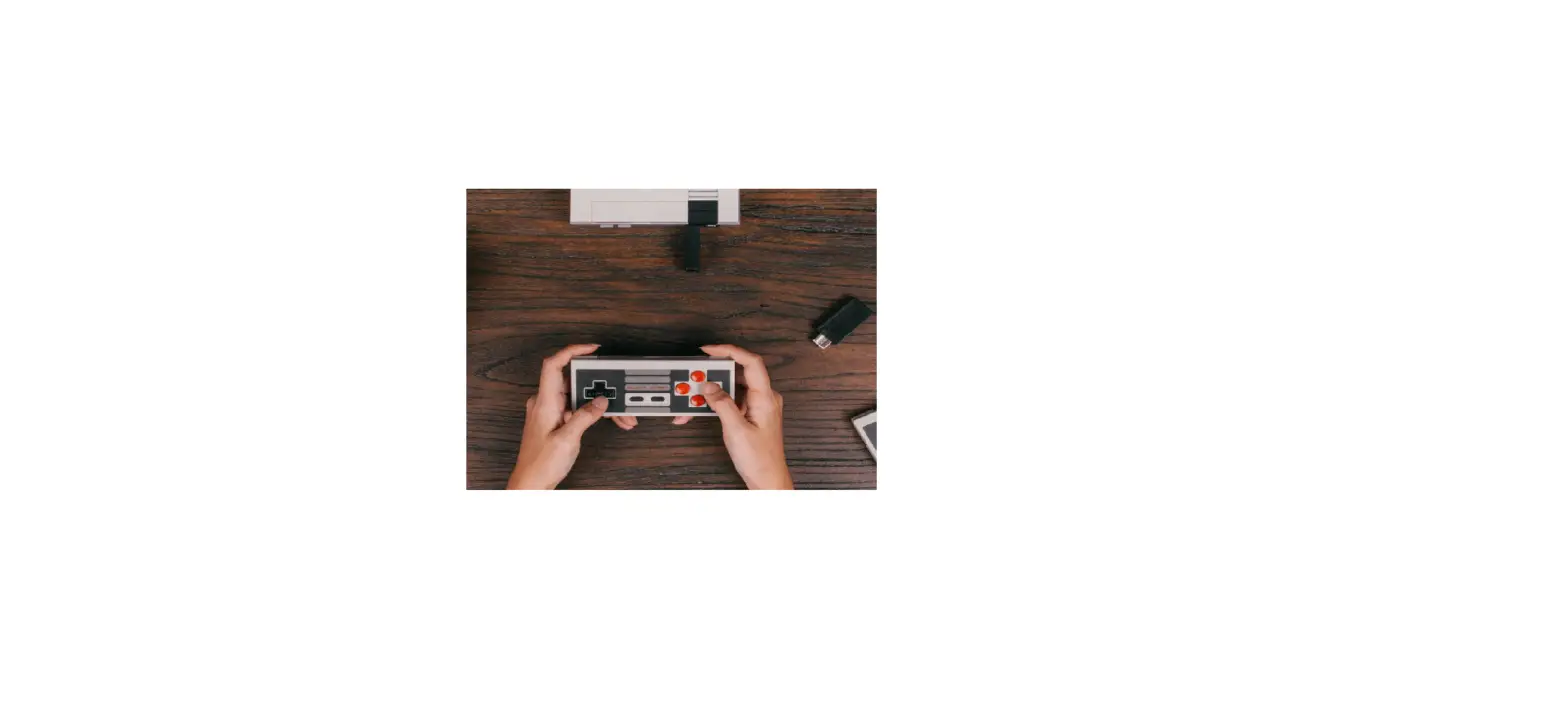
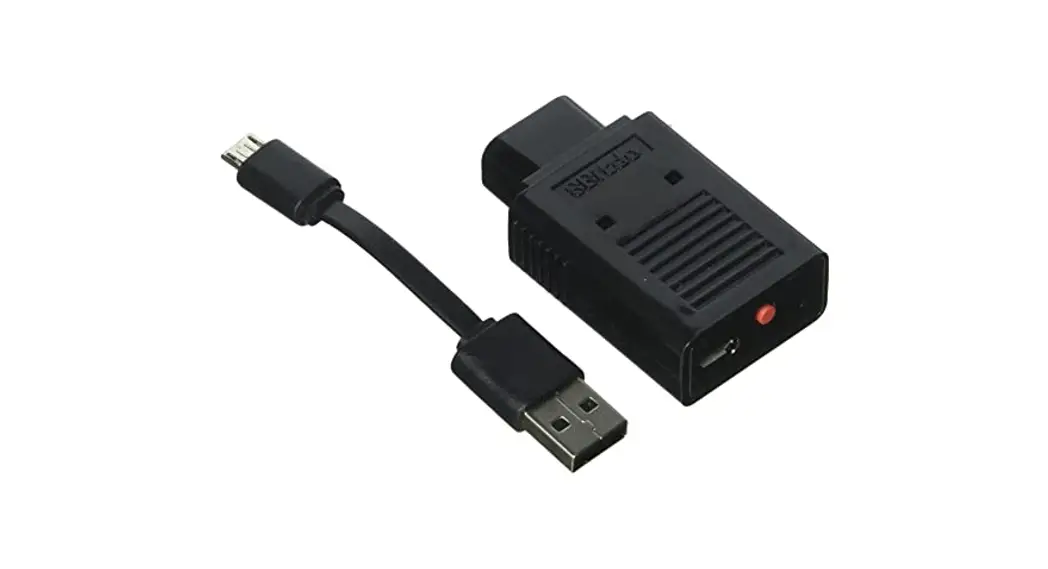
8BitDo DIY for Nintendo Dogbone User Manual
Instructions – Dogbone Mod Kit
* Please handle it with care.
We are not responsible for any damage caused in use.
Switch
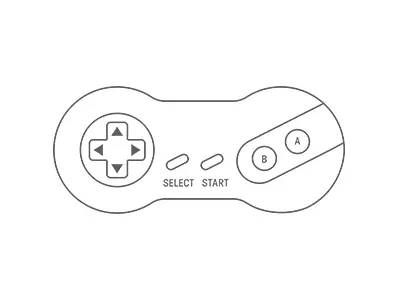
1. Press left+ start to turn on the controller
2. Press and hold select for 3 seconds to enter pairing mode. LED will rapidly blink
3. Go to your Switch Home Page to click on Controllers, then click on Change Grip/Order. LED becomes solid when connection is successful
4. Controller will auto reconnect to your Switch with the press of start once it has been paired
- When connected to your Switch, select+ down = Switch HOME button
Android (D – input)
1. Press b + start to turn on the controller
2. Press and hold select for 3 seconds to enter pairing mode. LED will rapidly blink
3. Go to your Android device’s Bluetooth setting, pair with [8BitDo Dog bone Mod kit].
LED becomes solid when connection is successful
4. Controller will auto reconnect to your Android device with the press of start once it has been paired
Windows ( X – input )
1. Press up + start to turn on the controller
2. Press and hold select for 3 seconds to enter pairing mode. LED will rapidly blink
2. Go to your Windows device’s Bluetooth setting, pair with [8BitDo Dog bone Mod kit].
LED becomes solid when connection is successful
4. Controller will auto reconnect to your Windows device with the press of start once it has been paired
MacOS
1. Press a + start to turn on the controller
2. Press and hold select for 3 seconds to enter pairing mode. LED will rapidly blink
3. Go to your macOS device’s Bluetooth setting, pair with [Wireless Controller]. LED becomes solid when connection is successful
4. Controller will auto reconnect to your macOS device with the press of start once it has been paired
Battery
| Status | LED indicator |
| Low battery mode | LED blinks in red |
| Battery charging | LED stays solid red |
- Rechargable via USB cable with 1 hour charging time
Support
- Please visit support.8bitdo.com for further information & additional support
FAQ – Frequently Asked Questions
It turns the original controller to a wireless bluetooth controller first. The modified controller works with Switch, Windows 10, macOS, Android, Raspberry Pi.
It auto reconnects to all the systems mentioned above once they have been successfully paired.
A. Download the Firmware Updater from https://support.8bitdo.com/firmware-updater.html first.
B. Connect the board to your computer via a USB cable.
C. Choose the right file for your kit to run.
Note: a. the cable included in the packaging and the circular port attached to the port are for power charging only.
b. be extra careful with power port during the procedure to avoid damaging it.
The cable included in the packaging and the circular port attached to the port are for charging the battery.
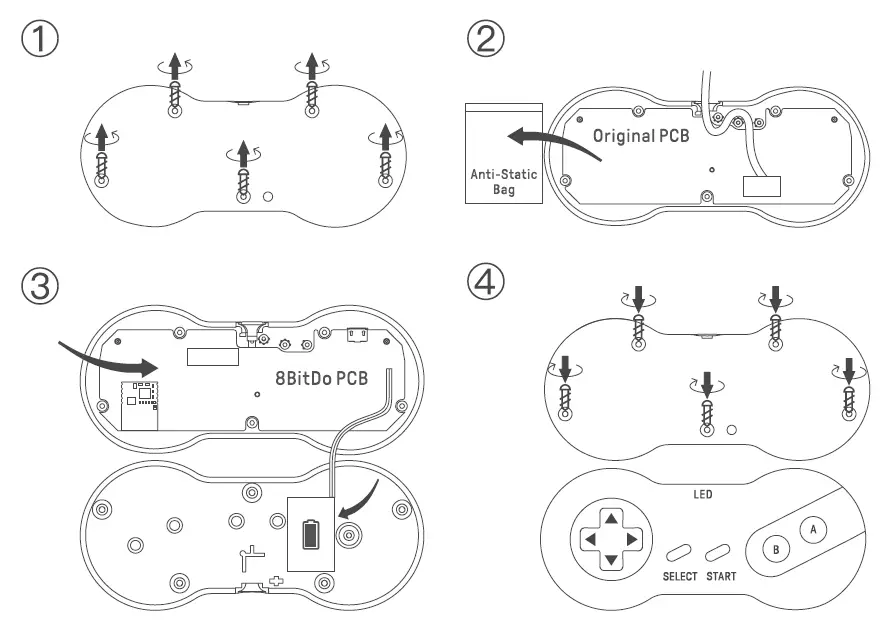
A. Open up the controller enclosure with the screwdriver provided in the packaging.
B. Connect the board to your PC via a USB cable.
C. LED turns on.
If there is no LED, it means the power port is damaged.
Yes, you can map the buttons. This is what you can do if the buttons are incorrectly mapped:
LEFT + Select : set Dpad as left analogue stick
Up + Select : reset Dpad
Right + Select : set Dpad as right analogue stick
Down + Select : Swap A/B and X/Y mapping
*Press and hold any of the key combinations above for 5 seconds to map the buttons.
*LED will blink in red to indicate the success of each button mapping.
*You need to reset the buttons manually.
We suggest you use a phone power adapter to charge the battery.
It uses a 180mAh rechargeable battery. It takes about 1-2 hours to fully and can last for about 10 hours.
No, you can not. The cable which comes with the board is a USB powering charging cable only.
Download
8BitDo DIY for Nintendo Dogbone User Manual – [ Download PDF ]