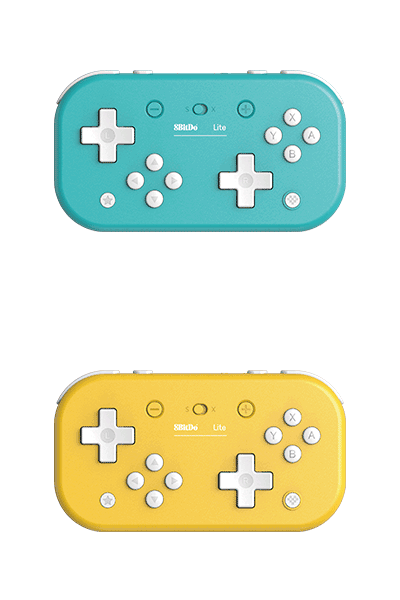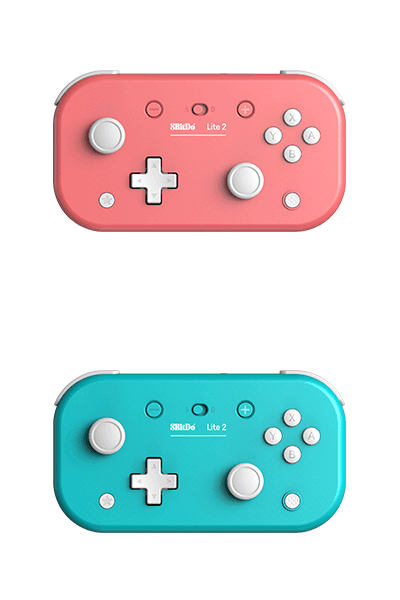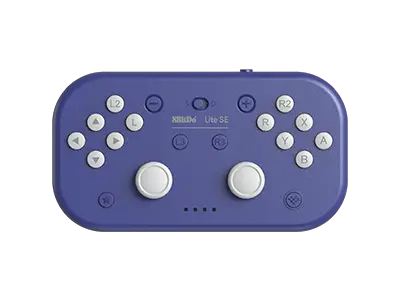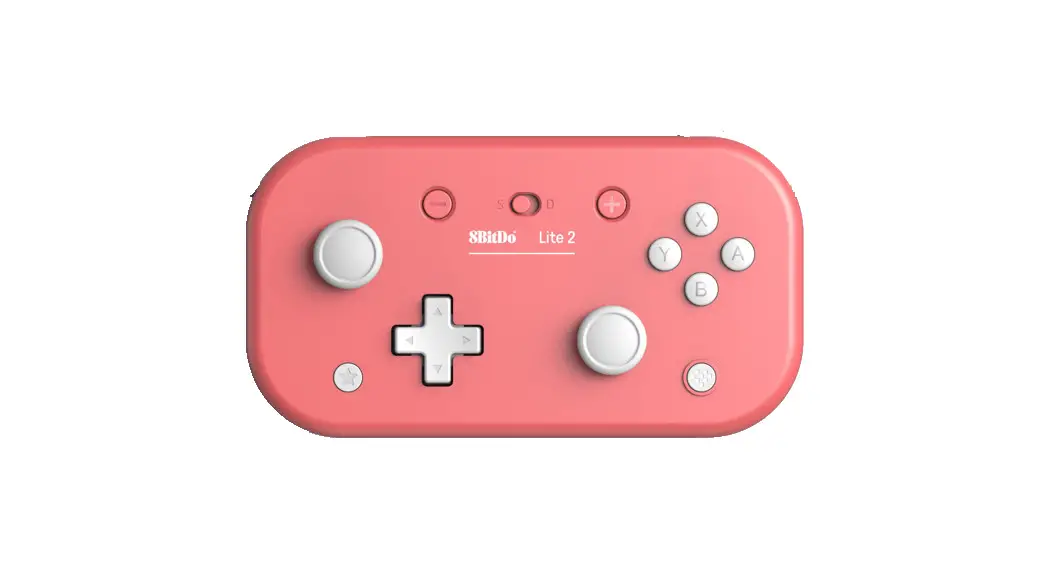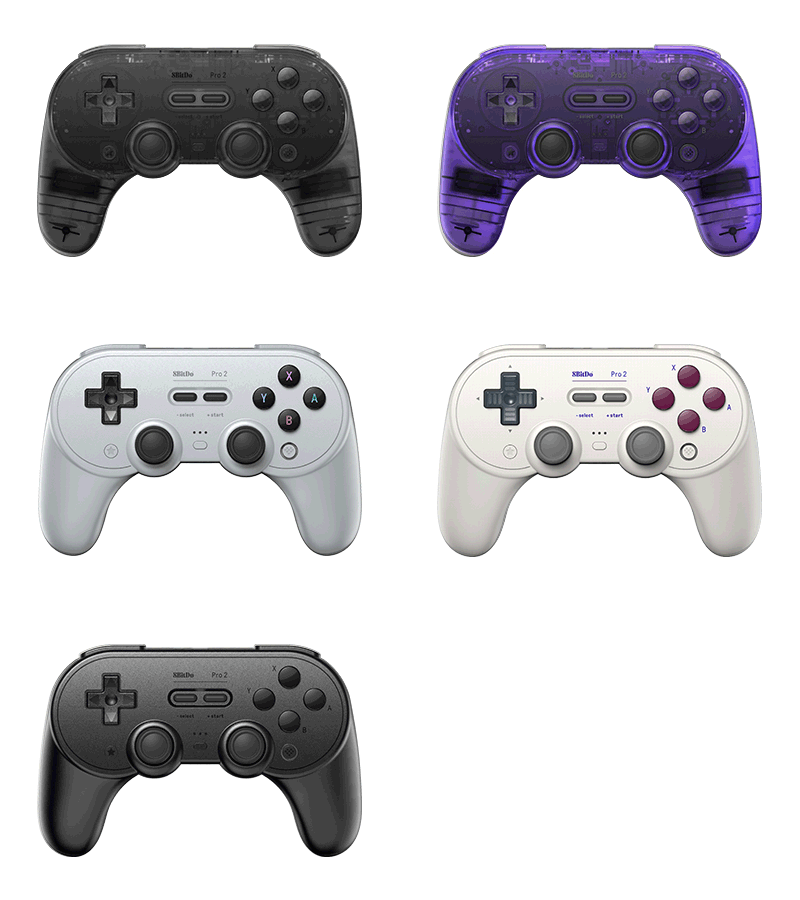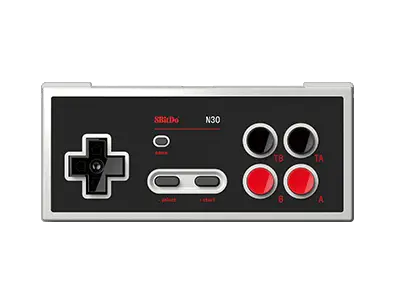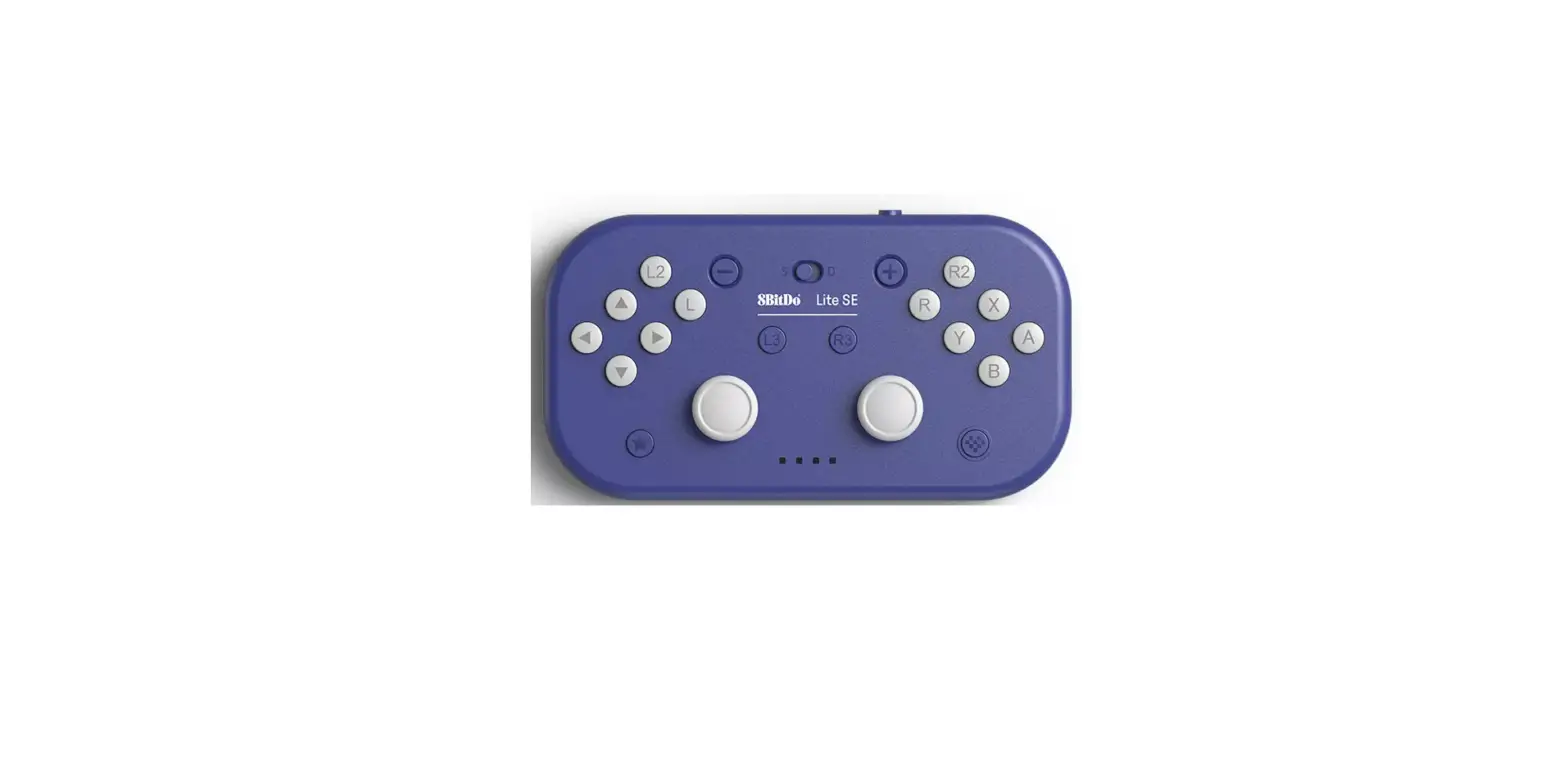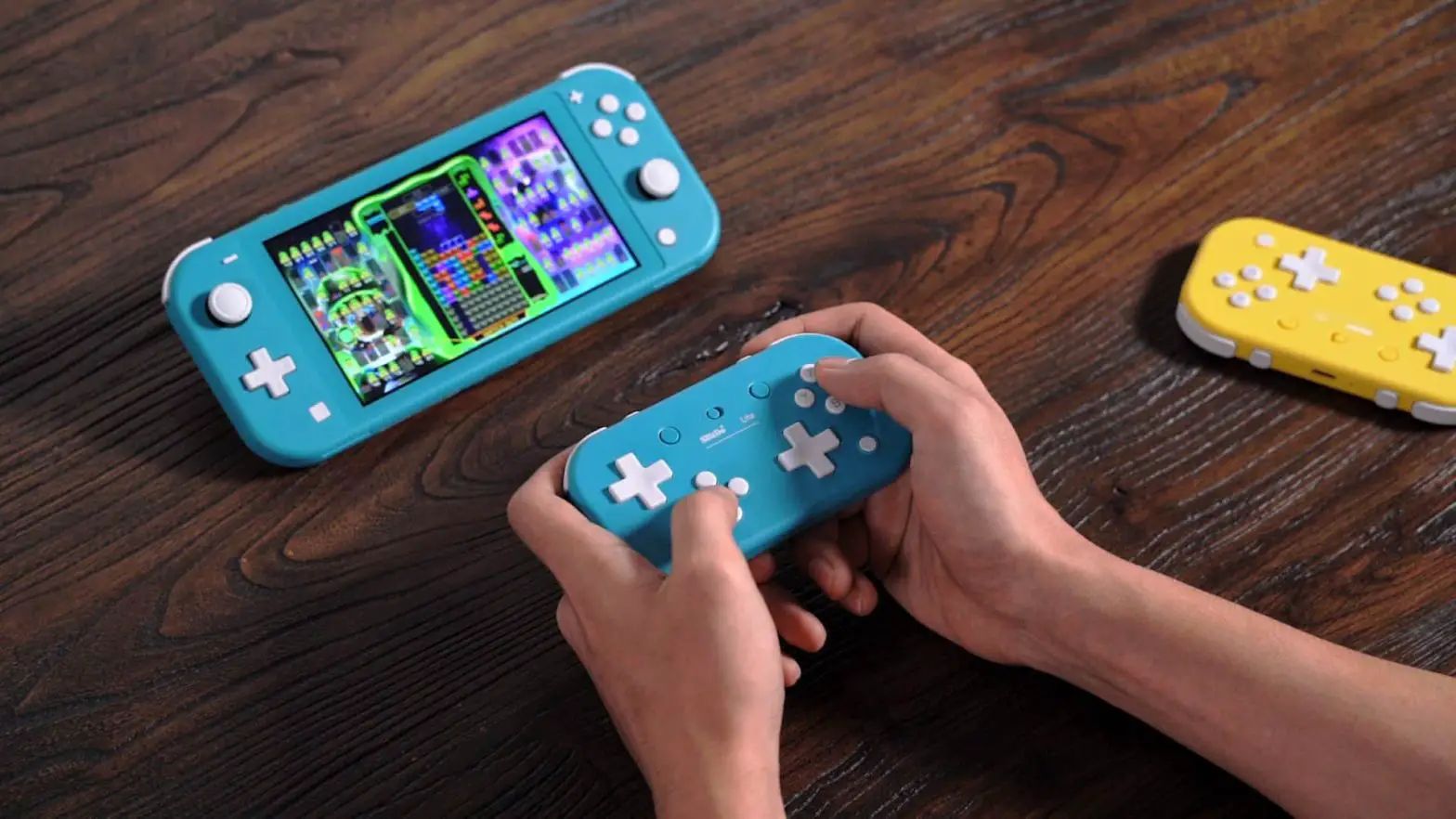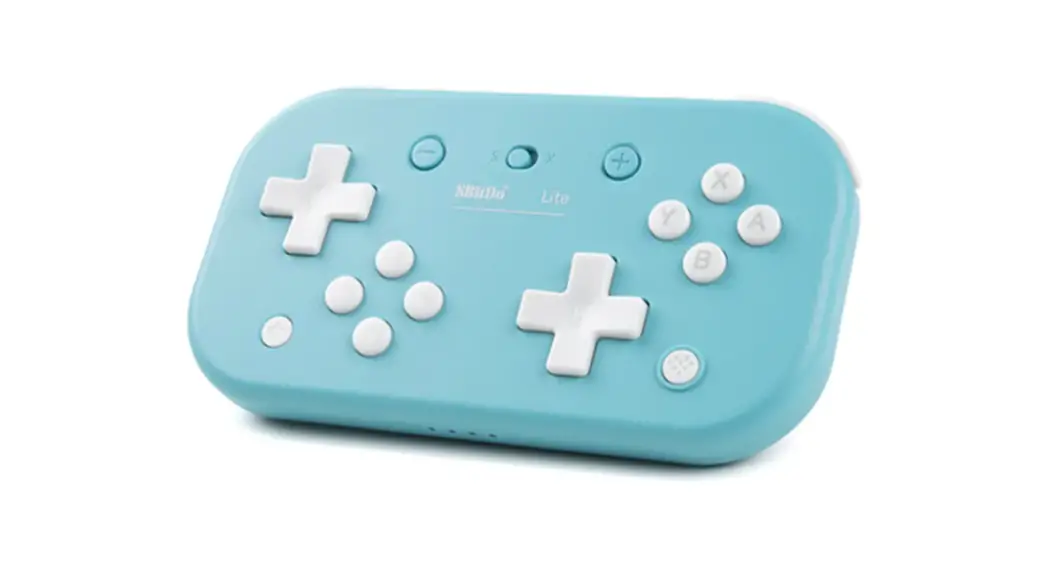
 LiteSE Bluetooth Gamepad
User Manual
LiteSE Bluetooth Gamepad
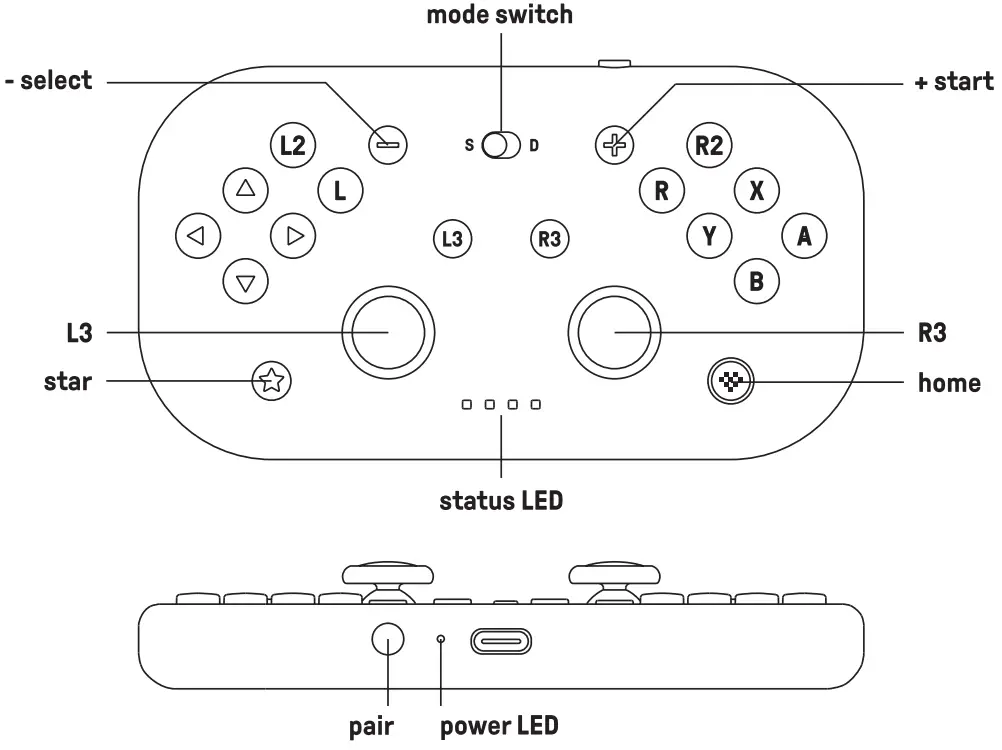
- press home button to turn on the controller.
- hold home button for 3 seconds to turn off the controller.
- hold home button for 8 seconds to force the controller off.
 Switch
 Switch
* NFC scanning, IR camera, HD rumble, notification LED are not supported, nor can the
system be waken up wirelessly.
* the status LED indicates the number of players, Its LED on for the first player, the Sit and 2nd
LEDs on for the second player, up to 8 players maximum.
Bluetooth Connection
- turn the mode switch to S.
- press home to turn on the controller, LED starts to rotate from left to right.
- hold pair button for 3 seconds to enter its pairing mode. LED stops blinking for a short moment then starts to rotate again.(This is required for the very first time only)
- go to your Switch home page to click on Controllers, then click on Change grip/order, and wait for the connection.
- LED becomes solid when connection is successful.
Wired Connection
- please ensure the [Pro Controller Wired Communication] is enabled.
- OTG cable is required for Nintendo Switch Lite.
- turn the mode switch to S.
- connect the controller to the USB port of your Switch dock, wait till the controller is successfully recognized by your Switch to play.
 Android
 Android
- required system: Android 9 or above
Bluetooth Connection
- turn the mode switch to D.
- press home to turn on the controller, the 1st LED starts to blink.
- hold pair button for 3 seconds to enter its pairing mode. LED starts to rotate from left to right.
(This is required for the very first time only) - go to your Android device’s Bluetooth setting, and pair with [8BitDo Lite SE], LED becomes solid when connection is successful.
Wired Connection
* OTG support is required on your Android device, please contact your device manufacturer for more details.
- turn the mode switch to D.
- connect the controller to the USB port of your Android device, wait till the controller is successfully recognized by your Android device to play.
Apple® required system: iOS 16.3, pads® 16.3, tv0S®16.3, macOS® 13.2 or above.
Bluetooth Connection
- turn the mode switch to D.
- press home to turn on the controller, the ist LED start to blink.
- hold the pair button for 3 seconds to enter its pairing mode. LED starts to rotate from left to right. (this is required for the very first time only)
- go to your Apple device’s Bluetooth setting and turn it on, pair with [8BitDo Lite SE], LED becomes solid when connection is successful.
Wired Connection
USB wired connection is only available for macOS or iPad devices with USB-C ports.
- turn the mode switch to D.
- connect the controller to the USB port of your Apple device, wait till the controller is successfully recognized by your Apple device to play.
 Turbo
Turbo
 Turbo
Turbo- the 4th LED blinks continuously when the button with the turbo functionality is pressed.
- the star button is the screenshot button when connected to Nintendo Switch.
- D-pad, joysticks, home, +, – buttons are not supported.
Hold the button you would like to set turbo functionality to, then press the star button to activate/deactivate its turbo functionality.
 Button swap
 Button swap
- the 4th LED blinks continuously when the swapped buttons are pressed.
- ALBLX YL. R.L2, R2. L3, R3 are supported.
Hold either two buttons you would like to swap, then press the star button to activate/deactivate the button swap.
 Battery
 Battery
About 20 hours of play time with a 480mAh built-in battery pack, rechargeable with 1 hour charging time.
| status | LED indicator | |
| low battery |  | red LED blinks |
| charging | | red LED stays solid |
| fully charged | | red LED turns off |
controller will turn off in ‘1 minute with no connection or 15 minutes of inactivity when connected with Bluetooth.
controller stays on with wired connection.
 Support
 Support
* please visit support.8bitdo.com for further information & additional support.