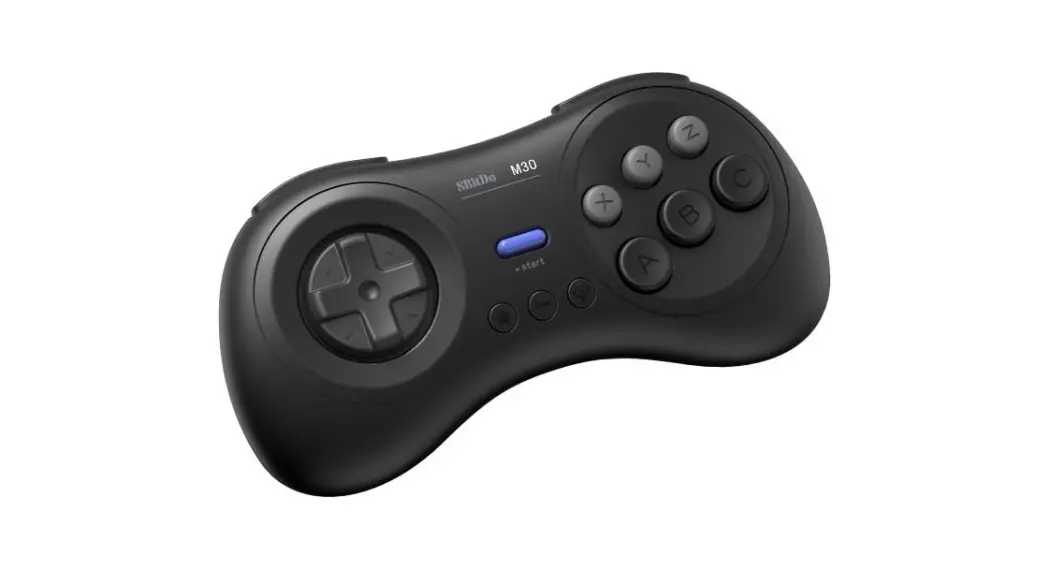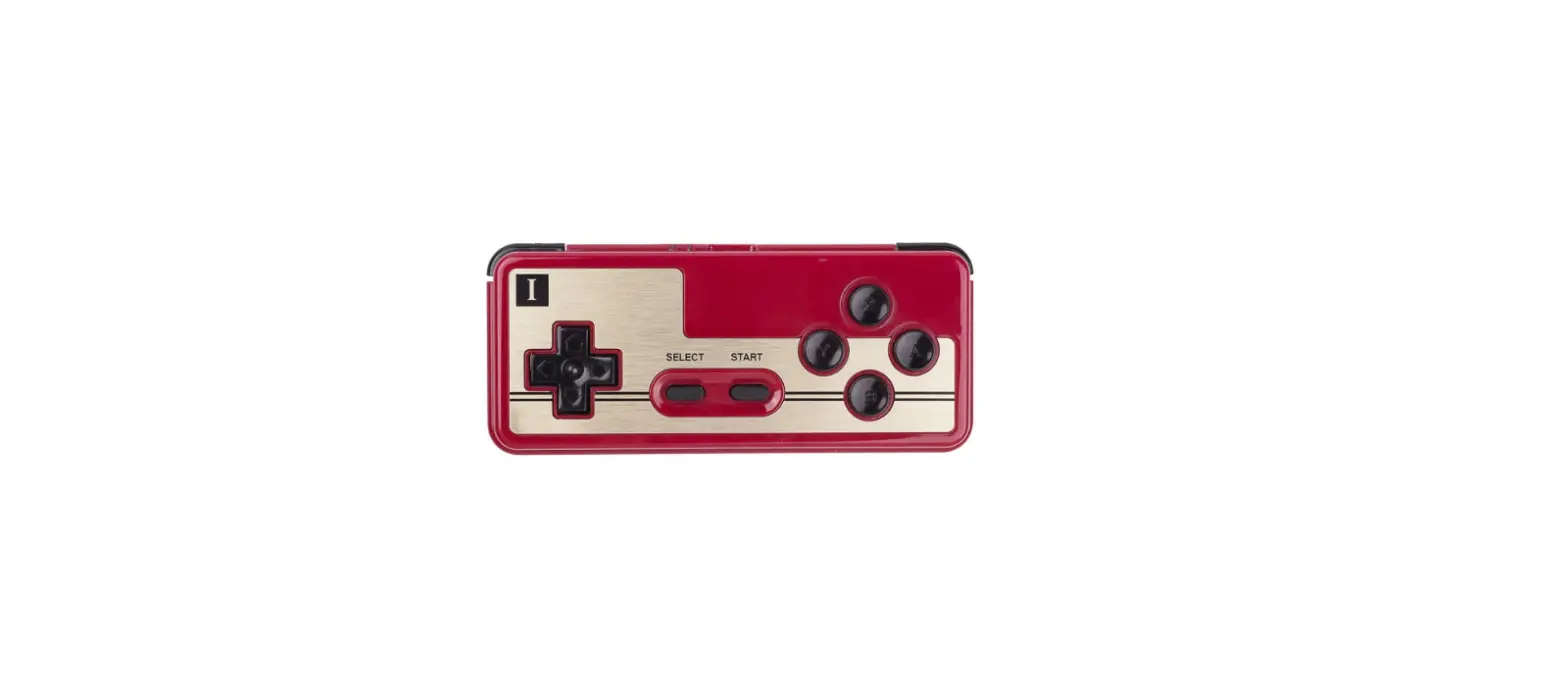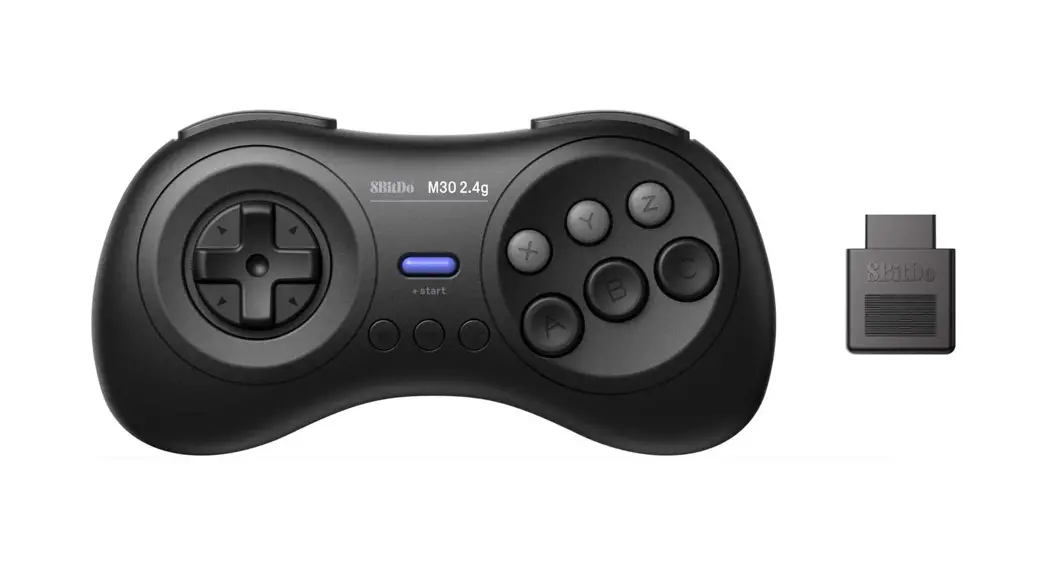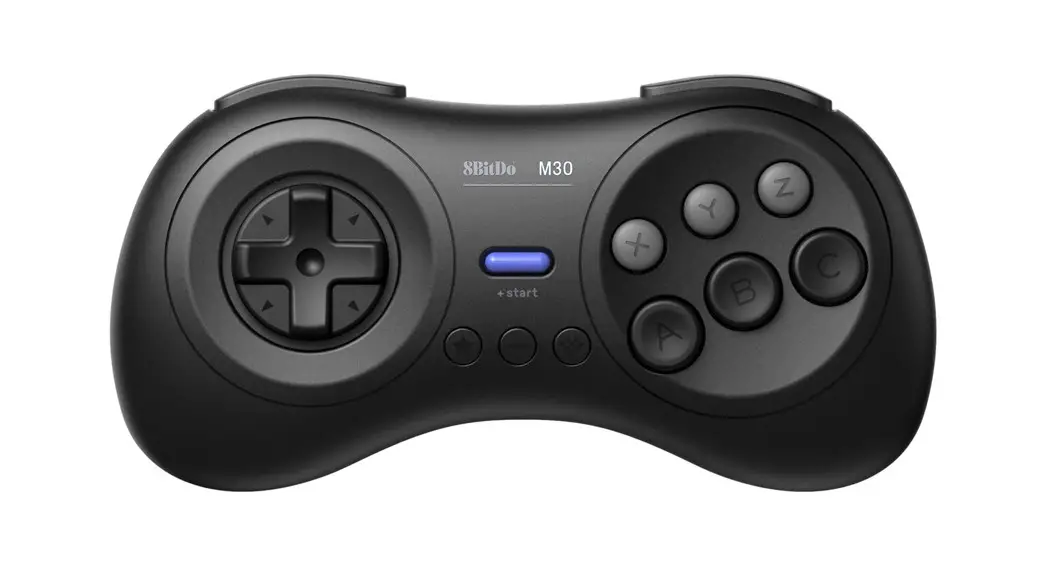
 M30 Bluetooth gamepad — instruction manual
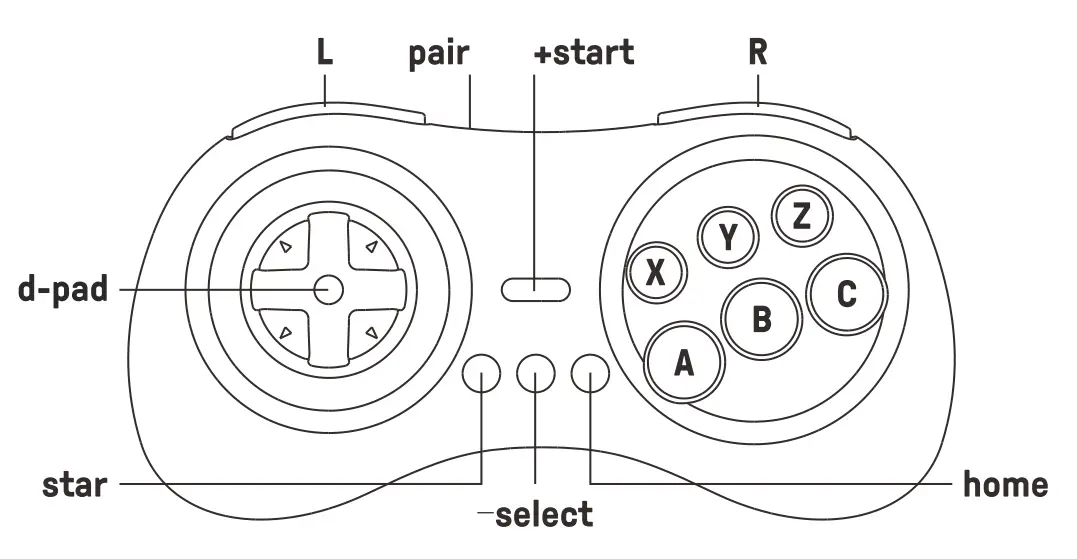
- Press start to turn on the controller
- press & hold start for 3 seconds to turn off the controller
- press & hold start for 8 seconds to force turn off the controller
 Switch
 Switch
- press & hold Y & start to turn on the controller, LEDs start to rotate from left to right
- press & hold pair for 2 seconds to enter pairing mode, LEDs pause fort second then start to rotate again
- go to your Switch Home Page to click on Controllers, then click on Change Grip/Order. LEDs become solid when the connection is successful
- the controller will auto-reconnect to your Switch with the press of start once it has been paired
• when connected to your Switch, star button = Switch ScreenShot button
• home button = Switch HOME button
 Android (D – input)
 Android (D – input)
- press & hold B & start to turn on the controller, LED 1 blink
- press & hold pair for 2 seconds to enter pairing mode, LED 1 pause for a second then starts to rotate again
- go to your Android device’s Bluetooth setting, pair with [8BitDo M30 gamepad]. LED becomes solid when the connection is successful
- the controller will auto-reconnect to your Android device with the press of start once it has been paired
• USB connection: connect the controller to your Android device via USB cable after step 1
 Windows (X – input)
 Windows (X – input)
- press & hold X & start to turn on the controller, LEDs 1 & 2 blink
- press & hold pair for 2 seconds to enter pairing mode, LEDs pause fort second then start to rotate again
- go to your Windows device’s Bluetooth setting, pair with [8BitDo M30 gamepad]. LEDs become solid when the connection is successful
- the controller will auto-reconnect to your Windows with the press of start once it has been paired
•USB connection: connect the controller to your Windows device via USB cable after step 1
 macOS
macOS
 macOS
macOS- press & hold A & start to turn on the controller, LEDs 1, 2&3 blink
- press & hold pair for 2 seconds to enter pairing mode, LEDs pause fort second then start to rotate again
- go to your macOS device’s Bluetooth setting, pair with [Wireless Controller]. LEDs become solid when the connection is successful
- the controller will auto-reconnect to your macOS device with the press of start once it has been paired
•USB connection: connect the controller to your macOS device via USB cable after step 1
 Turbo function
 Turbo function
1- hold the button you would like to set turbo functionality to and then press the start button to activate/deactivate its turbo functionality
- d-pad and analog sticks are not included
- this does not apply to Switch
 Battery
 Battery
status – | LED indicator- |
| low battery mode | red LED blinks |
| battery charging | red LED stays solid |
| battery fully charged | LED turns off |
- built-in 480 mAh Li-on with 18 hours of playtime
- rechargable via USB-C cable with 1- 2 hour charging time
 Power saving
 Power saving
- Sleep mode -1 minute with no Bluetooth connection
- Sleep mode -15 minutes with Bluetooth connection but no use
- Press start to wake up your controller
- controller stays on and connected to wired USB connection
 support
 support
- please visit 8bitdo.com for further information & additional support