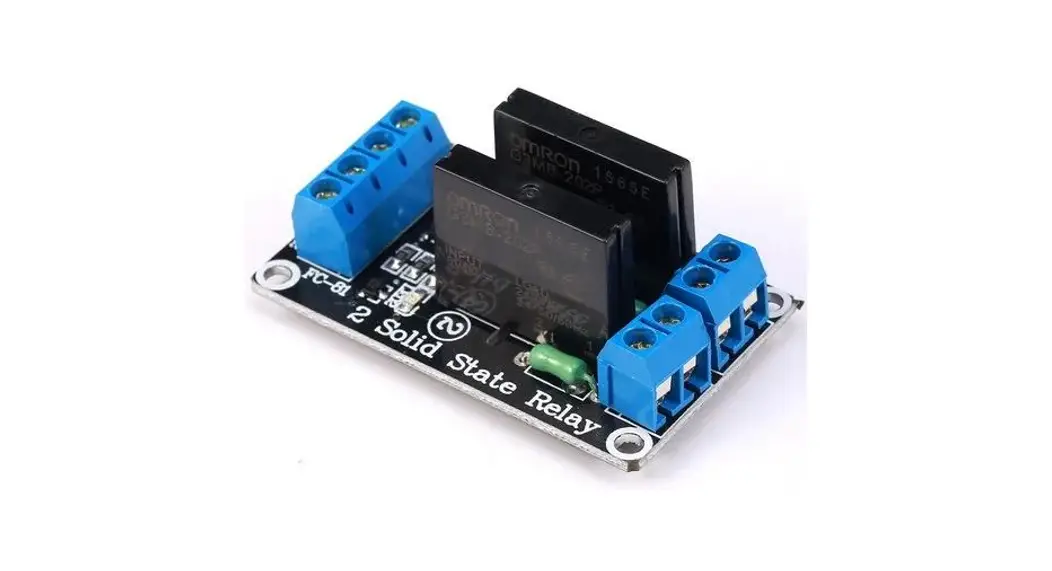
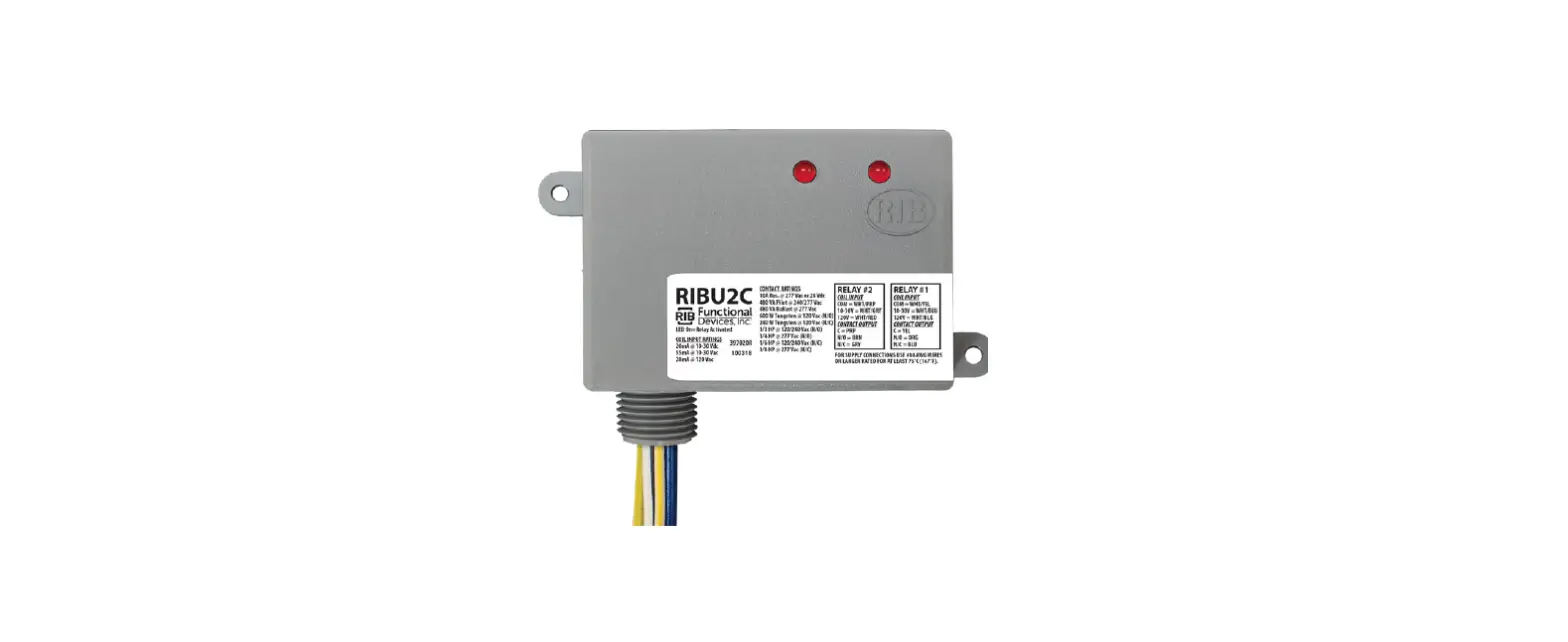
011484 SIP Dual Relay Controller
SIP Dual Relay Controller
The SIP Dual Relay Controller is a device that allows you to
remotely control and monitor two relays via a SIP-enabled VoIP
phone system. It can be powered through Power over Ethernet (PoE)
or through an external power supply. The device also features LED
indicators for network link/activity and 100Mb link.
Product Usage Instructions
1.0 Out-of-Box and Prior to Final Installation
- Verify that you have received all of the parts listed on the
Quick Reference placemat. - Download the current manual, otherwise known as an Operations
Guide, which is available in the Downloads tab at the following
webpage: https://www.cyberdata.net/products/011484/
2.0 Select Power Source and Network Settings
- Choose either PoE Switch or PoE Injector as your power
source. - If using PoE, set PoE power type to Class 0 = 15.4W.
- Use a CAT6 cable for longer distances.
- Make sure you are using a non-PoE switch or port.
- Make sure port is not in trunk mode.
3.0 Power Test
- Plug in the CyberData device and monitor the LED activity above
the ethernet port on the back of the device. - The default DHCP addressing timeout is 60 seconds. The device
will attempt DHCP addressing 12 times with a 3 second delay between
tries and eventually fall back to the programmed static IP address
(by default IPv4 Link Local) if DHCP addressing fails. The DHCP
Timeout is configurable in the device’s Network settings.
4.0 Connecting to a Network in a Test Environment
- In a test environment, use a computer that is connected to the
same switch as a single CyberData device. Note the subnet of the
test computer. - Use the CyberData Discovery Utility program to locate the
device on the network. You can download the Discovery Utility
program from the following link:
https://www.cyberdata.net/pages/discovery - Wait for initialization to complete before using the Discovery
Utility program to scan for a device. The device will show the
current IP address, MAC address, and serial number. - Select the device.
- Click Launch Browser. If the IP address is in a reachable
subnet from the computer that you are using to access the device,
the Discovery Utility program should be able to launch a browser
window pointing to the device’s IP address. - Log on to the web interface by using the default username
(admin) and password (admin) to configure the device. - The device is now ready to be set for your desired network
configuration.
5.0 Contacting CyberData VoIP Technical Support
You are welcome to call CyberData VoIP Technical Support at
831-373-2601 x333. Business hours are 8:00 AM – 5:00 PM Pacific
Time, Monday through Friday.
We encourage you to access our Technical Support help desk at
the following address: [insert help desk link here]
SIP Dual Relay Controller Quick Start Guide The IP Endpoint Company
1.0 Out-of-Box and Prior to Final Installation
1.1. Verify that you have received all of the parts listed on the Quick Reference placemat.
1.2. Download the current manual, otherwise known as an Operations Guide, which is available in the Downloads tab at the following webpage: https://www.cyberdata.net/products/011484/
Note You can also navigate to the Downloads tab by going to www.CyberData.net and following the steps that are indicated by the following figures:
1
OUR PRODUCTS
2 Secure Access Control Devices
A
VOIP PRODUCTS
B
SIP ENABLED
C
A
011484 SIP DUAL RELAY CONTROLLER
B
3
Downloads
2.0 Select Power Source and Network Settings
PoE Switch
PoE Injector
Set PoE power type to Class 0 = 15.4W
CAT6 cable recommended– for longer distances
Be sure you are using a non-PoE switch or port Make sure port is not in trunk mode
Quick Start Guide
931928A
3.0 Power Test
3.1. Plug in the CyberData device and monitor the LED activity above the ethernet port on the back of the device. See the following figure:
Network Link/Activity LED (Green)
100Mb Link LED (Amber)
3.2. The green Network Link/Activity LED blinks off once during the boot up process when the device begins DHCP addressing and autoprovisioning attempts, and then comes on again and remains constant (solid green). The amber 100Mb Link LED may be blinking depending on the network activity. During the initialization process, the device LED should come on solid. It will then blink 10 times per second until it can find a network address and attempt autoprovisioning. This can take from 5 to 60 seconds. When the device has completed initialization, the device LED will remain solid.
Note The default DHCP addressing timeout is 60 seconds. The device will attempt DHCP addressing 12 times with a 3 second delay between tries and eventually fall back to the programmed static IP address (by default IPv4 Link Local) if DHCP addressing fails. The DHCP Timeout is configurable in the device’s Network settings. This concludes the power test. Go to Section 4.0, “Connecting to a Network in a Test Environment”.
Quick Start Guide
931928A
4.0 Connecting to a Network in a Test Environment
Note The following connections are usually needed for this procedure: · Computer · PoE switch or injector · CyberData device
4.1. In a test environment, use a computer that is connected to the same switch as a single CyberData device. Note the subnet of the test computer.
4.2. Use the CyberData Discovery Utility program to locate the device on the network. You can download the Discovery Utility program from the following link: https://www.cyberdata.net/pages/discovery
4.3. Wait for initialization to complete before using the Discovery Utility program to scan for a device. The device will show the current IP address, MAC address, and serial number.
4.4. Select the device.
4.5. Click Launch Browser. If the IP address is in a reachable subnet from the computer that you are using to access the device, the Discovery Utility program should be able to launch a browser window pointing to the device’s IP address.
4.6. Log on to the web interface by using the default username (admin) and password (admin) to configure the device.
4.7. The device is now ready to be set for your desired network configuration. You may search the Compatible IP-PBX Servers index for available sample VoIP phone system configurations and set up guides at the following website address: https://www.cyberdata.net/pages/connecting-to-ip-pbx-servers
Quick Start Guide
931928A
5.0 Contacting CyberData VoIP Technical Support
You are welcome to call CyberData VoIP Technical Support at 831-373-2601 x333. Business hours are 8:00 AM – 5:00 PM Pacific Time, Monday through Friday.
We encourage you to access our Technical Support help desk at the following address:
https://support.cyberdata.net/
Note You can also access the Technical Support help desk by going to www.CyberData.net and clicking on the SUPPORT menu.
The Technical Support help desk provides the options of accessing documentation for your CyberData product, browsing the knowledge base, and submitting a troubleshooting ticket.
Please be advised requests for Returned Materials Authorization (RMA) numbers require an active VoIP Technical Support ticket number. A product will not be accepted for return without an approved RMA number.
Quick Start Guide
931928A
 CyberData Corporation
 support.cyberdata.net/