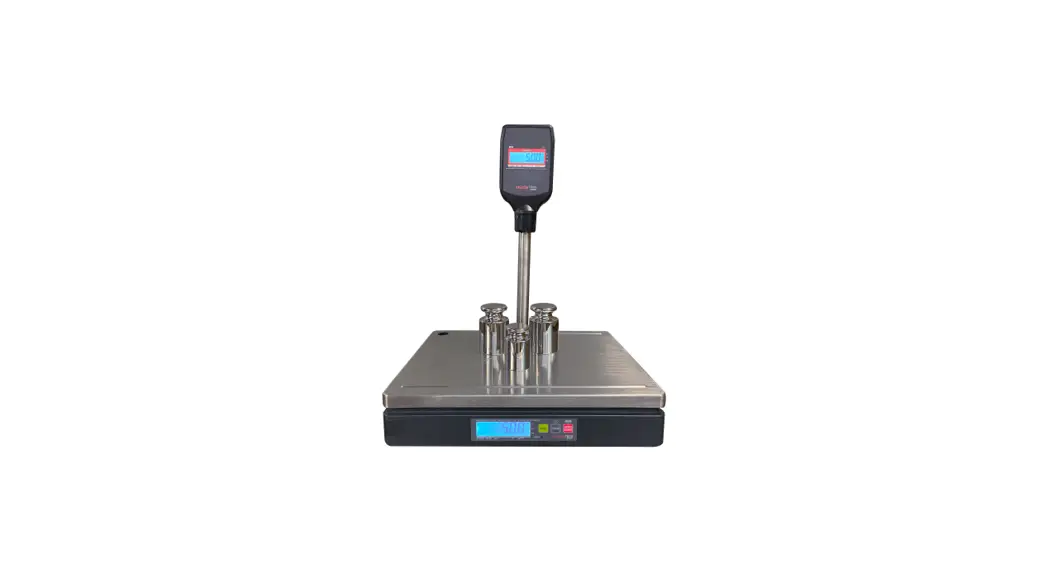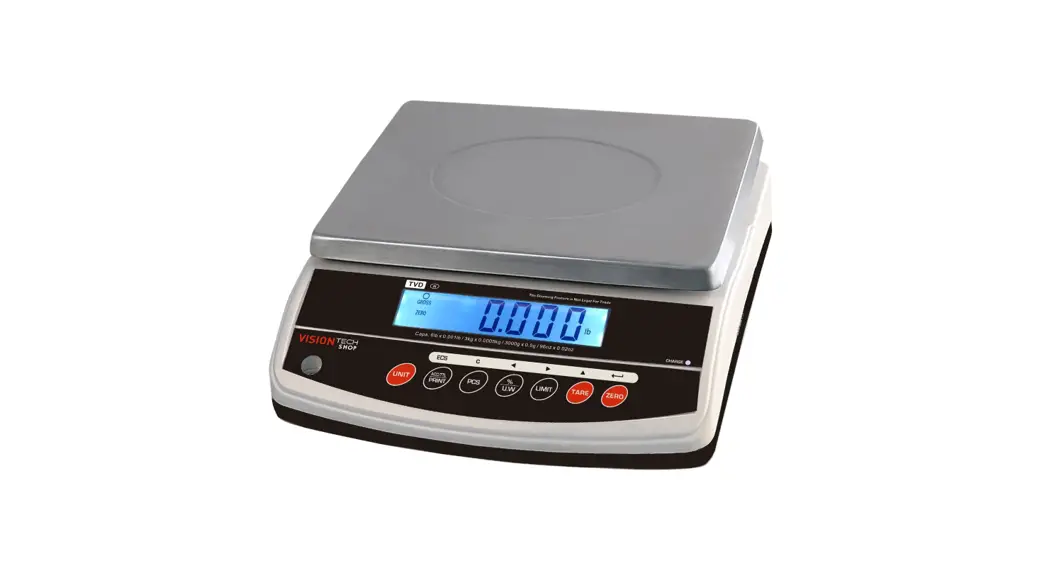
 TVD-6 TVD Single Display Multifunction Scale
User Manual
INTRODUCTION
- The TVD series weighing scales are suitable for general weighing, check to weigh, simple parts counting, percent weighing, accumulation, and unit conversion.
- Capacities from 3kg to 30kg (6lb to 60lb).
- Rechargeable batteries provide up to 70 hours of continuous use (without a backlight).
- Large 24mm LCD with white LED backlight display.
- 7 embossed membrane keys.
KEYS DESCRIPTION
| Keys | Function | Function in menu |
 | Zero key • Returns the display to zero | Confirm key • To enter the selected sub-menu in settings |
 | Tare key • Used to perform a tare function, Subtracts weights Value increment key • Used to change the selected digit value | Scroll up key • To change the sub-menu in parameter settings |
 | Limit key • Set the limits for tolerance checking | Right arrow key • Used to move the digit to the right • Scroll up the menu in parameter settings |
 | Percent key • Enters the percent weighing function • To show weight, unit weight, and counts when counting parts | Left arrow key • Used to move the digit to the left • Scroll down the menu in parameter settings |
 | Sampling key • To switch from parts weighing to parts counting | Clear key • Used to reset parameters or clear the total accumulated values Escape key • To return to normal weighing mode in other operating mode or in parameter settings |
 | Print key • Used to send data to PC or printer Accumulation key • To add the value to the accumulation memory, if the accumulation function is not automatic Memory recall key • To show the stored values from the memory | N.A |
 | Units key • Used to select weighing units (kg/g/lb/oz) | N.A |
DISPLAY SYMBOLS
| Symbols | Description |
 | Battery indicator. When it’s illuminated, the battery should be recharged |
 | Indicate when the load above (HI), load below (LO), and within the limits (OK) in check weighing mode. |
| Gross | Gross Weight |
| Net | Net Weight |
| Ο | Stable indicator. When it’s illuminated, the scale is stable |
| zero | Zero indicators. When it’s illuminated, the scale is in Zero point |
| kg | Kilogram Mode |
| lb | Pound Mode |
| LED | Battery charging indicator |
POWER CONNECTION
- Connect the adaptor pin to the indicator adaptor jack.
The adaptor jack is located below the right side of the scale. - Adaptor connects to your AC power socket. Plugable equipment must be installed near an easily accessible socket outlet with a protective ground/ earth contact.
4.1 Rechargeable battery operation
Note: Please charge the battery before using the scale for the first time.
- The symbol
 on the weight display indicates that the battery is getting low. It means that it’s time to charge the battery with the AC power. If the scale goes on being used without proper charging, <BAT-LO> words will be displayed and the display will be flashed frequently.
 - Approximately 1 hour of instrument usage is left; afterward, it will shut off automatically.
- Please use the supplied battery charger for charging the battery immediately, or the scale cannot be used.
4.2 Charging the battery
- Before the first use, the battery should be charged by connecting it to the main power supply for at least 12 hours.
- When the scale is plugged into the mains power the internal battery will be recharged.
- Verify that the AC power socket outlet is properly protected.
- On the right side of the display, there is an LED to indicate the status of battery charging.
When the scale is plugged into the mains power the internal battery will be recharged. - If the LED is green, the battery has a full charge.
- If it is red, the battery is being charged
BASIC OPERATION
5.1 Power On/Off
The power switch is located below the right side of the scale.
- Turn the scale ON; press the switch forward and hold. The scale will show the capacity and enter a self-test mode and follow to enter the weighing mode.
- Turn the scale OFF, and press the switch forward once again.
5.2 Zero
Environmental conditions can lead to the balance of exactly zero in spite of the platform not taking any strain. However, you can set the display of your balance to zero at any time by pressing a key and therefore ensure that the weighing starts at zero.
5.3 Tare
The weight of any container can be tared by pressing a button so that with subsequent weighing the net weight of the object being weighed is always displayed.
- Load weight on the platform.
- Press the
 key. Zero is displayed, and tare is subtracted.
 - Remove weight on the platform. Tared weight is displayed. It can set only one tare value.
It will be shown with a minus value. - To clear the tare value, remove the load and press the key. Zero is displayed, and tare weight is cleared.
5.4 Select Weighing Units
Press key. It can select kg/g/lb/oz in the weighing mode.
| Unit mark | Unit name | Conversion(g) | |
| 1 |  | gram | |
| 2 |  | kilogram | = 1000g |
| 3 |  | lb | = 453.59237g |
| 4 |  | ounce | = 28.349523125g |
5.5 Percent Weighing
The scale can set a sample weight to be shown as 100%. Then any other weights placed on the scale will be displayed as a percentage of the original sample.
Operation:
- 350g weight placed on the scale and follow by press the
 key is pressed the display will show 100.00%.
 - Remove the weight, and ensure the display is zero
- Place 300g weight on the platform, the display will be shown 85.71 % as per the percentage of 350g (100%)
- Press the
 key to return the scale to weighing mode.
• The weighing may be amended on the basis of greater numbers of samples, which improves the accuracy of percentage large quantities.
5.6 Parts Counting
In the weighing mode, it can enable the scale to enter parts counting mode.
Operation:
- Place the parts ( pieces ) items on the pan, items must be placed according to parts options.
- Press the key. The display shows P 10
- It can select the parts options by pressing a key .
- Parts options are P 10 / P 20 / P 50 / P 100 / P 200
- Press the
 key when the displayed number matches the number of items used in the sample.
 - The scale will store the pieces according to the items.
- It can add more pieces to the pan, and the display will show the pieces according to the stored items.
- Press the key to display unit weight ( g / pcs), Total weight (kg), and quantity ( pcs).
- Press the key to return the scale to weighing mode.
5.7 Tolerance checking
The weighing scales allow weighing items according to a target quantity or target weight or target percentage within specified tolerances. With this function, one can also check if the weighing good is within a defined tolerance range. Reaching the target quantity is indicated by an audio sound (if enabled in the menu)
Note: Check weighing or counting available only when weight more than 20d
5.7.1 Limits setting for a target weight
- Press the
 key to set the check weighing function in weighing mode.
 - The display will show the indicator
 to set Hi-Limit and the first digit will be active. 000.000 kg
 - Use and keys to shift location and press the key to change the limit value, and press the key to confirm.
- The scale will be confirmed by the Hi-Limit and the display will show the indicator
 to set Lo-Limit and the first digit will be active. 000.000 kg
 - Use and keys to shift location and press the key to change the limit value, and press the key to confirm.
- The limits setting is completed and the display will return to zero, Load the weight on a platter,the check weighing control will start.
5.7.2 Limits setting for target quantity
- Place the parts ( pieces ) items on the pan.
- Press the key to display the P 10 option.
- Press the key to confirm and the display will come to counting mode.
- Press the key to set the check counting function.
- The display will show the indicator to set Hi-Limit and the first digit will be active. 000000 pcs
- Use and keys to shift location and press the key to change the limit value, and press the key to confirm.
- The scale will be confirmed by the Hi-Limit and the display will show the indicator to set Lo-Limit and the first digit will be active. 000000 pcs.
- Use and keys to shift location and press the key to change the limit value, and press the key to confirm.
- The limits setting is completed and the display will return to zero, Load the weight on a platter, and the check counting control will start.
5.7.3 Limits setting for a target percentage
- Place the items on the pan.
- Press the key, it will display 100%
- Remove the items, the scale will come to percentage mode.
- Press the key to set the check counting function.
- The display will show the indicator to set Hi-Limit and the first digit will be active. 0000.00 %
- Use and keys to shift location and press the key to change the limit value, and press the key to confirm.
- The scale will be confirmed by the Hi-Limit and the display will show the indicator to set Lo-Limit and the first digit will be active. 0000.00 %.
- Use and keys to shift location and press the key to change the limit value, and press the key to confirm.
- The limits setting is completed and the display will return to zero, Load the weight on a platter, and the check percentage control will start.
5.7.4 To set beep mode
The beep sound depends on the settings made in the menu block Options:
 | The beep sound turned off |
 | A beep sound will ring out when the load is within the tolerance range |
 | A beep sound will ring out when the load is beyond the tolerance range |
 | When target quantity/target weight/target percentage exceeds the maximum tolerance limit |
 | When target quantity/target weight/target percentage is within the tolerance range |
 | When target quantity/target weight/target percentage is below the minimum tolerance limit |
5.7.5 To disable check weighing mode
- Press the key to display current limits.
- Press the key to enter zero into both limits when the current limits are shown,
- Press the key to store the zero values.
Notes
- Check to weigh available only when weight more than 20d
- The function is not valid when one enters a lower limit greater than the upper limit.
- When lower limits are the same as upper limits, the display only shows one set value.
5.8 Accumulation
TVD can be set to accumulate manually by pressing a key or automatically. Before operation scale should be stable and return to zero, accumulation available only when weight is more than 20d
To set the accumulation function to turn on, select the parameter ACC>ON
Note: The accumulation function can operate only in weighing mode.
5.8.1 Manual Accumulation
In the normal weighing mode, ensure the display is zero and the stable indicator is on.
- Place the items on the platform and press the
 key, when the display gets stable
 - The display will show ACC 1 and will show the total the accumulation
- The data will be sent to the printer or PC if connected with the printer or computer
- Remove the weight from the pan to get a display of zero and stable for the next accumulation.
- The scale should get stable and zero for the next accumulation.
It can continue 99 operations or until it reaches the maximum value of display.
5.8.2 Recall Memory
Press the key, when the display is in the normal weighing mode, the display will be shown the accumulation times and will show the total values. These displays will show only two seconds.
5.8.3 Memory Clear
To clear the memory, press the key to view and press the key during the accumulation displayed. The display will be shown normal display, all accumulation memory cleared from the memory
5.8.4 Automatic Accumulation
To enable the automatic accumulation, please see parameter AU>ON
The scale will do the accumulation automatically.
- Place the items on the platform.
- After stable, the buzzer will beep once.
- Remove the weight from the pan.
- The display will be shown the accumulation times and total value, these displays will be shown for only two seconds.
- The display should come to zero and stable for the next operation.
5.9 Printing
The weighing data can be printed out by pressing keys when connected to the printer. To enable the printing function, please as per the following settings.
See detailed parameters:
- B9600
- ACC ON
- LP-50
5.10 Back Light Setting
- Press and keys during that start-up.
- Press the key until the display shows

- Press the key to select the sub-menu options.
- Press the key to confirm.
 | To set auto option. When starting to use backlight will be on and when stopping the operation backlight also will be off. |
 | To set always on. After turning on the power, the backlight also will be on. |
 | To set the backlight turn it off. No backlight in the operations |
5.11 Power Auto Off
After scale operations, when the scale is not in use, it can be set to turn off automatically
- Press and keys during that start-up.
- Press the key until the display shows

- Press the key to select the submenu options.
- Press the key to confirm.
 | Set to turn the auto-off function |
 | Set to turn off three minutes later with no weight changes or key presses. |
 | Set to turn off five minutes later with no weight changes or key presses. |
 | Set to turn off 15 minutes later with no weight changes or key presses. |
 | Set to turn off 30 later with no weight changes or key presses. |
5.12 Check Internal Counts
- Turn on the scale and press and keys during the self-test. The display will show internal counts.
- Press the key to return the scale to weighing mode.
SPECIFICATION
| MODEL | TVD-6 | TVD-12 | TVD-30 | TVD-60 |
| Capacity | 6 lb 96 oz 3000 g 3 kg | 12 lb 192 oz 6000 g 6 kg | 30 lb 480 oz 15000 g 15 kg | 60 lb 960 oz 30000 g 30 kg |
| Readability | 0.01 lb 0.02 oz 0.5 g 0.0005 kg | 0.002 lb 0.05 oz 1 g 0.001 kg | 0.005 lb 0.1 oz 2 g 0.002 kg | 0.01 lb 0.2 oz 5 g 0.005 kg |
| Resolution | 1/6000 | |||
| Weighing Units | kg/g/lb/oz | |||
| Display | 6 digits 0.94inch /24mm digits LCD Display with white LED back Light | |||
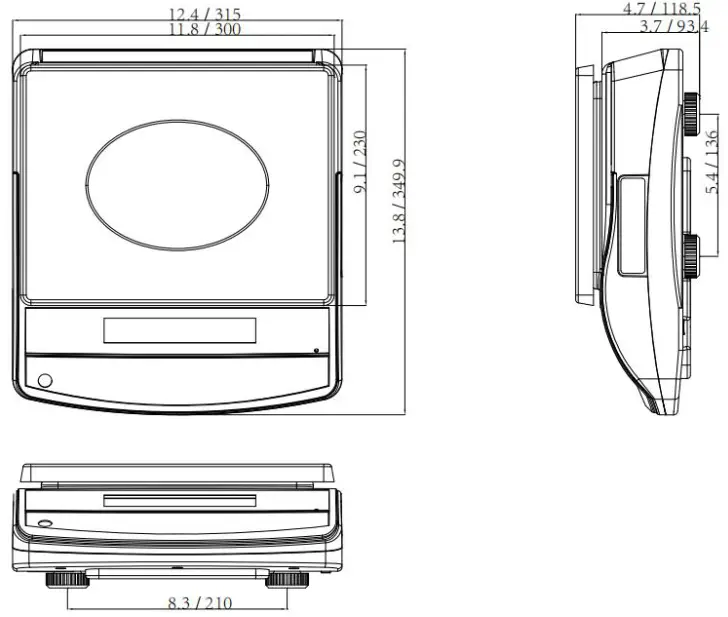
| Platter size | 9.1 x 11.8 inch / 230 x 300mm | |||
| Housing | ABS plastic housing; stainless steel platter | |||
| Operation Temperature | 14°F – 104°F / -10°C – + 40°C | |||
| Power | Input AC 100-240V, output DC 12V/500mA 6V/4Ah rechargeable battery | |||
| Battery life | Approx. 58 hours with the backlight of continuous use Approx. 70 hours without backlight of continuous use | |||
| Keypad | 7 membrane keys | |||
| Dimensions (inch/mm) | 12.4 (W) x 13.8 (D) x 4.7 (H) / 315 (W) x 349.9 (D) x 118.5 (H) | |||
| Net weight | 9.9 lb (4.5 kg) | |||
| Gross weight | 11.2 lb (5.1 kg) | |||
DIMENSIONS(inch/mm)
TVD
ERROR MESSAGE
| Error Message | Description | Solution |
 | Underload | Minus weight, check the platform and restart or calibrate. |
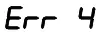 | Zero setting error | Zero setting range exceeded due to switching on. Make sure the platform is empty. |
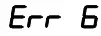 | A/D value out of range | Make sure the platform is empty and check the pan is installed properly. Check the load cell |
 | Percentage Error | Please check input data, must be > 0.5d |
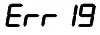 | Initialize zero error | Calibration of the scale. |
 | Over range | Remove the load. Re-calibrate |
 | Calibration Error | Re-calibrate |
 | Battery low | Recharge the battery, and check the voltages. |
SELECTING THE PRINTER
For printer setting, it needs to enter the parameters settings to select LP50 and use the key to select options.
| Options | Description | |
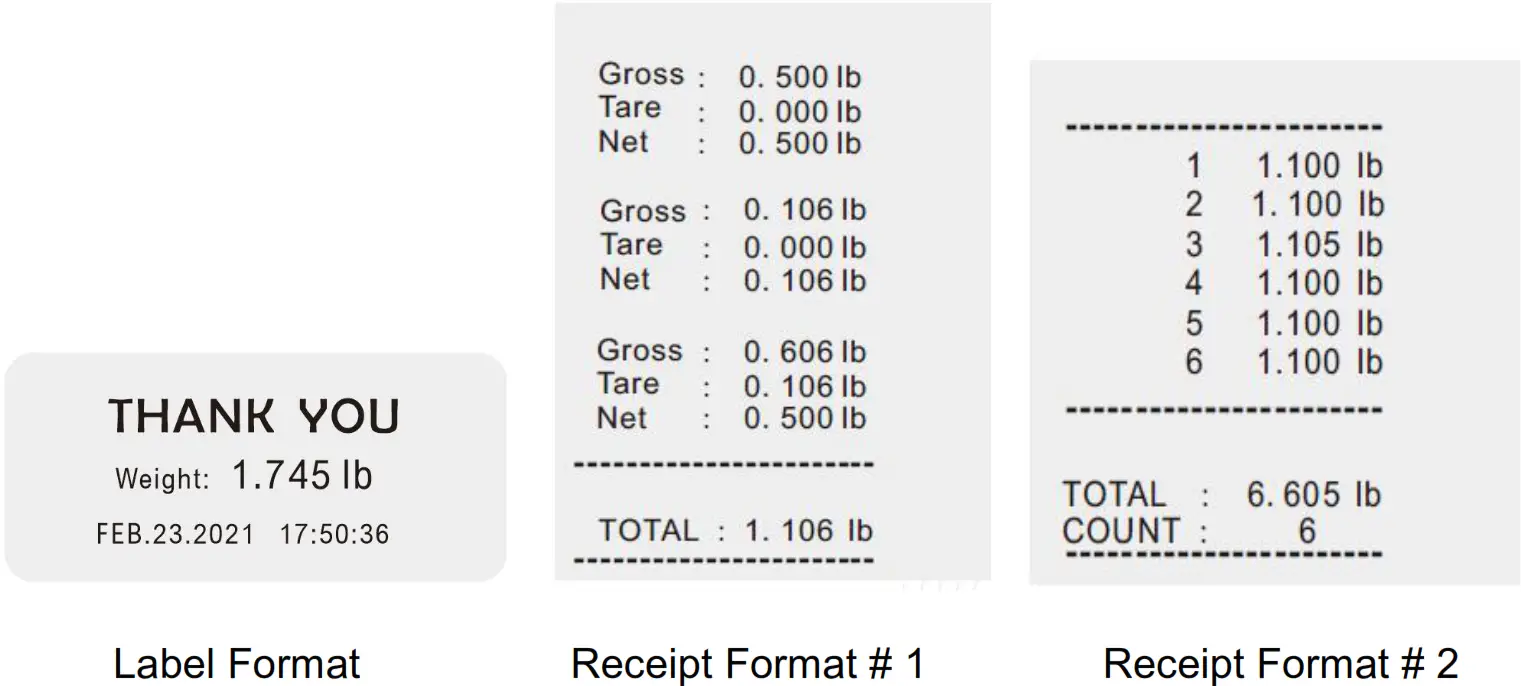
| LP50 | LAB 0 | Press the key to send data to the DLP-50 label printer |
| RFT 1 | Press key to send data to DEP-50 receipt printer | |
| RFT 2 | Press key to send data to DEP-50- receipt printer |
RS232 OUTPUT
The TVD Series of scales can be ordered with standard RS-232 output. It can be connected to a DEP-50 receipt printer & DLP-50 label printer
10.1Print Format
10.2 Diagram: Serial interface
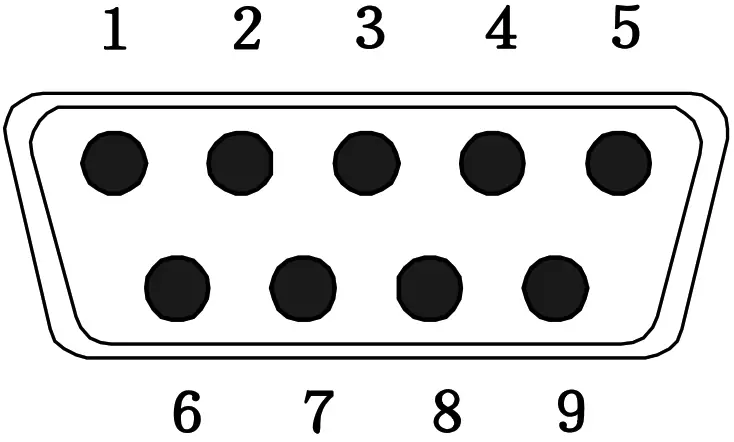
| Pin 2 | RXD | Input | Receiving data |
| Pin 3 | TXD | Output | Transmission data |
| Pin 5 | GND | ― | Signal ground |
9pin D Connecter:
| Scale | Computer |
| Pin 2 | Pin 3 |
| Pin 3 | Pin 2 |
| Pin 5 | Pin 5 |
Note: if data not getting in Printer, want to inter-change pin 1 and pin2 connections
www.VisionTechShop.com
100 Temple Ave. Hackensack, NJ 07601
Tel:+ 1-201-679-7793
V1.2