 Operation Manual
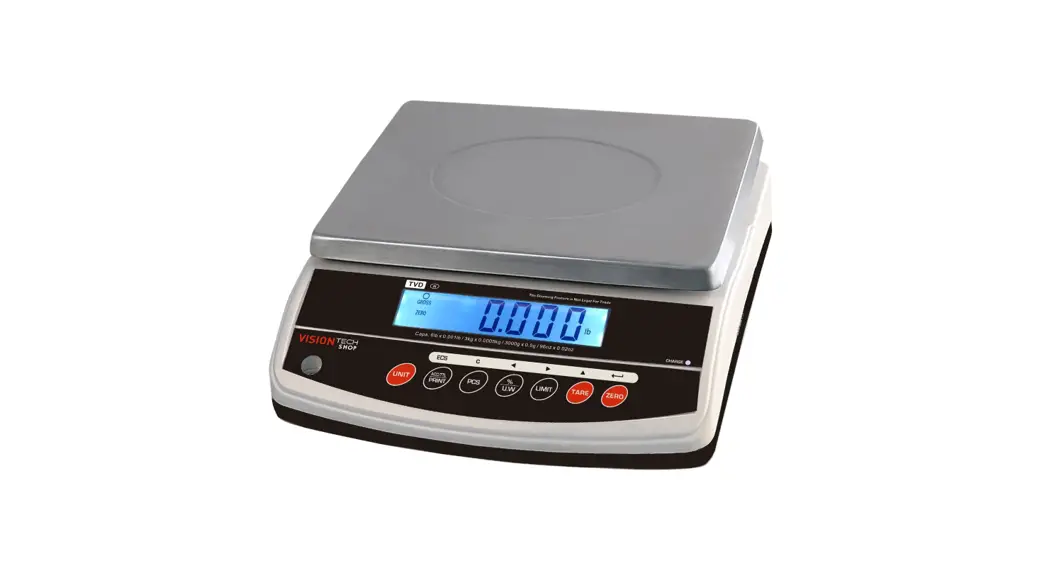
TPD Interface Scale
V1.1
INTRODUCTION
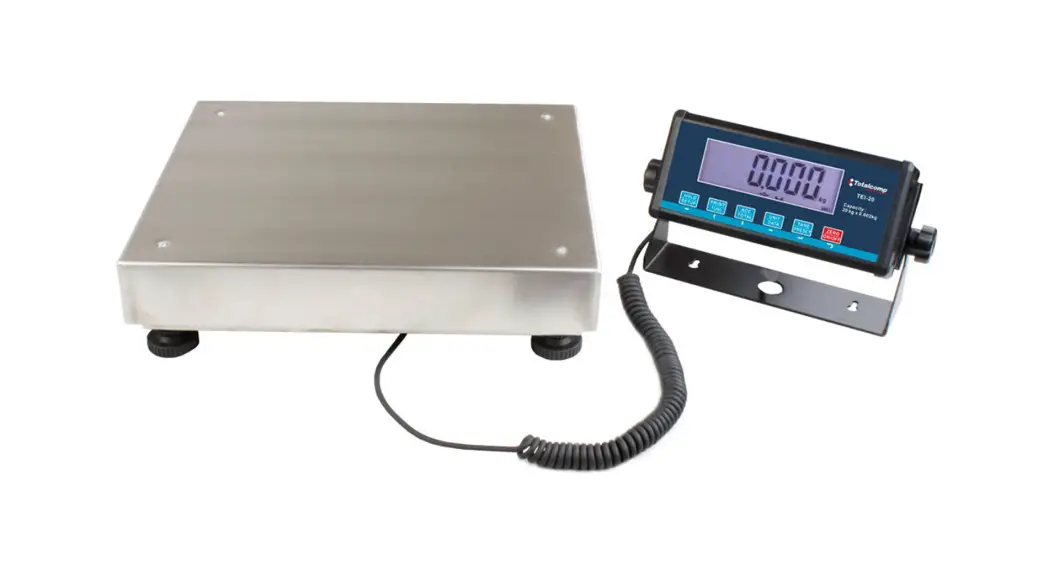
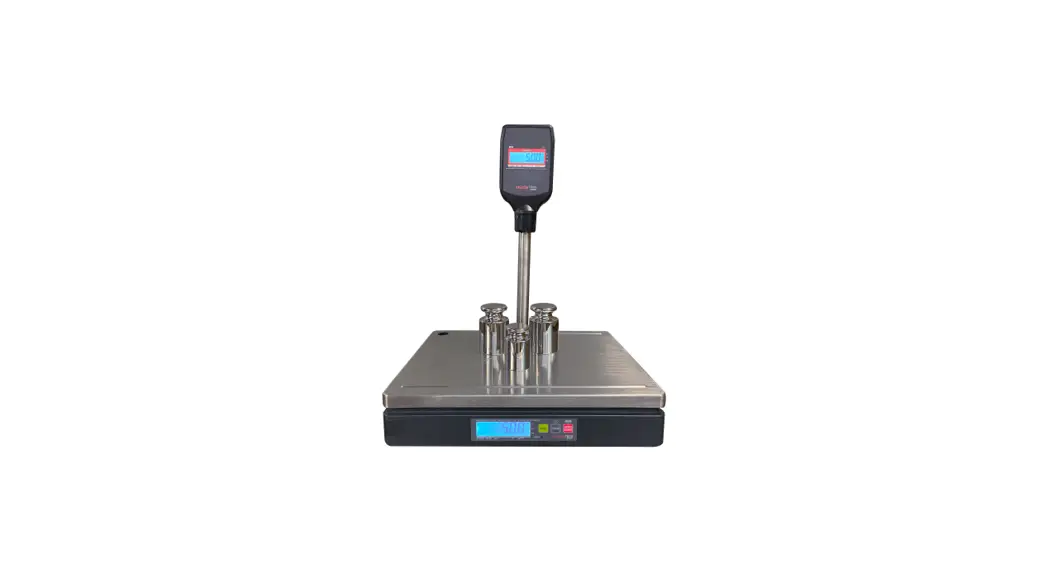
- The TPD series interface scale amplifies signals from a load cell, converts it to digital data, and displays it as a mass value
- It is suitable for general weighing applications
- 15 mm LCD with white LED backlight display
- Standard RS232 port can be connected to the computer, ECR or POS
- Capacity 6 kg to 30 kg (12 lb to 60 lb)
INSTALLATION
2.1 Installation
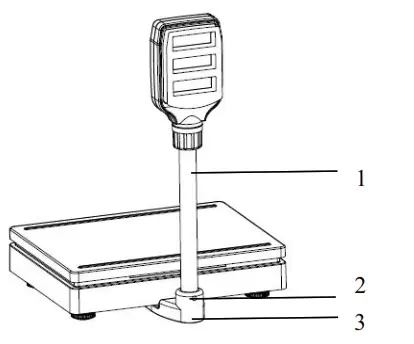
- Remove the transport lock from the bottom of the scale base
- Place the scale on a level surface
- Install the stainless steel pan on top of the plastic pan
- Insert the pole (1) to pole bracket (3)
- Fixing the pole(1) with screw (2)
2.2 Leveling
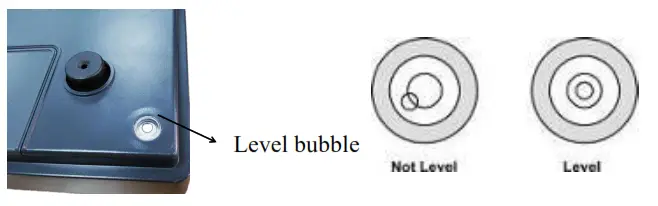
- The scale is equipped with a level indicator located back side of the device.
- Use the adjustable leveling feet located on the bottom of the scale until the bubble appears in the center of the indicator.
2.3 Power Connection
- Connect the adaptor pin to the indicator adaptor jack. The adaptor jack is located below the left side of the scale.
- Adaptor connects to your AC power socket. Plugable equipment must be installed near an easily accessible socket outlet with a protective ground/ earth contact.
2.4 Rechargeable battery operation
Note: Please charge the battery before using the scale for the first time.
- The symbol BATT on the weight display indicates that the battery is getting low. it’s time to charge the battery with the AC power. If the scale goes on being used without proper charging, <BAT-LO> words will flicker on the display.
- Approximately 1 hour of instrument usage is left; afterward, it will shut off automatically.
- Please use the supplied battery charger for charging the battery immediately, or the scale cannot be used.
2.4.1 Charging the battery
- Before the first use, the battery should be charged by connecting it to the main power supply for at least 10 hours.
- When the scale is plugged into the mains power the internal battery will be recharged
- Verify that the AC power socket outlet is properly protected.
- On the right side of the weight display, there is a charging LED to indicate the status of battery charging
- The charge status of the rechargeable battery is indicated by the LED display.
Red: Charging storage battery
Green: Rechargeable battery is completely charged
2.4.2 Battery maintenance
- Do not use any other type of power adaptor than the one supplied with the scale.
- The recharged battery should be changed every three months when not in use.
- If the scale is not used for an extended period of time, remove the battery from the battery compartment to avoid leakage.
- Store the battery in a sealed bag or box in a dry, temperate environment.
KEYS DESCRIPTION
| Keys | Description |
 | 1)On/Off key, Used to switch on/off the scale. 2)Zero key, Used to clear and zero the display. 3) Enter key, Used to confirm selection in parameters option. 4)Left arrow key. Used to shift the location and move the digit to the left. |
 | 1)Tare key, Used to perform a tare function, Subtracts weights. 2)Value increment key. Used to change the selected digit value. 3)Set up key, Used to enter setup menu setting. 4)To change the menu option in the menu setting. |
| unit | 1)Units key, Used to change weighing units(kg/lb/oz). |
DISPLAY SYMBOLS
| CHARG F | Charging indicator indicates scale has been connected with the power |
| STABLE | Stable indicator. Indicates the scale weight is stable. |
| NET | Net indicator. Indicates the scale is displaying the net weight. |
| ZERO | Zero indicators. Indicates the scale is at zero. |
| kg | Indicates the unit of measure in use (kilogram). |
| lb | Indicates the unit of measure in use (pounds). |
| oz | Indicates the unit of measure in use (ounces). |
 | Bluetooth indicator, Indicates the scale is in Bluetooth mode |
| BATT | Battery low indicator, Indicates the battery needs to be charged |
OPERATION
5.1 Switching on/off
- Switch on the scale by pressing
 the key, Display will show the scale version and then come to normal weighing mode.
 - To switch off the scale, press the key again.
5.2 Zeroing
Environmental conditions can lead to the balance of exactly zero in spite of the platform not taking any strain. However, you can set the display of your balance to zero at any time by pressing the key and therefore ensure that the weighing starts at zero.
5.3 Using Tare
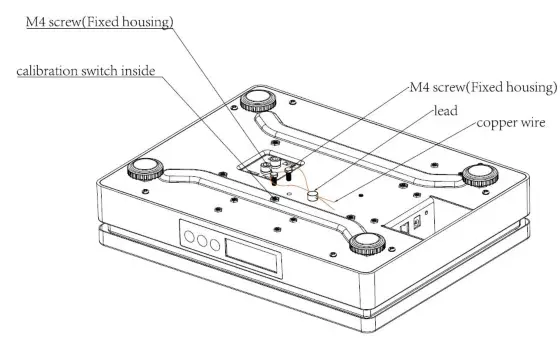
To enable the Tare function, it’s required to enter parameters to select f4 tare >ON, Before access to the parameter, it needs to press the calibration switch that is locating
below the scale.
The weight of any container can be tared by pressing a button so that with subsequent weighing the net weight of the object being weighed is always displayed.
Taring a container
- Load weight on the platform.
- Press
 key. Zero is displayed, and tare is subtracted. The [▼] indicator above Net indicator appears.
 - Remove weight on the platform. Tared weight is displayed. It can set only one tare value. It will be shown with a minus value.
Clearing tare
- To clear the tare value, remove the load from the platform
- Press key. Zero is displayed, The [▼] indicator above Net indicator disappears, tare weight is cleared.
5.4 Select Weighing Units
By pressing UNIT key in turn in normal weighing mode, it can convert the weighing units (kg/lb/oz), and the relative symbol will turn on in the display.
5.5 Backlight Setting
It allows choosing the backlight operation.
- Press the key during that start-up, and the display will be showing “F0 BL”
- Press key to enter.
- Press key to change the settings backlight display mode to Auto/Off/On.
- Press key to confirm.
| Display | Description |
| AUTO | Backlight will be turned on, when starting to use or when weight is not at zero. |
| oFf | Backlight function will be turned off |
| on | Backlight will be always turned on |
Note: If the battery is getting low, the backlight function will not be available
5.6 Power auto off
- Press key during that start-up, and the display will show
 .
. - Press key to select the menu until the display show “F1 OFF”.
- Press key to confirm.
- Press key to select the options.
| Fl OFF | off | To set the auto-off function to turn off, for scale always on |
| 3 | Set to turn off 3 minutes later | |
| 10 | Set to turn off 10 minutes later | |
| 30 | Set to turn off 30 minutes later |
5.7 Bluetooth Operation (Optional)
5.7.1 Bluetooth Testing Tool Installation
Note: The following steps are used for testing communication (only BLE Utility is available for testing )
- Turn on the BLE Utility software
 in on your phone, it can be downloaded from AppGallery
 - Scale should be in the allowed limits of the distance to connect Bluetooth.
 in on your phone, it can be downloaded from AppGallery
5.7.2 CON1 Communication Protocol Testing
- Turn on the scale.
- Press key during that start-up, and the display will be showing.
- Press the key until the display shows
 .
. - Press the key to confirm, the display will be show

- Press key to enter, and the display will show

- Press the key to confirm, and the display shows
 .
. - Press the key to select the
 option.
 - Press key to confirm and back to normal weighing mode.


 .
. option.
Testing steps in the mobile phone
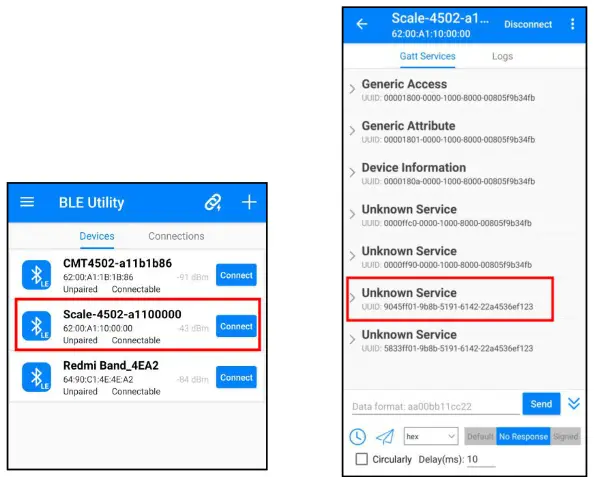
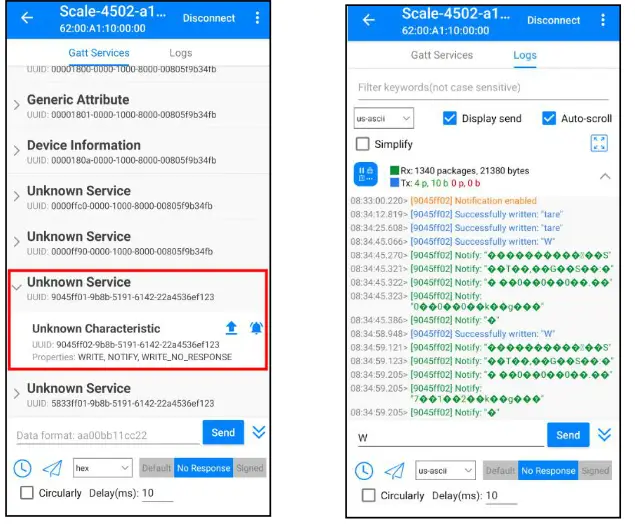
- Tab the connect button in your mobile phone to connect the Bluetooth module
- Select the Unknown Service the last but one
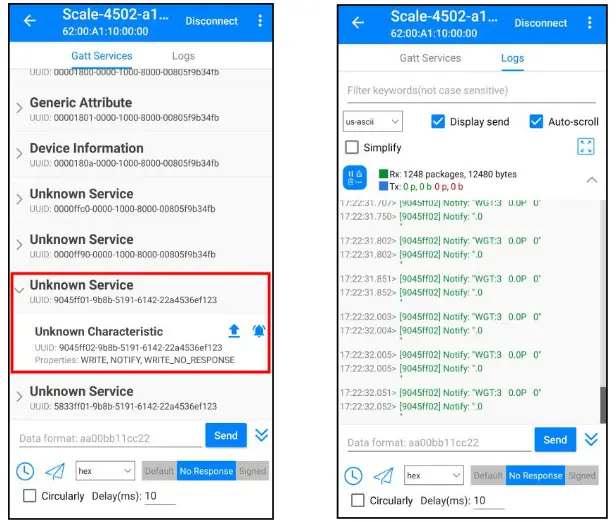
- Tab it and turn on the icon, Once set it successfully, The [▼] indicator above[] Bluetooth indicator in the scale appears.
- Tab logs, the weighing data will be shown
5.7.3 CON2 Communication Protocol Testing
- Turn on the scale.
- Press key during that start-up, and the display will be showing
- Press key until the display shows
- Press the key to confirm, the display will be show
- Press key to enter, and the display will show
- Press key to select

- Press key to confirm, the display shows

- Press key to confirm
- Press key to select the
 option
 - Press key to confirm and back to normal weighing mode.
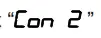

 option
Testing steps in the mobile phone
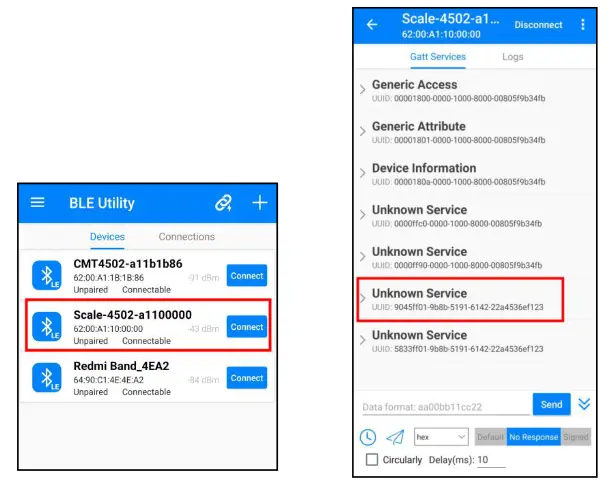
- Tab the connect button in your phone to connect the Bluetooth module.
- Select the Unknown Service the last but one.
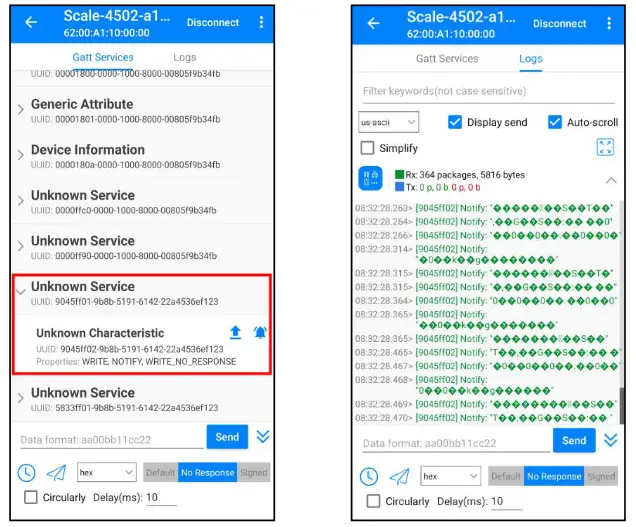
- Tab it and turn on the icon, Once set it successfully, The [▼] indicator above[] Bluetooth indicator in the scale appears .
- Tab logs, the weighing data will be shown.
5.7.4 ASK Command Testing
- Turn on the scale.
- Press key during that start-up, and the display will be showing
- Press key until the display shows
- Press the key to confirm, the display will be show
- Press key to enter, and the display will show
- Press key to select
- Press key to confirm, the display shows
- Press key to confirm
- Press key to select the option
- Press key to confirm and back to normal weighing mode.
Testing steps in the mobile phone
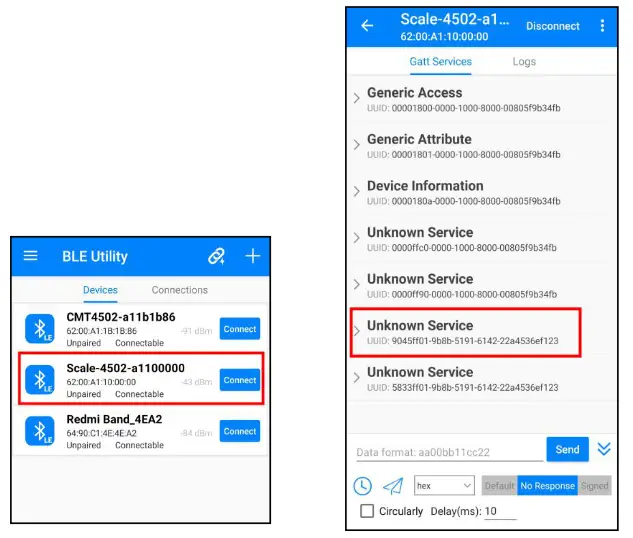
- Tab the connect button in your phone to connect the Bluetooth module
- Select the Unknown Service the last but one
- Tab it and turn on the icon, Once set it successfully, The [▼] indicator above[] Bluetooth indicator in the scale appears.
- Tab logs and Entered the Command to receive the corresponding data
Command W: read data
Command TARE: Tare
Command ZERO: Zero
5.8 POS/ECR protocol selection
- Turn on the scale.
- Press key during that start-up, and the display will be showing
- Press key until the display shows

- Press key to confirm, and the display will be show
- Press key to select the
 option
 - Press key to confirm, display show “off”
- Press key until the display shows

- Press key to confirm
- If necessary, Press key to select protocol from type 0 ~ type 6 (TYPE 0,2,4,5,6)
- Press key to confirm, the display shows “F2 COM”
- Press key to select theoption
- Press key to confirm and back to normal weighing mode.


PARAMETER SETTING
Enter into the Menu
- Press key during that start-up, the display will be shown
Enter to Selected Menu
- Press , it can confirm which will be shown displayed.
Select the Menu
- Press key to choose menu block one by one.
Return to Weighing Mode
- Press key to select option in parameters to escape from the menu and back to normal weighing mode.
To access the technical parameters F4 TARE & TECH, it’s required to press the calibration switch, switch is located below the scale
6.1 MENU BLOCK
| Menu | Sub-Menu | Description | ||
 | oFF | To set the backlight function | ||
| on | ||||
| RUED | ||||
| F1 oFF | oFF | Auto off function disable | ||
| 3 | Scale will be auto-off three minutes later | |||
| ID | Scale will be auto-off 10 minutes later | |||
| 30 | Scale will be auto-off 30 minutes later | |||
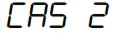
 |  |  | Continuous Protocol 1 | |
 |  | Continuous Protocol 2 | ||
 | Send stable weighing data | |||
 |  | CAS Active Protocol | ||
 | CAS Passive Protocol | |||
 | Ask mode 1)Command W: read data 2)Command TARE: Tare 3)Command ZERO: Zero | |||
 | Bluetooth Communication port off | |||
 | N.A | |||
 | | Continuous Protocol 1 | ||
| CoLIE | Continuous Protocol 2 | ||
| SLR | Send stable weighing data | |||
| CRS | RCE | CAS Active Protocol | ||
| PRS | CAS Passive Protocol | |||
 | Ask mode 1)Command W: read data 2)Command TARE: Tare 3)Command ZERO: Zero | |||
| RS232 Communication port off | |||
| CRS 2 | E9PE 0 | CAS POS /ECR protocol | ||
| E9PE 2 | ||||
| EYPE 4 | ||||
| E9PE 5 | ||||
| E9PE 6 | ||||
 | To show the internal counts | |||
 | oFF | To disable the tare function | ||
| on | To enable the tare function | |||
 | For any approved version, it’s required to press the calibration switch | |||
 | CPR | CPA approval | ||
 | OIML approval | |||
 | NTEP approval | ||
 | None approval | ||
 | SLSI approval | ||
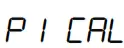 | 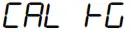 | Calibration | |
 | |||
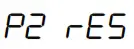 | 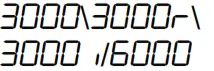 | Set external resolution | |
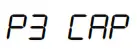 |  | Set Scale Capacity | |
 | |||
 | |||
 | Set the local gravity | ||
 |  | Multi-Tare operation enable | |
| oFF | Multi-Tare operation disable | ||
 | Escape from the setting menu and back to normal weighing mode | ||
Note: To calibrate in “kg” or “lb” unit, capacity will be shown in kg or lb values.
The default setting is marked by *
DIAGRAM: Serial interface
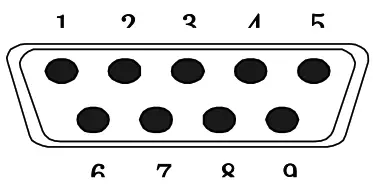
| Pin 2 | RXD | Input | Receiving data |
| Pin 3 | TXD | Output | Transmission data |
| Pin 5 | GND | — | Signal ground |
9pin D Connector:
| Scale | Computer |
| Pin 2 | Pin 3 |
| Pin 3 | Pin 2 |
| Pin 5 | Pin 5 |
SPECIFICATION
| MODEL | TPD-12 | TPD-30 | TPD-60 |
| Maximum Capacity | 12 lb / 6 kg/ 192 oz | 30 lb / 12 kg /480 oz | 60 lb / 30 kg / 960 oz |
| Minimum Capacity | 0.04 lb / 20 g / 1 oz | 0.1 lb / 40 g / 2 oz | 0.2 lb / 100 g / 4 oz |
| Readability | 0.002 lb/0.001 kg/0.05 oz | lb/0.002 kg / 0.1 oz | 0.01 lb / 0.005 kg / 0.2 oz |
| Max. Divisions | 1/6000 | ||
| Weighing Units | kg/lb/oz | ||
| Front Display | 0.59inch /15mm digits LCD Display with white LED back Light | ||
| Rear Display | 1 LCD Display with white LED back Light | ||
| Platter size | 13.6 x 10.4 inch / 343 x 263mm | ||
| Housing | Plastic housing (steel base) with stainless steel pan | ||
| Interface | RS232 Output standard | ||
| Operation Temperature | 14°F – 104°F / -10°C – + 40°C | ||
| Power | Input AC 100-240V, output DC 12V/500mA 6V/3.2Ah rechargeable battery | ||
| Battery life | Approx. 48 hours with Bluetooth and backlight of continuous use Approx. 52 hours with Bluetooth or backlight of continuous use | ||
| Keypad | 3 membrane keys | ||
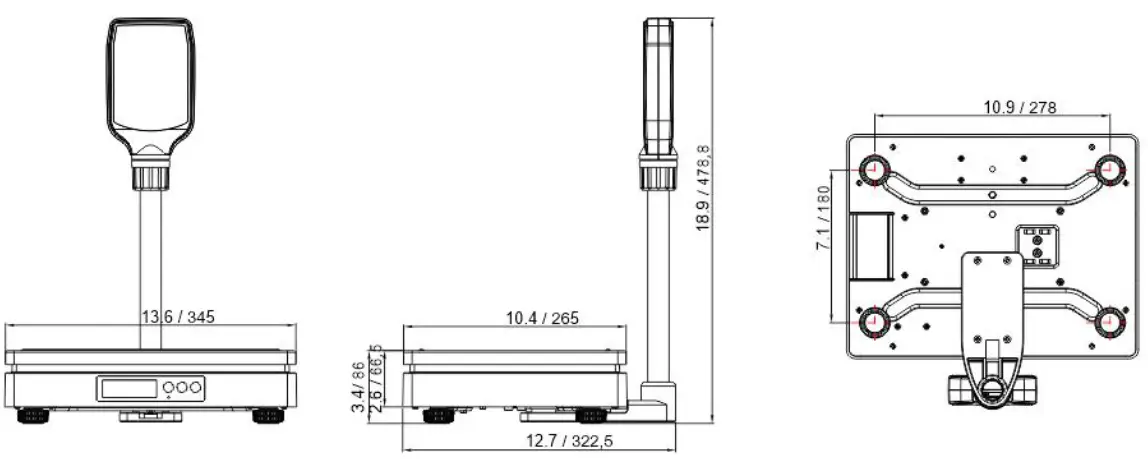
| Dimensions (inch/mm) | 13.6 (W) x 12.7 (D) x 18.9 (H) / 345 (W) x 322.5 (D) x 478.8 (H) | ||
| Net weight | 10.1Ib (4.6 kg) | ||
| Gross weight | 11.5Ib (5.2 kg) | ||
| Approvals | NTEP: Certificate No.22-010 | ||
DIMENSIONS(inch/mm)
ERROR MESSAGE
| Error Message | Description | Solution |
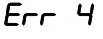 | Zero setting error | Zero setting range exceeded due to switching on. (4%max) Make sure the platform is empty. |
 | AID value out of range | Make sure the platform is empty and check the pan is installed properly. Check the load cell connectors. |
 | Over range | Remove the load. Recalibrate |
 | Calibration Error | Check the calibration weight and recalibrate |
www.VisionTechShop.com
100 Temple Ave. Hackensack, NJ 07601
Tel:+ 1-201-679-7793