User Manual
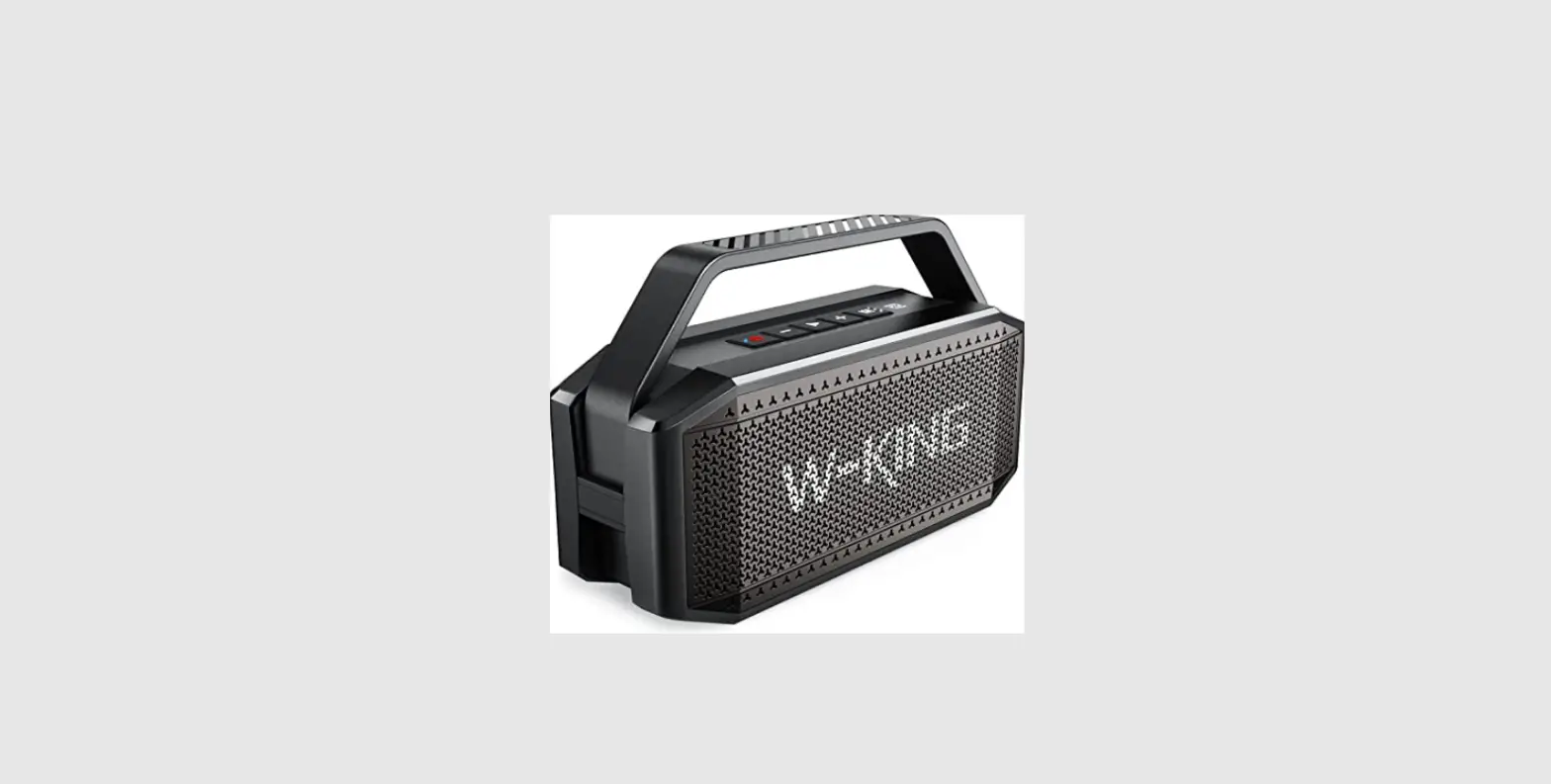
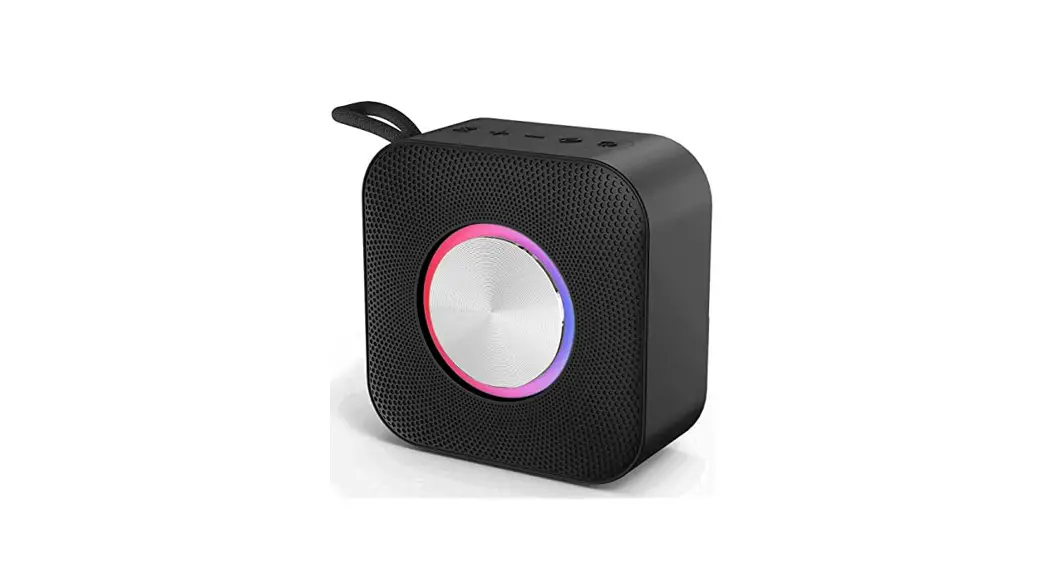
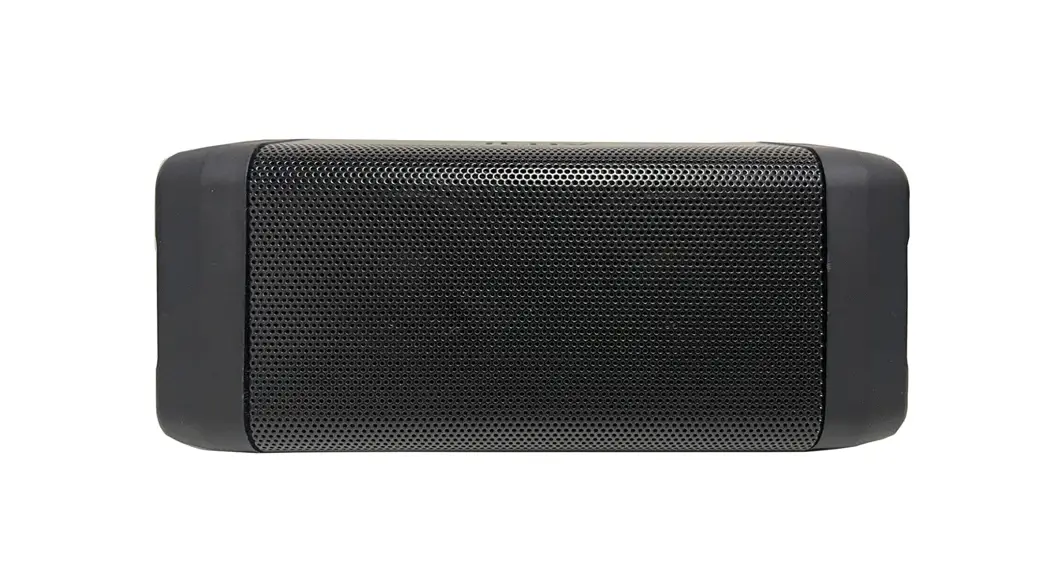
X10 Wireless Speaker
W-KING® is a registered trademark in the U.S. and European Union. All rights reserved.
Thank you for purchasing the W-KING X10 Wireless Speaker. Please read this user manual carefully and keep it for future reference If you need any assistance, please contact our support team with your product model number and order number.
Amazon E-mail: [email protected]
Package Contents
X10 Wireless Speaker
USB A to USB C Charging Cable
3.5mm Audio Cable
User Manual
Product Diagram
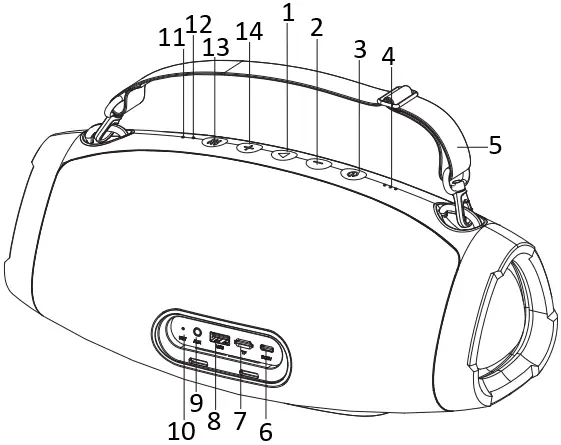
- Play / Pause
- Volume – / Previous Track
- Power ON / OFF
- Battery Indicator
- Shoulder Strap
- Type C Charging Port
- TF Card Slot
- USB port
- AUX
- Reset
- LED indicator
- Microphone
- Sound Effect
- Volume + / Next Track
Specifications
| Model Number | X10 |
|---|---|
| Technology | BT5.0, HFP V1.5;A2DP V1.2;AVRCP V1.4 , GAVDP V1.2;AVDTP V1.2;SPP V1.2;AVCTP V1.2 |
| Power Input | DC 5V |
| Frequency Range | 80Hz-20KHz |
| Signal-to-Noise Ratio | ≥80dB |
| Operating Range | Up to 10m / 33ft |
| Battery Type | Li-ion 7.2V 7800mAh |
| Operating Temperature | 0°C – 45°C / 32°F – 113°F |
| Dimensions | 324 x 148 x 146mm / 12.75″ x 5.83″ x 5.75″ |
| Net Weight | 3000g / 105.8oz |
| Waterproof | IPX6 |
| True Wireless Stereo | Support |
| Phone/Tablet Charging | Support |
| TF Card Play | Support |
Charging
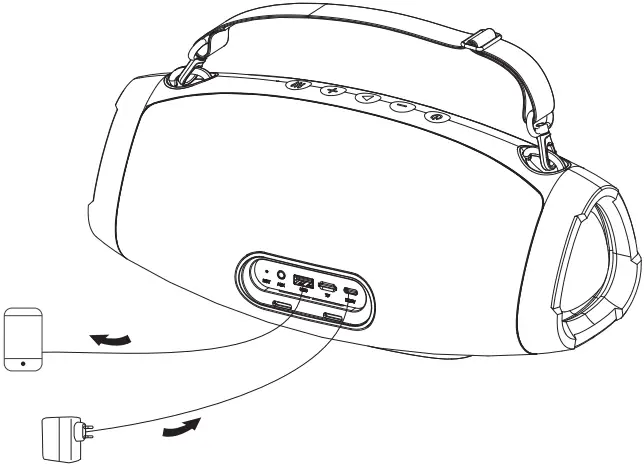
Fully charge this speaker before first use. Used our provided USB Type-C charging cable to charge your speaker. When there are 3 solid white lights, your speaker is fully charged and ready for use.
Note
USB Power adapter is NOT INCLUDED.
Power On / Off
Long press the ON/OFF button for 2-3 seconds to power on or off (LED indicator flashes blue or off)
Pairing
- When you turn on the speaker, the speaker will automatically enter pairing mode and the LED indicator will start to flash blue rapidly
- Active the pairing function on your phone or other compatible device and select “W-KING X10”
- If a code or pin is required for pairing, please enter “0000”
- When successfully paired, the LED indicator will stay blue
Notes
- To reset the speaker (to clear the pairing list or any program errors), use a straightened paper clip or a toothpick to carefully short-press the reset hole
- The speaker will automatically shut down after 10 minutes in pairing mode if no devices are paired
- If your paired device is switched off or manually disconnected, the speaker will enter pairing mode and automatically shut down after 10 minutes
- If the speaker or connected device exceeds the operating range, the speaker will disconnect. The connection to the last successfully connected device will be re-established once you re-enter wireless range within 10 minutes. To connect to other devices, please repeat the previous “Pairing” steps
Playing Audio via Audio Input Connection
- Connect the X10 to your PC, laptop, or other device with audio output port using the included 3.5mm audio cable
- Long press the on/off button for 2-3 seconds to turn on, and the LED indicator will light up solid green
TF Card Function
- Insert a TF card into the TF card slot on X10
- Green LED confirms that the speaker has enter TF card mode
Notes
- The speaker will disconnect from your phone or other paired device when an audio cable is plugged into the audio input jack
- When playing audio using the audio input jack, press the volume + / -to adjust the volume and short-press play/pause to pause or resume. Next / previous track control on the speaker is disabled in audio input mode
- For some computers, you may need to access the audio control panel to manually set the speaker as the default audio device
Charging Phone / Tablet
- Connect your phone / tablet to the type-c port of the X10 speaker
- Turn on the speaker, your device will be charged automatically
- Turn off the speaker to discharge your device
Adjust Sound Effect
Short press the Equalizer button ” ↑↓↑ ” to switch between indoor or outdoor mode
True Wireless Stereo Pairing
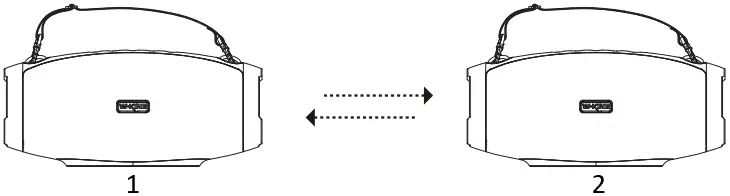
True Wireless Stereo
1. Left
2. Right
- Turn on both of your X10 speaker simultaneously, you will see blue LED indicator flashes rapidly on the two devices
- Select one speaker as the leading speaker, double press the ON / OFF button to start pairing.
- After successfully paired, the blue LED indicator of the leading speaker flashes slowly and the secondary speaker LED keeps bright blue
- Turn on your phone’s Bluetooth, search “W-KING X10” and connect. The blue LED indicator of the leading speaker keeps bright. The two speakers will play music simultaneously when complete pairing
- To disconnect True Wireless Stereo pairing, press the volume button “+” and “-” at the same time, you will see blue LED flashes rapidly on the secondary speaker, that means True Wireless Stereo unpaired successfully
We have two version X10 speakers. “W-KING X10-1” and “W-KING X10” are the different version speaker.The W-KING X10 is an upgraded version of the W-KING X10-1.They could not be paired in True Wireless Stereo mode.True Wireless Stereo function only works under the same Bluetooth name.
Controls & LED Indicators
| Functions | Instructions |
| Adjust Volume | Short press volume button + / – |
| Pause / Resume | Short press play/pause button |
| Next / Previous track | Long press + / – to Next / Previous track |
| Cancel pairing | When connected, press volume button + and – at the same time |
| Answer / End a call | Short press the play/pause button once |
| Reject an incoming call | Long press the play/pause button for 2 seconds |
| LED Indicator | Status |
| Blue Flashing Rapidly | Pairing mode / Disconnected |
| Solid Blue | Connected / Outdoor mode |
| Solid Green | Audio input mode |
| White Lights Flashing | Charging |
| White Lights On (after charging) | Fully charged |
Product Care & Use
- Keep away from liquids, extreme heat, and strong magnetic fields
- Do not use this speaker at high volume for extended periods, as this may cause permanent hearing damage or loss
Warranty & Customer Support
For questions, support, or warranty claims, contact us at
Amazon E-mail: [email protected]
Please contact us with your region, order number and product model.
*Please note, W-KING can only provide after sales service for products purchased directly from our official online store. If you have purchased from a different seller, please contact them directly for service or warranty issues.
Notice for US
Changes or modifications not expressly approved by the party responsible for compliance could void the user’s authority to operate the equipment. This device complies with Part 15 of the FCC Rules. Operation is subject to the following two conditions:
- This device may not cause harmful interference, and
- This device must accept any interference received, including interference that may cause undesired operation
FCC Rules
This equipment has been tested and found to comply with the limits for a Class B digital device, pursuant to part 15 of the FCC Rules. These limits are designed to provide reasonable protection against harmful interference in a residential installation. This equipment generates uses and can radiate radio frequency energy and, if not installed and used in accordance with the instructions, may cause harmful interference to radio communications. However, there is no guarantee that interference will not occur in a particular installation. If this equipment does cause harmful interference to radio or television reception, which can be determined by turning the equipment off and on, the user is encouraged to try to correct the interference by one or more of the following measures:
- Reorient or relocate the receiving antenna
- Increase the separation between the equipment and receiver
- Connect the equipment into an outlet on a circuit different from that to which the receiver is connected
- Consult the dealer or an experienced radio/TV technician for help
Caution
Changes or modifications made to this device not expressly approved by W-KING may void the FCC authorization to operate this equipment.