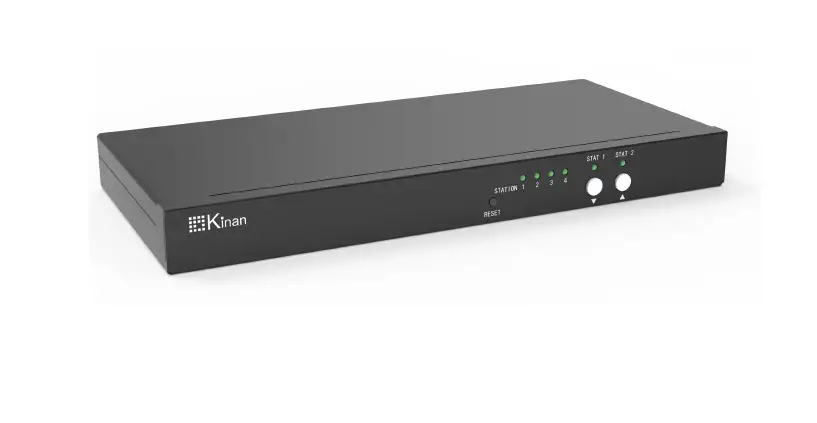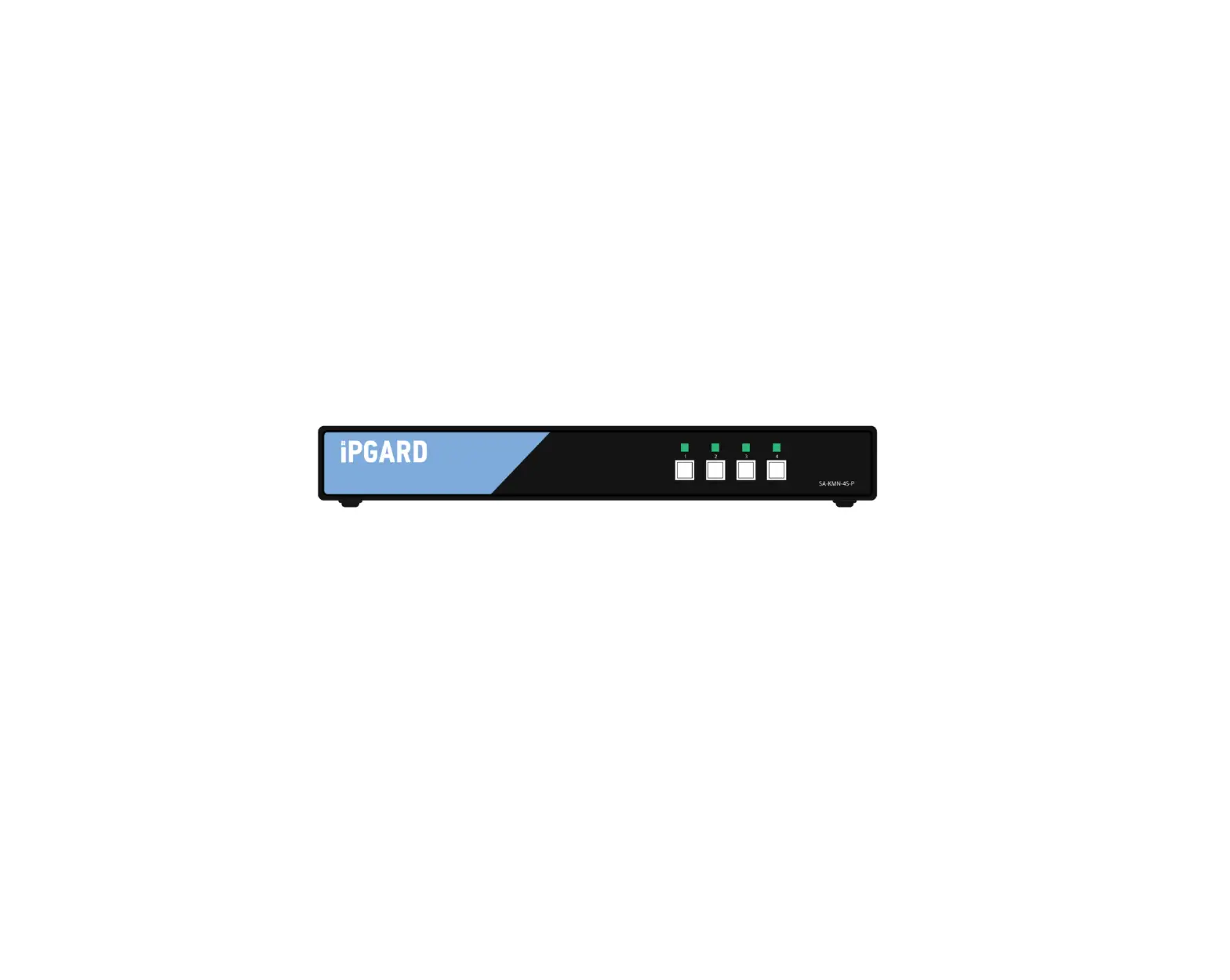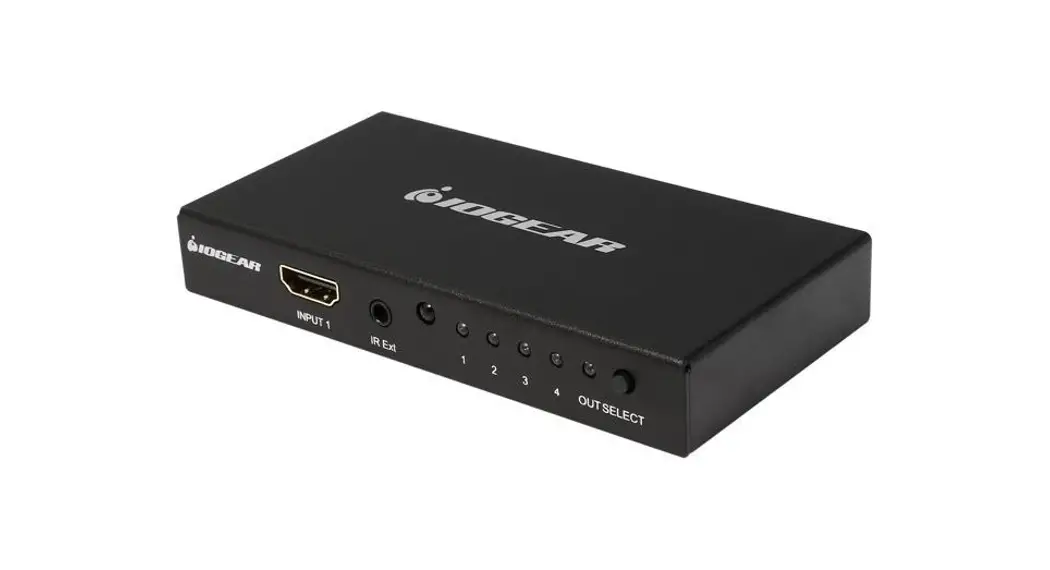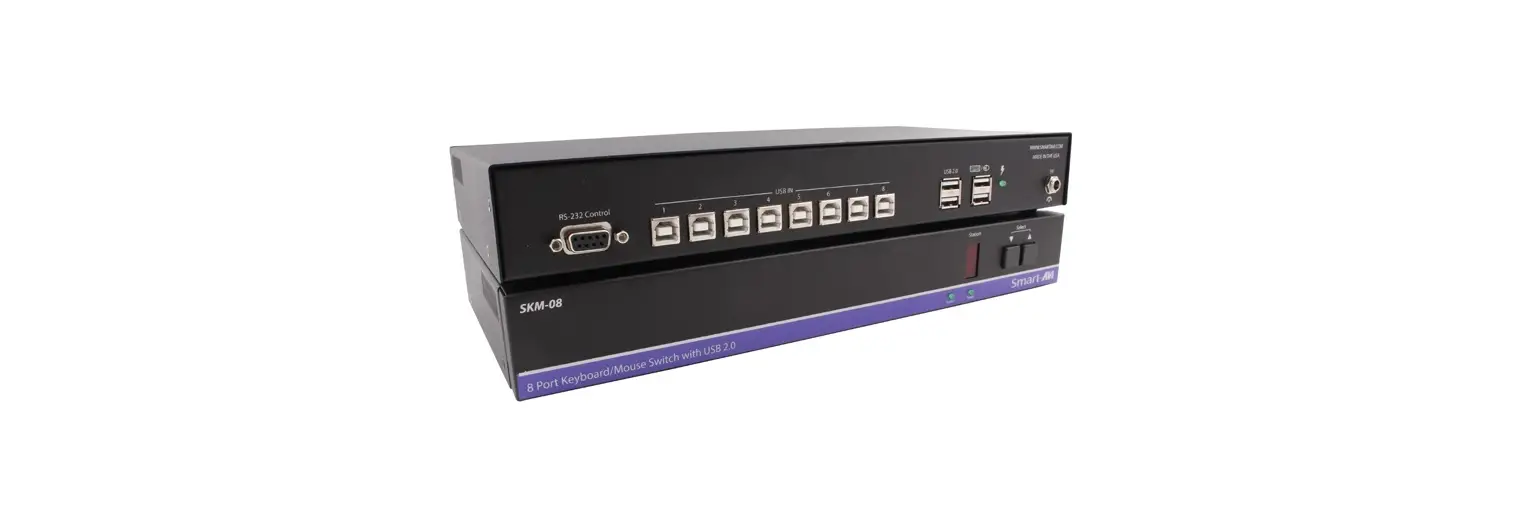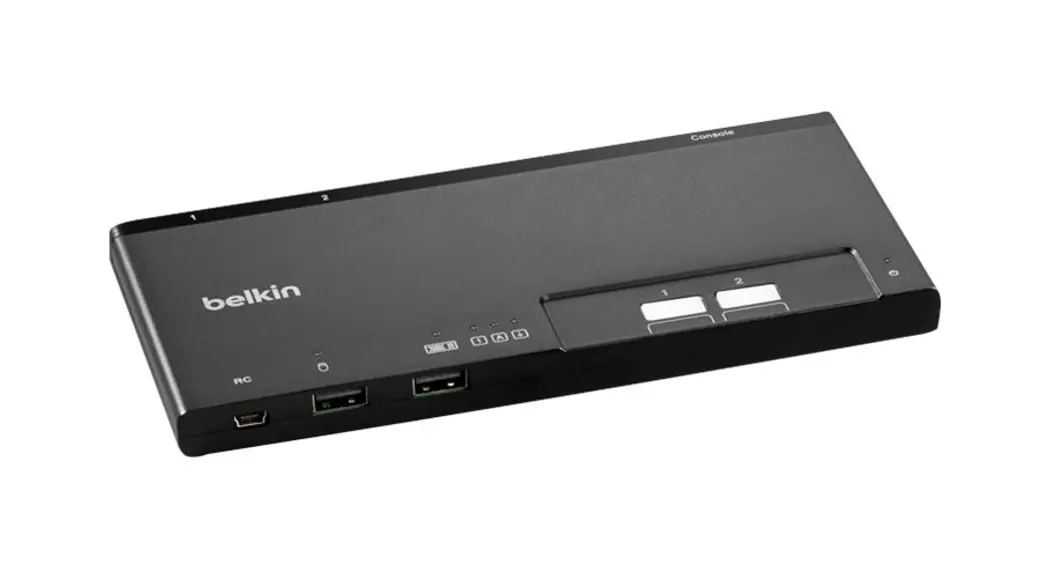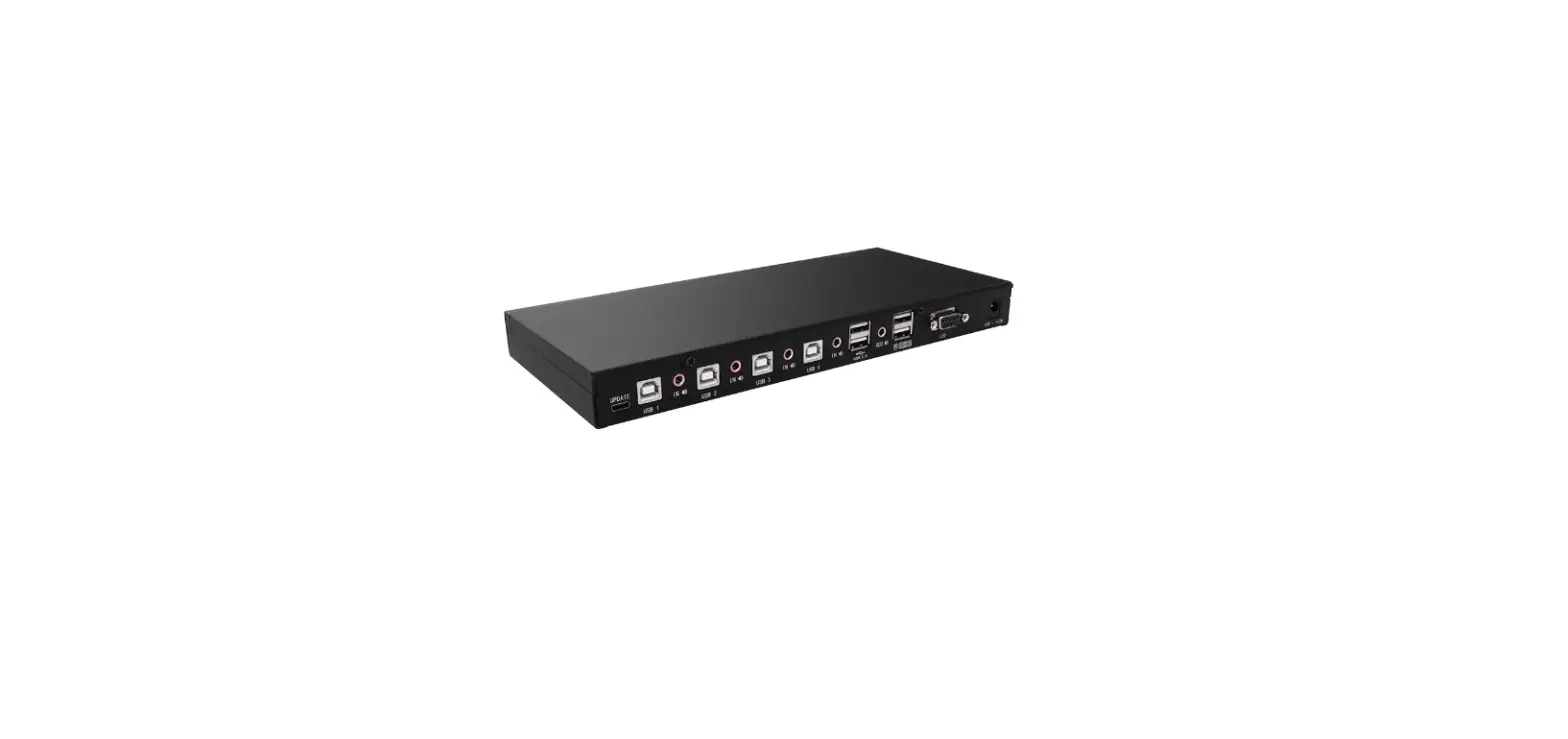

Kinan KM0104 4 Port KM Switch
Overview
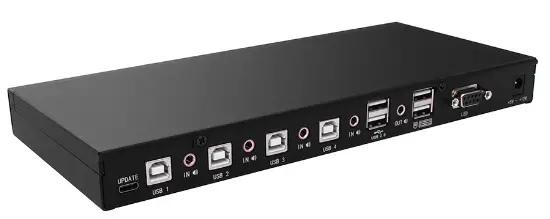
The 4 Port Keyboard-Mouse Switch enables users to manage andswitchKM(Keyboard and Mouse) functions of four connected computers, including multi-head computers. It supports seamless Keyboard-Mouse Commandon4computers from a single workstation. The KM0104 is completely driverless, requiring no software. It is compatible with any PC and all major operating systems without the need for software downloads.
Features
- Single USB keyboard and mouse control up to 4 computers
- Support stereo audio output
- Support USB2.0 HUB
- Port selection via front panel pushbuttons, keyboard hot key and mouse cursor
- No software required
- Support hot-plugging
- Support USB-C firmware upgrade
- Provide LED indicator to help you find your current mouse/keyboard location (Optional)
- Management software is available providing customized switching modes (Optional)
Structure and Size
Installation
Before starting the installation, please confirm that all devices are powered off.
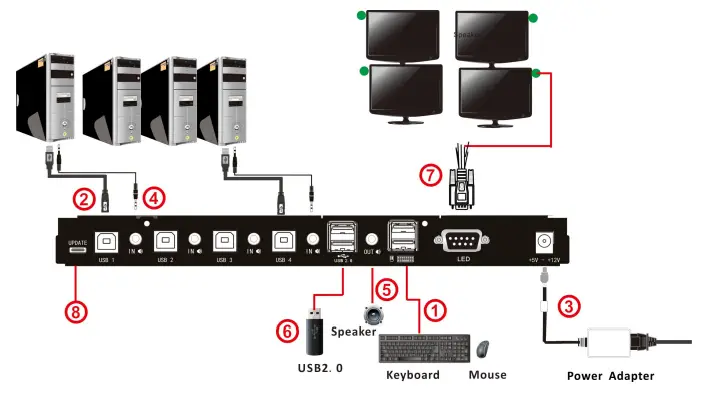
- Please connect the USB keyboard and mouse to the USB port oftheKM0104(①)
- Connect computers and KM switch with attached USB cables(②)
- Plug in the power adapter(③)
- Power on the computers switch between computers easily trough push buttons and keyboard hotkey
*The factory default setting is no hotkey. If you need hotkey operation, press the two white [ ] + [
] + [ ] keys. The hotkey will be activated 2S after powering on again.
- If the speaker is required, please plug in the audio port (④⑤)
- If USB2.0 peripherals are required, please connect peripherals toUSB2.0port(⑥)
Components

| No. | Button | Description |
|
1 |  | Switch Keyboard, Mouse and Audio to Previous PC STATTION (1-4): Switch to the previous PC, the corresponding LED light is on The flashing STAT1, STAT2 LED lights indicates normal communication |
|
2 |
| Switch Keyboard, Mouse and Audio to Next PC STATTION (1-4): Switch to the previous channel, the corresponding LED light is on The flashing STAT1, STAT2 LED lights indicates normal communication |
|
3 |
| Press the [ ]+ [ ] key for 2 seconds to disable the hotkey function. ] key for 2 seconds to disable the hotkey function.To enable the hotkey function, Press the [ |
Hotkeys
*The factory default setting is no hotkey. If you need hotkey operation, press the two white [ ] + [ ] keys for 2 seconds. The hotkey will be enabled after restarting the KM0104.
| Commands | Hotkeys | Description |
| PC switching | L_Ctrl + L_Ctrl + port# | Switch Keyboard, Mouse, Audio and USB from port 1 to port 4 |
|
Mode selection | L_Ctrl + L_Ctrl + M +0 | All PC exit the Cross-display mode |
| L_Ctrl + L_Ctrl + M + (1~3) | 1:Horizontal Cross-display mode 2:Vertical Cross-display mode 3:Surround Cross-display mode | |
|
Cross-display mode | L_Ctrl + L_Ctrl + E | The current PC exits the Cross-display mode |
| L_Ctrl + L_Ctrl + S | Current PC (single-head display mode) participates in the Cross-display mode | |
| L_Ctrl + L_Ctrl + D + (0~3) | The current PC (multi-head display mode) participates in the Cross-display mode, supporting up to 4 displays | |
|
Audio switching | L_Ctrl + L_Ctrl + A + 0 | Audio unlock (Switch Audio, Keyboard, Mouse and USB) |
| L_Ctrl + L_Ctrl + A + port# | Switch Audio only (not Keyboard, Mouse and USB) | |
|
HUB switching | L_Ctrl + L_Ctrl + U + 0 | USB2.0 unlock (Switch USB2.0, Keyboard, Mouse and Audio) |
| L_Ctrl + L_Ctrl + U +port# | Switch USB2.0 only (not Keyboard, Mouse and Audio) | |
| Broadcast | L_Ctrl + L_Ctrl + B | Unlock and lock the broadcast mode, concurrently control the keyboard and mouse of the 4 connected computers under the broadcast mode |
| Hotkey cycling | L_Ctrl + L_Ctrl + F | L_Ctrl -> L_Shift -> Scroll |
| Reset to factory default | L_Ctrl + L_Ctrl + R | Restore factory setting |
Single-Head Mode KM Switching
Allows users to seamlessly switch between computers by moving the mouse cursor from one display to another, making it easy and efficient for users to switch between PCs.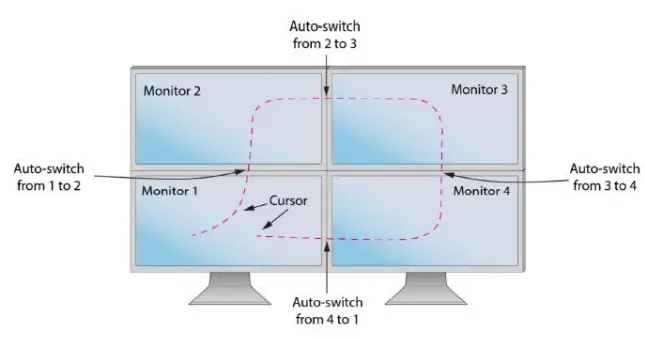
Multi-Head Mode KM Switching
When using computers with multiple displays, simply press the scroll wheel twice and then move the mouse in the direction of the channel you desire to switch. This feature only works in Multi-Head display mode.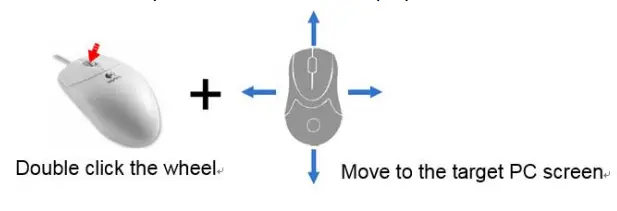
Note: Under the multi-head switching mode, the USB 2.0 peripheral cannot be switched.
Specification
| Model | KM0104 | ||
| Computer Connections | 4 | ||
| Port selection | Pushbuttons, Hotkey, Mouse cursor | ||
|
Connectors | User Console | Keyboard/Mouse | 1 x double-layer USB type A |
| Speaker (out) | 1 x Min Stereo Audio | ||
| PC ports | Keyboard/Mouse | 4 x USB type B | |
| Speaker (in) | 4 x Min Stereo Audio | ||
| Power | 1 x DC socket | ||
| USB2.0 Port | 1 x double-layer USB type A | ||
| LED OUT | 1 x DB9 (Female) | ||
| Upgrade Port | 1 x USB-C | ||
| Button | Port selection | 2 x buttons | |
| Power | 5V- 12V DC | ||
| Power Consumption | 3W | ||
| Emulation | Keyboard/Mouse | USB | |
|
Environment | Operating Temperature | 0-50℃ | |
| Storage Temperature | -20-60℃ | ||
| Humidity | 0-80%RH, Non-condensing | ||
| Other Features | Material | Metal, Plastic | |
| Weight | 0.9kg | ||
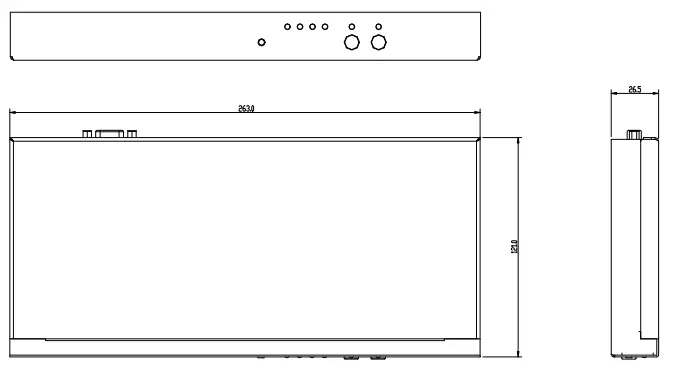
| Dimension | 263mm x 121 mm x 26.5mm | ||
www.kinankvm.com
@ all rights reserved Shenzhen Kinan Technology Co., Ltd. Printing date:2021/09
Version: V2.1
 Kinan-Professional KVM over IP, LCD KVM Console, KVM Switch Manufacturer