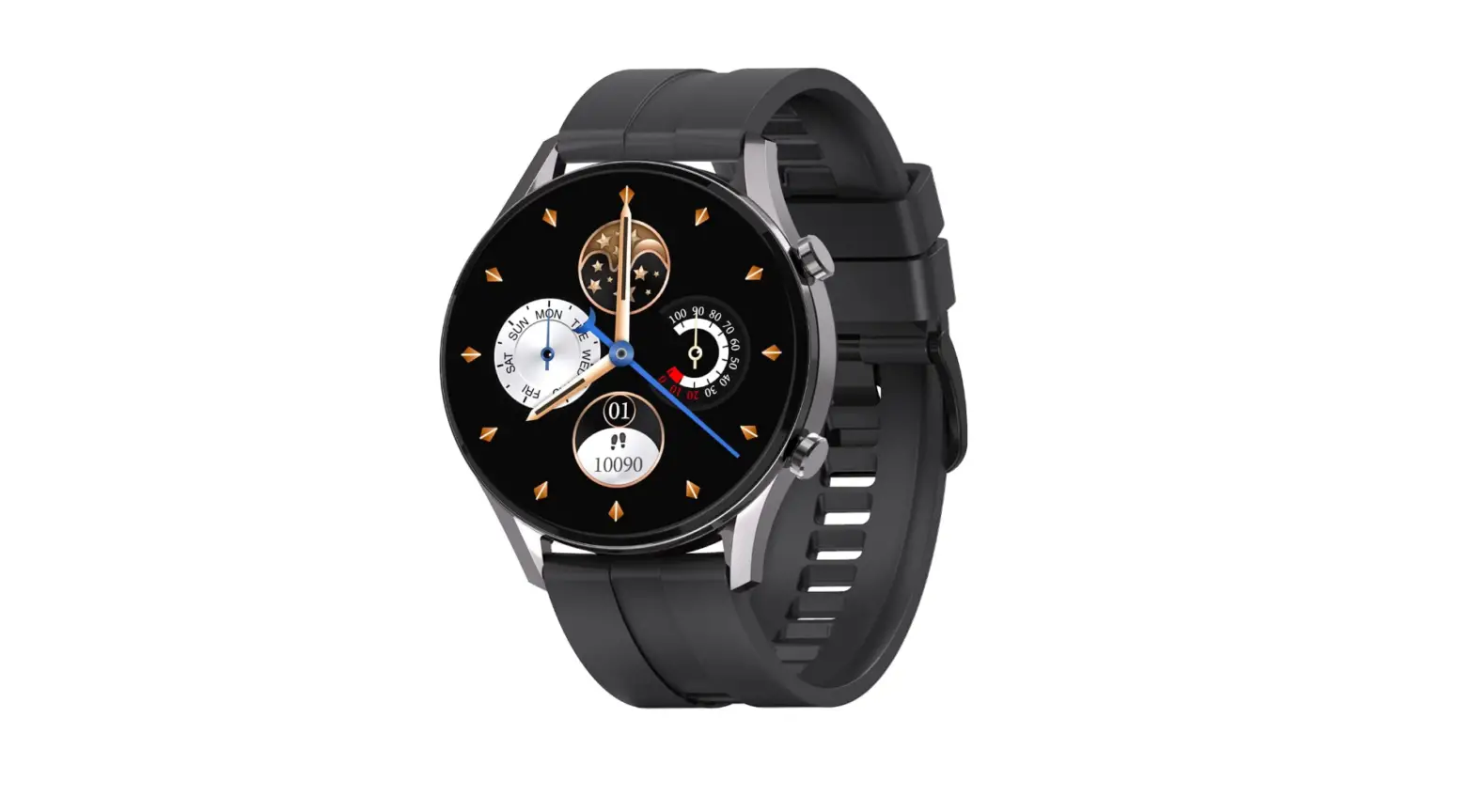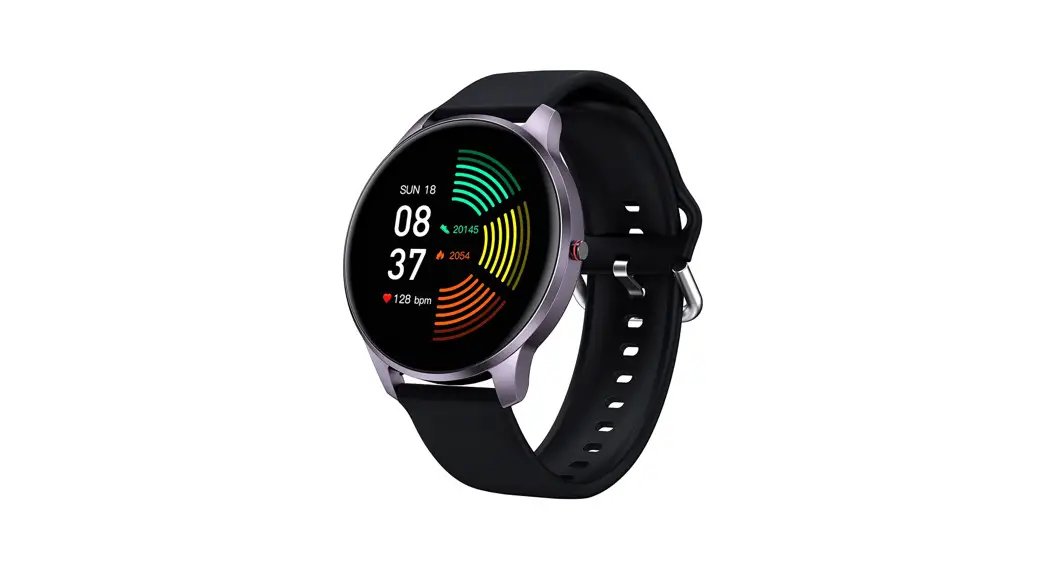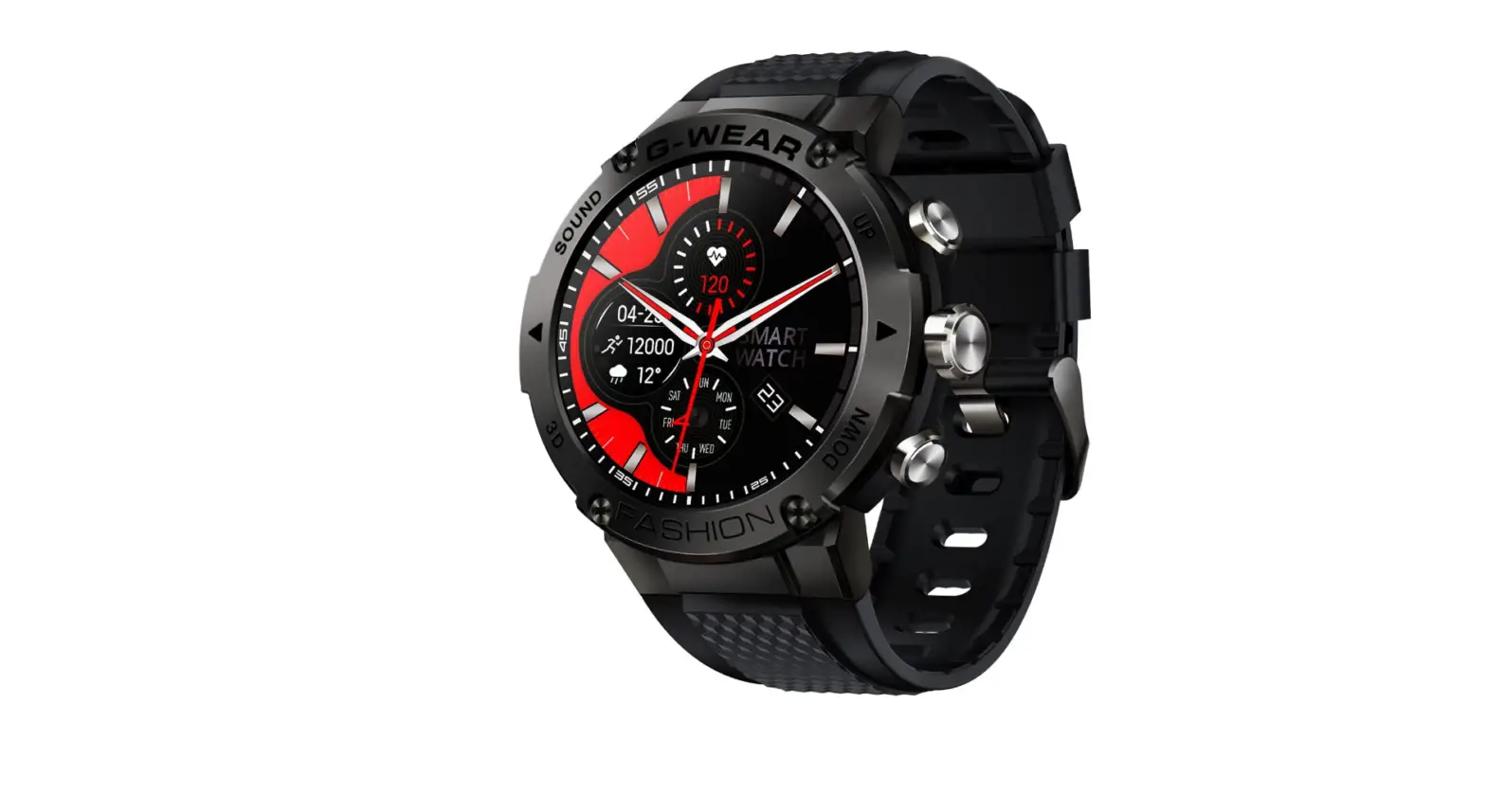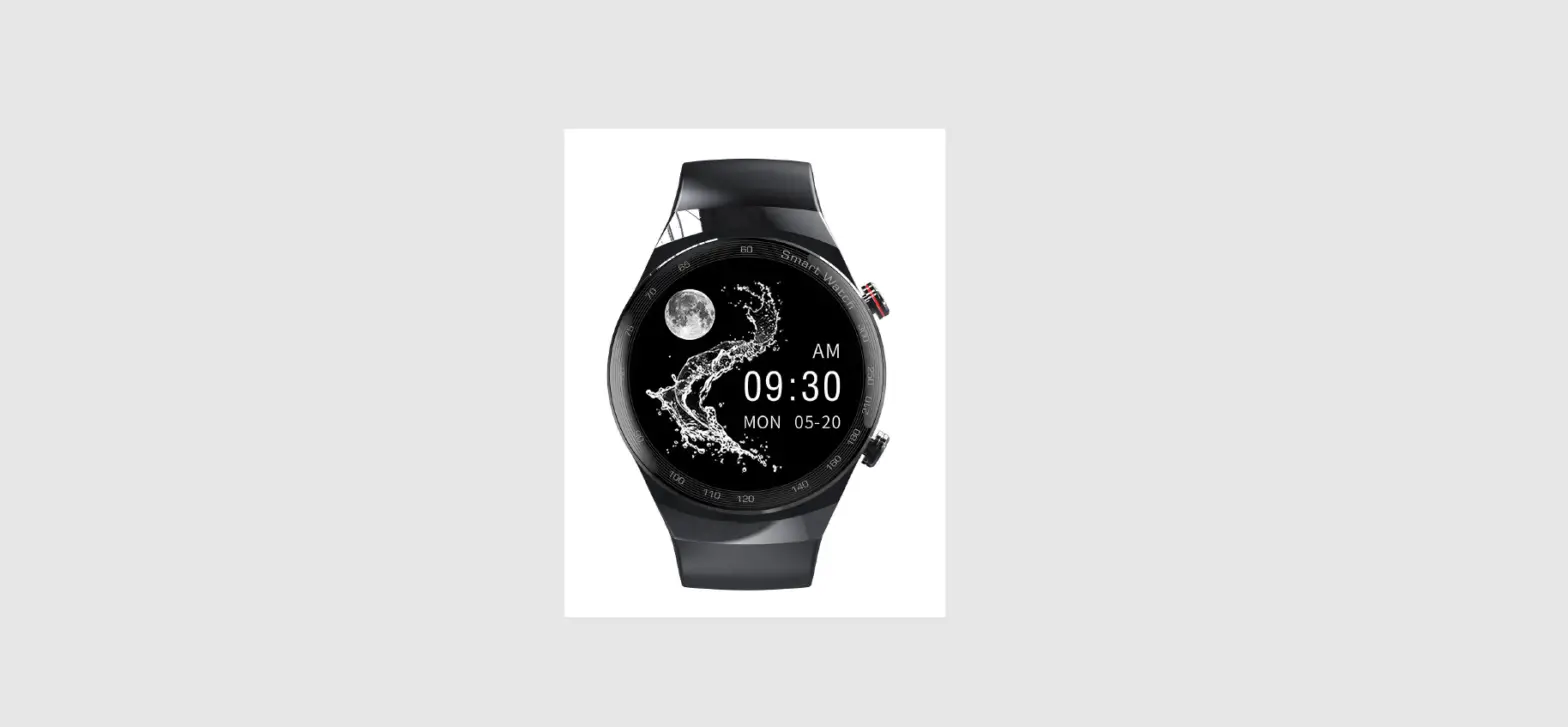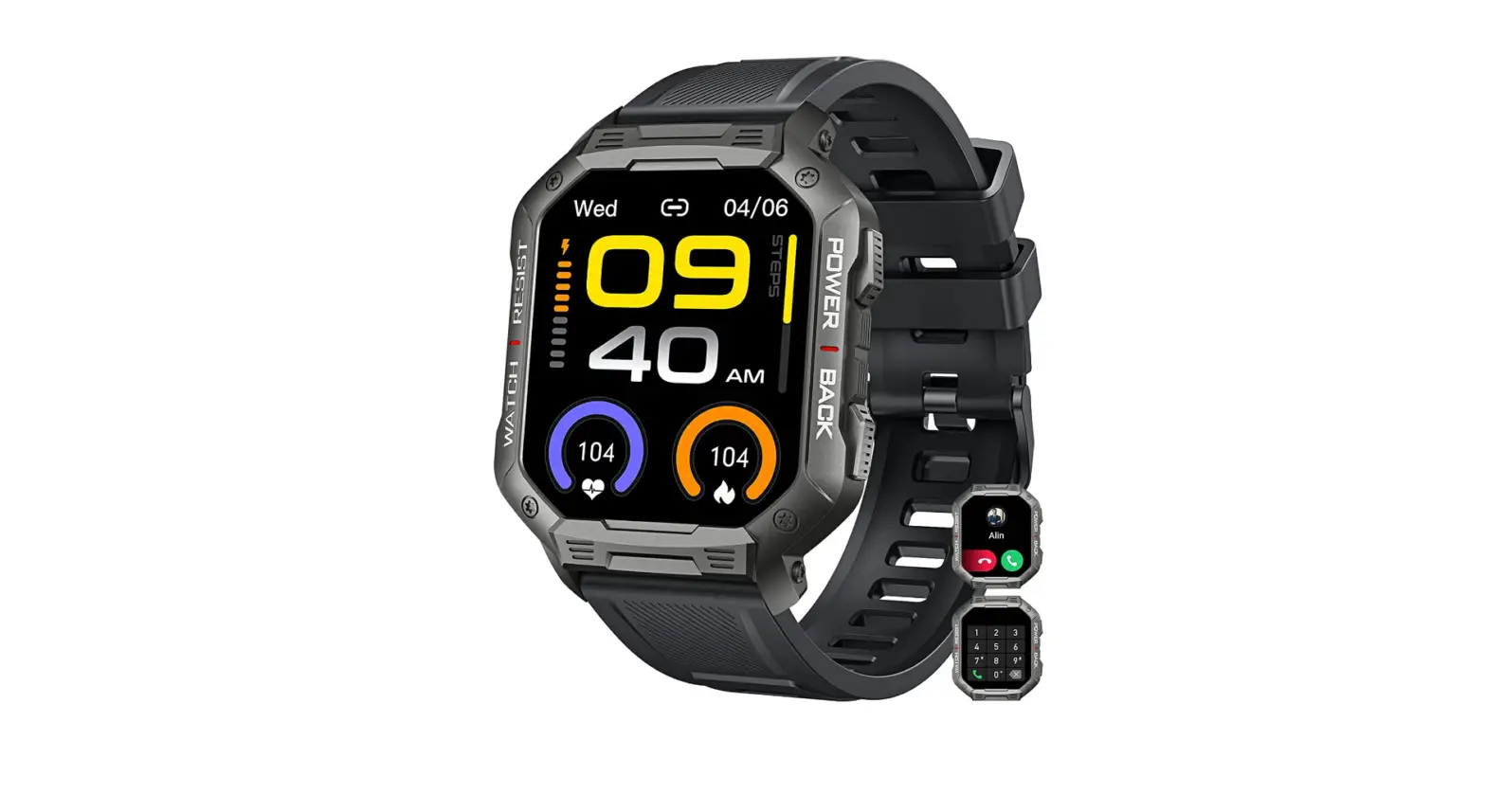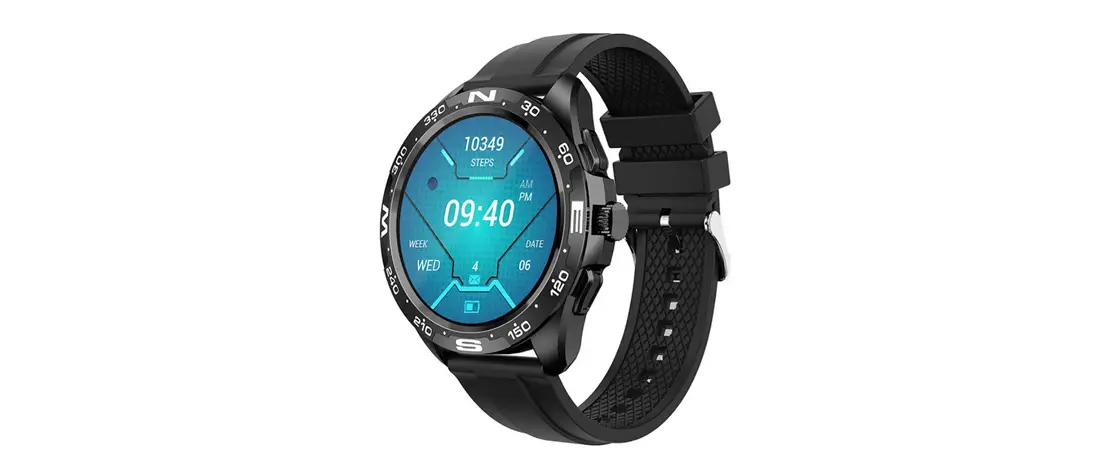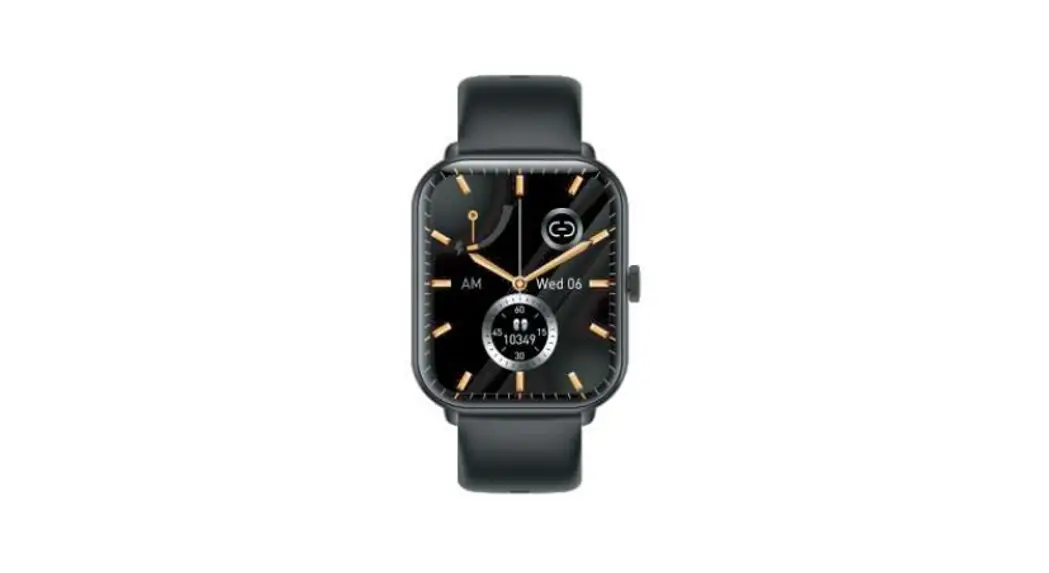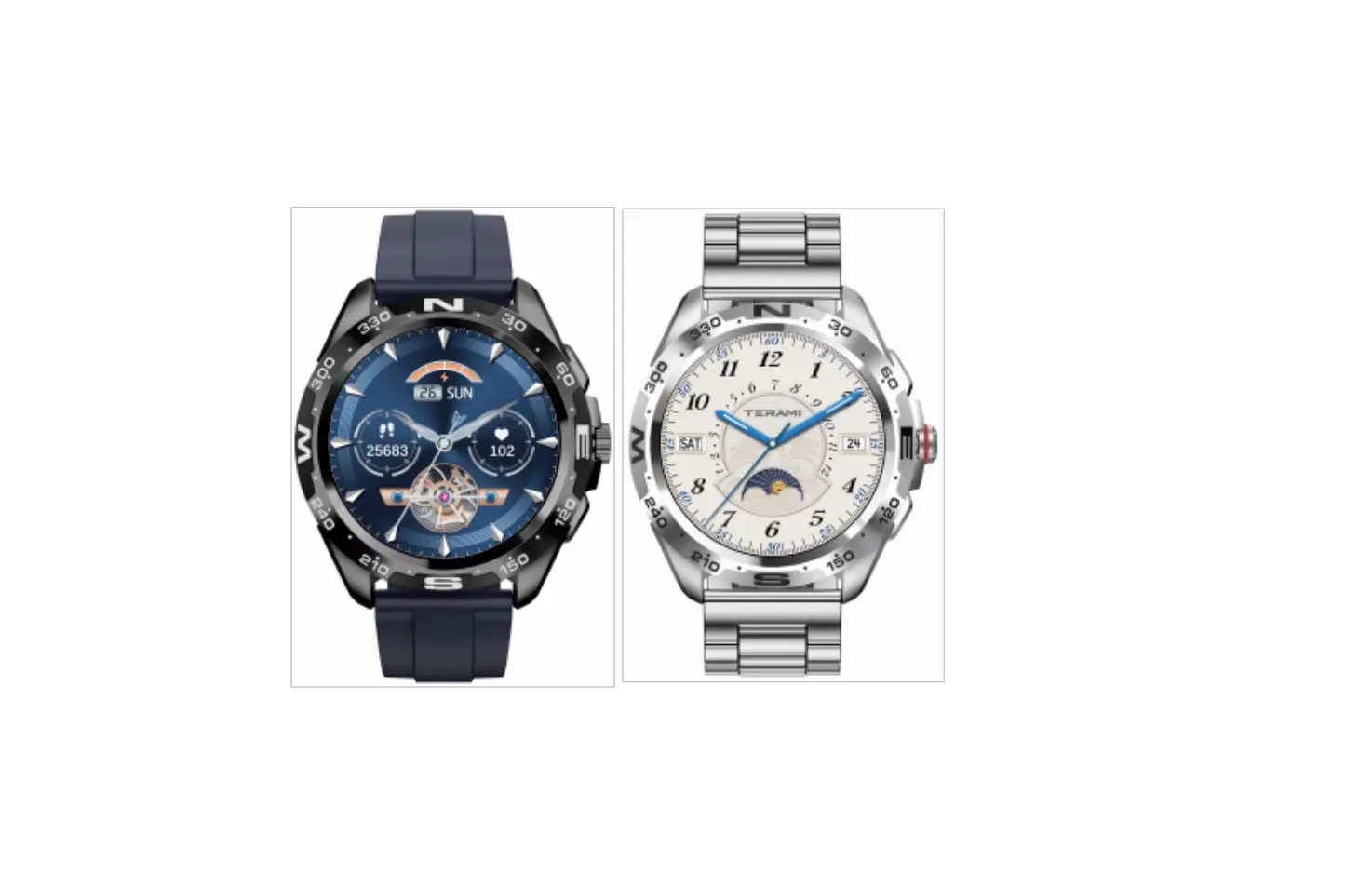
SMART BW3 27 Watches for Men
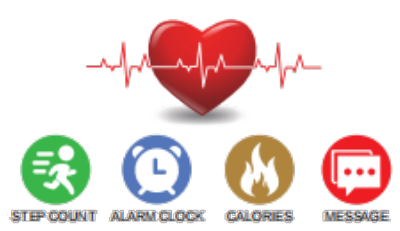
FEATURES
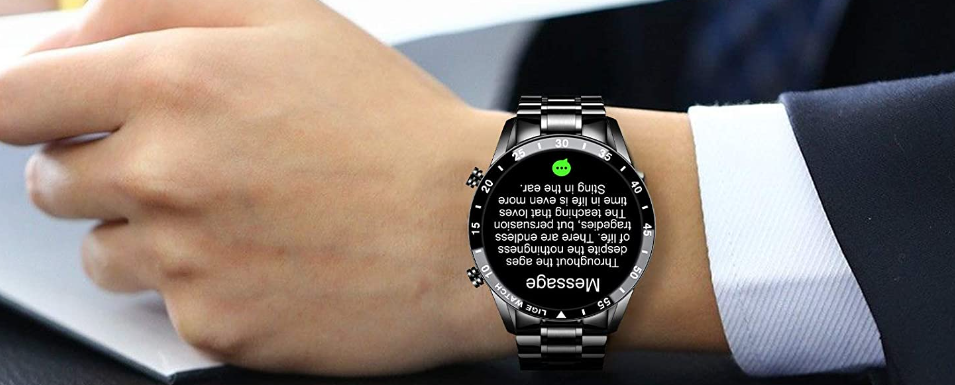
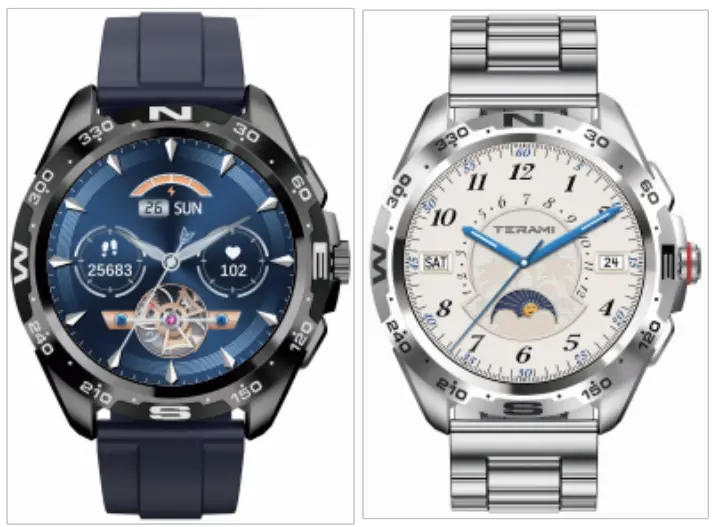
HOW TO ADJUST THE SIZE OF LIGE WATCH STRAPS BAND?
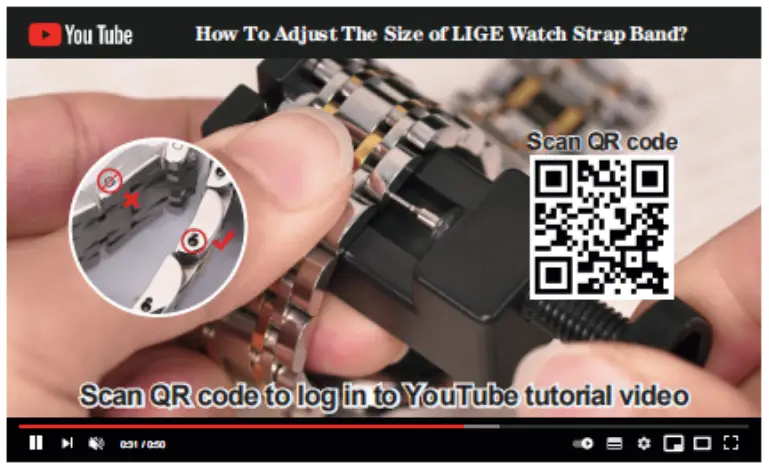

If the steel belt is too short. we can provide free strap accessories for extending the strap, which will arrive in 1-3 days! please contact the customer service or the email address.
Thank you !
For information on service:
please contact Amazon Seller customer service for regarding repairs and warranty. You can also contact us by email: [email protected]
Name: APEX CE SPECIALISTS LIMITED
Add: UNIT 3D NORTH POINT HOUSE.NORTH POINT
BUSINESS PARK. NEW MALLOW ROAD.CORK, T23AT2P.
IRELAND
Contact: Weis
E-Mail: [email protected]
CE Report NO: LST210475014ER
APP download
|  |
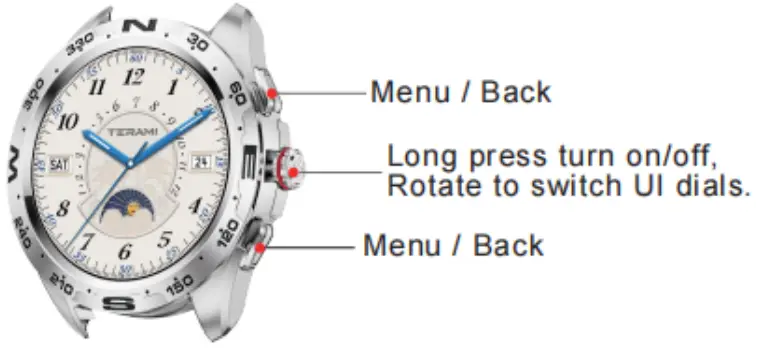
Charging and Active
Use the BW327 charging cable, then insert the USB to your laptop or any USB port with SV 1A to charge the Watch before use to ensure that the Watch is fully charged. The charging time is about 2 hours. Make ensure the charging connect. Please ensure that the metal surfaces are not dirty. oxidizing and impurities. When charging, the screen will display the charging symbol. If the device is not used for a long time, please be sure to replenish it every one month.
Pairing

Toe MAC address on the “Setting”-“About” page could help you identify your device on the scanning list.
Use the Touch Screen
***This bracelet must be connected to the phone twice …..
Step 1: Open “FitCloudPro “APP–“OK, Allow”-“Add A DEVICE”-Find BW327 and choose Done.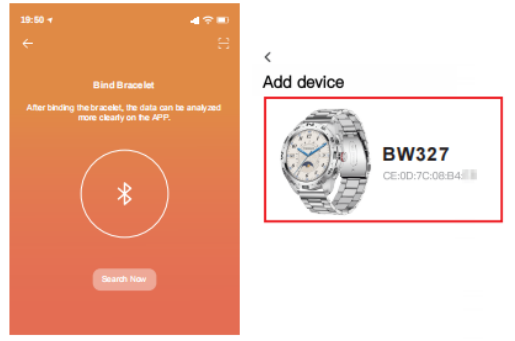

Scan code to view operation video
During this connection process, there will be a prompt to ask whether to open the notification and open permission request confirmation . Please make sure to confirm the open notification reminder and allow all permissions . (If not authorized, it will affect the information reminder and address book and other functions).
Step 2. Connect the Bluetooth Call function
 Note: Only after this connection can you play music and answer calls.
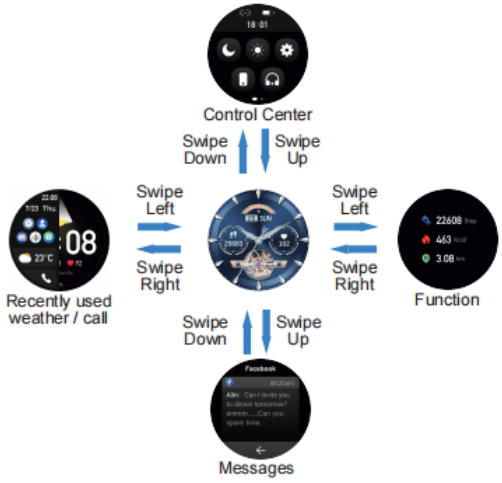
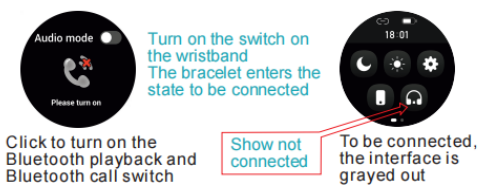
- Swipe Right on the standby interface of the bracelet, the first item. As shown in the picture below left. Turn on the Bluetooth play & call switch.

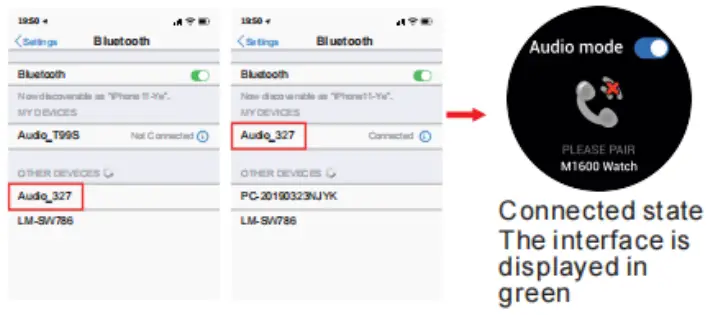
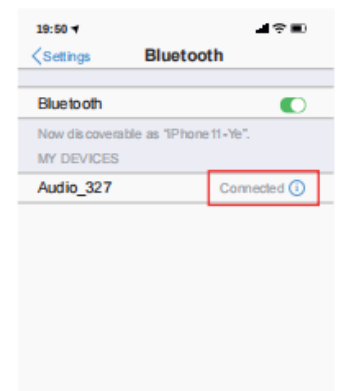
- After confirming that the call function is turned on. After connecting to the device with the Bluetooth of “Audio_327” on the phone-Settings-Bluetooth-(At this time, the communication interface of the left swipe on the standby interface of the bracelet shows green), you can make calls and play music through this bracelet’s Bluetooth.

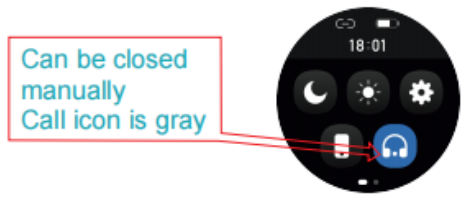
- If you don’t want to connect through this bracelet due to environment or personal privacy, you can manually turn on/off this function , as shown in the right picture. (This switch only turns off Bluetooth call and Bluetooth playback, and does not affect the other functions, such as heart rate).

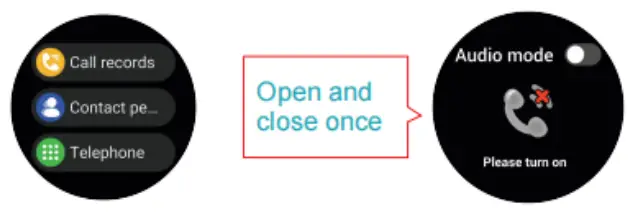
…. Every time the bracelet is turned off/restarted or restored to factory settings, the call function is turned off by default. Please turn it on manually in the drop-down menu. - If the wristband is disconnected from the phone for more than 2 minutes due to the distance, in order to ensure the battery life, the wristband will automatically close the connection with the phone. At this time, May need to manually reconnect call Bluetooth.

Due to different phone models, you may need to manually click connect in the phone, settings-Bluetooth
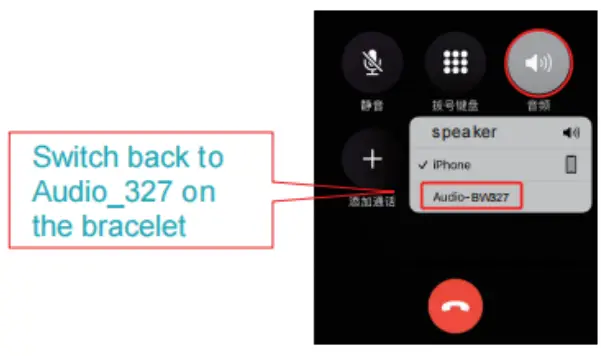
- lf you answer or make a call on the mobile phone, if you need to return to the bracelet, you must manually switch to the bracelet on the mobile phone As shown in the picture below right.

- If you don’t want to connect through this bracelet due to environment or personal privacy, you can manually turn on/off this function , as shown in the right picture. (This switch only turns off Bluetooth call and Bluetooth playback, and does not affect the other functions, such as heart rate).
Why the watch can’ t receive the message notification?
Please make sure that the mobile phone Bluetooth is turned on, the FitCloudPro APP is turned on, and the bracelet is always connecting to the mobile phone Bluetooth !
NOTE:
If the phone is not locking or the software (whatapp, SMS, facebook … ) is logging in the computer, the smart watch will not push messages for reduce power consumption and disturbing. Please allow all the notification permission( WhatsApp, Facebook, Twitter, Phone, SMS.) at the FitCloudPro APP.
Since Android mobile phone background will automatically clean up the App which not commonly used, it will cause the watch connection to drop and no longer push the message.
- Make sure turn on message push in FitCloudPro setting.
- Make sure the message can be displayed in mobile phone’ s notification bar. message notification is pushed by reading the phone notification bar. the watch can’ t get notification if the message push closed in mobile phone setting .
XIAOMI
Setting-apps-permissions-Autostart-open the FitCloudPro.
HUAWEI
Setting apps & services app launch-open the FitCloudPro.
SAMSUNG
“Smart Manager ” find the “Auto Run Application” option, enter the “Auto-Start Application” setting interface – open the auto-start setting program.
If the notification still cannot be displayed, pt ease try to reset the watch, or reinstall the APP.
Smart Watch Features
Heart Rate Test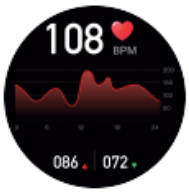
The Smart watch could record your heart rate all day. You also could tap on the page to start measuring heart rate .
Steps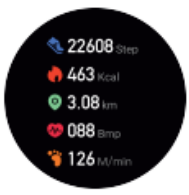
Smart Watch automatically tracks Steps taken on the screen. Note: Your movement stats reset to zero at midnight.
Training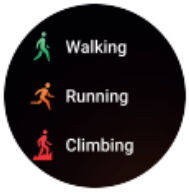
Tap the training icon on the menu to start a new training measure recording, there are 20 sport modes to be chosen.
The last training recording will be shown on the training page .
Sleep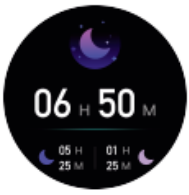
If you keep wearing Smart Watch in your sleep, it can provide the hours slept and quality of sleep stats on both the screen and the APP. Note: Sleep stats reset to zero at 8:00pm .
Remote Shutter,
After connecting the device, you can remote control the camera on your phone. Note: some phones need to be turned on FitCloudPro APP realizes this function .
Player Shutter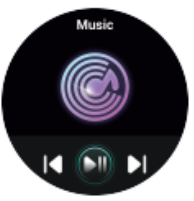
After connecting the device, you can remote contract the music player on your phone.
Other features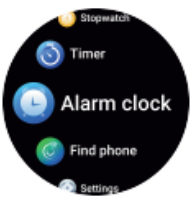
Other features include stopwatch, alarm, timer, brightness, mute on/off, theater mode, factory reset, power off and about.
Messages Reminder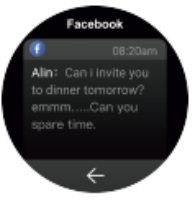
The device can sync incoming notifications from Twitter, Facebook, WhatsApp, Instagram etc. Recently 5 messages can be stored.
Note: you can switch on/off the incoming notification in the APP.
Silent Alarms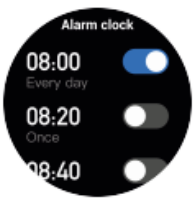
Set up the alarm on the app, the device will vibrate to remind on time. This alarm switch requires Set to open in FitCloudPro .
Find mobile phone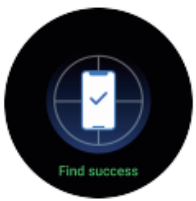
When the bracelet is connected to the APP, tap “Find a phone” on the bracelet, and the phone will emit a notification tone.
Weather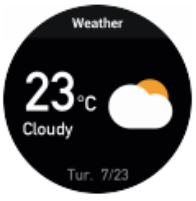
It could show the weather info of current and tomorrow on the weather page. Weather info is synced after connecting with the App, it will not be updated after a long disconnected.
Stop Watch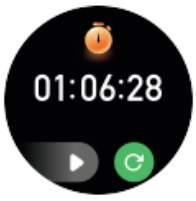
Tap the start button on stopwatch page to start timing, and tap the stop button to stop timing.