9534 Milo 1W Panels
MILO 1W PANELS
Product Introduction
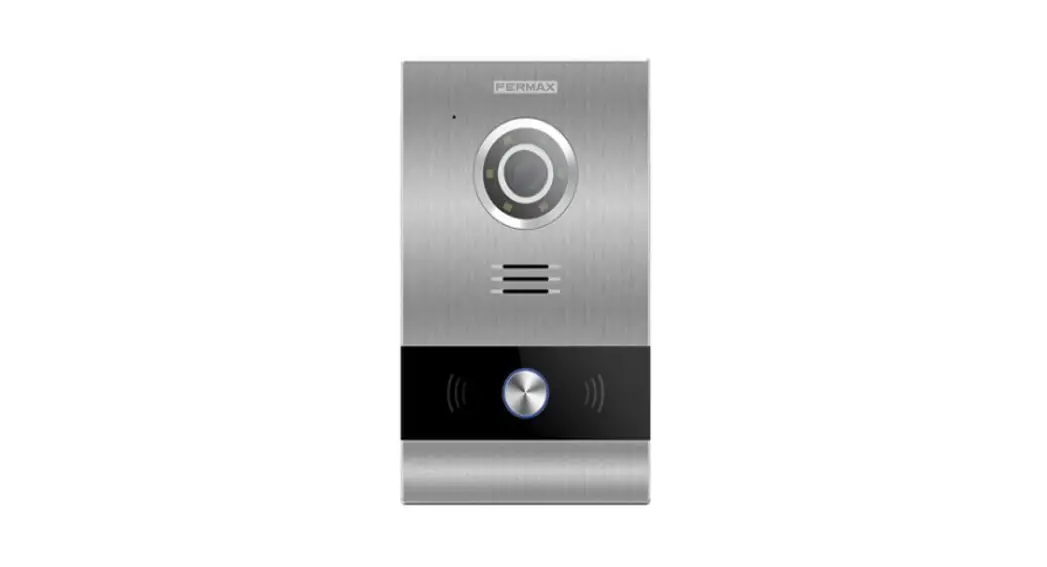
The MILO 1W Panels are advanced communication devices used for
apartment intercom systems. They provide various functions and
features to enhance security and convenience.
Functions Introduction
- Call Apartment: Visitors can use the
pushbutton on the panel to call a specific apartment. The monitor
will ring and display video for conversation. - Mifare Reader (Only panel with proximity
reader): Residents can access their corresponding entrance
by using an authorized Mifare card. When the card is placed close
to the reader, the door will open and a speech message will be sent
if successful.
Configuration via Web Server
The MILO 1W Panels can be configured using a web server
interface. The following settings can be adjusted:
- Device Information
- General Settings
- Network Settings
- ACC (Access Control Center)
- SIP Settings
- Advanced Settings
- Pincode Settings
- Restore
Installation
Proper installation of the MILO 1W Panels is important for
optimal performance. The following steps should be followed:
- Installation height: The recommended
installation height should be considered. - Installation Step Diagram: Follow the provided
diagram for step-by-step installation instructions. - Connectors: Connect the necessary cables and
connectors as instructed. - Technical Parameters: Refer to the provided
technical parameters for additional installation details.
MILO 1W PANELS
INSTALLER MANUAL
CONGRATULATIONS FOR BUYING A QUALITY PRODUCT! Fermax Electrónica develops and manufactures premium equipment that meets the highest design and technology standards. We hope you will enjoy all its functions.
Technical publication for information purposes edited by FERMAX ELECTRÓNICA S.A.U. FERMAX ELECTRÓNICA applies a continuous improvement policy, therefore it reserves the right to modify the contents of this document, as well as the product features hereof at any time and without prior notice. Any modification will be reflected in subsequent editions of this document.
Cod. 970137Id V06_21 Page 2
INDEX
1
Product Introduction …………………………………………………………………………………………. 4
1.1 Overview …………………………………………………………………………………………………. 4
2
Functions Introduction ………………………………………………………………………………………. 5
2.1 Call Apartment …………………………………………………………………………………………. 5
2.2 Mifare Reader (Only panel with proximity reader) …………………………………………. 5
3
Configuration via Web Server ……………………………………………………………………………. 6
3.1 Device Information ……………………………………………………………………………………. 6
3.2 General Settings ………………………………………………………………………………………. 7
3.3 Network Settings………………………………………………………………………………………. 9
3.4 ACC ……………………………………………………………………………………………………… 10
3.5 SIP Settings …………………………………………………………………………………………….11
3.6 Advanced Settings ………………………………………………………………………………….. 12
3.7 Pincode Settings …………………………………………………………………………………….. 12
3.8 Restore …………………………………………………………………………………………………. 13
4
Installation …………………………………………………………………………………………………….. 14
4.1 Installation height ……………………………………………………………………………………. 14
4.2 Installation Step Diagram…………………………………………………………………………. 15
4.3 Connectors ……………………………………………………………………………………………. 16
4.4 Technical Parameters ……………………………………………………………………………… 17
Page 3
1 Product Introduction
1.1 Overview
Microphone
Pushbutton for calling Slider
1 Mpx High definition camera Lighting for night vision with LEDs Speaker
Mifare reader (Only for panel with
Page 4
2 Functions Introduction
Call apartment Open door, relay delay settings Connect exit button Speech message for release lock Door opened alarm Tamper alarm Alarm management by access control (only panel with proximity reader)
2.1 Call Apartment
Visitor push the pushbutton for calling in the 1W Panel, the ring back tone will be sent, meanwhile the monitor will ring. The monitor will show video and can conversation after answer, then release lock.
2.2 Mifare Reader (Only panel with proximity reader)
Residents can access to their corresponding entrance by passing authorized Mifare card when the card close reader, the door will open and sent speech message if succeeded.
Page 5
3 Configuration via Web Server
The 1W panel has an integrated web server, which allows to configure the parameters. This web server is accessed via the panel’s IP address. The browser opens with the configured IP address of the panel. A screen opens requesting a username and password. Default IP: 10.1.1.2 Username: admin Password: 123456
3.1 Device Information
The following information is displayed: device name, firmware version, MAC address, IP address about the panel.
Page 6
3.2 General Settings
TYPE 1W PANEL BLOCK: Block number the 1W panel, between 001 and 999 (default option 1). APARTMENT: Apartment number communicates with 1W panel, between 0001 and 9899 (default option 101). DEVICE NO.: Panel Number, between 1 and 9 (default option 1). DEVICE TAG: Text to be shown in the monitor and other concierge. LANGUAGE: Select the desired language for the drop-down options (default option ENGLISH). Refresh the webpage after change the language. PANEL VOLUME: Select the desired value between 1 and 6, (default option 4). The conversation volume is common for uplink and downlink. DOOR OPEN VOICE: Enables or disables the speech when door lock is released. If the speech is disabled, no speech in the panel will sound when the lock is released. Enabled by default. VIDEO RESOLUTION: In order to fit the different types of monitor. The default value 640×480 is to be used usually. SIP DIVERT MODE: PARALLEL CALL: When the panel calls the resident, the monitor and the call divert APP ring at the same time. Once one terminal answers the call the other one stops ringing. SEQUENTIAL CALL: When the panel calls the resident, the monitor will ring about 30s if no answer, the call divert APP will start to ring. DATE FORMAT: Date format. DATE: Setting the date of panel. TIME: Setting the time of panel. TIME ZONE: Setting the time zone of panel. Select local time zone and save. If the project has no management software the installer can set date, time and time zone manually. If the project has management software, the date and time of panel will synchronizes automatically with the management software. If the panel has access to internet, the date and time of panel will also synchronize with internet time server. NOTE: Do not use TIME ZONE setting if panel is connected to Internet or Management Software. Date and time can’t be saved after power loss, the time zone and date format can be saved.
Page 7
Page 8
3.3 Network Settings
MEET allows to the installer to define the IP range according to the project needs and make the network management easier. MEET panel network mode is static mode. Ensure that each device has a unique IP address in same installation. The devices (digital panel, monitor and guard unit) will show IP conflict if there same IP is used on the same LAN. IP: IP address of the panel (default option 10.1.1.2). MASK: Subnet mask of the panel (default option 255.0.0.0). GATEWAY: Default gateway of the panel (default option 10.254.0.1). DNS: DNS of the panel (default option 8.8.8.8). SOFTWARE IP: IP address of PC where MEET management software is installed.
(default option 10.0.0.200). SW. PIN: The pin code is to be used when the panel is registered in MEET management software.
Page 9
3.4 ACC
DOOR RELAY TIME: Time that the lock-release relay remains active (1-9s optional). OPEN DOOR DELAY: Time delay between door lock command is sent, and door lock relay is activated. The delay time is useful when the lock is not close to the panel (0-9s optional). ADMIN CARD: Master card registered to enroll additional prox cards. When there is no management software enter 0000 if you do not know the ID of the admin card. The first prox card detected by the reader will act as admin/master card the card of resident can be added afterwards. If this method is used, register the resident proximity id numbers on the cards. DISARM BY CARD: When the card opens the door, the alarm status of monitor corresponding unit can change to HOME mode. ACC PIN: Without function.
Page 10
3.5 SIP Settings
ENABLE SIP: Enable or disable sip function. SEARCH SIP STATUS: this button appear when enable SIP function, show SIP REGISTERED if the panel register successfully or SIP REGISTER FAILED if the panel register unsuccessfully.
SIP SERVER: SIP server IP address. DOMAIN: Sip server domain. OUTBOUND: Some servers are used when NAT is active on the router. STUN IP: Audio and video NAT traversing public network server IP. STUN PORT: The port of audio and video NAT traversing public network server. H.264: Video coding parameters. SIP USER: The username of sip account. SIP PASS: The password of sip account. CONVERSATION, RING TIME: No function. NOTE: When the panel is used as a sip device, use quick dial to call SIP devices or receive calling of other SIP devices, SIP function has to be enabled.
Page 11
3.6 Advanced Settings
Quick dial is associated a MIO monitor, guard unit or sip terminal. QUICK DIAL: Enable or disable quick dial function. NOTE: The panel type do not be used 1W panel if you enable quick dial. URL: if call device of MEET system, URL: sip: sip account @ IP address of MEET device, the sip account is optional. If call SIP device, URL: sip: sip account @ IP address of sip server ONUGPON: Enable or disable the SIP penetration firewall function.
3.7 Pincode Settings
This allows to change the pin code of the web server login.
Page 12
3.8 Restore
RESTORE FACTORY SETTINGS: All the settings are restored to the factory settings. The IP address will be changed to the default IP: 10.1.1.2 REBOOT DEVICE: The guard unit will be restarted and will keep all the previous settings.
Page 13
4 Installation
4.1 Installation height
Page 14
4.2 Installation Step Diagram
,1Flush box install.,2Base flush box depth adjustment hook. ,3The upper part of the panel is stuck
in, then move the panel to the flush box.
1.7CM
1.7CM
,4Move the slider of the panel and fix the two screws, when installing, pay attention to the
reservation of the 1.7CM space around the door to move the slide cover.
Page 15
4.3 Connectors
10/100Mbps RJ45 Port +12V, –: 12Vdc Power Input NC, C, NO: Relay contacts for release lock EXIT, –: Exit button –, DS: Door-open sensor 485+, 485-: RS485 port
Page 16
4.4 Technical Parameters
Dimensions Panel (mm): 118 (W) × 183(H) × 49(D) Flush box (mm): 105(W) × 172.5(H) × 63(D)
Power supply: 12Vdc Standby current: 125mA Working current: 250mA
Camera pixel: 1 megapixels 90o visual angle: Vertical 72º, Horizontal 54º Minimum illumination: 0.5Lux
Maximum conversation time: 120s Door relay time: 1-9s Door delay time: 0-9s Door sensor time: 120s Block: 001-999 Apartment: 0001-9899 Maximum number of per home: 9
Operating temperature: -40~70 Relative humidity: 20%~93%, without condensation
RADIO FREQUENCY MODULE. EC DECLARATION OF CONFORMITY: FERMAX ELECTRÓNICA, S.A.U. declares that this product complies with the requirements in the RED 2014/53/EU Directive “Radio frequency equipment”. https://www.fermax.com/intl/en/pro/documents/technical-documentation/DT-13-declarationsof-conformity.html Radio frequency module: Frequency: 13.56MHz / Maximum Power: 3,90 dBm, equivalent to 2,45mW.
Page 17
FCC Caution This device complies with part 15 of the FCC Rules. Operation is subject to the following two conditions: (1) This device may not cause harmful interference, and (2) this device must accept any interference received, including interference that may cause undesired operation.
Any Changes or modifications not expressly approved by the party responsible for compliance could void the user’s authority to operate the equipment.
Note: This equipment has been tested and found to comply with the limits for a Class B digital device, pursuant to part 15 of the FCC Rules. These limits are designed to provide reasonable protection against harmful interference in a residential installation. This equipment generates uses and can radiate radio frequency energy and, if not installed and used in accordance with the instructions, may cause harmful interference to radio communications. However, there is no guarantee that interference will not occur in a particular installation. If this equipment does cause harmful interference to radio or television reception, which can be determined by turning the equipment off and on, the user is encouraged to try to correct the interference by one or more of the following measures: -Reorient or relocate the receiving antenna. -Increase the separation between the equipment and receiver. -Connect the equipment into an outlet on a circuit different from that to which the receiver is connected. -Consult the dealer or an experienced radio/TV technician for help.
 International English | FERMAX