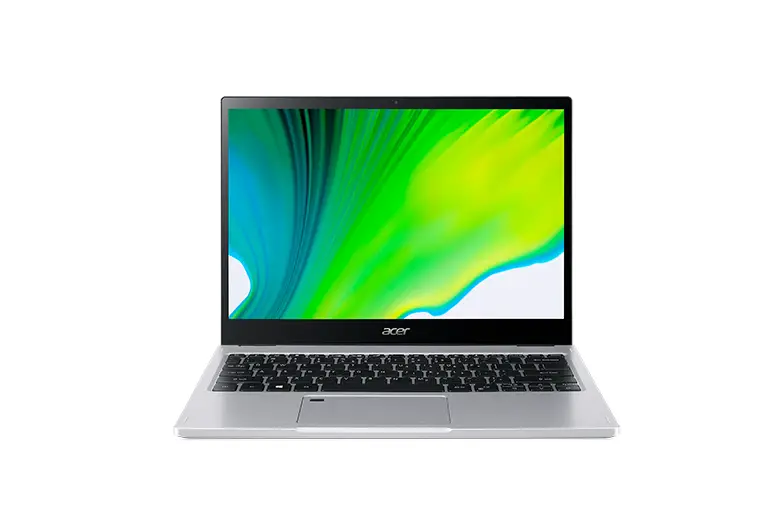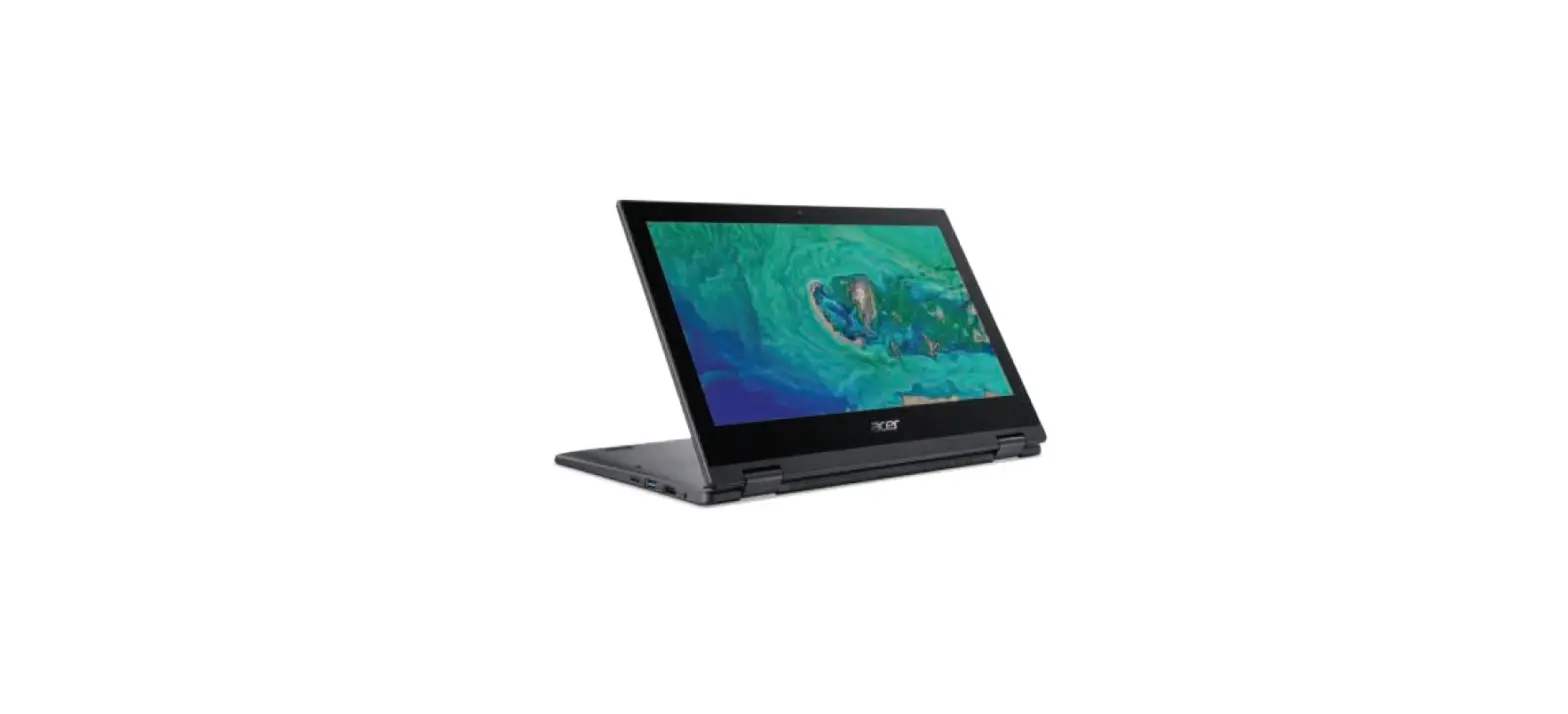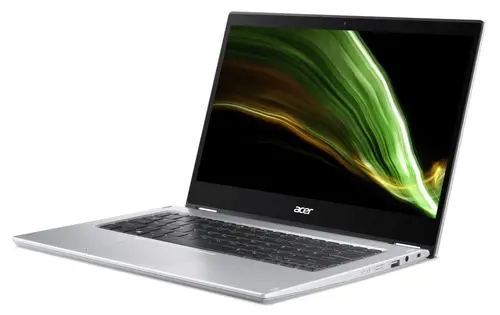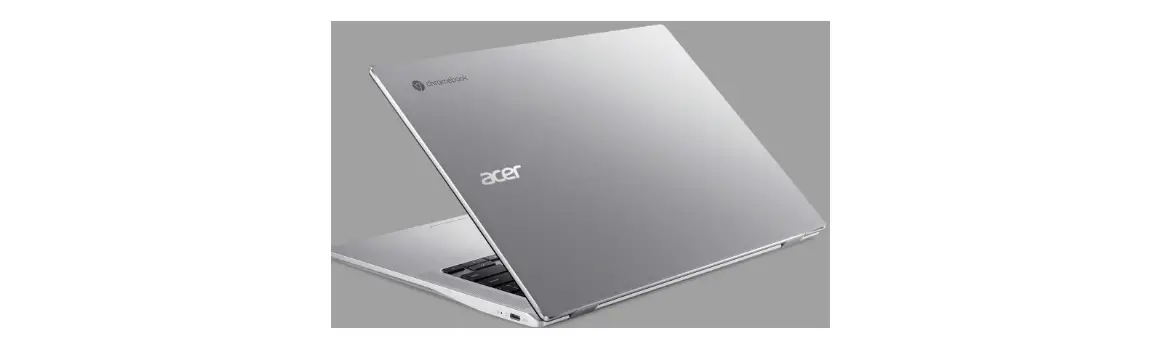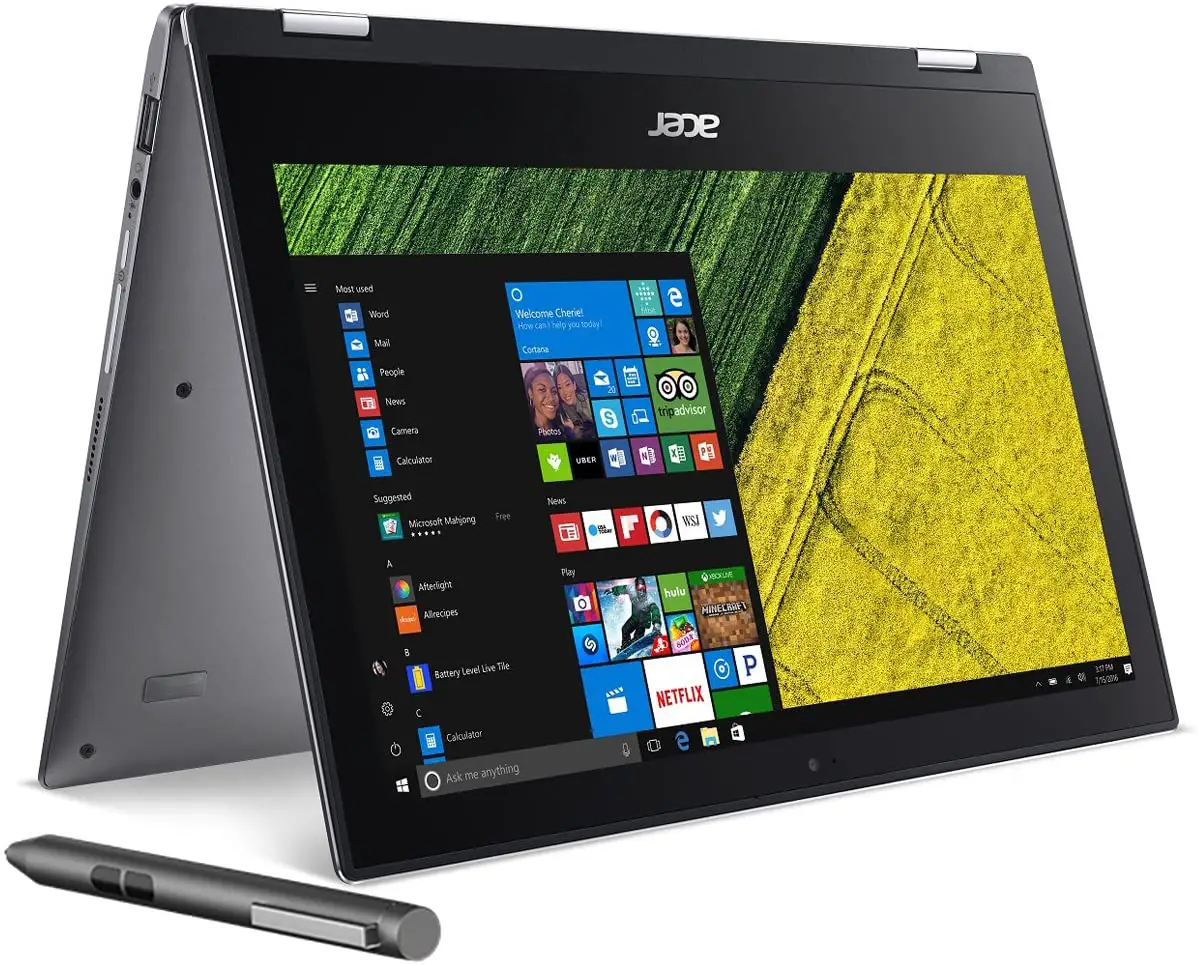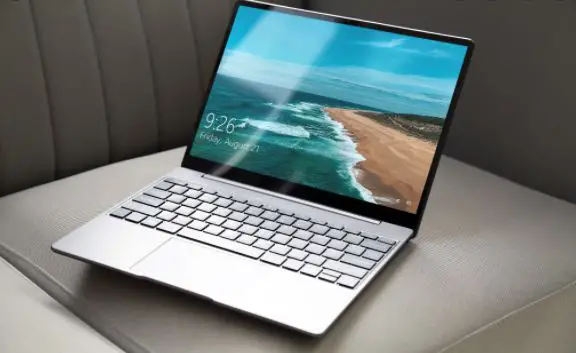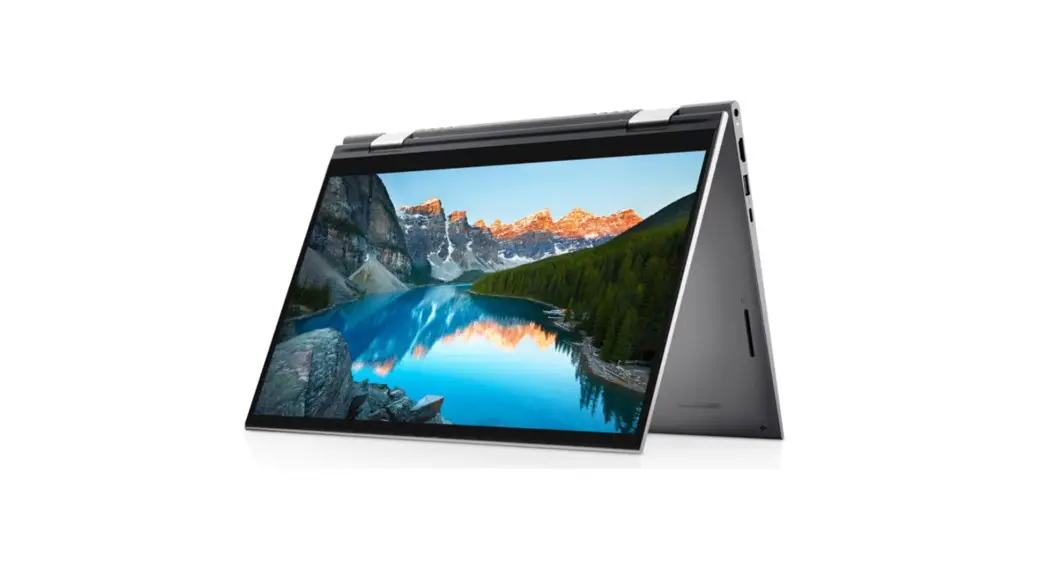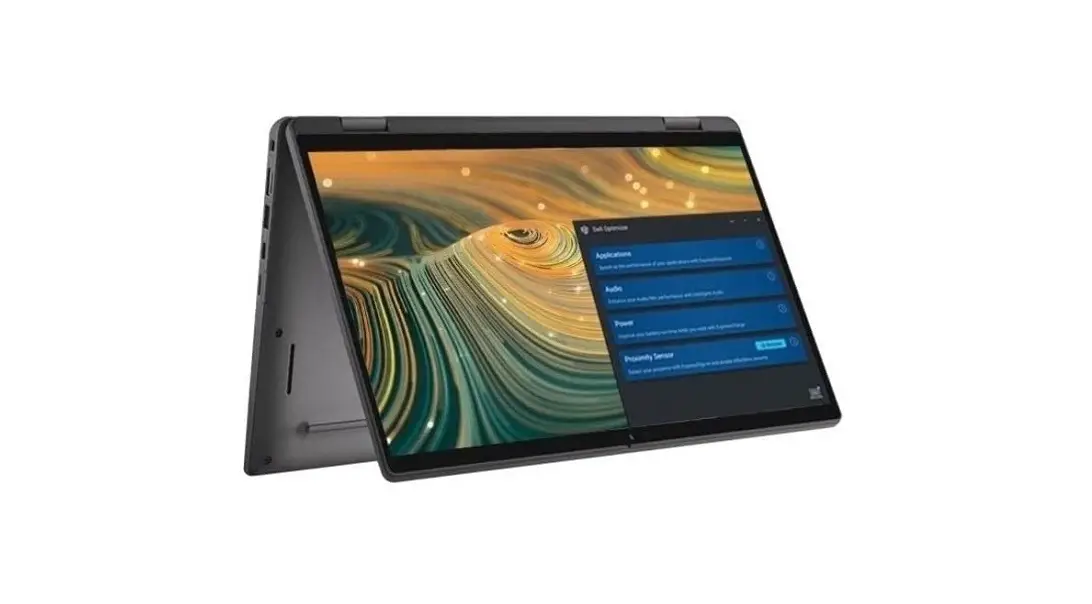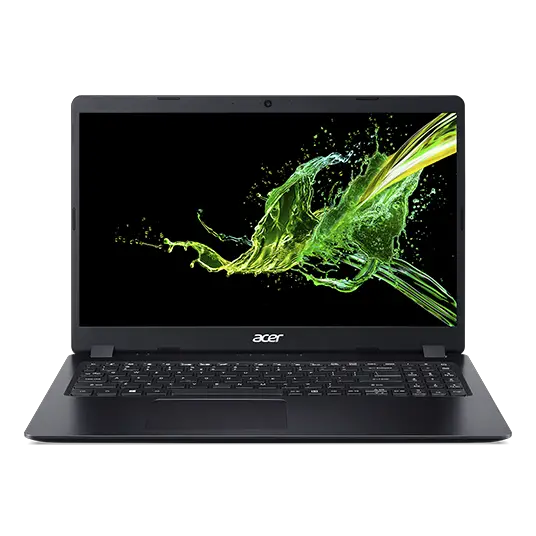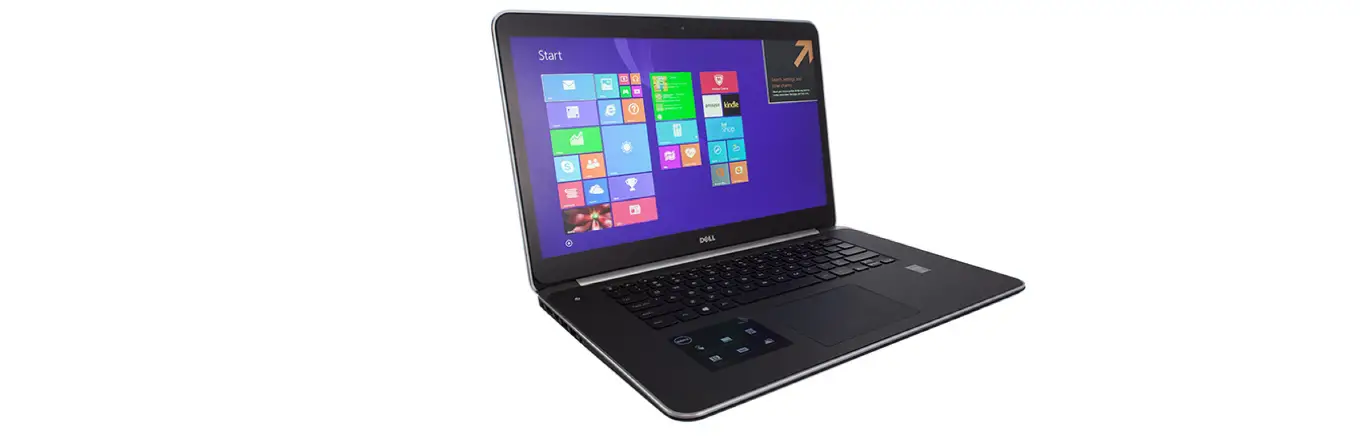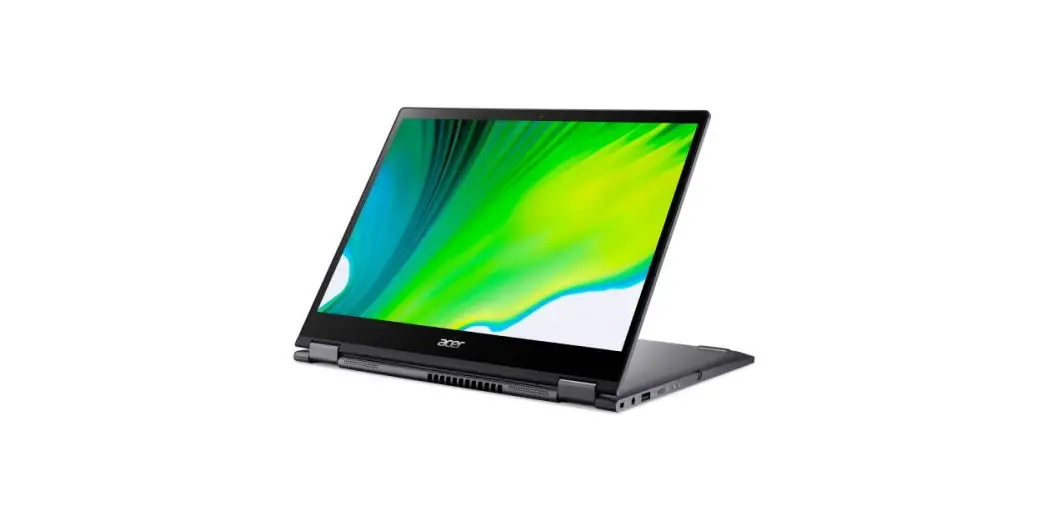
 SP513-55N Spin 5 Convertible Touch Screen Laptop
User Manual
 Important
This manual contains proprietary information that is protected by copyright laws. The information contained in this manual is subject to change without notice. Some features described in this manual may not be supported depending on the Operating System version. Images provided herein are for reference only and may contain information or features that do not apply to your computer. Acer Group shall not be liable for technical or editorial errors or omissions contained in this manual.
Register your Acer product
If your new device runs on Windows OS, you may have had your product registered automatically while you start up your device with Windows OS.
Log in at www.acer.com/myproducts with the email address you registered for Windows OS to review your product record. (Reset your password if you do not know it.)
If the record is not found, please follow the steps below to register.
- Ensure you are connected to the Internet.
- Go to www.acer.com/register-product.
- Sign in or sign up for an Acer ID.
- Enter the S/N or SNID of your device to register it.
Model number: ________________________________
Serial number: _________________________________
Date of purchase: ______________________________
Place of purchase: ______________________________
 The terms HDMI and HDMI High-Definition Multimedia Interface, and the HDMI Logo are trademarks or registered trademarks of HDMI Licensing Administrator, Inc. in the United States and other countries.
We would like to thank you for making this Acer notebook your choice for meeting your mobile computing needs.
Your guides
To help you use your Acer notebook, we have designed a set of guides:
First off, the Setup Guide helps you get started with setting up your computer.
The Quick Guide introduces you to the basic features and functions of your new computer. For more on how your computer can help you to be more productive, please refer to the User’s Manual. This guide contains detailed information on such subjects as system utilities, data recovery, expansion options, and troubleshooting.
Once you have connected to the internet, you can download updates for your computer from:
http://go.acer.com/?id=17883
- The link will open the Acer Support webpage.
- Scroll down to Drivers and Manuals and search for your model by pasting in or manually entering the serial number, SNID, or product model.
- From this page, you can also download and install the Acer identification utility that will automatically detect your computer’s serial number and SNID and allow you to copy it to the clipboard.
- Once you have found your product model, any updates, or documents will be listed.
Basic care and tips for using your computer
Turning your computer off
To turn the power off, do any of the following:
- Use the Windows shutdown command: Press the Windows key or select the Windows Start button, select Power > Shut down.
- Right-click the Windows Start button > Shut down or sign out > Shut down.
If you need to power down the computer for a short while, but don’t want to completely shut it down, you can put it to Sleep by doing any of the following: - Press the power button.
- Press the sleep hotkey.
- Press the Windows key or select the Windows Start button, select Power > Sleep.
- Right-click the Windows Start button > Shut down or sign out > Sleep.
 Note
Note
If you cannot power off the computer normally, press and hold the power button for up to ten seconds to shut down the computer. If you turn off the computer and want to turn it on again, wait at least two seconds before powering up.
Taking care of your computer
Your computer will serve you well if you take care of it.
- Only use the adapter provided with your device, or an Acerapproved adapter to power your device.
- Do not expose the computer to direct sunlight. Do not place it near sources of heat, such as a radiator.
- Do not expose the computer to temperatures below 0º C (32º F) or above 50º C (122º F).
- Do not subject the computer to magnetic fields.
- Do not expose the computer to rain or moisture.
- Do not spill water or any liquid on the computer.
- Do not subject the computer to heavy shock or vibration.
- Do not expose the computer to dust or dirt.
- Never place objects on top of the computer.
- Do not slam the computer display when you close it.
- Never place the computer on uneven surfaces.
Taking care of your AC adapter
Here are some ways to take care of your AC adapter:
- Do not connect the adapter to any other device.
- Do not step on the power cord or place heavy objects on top of it.
Route the power cord and any cables away from where people walk. - When unplugging the power cord, do not pull on the cord itself but pull on the plug.
- The total ampere ratings of the equipment plugged in should not exceed the ampere rating of the cord if you are using an extension cord. Also, the total current rating of all equipment plugged into a single wall outlet should not exceed the fuse rating.
Cleaning and servicing
When cleaning the computer, follow these steps:
- Turn off the computer.
- Disconnect the AC adapter.
- Use a soft, moist cloth. Do not use liquid or aerosol cleaners.
If your computer is dropped or visibly damaged, or does not work normally, please contact your nearest authorized Acer service center.
Guidelines for safe battery usage
 Warning
When using a charging cart or a small space to simultaneously charge or operate multiple devices, the area must be well- ventilated and the temperature kept between 0 °C (32 °F) to 35 °C (95 °F) and battery charging must be stopped when 100% capacity is reached. Continuous charging can cause deformation or damage to the battery/ device.
Precautions when charging batteries
The useful lifespan of a battery is adversely affected by the following behavior:
- Constantly charging the battery/device when already at full capacity.
- Charging the battery/device at temperatures above 35 °C (95 °F) or below 0 °C (32 °F).
- To prevent damage, follow these precautions:
Stop charging the battery once it reaches 100% capacity; regularly or frequently charging a fully charged battery for an extended period of time may cause battery deformation or damage. We recommend that you recharge the device when the battery level drops below 70% capacity. - Do not charge the battery in temperatures above 35 °C (95 °F) or below 0 °C (32 °F). Charging in abnormally high or abnormally low temperatures can cause battery deformation or damage.
- The charging port must be clean and free from debris and should only be used with Acer charging equipment. Use of a non-Acer battery or charging equipment can cause damage to the product and will void the warranty.
- If you plan to store the device for a long period of time, turn off the device, remove AC power and store the product at room temperature (0 °C – 35 °C) in a dry (humidity: 45% – 80%), well-ventilated area. Avoid direct sunlight, high temperatures, and high humidity. Do not leave your device’s battery completely discharged for a long period of time; this may cause battery deformation or damage. We recommend that the battery is checked and charged to approximately 50% capacity every 6 months.
- ONLY CHARGE THE BATTERY IN A CLEAN, WELL-VENTILATED AREA.
Warning
Batteries may explode if not handled properly.
Do not disassemble or dispose of batteries in a fire.
Do not short external contacts, crush, puncture or otherwise tamper with batteries. Keep batteries away from children.
Follow local regulations when disposing of used batteries.
Precautions when replacing the battery
Improper replacement or mishandling could damage the battery, cause overheating, resulting in injury, and risk fire or explosion.
- Device with built-in battery: A built-in battery must be replaced by an authorized service center. Do not attempt to replace or remove the battery by yourself.
- Device with removable battery: The battery should only be replaced with parts approved by Acer. Do not replace the battery with any parts other than approved ones.
This notebook uses a Lithium-based battery. Do not use it in a humid, wet, or corrosive environment. Do not put, store, or leave your product in or near a heat source, in a high temperature location, in strong direct sunlight, in a microwave oven, or in a pressurized container, and do not expose it to temperatures over 50 °C (122 °F).
Failure to follow these guidelines may cause the battery to leak acid, become hot, explode or ignite and cause injury and/or damage. Do not pierce, open or disassemble the battery. If the battery leaks and you come into contact with the leaked fluids, rinse thoroughly with water and seek medical attention immediately. For safety reasons, and to prolong the lifetime of the battery, charging will must not occur at temperatures below 0 °C (32 °F) or above 35 °C (95 °F).
The full performance of a new battery is achieved only after two or three complete charge and discharge cycles. The battery can be charged and discharged hundreds of times, but it will eventually wear out. When the operation time becomes noticeably shorter than normal, check an authorized reseller to purchase a new battery.
Use the battery only for its intended purpose. Never use any charger or battery that is damaged. Do not short-circuit the battery. Accidental short-circuiting can occur when a metallic object such as a coin, clip, or pen causes a direct connection of the positive (+) and negative (-) terminals of the battery. (These look like metal strips on the battery.) This might happen, for example, when you carry a spare battery in your pocket or purse. Short-circuiting the terminals may damage the battery or the connecting object.
The capacity and lifetime of the battery will be reduced if the battery is left in hot or cold places, such as in a closed car in summer or winter.
Always try to keep the battery between 15° C and 25° C (59° F and 77° F). A device with a hot or cold battery may not work temporarily, even when the battery is fully charged. Battery performance is especially limited in temperatures well below freezing.
Do not dispose of batteries in a fire as they may explode. Batteries may also explode if damaged. Dispose of batteries according to local regulations. Please recycle when possible. Do not dispose of as household waste.
Wireless devices may be susceptible to interference from the battery, which could affect performance.
Note
Please refer to www.acer.com for battery shipping documents.
Internal battery
- Do not attempt to replace a built-in rechargeable battery, battery replacement must be done by an Acer- authorized repair facility.
Recharge the battery by following the instruction included in the product documentation.
After setting up your computer as illustrated in the Setup Guide, let us show you around your new Acer computer.
YOUR ACER NOTEBOOK TOUR
After setting up your computer as illustrated in the Setup Guide, let us show you around your new Acer computer.
Screen view
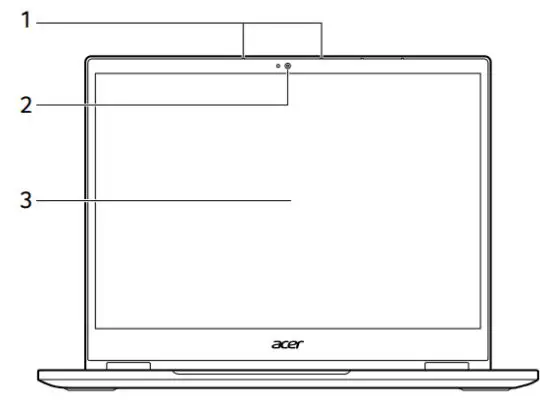
| # | Icon | Item | Description |
| 1 | Microphones | Internal digital microphones for sound recording. | |
| 2 | Camera | Camera for video communication or taking photos. The alight next to the webcam indicates that the webcam is active. | |
| 3 | Touchscreen | Displays computer output, supports multi-touch input. |
Keyboard view
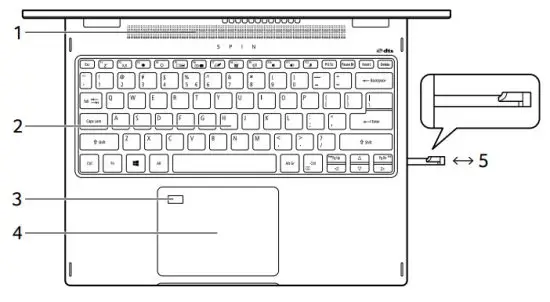
| # | Icon | Item | Description |
| 1 | Speakers | Deliver stereo audio output. | |
| 2 | Keyboard | For entering data into your computer. See “Using the keyboard” on page 18. | |
| 3 | Fingerprint reader | Fingerprint reader for Windows Hello and security. | |
| 4 | Touchpad | Touch-sensitive pointing device. The touchpad and selection buttons form a single surface. Press down firmly on the touchpad surface to perform a left-click. Press down firmly on the lower right corner to perform a right-click. | |
| 5 | Rechargeable active stylus | Remove the pen from the slot and perform touch actions on the screen. |
Left view
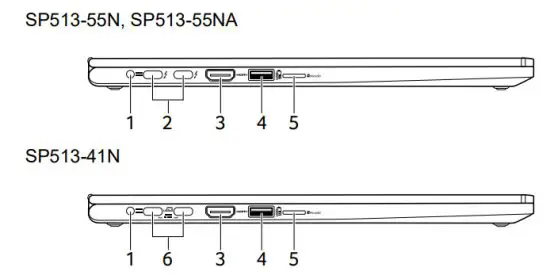
| # | Icon | Item | Description |
| 1 |  | DC-in jack | Connects to an AC adapter. |
| 2 |  | USB Type-C / Thunderbolt™ 4 port | Connects to USB devices with a USB Type-C connector. Supports Thunderbolt™ 4 and displays. |
| 3 | | HDMI port | Supports high-definition digital video connections. |
| 4 |  | USB port with power-off charging | Connects to USB devices. |
| 5 |  | MicroSD card reader | Accepts one Secure Digital (microSD) card. Only one card can operate at a time. |
| 6 |  | USB Type-C port with DC-in | Connects to the provided USB TypeC power adapter and to USB devices with a USB Type-C connector. Supports DisplayPort™ over USB-C™ |
USB 3.2 Gen 2 information
- USB 3.2 Gen 2 compatible ports are blue.
- Compatible with USB 3.2 Gen 2 and earlier devices.
- For optimal performance, use USB 3.2 Gen 2-certified devices.
- Defined by the USB 3.2 Gen 2 specification (SuperSpeed USB).
USB Type-C information
- Supports DisplayPort™ audio/video output.
- Compatible with Thunderbolt™ 4.
- Delivers up to 3 A at 5 V DC for USB charging.
- DC-in requires a power adapter or power source providing 65 W at 19~20 V.
For optimal performance, please use a certified Acer power adapter or USB Power Delivery device.
Right view
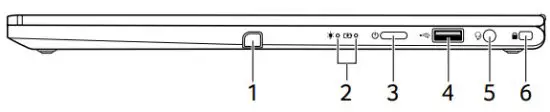
| # | Icon | Item | Description |
| 1 | Stylus slot | Insert the stylus into the slot completely to start charging. (Specifications vary depending on the model.) | |
| 2 |  | Power indicator | Indicates the computer’s power status. |
 | Battery indicator | Indicates the computer’s battery status. Charging: The light shows amber when the battery is charging. Fully charged: The light shows blue when in AC mode. | |
| 3 |  | Power button | Press to turn the computer on and off. |
| 4 |  | USB port | Connects to USB devices. |
| 5 |  | Headset/ speaker jack | Connects to audio devices (e.g., speakers, headphones) or a headset with a microphone. |
| 6 |  | Noble lock slot | Connects to a Noble-compatible security lock. |
USB 3.2 Gen 1 information
- USB 3.2 Gen 1 compatible ports are blue.
- Compatible with USB 3.2 Gen 1 and earlier devices.
- For optimal performance, use USB 3.2 Gen 1-certified devices.
- Defined by the USB 3.2 Gen 1 specification (SuperSpeed USB).
Back view
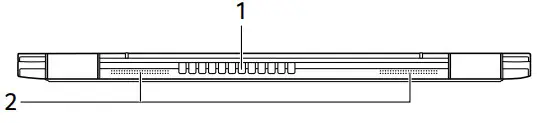
| # | Icon | Item | Description |
| 1 | Ventilation and cooling fan | Allows the computer to stay cool. Do not cover or obstruct the openings. | |
| 2 | Speakers | Deliver stereo audio output. |
Base view
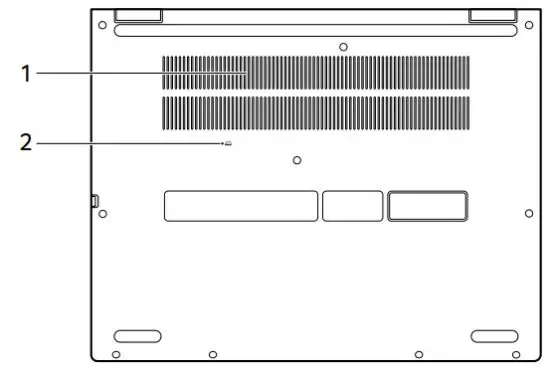
| # | Icon | Item | Description |
| 1 | Ventilation and cooling fan | Allows the computer to stay cool. Do not cover or obstruct the openings. | |
| 2 |  | Battery reset pinhole | Simulates removing and reinstalling the battery. Insert a paperclip into the hole and press for four seconds. |
USING THE KEYBOARD
The keyboard has full-sized keys, a numeric keypad, separate cursor, lock, Windows, special keys, and hotkeys.
Lock keys
The keyboard has lock keys which you can use to turn keyboard functions on and off.
| Lock key | Description |
| Caps Lock | When Caps Lock is on, all alphabetic characters typed are in uppercase. |
Special keys
Your computer’s keyboard includes keys that activate special functions. The function of each key is clearly marked with an icon.
| Icon | Function | Description |
 | Sleep | Puts the computer in Sleep mode. |
 | Flight mode | Turns on / off the computer’s network devices. |
 | Brightness down | Decreases the screen brightness. |
 | Brightness up | Increases the screen brightness. |
 | Display toggle | Switches display output between the display screen, external monitor (if connected) and both. |
 | Display off | Turns the display screen backlights off to save power. Press any key to return. |
 | Touchpad toggle | Turns the built-in touchpad on and off. |
 | Keyboard backlight toggle | Turns the keyboard backlight on and off. |
 | Speaker toggle | Turns the speakers on and off. |
 | Volume down | Decreases the sound volume. |
 | Volume up | Increases the sound volume. |
 | Microphone toggle | Turns the microphones on and off. |
| Prt Sc | Print Screen | Take quick screenshots. |
| Pause Br | Pause / Break | Sends a Break Command. |
| Insert | Insert | Turns Insert on or off. |
| Pg Up | Page up | Scrolls up a page in a document. |
| Pg Dn | Page down | Scroll down a page in a document. |
Hotkeys
| Hotkey | Icon | Function | Description |
| Fn + F1-F12 | Function keys | Activates the F1 to F12 keys. | |
| Fn + F | Switches fan mode between Silent, Normal and Performance. For more information on how to achieve optimal cooling efficiency in different scenarios, please launch the Acer Quick Access application. | ||
| Fn + Pg Up | Home | Scrolls to the beginning of a document. | |
| Fn + Pg Dn | End | Scrolls to the end of a document. |
Note
To swap the hotkey and special function of the F1 to F12 keys, change the function key setting in the BIOS (to open the BIOS press F2 when starting your computer, then select the Main menu and change Function key behavior to Function keys).
(Specifications vary depending on the model.)
Windows keys
The keyboard has two keys that perform Windows-specific functions.
| Key | Description |
 Windows key Windows key | Pressed alone it returns to the Start screen or to return to the last open app. |
 Application key Application key | This key has the same effect as clicking the right mouse button. |
RECHARGEABLE ACTIVE STYLUS
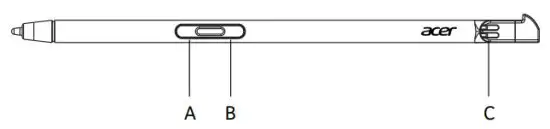
A. Eraser button
Press and hold for eraser function in apps like OneNote or Sketchpad.
B. Right-click button
Acts just like right-clicking a mouse.
Press and hold to select text in apps like OneNote or Sketchpad.
C. Charge pin
Insert the stylus into the slot completely to start charging.
15 seconds charging: provide more than 90 minutes of usage.
300 seconds charging: provide more than 100 minutes of usage.
- If you feel that the function is unstable, please insert the stylus into the slot to charge it.
- The pen will enter power-saving mode.
Idle: After 10 minutes, press the tip or side button to wake the pen.
Note
The function may differ depending on the apps
© 2021. All Rights Reserved.
Spin 5
Covers: SP513-55N / SP513-55NA / SP513-41N
This revision: March 2021
 Download Acer Support Drivers and Manuals | Acer United States
 Acer Laptops, Desktops, Chromebooks, Monitors & Projectors | Acer United States