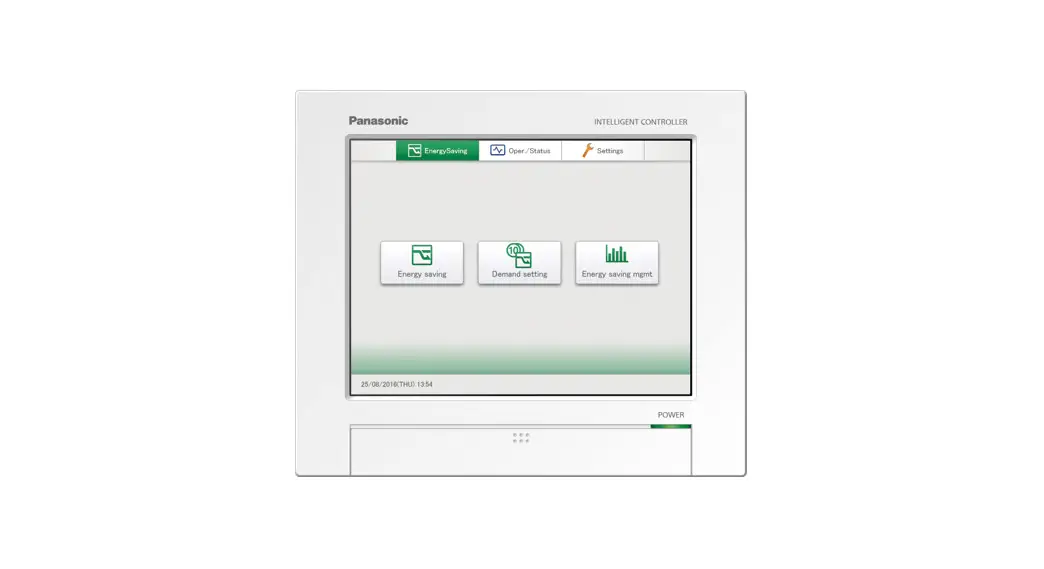
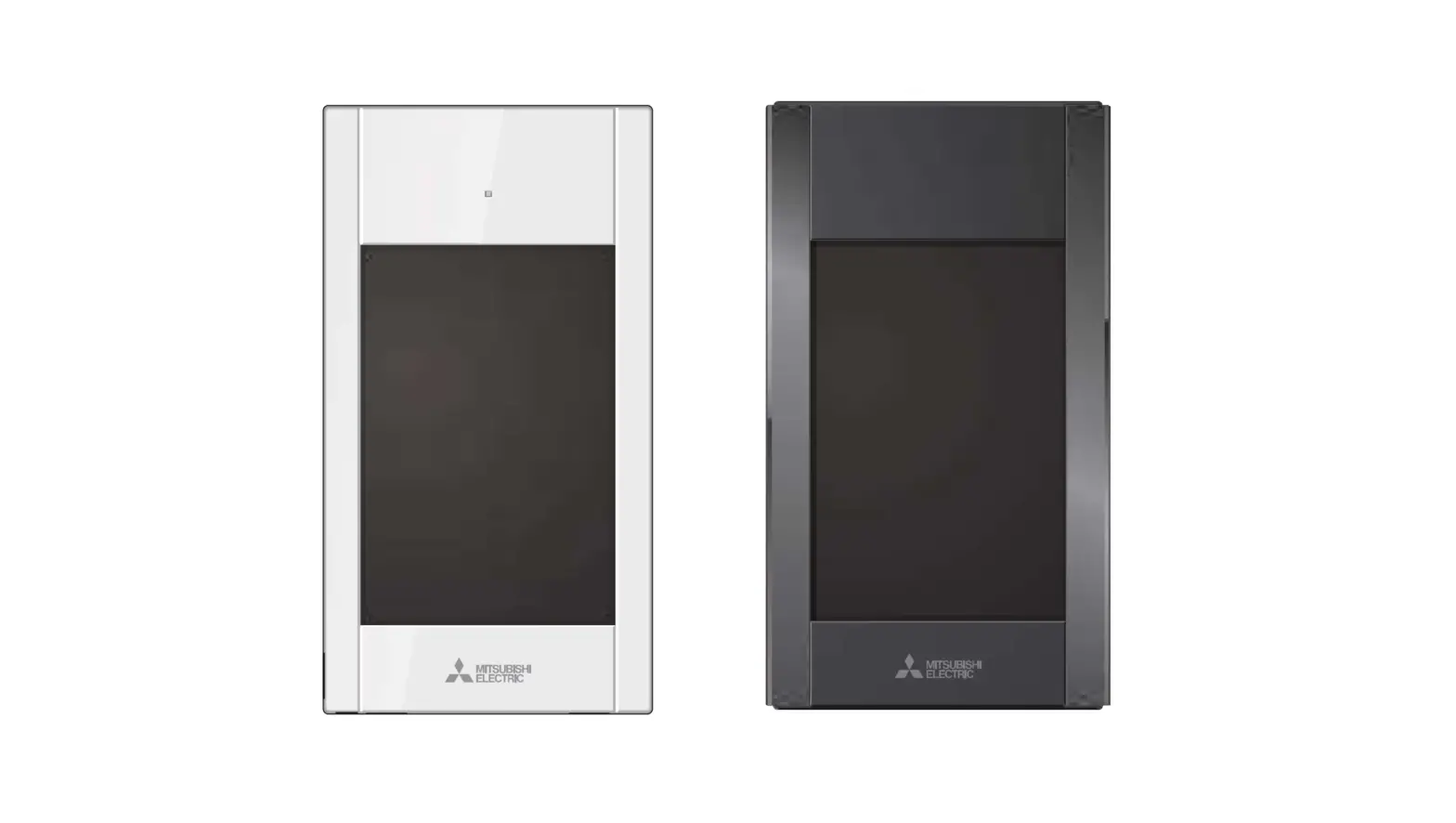
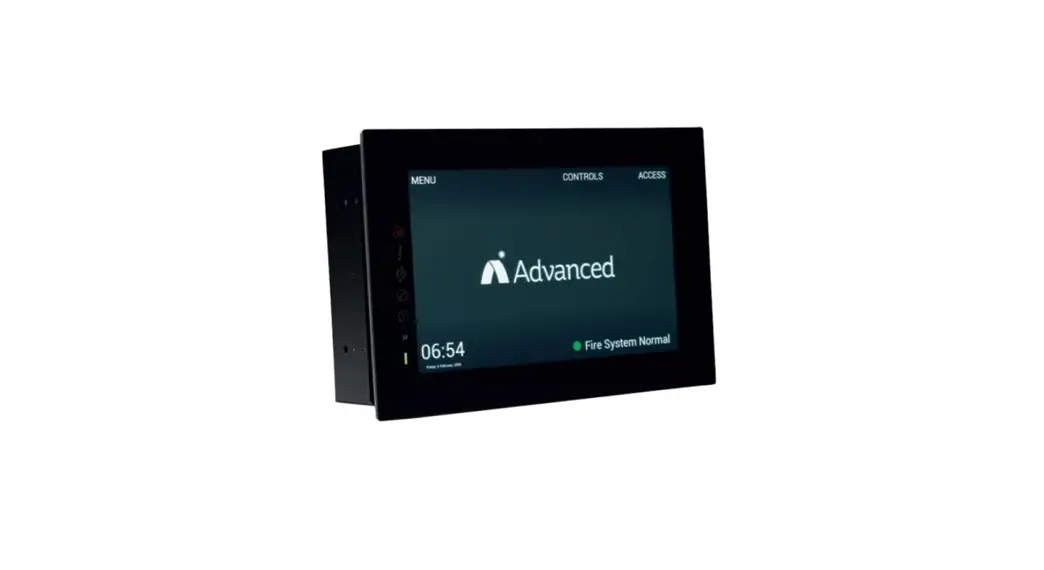
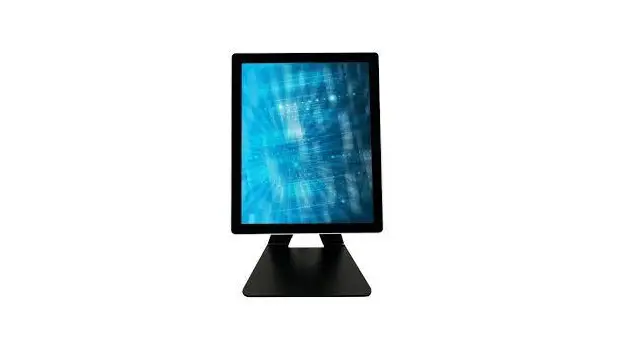
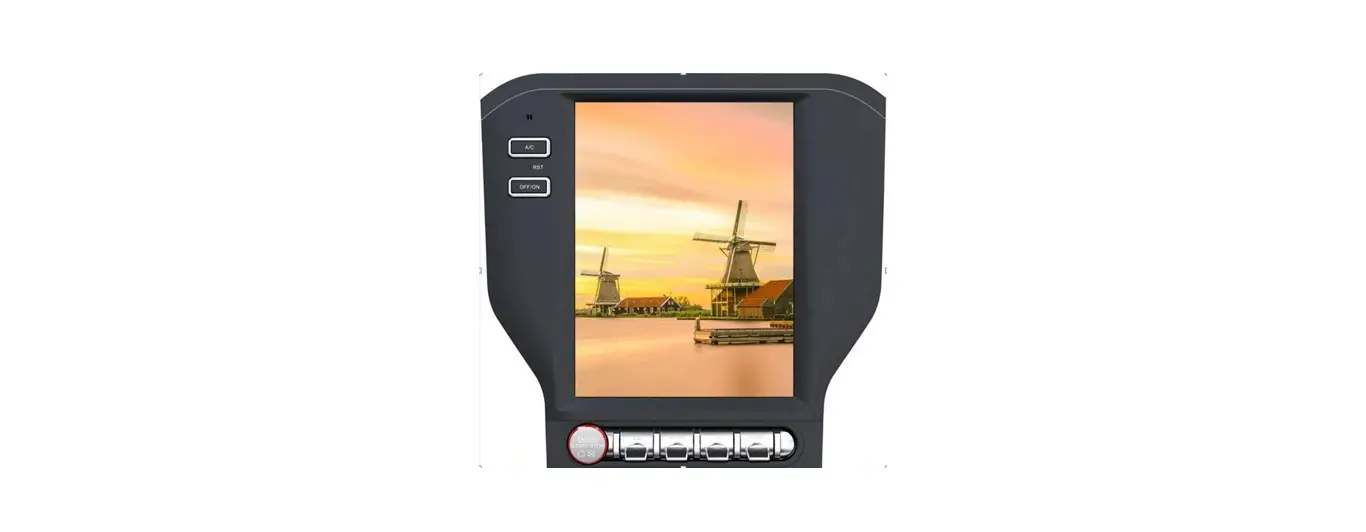
BMS-CT2560U-E Central Control Device Touch Screen Controller
Product Information: Central Control Device (Touch Screen
Controller)
The Central Control Device is a touch screen controller designed
for commercial use. It is model BMS-CT2560U-E (also available as
BMS-CT1280TU and BMS-CT2560U-TR). The device allows users to
control various functions and settings in a commercial setting.
Product Usage Instructions
1. Precautions for Safety
It is important to follow the safety precautions listed below to
ensure safe usage of the Central Control Device:
- WARNING: Failure to adhere to the directions
in the warning could result in serious bodily harm or loss of life
if the product is handled improperly. - CAUTION: Failure to adhere to the directions
in the caution could result in serious bodily injury or damage to
property if the product is handled improperly. - Symbols: Prohibited and compulsory items are
indicated by graphic symbols. Pay attention to these symbols and
follow the instructions.
2. Specifications
The specifications of the Central Control Device are as
follows:
- Model: BMS-CT2560U-E (BMS-CT1280TU) (BMS-CT2560U-TR)
- Language: English
3. Installation
Follow the steps below for proper installation of the Central
Control Device:
3-1. Installation of Main Unit Box and Panel
To install the main unit box and panel, follow these
instructions:
- When Installing from the Front: Follow the
provided guidelines for installation from the front of the
unit. - When Installing from the Rear: Follow the
provided guidelines for installation from the rear of the
unit.
3-2. Attaching the Power Adapter
Attach the power adapter to the Central Control Device using the
provided instructions.
3-3. Power, Signal, and Earth Line Connections
Make the necessary power, signal, and earth line connections as
instructed to ensure proper functioning of the device.
Warning: Inappropriate installation or work may
result in electric shock or fire. Always follow the provided
instructions carefully.
Note: It is recommended to consult the
Engineering Standard for Electric Work and the Internal Wiring
Regulations for proper grounding before connecting the power.
4. Radio Interference
This Central Control Device is classified as a class A product.
In a domestic environment, it may cause radio interference. If
interference occurs, the user may be required to take adequate
measures.
Central Control Device (Touch Screen Controller)
Installation Manual
For commercial use
Model name:
BMS-CT2560U-E (BMS-CT1280TU) (BMS-CT2560U-TR)
· Save These Instructions!
ENGLISH
Central Control Device (Touch Screen Controller)
Installation Manual
·Thank you for purchasing the system controller. ·Please read this installation manual carefully before installation, and perform the work only in the correct manner.
Contents
1 Precautions for safety . . . . . . . . . . . . . . . . . . . . . . . . . . . . . . . . . . . . . . . . . . . . . . . . . . 3 2 Specifications . . . . . . . . . . . . . . . . . . . . . . . . . . . . . . . . . . . . . . . . . . . . . . . . . . . . . . . . 5 3 Installation . . . . . . . . . . . . . . . . . . . . . . . . . . . . . . . . . . . . . . . . . . . . . . . . . . . . . . . . . . . 8
3-1. Installation of Main Unit Box and Panel . . . . . . . . . . . . . . . . . . . . . . . . . . . . . . . 8 3-1-1. When Installing from the Front . . . . . . . . . . . . . . . . . . . . . . . . . . . . . . . . 8 3-1-2. When Installing from the Rear. . . . . . . . . . . . . . . . . . . . . . . . . . . . . . . . . 9
3-2. Attaching the Power Adapter . . . . . . . . . . . . . . . . . . . . . . . . . . . . . . . . . . . . . . 10 3-3. Power, Signal, and Earth Line Connections . . . . . . . . . . . . . . . . . . . . . . . . . . 11
2-EN
Central Control Device (Touch Screen Controller)
Installation Manual
1 Precautions for safety
· Read these “Precautions for safety” carefully before installation. · The precautions described below include important items regarding safety. Observe them without fail.
Understand the following details (indications and symbols) before reading the body text, and follow the instructions. · After the installation work has been completed, perform a trial operation to check for any problems. Explain how to use and
maintain the unit to the customer. Ask customer to keep this Manual at accessible place for future reference.
Indication
Meaning of Indication
WARNING
Text set off in this manner indicates that failure to adhere to the directions in the warning could result in serious bodily harm (*1) or loss of life if the product is handled improperly.
CAUTION
Text set off in this manner indicates that failure to adhere to the directions in the caution could result in serious bodily injury (*2) or damage (*3) to property if the product is handled improperly.
*1: Serious bodily harm indicates loss of eyesight, injury, burns, electric shock, bone fracture, poisoning, and other injuries which leave aftereffect and require hospitalization or long-term treatment as an outpatient.
*2: Bodily injury indicates injury, burns, electric shock, and other injuries which do not require hospitalization or long-term treatment as an outpatient.
*3: Damage to property indicates damage extending to buildings, household effects, domestic livestock, and pets.
Symbols
Meaning of Symbols
” ” Indicates prohibited items. The actual contents of the prohibition are indicated by a picture or text placed inside or next to the graphic symbol.
” ” Indicates compulsory (mandatory) items. The actual contents of the obligation indicated by a picture or text placed inside or next to the graphic symbol.
EN
WARNING
· Ask an authorized dealer or qualified installation professional to install or reinstall this unit.
Inappropriate installation may result in electric shock or fire.
· Electrical work must be performed by a qualified electrician in accordance with this installation manual. The work must satisfy all local, national and international regulations.
Inappropriate work may result in electric shock or fire.
· Be sure to turn off all main power supply switches before starting any electrical work.
Failure to do so may result in electric shock.
· Do not modify the unit.
A fire or an electric shock may occur.
· Always connect to ground
Improper grounding may result in an electric shock. Before connecting the power, carry out Class D grounding according to the “Engineering Standard for Electric Work” and the “Internal Wiring Regulations”.
Warning
This is a class A product. In a domestic environment this product may cause radio interference in which case the user may be required to take adequate measures.
3-EN
Central Control Device (Touch Screen Controller)
Installation Manual
CAUTION
· Do not install in the following locations:
Locations where combustible gas may leak Locations with high humidity or water Dusty locations Locations in direct sunlight and locations subject to high temperatures Locations within 1 m from televisions or radios Outdoors, under awnings, or other locations exposed to rain and dew Locations exposed to outside air containing corrosive gases or salinity Locations with frequent vibrations
· Do not operate the touch panel with mechanical pencils or other pointed objects.
· In installation work, use wiring with the correct ampacity.
Failure to do so may result in excessive heat or fire.
· Use specified cables and connect them securely, and do not subject connecting terminals to external force.
Doing so may result in broken cables, excessive heat or fire.
· Always install a circuit breaker on the primary side of the power supply.
· Clean the touch panel by wiping with an eyeglasses cleaner or other soft cloth. To remove oil-based ink, wipe with a cloth that has been moistened with a neutral detergent and then wrung out, and finish by wiping with a soft, dry cloth. Do not use commercial OA cleaners, cleansers, or other liquid cleaners containing abrasives.
· When attaching to a metal lath, wire lath or wooden structure with metal boards, attach it to the control panel, etc. without attaching it to the wall.
· Do not swallow the coin cell battery.
There is a risk of injury due to chemical reaction if the battery is accidentally swallowed.
CAUTION This device uses a lithium battery. Follow all local regulations when disposing of it.
4-EN
Central Control Device (Touch Screen Controller)
2 Specifications
Installation Manual
Product name Model Name Power supply Consumed current
Indoor unit
Number of
ON/OFF unit
connected units
Power meter interface
Digital I/O interface
Communication ports
USB port External contact input External contact output Operating temperature/humidity range
Dimensions
Mass
Touch Screen Controller BMS-CT2560U-E, BMS-CT2560U-TR 220-240 V AC* 50/60 Hz 1.17 A Up to 256 units (LINK1 terminal: maximum 128 units, LINK2 terminal: maximum 128 units) Maximum 60 units Up to 4 units Up to 4 units
· RS-485 port ×1 · LAN port ×1 USB memory stick connection port ×2 8 inputs 4 outputs 0°C to 40°C, 10% to 90% RH (no condensation) H136 mm × W205 mm × D10 (+80) mm (Embedded dimensions shown in parenthesis) 1.34 kg (System Controller) 0.45 kg (power adapter)
* Power cord for 220-240 V power adapter is to be arranged on site.
EN
Outline drawing
(Unit: mm)
System Controller
181
80
10
115 90
10
80
205 152
91 136
5.8 M3 nut
133 90
ø 4.5
ø 4.5
190.4 ø 4.5
M3 nut
202
5.8 20 20
53
20 20 ø 4.5
5-EN
Central Control Device (Touch Screen Controller)
Installation Manual
7.5±0.3 6.5±0.3
Ø15.0 62.0±0.5
Power adapter
33.0±0.5
30±5
Ø5.5±0.1
Ø12.0±0.5
+
–
Ø2.5+-00.1
Component Names
1500.0±20.0 LED
FERRITE AS REQUIRED 29.6±0.5
WIRE NO:1185 GAUGE:16AWG (BLACK)
110.0±0.5 SPEC LABEL
31.5 MAX
0.5 +0.15 -0.0
Terminal block for external contact output
Terminal block for external contact input
COM DI 4 COM DI 3 COM DI 2 COM DI 1
COM DO4 COM DO3 COM DO2 COM DO1
COM DI 8 COM DI 7 COM DI 6 COM DI 5
OUTPUT INPUT
INPUT
LINK1 (Uh) LINK2 (Uh)
RS-485
U3 U4 U3 U4
A
B
FG
12V DCIN <View from bottom>
LINK1 Terminal block
LINK2
RS-485 terminal
Terminal block block
USB port ×2
LAN port
Name
Function
12V DCIN
Connect the power adapter
Terminal block for external contact output Connect the external contact output
Terminal block for external contact input Connect the external contact input
LINK terminal block
Connect the central control wiring
RS-485 terminal block
Connect the RS-485 terminal block
USB
For service
LAN
Can be connected to a PC via LAN communication and monitored and controlled
6-EN
Central Control Device (Touch Screen Controller)
Installation Manual
Before Installation
Confirm that all the parts listed below are included in the package.
Included Items
No.
Component name
1 System Controller
2 Power adapter
3 Owner’s Manual
4 Installation Manual
5 Fixing screw
6 Fixing screw
7 Closed end connector
8 Cable tie
9 Double-sided tape
Quantity 1 1 1 1 4 4 2 2 1
Remarks
Fixing screw (M4×12) for attaching the main unit from the front Fixing screw (M3×8) for attaching the main unit from the rear RS-485 cable crimp connector For fixing the power adapter For fixing the power adapter
Wiring specifications
Use the following wiring material to connect signal wires and power supply wires. (Locally procured)
No.
Wiring
Wire type / wire diameter / wire length
1 For LINK terminal
Refer to “Design of Control Wiring” (P.13).
2 For RS-485
2-core shielded wires 1.25 mm2, up to 500 m (total extension distance)
3 For digital I/O
Two-core cable 0.3 mm2, up to 100 m
4 For Ethernet
LAN cable (category 5 or above) Maximum length: 100 m
EN
7-EN
Central Control Device (Touch Screen Controller)
Installation Manual
3 Installation
CAUTION
· Do not wire communication lines or input/output wiring next to power supply wiring, etc., or house them in the same metal pipe. Doing so may result in failure.
· Install the main unit away from noise sources.
3-1. Installation of Main Unit Box and Panel
The main unit box can be mounted either from the front or from the rear.
3-1-1. When Installing from the Front
Main unit box Panel
Do not twist
System controller to wall, etc. fixing hole
dimensions
202
5.8
190.4
5.8
4-Ø4.5 round hole
Fix the panel with the hooks.
Hole dimensions to drill in wall
183
20
53 20
120
133
93
4-M3 nut
100
20
* Since the left and right mounting screws are attached close to each other, please drill the left and right dimensions as accurately as possible.
1 Connect the TU2C-LINK cable, AC adapter, and LAN cable to the main unit. 2 Fit the main unit on to the wall and switch board. 3 Insert a flat head screwdriver, etc. into the groove on the left and right of the bottom of the panel.
There will be a snapping sound and the panel will come off. REQUIREMENT
· Just insert the screwdriver and do not twist it. · To prevent the panel from falling, support it during removal.
4 Fix the 4 main unit screws. 5 Close the panel by hooking the panel rear to the top of the main unit.
There will be a snapping sound and the panel will be fixed.
6 When installation is completed, peel off the transparent film.
8-EN
Central Control Device (Touch Screen Controller)
3-1-2. When Installing from the Rear
Main unit box Panel
Installation Manual
EN
System controller to wall, etc. fixing hole
dimensions
202
5.8
190.4
5.8
4-Ø4.5 round hole
Hole dimensions to drill in wall
183
20
53 20
120
133
93
4-M3 nut
100
20
* Although the panel and the main unit box are separated to explain the screw attachment part in an easy to understand manner, it is not necessary to remove the main unit box from the panel in actual installation work.
1 Drill four Ø4 holes in the switchboard, wall, etc. 2 Fit the main unit on the switch board, wall, etc. 3 Fix from the rear of the main unit. Please use the supplied M3 × 8 screws. 4 Connect the TU2C-LINK cable, AC adapter, and LAN cable to the main unit. 5 When installation is completed, peel off the transparent film.
9-EN
Central Control Device (Touch Screen Controller)
Installation Manual
3-2. Attaching the Power Adapter
The power adapter can be installed on a flat surface or on a wall. Do not install it in any other orientation. Fix with the attached binding band and double-sided tape.
Installation allowed
Installation not allowed
* Install so that the power cable that connects to 220-240 V AC does not face upward.
REQUIREMENT
Do not install in the following locations. · Locations with high humidity or water · Dusty locations · Locations in direct sunlight and locations subject to high temperatures · Locations within 1 m from televisions or radios · Outdoors, under awnings, or other locations exposed to rain and dew
10-EN
Central Control Device (Touch Screen Controller)
Installation Manual
3-3. Power, Signal, and Earth Line Connections
Connect the power, signal and earth lines to the specified terminal blocks. REQUIREMENT
Attach round crimp terminals to all LINK 1, LINK 2, and RS-485 wiring, and tighten the screws securely. After tightening, check that the wiring cannot come out.
COM DO4 COM DO3 COM DO2 COM DO1
For DI1 to DI8, DO1 to DO4, and each COM, use a flat head precision screwdriver to loosen the screws and open the insertion opening. After inserting the wiring, securely tighten the screws with a precision screwdriver so that the wiring cannot come out. After tightening, check that the wiring cannot come out.
OUTPUT INPUT
LINK1 and LINK2 terminals do not have polarity
The RS-485 cable has polarity (A, B). It will not work correctly if it is connected with incorrect polarity.
INPUT
LINK1 (Uh) LINK2 (Uh)
RS-485
U3 U4 U3 U4
A
B
FG
EN
COM DI 4 COM DI 3 COM DI 2 COM DI 1
COM DI 8 COM DI 7 COM DI 6 COM DI 5
Power connector (DC 12 V)
Attach the AC adapter and tighten securely until the screw type fastener is fully fixed.Be sure to connect the main unit and the AC adapter before supplying power to the AC adapter.
Functional earth
Connect the shield of the TU2CLINK communication line to the earth on the air conditioner side. Leave the shield open (and insulate it). Do not connect it to the terminal block.
Connect the shielded wire of the RS-485 signal line to the FG terminal block.
RS-485 signal line
Connection with power meter interface/digital I/O interface (sold separately)
LINK 2 LINK 1
Outdoor unit
USB port x2 LAN port
Outdoor unit Indoor unit
Remote controller
Indoor unit Remote controller
Connect the functional ground terminal to the ground near the system controller.
LAN cable Client
11-EN
Central Control Device (Touch Screen Controller)
Installation Manual
TU2C-LINK communication line stripping length
35
RS-485 cable wire stripping length 35
Digital I/O cable stripping length 35 6
55
Attach a round crimp terminal to each wire of the power line and signal line.
Loosen the screws with a screwdriver, insert the digital I/O cable, and tighten the screws securely.
Round crimp terminal
Termination resistance setting ·RS-485 termination resistance setting ……………….Set at both ends of the RS-485 communication line. Set one end at the main unit and the other end at the interface. The termination resistance of the main unit is already set as a factory default. Refer to the interface installation manual to set the termination resistance of the interface. · TU2C-LINK / TCC-LINK termination resistance setting ………………………. <For TCC-LINK> Leave just 1 line of the termination resistance in the interface board of the outdoor unit (centre unit) ON, and turn all the others OFF. (Refer to the wiring diagram attached to the outdoor unit for the position of SW.) <For TU2C-LINK> For the central control wiring (Uh line), set the termination resistance that is farthest away on the wiring between this central controller and the other unit (VRF, light commercial, air to air heat exchanger, general purpose control interface, air to water heat pump) to ON.
Refer to the manual of each model for the termination resistance setting method.
U3 U4 LINK (Uh)
U3 U4 LINK (Uh)
U3 U4 LINK (Uh)
U3 U4 LINK (Uh)
Termination resistance ON
Termination resistance OFF
Termination resistance ON
Shield grounding process ·RS-485 cable wire shielded wire ……………………. Connect to the FG terminal block. · TU2C-LINK communication line shielded wire ……When using the system controller with one unit, open the shielded wire of the TU2C-LINK communication line and perform insulation processing. When using the system controller with multiple units, connect the shield of the TU2C-LINK communication line to the closed end and open the shield at the final end of the system controller to perform insulation processing. Perform TU2C-LINK communication line shield grounding on the air conditioner side.
REQUIREMENT
· Be sure to install a circuit breaker or all-pole isolating switch (with a contact breaking distance of at least 3 mm) on the primary side of the power supply.
· Fasten the screws to the terminal block with torque of 0.5 N·m.
12-EN
Central Control Device (Touch Screen Controller)
Installation Manual
Design of Control Wiring
Communication method and model name
The TU2C-LINK model (U series) can be used together with previous models (other than U series). For details of the model and communication method, see the following table.
Communication method
TU2C-LINK (U series)
TCC-LINK (other than U series)
Outdoor unit
MMY-M P***
U series model
Other than on the left (MMY-MAP***, MCY-MAP***, etc.)
Indoor unit
MM*- P***
U series model
Other than on the left (MM*-AP***, etc.)
Wired remote controller RBC-AMS **
U series model
Other than on the left
Wireless remote controller receiver
RBC-AXR ** TCB-AXR **
U series model U series model
Other than on the left
System controller
***-*** **
U series model
Other than on the left
EN
U series outdoor units: Super Multi u series (MMY-MUP***) Outdoor units other than U series: Super Module Multi i series (MMY-MAP***), etc.
13-EN
Central Control Device (Touch Screen Controller)
Installation Manual
When the connected outdoor unit is Super Multi u series (U series)
Follow the wiring specifications in the table below even when there is a mix of U series and non-U series in the connected indoor units or remote controllers.
Wiring specifications
Item
Wire diameter Wire type Wire types that can be used
Communication line Central control wiring (Uh line) 1.0 to 1.5 mm2 (up to 1000 m) 2.0 mm2 (up to 2000 m) 2-core, non-polar Shielded wire
REQUIREMENT
When wiring the control wiring between indoor and outdoor units (Uv line)/control wiring between outdoor units (Uc line) and the central control wiring (Uh line), use the same wire type and diameter for each line. Using a mixture of different wire types and diameters may cause a communication error.
System diagram
System Controller
LINK (Uh) U3 U4
<U series> Outdoor unit (Super Multi u series)
U3 U4 Uh
Uv U1 U2
Uc U5 U6
[Central control wiring (Uh line)] L1 = Up to 2000 m [Control wiring between indoor and outdoor units (Uv line)/Control wiring between outdoor units (Uc line)] L2 = Up to 1000 m (L3+L4) = Up to 1000 mU3 U4 Uh
Uv U1 U2
Uc U5 U6
U3 U4 Uh
Uv U1 U2
Uc U5 U6
<U series> Indoor unit *
U 1 UU24 Uv
A UB6
U 1 UU24 Uv
A UB6
U 1 UU24 Uv
A UB6
U 1 UU24 Uv
A UB6
<U series> Remote controller *
* The wiring specifications in the system diagram above are the same even when the indoor unit or remote controller are other than the U series.
14-EN
Central Control Device (Touch Screen Controller)
Installation Manual
When the connected outdoor units are other than Super Multi u series (U series)
Wiring specifications
Item
Wire diameter Wire type Wire types that can be used
Communication line Control wiring between indoor and outdoor units and central control wiring 1.25 mm2 (up to 1000 m) 2.0 mm2 (up to 2000 m) 2-core, non-polar Shielded wire
REQUIREMENT
When wiring the control wiring between indoor and outdoor units/central control wiring and the control wiring between outdoor units, use the same wire type and diameter for each line. Using a mixture of different wire types and diameters may cause a communication error.
System diagram
System Controller
LINK (Uh) UU33 U U44
<Other than U series> Outdoor unit (Super Module Multi i series · Super Multi mini)
U 3 U 4U4 U 1 UU22 U 5 U 6
[Central control wiring/Control wiring between indoor and outdoor units] (L1+L2+L3) = Up to 2000 m [Control wiring between indoor and outdoor units] L4 = Up to 100 mU 3U3U 4
U3 U4
EN
U 1 UU1 2 U 5 U 6
U1 U2 U5 U6
<U series> Indoor unit *
U 1 UU24 Uv
A UB6
U 1 UU24 Uv
A UB6
U 1 UU24 Uv
A UB6
U 1 UU24 Uv
A UB6
<U series> Remote controller *
* The wiring specifications in the system diagram above are the same even when the indoor unit or remote controller are other than the U series.
15-EN
Central Control Device (Touch Screen Controller)
Installation Manual
When connecting to a previous model light commercial, air to air heat exchanger, air to water heat pump, or general purpose equipment control interface
Follow the wiring specifications in the table below even when there is a mix of U series and non-U series in the connected indoor units or remote controllers.
Wiring specifications
Item
Wire diameter Wire type Wire types that can be used
Communication line Central control wiring (Uh line) 1.25 mm2 (up to 1000 m) 2.0 mm2 (up to 2000 m) 2-core, non-polar Shielded wire
REQUIREMENT
When wiring the control wiring between indoor and outdoor units (Uv line)/control wiring between outdoor units (Uc line) and the central control wiring (Uh line), use the same wire type and diameter for each line. Using a mixture of different wire types and diameters may cause a communication error.
System diagram
System Controller
LINK (Uh) UU33 UU44
[Central control wiring (Uh line)] L1 = Up to 2000 m [Control wiring between indoor and outdoor units (Uv line)/Control wiring between outdoor units (Uc line)] L2 = Up to 1000 mOutdoor unit and Other
U3 UU44 U1 UU22 U5 U6
Light Commercial
Air to Water Heat Pump
U3 U4
U3 U4
Air to air heat exchanger
General purpose equipment control interface
Indoor unit * Hydro unit
U1 UU24 Uv
A UB6
TCC-LU4INK adapter
U4
A UB6
Uh 4 A UB6
<U series> Remote controller *
* The wiring specifications in the system diagram above are the same even when the indoor unit or remote controller are other than the U series.
16-EN
Central Control Device (Touch Screen Controller)
Installation Manual
Connection to External Devices
Example of connection to external equipment which is connected to digital input/output terminal.
Name
DO1 Output common
DO2 Output common
I/O Item
State output
System controller side
I/O conditions
Terminal name
Transistor
DO1
Open collector output
Terminal-to-common allowable voltage / current 24 V DC / 35 mA or less
Output common DO2
Output common
External device side
Circuit example
I/O conditions
Wiring length: Within 100 m
* If you want to use relays, please refer to page 18.
Digital input
DO3 Output common
DO3 Output common
DO4 Output common
DO4 Output common
EN
DI1
Input common
DI2
Input common
Control input
Electric energy pulse
DI3
Input common
DI4
Input common
DI5
Input common
DI6
Input common
DI7
Input common
DI1 Input common
DI2 Input common
DI3 Input common
DI4 Input common
DI5 Input common
DI6 Input common
DI7 Input common
Wiring length: Within 100m
<Control input> No-voltage contact A Pulse or static
<Electric energy pulse> No-voltage A Pulse Pulse width: 50 msec or more
No-voltage contact compatible with a very small current (3 mA or less) DC5 V
DI8
Input common
DI8 Input common
* Wire the cables so that the user does not touch the power supply directly. * On the external device side, use a basically insulated power circuit and place it in a location where the user cannot touch it.
17-EN
Central Control Device (Touch Screen Controller)
Installation Manual
When using a relay for the circuit on the equipment side of the state output IMPORTANT
Be sure to connect freewheeling diodes to both ends of the relay coil. (A relay with a built-in diode is recommended.)
(Locally procured)
35 mA or less
DO1
35 mA or less
DO2
Output common
External power supply X2
X2 X1
X1
Customer’s equipment (digital input)
Wiring connections
This section shows wiring connection examples with the indoor units, power meter interface, digital I/O interface, and remote monitoring PC.
Air conditioning unit group settings · Indoor units can be set together for each group unit. · Groups 1 to 64 correspond to the central control addresses 1 to 64 of the indoor units. · There is a LINK 1 and a LINK 2 for each TU2C-LINK communication line. If only U Series outdoor units are connected, each line has 128 groups. LINK1 and LINK2 together have 256 groups and 256 zones. When outdoor units other than the U Series are connected, each line has 64 groups. LINK1 and LINK2 together have 128 groups and 128 zones. *When an outdoor unit other than the U series is connected to either line, it is set when an outdoor unit other than the U series is connected on both lines.
Interface connection Connect the power meter interface and the digital I/O interface to the RS-485 cable line. For details of the connection method refer to the interface installation manual. When using the power meter, connect the power meter separately for each device.
· Multi air conditioners for buildings · Light Commercial · Room Air Conditioner (home) (RAC TU2C-LINK I/F connection * For use outside Japan only) · Air to Water Heat Pump (Hot water supply) · Air to Water Heat Pump (Air conditioning) · Air to Water Heat Pump (Air conditioning and Hot water supply) · General purpose device control interface, External device
18-EN
Central Control Device (Touch Screen Controller)
Installation Manual
LINK2 terminal Central control wiring (Uh line)
Group 1 to 16
Group 17 to 32
Group 97 to 112
Group 113 to 128
Gr = Group
LINK1 terminal Central control wiring (Uh line)
LAN cable RS-485 Control wiring (Uv line)
Gr1
Gr2
Gr5
Hub
LAN cable
Gr8
Gr10
Gr16
Control wiring (Uv line)
Gr17
Gr19
Gr22
Gr25
Gr30
Gr32
Control wiring (Uv line)
Gr97
Gr99
Gr105
Gr107
Gr109
GGrr13122
Remote monitoring PC Power meter interface
Digital I/O interface
EN
Control wiring (Uv line)
Gr113
Gr114
Gr119
Gr122
Gr124
GGrr13228
NOTE
When you remove the rear panel of this Unit, there is SW100 which is the termination resistance between LINK1 and LINK2 terminals. For the central control wiring (Uh line), set the two terminating resistors at both ends of the wiring between this Unit and the air conditioner to ON “Close” as much as possible.
19-EN
DEB5869101-3