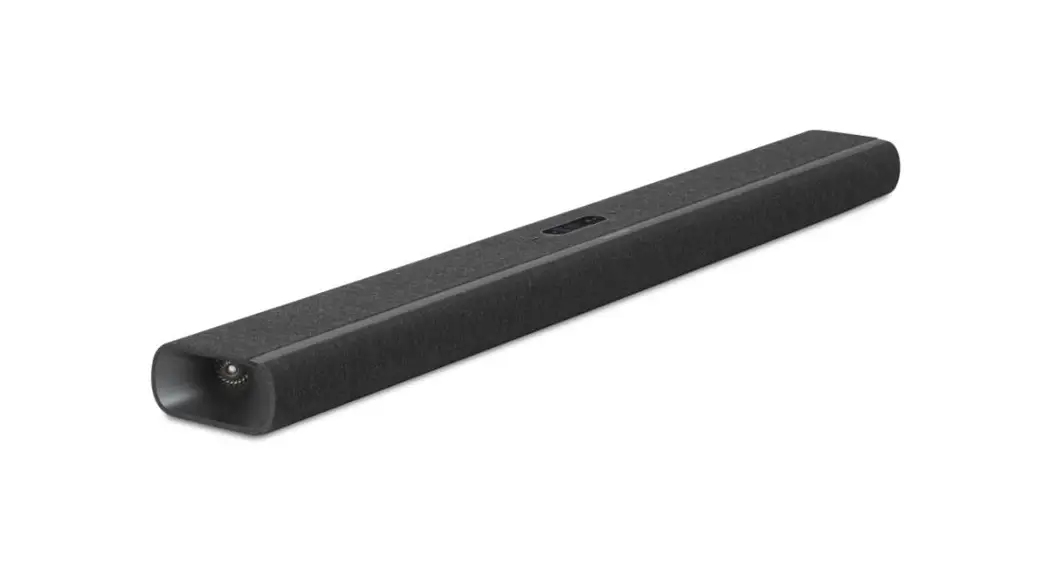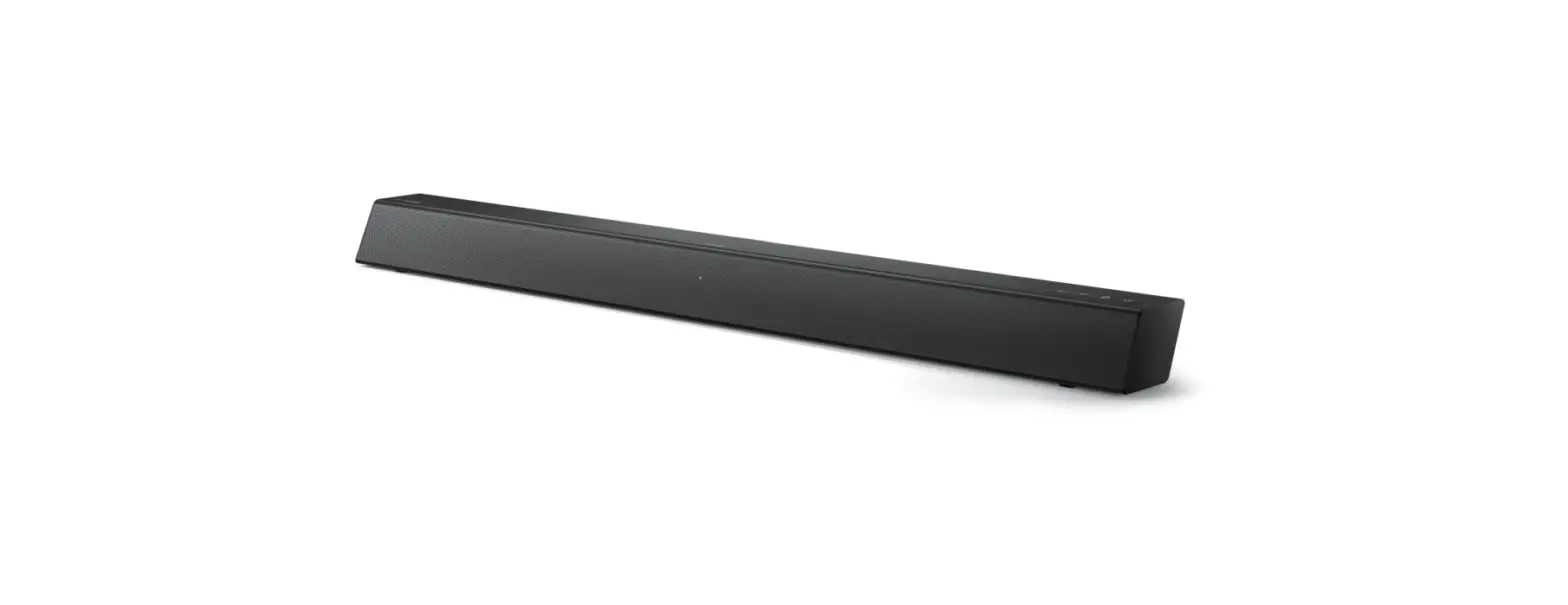

Harman Kardon Omni Bar+Wireless Soundbar
SAFETY INSTRUCTIONS
Verify Line Voltage Before
Use The Omni Bar+ and Omni Adapt+ have been designed for usewith 100-240 volt, 50/60 Hz AC current. Connection to a line voltage other than that for which your product is intended can create a safety and fire hazard and may damage the unit. If you have any questions about the voltage requirements for your specific model, or about the line voltage in your area, contact your selling dealer before plugging the unit in to a wall outlet.
Do Not Use Extension Cords
To avoid safety hazards, use only the power cord supplied with your unit. We do not recommend that extension cords be usedwith this product. Aswith all electrical devices, do not run power cords under rugs or carpets, or place heavy objects on them. Damaged power cords should be replaced immediately by an authorized service center with a cord that meets factory specifications.
Handle the AC Power Cord Gently
When disconnecting the power cord from an AC outlet, always pull the plug; never pull the cord. If you do not intend to use your speaker for any considerable length of time, disconnect the plug from the AC outlet.
Do Not Open the Cabinet
There are no user-serviceable components inside this product. Opening the cabinet may present a shock hazard, and any modification to the product will void your warranty. If water accidentally falls inside the unit, disconnect it fromthe AC power source immediately, and consult an authorized service center.
INTRODUCTION
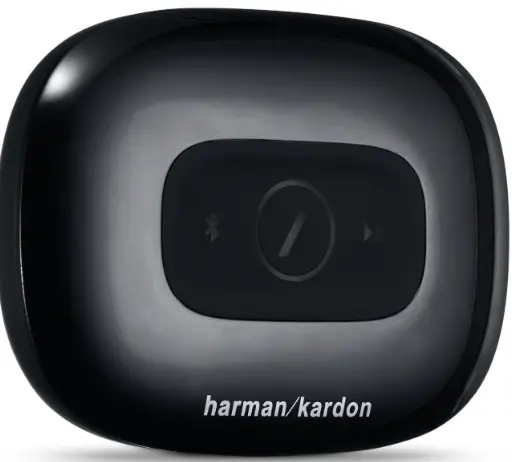
Congratulations on your Harman Kardon Omni Bar+ or Harman Kardon Omni Adapt+ (sold separately) purchase! Harman has for long been a leader in driving new technologies that enable and enhance our customers’ audio experiences, a tradition we continue to uphold with this product line. We’ve created a system that harnesses the power and versatility of your home wireless network to create a better and easier audio experience without compromising on audio quality. We hope you enjoy your new Harman Kardon Wireless HD Music System product and that you’ll consider extending our solution throughout your home. By using your home wireless network you will enjoy a far greater physical range of use than with a conventional Bluetooth® connection. You will also be able to use your product in various combinations throughout your household and control them from either the product or from the Harman Kardon Controller app. To obtainmaximum enjoyment from your product, please read this manual and refer back to it as you become more familiar with its features and their operation. If you have any questions about these products, their installation or their operation, please contact your Harman Kardon retailer or custom installer, or visit the website at www.harmankardon.com/wireless.
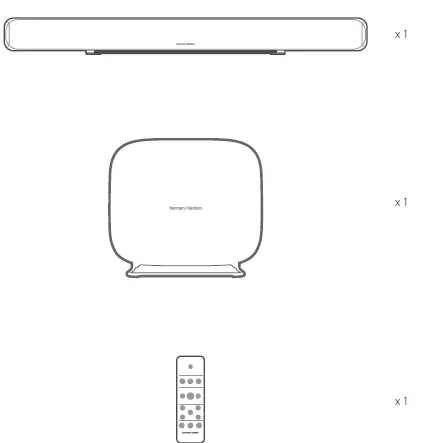
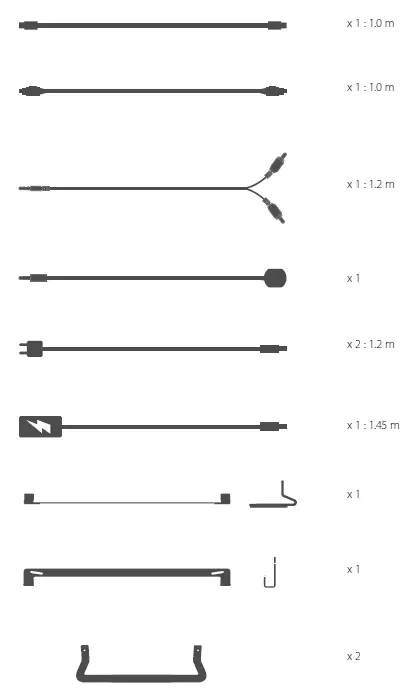
UNPACKING
BUTTONS AND CONNECTORS


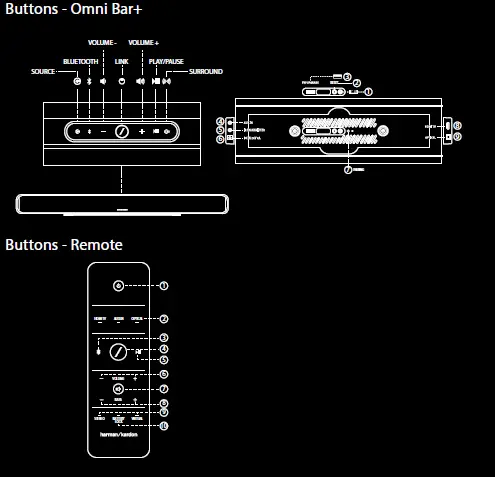
Link Button Pressing the Link button adds this speaker to a different speaker group. Grouped speakers all play the same music. For example, if you are listening to music in the Bedroom, you can walk to the Kitchen and press the Link button on the speaker in the Kitchen. The Kitchen will join and begin to play the same music as the Bedroom. Pressing multiple times will switch between different groups on the network. Pressing the Link button for 5 seconds will enable Party Mode, which sends the same music to every speaker in the house.
Source Button Pressing the Source button cycles the currently active music source in this room between AUX-in, Optical, and HDMI TV for the Omni Bar+ or AUX-in, Optical, and Bluetooth for the Omni Adapt+. If you are currently streaming audio over Wi-Fi, it will switch away from Wi-Fi to one of these other sources. Switching to one of these sources will send the same music that you hear on this speaker to all the other speakers in the same group. On the Omni Bar+, this button will light up white when the active source is HDMI TV, green when the active source is AUX-in, or amber when the active source is Optical.
Bluetooth Button Press the Bluetooth Button to enter Bluetooth pairing mode on the Omni Bar. This button will also switch the currently active source to Bluetooth. Note that on the Omni Adapt+, you must press the Source button for 3 seconds to enter Bluetooth pairingmode instead.
Play/Pause Button The Play/Pause button pauses or resumes music playback on Bluetooth or any of the Wi-Fi sources, including Spotify Connect and Chromecast built-in. AUX-in audio must be paused fromthe external audio source.
Volume +/- Buttons
Press the Volume + button to increase volume, or press the Volume – button to decrease volume. Pressing both at the same time willmute the speaker.
Surround Button
The Surround button on the Omni Bar+ will turn on Virtual Surround. If Virtual Surround is already on, it will instead turn it off.When Virtual Surround is on, this button will light up amber.When turned off, it will light up white.
Power Button
This button will put the Omni Bar+ into Standby mode. If it’s already in Standby mode, then the Omni Bar+ will turn on instead. Note that both the Omni Bar+ and Omni Adapt+ will automatically enter Standby mode after 10 minutes of inactivity. HDMI TV, AUX-in, and Optical Buttons Pressing these buttons will switch the Omni Bar+ to the corresponding input source.
Mute Button
Press this button to mute the Omni Bar+. Pressing again will unmute and return to the previous volume level.
Subwoofer Volume Control
Press the Bass + Button to adjust the level of the Omni Bar+ subwoofer up, or press the Bass – Button to decrease the level of the subwoofer.
Stereo and Virtual Buttons
Press the Stereo button to turn off Virtual Surround on the Omni Bar+. Press the Virtual Button to turn Virtual Surround on.
Battery Door Unlock Button
This button on the Omni Bar+ remote control is used to remove the battery door on the back of the remote control. When you wish to replace the Omni Bar+ remote control battery, press and hold this button down while sliding the battery cover off. The remote control uses as standard CR2025 3V battery.
WPS Button
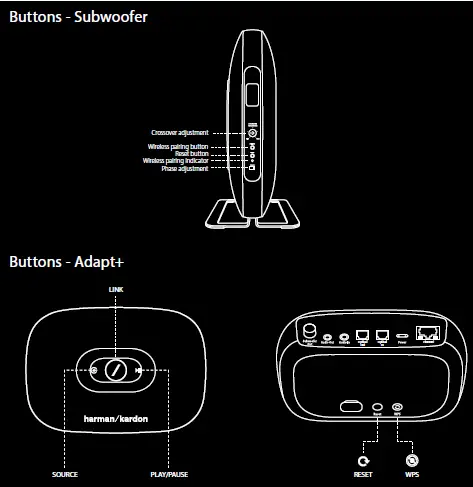
This button is used to connect the speaker to your homeWi-Fi network. Press it to enterWPS PBCmode. Press it for 5 seconds to enterWPS PINmode. See theWPS section on page 20 formore information.
Reset Button
Press the Reset button for 5 seconds to perform a factory reset. This will erase all user settings, disconnect from the Wi-Fi network, and the speaker will enter Wi-Fi setup mode, allowing you to connect it to a different Wi-Fi network.
Power Connector
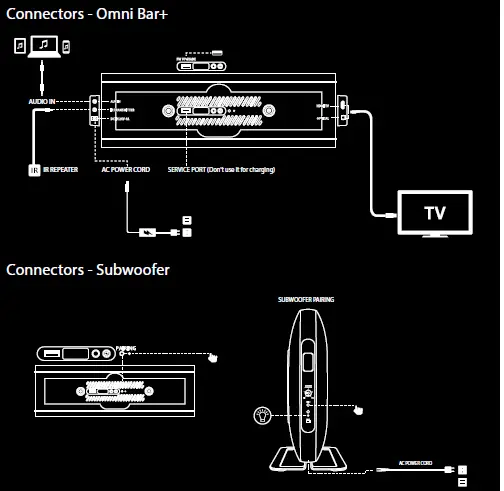
Use the supplied power supply or power cord to connect the speaker to AC power.
Audio In Connector
Connect an analog audio source via a 3.5mm or 1/8” stereo AUX cable to this connector to enjoy audio from an analog audio device.
Optical In Connector
Use an optical audio cable to connect your Omni Bar+ or Omni Adapt+ to your TV or external audio source. This connector supports 2.0 channel PCM up to 96KHz, 24-bit or Dolby Digital signals.
HDMI TV Connector
If your TV supports HDMI ARC, you can hear the TV audio through your Omni Bar+ using a single HDMI cable connected to the HDMI TV input connector. This connector supports 2.0 channel PCM up to 96KHz, 24-bit or Dolby Digital signals.
IR Transmitter Connector
If your Omni Bar+ blocks the IR remote control for your TV, you can connected the included IR transmitter to this connector. Place the other end of the IR transmitter close to your TV, and you’ll again be able to use your TV remote control.
SPEAKER SETUP
In this section youwill set up your Omni Bar+ or Omni Adapt+, connecting it toWi-Fi and connecting each source device you plan to use. Before you begin, download the Harman Kardon Controller app for iOS or Android. This app is available on both the iOS App Store and the Google Play Store. You will use this app to set up and configure the speaker. If you prefer to learn via video, Harman Kardon has created a helpful setup video. Just scan the QR code below to be taken to the video on the web.
Connecting Your Speaker to Wi-Fi
The first time you open the Harman Kardon Controller app, youwill be greeted by a tutorial walking you through the basic operations, followed by the Set Up NewSpeaker button. Pressing this button will begin the setup process, which the Controller app will guide you through. It will also be described in this manual. 1. Before continuing, choose a roomto set up. Decide if youwill be setting up the Omni Bar+ or Omni Adapt+ alone, or if you will be setting up awireless 5.1 surround system. Note that if you are setting up a wireless 5.1 surround system, you will need additional Omni 10+, 20+, or 50+ speakers. With the Omni Bar+, you can use a pair of Omni 10+, a pair of Omni 20+, or a pair of Omni 50+ speakers as your surrounds.With the Omni Adapt+, you will need 5 additional Omni 10+, 20+, or 50+ speakers. You will not be able tomix different types of Omni+ speakers together, so they allmust be the same model of speaker. Place the speaker(s) within Wi-Fi range of your home router or access point, and in the desired listening location. Consult the Wireless 5.1 Surround Setup section on page 21 for more information on proper placement for stereo speakers. Plug in only the speakers you wish to set up in this room to AC power, then proceed.
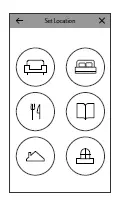
- The next step of the speaker setup process is to select where this speaker will be used. Select one of the predefined rooms, like Living Room or Bedroom. If you wish to use a different room name than one shown here, you may customize it in the next step, so select the icon you wish to associate with this room instead.

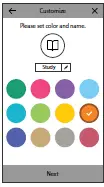
- After selecting a room name, you will be able to customize the room with a specific color. There are twelve different colors to choose from. This colorwill always be associated with this room while using the app to make it easier to differentiate between rooms. You may also change the room name by tapping on the name and typing a new name.

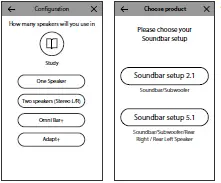
- Select the speaker type now: Omni Bar+; or Adapt+. The next step is to select how many Omni+ speakers you wish to use in this room. If youwish to use the Omni Bar+ alone, select Soundbar setup 2.1, or select Stereo if youwish to use your

- Omni Adapt+ alone. For a wireless 5.1 surround system using the Omni Bar+, select Soundbar setup 5.1 or Wireless 5.1 Surround Speaker using the Adapt+. Note that for a wireless 5.1 surround system, you must use a 5GHz Wi-Fi connection. To set up Omni Bar+ as a 5.1 surround system, refer to page 21.

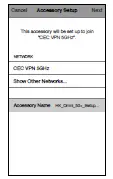
After this, you will connect the speaker to your home network. The process for this differs between Android and iOS.
Omni Bar+ and Omni Adapt+ use a newiOS feature namedWireless Accessory Configuration, which is the easiest way to set up Wi-Fi for iOS users. Each speaker you have plugged in to AC power will appear on this screen. Select one of the speakers and an iOS systempopupwill appear, showing you a list ofWi-Fi networks in range. Choose theWi-Fi network you want to connect this speaker to, then press Next. This should normally be the same network your phone is connected to, which will appear as the default option.
Android
You will now see each speaker you have connected to AC power on the screen. Select any one of the speakers to see a list of available Wi-Fi networks. Choose the Wi-Fi network you wish to connect your Omni+ speakers to, then enter the Wi-Fi password. Every Omni+ speaker will reboot and connect to this Wi-Fi network.
If you are only using one speaker in this room, continue to Source Setup on page 22. If you’re setting up a wireless 5.1 surround system, proceed to Wireless 5.1 Surround Setup on page 21.
WPS
WPS is a simple way to connect your system to your home Wi-Fi network. To confirm whether your router supports WPS, look for the WPS logo or the letters WPS on your router. The Omni Bar+ and Omni Adapt+ support both WPS-PBC and WPS-PIN modes.
WPS-PBC
To connect your speaker via WPS-PBC mode: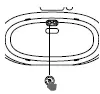
- Press the WPS button on your Wi-Fi router or access point.
- Within oneminute, press theWPS button on your Omni Bar+ or Omni Adapt+.
- The Link button on the top of the speaker will begin to quickly flash for up to one minute.When the LED stops flashing and turns solidwhite, your speaker is connected.
WPS-PIN
To connect your speaker via WPS-PIN mode:
- Use a web browser to navigate to your Wi-Fi router or access point’s setup page.
- Press the WPS button on the bottom of your Omni Bar+ or Omni Adapt+ for 5 seconds.
- Enter 87654325 into the WPS-PIN section of your router or access point’s setup page.
- The Link button on the top of the speaker will begin to quickly flash for up to one minute.
Wireless 5.1 Surround Setup
When setting up a surround sound system, speaker placement is important. You should place the surround speakers to the sides or behind the main seating area. Angle each speaker so it directly faces the listener. Place the speakers at the same height, preferably at about the same height as the listener’s ears.
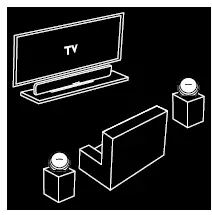
After placing the speakers and connecting them to Wi-Fi (see Connecting Your Speaker toWi-Fi on page 18), the Controller app will guide you through assigning the channels. In the bottomof the screen, youwill see every available speaker on the network. Drag one of the speakers to the area for the correct position, and you will see the LED on top of that speaker flash white and hear an audio tone to identify which speaker you’ve selected.Make sure this is the correct speaker then repeat for each channel.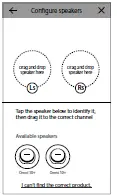
You may also upgrade any existingOmni Bar+orOmni Adapt+roomto awireless 5.1 system.Go to Settings> Roommanagement and select the room youwish to add additional speakers in. Select Set upmultichannel and you will be guided through the same setup process as above, with the ability to assign any other speaker already on the network to this room. After this step is complete, continue to Source Setup on page 22.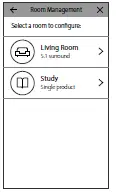
Source Setup
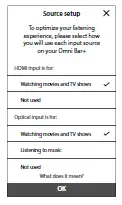
The final step to set up your Omni Bar+ or Omni Adapt+ is to configure the external sources. For each source, HDMI TV, Optical, or AUX-in, youwill select how you plan to use this source. If you are not using this source, select “Not used.” If you select “Watchingmovies and TV shows,” then this input will have very little delay and good lip sync with the TV for video applications. But you won’t be able to restreamthis input source to other Omni speakers in your house. If you select “Listening tomusic,” then youwill be able to restreamthis input to other Omni speakers in your house. Bus an additional delaywill be added for stability, which will be unsuitable for video applications
Connecting Your Speaker to Bluetooth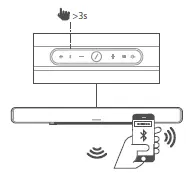
The Omni Bar+ and Omni Adapt+ are is equipped with Bluetooth, which allows audio streaming from any app on your phone or tablet. To pair your phone or tabletmake sure the speaker is fully powered on, then press the Bluetooth button on the top of the Omni Bar+ or remote control or the Source button on the top of the Omni Adapt+ for 3 seconds. The Link button on the top of the speaker will begin to flash blue. Find the speaker in your phone or tablet’s Bluetooth settings menu, and select it to pair. Once paired, all the audio from your phone or tablet will be wirelessly streamed to your speaker and all the other speakers in the same group. Stereo audiowill automatically be sent to the front left, front right, surround left, and surround right speakers in a wireless 5.1 system, and you can send the audio around the house by grouping rooms in the Controller app or by pressing the Link button.
Connecting External Sources
The preferred way to connect the Omni Bar+ to your TV is through HDMI ARC, which uses only a single cable and transmits high-quality digital audio. Using HDMI ARC, your TV’s CEC commands will also be sent to the Omni Bar+, which will enable it to automatically power on, power off, and change volume with from the TV remote control. Dolby Digital is supported via the HDMI TV connection, which will enable true 5.1 wireless surround sound.Another option for the Omni Bar+, and the preferred option for the Omni Adapt+ to connect to your TV, is through optical. An optical connection also supports high-quality digital audio and Dolby Digital surround sound. Note that if you use an optical connection with your TV, you should configure your TV to support “external speakers” and disable the built-in TV speakers. You may also connect external analog devices through the AUX-in or Analog In connectors on the Omni Bar+ and Omni Adapt+ by connecting a 3.5mm stereo auxiliary cable to the connector, and connecting the other end of the cable to your analog audio device. Dolby Digital surround sound and stereo audiowill automatically be sent to the correct channels in your wireless 5.1 surround sound system. Please make sure you have configured your sources correctly (see Source Setup on page 22), as any sources configured for Listening to Music can be sent around the house by grouping rooms in the Controller app or by pressing the Link button.
CONTROLLING YOUR SPEAKER
Speakers, Rooms, and Groups
A primary feature of the Harman Kardon Wireless HD Music System is the ability to send audio around the house to any number of different rooms. The way this is organized is through rooms and groups. A room contains one ormore speakers that always play audio together.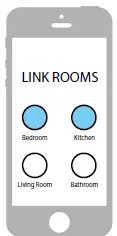 It has a specific name, like Living Room or Bedroom, a specific color, and a specific icon. Rooms show up in the Harman Kardon Controller app as destinations to streammusic to, and you can edit them, including the number of speakers, by going to Settings > Room management in the Controller app. They can be considered as permanent groups of speakers which always play the same audio content. Rooms with more than one speaker have a single Master speaker which is the speaker you use for physical button controls and to connect external sources. A group contains two or more rooms which play the same audio content. Their names are formed fromthe rooms inside them, for example if you add the Kitchen to the Lounge to play the same music in both rooms, it would be named Lounge +1. Adding the Living Roomwould change the name to Lounge +2, and so on. Groups are created through the physical Link button on the top of each speaker, or by pressing the Link Rooms button on themusic player page in the app. Groups can be considered as temporary groups of speakers which are playing the same audio content, but are easy to change as you walk from room to room or simply desire playing different music in different areas. Groups don’t have aMaster room, and if you begin playing something new in any room, it will take priority and all other rooms in the group will begin to play the same audio.
Volume and Muting
Controlling the volume on your speaker is simple. Press the Volume + button on the top of the speaker to increase the volume, or press the Volume – button to decrease the volume. Press both volume buttons together to mute the speaker. If the speaker is muted, any change in volume will automatically unmute it. You may also control the volume from within the Controller app. When you are streaming music fromthe Controller app to the speakers, you can use the hardware volume buttons on your phone or tablet to adjust the speaker volume. There is also a volume bar on the music player page in the Controller app,which can be used to adjust the volume for all speakers in the current group at once. Pressing the icon to the right of the volume barwill open amore detailed volume control for control of individual rooms inside the group.
Switching Sources
Your speaker can play audio from a variety of different sources, to let you play your favorite music. Chromecast built-in is supported by many different music apps and services (see Chromecast Built-In on page 27 formore information). If you have a Spotify Premiumaccount, Spotify Connect lets you play your favorite songs, playlists, and stations directly on the speakers. Even if you don’t have a Spotify Premium account, you can use Chromecast built-in to stream Spotify to your speakers. The Harman Kardon Controller app has direct integration with a number of different music services, as well as allowing you to play music from the music stored on your phone or tablet. Bluetooth and AUX-in allow you to play music from any app or any analog audio device you already use. Any time you begin playing audio from any of these sources, the speaker will automatically switch to that source and stop playing any audio content it was playing before. But if you desire more finetuned control over the active source, press the Source button to cycle through each one.
PLAYING MUSIC FROM WI-FI
Harman Kardon Controller App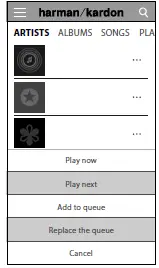
The Controller app is the easiest way to start wirelessly playing music to your speakers. Immediately after speaker setup you will be taken to the localmusic player screen. You can see all themusic on your phone or tablet, sorted by Playlists, Songs, Artists, Albums, or Genres. Press any item on this screen and start dragging it. You can drop it on any room or group to immediately begin streaming. Select the additional playback options button on the music playback page to set the Shuffle and Repeat modes. Shuffle randomly orders your playback queue, playing each song once in a random order. Repeat One will repeat the current track over and over, and Repeat All will start at the beginning of the playback queue automatically when the last track is finished playing. 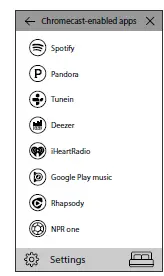
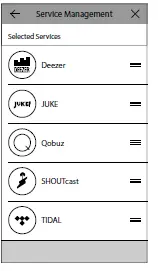
Tap the icon on the top left of the screen to open the sidebar for more options. Here you can see different music services which are integrated into the Controller app, or enter the Settings menu. Selecting any of these music services will bring you to a log in screen. Log in with your music service account name and password and the music content in the app will change to thatmusic service’s content. If there are music services you rarely or never use, you can edit the list as it appears in the sidebar by going to Settings > Music Service Management. You can remove services from the list, reorder them, or add previously removed services.
Spotify Connect
Using This Device With Spotify Connect
- Spotify lets you listen to millions of songs – the artists you love, the latest hits and discoveries just for you.
- If you are a Spotify Premium user, you can control this device using your Spotify app.
- Step 1. Connect your device to the same wifi network as your phone, tablet or PC running the Spotify app.
- Step 2. Open the Spotify app, and play any song.
- Step 3. Tap the song image in the bottom left of the screen.
- Step 4. Tap the Connect icon.
- Step 5. Pick your [device] from the list.
For information on how to set up and use Spotify Connect please visit www.spotify.com/connect Licenses. The Spotify Software is subject to third party licenses found here : www.spotify.com/connect/third-party-licenses.
Chromecast built-in
Chromecast built-in works very similarly to Spotify Connect, except it is supported by a large and growing number of music apps and services. If the music app you are using supports Chromecast built-in, you will see the Cast button in that app.
- Step 1. Connect your device to the sameWi-Fi network as the device with the app with Chromecast built-in support.

- Step 2. Open the app and begin to play a song.
- Step 3. Tap the Cast icon.
- Step 4. Select your Omni speaker.

UPGRADING
Harman Kardon will periodically release firmware and Controller app upgrades for your Harman Kardon Wireless HDMusic Systemto add additional features and improve performance. In most cases, these upgrades will be automatic. Speaker firmware updates are scheduled for the middle of the night, when most users are asleep, and will normally be automatically delayed if you are currently using the speaker. Your speaker will automatically download these firmware upgrades and install them without requiring user input. App updates will appear on the iOS App Store and the Google Play Store. You can update the Harman Kardon Controller app as you would any other app on your tablet or phone. If you don’t have automatic app updates turned on, please check the App Store or Google Play Store fromtime to time to see if there are any updates available.
TROUBLESHOOTING
| Problem | Solution |
| My speaker does not turn on | Make sure that the speaker is plugged in to a live AC power outlet, and if the outlet is switch- controlled make sure the switch is on. |
| My speaker does not appear in the Controller app | Make sure the speaker is connected to your Wi-Fi network and within Wi-Fi range. Also make sure your phone or tablet and your speaker are connected to the same network. |
| No sound is heard from the speaker | Turn up the volume on your speaker, or turn up the volume on your AUX-in source device |
| I’m unable to connect the speaker to my Wi-Fi network | Make sure the speaker is within range of your Wi- Fi router or access point. You may need to adjust the positioning if it’s too far away, or consider using Ethernet |
| Only one speaker in a wireless 5.1 system has audio output | Make sure all speakers are connected to AC power and within range of the Wi-Fi network |
| I am having trouble connecting my speakers in a wireless 5.1 surround configuration | Make sure you are using a 5GHz Wi-Fi network for setup. Wireless 5.1 surround will not work with 2.4GHz Wi-Fi. |
| Problem | Solution | ||||||||
| Do you have a guide for best placement of speakers in a house? | Every house or apartment are different, and will be hard to provide a guide that suits all. What you can do, is to perform a WiFi network scan on your mobile device, to check how many Access points there are nearby your house. Then make sure that you select a Wi-Fi channel that are less busy then others. Second thing, you can use our HK Controller application to see how much noise each speakers has in your house. Simply go into settings and select “Send us feedback” and see results. All above -65dB are good signals. | ||||||||
| I am using a Wi-Fi extender and having problems with my speaker connection. | Make sure that your Wi-Fi extender supports 802.11n/ac 5GHz and only use that frequency to extend your Wi-Fi coverage. Only add speakers to a Wi-Fi extender if needed, we recommend to have most speakers to main Wi-Fi. | ||||||||
| I am using an AUX-in device with my Adapt+ and connecting to an external receiver or speaker via the Audio Out connector, and I don’t hear any audio. | Because volume is not automatically in sync over the Audio In and Audio Out connectors, we recommend you set volume to maximum on your AUX-in source device. Use the volume control of the Adapt+ only.
|
OPEN SOURCE DECLARATIONS
This product contains open source software licensed under GPL. For a list of open source software and other relevant information, please download the Harman Kardon Controller app available on the App Store or Google Play. For your convenience, the source code and relevant build instruction are also available at http://www.harmankardon.com/opensource.html.
Please feel free to contact us at:
- Harman Deutschland GmbH
- ATT: Open Source, Gregor Krapf-Gunther
- Parkring 3
- 85748 Garching bei Munchen
- Germany
[email protected] if you have additional question regarding the open source software in the product.
TECHNICAL SPECIFICATIONS
Omni Soundbar+
- Frequency response: 160Hz~20kHz (-6dB)
- Signal-to-noise ratio: >85dB
- Dimensions (W x D x H): W1150 x H103 x D53 mm
- Net Weight: Omni Bar+: 3.0 kg
- Power supply: DC24V, 4A
- Bluetooth version: 4.1
- Bluetooth transmitter frequency range: 2402 – 2480MHz
- Bluetooth transmitter power: <4dBm
- Bluetooth transmitter modulation: GFSK, π/4 DQPSK, 8DPSK
- 2.4G Wi-Fi transmitter frequency range: 2412 – 2472MHz (2.4GHz ISM
- Band, USA 11 Channels, Europe and others 13 Channels)
- 2.4G Wi-Fi transmitter power: <20dBm (EIRP)
- 2.4G Wi-Fi modulation: OFDM, DSSS, DBPSK, DQPSK, CCK, 16QAM, 64QAM
- 2.4G Wi-Fi network compatibility: IEEE 802.11b/g/n
- 5G Wi-Fi transmitter power: <18.5dBm
- 5G Wi-Fi modulation: OFDM, DSSS, DBPSK, DQPSK, CCK,16QAM, 64QAM, 256QAM
- 5G Wi-Fi network compatibility: IEEE 802.11ac
- 5G Wi-Fi transmitter frequency range: 5.15 – 5.35GHz, 5.470 – 5.725GHz, 5.725 – 5.825GHz
- Power consumption in sleep mode: <3 Watts
- 2.4GHz wireless frequency range: 2402 – 2478MHz
- 2.4GHz wireless transmitter power: <20 dBm
- 2.4GHz wireless modulation: π/4 DQPSK
Wireless Subwoofer
- Frequency response: 45Hz~200Hz (-6dB)
- Crossover frequency: 80Hz~150Hz
- Signal-to-noise ratio: >80dB
- Dimensions: W480 x H400 x D103 mm
- Net Weight: 7.0 kg
- Power supply: 100-240V~50/60Hz
- Power consumption in sleep mode: <0.5 Watts
- 2.4GHz wireless frequency range: 2402 – 2478MHz
- 2.4GHz wireless receiver Sensitivity: -88dBm
- 2.4GHz wireless modulation: π/4 DQPSK
- 2.4GHz wireless transmitter power: <20 dBm
Packaging
- Gross Weight: 15.93 kg
HARMAN
HARMAN International Industries, Incorporated 8500 Balboa Boulevard, Northridge, CA 91329 USA www.harmankardon.com © 2017 HARMAN International Industries, Incorporated. All rights reserved. Harman Kardon is a trademark of HARMAN International Industries, Incorporated, registered in the United States and/or other countries. Features, specifications and appearance are subject to change without notice.
- This Mark Certifies that this product is compliant with the BLACKFIRE ALLIANCE Standard. Please refer to WWW.BLACKFIREALLIANCE.COM for more information. BLACKFIRE RESEARCH™ is a Registered Trademark (No. 3,898,359) of BLACKFIRE RESEARCH CORP. All rights reserved.
- The Bluetooth® word mark and logos are registered trademarks owned by Bluetooth SIG, Inc. and any use of such marks by HARMAN International
- Industries, Incorporated is under license. Other trademarks and trade names are those of their respective owners.
- The Wi-Fi CERTIFIEDTM Logo is certification marks of the Wi-Fi Alliance®.
- The Wi-Fi Protected SetupTM Identifier Mark is a mark of the Wi-Fi Alliance®.
FAQS
Does Harman Kardon sound better than Bose?
That depends on what you are looking for. Bose is better for the home cinema system because it provides surround sound technology.
BAux Input: connect your source device to the Harman Kardon Aura’s Aux In. Press the source button until the led turns off.
Is Harman Kardon under Samsung?
Harman International Industries, commonly known as Harman (stylized in all-uppercase as HARMAN), is an American audio electronics company.
Is Harman Kardon Samsung?
In March 2017, HARMAN became a wholly-owned subsidiary of Samsung Electronics.
Which is better Sony or Harman Kardon?
The Sony is better-built with longer battery life, and it supports voice assistants from your smartphone
Is Harman Kardon owned by Apple?
Harman Kardon (stylized as harman / kardon) is a division of US-based Harman International Industries, a subsidiary of Samsung Electronics, and manufactures home and car audio equipment.
How long does Harman Kardon last?
Our Harman Kardon Onyx Studio takes 5 hours to fully charge and lasts up to 8 hours (depends on music volume and content
How do I turn on Bluetooth on my Harman Kardon speaker?
Press the source button for 0.5 seconds to change the source from Bluetooth/Optical/Aux-in.
Is Harman Kardon compatible with Android?
Each speaker and adaptor wirelessly connects to your home Wi-Fi network. Using your phone or tablet and the Harman Kardon Controller App
Why is my Harman Kardon not pairing?
If you previously connected your product with your phone or tablet, can you delete this connection from the Bluetooth menu on your tablet or phone
What app do I need for Harman Kardon speaker?
With the free Google Home app for iOS and Android, you can easily set up and manage all of your Harman Kardon Citation speakers.
Why is my speaker not working Bluetooth?
If your Bluetooth devices won’t connect, it’s likely because the devices are out of range, or aren’t in pairing mode.
Is Harman Kardon high end?
Harman Kardon speakers tend to be of high-quality, but they are also in the high to mid-range prices
Is Harman Kardon same as JBL?
HARMAN is the parent company behind an array of legendary brands that includes Harman Kardon®, JBL®, Mark Levinson®, AKG and Infinity Systems
Is JBL better than Harman Kardon?
The Harman/Kardon has a more neutral, balanced sound profile out-of-the-box. However, the JBL has a better soundstage performance, longer battery life, and it supports voice assistants from your smartphone, unlike the Harman/Kardon.