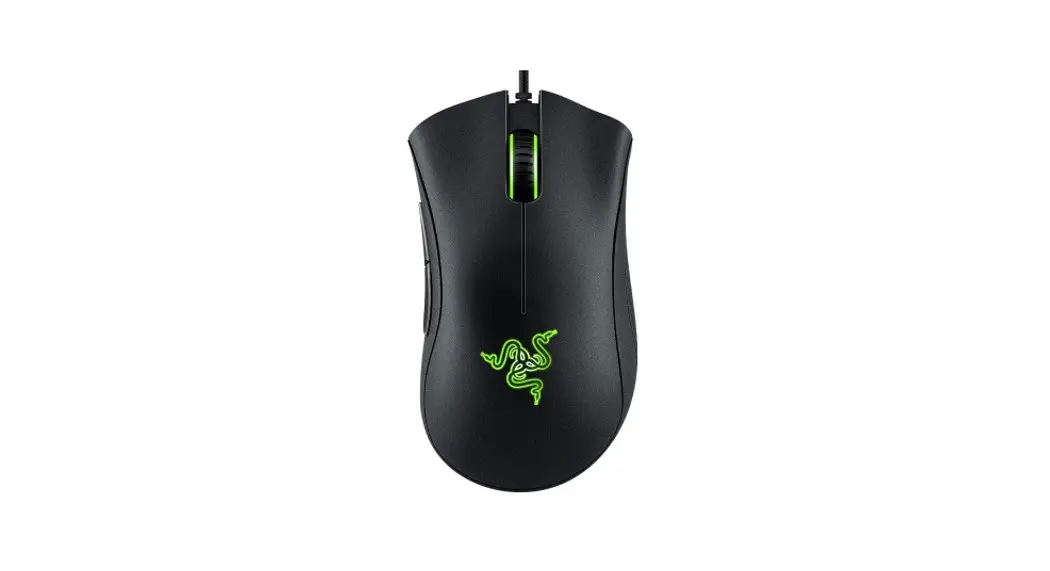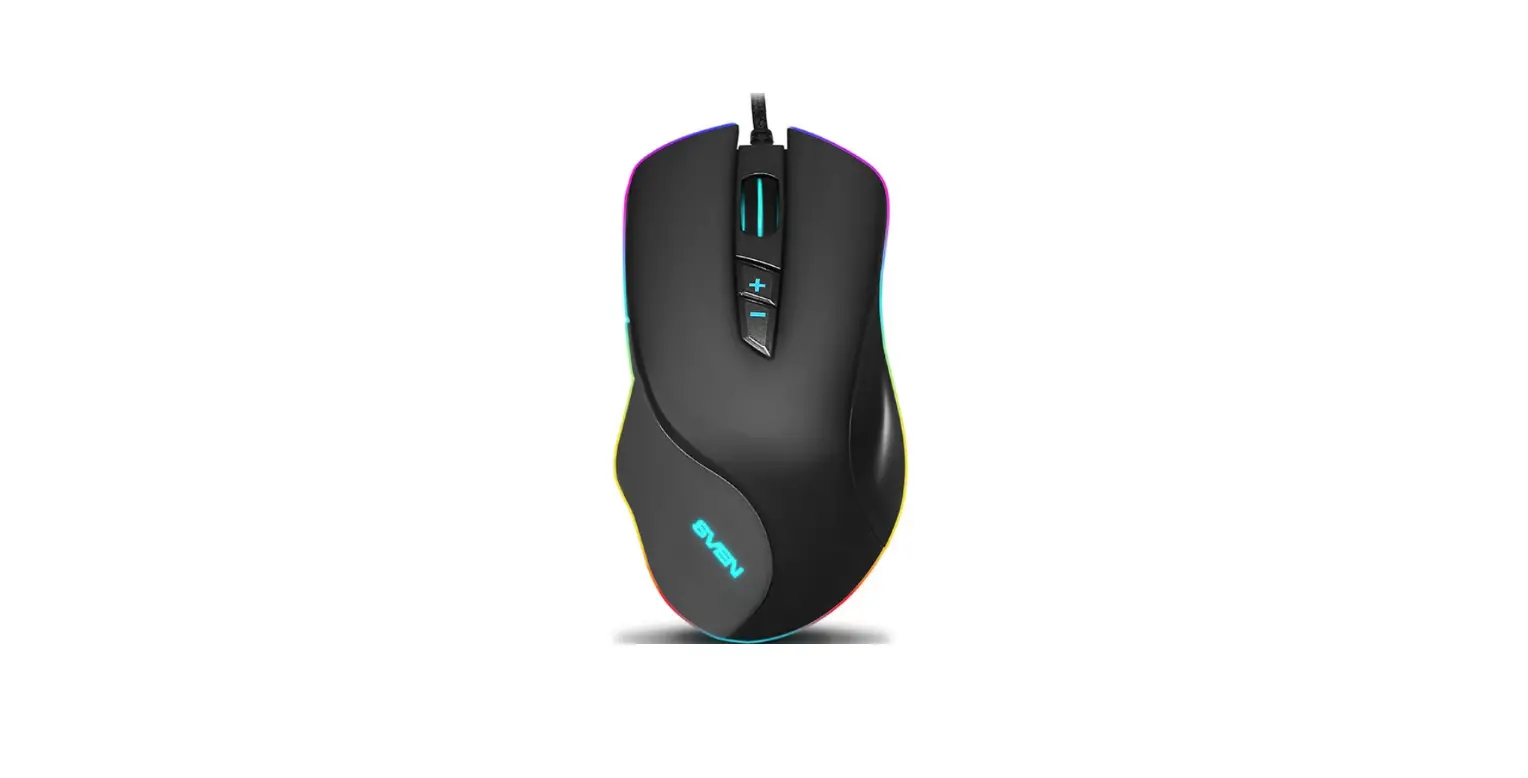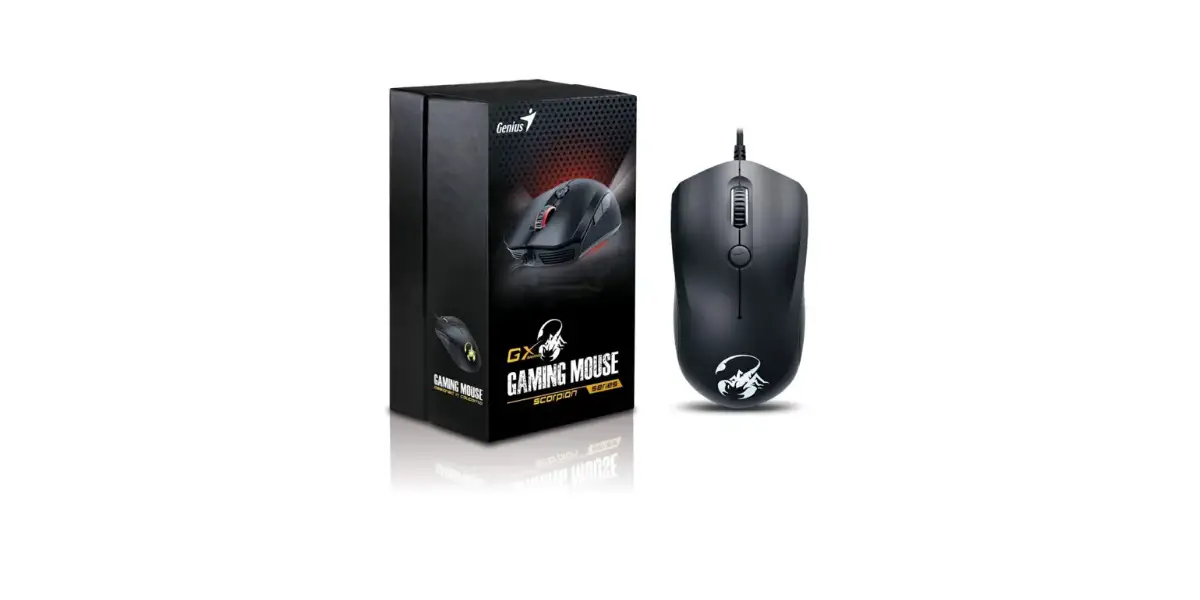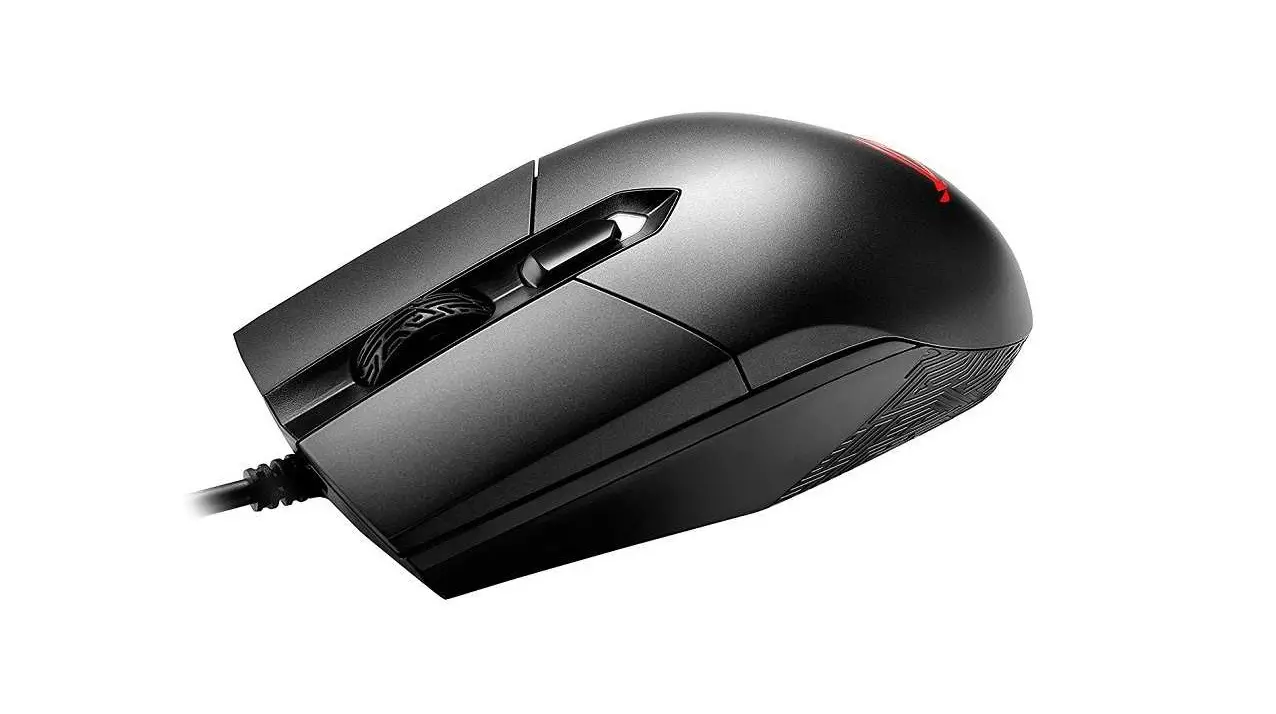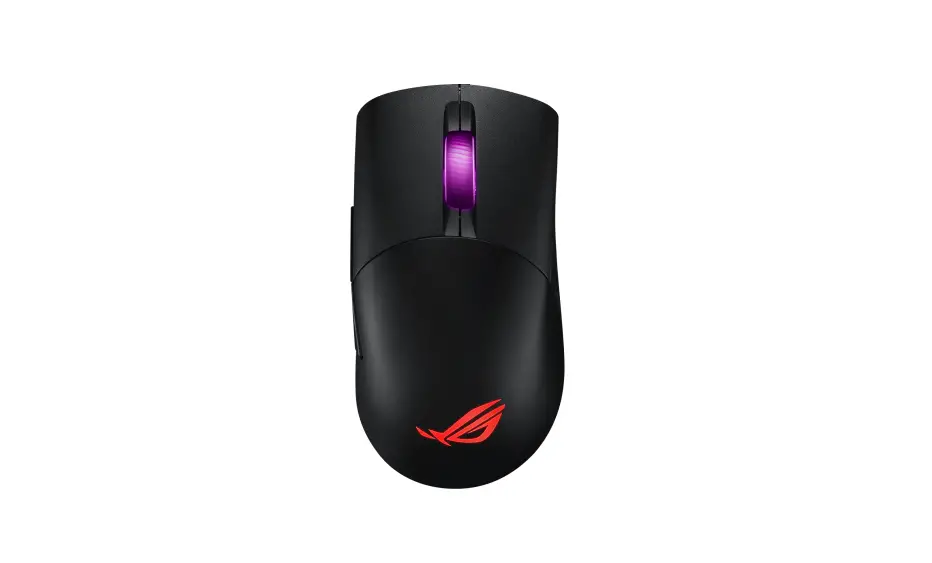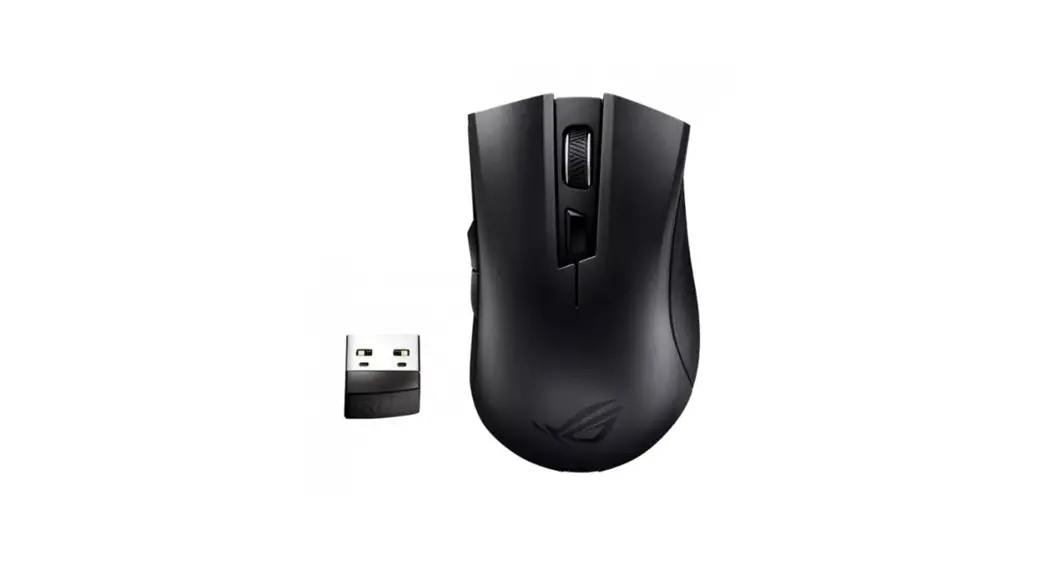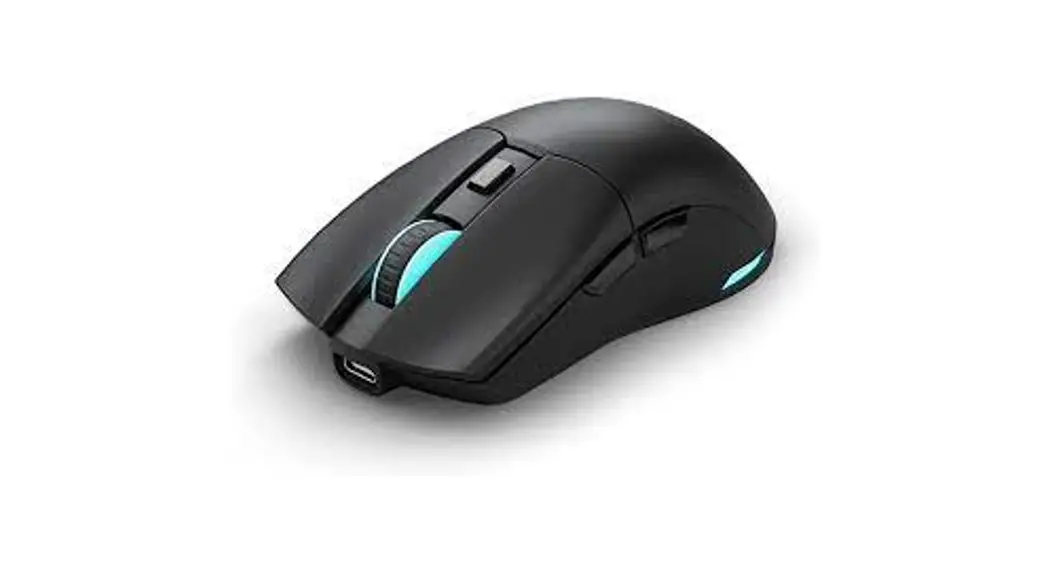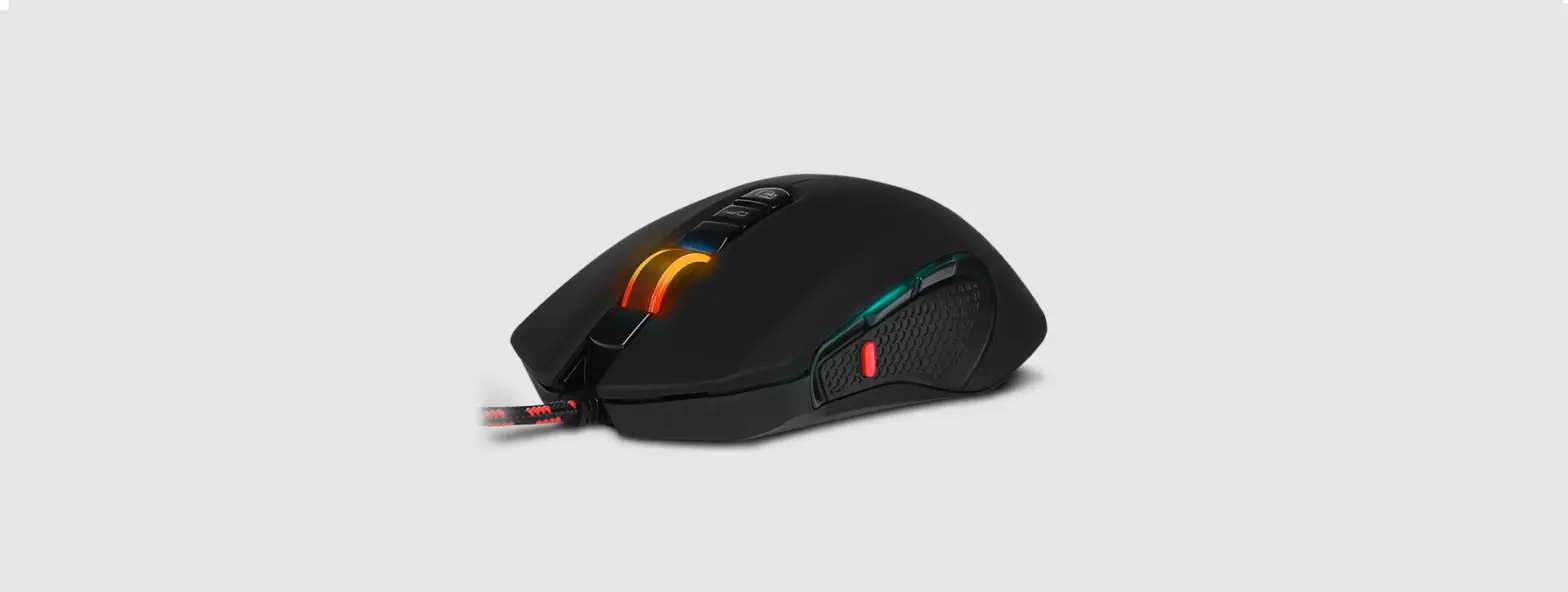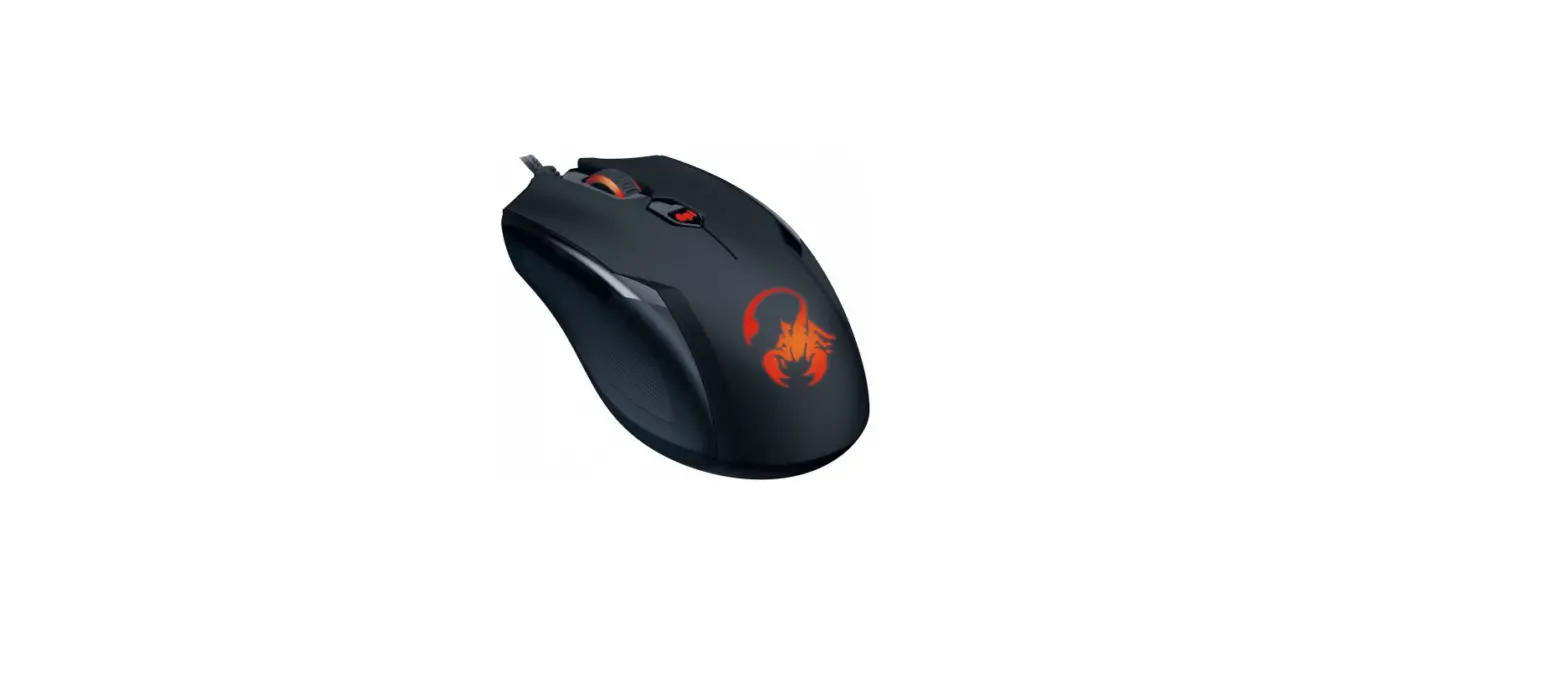

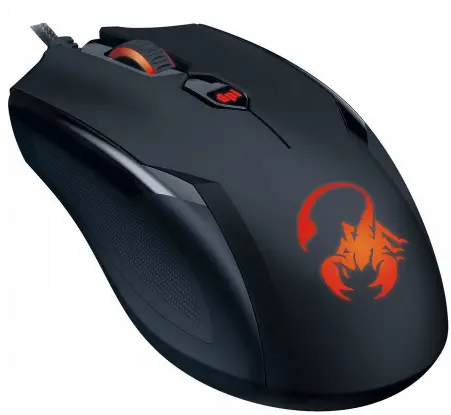
Genius Ammox x1-600 USB Optical Gaming Mouse
Hardware Installation
- Your computer should be off. Now connect the gaming mouse to any USB port of your PC (it takes a few seconds for your mouse to be properly installed).
- Turn on your computer.
Remark: Do not use the optical/laser mouse on a desk that is made of glass or a mirror.
Button Assignment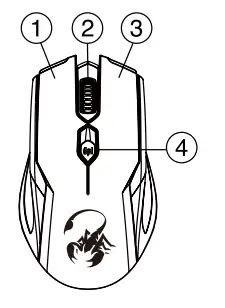
- Left Button: Provides traditional mouse functions such as click, double click, or drag.
- Middle button: Press this button to surf the Internet and Windows documents.
- Right Button: You can assign this button to frequently used keyboard and mouse functions.
- DPI adjustment: Default is 1200 dpi. DPI in 400/800/1200/3200 for different needs on the battlefield.
The symbol for Separate Collections in European Countries
- This symbol indicates that this product is to be collected separately.
- The following applies only to users in European countries:
- This product is designated for separate collection at an appropriate collection point.
- Do not dispose of it as household waste.
- For more information, contact the retailer or the local authorities in charge of waste management.
KYE Systems Corp.
- #492, Sec. 5, Chongxin Rd., Sanchong Dist.,
- New Taipei City 24160, Taiwan
- Tel: 886-2-2995-6645
- Fax: 886-2-2995-6649
- Email: [email protected].tw (Tech. Support)
- http://www.geniusnet.com
- Remark:
- The product color and images shown on the package are for reference
- ONLY.
- For actual items, refer to the physical goods contained herein.
- Limited hardware warranty. Warranty void if unauthorized opening or repair.
Product storage conditions: Temperature: -20°C~ 50°C / Humidity: - 5%~ 85%.
 Genius US Website – Genius designs personal peripheral devices with a target to provide a better experience in everyone's lives. Visit Genius to find your devices with high quality, easy usage and effective cost.