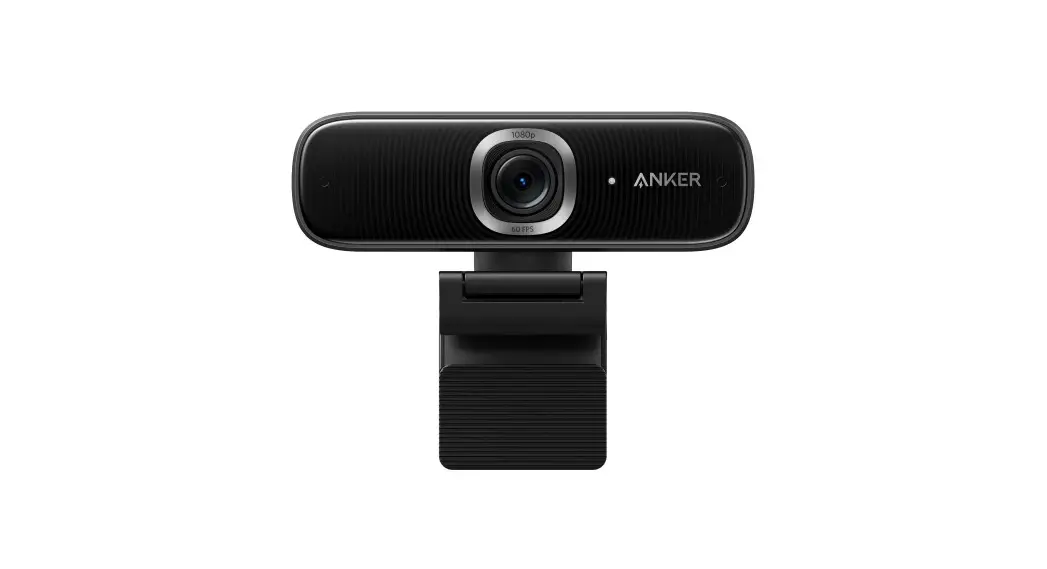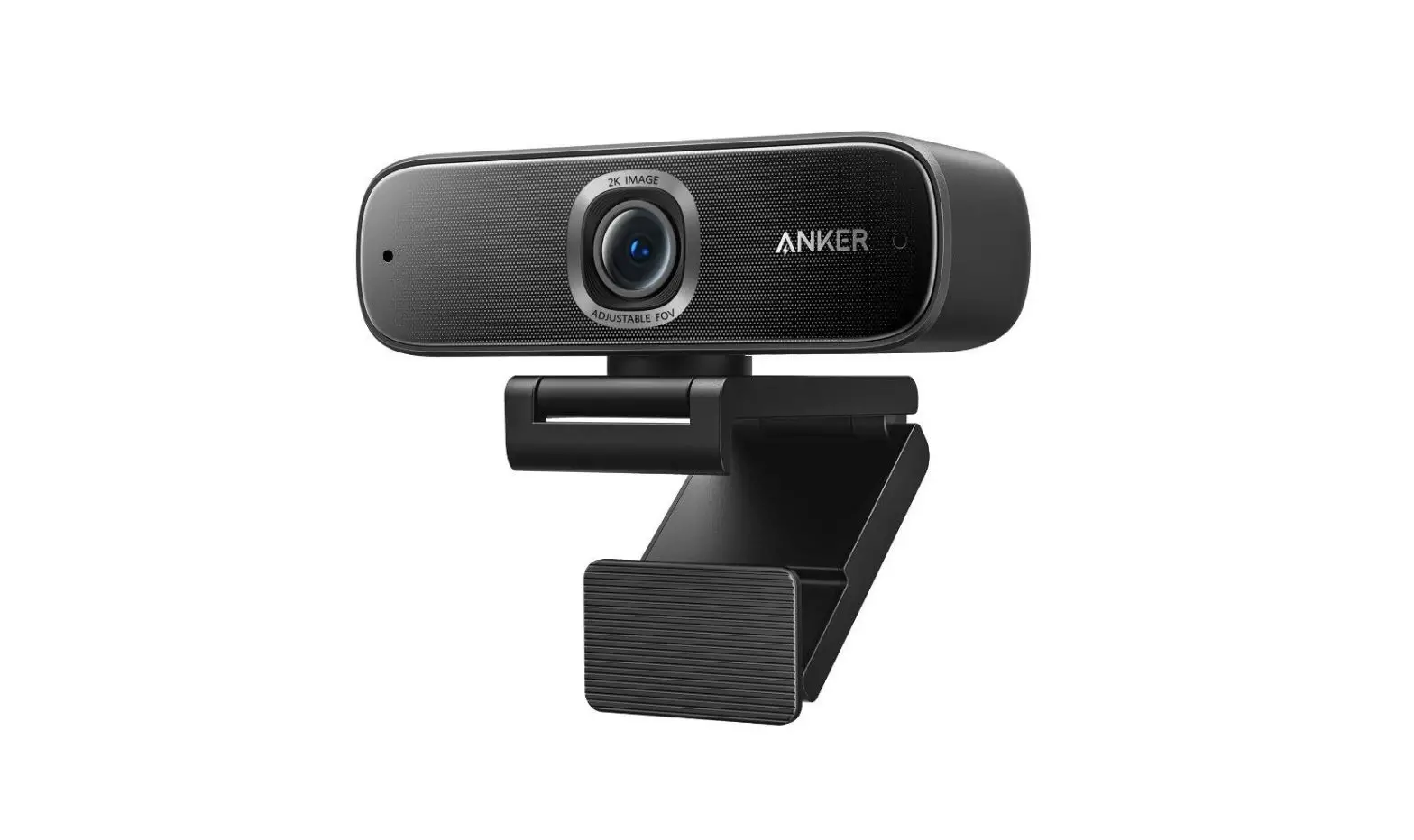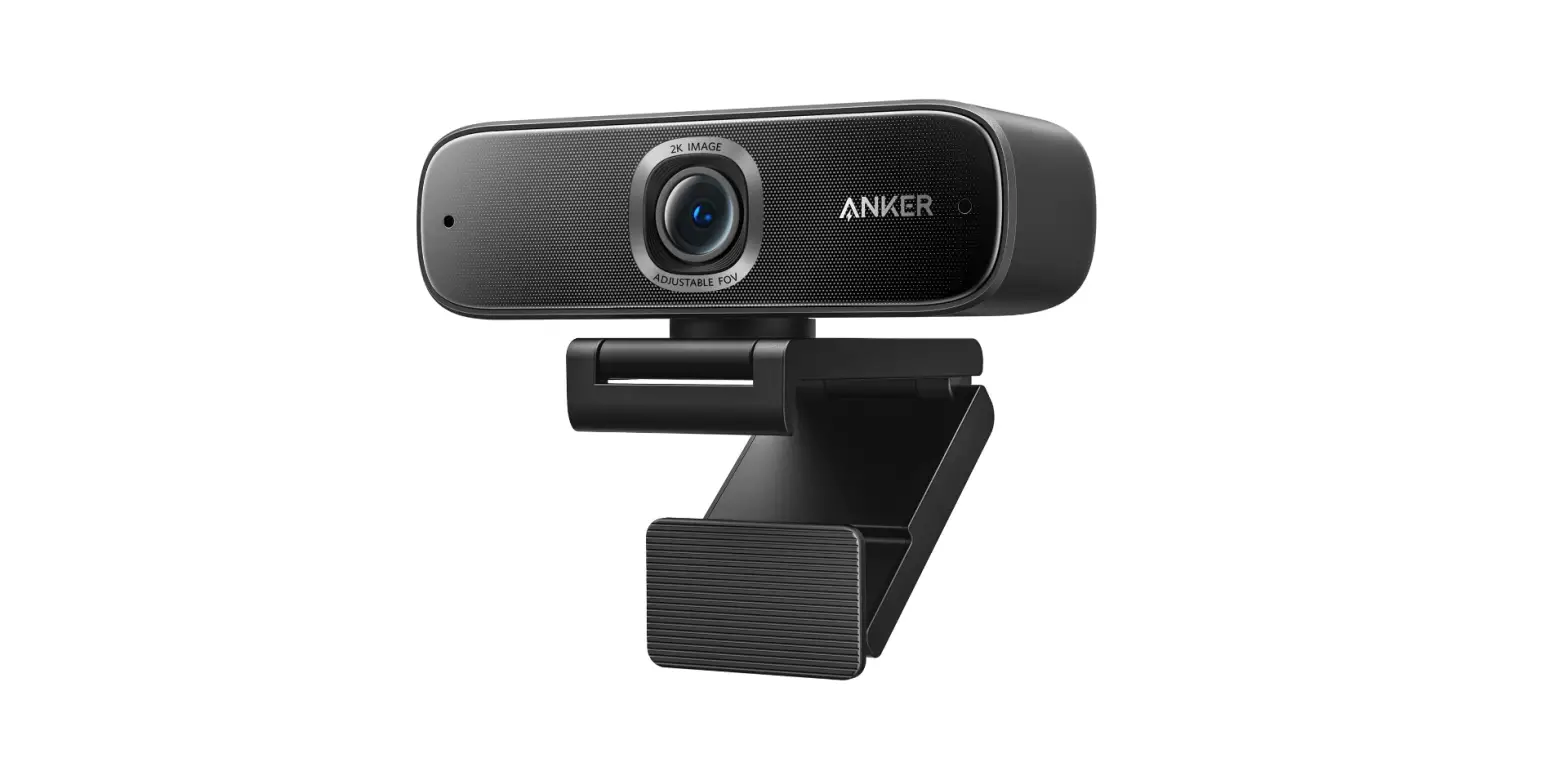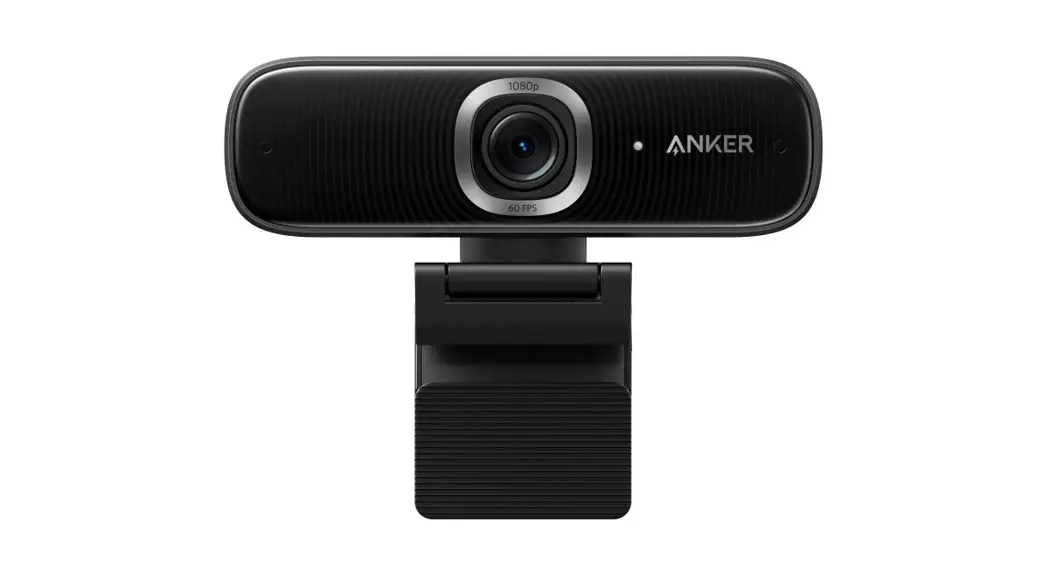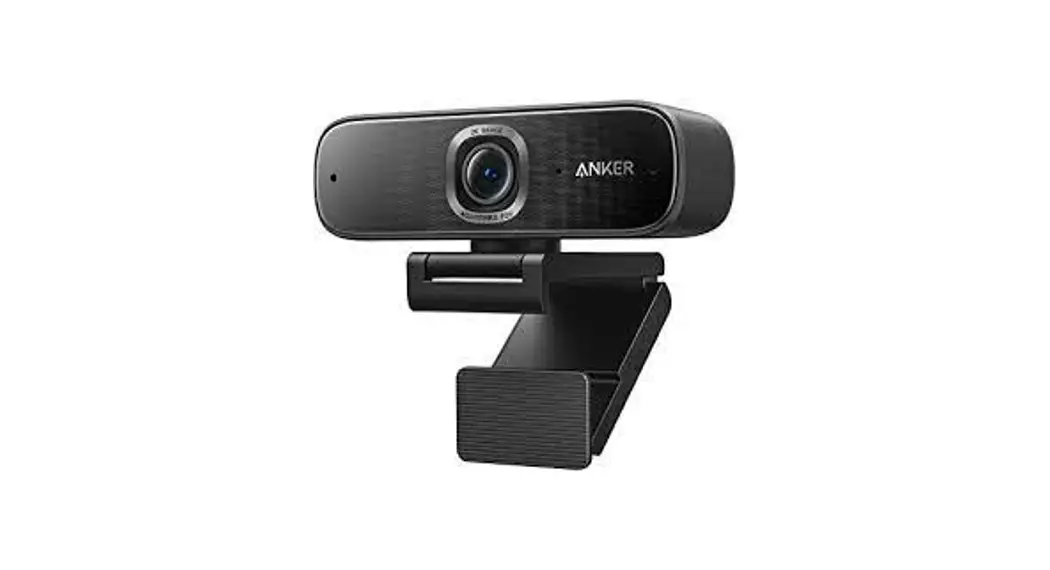

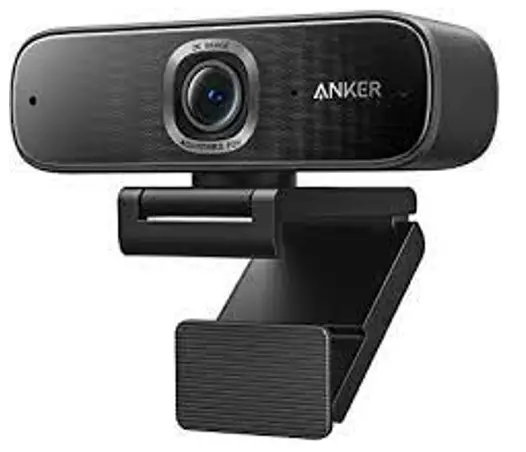
Anker PowerConf C302
USER MANUAL
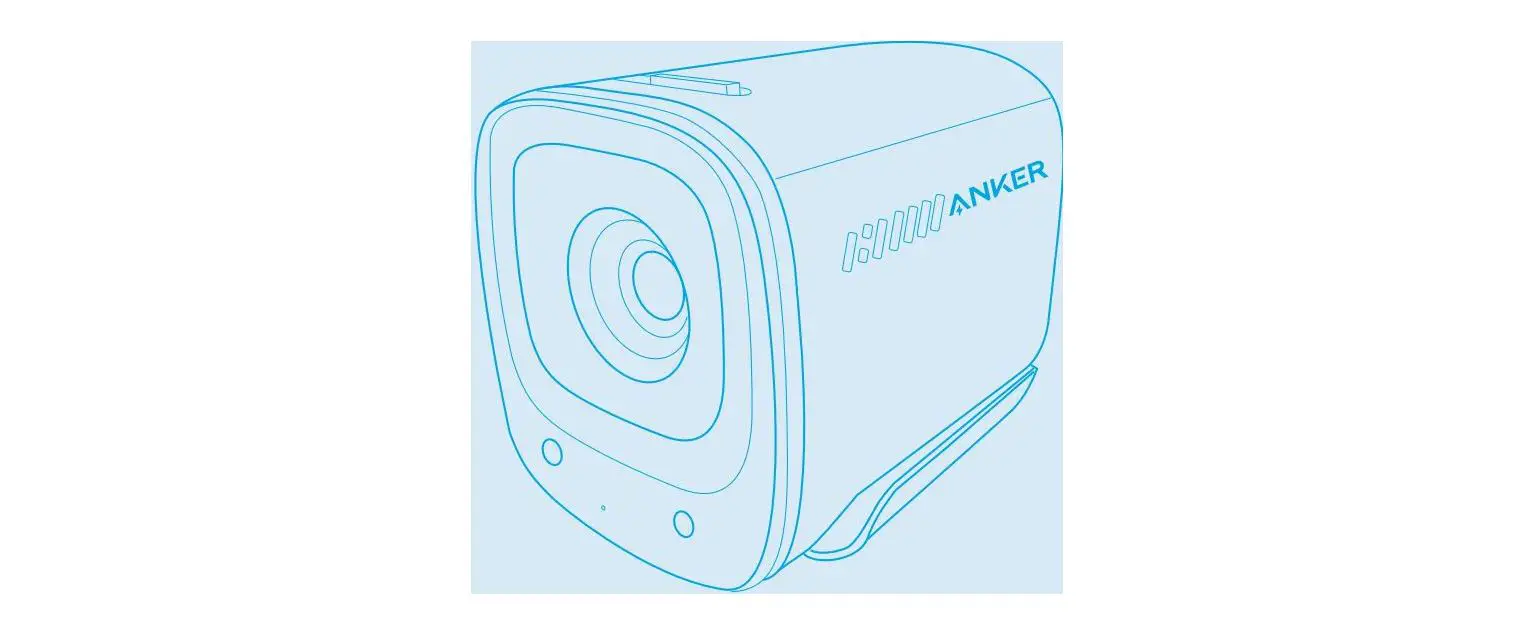
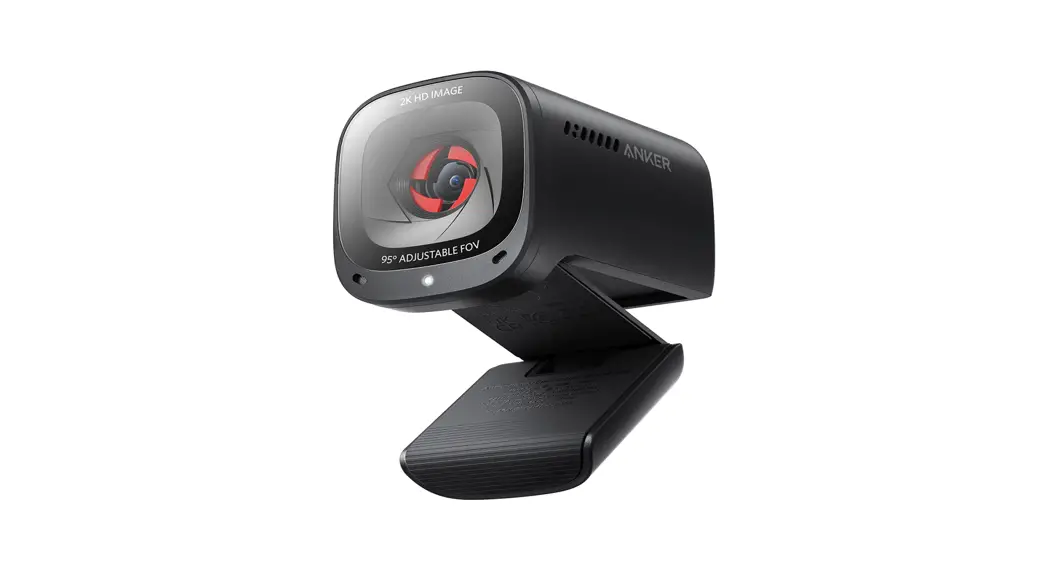
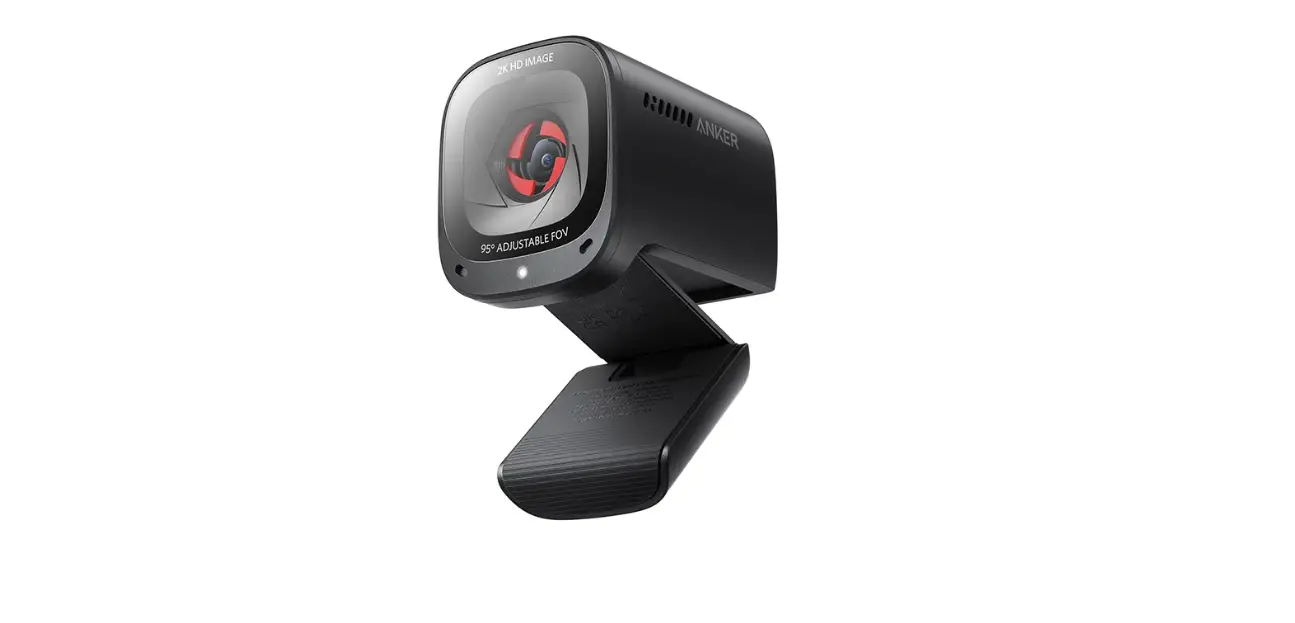
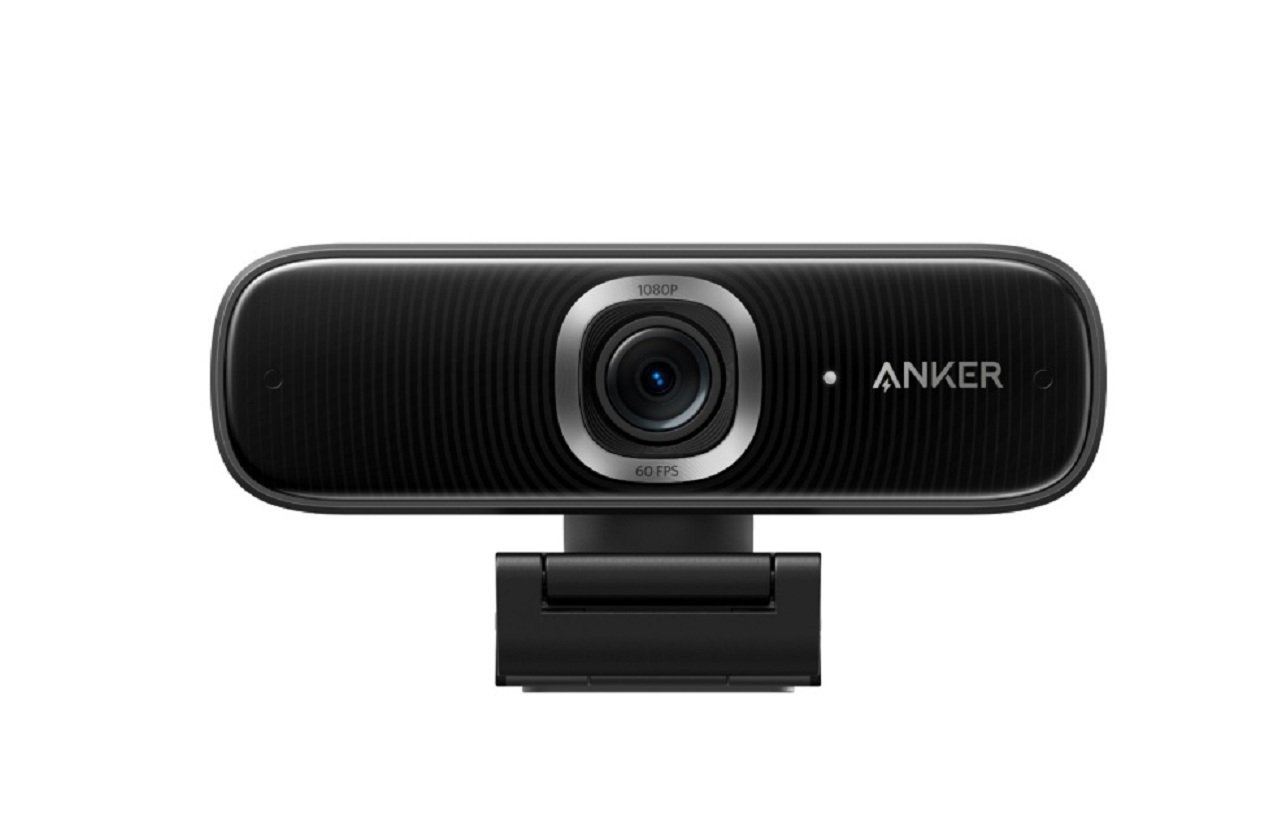
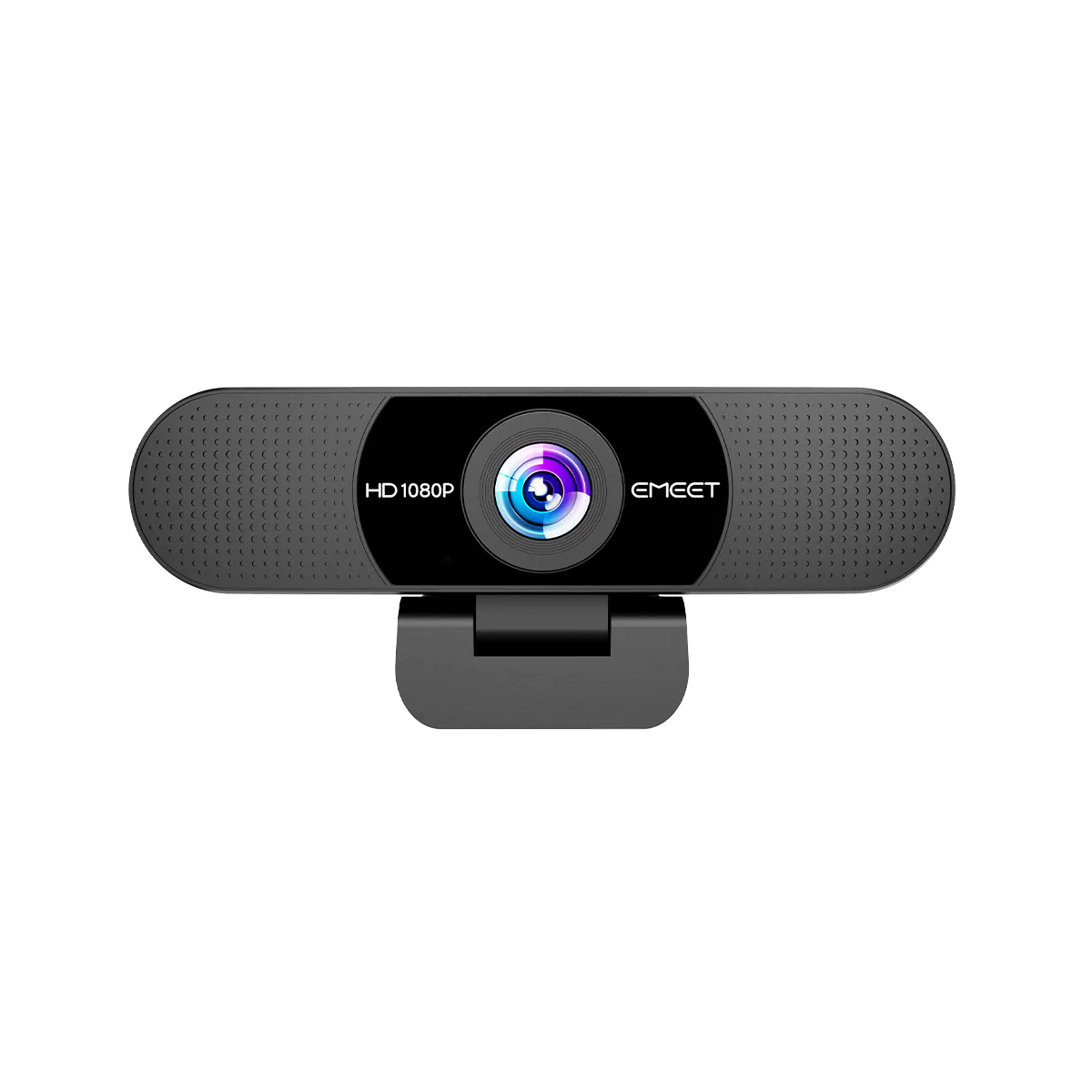
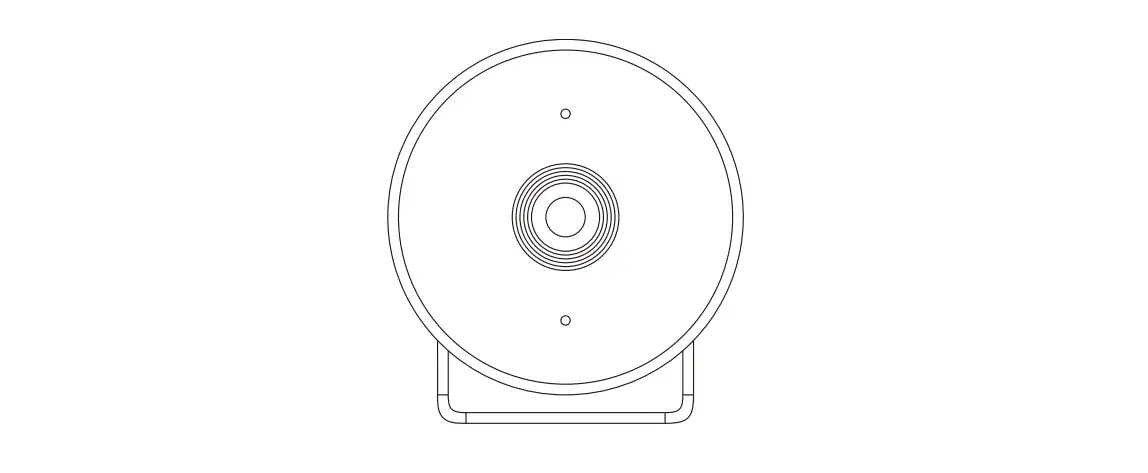
At a Glance
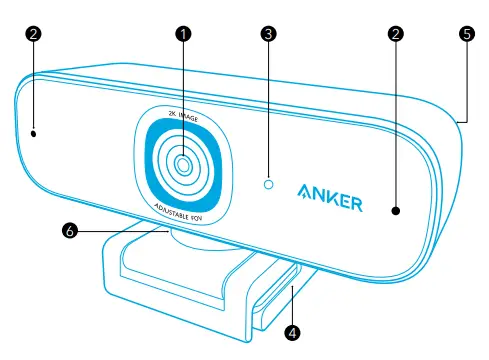
- Autofocus 2K full HD lens
- Microphones
- LED light
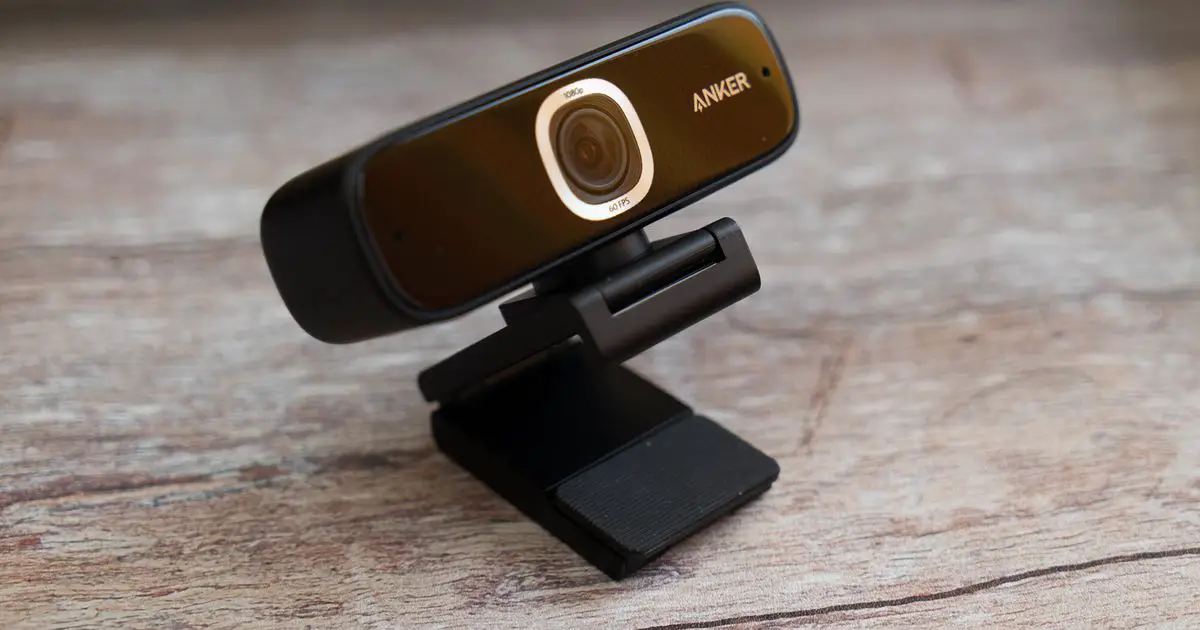
- Adjustable clip/stand
- USB-C port
- Tripod thread (Tripod not provided)
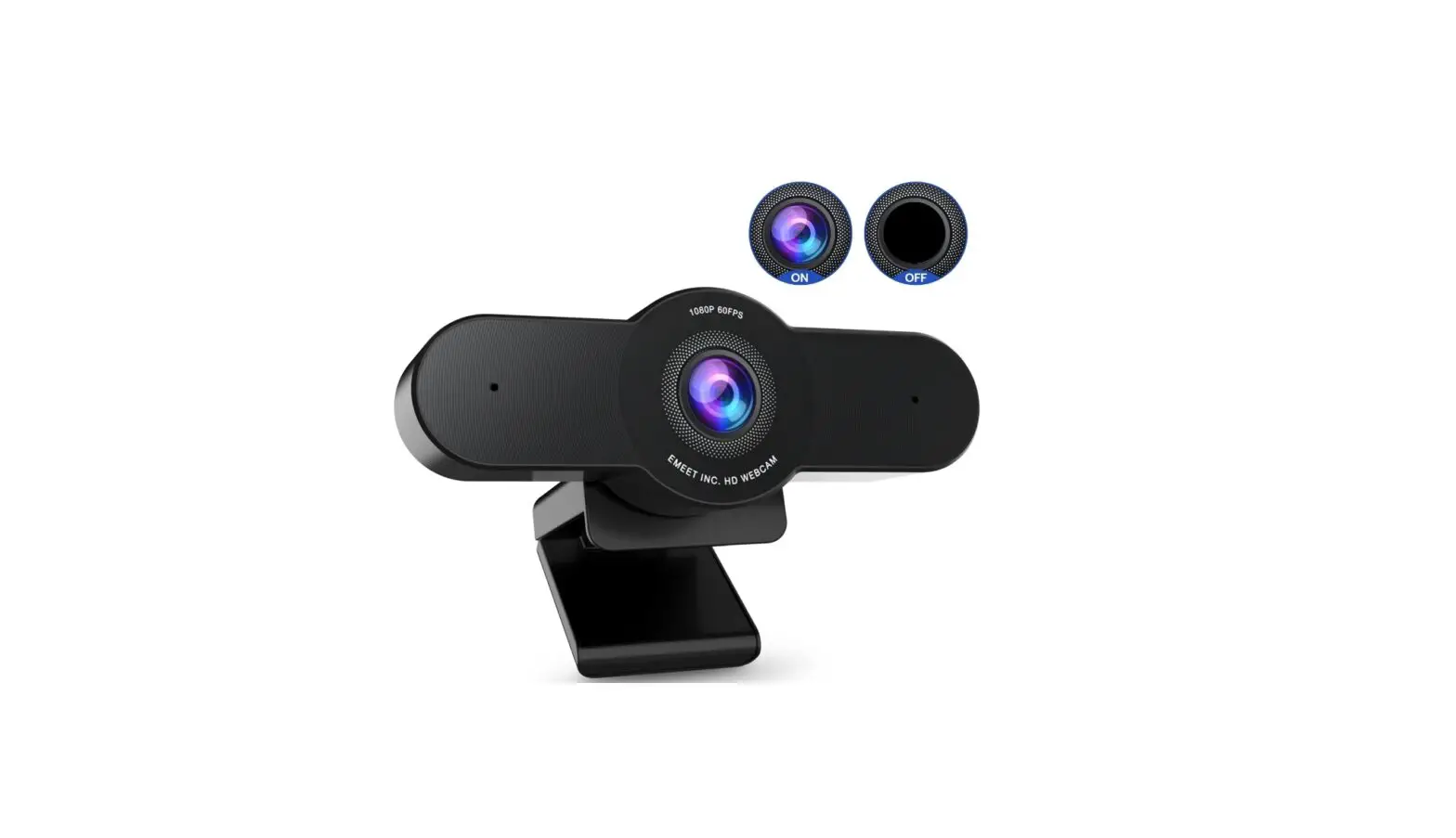
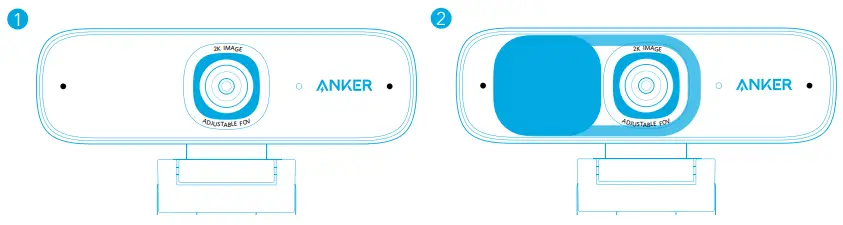
Installing the Privacy Cover
Your webcam comes with two pieces of privacy cover. With the privacy cover installed, you can easily slide to cover the lens when in need.
- Remove the protection film from the back of the privacy cover.
- Install the privacy cover on the front panel, making sure the cover is overlapped with the lens to avoid covering the microphones and LED light.
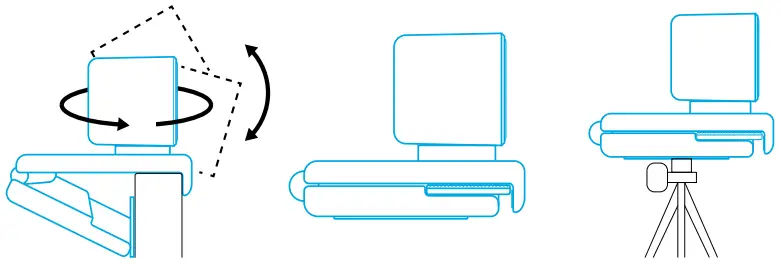
Setting Up the Webcam
Option A: Mounting on a Monitor/Laptop
- Unfold the clip so it fits over the top of your monitor or laptop screen. For a secure fit, adjust the clip by pressing it against the back of your device.
- Adjust up and down or rotate the webcam to the optimal position to frame.
Option B: Placing on Desktop
Fold in the clip so it forms a flat surface, and place it on a flat desktop.
Option C: Mounting on a Tripod
With the clip folded in, mount the webcam onto a tripod (not provided) with the ¼-inch thread.
Connecting to Computer
- Plug the USB-C connector of the provided USB-C cable into the USB-C port of the webcam.
- Plug the USB connector into an available port on your computer.
 Plug-and-play support will let your computer instantly recognize the webcam. If your computer does not instantly recognize the webcam, try plugging into a different USB port or restart the computer.
- Open the app you want to use with the webcam. The LED light will light up when the webcam is in use by an app.
 Plug-and-play support will let your computer instantly recognize the webcam.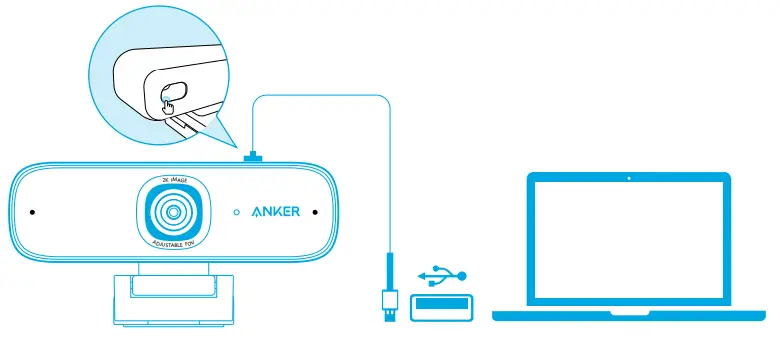
 You may need to select this webcam and its built-in microphones in the settings of the specific app you’re using.
A) Windows System
- Go to Settings > Privacy > Camera and turn on “Let apps use my camera”.
- Turn on each of the listed apps where you want to use the camera. After you open the Camera app, you may need to switch to the Full HD Camera.
B) macOS
- Go to the Apple menu > System Preferences > Security & Privacy, then choose Camera from the left side list.
- Locate the app(s) you want to enable camera access for and check the box alongside that app name to enable camera access for that application.
C) Software (Zoom or more)
Go to Settings > Video > Camera and choose this webcam.
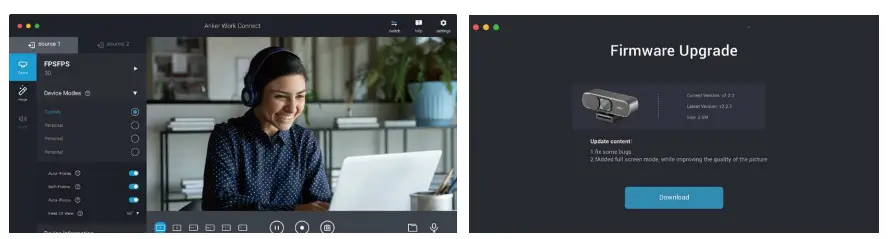
Using AnkerWork Software
Download the AnkerWork Software from
software.ankerwork.com
Specifications
Specifications are subject to change without notice.
| Input | 5V  1A 1A |
| Resolution | 2K@30fps; 1080P@30fps; 720P@30fps; 320×240@30fps |
| Field of View (FOV) | 78°-115° |
| Focus Type | Automatic focus |
| Sensor | 5 MP CMOS (1/2.7 in.) |
| Focus Distance | 15cm to 3m |
| Maximum Video Frame Rate | 2K video capture @ 30fps |
| Video Codec | H264. MJPEG |
| Supported Operating Systems or Software | Windows® 7 or later; macOS® 10.11 or later; Skype for Business; Zoom; Google Meet; BlueJeans; Cisco Webex; WeChat; Microsoft Teams; FaceTime; YouTube; XSplit; OBS; Twitch; Facebook Messenger; Twitter; Mixer |
| Microphone | Dual stereo microphones |
| Voice Algorithm | AGC (Auto Gain Control), ANC (Auto Noise Cancellation) |
| Voice Pickup Distance | 3m |
 AnkerWork Software Download Center