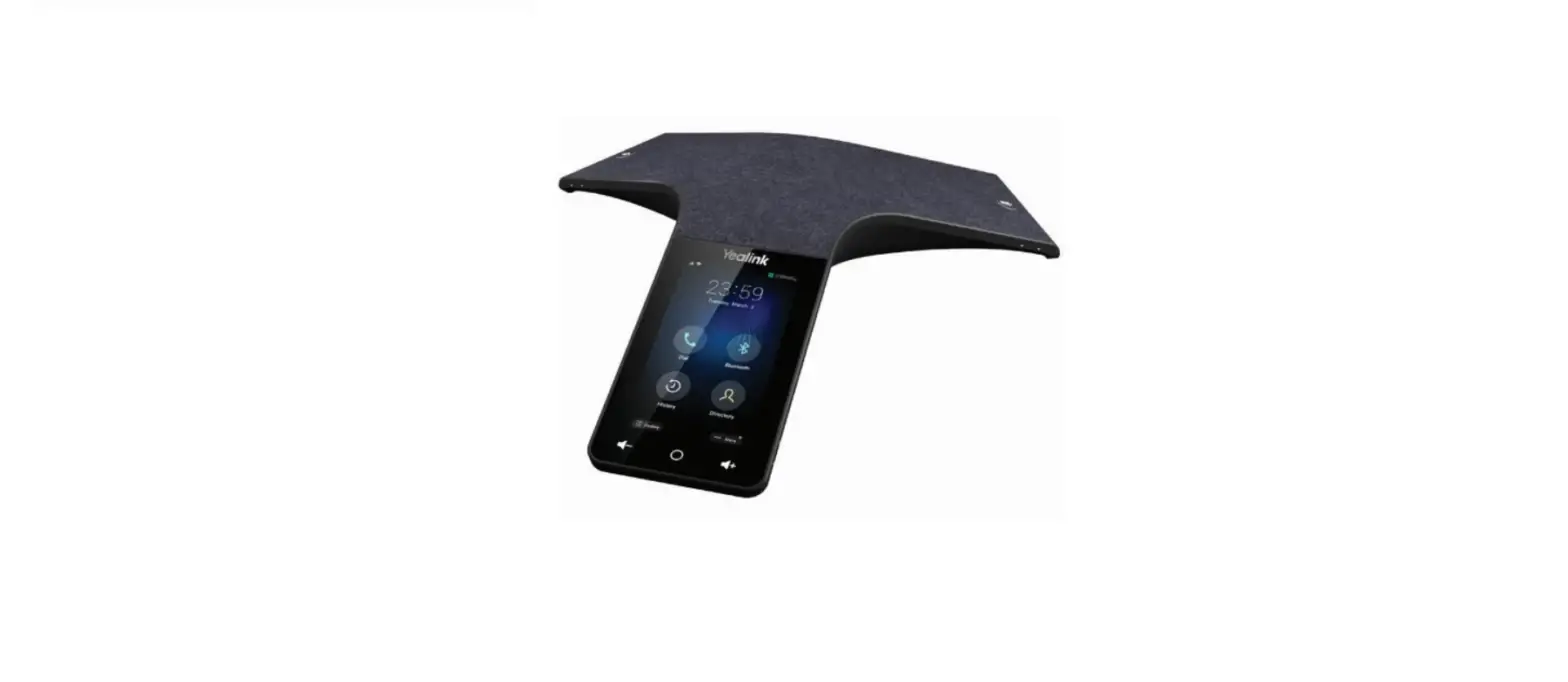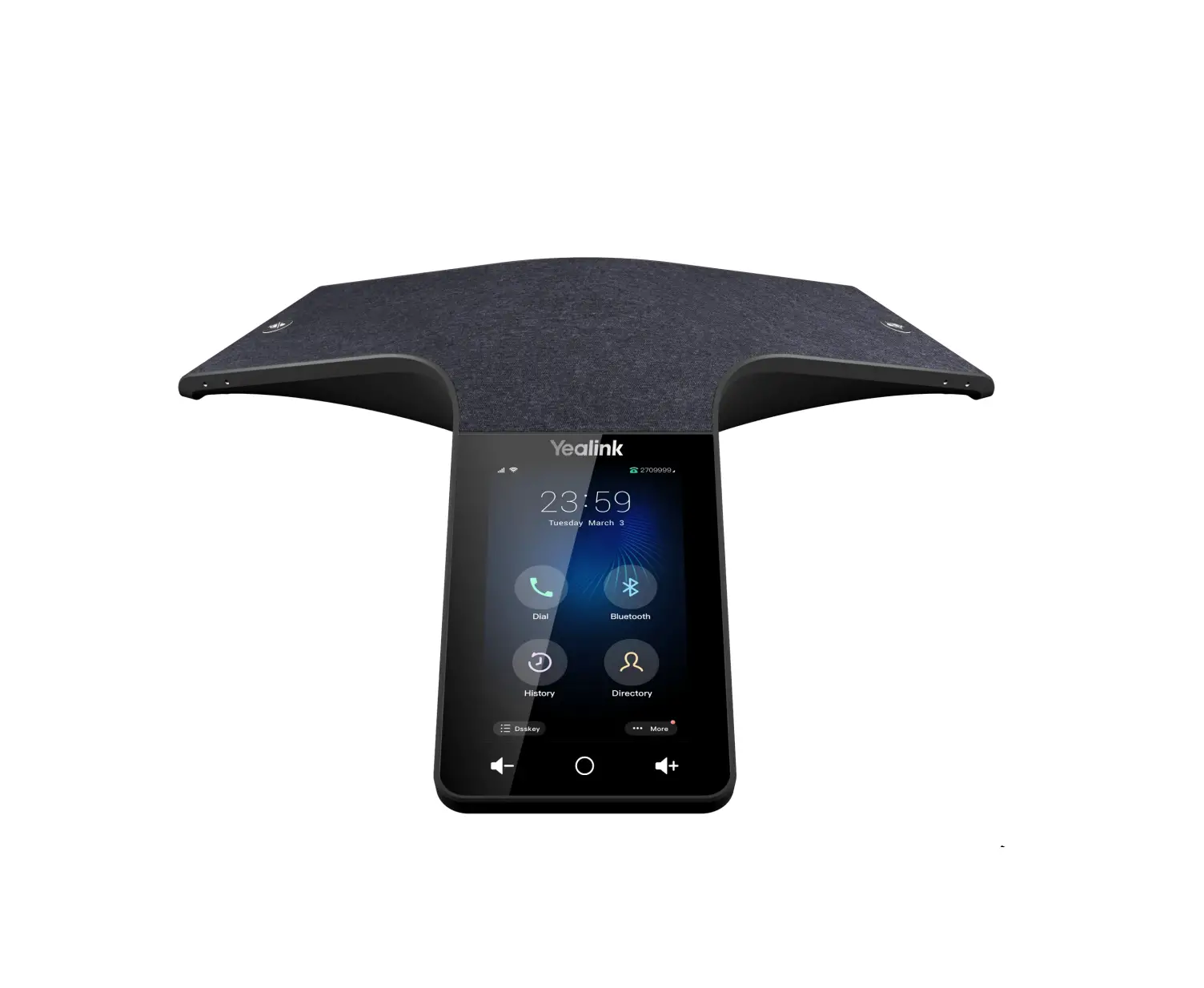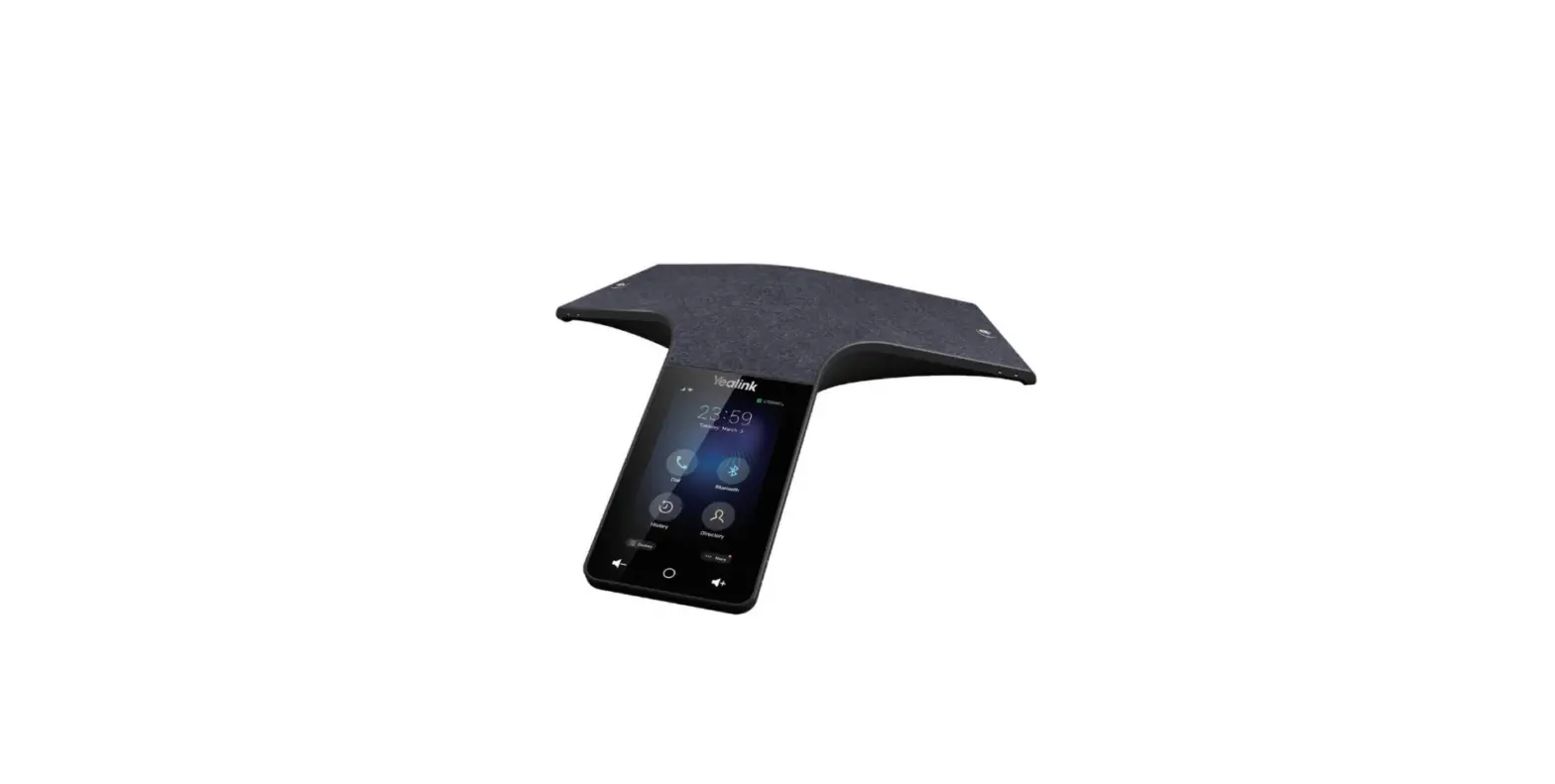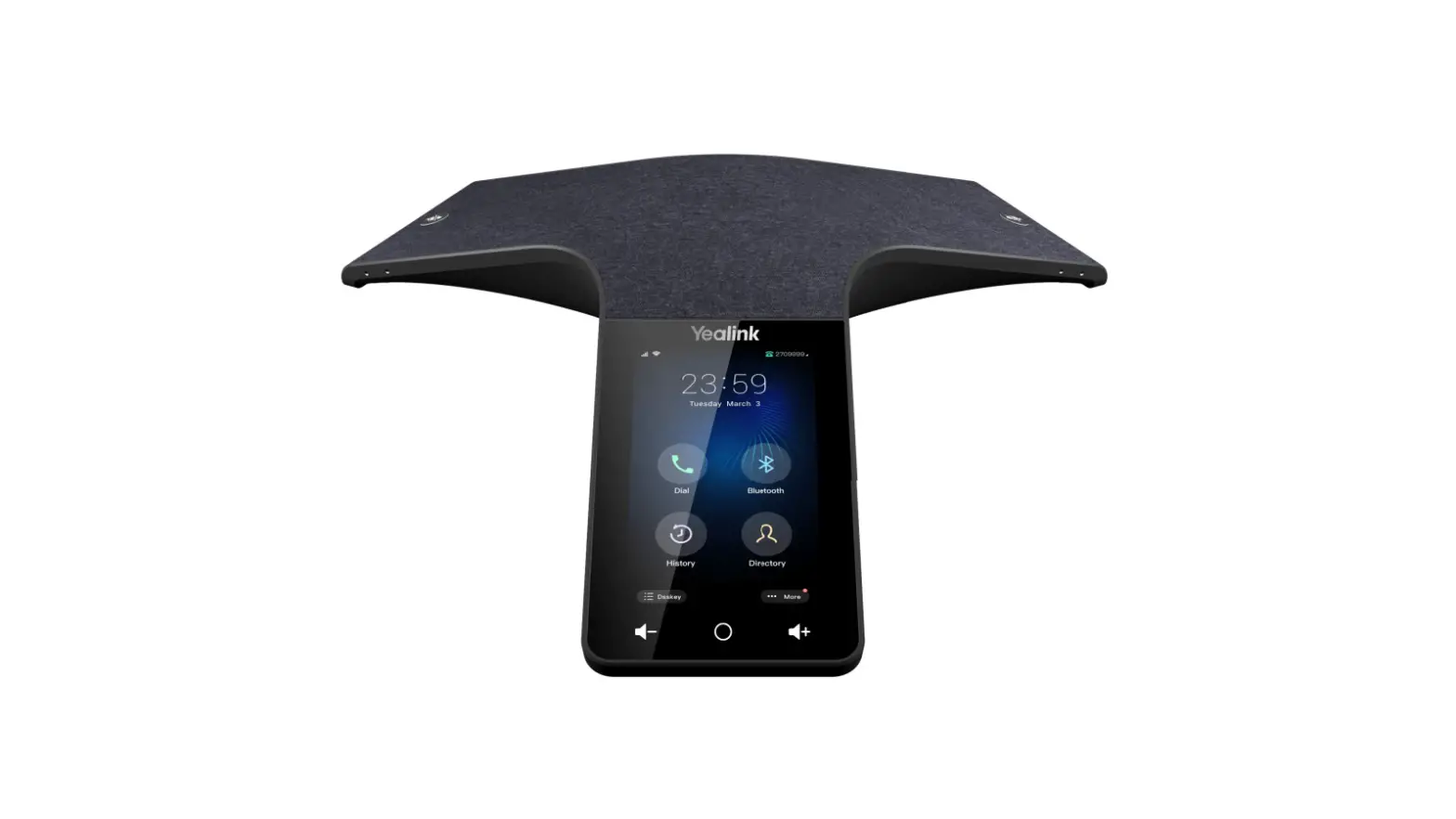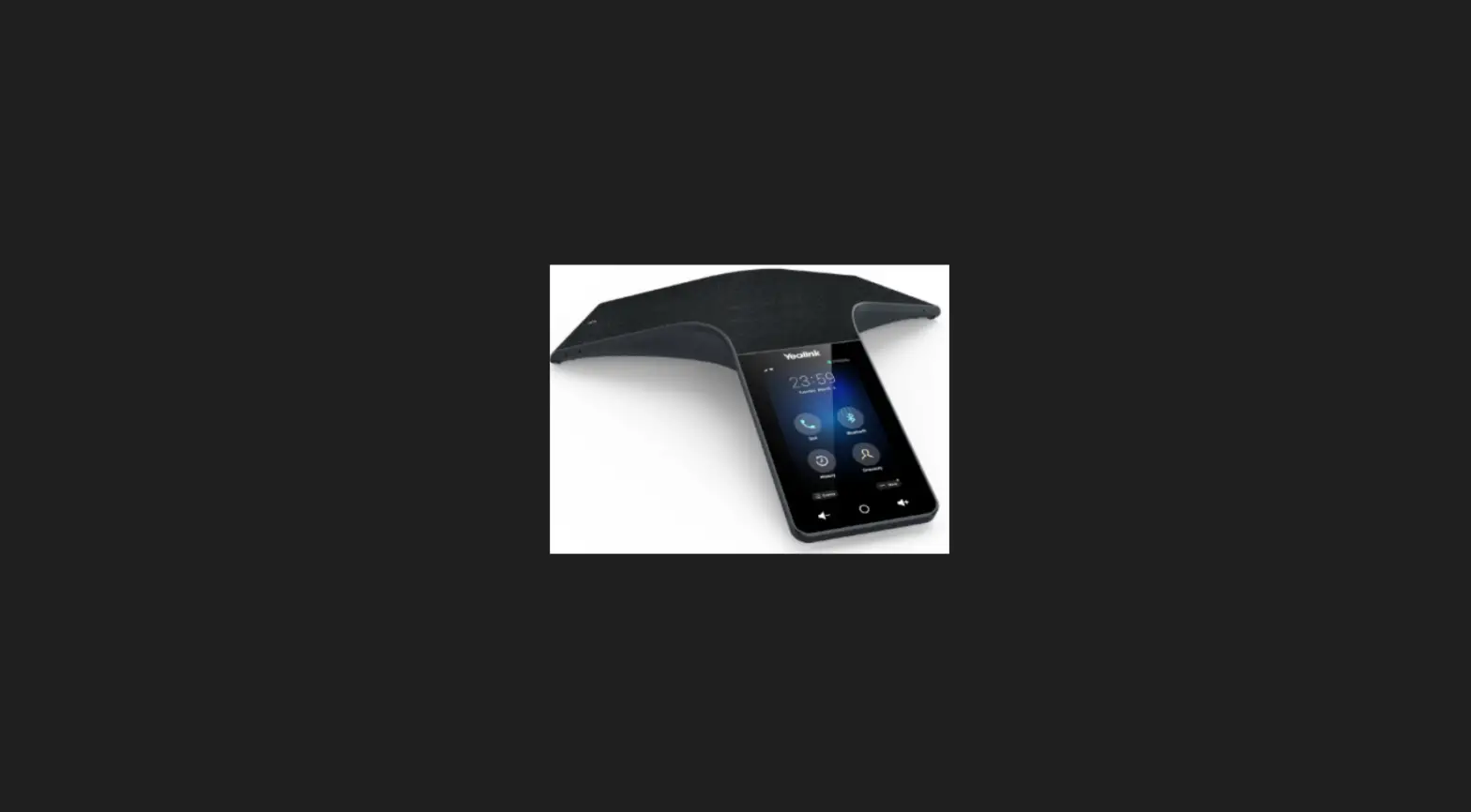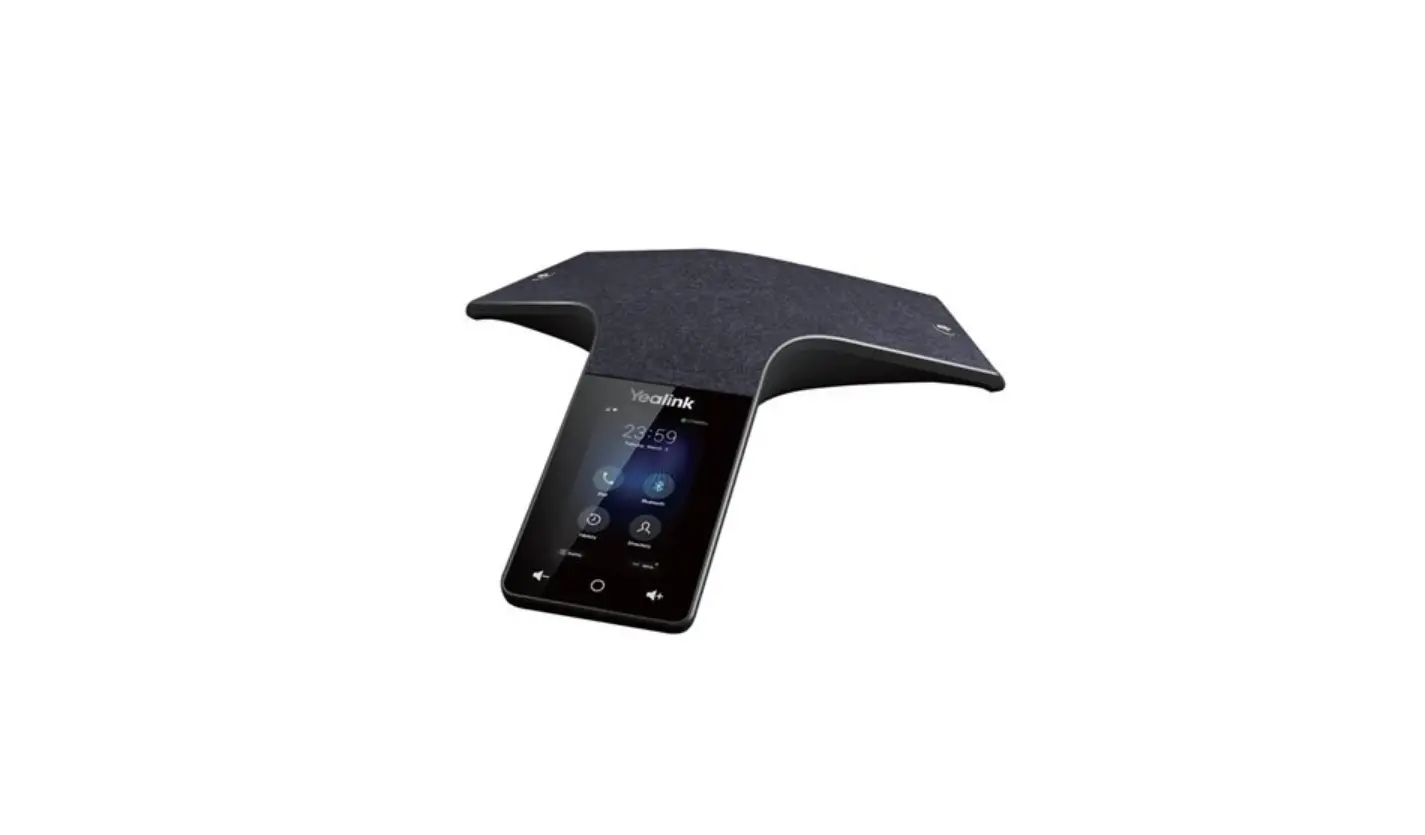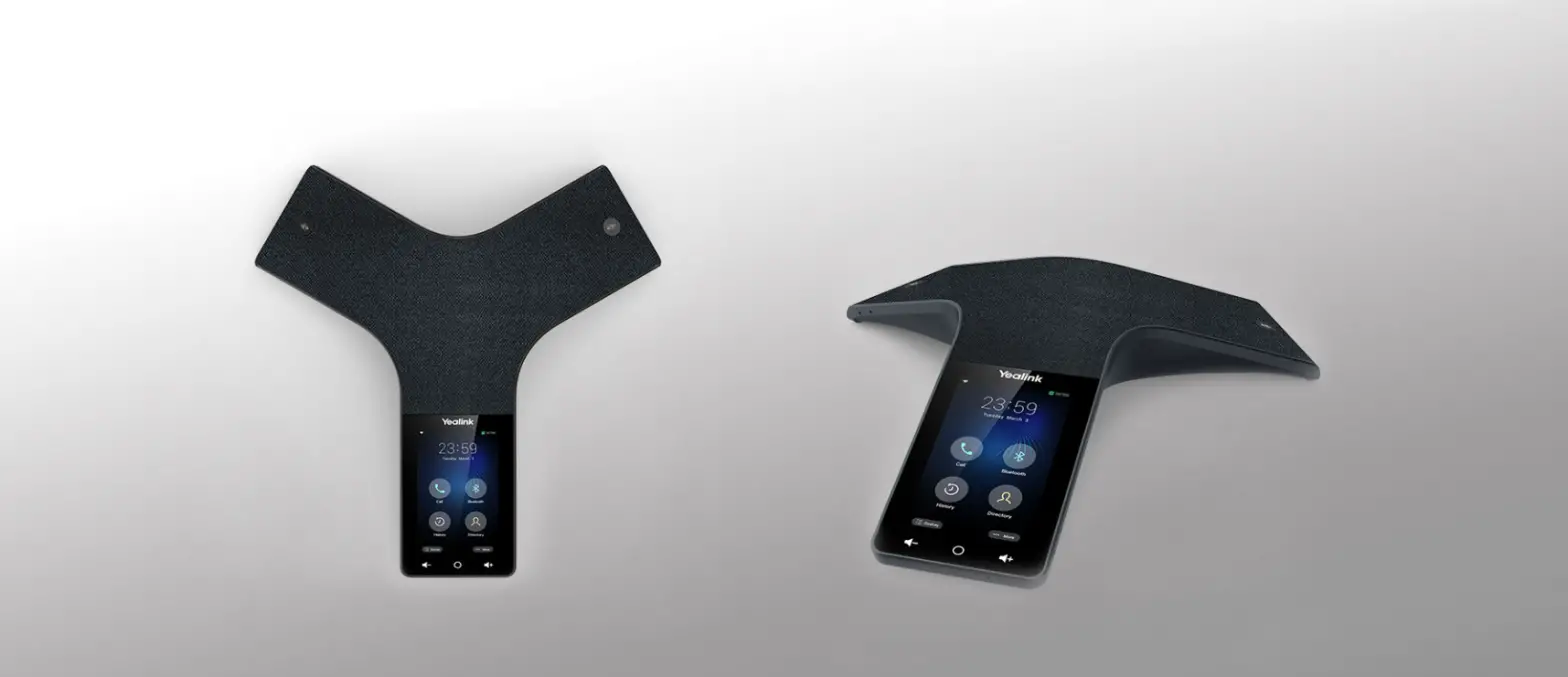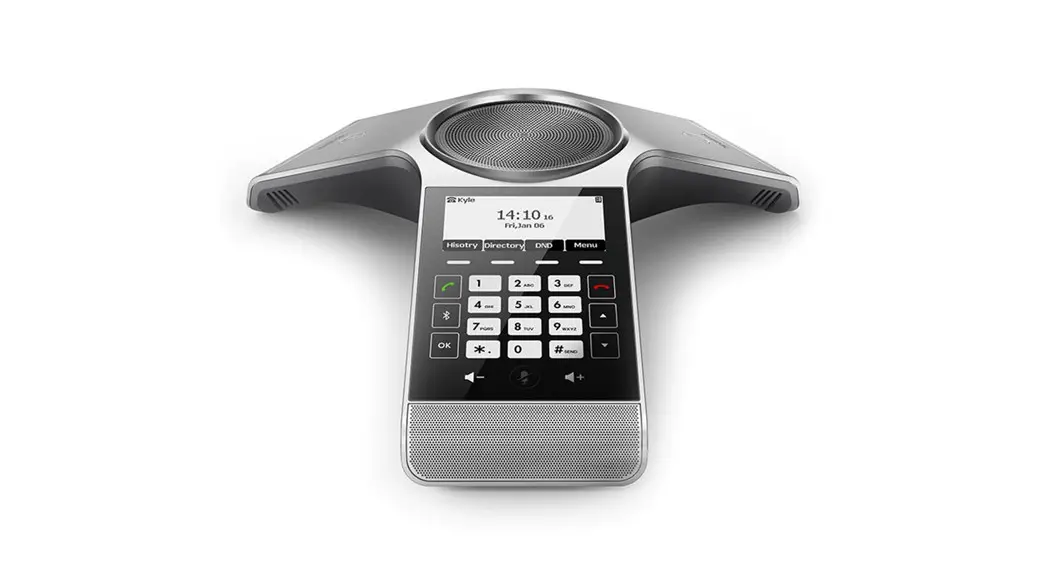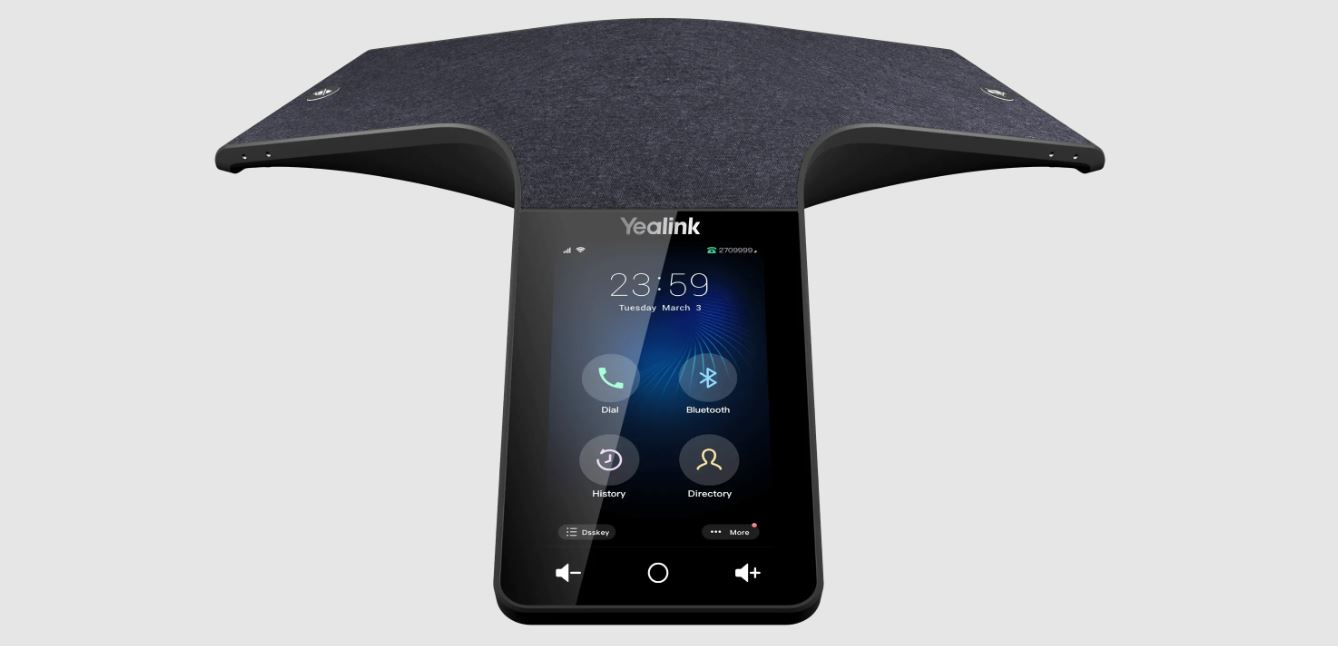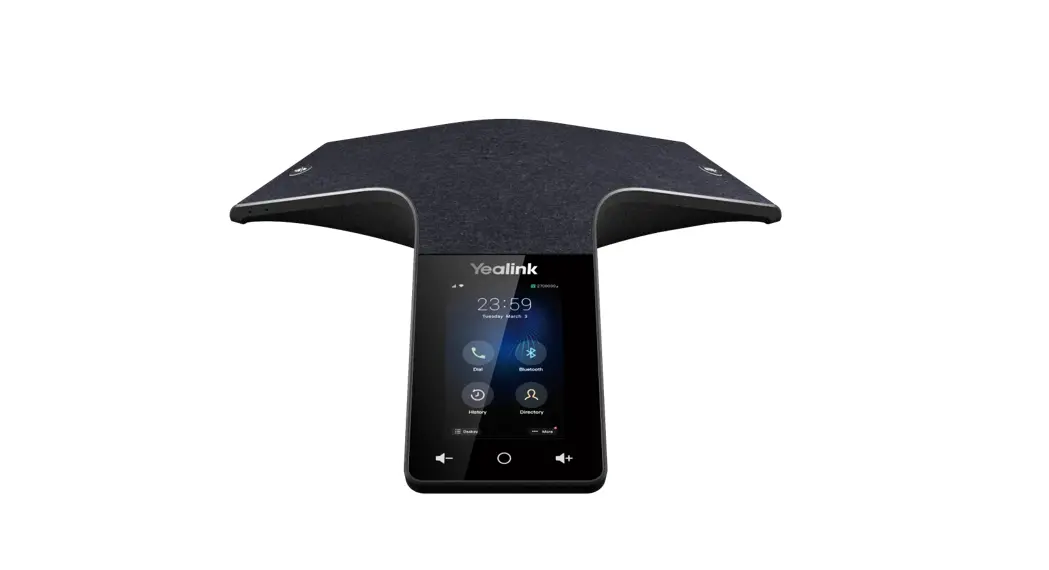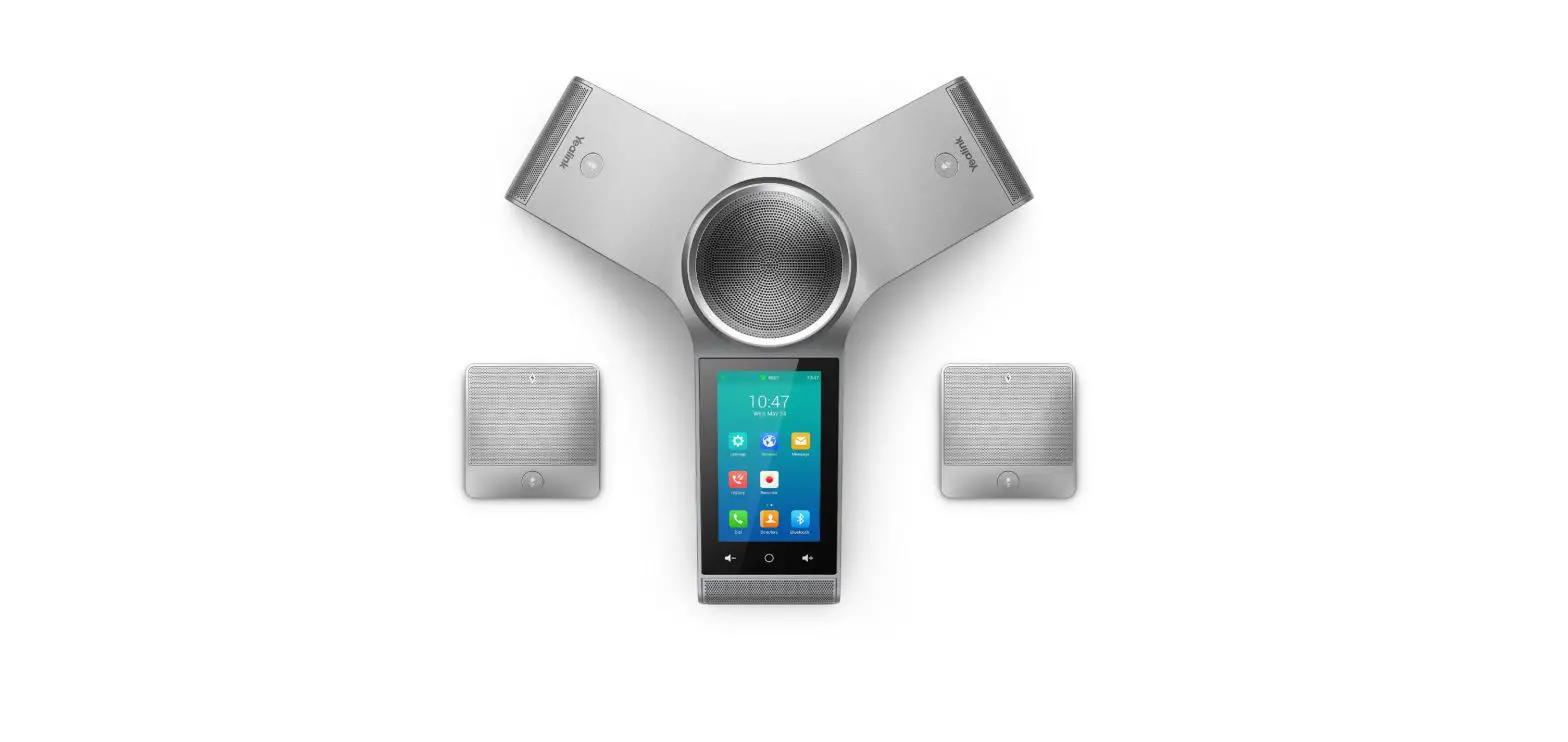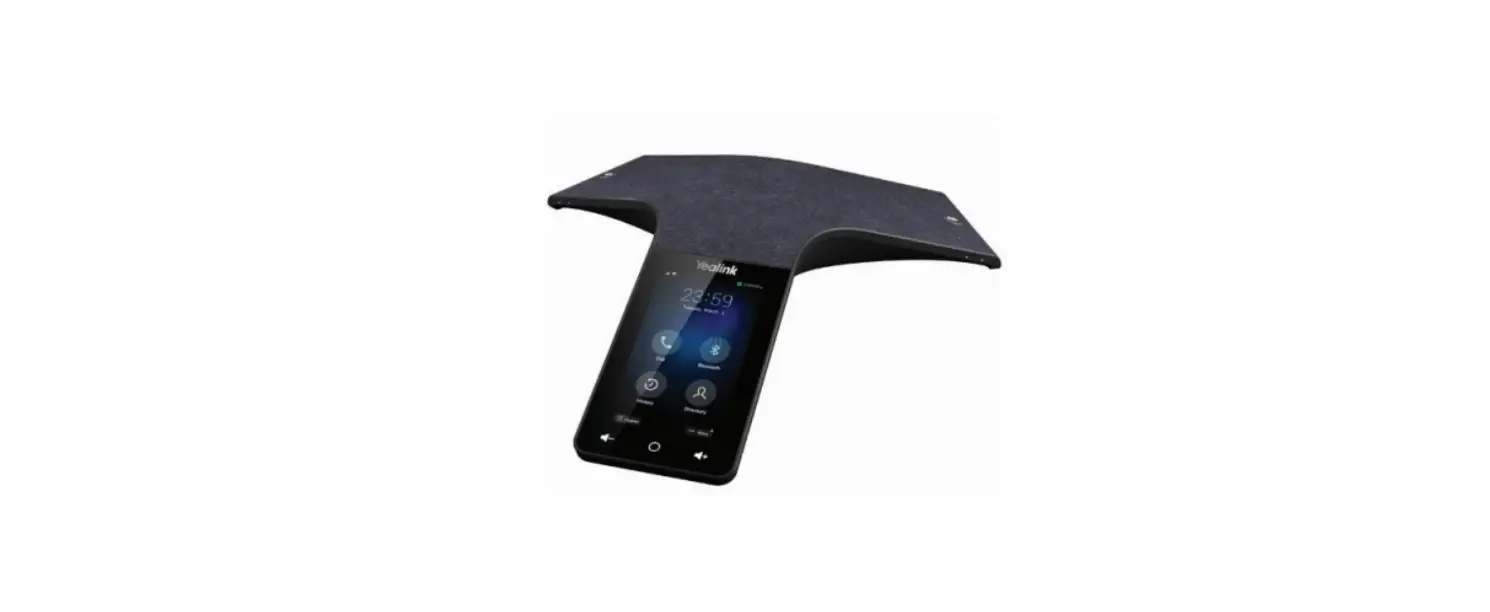

Telesystem CP965 Flashship Yealink Conference Phone

Product Overview
Available features may vary. A particular feature set is based on the original order and the system administrator’s requests for each deployment. Please contact your system administrator or telesystem directly to discuss any additions to the system. 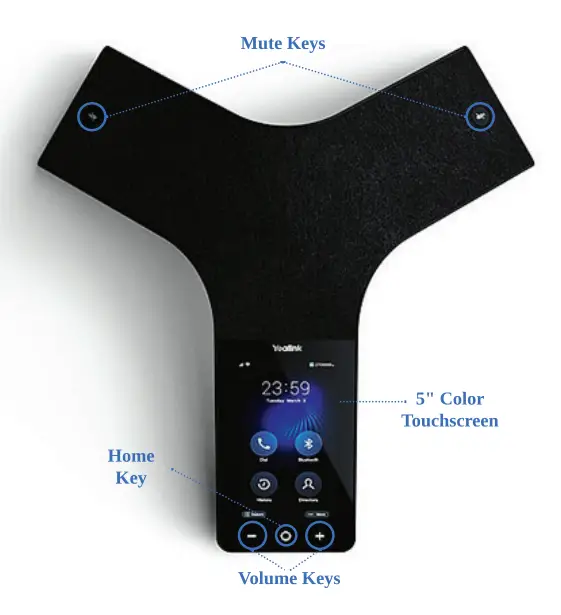
Call Handling Basics
Place a call
- From the Calls screen, tap

- Enter the contact number
- Tap



Answering a Call
- Tapon the touch screen
Answering a Call When in a Call
- Tapon the touch screen
- The active call is placed on hold, and the incoming call becomes active
Placing a Call on Hold
- During a call, tap
 > Place call on hold
 - Tap Resume to continue call
 > Place call on hold
Muting and Unmuting Audio
- During a call, tap the mute key on the phone or tap
 on the touch screen. The Mute key glows red.
 - To unmute audio, tap the mute key on the phone or tap
 on the touch screen. The Mute key turns green
 on the touch screen. The Mute key glows red.
 on the touch screen. The Mute key turns green
End a Call
- Tap


Advanced Call Handling
Transferring a call
You can transfer calls to other contacts immediately without consulting wi1h them first
- During a call, tap > Transfer > Transfer now The call is placed on hold
- Select the desired contact or search for a contact The call is then connected to the number you selected
- Tap the key to ending the call or when the other party picks up, it will end automatically
Forwarding calls
You can set up your phone to forward all incoming calls to contact or number
- Tap the icon in the top-right corner of the screen, then go to
Settings > calling - Enable call forwarding
- Tap the Forward to the field and then select Contact or number can Merge You can merge the active call, and the held calls on your phone
- You can merge the active call, and the held calls on your phone
- During a call, tap > Merge with xx (xx refers to the contact name)
- Note: If multiple calls are on hold, you can choose one to merge
Tel: 1.888.808.6111
Email: www.telesystem.us
 Home
Home