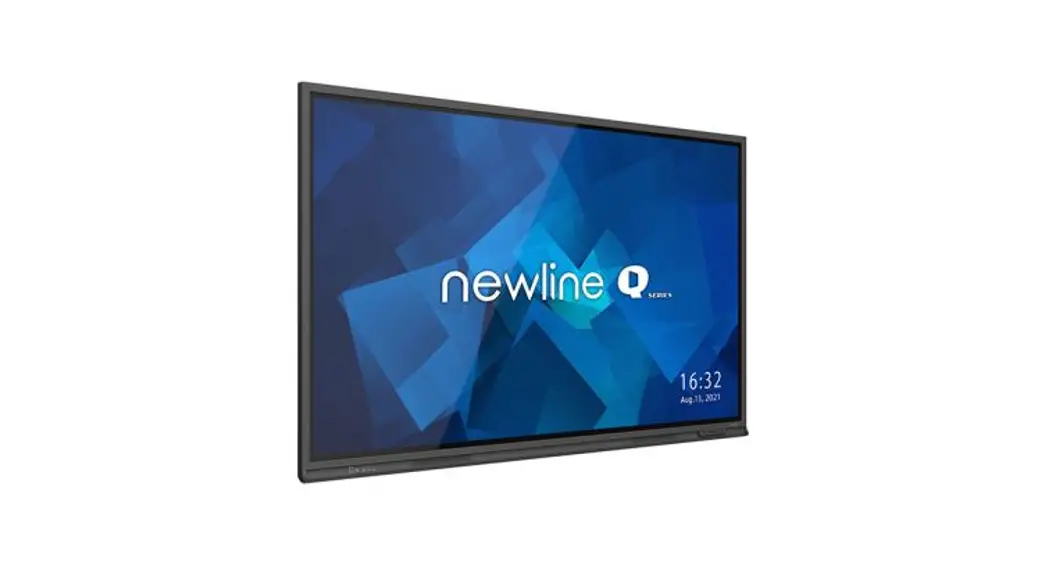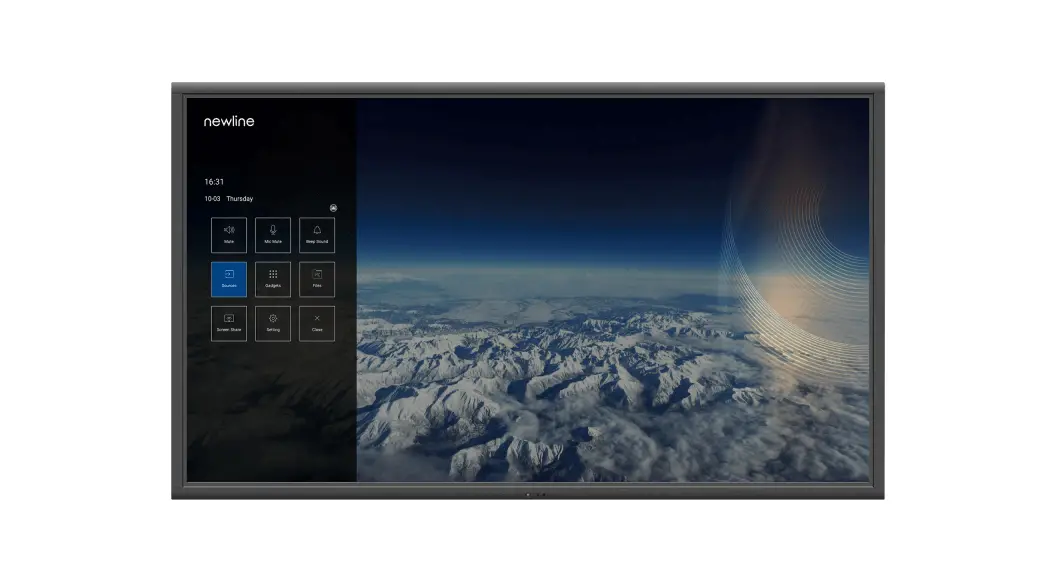
 NT Series Non-Touch Display
User Guide
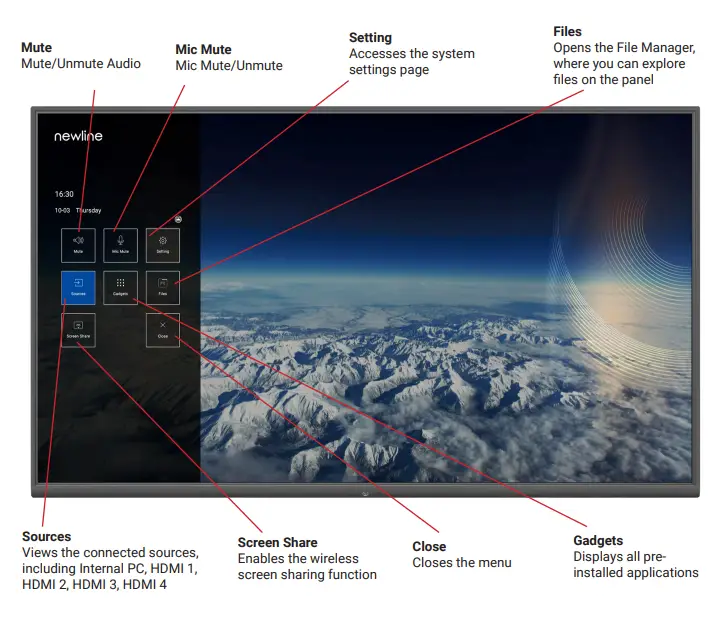
Using the Remote
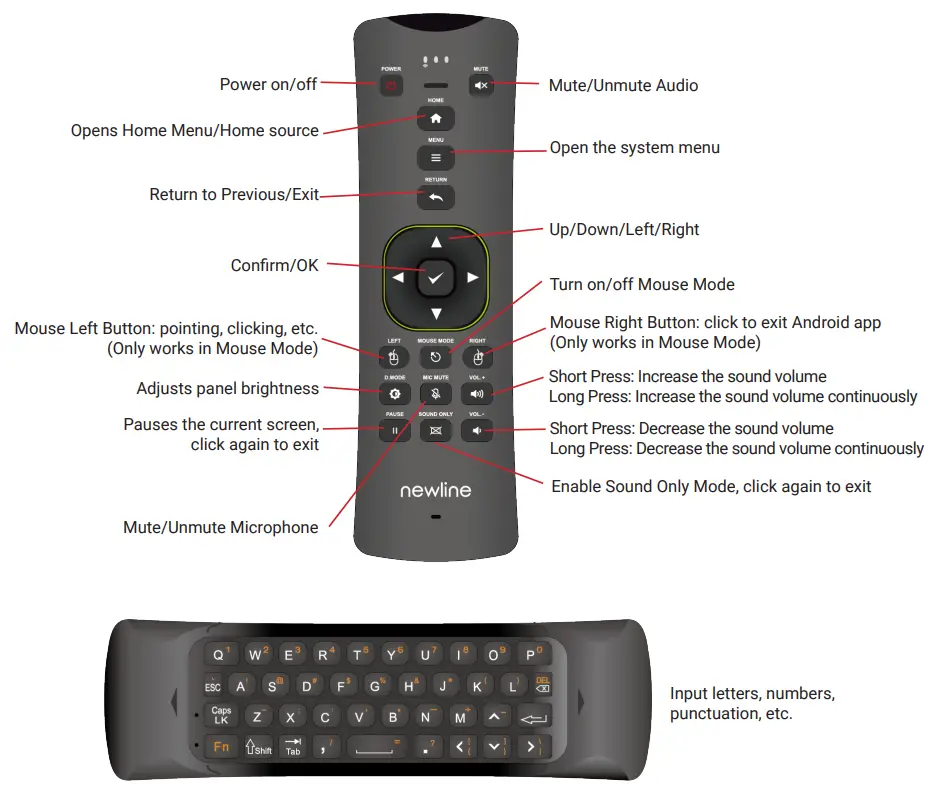
Using Newline Cast
Connecting to Newline Cast
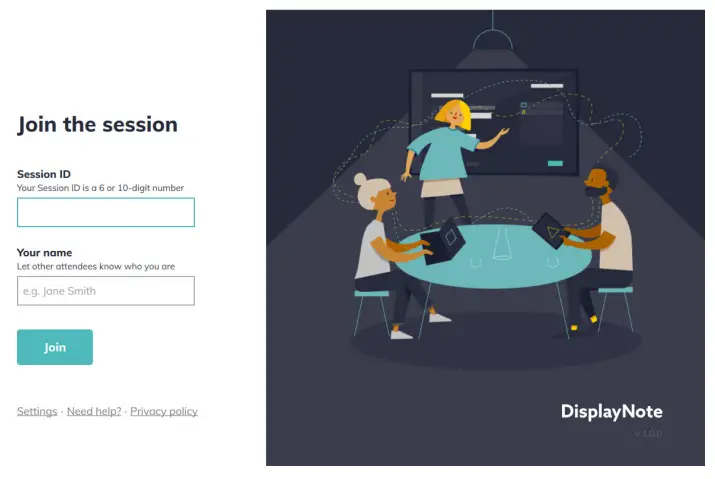
Using the DisplayNote Windows App
- Open the Newline Cast app on your display
- Download the DisplayNote Windows App from displaynote.com/join on your laptop

- Open the DisplayNote app on your laptop
- Type in the Session ID you see on the display and your name
- Select “Join” once both Session ID and Names are filled in

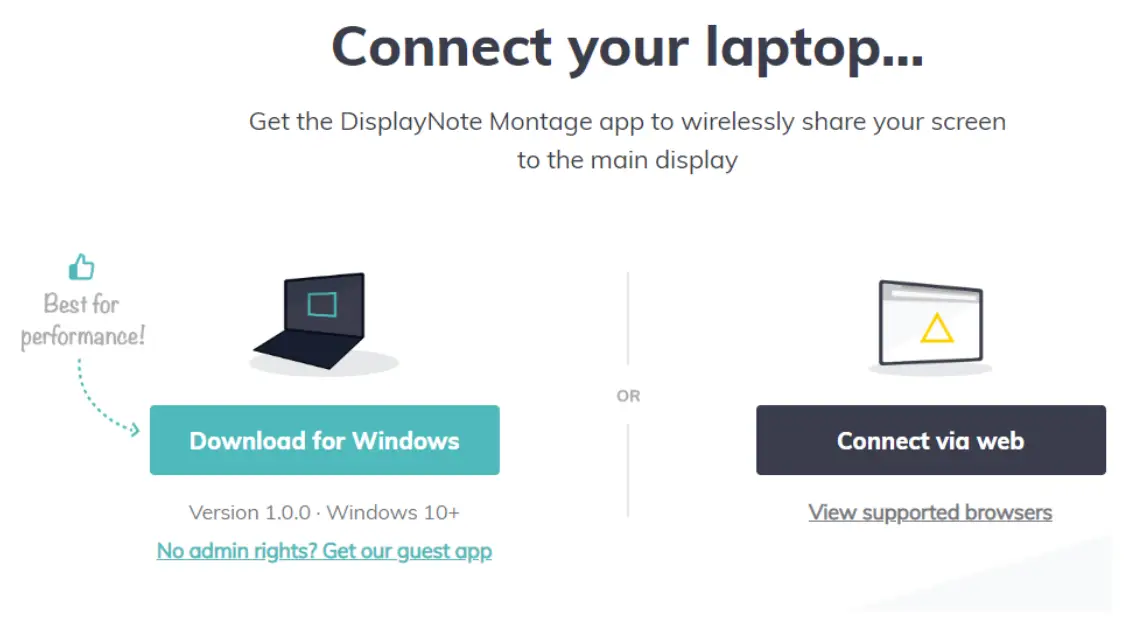
Connecting to Newline Cast From a Web Browser
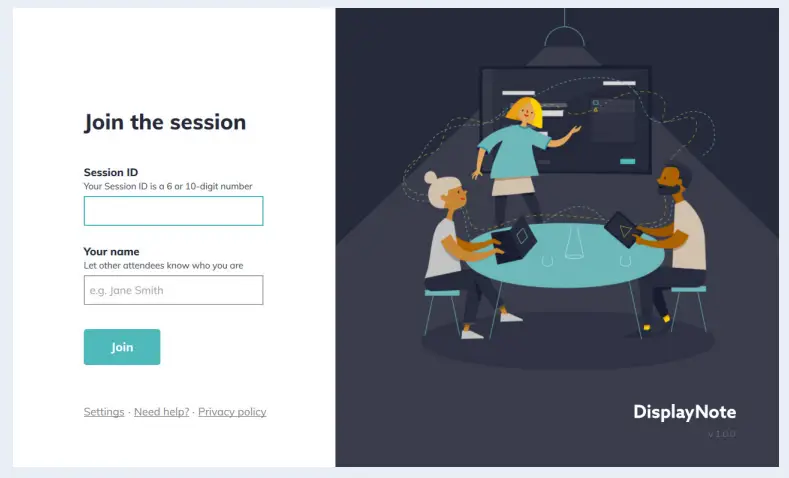
- Open the Newline Cast app on your display
- Visit www.displaynote.com/join on your laptop and select “Connect via web”
- Type in the Session ID you see on the display and your name
- Select “Join” once both Session ID and Names are filled in

- When asked, select whether you want to share your entire screen, or just a specific application window
- Click “Share”
Connecting to Newline Cast with the Google Chrome Browser Extension
- Open the Newline Cast app on your display
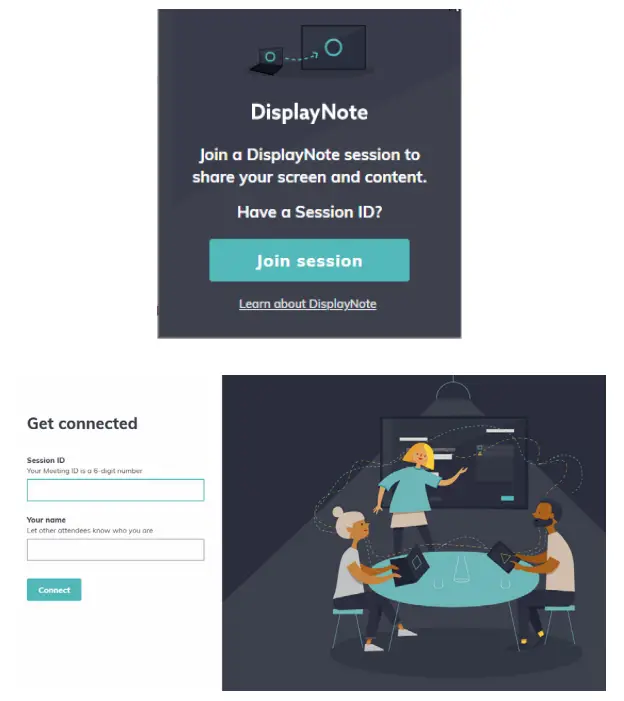
- Visit the Google Chrome Store and search Extensions for the DisplayNote Extension
- Select “Add to Chrome”

- Click the DisplayNote Extension and select “Join session”
- Type in the Session ID you see on the display and your name
- Select “Join”

- When asked, select whether you want to share your entire screen or just a specific application window
- Click “Share”

Connecting to Newline Cast From an Android Device
- Open the Newline Cast app on your display
- Make sure your Android is connected to the Internet
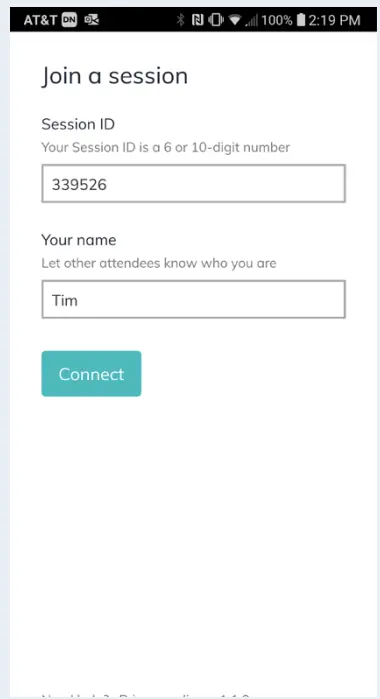
- Open the DisplayNote app on your Android device
- Enter the Session ID you see on the display and your name
- Click “Connect”

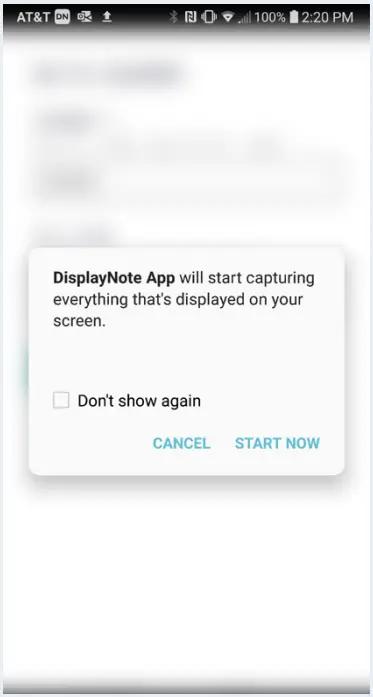
- When asked, select whether you want to share your entire screen or just a specific application window
- Click “Start Now”

Connecting to Newline Cast from an iOS Device using the DisplayNote App
- Open the Newline Cast app on your display
- Make sure your iOS device is connected to the Internet
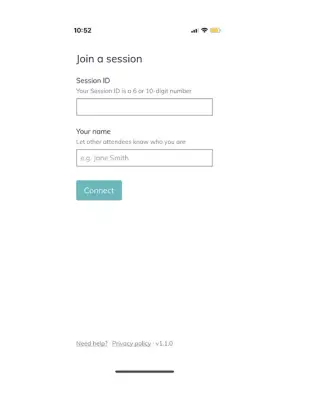
- Open the DisplayNote app on your iOS device
- Enter the Session ID you see on the display and your name
- Tap “Connect”

Connecting to Newline Cast from an iOS Device using AirPlay
- Open the Newline Cast app on your display
- Connect your iOS device to the same WiFi network as the display
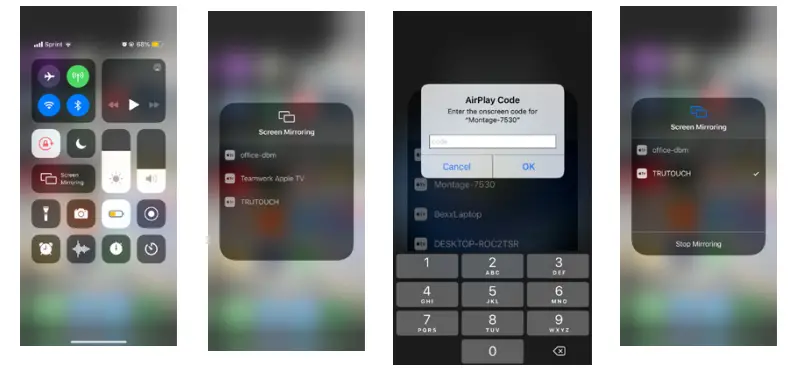
- Select Screen Mirroring on your iOS device
- Find and tap the name of the display in the Available Devices list
- In the pop-up window, enter the Session ID you see on the display
- Tap “Ok”

 DisplayNote
 DisplayNote