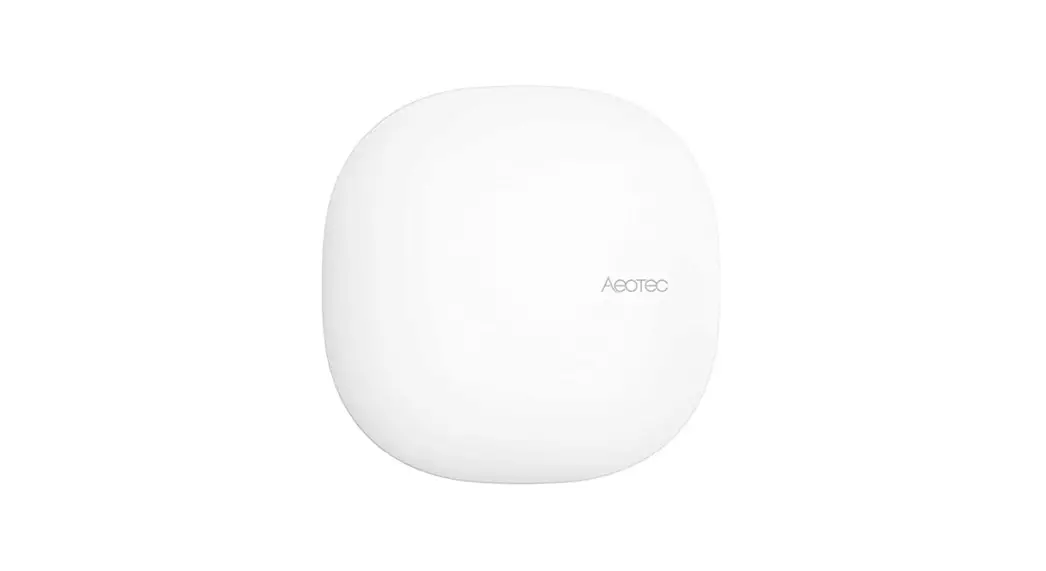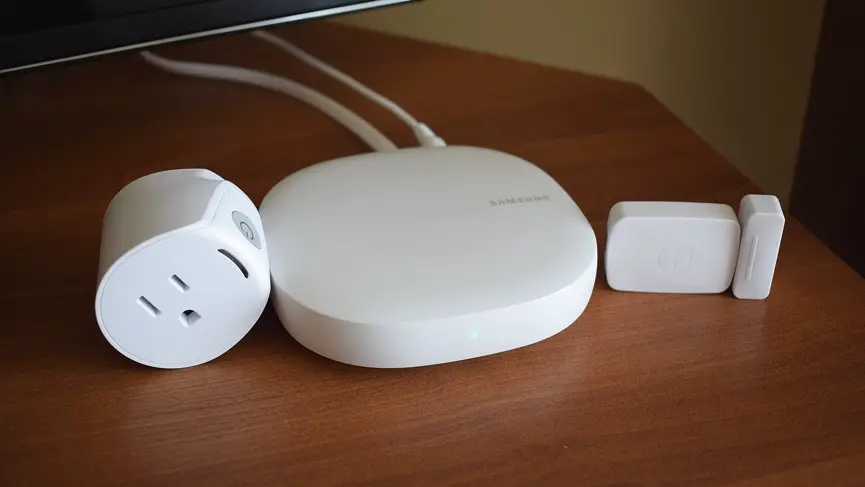

DELTA DORE Smart Hub Tydom Home
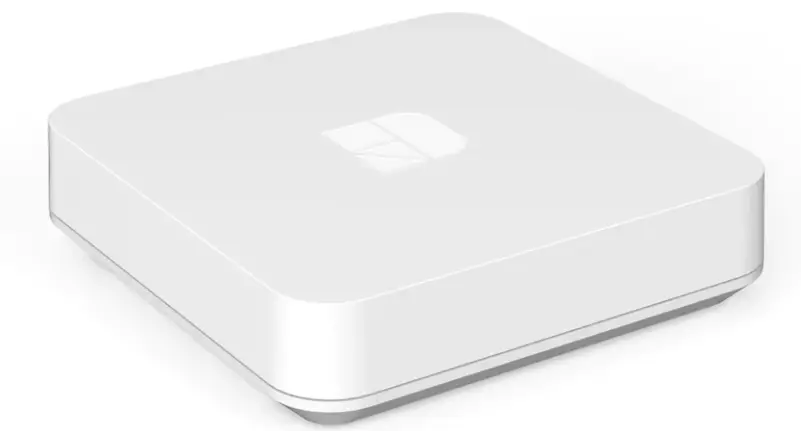
Smart home hub

The connection quality of the product may be affected by different modifications of the IP architecture on which it operates.
These modifications can be, but are not limited to, a change of hardware, a software update or configuration, work conducted on your operator’s equipment or any other multimedia equipment such as tablets, smartphones, etc.
IOS is a Cisco trademark or registered trademark in the United States and in other countries, and is used under licence. AndroidTM and Google Play are Google LLC registered trademarks.
Wi-FiTM is a trademark registered by Wi-Fi Alliance.
Because of changes in standards and equipment, the characteristics given in the text and the illustrations in this document are not binding unless confirmed.
Presentation
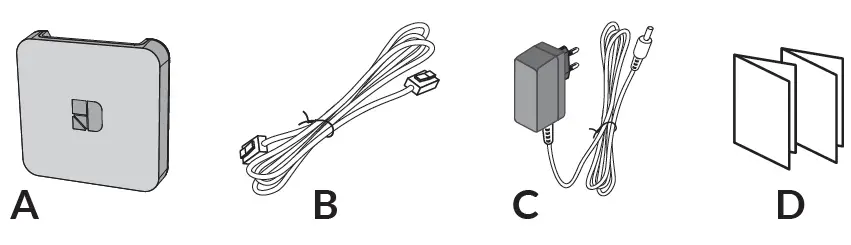
Box contents
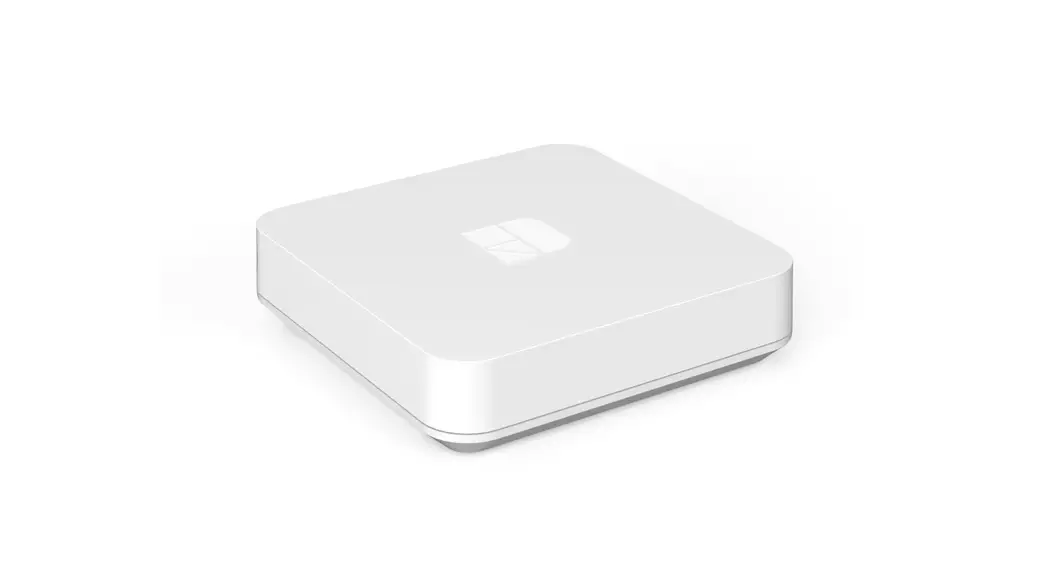
- A. Tydom Home
- B. Ethernet cable
- C. Mains supply
- D. Important Product Information

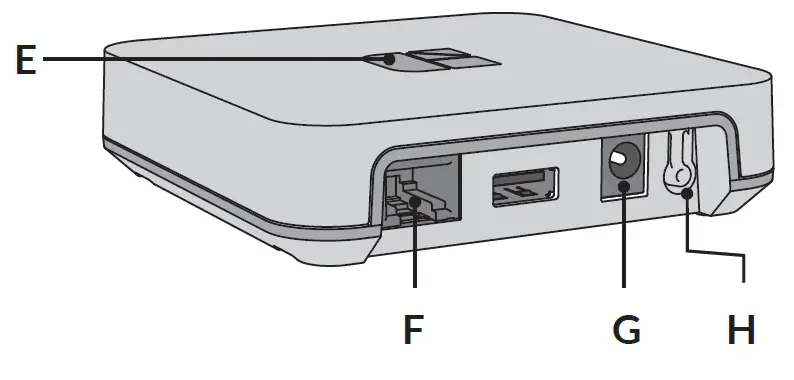
Description
- E. System status display LED
- F. Ethernet port
- G. Mains power socket
- H: Configuration/Information button

Installation
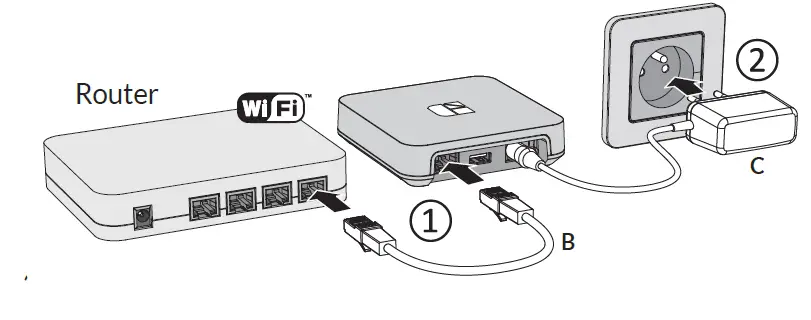
- Connect your Tydom Home by
STRICTLY following this order:- connect the Ethernet cable (B).
- then, connect the mains power (C).
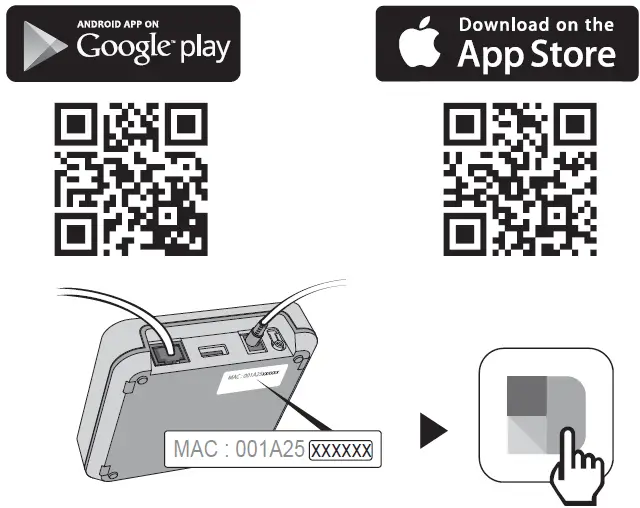
- Download the Tydom app.
- Log in to either the Google Play or App Store, depending on your device.
- Search for and download the free Tydom app.
- Activate the Wi-Fi connection on your smartphone or tablet, and connect to the same local network as your Tydom Home.
- Configure the Tydom app.
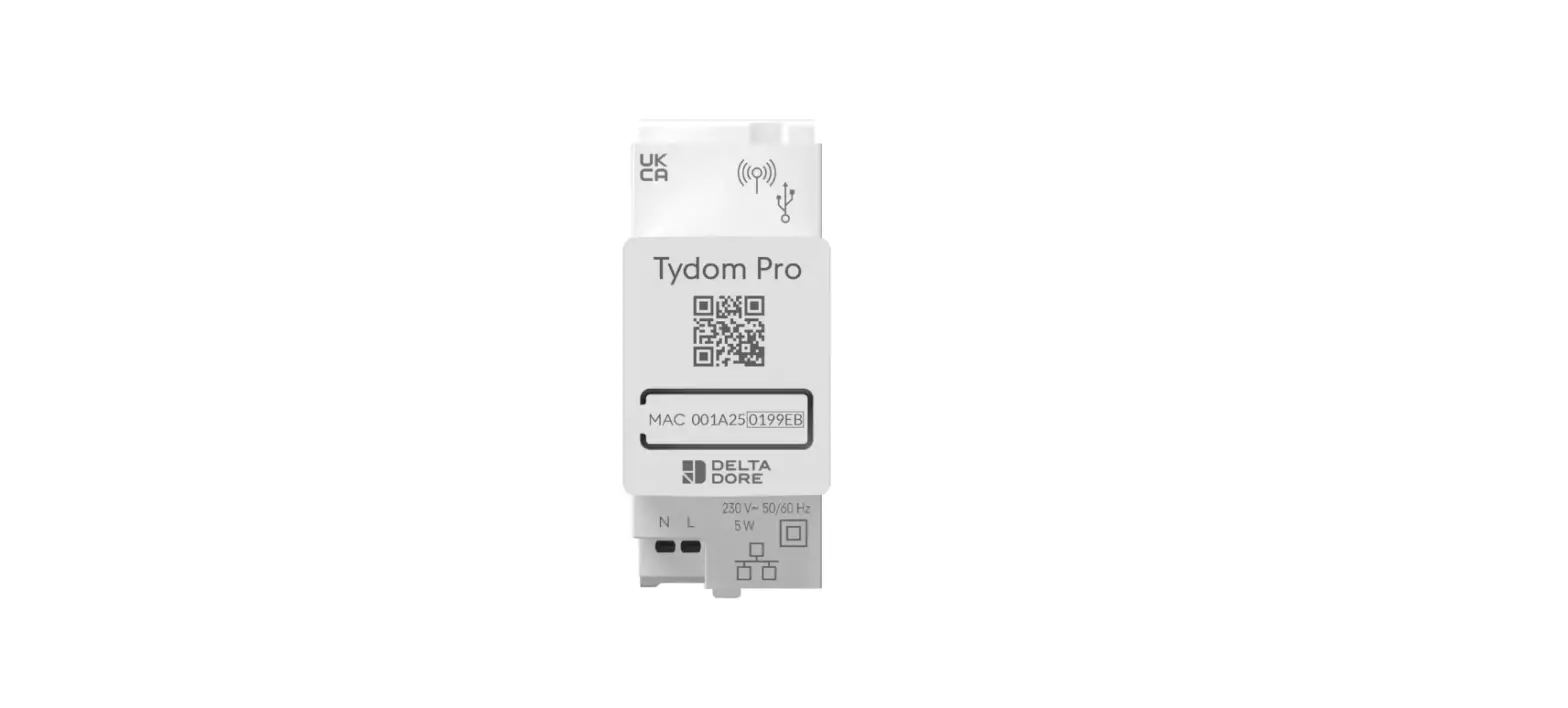
- Note the last 6 characters of your Tydom Home’s MAC address.
- Log in to the app and follow the instructions.
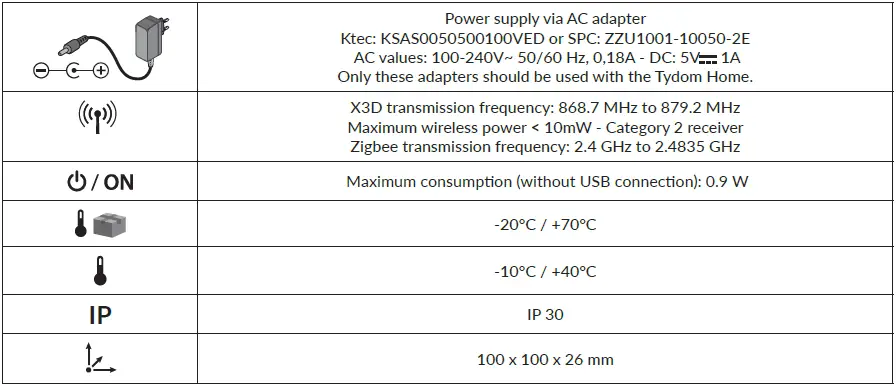
Technical specifications
Help
| LED | System status |
| Flashing white | System accessible locally and remotely, user connected |
| Steady white | System accessible locally and remotely |
| Flashing orange | System accessible locally, user connected |
| Steady Orange | System accessible locally |
| Steady Red | No IP address allocated |
Advanced functions
Below are the functions accessible depending on how long the button on the back of your Tydom Home is pressed.
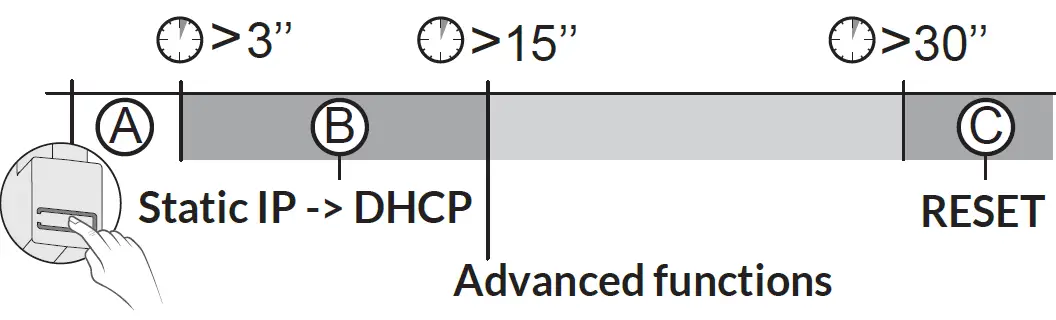
A Secure connection and viewing connection status
Briefly press the button. LED displays for 10 seconds.
| Flashing yellow | Static IP mode |
| Flashing blue | DHCP mode |
| Flashing blue (3x) | DHCP in progress Check the DHCP activation on the router |
| Flashing red | No network connection Check the Ethernet link |
B Change from static IP to DHCP
Press the button for 3 seconds until the pink LED flashes slowly. Release.
C Reset to factory settings
- Press the button for 30 seconds until the LED stops flashing. Release.
- System status
- DHCP mode
- Clear product associations
- System status
 Delta Dore : Solutions domotiques pour une Maison connectée