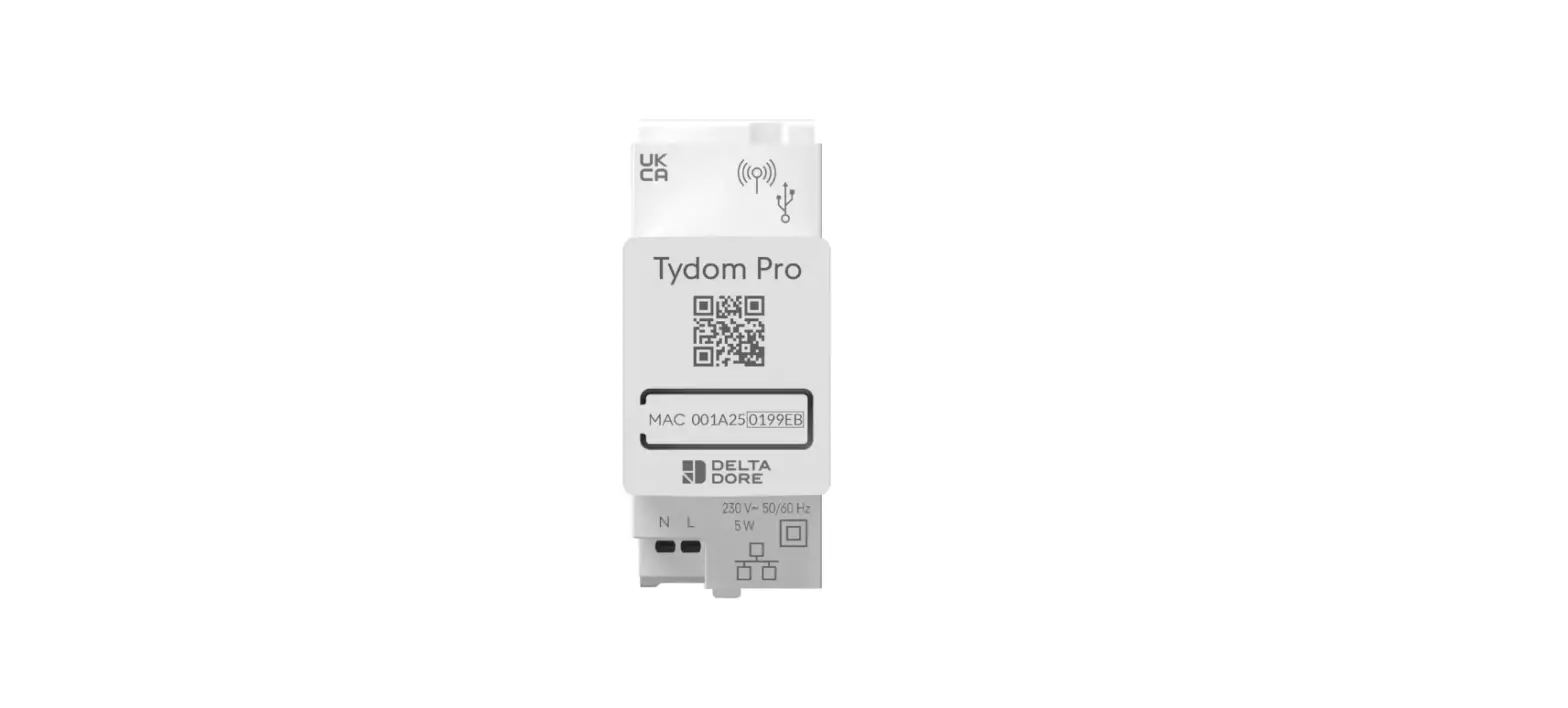
2705327 2705327 Tydom Pro Box
Product Information:
The Tydom Pro is a product manufactured by Delta Dore. It is a
device used for home automation and control. It allows users to
remotely access and control various aspects of their home, such as
lighting, heating, and security systems.
The Tydom Pro comes with the following components:
- A. Tydom Pro – the main device
- B. Ethernet cable – for connecting the Tydom Pro to the
internet - C. Important Product Information – contains crucial details
about the product - D. 230V power supply terminal – for connecting the device to a
power source - E. Ethernet port – for connecting the device to a network
- F. Configuration/Information/MAC address button – used for
configuring the device and accessing information - G. System status light – indicates the current status of the
device - H. Remote antenna connection (optional) – for improving radio
range in certain installation scenarios - I. USB port connection (optional) – for connecting additional
accessories
Product Usage Instructions:
- Ensure that the power supply to your installation is turned
off. - Install the Tydom Pro on a DIN rail within a consumer unit or
VDI cabinet. - Protect the Tydom Pro by using a 2A circuit breaker, which also
serves as a power switch. - Connect the Tydom Pro to your internet network using the
provided Ethernet cable (B). - Connect the Tydom Pro to the mains power line.
- Strip back the 230V power line to a length of 8 mm.
- Turn on the power supply to your installation.
- Download the Tydom app on your tablet, smartphone, or other
compatible devices. - Follow the app instructions to connect and configure the Tydom
Pro.
Note: For advanced functions and configuration
options, refer to the user manual provided by Delta Dore.
Additional Information:
In some installation cases, it may be necessary to use a remote
antenna (sold separately) to improve the radio range of the Tydom
Pro. This is particularly recommended when installing the device in
a metallic cabinet or in proximity to a metallic mass.
06/22
Tydom Pro
FR Box maison connectée EN Smart Home hub
xxxxxx
www.deltadore.com
INFO
APPLICATION
Présentation
xxxxxx
A
B
C
Contenu de la boîte
A. Tydom Pro
B. Câble Ethernet C. Notices d’installation / Important product information
HI
G
xxxxxx
F
Aide
Voyant Battement blanc
Blanc fixe
Battement orange
Orange fixe Rouge fixe 5 flashs rouges
Etat du système
Système accessible en local et à distance, utilisateur connecté
Système accessible en local et à distance
Système accessible en local, utilisateur connecté
Système accessible en local
Pas d’adresse IP d’attribuée
Sécurité thermique. Prévoir un espace libre autour du Tydom Pro en cas d’échauffement.
DE
Description
D. Bornier d’alimentation 230 V E. Prise Ethernet F. Touche de configuration / information / Adresse MAC G. Voyant de visualisation de l’état du système H. Raccordement antenne déportée (option) I . Raccordement sortie USB (option)
Fonction avancées
Voici les fonctions accessibles selon la durée d’appui sur la touche de votre Tydom Pro.
>3”
>15”
>30”
A
B
C
IP fixe -> DHCP
RESET
Fonctionnalité réservée
Installation
L N
N
ON
2A
xxxxxx
N
Box Internet
xxxxxx
2A
A Connexion sécurisée et visualisation
de l’état de connexion
Appuyez brièvement sur la touche. Le voyant clignote pendant 10 secondes.
Jaune clignotant Mode IP fixe
Bleu clignotant
Mode DHCP
Bleu clignotant (3x)
DHCP en cours. Vérifiez l’activation du DHCP sur la BOX.
Rouge clignotant
Pas de connexion réseau. Vérifiez la liaison Ethernet.
L
Tydom Pro doit être installé sur rail DIN, soit dans une
N
armoire électrique, soit dans une armoire VDI.
L’installation de l’équipement doit être fait par une personne
N
qualifiée uniquement.
Tydom Pro doit être protégé par un disjoncteur 2A,
qui servira aussi d’interrupteur d’alimentation.
OFF
Evitez la proximité avec les commandes de puissance
xxxxxx
(type contacteur ECS)
2A
Coupez l’alimentation 230V de votre installation.
N
Raccordez votre Tydom Pro : raccordez le câble Ethernet (B). puis, raccordez les fils d’alimentation secteur.
Les fils de l’alimentation 230 V doivent ête dénudés à une longueur de 8 mm. Pour cela, vous pouvez vous aider de la forme du boîtier comme indiqué ci-dessous.
B Passer la connexion d’IP fixe vers DHCP
Appuyez 3 secondes sur la touche jusqu’à ce que le voyant rose clignote lentement. Relâchez.
C Rétablir la configuration usine (Reset)
Appuyez 30 secondes sur la touche jusqu’à ce que le voyant cesse de clignoter. Relâchez.
Etat du système
– Mode DHCP – Effacement des associations aux équipements
8 mm Ø 0,75-1,5 mm²
2
Remettez l’installation sous tension.
Téléchargez l’application Tydom. – Selon votre appareil : Connectez-vous à Google play ou App Store. – Recherchez et téléchargez l’application gratuite “Tydom”.
Activez la connexion WIFI de votre smartphone, ou tablette, et connectez vous au même réseau local que votre Tydom Pro.
Configurez l’application Tydom. – Notez les 6 derniers caractères de l’adresse MAC (visible en face avant) de votre Tydom Pro. – Connectez-vous à l’application et laissez-vous guider.
Antenne déportée
Certains cas d’installation nécessiteront l’usage d’une antenne déportée compatible X3D et Zigbee (disponible en accessoire). La portée radio peut être altérée en fonction des conditions d’installation. Elle est, par exemple, préconisée dans le cas d’une installation en armoire métallique ou toute proximité d’une masse métallique.
Caractéristiques techniques
La qualité de la connexion de votre produit peut être altérée
par différentes modifications de l’architecture IP sur lequel
il fonctionne.
Ces modifications peuvent être, de façon non limitative,
un changement de matériel, une mise à jour de logiciel ou
un paramétrage, intervenants sur les équipements de votre
opérateur ou tout autre équipement multimédia tel que
tablette, smartphone, etc…
IOS est une marque ou une marque déposée de Cisco aux
États-Unis et dans d’autres pays, et est utilisée sous licence.
AndroidTM et Google play sont des marques déposées de Google LLC.
IP
Wi-FiTM est une marque déposée par Wi-Fi Alliance.
En raison de l’évolution des normes et du matériel, les
caractéristiques indiquées par le texte et les images de ce
document ne nous engagent qu’après confirmation par nos
services.
Alimentation 230V, 50/60 Hz Isolement Classe II
Fréquence d’émission X3D : 868,7 MHz à 869,2 MHz Puissance radio maximale < 10 mW – Récepteur catégorie II
Fréquence d’émission Zigbee : 2,400 GHz à 2,4835 GHz Consommation Max (sans lien USB) : 1,1 W
-20°C / +70°C
-10°C / +40°C
IP 30 Boîtier 2 modules, hauteur 53 mm Installation en milieu normalement pollué
06/22
Tydom Pro
EN Smart Home hub FR Box maison connectée
xxxxxx
INFO
APPLICATION
www.deltadore.com
Presentation
xxxxxx
A
B
C
Box contents
A. Tydom Pro
B. Ethernet cable C. Important Product Information
HI
G
xxxxxx
F
Installation
DE
Description
D. 230 V power supply terminal E. Ethernet port F. Configuration/Information/MAC address button G. System status light H. Remote antenna connection (optional) I . USB port connection (optional)
L N
N
ON
2A
xxxxxx
N
Box Internet
xxxxxx
2A
L
Tydom Pro must be installed on a DIN rail, either within a
N
consumer unit, or in a VDI cabinet.
The equipment must be installed by a suitably qualified person. N
Tydom Pro must be protected by a 2A circuit breaker,
which will also serve as a power switch.
Avoid proximity with power controls (of the type used for domestic hot water contactors)
OFF
xxxxxx
Disconnect your installation’s 230V power supply.
2A
N
Connect your Tydom Pro :
connect the Ethernet cable (B).
then, connect the mains power line.
The 230 V power line must be stripped back to a length of 8 mm. To do so, you can make use of the design of the casing as shown below.
Help
LED Flashing white
Steady white
Flashing orange
Steady Orange Steady Red 5 red flashes
System status
System accessible locally and remotely, user connected
System accessible locally and remotely
System accessible locally, user connected
System accessible locally
No IP address allocated
Thermal safety mechanism. Leave a clear space around the Tydom Pro in the event that it starts to heat up.
Advanced functions
Below are the functions accessible depending on how long the button on the back of your Tydom Home is pressed.
>3”
>15”
>30”
A
B
Static IP -> DHCP
C
RESET
Reserved functionality
A Secure connection and viewing connection status
Briefly press the button. LED displays for 10 seconds.
Flashing yellow Flashing blue Flashing blue (3x)
Flashing red
Static IP mode
DHCP mode
DHCP in progress Check the DHCP activation on the router
No network connection Check the Ethernet link
B Change from static IP to DHCP
Press the button for 3 seconds until the pink LED flashes slowly. Release.
C Reset to factory settings
Press the button for 30 seconds until the LED stops flashing. Release.
System status
– DHCP mode – Clear product associations
8 mm
Ø 0,75-1,5 mm²
2
Restore the power to the installation. Download the Tydom app.
– Log in to either the Google Play or App Store, depending on your device. – Search for and download the free «Tydom» app. Activate the Wi-Fi connection on your smartphone or tablet , and connect to the same local network as your Tydom Pro. Configure the Tydom app. – Note the last 6 characters of your Tydom Home’s MAC address (stated on the front). – Log in to the app and follow the instructions.
Remote antenna
Some installation cases will require the use of a remote antenna (available as an accessory) The radio range can be adjusted based on the installation conditions. This is advised, for example, in the case of installation in a metallic cabinet or in proximity to a metallic mass.
Technical specifications
The connection quality of the product may be affected by
different modifications of the IP architecture on which it
operates.
These modifications can be, but are not limited to, a change
of hardware, a software update or configuration, work
conducted on your operator’s equipment or any other
multimedia equipment such as tablets, smartphones, etc.
IOS is a Cisco trademark or registered trademark in the
United States and in other countries, and is used under
licence. AndroidTM and Google Play are Google LLC
registered trademarks. Wi-FiTM is a trademark registered by Wi-Fi Alliance.
IP
Because of changes in standards and equipment,
the characteristics given in the text and the
illustrations in this document are not binding
unless confirmed.
230V, 50/60 Hz power supply Class II insulation
X3D transmission frequency: 868.7 MHz to 879.2 MHz Maximum wireless power < 10mW – Category 2 receiver Zigbee transmission frequency: 2.4 GHz to 2.4835 GHz Maximum consumption (without USB connection): 1,1 W
-20°C / +70°C
-10°C / +40°C
IP 30 4-module unit, height = 53 mm Installation in an environment with normal pollution levels
 Delta Dore : Solutions domotiques pour une Maison connectée