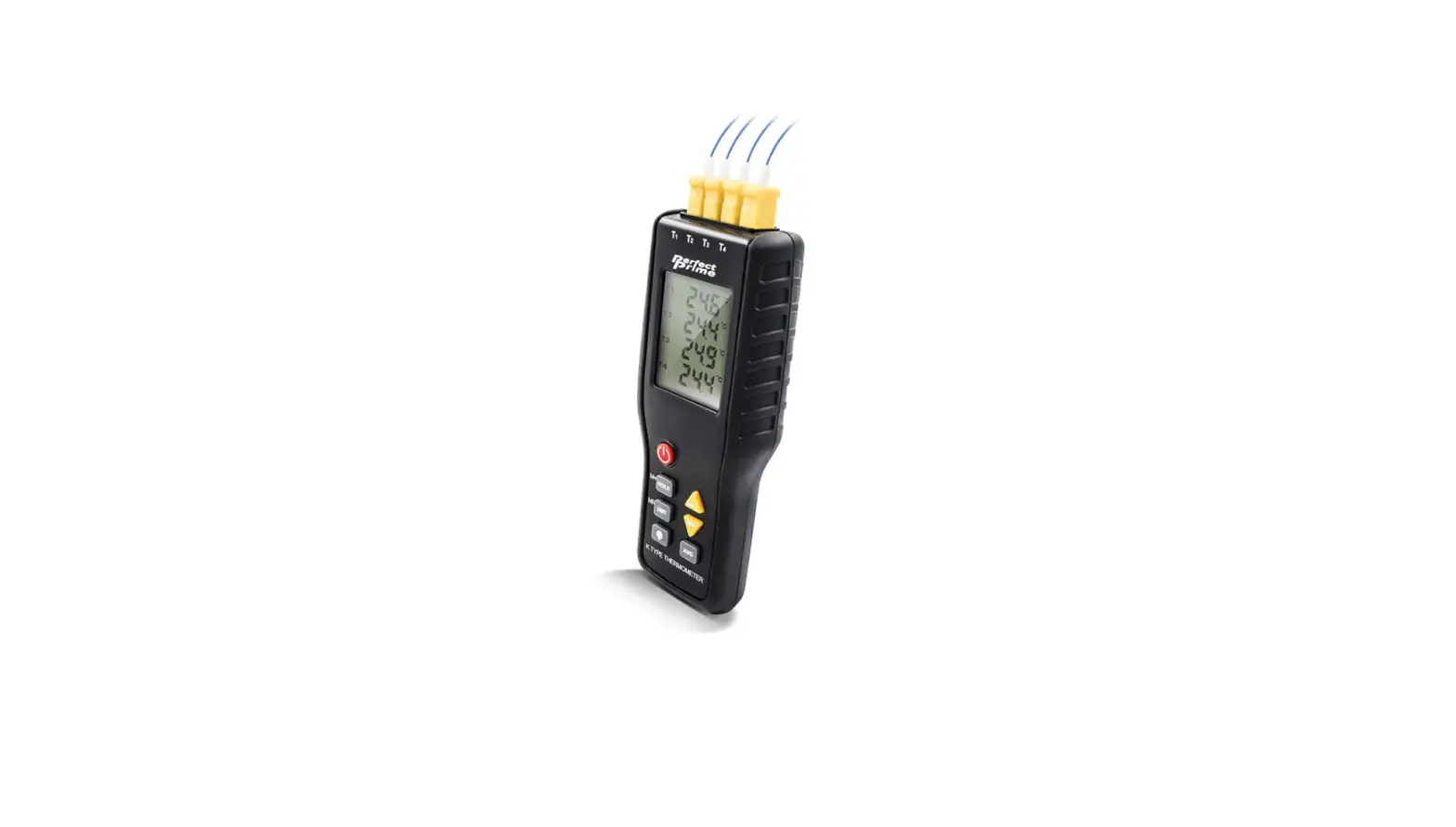
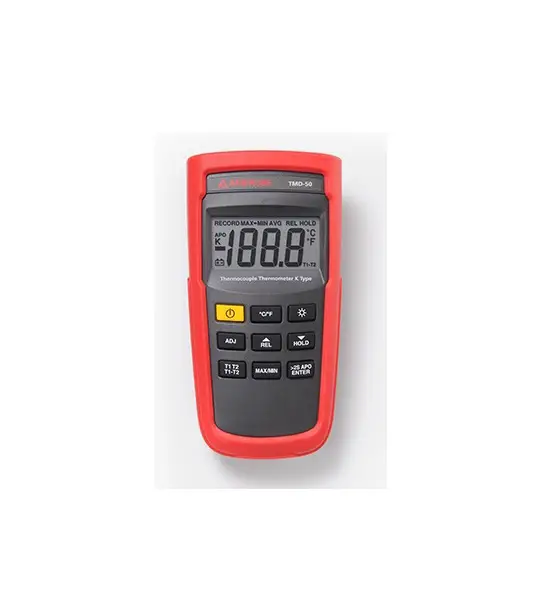
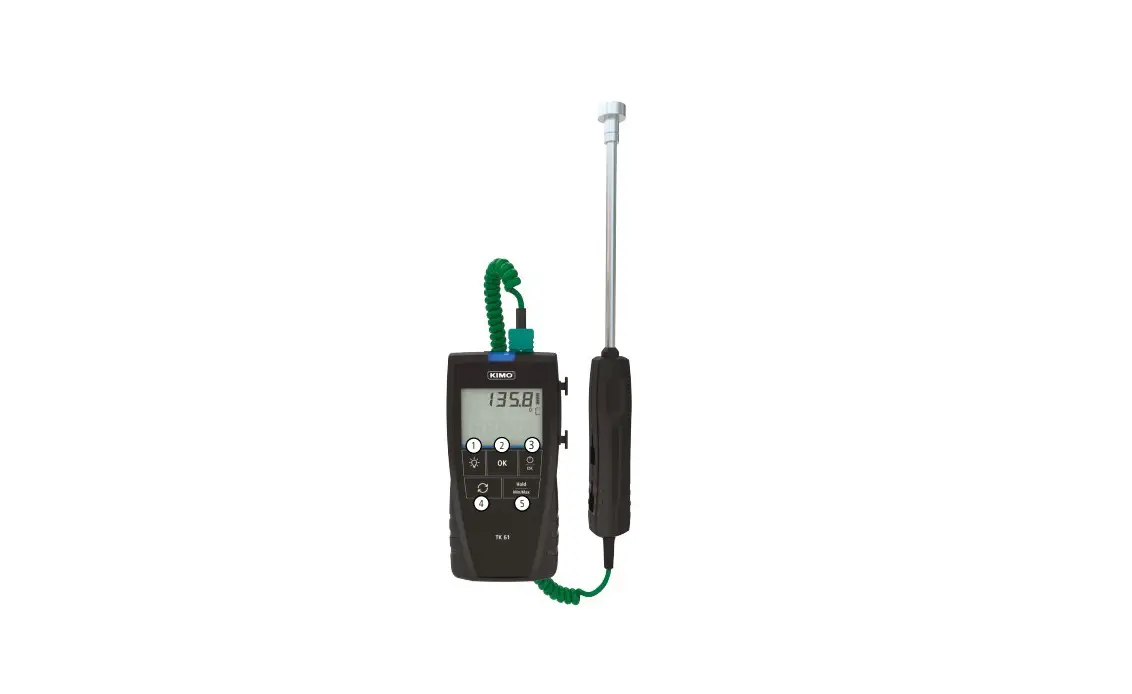
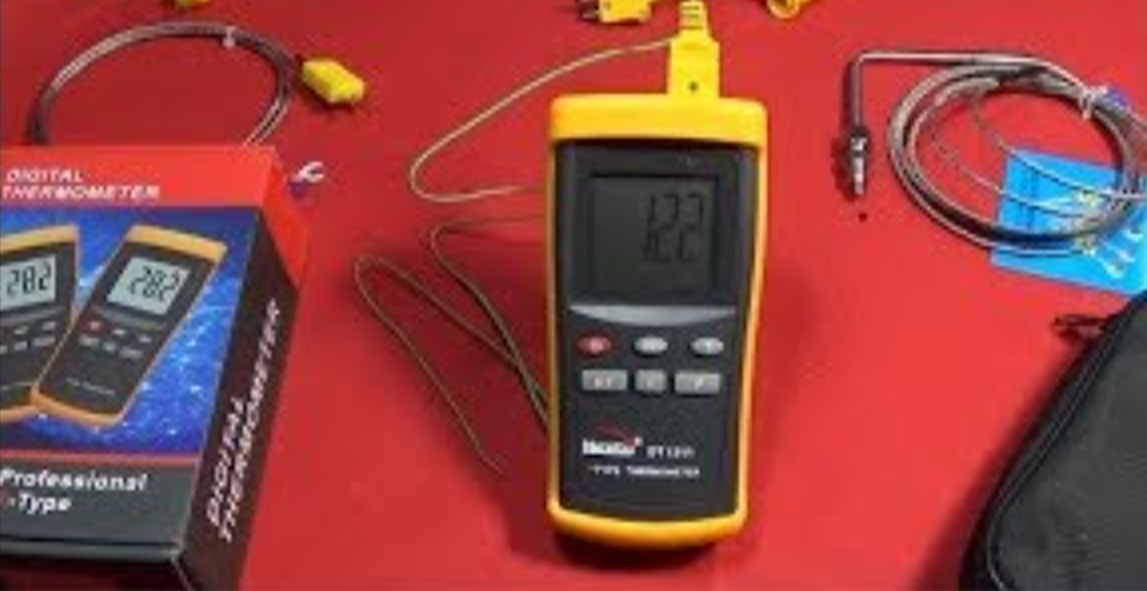
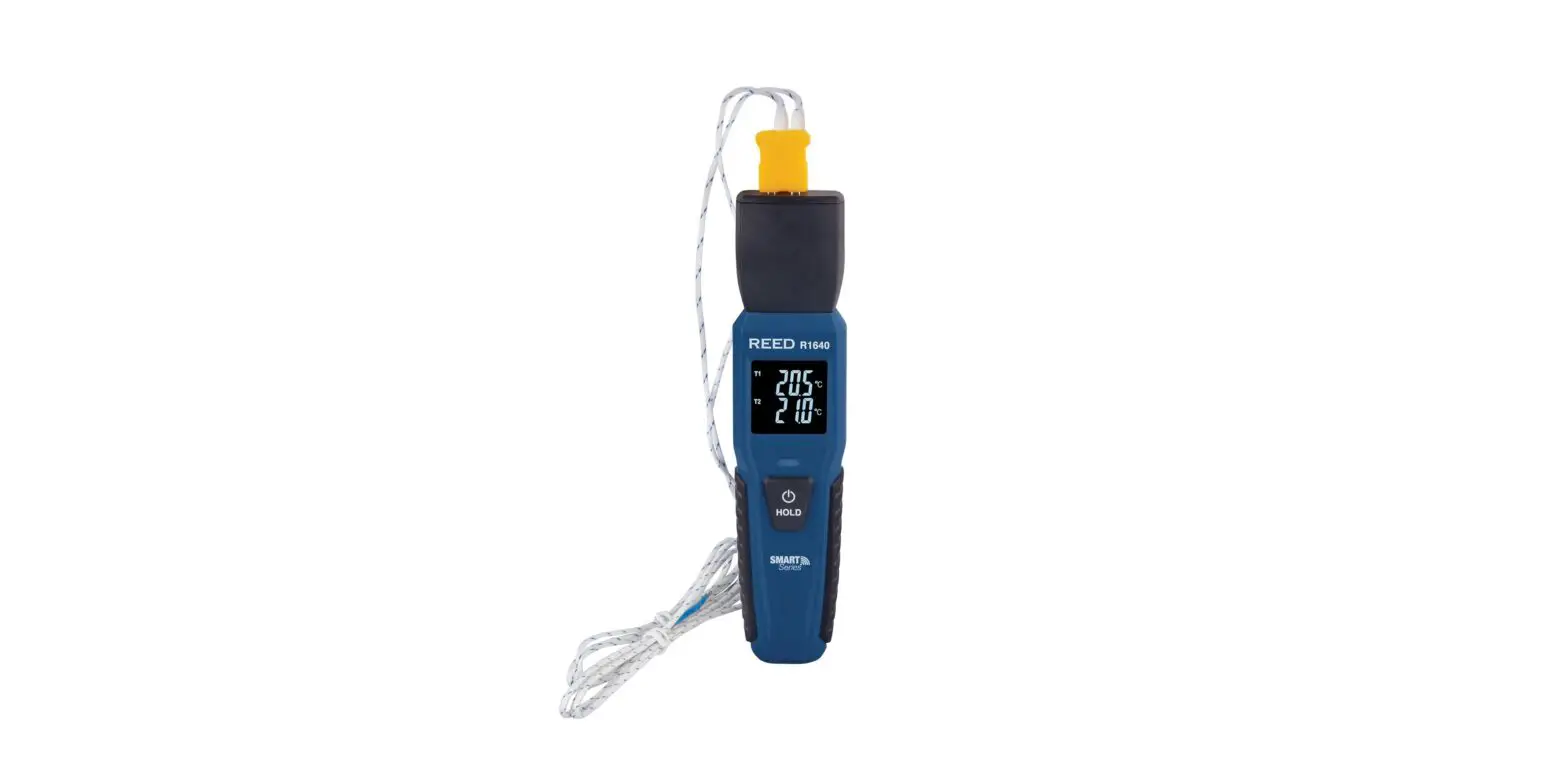
TC 319 4 Channel Thermocouple Meter
DATALOGGER THERMOMETER – Product Information
The Datalogger Thermometer is a device that records temperature
data over a certain period of time. It has a measuring range
between -200°C to 1370°C and can measure four types of
thermocouple; K, J, E, and T. The device has a large memory
capacity and can store up to 32,000 temperature readings.
The device is equipped with a USB interface and comes with
Testlink SE-520 software for downloading and analyzing the recorded
data on a PC. It also has an LCD display that shows the current
temperature reading, minimum/maximum/average temperatures, and
battery status.
DATALOGGER THERMOMETER – Product Usage Instructions
Step 1: Insert the appropriate type of
thermocouple into the input socket located at the top of the
device.
Step 2: Press the ON/OFF button to turn on the
device.
Step 3: Press the MODE button to select between
recording mode or reading mode. The recording mode will start
recording the temperature data automatically with a pre-set time
interval. The reading mode will display the current temperature
reading on the LCD screen.
Step 4: The device can be set up for specific
measurement requirements by selecting options in the Setup menu.
This includes setting the recording interval, selecting
thermocouple type, setting alarms for high/low temperature
readings, etc.
Step 5: Once the recording is completed,
connect the device to a PC using the USB cable included in the
package. Download the recorded data using Testlink SE-520 software
for analysis and further processing.
Step 6: When not in use, turn off the device
and store it in a safe place.
Note: If the battery status indicator on the
LCD screen shows low battery, replace the battery with a new one
following the instructions provided in the user manual.
Daten-Logger / K,J,E,T, Type
THERMOMETER
5020-0319
Manual/ Bedienungsanleitung
INHALTSVERZEICHNIS
TITEL
SEITE
1. Allgemein………………………………………………………………………………….1
2. Sicherheitsinformationen………………………………………………………………1
3. Merkmale……………………………………………………………………………………1
4. Spezifikationen……………………………………………………………………………..2
5. Anordnung Tasten / Symbole…………………………………………………………………….. 3
6. Tasten Erklärung ……………………………………………………………………………….5
6.1 Power ON/OFF Taste…………………………………………………………………….5 6.2 Hintergrundbeleuchtung………………………………………………………………………..5 6.3 Hold-Taste………………………………………………………………………………….5 6.4 REC-Taste……………………………………………………………………………………….5 6.5 MEM-Taste………………………………………………………………………………………5 6.6 RECALL / Speicher – Taste……………………………………………………………….5 6.7 MAX/MIN/AVG – Taste………………………………………………………………………….6 6.8 Auswahl Temperatur Einheiten…………………………………………………………….6 6.9 SETUP-Taste……………………………………………………………………………6
7. Bedienungshinweise………………………………………………………………………6
7.1 Einstell Optionen…………………………………………………………………………….6 7.2 Menüpunkte…………………………………………………………………………………6 7.3 Menübeschreibung………………………………………………………………………..8
7.3.1 Auswahl Thermoelementtyp………………………………………………………8 7.3.2 Speicherintervall einstellen………………………………………………………8 7.3.3 Offset einstellen um Fühlerabweichungen zu korrigieren…………………….8 7.3.4 Alarmpunkt einstellen (nur für Kanal 1)…………………………………………8 7.3.5 Differenzanzeige T1-T2 einstellen…………………………………………………..9 7.3.6 Auto off – Zeit einstellen……………………………………………………………..9 7.3.7 Uhrzeit einstellen…………………………………………………………………..9 7.4 Datenspeicher löschen……………………………………………………………………10 7.5 Displayspeicher löschen……………………………………………………………….10 7.6 Mit dem Computer verbinden……………………………………………………………10
8. Inbetriebnahme…………………………………………………………………………….10
8.1 Batterie wechseln……………………………………………………………………..10
9. Testlink SE-520 Software…………………………………………………………………..11
10. Wartung……………………………………………………………………………………17
CONTENTS
TITLE
PAGE
1. General Description……………………………………………………………………..18
2. Safety Information……………………………………………………………………….18
3. Features…………………………………………………………………………………18
4. Specifications…………………………………………………………………………….19
5. Symbol Definition and Button Location…………………………………………………….20
6. Button Instructions ………………………………………………………………………….22
6.1 Power ON/OFF button…………………………………………………………………..22 6.2 Backlight button……………………………………………………………………………….22 6.3 Data-Hold button…………………………………………………………………………………22 6.4 REC button……………………………………………………………………………………..22 6.5 MEM button…………………………………………………………………………………….22 6.6 RECALL Saved Reading Button……………………………………………………….22 6.7 MAX/MIN/AVG Button………………………………………………………………………..23 6.8 Selecting Temperature Units……………………………………………………………23 6.9 SETUP Button…………………………………………………………………………..23
7. Operating Instructions……………………………………………………………………23
7.1 Setup Options……………………………………………………………………………….23 7.2 Menu Item………………………………………………………………………………..23 7.3 Menu Description………………………………………………………………………..25
7.3.1 Select thermocouple type………………………………………………………..25 7.3.2 Setting interval time for data storing……………………………………………25 7.3.3 Set offset to compensate for probe errors…………………………………….25 7.3.4 Set alarm point (only for channel T1)…………………………………………25 7.3.5 Set T1-T2 subtraction mode………………………………………………………26 7.3.6 Set auto power off time………………………………………………………….26 7.3.7 Set system clock…………………………………………………………………..26 7.4 Clearing Data Logger Records………………………………………………………….27 7.5 Clearing Instant Read-out Memory……………………………………………………27 7.6 Connecting To A computer………………………………………………………………27
8. Power Preparation………………………………………………………………………..27
8.1 Battery Replacement……………………………………………………………………27
9. Testlink SE-520 Software………………………………………………………………..28
10. Maintenance……………………………………………………………………………..34
DATALOGGER THERMOMETER
1. ALLGEMEIN
Bitte lesen Sie vor Gebrauch die Bedienungsanleitung aufmerksam durch. Einstellungen und Messergebnisse werden auf dem hintergrundbeleuchtetem LCD als Zahl und Bargraph dargestellt. Die Messdaten können via USB direkt auf einen Computer übertragen werden, oder auf dem Gerät abgespeichert werden. Gespeicherte Daten können ebenso an einen Computer via USB übertragen werden.
2. SICHERHEITSINFORMEN
Lesen Sie bitte sorgsam die folgenden Informationen, bevor Sie mit den Messungen beginnen. Benutzen Sie das Messgerät nur in der beschriebenen Form, anderenfalls erlischt die auf das Gerät gewährleistete Garantie.
Umweltbedingungen
Max. bis 2000 Meter über Meeresspiegel Relative Feuchtigkeit max. = 90% rH Arbeitstemperaturbereich = 0…+ 50 °C
Wartung & Reinigung
Reparaturarbeiten am Gerät sollten nur durch den Hersteller durchgeführt werden. Halten Sie bitte das Gerät sauber und in trockenem Zustand.
Sicherheitskennzeichnung
Konform mit EMC Es werden nur Orginalersatzteile verwendet
3. MERKMALE
4 Messeingänge Thermoelement Typt K, J, E, T Alarmfunktion Schnelle Ansprechzeit und Messtaktrate 16.000 Messwertespeicher pro Messkanal Softwarespeicherwiedergabe USB PC Interface mit Windows Software Einstellbare Auto-off – Zeit
1
DATALOGGER THERMOMETER
4. SPEZIFIKATION
Messbereich
Auflösung
Temperaturkoeffizient: Messtaktrate Batterietyp Batteriestandzeit Arbeitstemperatur Feuchtebedingungen Lagertemperatur Feuchte Abmessungen/Gewicht Zubehör
K: -200°C ~ 1372°C (-328°F ~ 2501°F) J: -200°C ~ 1000°C (-328°F ~ 1832°F) E: -200°C ~ 750°C (-328°F ~ 1382°F) T: -200°C ~ 400°C (-328 °F ~ 752°F)
0,1°C < 600°C / 0,1°F < 1000°F, 1°C 600°C / 1°F 1000°F
0,01% vom Messwert + 0,05°C pro °C (<18°C oder >28°C) 2 Messungen pro Sekunde UM-4 oder AAA 1,5V Batterie x 4 Ca. 100 Stunden (Alkaline Batterie) 0°C .. 50°C (32°F .. 122°F) 10 .. 90%RF (nicht kondensierend) -20°C .. 60°C (-4°F .. 140°F) 10 .. 75%RF 187mm(L) × 75mm(W) × 29mm(H)/ ca. 290g Bedienungsanleitung, Batterie 1.5V AAA x 4 Stück, Windows software, micro USB Kabel, K type x 2 Stck., Koffer.
2
5. ANORDNUNG TASTEN UND SYMBOLE
DATALOGGER THERMOMETER
: Batterie-Anzeige : Minimum Anzeige : Maximum Anzeige : Durchschnittsanzeige : Setup Optionen : Auto Power Off aktiv : Recording Daten-Logger Anzeige : Anzeige Speicher vollr : Anzeige Speichergrupper : Anzeige Wiedergabe Speichergruppe
: Thermoelement Typ : Temperaturanzeige : Temperaturkanal : Differenztemperaturanzeige : Anzeige Temperatur-Alarm : Anzeige Obere Alarmgrenze : Anzeige Untere Alarmgrenze : Anzeige Nullpunktkorrektur : Temperatur-Einheit : Holf-Funktion
3
DATALOGGER THERMOMETER
1 Fühlereingänge 2 Display 3 Power ON/OFF Taste 4 Hintergrundbeleuchtung Taste 5 MAX MIN AVG Taste 6 DATA HOLD Taste 7 °C , °F Taste
8 REC Taste 9 RECALL Saved Reading Taste 10 SETUP Taste 11 MEM Taste (Set 100 Werte) 12 USB Interface 13 Klappständer 14 Batteriefach
4
DATALOGGER THERMOMETER
6. TASTEN ERKLÄRUNG
6.1 Power ON/OFF Taste:
Drücken der
Taste schaltet das Messgerät an. Drücken und Halten der
Sekunden schaltet das Gerät aus.
Taste für 3
6.2 Hintergrundbeleuchtung:
Durch Drücken der
Taste wird die Hintergrundbeleuchtung aktiviert. Nochmaliges Drücken
der
schaltet die Beleuchtung wieder aus. Die Hintergrundbeleuchtung schaltet sich sonst
nach 30 Sekunden automatisch ab.
6.3 Data-Hold Button :
Durch betätigen der
Taste wird der aktuelle Messwert festgehalten. Durch nochmaliges
Drücken der Taste gelangt man wieder in den Mess-Mode.
Hinweis: Während des HOLD-Modes sind die folgenden Tasten deaktiviert: , , , und
.
6.4 REC Button:
Durch Betätigen der
Taste wird die Datenaufzeichnung gestartet. Das ”
” Symbol wird
auf dem Display angezeigt. Durch nochmaliges betätigen der gestoppt.
Taste wird die Aufzeichnung
Hinweis: Während der Aufzeichung sind die meisten Tasten deaktiviert(z.b. , Einstellungen müssen vor Aufzeichnungsstart vorgenommen werden.
). Alle
Hinweis: Wenn der Speicher voll ist (16000 Datensätze), blinkt das ” Display. Die Aufzeichung wird gestoppt.
” Symbol auf dem
Note: Wenn das Batteriesymbol ( ”
” ) angezeigt wird, kann keine Aufzeichnung gestartet
werden. Geht während einer Aufzechnung die Batterieanzeige auf Low wird die
Aufzeichnung gestoppt.
6.5 MEM Taste:
Durch Drücken der
Taste wird der aktuelle Messwert gespeichert. Das Symbol ”
”
erscheint für 2 Sekunden auf dem Display. Durch nochmaliges Drücken der nächste Wert gespeichert.
Es lassen sich 00~99 solcher, einzelner Messwerte speichern.
Taste wird der
6.6 RECALL Save Reading Taste:
Die
Taste zeigt bei Betätigung die Messwerte aus dem Displayspeicher. Das Symbol
”
” wird auf dem Display angezeigt.
Mit den Tasten , , ,
kann man die Messwerte des Displayspeichers auswählen.
5
DATALOGGER THERMOMETER
Das Display zeigt für 2 Sekunden ” hour:minute:second ” und danach die Messwerte.
Durch nochmaliges Betätigen der
oder
Taste wird der RECALL mode beendet.
6.7 MAX/MIN/AVG Taste:
Mit dieser Funktion zeigt der Messwert Maximum, Minimum und Durchschnitt an. Die Werte werden mit jeder Messung aktualisiert.
Start:
(1) Drücke
Taste. ”
” Symbol und Maximalwert wird angezeigt.
(2) Drücke
Taste noch einmal. ”
” Symbol und Minimalwert wird angezeigt.
(3) Drücke
Taste noch einmal. ”
” Symbol und Durchschnittswert wird angezeigt.
(4) Drücke
Taste noch einmal. ”
,
and
” Symbol blinkt und es werden der
aktuell gemessene Wert angezeigt.
Verlassen des MAX/MIN/AVG Mode:
Zum Verlassen des MAX/MIN/AVG-Mode die
Taste 2 Sekunden Drücken und Halten.
6.8 Auswahl Temperatur Einheit:
Drücke die
Taste um zwischen Celsius (°C) und Fahrenheit (°F) zu wechseln..
6.9 SETUP Taste:
Zur Auwahl der Einstellungen die
Taste betätigen. Zum Beenden der Einstellungen noch
einmal die
Taste betätigen.
7. BEDIENHINWEISE
7.1 Einstell Optionen:
(1) Zur Auswahl der Einstellungen die drücken.
Taste drücken. Zum Beenden die Taste noch mal
(2) Mit den , ,
,
Tasten werden die entsprechenden Parameter geändert.
(3) Mit der
Taste werden Änderungen gespeichert und man kommt zur nächsten Auswahl.
7.2 Menüpunkte:
(1)
Fig.1 Thermoelement Typ einstellen.
6
DATALOGGER THERMOMETER
(2)
Fig.2 Speicher Intervall einstellen.
(3)
Fig.3 Nullpunkt-Justage(off set) einstellen zur Fühlerkorrektur.
(4)
Fig.4 Einstellen Alarmgrenzen.
(5)
Fig.5 Einstellen T1-T2 Differenzwertanzeige.
(6)
Fig.6 Einstellen der Auto-off Zeit(automatische Abschaltungszeit)
7
DATALOGGER THERMOMETER
(7)
Fig.7 Einstellen Uhrzeit.
7.3 Menü-Beschreibung:
7.3.1 Auswahl Thermoelement Typ: K, J, E, or T
Zur Auswahl die
oder
Taste betätigen. (siehe Fig.8)
7.3.2 Auswahl Speicherintervall für die Datenaufzeichung:
(1) Zur Auswahl die
oder
und Sekunden) (siehe Fig.9)
Taste betätigen (für Minuten
(2) Durch betätigen der
/
Tasten erhöhen Sie oder
verkürzen Sie die Taktrate.
Hinweis: Einstellbereich: 1
Sekunden (00:01) bis 60 Minuten 59 Sekunden (60:59)
7.3.3 Nullpunktjustage(Offset) zum korrigieren von Fühlerfehlern:
Der Benutzer kann Fühlerfehler durch eine 1-Punktjustage(offset) kompensieren. thermocouple.
(1) Mit der
oder
Taste den Messkanal auswählen
(2) (siehe Fig.10) Der ausgewählte Messkanal blinkt auf der linken Displayseite.
(3) Zum Ändern der Werte die
/
Tasten betätigen.
Hinweis: Es lassen sich Werte bis maximal ±5°C oder ±9°F korrigieren.
7.3.4 Alarmpunkt einstellen (nur Kanal1 möglich(T1): Zum Einstellen siehe (Fig.11 und Fig.12).
(1) Zum Ein- und Ausschalten betätgigen.
oder
Taste
(2) Bei eingeschaltetem Alarm(on) die
zum Einstellen von Hi und Lo (Grenzwerte) betätigen. (siehe Fig.13)
Taste
Fig.11
8
Fig.8 Fig.9 Fig.10 Fig.12
Hinweis:
Bei überschreiten des Grenzwertes blinkt das Symbol ”
” oder ”
” auf dem Display.
Ein akkustisches Signal ertönt: ” beep-beep-beep ” .
DATALOGGER THERMOMETER
7.3.5 Einstellen T1-T2 Differenzanzeige:
Fig.13
Durch betätigen der
oder
(siehe Fig.14 or Fig.15)
Taste on(T1-T2 aktivieren) oder off (T1-T2 deaktivieren).
Hinweis:
Bei aktivierter Differenzanzeige (T1-T2), T1-T2 wird auf dem Display angezeigt. (siehe Fig.16)
Fig.14
Fig.15
Fig.16
7.3.6 Einstellen Auto off Zeit:
Zur Auswahl der Auto off Zeit die
oder
Taste betätige. Auswahl: 10, 30 Minuten, 1, 2, 4, 8 Stunden, oder off(Gerät bleibt an).
(siehe Fig.17 und Fig.18)
Fig.17
Fig.18
7.3.7 Uhrzeit einstellen: Die eingebaute Echtzeituhr ermöglicht eine Datenaufzeichnung mit aktuellem Datum und Uhrzeit.
(1) Zur Auswahl von Datum und Uhrzeit die Taste betätigen.
(siehe Fig.19)
oder
(2) Zum Ändern der Werte die
/
Tasten betätigen.
Hinweis:
Nach dem Batteriewechsel bitte Datum und Uhrzeit überprüfen.
Fig.19
9
DATALOGGER THERMOMETER
7.4 Löschen des Datenspeichers(Daten-Logger):
(1) Schalten Sie das Messgerät aus.
(2) Drücken und Halten der einschalten.
Taste und durch Drücken der
Taste das Messgerät
(3) Durch Halten der
und
Taste, zeigt das Display ”
“,” CLr ” und ” SUrE 5,
4…1, 0 ” bis der Speicher gelöscht wurde. (Für Abbruch, die Tasten loslassen)
7.5 Löschen des Displayspeichers:
(1) Schalten Sie das Messgerät aus.
(2) Drücken und Halten der einschalten.
Taste und durch Drücken der
Taste das Messgerät
(3) Durch Halten der
Taste zeigt das Display ”
“, ” CLr ” und ” SUrE 5, 4…1,
0 ” bis der Speicher gelöscht wurde. (Für Abbruch, die
Taste vor Anzeige ” SUrE 0 ”
lösen.)
Das Display zeigt beim Löschen ” CLr ” , ” 0 ” und löscht dabei den Displayspeicher von 00 bis
99 Speichersätze.
7.6 Mit dem Computer verbinden:
Das Messgerät kann via USB-Kabel mit dem Computer verbunden werden um die Speicherdaten herunter zu laden oder für eine Echtzeitaufzeichnung(Daten werden direkt am PC aufgezeichnet).
8. INBETRIEBNAHME
8.1 Batteriewechsel:
(1) Sobald die nötige Batteriespannung
unterschritten wird, zeigt das Display das
Symbol
blinkend an. Die Batterie muss
gewechselt werden.
(2) Vor dem Batteriewechsel ist das Messgerät auszuschalten und die Messfühler sind zu entfernen.
Benutzen Sie zum Öffnen des Batteriefachs einen Schraubenzieher. Die alten Batterien durch neue UM-4 AAA size ersetzen.
(3) Das Batteriefach wieder verschließen.
10
DATALOGGER THERMOMETER
9. Testlink SE-520 SOFTWARE
9.1 Die Software SE-520 beinhaltet:
Software CD Micro USB Kabel
9.2 Systemanforderungen:
Windows XP/ VISTA/ Windows 7/ Windows 8/ Windows 10
9.3 Minimum Hardware-Anforderungen:
PC oder Laptop mit CD-ROM Laufwerk. 50 MB Festplattenspeicher für Installation SE520. Bildschirm-Auflösung 1024X768
9.4 Tutorial Software-Schnellstart:
Echtzeit-Online-Aufzeichnung: (1) Schalten sie das Gerät ein und verbinden sie es via USB mit dem Computer. (2) Programm SE520 starten. (3) Wenn die Verbindung erfolgreich ist zeigen
Messgerät und Computer die gleichen Werte an. Bei Verbindungsproblemen wird im Display “No connection / keine Verbindung” angezeigt.
(4) Wählen Sie eine Messtaktrate für die Echtzeitaufnahme aus.
(5) Wenn die Verbindung erfolgreich hergestellt wurde, klicken sie auf ” Echtzeit | Start ” oder im Hauptmenü über Echtzeit Datenerfassung starten.
(6) Zum stoppen ” Real Time | Stop ” auswählen oder
to stop Taste betätigen.
9.5 So speichern Sie die aufgezeichneten Echtzeitdaten:
(1) Klicken Sie auf das Diagrammfenster, das Sie speichern möchten, und das Diagrammfenster wird aktiv. Wählen Sie dann Datei | Speichern Sie im Hauptmenü oder klicken Sie in der Symbolleiste auf
11
DATALOGGER THERMOMETER
(2) Es wird ein Dialogfeld zum Speichern angezeigt, in dem Sie den Dateinamen und den Dateityp zum Speichern auswählen können. Sie können zwischen drei Arten von Dateinamen wählen: Binärdatei (*. Ghf), Textdatei (*. Txt) und Datei im EXCEL-Format (*. CSV). Die * .ghf-Datei benötigt viel weniger Speicherplatz zum Speichern der Daten als die beiden anderen Dateiformate, kann jedoch nur in SE520 verwendet werden. Die Textdatei kann von SE520 und jedem anderen Textverarbeitungsprogramm wie Word, Notepad usw. geöffnet werden. Die Datei im EXCEL-Format kann von SE520 und Microsoft EXCEL geöffnet werden. Hinweis: Wenn das Dezimaltrennzeichen in Ihrem Land ein Komma ist, wird dieses Dateiformat deaktiviert, da die CSV-Datei auch ein Komma als Datentrennzeichen verwendet
12
DATALOGGER THERMOMETER
9.6 Wie lade ich die aufgezeichneten Daten aus dem Speicher des Thermometers und speichere sie in einer Datei?
(1) Gerät einschalten. (2) Drücken Sie die ” REC ” Taste um die Aufzeichnung zu starten. (3) Zum stoppen ebenso die ” REC ” Taste drücken. (4) Verbinden sie das Messgerät mit dem PC (5) Starten Sie das Programm SE520.
(6) Wählen Sie Daten-Logger im Hauptmenü oder Symbol
auswählen.
(7) Informationen zum Messgerät siehe unter Datenlogger.
9.7 Hauptmenü:
Datei | Öffnen Abrufen der Dateien von der Festplatte. Speichern Speichern Sie die Daten des aktiven Fensters (wenn markiert ist) auf der Festplatte. Drucken Daten des aktiven Fensters drucken (Diagramm oder Tabelle). Drucker Einrichten Drucker auswählen. Datei | Beenden: Beendet das Programm. Ansicht | Control Panel:
Durch Öffnen des Bedienfeldfensters kann der Benutzer das Messgerät über die Schaltfläche in diesem Fenster steuern. Ansicht | Echtzeit- Diagramm: Echtzeit Diagramm öffnen um die Daten im Diagramm anzuzeigen. Echtzeit Daten | Start Datenaufzeichnung starten. Stopp Datenaufzeichnung stoppen.
13
DATALOGGER THERMOMETER DatenLogger:
Durch Öffnen des DatenLogger-Fensters kann der Beutzer in diesem Fenster aufgezeichnete Daten des Messgerätes auf den PC laden. Ausgabe in Grafik Grafische Darstellung von Tabellendaten.
9.8 Daten-Logger:
Wenn Sie den Thermometer an den PC angeschlossen haben, wählen Sie im Hauptmenü “DataLogger” oder klicken Sie in der Symbolleiste auf das Datenlogger-Symbol, um die aufgezeichneten Daten vom Messgerät zu laden. Es wird eine Fortschrittsanzeige angezeigt, die den Ladestatus anzeigt. Wenn ein Fehler auftritt, klicken Sie einfach erneut auf das “DataLogger-Symbol” Nach dem Herunterladen der Daten wird auf der linken Seite angezeigt, wie viele Datensätze geladen wurden, und es werden detaillierte Informationen zu jedem Datensatz angezeigt (Startdaten, Startzeit, Aufzeichnungsrate und Datensatznummern.
Zum Beispiel:
14
DATALOGGER THERMOMETER Der erste Datensatz wird in die Grafik auf der rechten Seite übertragen. Der Benutzer kann auch auf einen anderen Datensatz klicken, um diesen Satz für das Diagramm auszuwählen.
Diagramm:
Symbolleiste:
– Anzeige oder ausblenden von Statistik1. – Anzeige oder ausblenden von Statistik2. – Normal Cursor. – Wenn diese Option ausgewählt ist, wird der Mauszeiger beim Bewegen zum
Diagramm zu einem Kreuzzeichen. Klicken Sie auf das Diagramm, um ein Kreuzzeichen im Diagramm zu markieren. Dies ist nur verfügbar, wenn die Option “Teilen” deaktiviert ist. Und alle Markierungen, die Sie machen, werden mit T1 existieren. – Wenn diese Option ausgewählt ist, wird der Mauszeiger beim Bewegen zum Diagramm zu einem “I” -Zeichen. Klicken Sie zum Kommentieren auf das Diagramm. Dies ist nur verfügbar, wenn die Option “Teilen” deaktiviert ist. Und der gesamte Text, den Sie erstellen, existiert mit T1.
15
– Trennen der 4 Kanäle.
DATALOGGER THERMOMETER
– Kombinieren Sie die 4 Kanäle.
– Diagrammanpassung – Ändern Sie den Bereich der Y Achse
Hinweis: Wenn die Option Teilen deaktiviert ist, verwendet das Diagramm T1 als Anzeigebereich für die Y-Achse.
– Zoom rückgängig machen Sie können dieses Diagramm mit der Maus zoomen:
16
DATALOGGER THERMOMETER
Zoomen: (1) Drücken Sie die linke Maustaste und ziehen Sie den Cursor, um die neuen Bereiche
auszuwählen. (2) Maustaste lolslassen.
Sie können die Kanalnummer auswählen die im Diagramm gezeigt wird. a. Klicken Sie ” Graph Option ” um das Dialogfeld “Anpassung” aufzurufen. b. Wählen Sie die Registerkarte Subsets c. Wählen Sie einen einzelnen Kanal aus oder wählen sie mehrere Kanäle aus (halten Sie die
Strg Taste gedrückt und wählen Sie mit der Maus)
9.9 FAQ Häufig gefragt:
FAQ:
(1) Wie kann ich Daten speichern um diese in EXCEL zu verwenden? Antwort: Daten werden als Standardformat “*.ghf” gespeichert. Wählen Sie *.csv” aus. CSV-Dateien werden von EXCEL gelesen.
(2) Wie wird SE520 Software deinstalliert? Antwort: Deinstallieren Sie SE520, indem Sie “Software” in der Systemsteuerung starten, das SE520 markieren und auf die Schaltfläche “Hinzufügen / Entfernen …” klicken. Anschließend werden der Ordner SE520 und die Dateien von Ihrem Computer entfernt.
(3) Wie zoome ich ein Diagramm? Antwort: Drücken Sie die linke Maustaste und ziehen Sie den Cursor, um die neuen Bereiche auszuwählen. Lassen Sie die Maustaste los.
(4) Wenn ich die Echtzeit-Abtastung mit einer schnellen Rate einrichte, gehen möglicherweise einige der Abtastdaten verloren. Antwort: Der Grund könnte ein langsamer PC sein.
10. Wartung
Um eine hohe Genauigkeit zu gewährleisten empfehlen wir eine jährliche Überprüfung(Kalibrierung). Reinigen Sie das Gerät mit einem sauberen, fusselfreien, antistatischen und chemischen Reinigungstuch.
Verwenden Sie keine Reinigungsmittel, die Kohlenstoff oder Benzole, Alkohol oder ähnliches enthalten, um das Produkt zu reinigen, da diese Substanzen die Oberfläche des Messgeräts beschädigen. Darüber hinaus sind diese Dämpfe gesundheitsschädlich und explosiv. Verwenden Sie zum Reinigen des Geräts keine Werkzeuge mit scharfen Kanten, Schraubendreher, Metallbürsten oder ähnliches.
17
DATALOGGER THERMOMETER
1. GENERAL DESCRIPTION
Thank you for choosing our data logger thermometer. To ensure the safety and the best performance of this instrument, we recommend you to read and follow the manual carefully before operation. Data can be stored in the meter or directly saved on a computer through PC interface. Recorded data can be further processed by PC computer.
2. SAFETY INFORMATION
Read the following safety information carefully before attempting to operate or service the meter. Use the meter only as specified in this manual; otherwise, the protection provided by the meter may be impaired.
ENVIRONMENT CONDITIONS
Altitude up to 2000 meters Relatively humidity: 90% max Operation ambient temperature: 0°C to 50°C
MAINTENANCE & CLEARING
Repairs or servicing not covered in this manual should only be performed by qualified personnel.
Periodically wipe the case with a dry cloth. Do not use abrasives or solvents on this instrument.
SAFETY SYMBOLS
Comply with EMC When servicing, use only specified replacement parts.
3. FEATURES
Four-channel inputs Support K, J, E, T type thermocouple Temperature alarm function Fast response and sampling rate 16,000 data logger records each channel Instant recall function USB PC interface with Windows software included Adjustable auto power off timer
18
DATALOGGER THERMOMETER
4. SPECIFICATIONS
Measurement range Resolution
K: -200°C ~ 1372°C (-328°F ~ 2501°F) J: -200°C ~ 1000°C (-328°F ~ 1832°F) E: -200°C ~ 750°C (-328°F ~ 1382°F) T: -200°C ~ 400°C (-328 °F ~ 752°F)
0.1°C < 600°C / 0.1°F < 1000°F, 1°C 600°C / 1°F 1000°F
Temperature coefficient 0.01% of reading + 0.05°C per °C (<18°C or >28°C)
Sample rate
2 time per second
Battery type
UM-4 or AAA 1.5V battery x 4
Battery lifetime Operation temperature Operation humidity Storage temperature Storage humidity Dimensions/ Weight Standard Accessories
Approx. 100 hours (alkaline battery) 0°C to 50°C (32°F to 122°F) 10 to 90%RH (no condensing)
-20°C to 60°C (-4°F to 140°F) 10 to 75%RH 187mm(L) × 75mm(W) × 29mm(H)/ Approx. 290g Instruction manual, battery 1.5V AAA x 4 pcs, Windows software, micro USB cable, K type bead probe x 2 pcs, carrying case.
19
5. SYMBOL DEFINITION & BUTTON LOCATION
DATALOGGER THERMOMETER
: Battery condition indicator : Minimum indicator : Maximum indicator : Average indicator : Setup option indicator : Auto Power Off enabled indicator : Recording data logger indicator : Memory full indicator : Memory group indicator : Recall Memory group reading indicator
: Thermocouple type : Temperature reading : Temperature channel : Temperature subtraction mode : Temperature alarm indicator : Hi Temperature alarm indicator : Lo Temperature alarm indicator : Compensate for probe errors : Temperature measurement units : Data hold indication
20
DATALOGGER THERMOMETER
1 Thermocouple Input 2 Display Screen 3 Power ON/OFF Button 4 Back Light Button 5 MAX MIN AVG Button 6 DATA HOLD Button 7 °C , °F Button
8 REC Button 9 RECALL Saved Reading Button 10 SETUP Button 11 MEM Button (Set 100 Memory) 12 USB Interface 13 Tilt Stand 14 Battery Compartment
21
DATALOGGER THERMOMETER
6. BUTTON INSTRUCTIONS
6.1 Power ON/OFF Button:
Press the
button to turn on the meter. Press and hold
button for 3 seconds to turn off.
6.2 Backlight Button:
Press
to turn on the LCD backlight. This makes it easier to read in dark environment. Press
again to turn off backlight. The backlight will be automatically turned off after 30 seconds to save battery power.
6.3 Data-Hold Button:
Press mode.
button to freeze the data shown on the LCD screen. Press it again to exit Data-Hold
Note: When the unit is in the Data-Hold mode, , , , and
buttons are disabled.
6.4 REC Button:
Press
button to start recording data. The ”
recording, press
button again.
” symbol will display on the screen. To stop
Note: During recording period, most of the buttons are disabled, such as the , . All settings must be made before starting the data logger function.
Note: When the memory is full (16000 recorders), ” The data logger stops.
” symbol will blink on the LCD screen.
Note: When battery power is low ( ”
” symbol lights up on the screen), data logger cannot be
started. If the battery is running low during data logging, it will stop recording automatically.
6.5 MEM Button:
Press
button to save readings on the LCD screen. The ”
” symbol lights up on the
screen for 2 seconds. Press the
button again to store next group readings.
The store readings on the LCD screen for 00~99 group.
6.6 RECALL Save Reading Button:
Press the screen.
button to recall saved readings. The ”
” symbol lights up on the
Press the , , , or
button to select MEM group. The LCD shows
” hour:minute:second ” on the screen for 2 seconds, and then shows the readings.
Press
or
button to exit RECALL mode.
22
DATALOGGER THERMOMETER
6.7 MAX/MIN/AVG Button:
Under this mode, the unit simultaneously monitors and stores the maximum, minimum and average value in the memory. The unit will keep updating/refreshing the data.
To start:
(1) Press
button. ”
” symbol lights up on LCD, the reading shows the maximum data.
(2) Press
button again to show minimum data; the ”
” symbol lights up on LCD.
(3) Press
button again to show average data; the ”
” symbol lights up on LCD.
(4) Press
button again, the ”
,
and
” symbol blinks together, the readings
show real time data.
To exit MAX/MIN/AVG mode:
Press and hold
button for 2 seconds to exit MAX/MIN/AVG mode.
6.8 Selecting Temperature Units:
Press the
button to switch between Celsius (°C) and Fahrenheit (°F).
6.9 SETUP Button:
Press the
button to enter setup options. Press
again to exit setup mode anytime.
7. OPERATING INSTRUCTIONS
7.1 Setup Options:
(1) Press the
button to enter setup options. Press it again to exit anytime.
(2) Using the , ,
,
button to adjust parameters or move setting items.
(3) Press the
button to save changes and move to next setting option.
7.2 Menu Item:
(1)
Fig.1 Set thermocouple type.
23
DATALOGGER THERMOMETER
(2)
Fig.2 Set interval time for data logging.
(3)
Fig.3 Set offset to compensate for probe errors.
(4)
Fig.4 Set alarm point.
(5)
Fig.5 Set T1-T2 subtraction mode.
(6)
Fig.6 Set auto power off time.
24
DATALOGGER THERMOMETER
(7)
Fig.7 Set system clock.
7.3 Menu Description:
7.3.1 Select thermocouple type: K, J, E, or T
Press the
or
(see Fig.8)
button to select thermocouple type.
7.3.2 Setting interval time for data storing:
(1) Press the
or
button to set minute or second. (see Fig.9)
(2) Press the
/
button to increase / decrease value.
Note: Set interval time range: 1 Second (00:01) to 60 minutes 59 seconds (60:59)
Fig.8 Fig.9
7.3.3 Set offset to compensate for probe errors:
The user can adjust the readings of thermometer to compensate for the errors against a specific thermocouple.
(4) Press the
or
button to select thermocouple channel.
(see Fig.10) Setting thermocouple channel blinks on the LCD screen.
(5) Press the
/
button to increase / decrease value.
Note: The offset to compensate for probe errors range: ±5°C or ±9°F.
Fig.10
7.3.4 Set alarm point (only for channel T1): Want to set window. (see Fig.11 or Fig.12)
(1) Press the
or
button to turn on or off.
(2) When setting on mode, press the to set Hi and Lo limit. (see Fig.13)
button
25
Fig.11
Fig.12
DATALOGGER THERMOMETER
Note:
When measuring thermocouple value over alarm point, the symbol
will blink ”
” or ”
” on the LCD.
The beeper will make ” beep-beep-beep ” sound.
The Lo alarm set cannot be greater than Hi alarm set.
7.3.5 Set T1-T2 subtraction mode:
Fig.13
Press the
or
button to turn on or off T1-T2 subtraction mode. (see Fig.14 or Fig.15)
Note:
When setting T1-T2 subtraction mode on, T1-T2 will display at the bottom of LCD. (see Fig.16)
Fig.14
Fig.15
Fig.16
7.3.6 Set auto power off time:
Press the
or
button to select auto
power off option 10, 30 minutes, 1, 2, 4, 8 hours,
or off.
(see Fig.17 or Fig.18)
Fig.17
Fig.18
7.3.7 Set system clock:
The unit is built-in a clock so that the data logger function can also record the data and time along with the measurement value.
(1) Press the
or
button to select year, date, or time.
(see Fig.19)
(2) Press the
/
button to increase / decrease value.
Note:
Check the clock setting after replacing batteries. If necessary, reset system clock.
Fig.19
26
DATALOGGER THERMOMETER
7.4 Clearing Data Logger Records:
(1) Turn off the unit.
(2) Press and hold
button and then press
power button to turn on the unit.
(3) Keep holding
and
button, then LCD will show ”
“,” CLr ” and ” SUrE 5,
4…1, 0 ” until clean the memory. (To abort, release all buttons in process)
7.5 Clearing Instant Read-out Memory:
(1) Turn off the unit.
(2) Press and hold
button and then press
power button to turn on the unit.
(3) Keep holding
button, then LCD will show ”
“, ” CLr ” and ” SUrE 5, 4…1,
0 ” until clean the memory. (To abort, release
button before ” SUrE 0 “.)
The LCD will show ” CLr ” , ” 0 “and start erasing group 00 to 99 records.
7.6 Connecting to a computer:
The meter can be connected to PC through a micro USB cable to download recorded data or perform real time monitoring or datalogging in the software interface.
8. POWER PREPARATION
8.1 Battery Replacement:
(1) When the battery voltage drops below
proper operation range, the
symbol
will blink on the LCD display and the battery
needs to be replaced.
(2) Before replacing the battery, power off the meter, and disconnect all temperature probes.
Open the cover of the battery cabinet by a screwdriver. Replace the old batteries with four new UM-4 or AAA size batteries.
(3) Close the battery cabinets cover and fasten the screw.
27
DATALOGGER THERMOMETER
9. Testlink SE-520 SOFTWARE
9.1 The SE-520 package contains:
Software CD disk Micro USB cable
9.2 System Required:
Windows XP/ VISTA/ Windows 7/ Windows 8/ Windows 10
9.3 Minimum Hardware Required:
PC or laptop with CD-ROM drive. At least 50 MB hard disk space available to install SE520. Recommended screen resolution 1024X768 or above.
9.4 Tutorial – Quick Start to Use SE520:
Recording real time data in waveform: (1) Power on the 4 Channel Thermometer first and connect it to a PC USB port with the cable, (2) Start SE520 program. (3) If the connection is successful the panel will display
the same value as the 4 Channel Thermometer. If fail to connect the meter with PC, it will display ” No Connection ” on the panel window in SE520.
(4) Select sampling rate from Real-Time Graph window.
(5) When the connection is successful, click ” Real Time | run ” or
from main menu to
start recording real time data and there will be a waveform on the Real Time Graph
Window.
(6) Click ” Real Time | Stop ” or
to stop recording.
9.5 How to save the recorded real time data to a file?
(1) Click the graph window you want to save and the graph window will become active, then choose File | Save from main menu or click from the tool bar .
28
DATALOGGER THERMOMETER
(2) There will be a save dialog window for you to choose the file name and file type to save. There are three types of file format you can choose, binary file(*.ghf), text file(*.txt) and EXCEL format file(*.csv). The *.ghf file use much fewer disk space to save the data than the other two file formats, but it can only be used in SE520. Text file can be opened by SE520 and any other word processor program like word, notepad etc. EXCEL format file can be opened by SE520 and Microsoft EXCEL. Note: If decimal separator is comma in your country, this file format will be disabled, because .CSV file also use comma to be data separator. For example 78,6 will become 78 and 6 in EXCEL )
29
DATALOGGER THERMOMETER
9.6 How to load the recorded data from the memory of 4 Channel Thermometer and save it to a file?
(1) Power on the 4 Channel Thermometer. (2) Press the ” REC ” button of the meter to start recording data. (3) After a while, press ” REC ” button again to stop recording data. (4) Connect the Meter to PC (5) Start SE520 program.
(6) Choose Data Logger from main menu or click
from tool bar.
(7) In reference to Data Logger, see DataLogger
9.7 Main Menu:
File | Oepn- Retrieve files from the disk. Save – Save the active window (when the caption bar is highlighted) data to the disk. Print – Print the data of the acitve window (graph or list). Printer Setup – Select printer. File | Exit: Terminates program. View | Control Panel:
By opening the Panel Window, the user can control meter via the button in this window. View | Real-Time Graph: Open Real-Time Graph display to graph the present data. Real Time Data | Run – Start collecting real time data. Stop – Stop collecting real time data.
30
DATALOGGER THERMOMETER DataLogger:
By opening the DataLogger Window, the user can load recorded data of meter to PC in this window. Output To Graph – Graphing tabular data.
9.8 DataLogger:
When you have the theromameter connceted to PC, select ” DataLogger ” from main menu or click Datalogger icon from tool bar to load recorded data from the meter and there will be a progress indicator to show the loading status. If error occurs, just click ” DataLogger icon ” again. After the data was downloaded, the left hand side will show how many data sets were loaded and detail information for each data set (start data, start time, recording rate and record numbers).
for examples:
31
DATALOGGER THERMOMETER It will transfer first data set to graph on the right hand side. The user can also click at any other data set to choose that set for graph.
Graph:
Tool Bar:
– Display or hide Statistic1. – Display or hide Statistic2. – Normal cursor. – When selected, the mouse cursor will become a cross sign when moving to the graph,
click on the graph to mark a cross sign on the graph. This is available only when ” Split ” option is unchecked. And all the mark you make will exist with T1. – When selected, the mouse cursor will become a ” I ” sign when moving to the graph, click on the graph to annotate. This is available only when ” Split ” option is unchecked. And all the text you make will exist with T1.
32
– Seperate the four channel.
DATALOGGER THERMOMETER
– Combine the four channel.
– Graph Customization – Change the Y axis extention
Note: When the Split is unchecked, graph will use T1 as the Y axis display range.
33
DATALOGGER THERMOMETER
– To Undo the Zoom You can Zoom this graph by using mouse: To Zoom: (1) Press the left mouse button and drag the cursor to select the new extents. (2) Release the mouse button. You can choose channel number showing in the graph. a. Click ” Graph Option ” to call Customization dialog. b. Select Subsets tab. c. Select a single channel or multiselect (hold Ctrl key, use mouse to choose) channels.
9.9 Frequently Asked Question:
(1) How to uninstall SE520 ? Answer: Uninstall SE520 by launching the Add/Remove Programs applet out of the Control Panel, highlighting the SE520, and clicking on the Add/Remove… push button, then it will remove the SE520 folder and files from your computer. (2) How to zoom the graph? Answer: Press the left mouse button and drag the cursor to select the new extents, then release the mouse button. (3) When I setup the real time sampling with a fast rate(eg. 1 sec), Some of the sampling data might be lost. Answer: This might be caused by slow response time of the PC interface. For better result, the user may close the panel window.
10. Maintenance
In order to ensure the accuracy of the thermometer for a longer period of time you should calibrate it once a year. Clean the device and the window of the display with a clean, lint-free, antistatic and dry cleaning cloth.
Do no use cleaning agents that contain carbon or benzenes, alcohol or anything similar to clean the product since these substances damage the surface of the measuring instrument. Moreover, these fumes are hazardous to health and explosive. Do not use tools with sharp edges, screwdrivers, metal brushes or anything similar to clean the device.
34
GCBDOS520-17000