

TCTEMPX SERIES
4, 8, 12 and 16-Channel
Thermocouple Temperature
Data Logger
 |  |
 |  |
PRODUCT
USER GUIDE
To view the full MadgeTech product line, visit our website at madgetech.com.
PRODUCT USER GUIDE
Product Overview
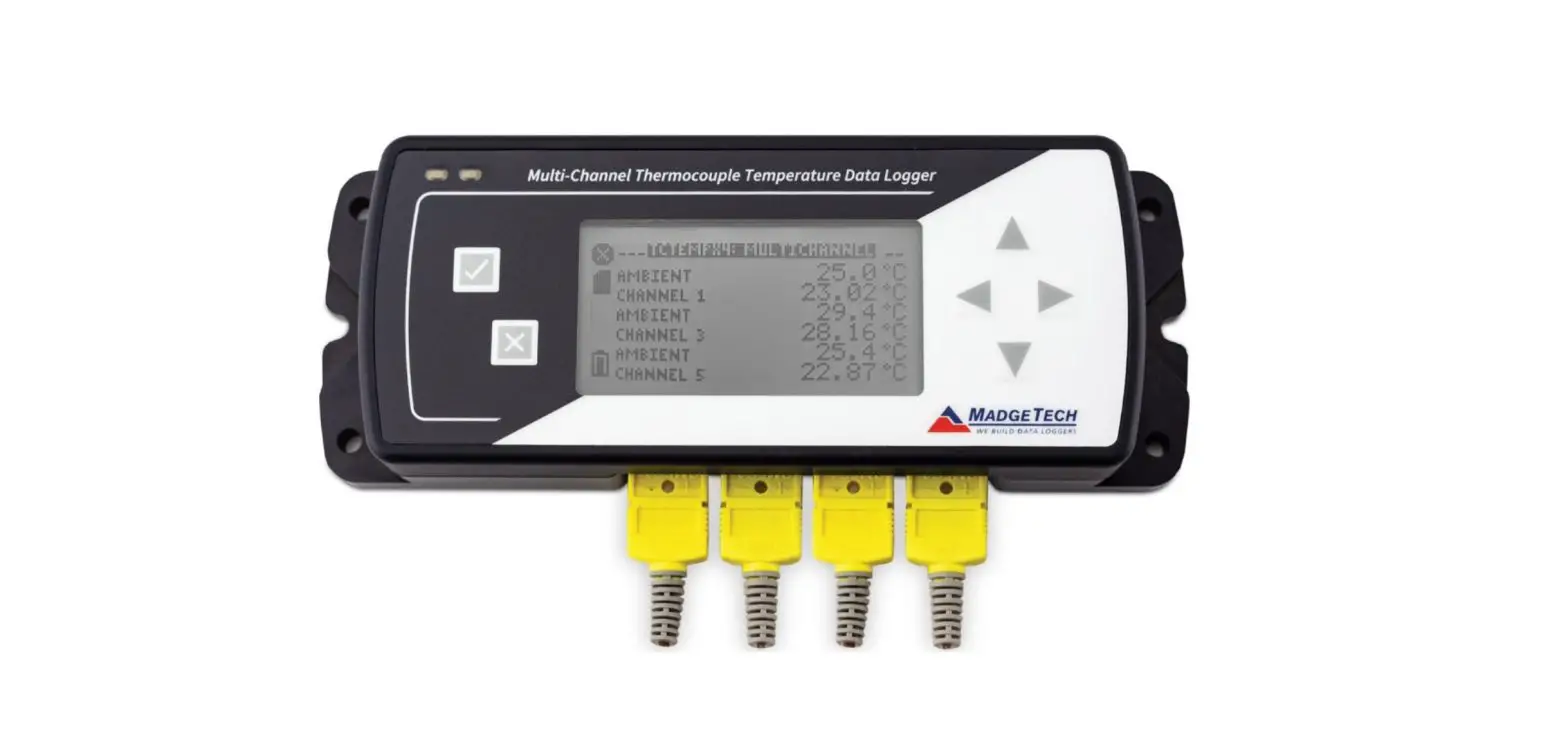
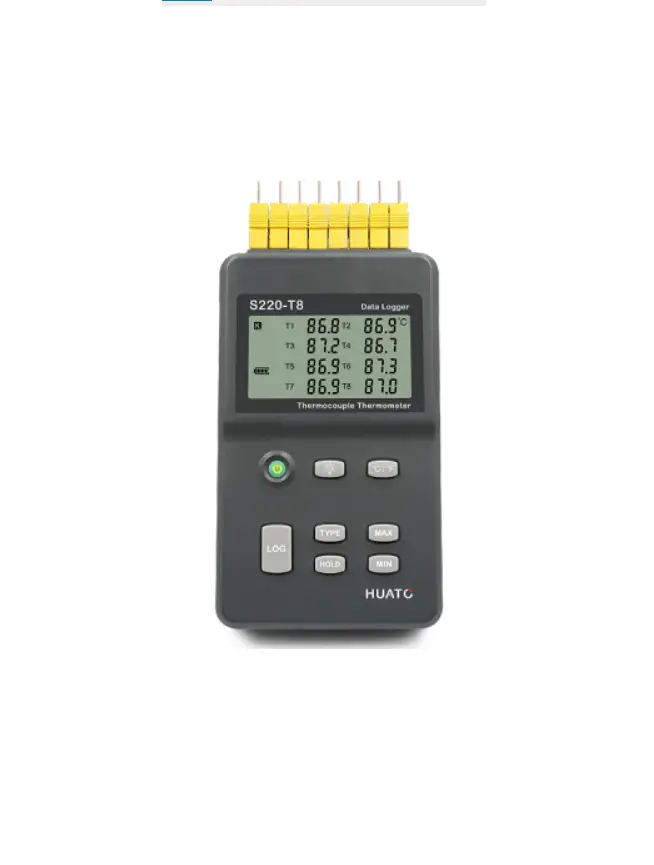
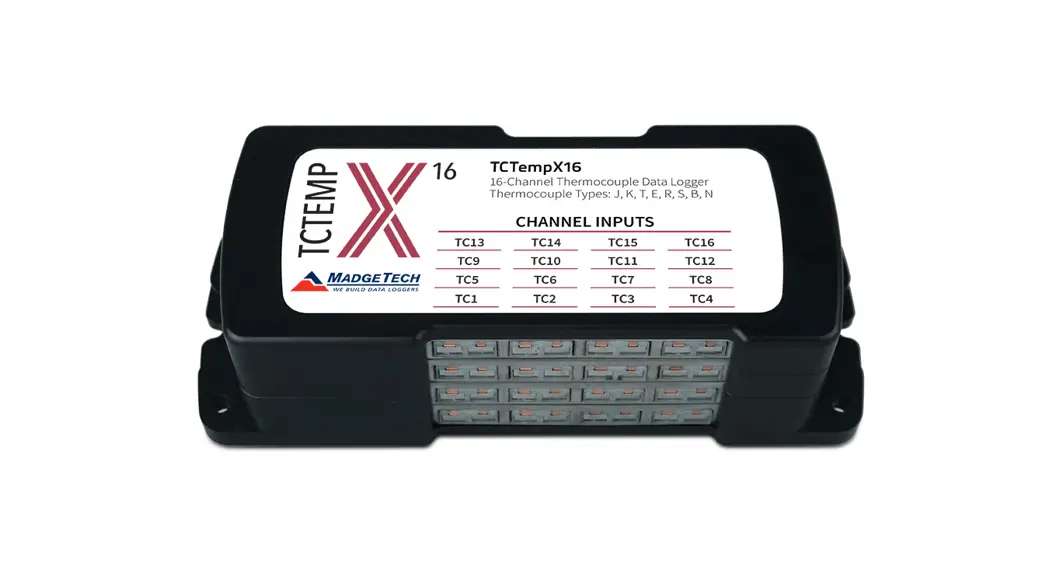
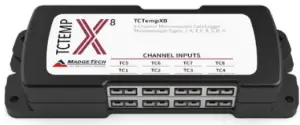
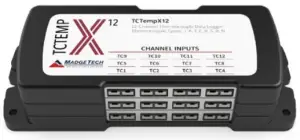
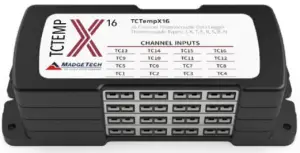
The TCTempX Series consists of a 4, 8, 12, and 16-channel thermocouple temperature data logger with a reading rate of up to 4 Hz. It can measure and record data for up to 524,032 readings (4 channels), 262,016 readings (8 channels), 174,677 readings (12 channels) and 131,008 readings (16 channels). For easy identification, each channel can be named with up to a ten-digit title. In addition, the TCTempX Series features individual cold junction compensation for each channel providing increased accuracy and response time, and if a probe is removed or severed during logging, the software automatically annotates the data.
The TCTempX Series is ideal for a variety of applications, whether it is remote temperature monitoring or multiple points in a central location. Data from all channels is simultaneously logged. After the monitoring cycle is complete, data can be downloaded for analysis. The TCTempX Series comes with a wall-mounted universal power adapter. See datasheet for full specifications.
Wiring Options
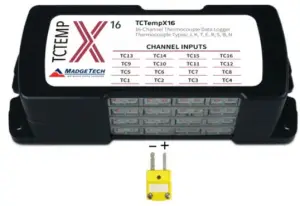
The TCTempX Series has 4, 8, 12, or 16 SMP connections.
These connections allow the user to insert subminiature thermocouple plugs into the connectors on the device. The diagram below shows how to connect the individual thermocouples for each of the devices. Warning: Note the polarity instructions. Do not attach wires to the wrong terminals.
Installation Guide
Installing the Software
The Software can be downloaded from the MadgeTech website at madgetech.com. Follow the instructions provided in the Installation Wizard. Compatible with Standard Software version 4.2.17.0 or later and Secure Software version 4.2.16.0 or later.
Device Operation
Connecting and Starting the Data Logger
- Once the software is installed and running, plug the supplied USB A to Micro USB cable into the data logger.
- Connect the USB A end of the cable into an open USB port on the computer.
- The device will appear in the Connected Devices list. Highlight the desired data logger.
- For most applications, select Custom Start from the menu bar and choose the desired start method, reading rate, and other parameters appropriate for the data logging application and click Start.
- Quick Start applies the most recent custom start options
- Batch Start is used for managing multiple loggers at once
- Real-Time Start stores the dataset as it records while connected to the logger
5. The status of the device will change to Running, Waiting to Start, or Waiting to Manual Start, depending upon your start method.
6. Disconnect the data logger from the USB cable and place it in the environment to measure.
Note: The device will stop recording data when the end of memory is reached or the device is stopped. At this point, the device cannot be restarted until it has been re-armed by the computer.
Manual Start
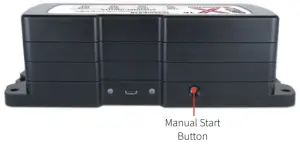
Click the Custom Start button on the Device panel, or right-click on the device and hover on the start selection, then choose custom start. Apply the options desired and select Start. Once armed through the software, to activate the Manual Start, hold the recessed push button, adjacent to the interface cable plug, down for 10 seconds. Green LED will blink rapidly and then blink every 15 seconds. To see the change in the status, hit Refresh within the software.
Thermocouple Type
To change the thermocouple type:
- In the Connected Devices panel, click the device desired.
- On the Device Tab, in the Information Group, click Properties. Or, right-click the device and select Properties in the context menu.
- On the General Tab, change the Thermocouple type in the drop-down menu.
- Apply these changes, there will be a prompt to reset the device, select Yes.
Please note that the same thermocouple type must be used on all of the channels.
Channel Naming
Up to a 10-character channel, the name can be programmed into the data logger for each channel. This ability helps to rename a channel in a report to distinguish it from other similarly named channels.
- In the Connected Devices panel, click the device desired.
- On the Device Tab, in the Information Group, click Properties. Or, right-click the device and select Properties in the context menu.
- In the Channels panel, find the channel desired, then select “Use a custom name.”
- This will prompt a space to type in a name.
- Select OK, then there will be a prompt to reset the device, select Yes.
Downloading Data from a Data Logger
- Connect the logger to the supplied USB A to Micro USB cable.
- Highlight the data logger in the Connected Devices list. Click Stop on the menu bar.
- Once the data logger is stopped, with the logger highlighted, click Download. You then can create a report from the saved Dataset.
- Downloading will offload and save all the recorded data to the PC.
Set Password
To password protect the device so that others cannot start, stop or reset the device:
- In the Connected Devices panel, click the device desired.
- On the Device Tab, in the Information Group, click Properties. Or, right-click the device and select Properties in the context menu.
- On the General tab, click Set Password.
- Enter and confirm the password in the box that appears, then select OK.
LED Functionality
 | Primary LED (Green): Solid when communicating with the computer. Flashes every 15 seconds when logging. Flashes every 5 seconds when in delay start. |
 | Secondary LED (Red): Flashes every 5 seconds when the battery is low. Flashes every 5 seconds when memory is low. |
 | Channel LED (Blue): Flashes every 2 seconds when the reading rate is 2 seconds or faster. Flashes same as the reading rate when the reading rate is slower than 2 seconds. |
Device Maintenance
Battery Replacement
Materials: 3/32 inch HEX Driver (Allen Key) and a Replacement Battery (U9VL-J)
- Remove the cover from the device by unscrewing the two screws.
- Remove the battery from its compartment and unsnap it from the connector.
- Snap the new battery into the terminals and verify it is secure.
- Replace the cover taking care not to pinch the wires. Screw the enclosure back together securely.
Note: Be sure not to over-tighten the screws or strip the threads.
Recalibration
Recalibration is recommended annually. To send devices back for calibration, visit madgetech.com.
 | Product Support & Troubleshooting: • Visit our Resources online at madgetech.com/resources. • Contact our friendly Customer Support Team at (603) 456-2011 or [email protected]. |
 | MadgeTech 4 Software Support: • Refer to the built-in help section of the MadgeTech 4 Software. • Download the MadgeTech 4 Software Manual at madgetech.com. • Contact our friendly Customer Support Team at (603) 456-2011 or [email protected]. |

6 Warner Road, Warner, NH 03278 (603) 456-2011
[email protected]
madgetech.com
DOC1371036-00 | REV 2 2020.04.13