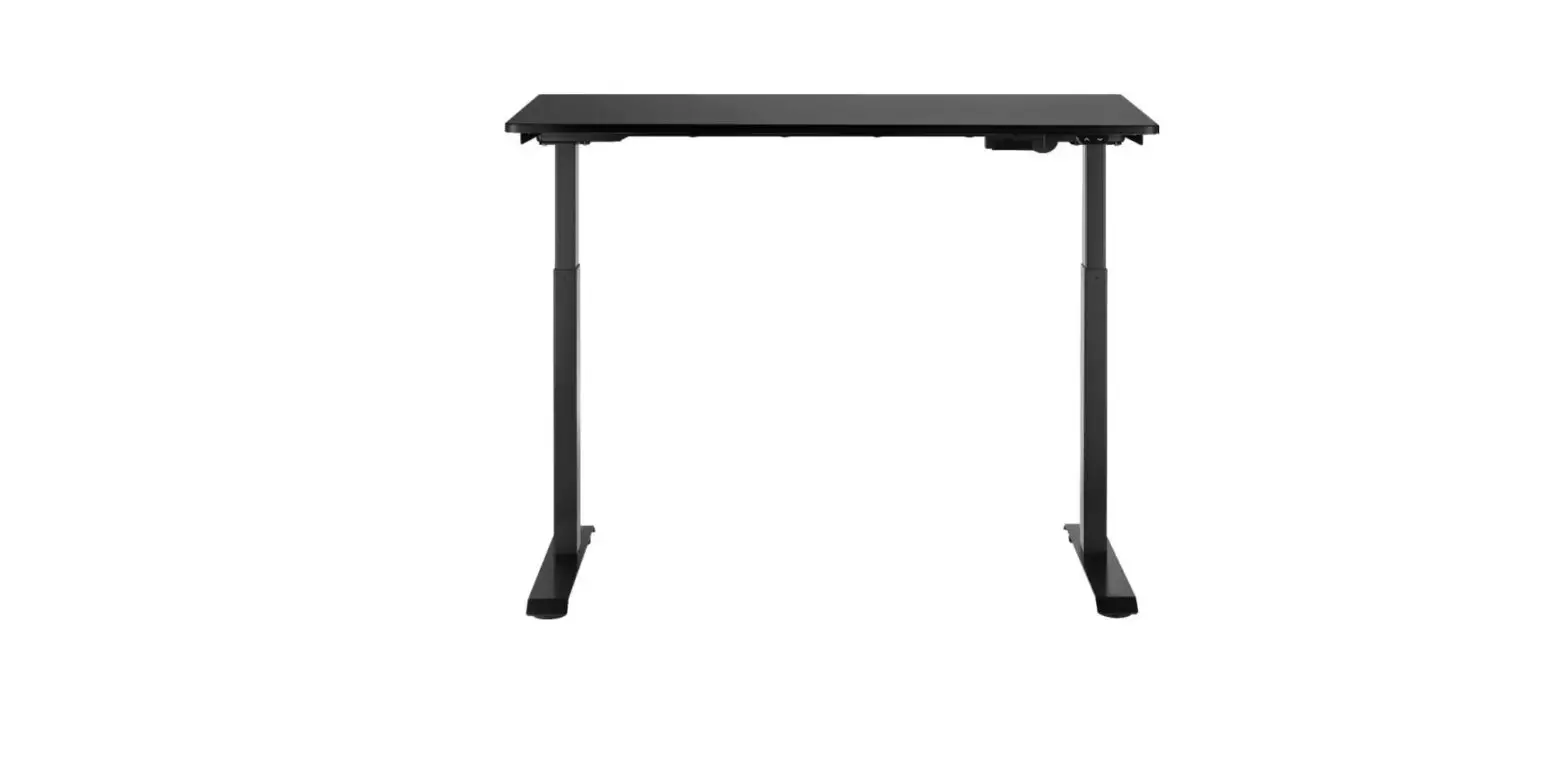
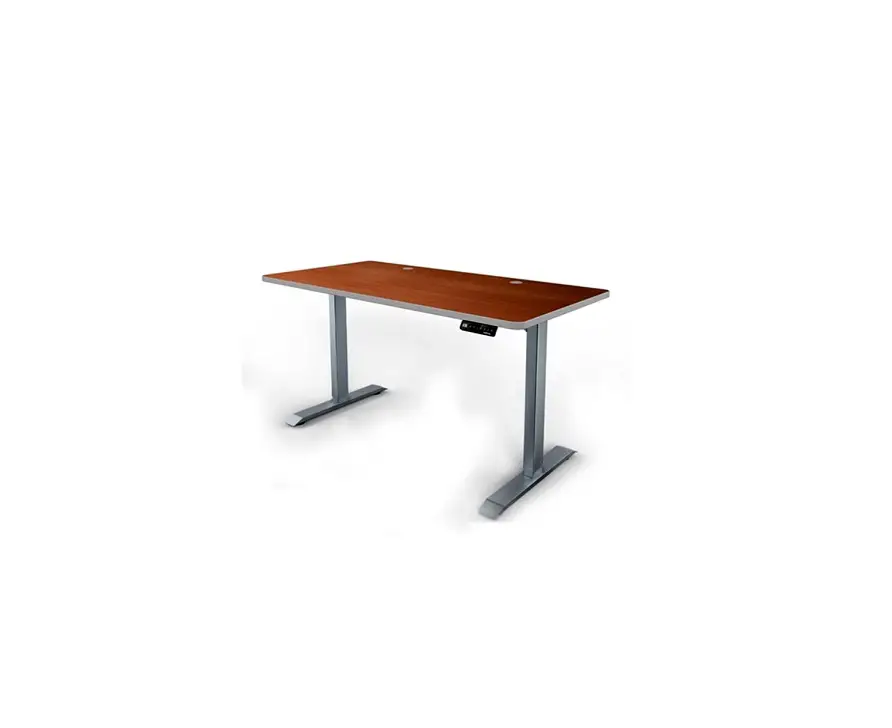
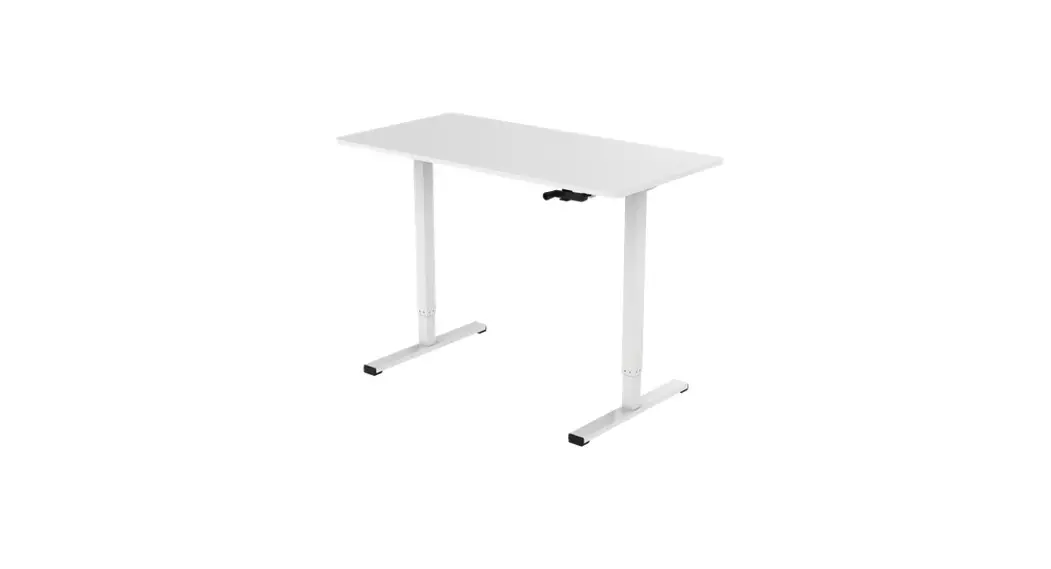
NS-SDSK-BL Standing Desk
Product Information
Product Name: Standing Desk
Model Numbers: NS SDSK BL / NS SDSK MH / NS
SDSK AK
Package Contents
| No. | Part | Qty |
|---|---|---|
| A | ST4.2*19 | 2 |
| B | M6 x16 | 4 |
| C | 8 x 4 | 4 |
| D | 5 x 5 | 1 |
Major Parts List
| No. | Part | Qty |
|---|---|---|
| 1 | Tabletop | 1 |
| 2 | Left column | 1 |
| 3 | Right column | 1 |
| 4 | Feet | 2 |
| 5 | Power Plug | 1 |
| 6 | Adapter | 1 |
| 7 | Hand switch | 1 |
| 8 | Cable ties | 4 |
Specifications
– Dimensions: cm (centimeters)
Troubleshooting
Please refer to the troubleshooting section in the user manual
for assistance with any issues you may encounter.
Important Safety Information
Please read and follow all safety instructions provided in the
user manual to prevent any accidents or injuries.
Legal Notices
Please review the legal notices provided in the user manual for
important information regarding the use of this product.
One Year Limited Warranty
This product comes with a one-year limited warranty. For more
details, please visit www.insigniaproducts.com.
Contact Insignia
To contact Insignia for support or inquiries:
– Call 1-877-467-4289 (U.S. and Canada) or 01-800-926-3000
(Mexico)
– Visit www.insigniaproducts.com
Version: V4 ENGLISH 22-0764
Product Usage Instructions
- Before using your new product, read the instructions provided
in the user manual to prevent any damage. - Installing the Legs:
- Place the desktop upside down on a carpet or protective
cloth. - Make sure that both legs are at their lowest setting before
installation to ensure the table is level when assembled. - Insert the hexagonal shaft in the first leg into the
corresponding hole in the desktop leg mount. - Turn the leg until the screw holes line up and the connecting
cable on the top of the leg faces inward toward the motor. - Repeat the steps to attach the other leg. Note: See the section
on Installing the Adapter and Connecting the Cables for cable
connections.
- Place the desktop upside down on a carpet or protective
- Installing the Feet:
- Attach the adjustable pad to the feet.
- Place the feet on the bottom of the legs.
- Installing the Switch:
- Attach the hand switch to the designated area on the
desktop.
- Attach the hand switch to the designated area on the
- Installing the Adapter and Connecting the
Cables:- Slide the adapter into the slot on the bottom of the desktop,
ensuring the female connector is on the left and the adapter cable
is on the right. - Connect the cable from the switch to the adapter cable and lock
them together. - Plug the small connector on the power cord into the female
connector on the adapter. - Connect the adapter cable to the DC port and the motor cable to
the M1 port. - Attach the cables to the bottom of the desktop using the
provided cable ties.
- Slide the adapter into the slot on the bottom of the desktop,
- Using Your Standing Desk:
- With another person to assist you, lift the desk from the floor
and turn it upright. - Place the desk on a firm, level floor.
- Plug your desk into a power outlet.
- Press the UP button to raise the desktop and press the DOWN
button to lower the tabletop. - Note: Ensure that the table and surrounding area are clear from
obstructions before moving the table up or down.
- With another person to assist you, lift the desk from the floor
- Anti-collision Function:
Note: When the lifting system’s built-in sensor encounters
resistance, the lifting system pauses, then reverses motion and
stops.
QUICK SETUP GUIDE
Standing Desk
NS SDSK BL / NS SDSK MH / NS SDSK AK
9 8
TWO PERSON LIFT REQUIRED
PACKAGE CONTENTS
· Standing desk · Small parts list · Quick Setup Guide
FEATURES
· Easily adjusts to a comfortable height with a hand switch · 19.7 in (50 cm) of height adjustment lets you use the desk while standing or sitting · The desktop holds up to 110 lbs. (50 kg) and is suitable for a computer, printer, or
sewing machine (within the weight limit) · Cable management for a clean look · Choice of two colors, black or mahogany (both with black frame) · Electric adjustment switch easily raises or lowers the desk height · Steel frame with particleboard tabletop provides a stable work surface
Before using your new product, please read these instructions to prevent any damage.
SMALL PARTS LIST
No.
Part
Qty
A
ST4.2*19
2
B
M6 x16
4
C
M6×16
8
4 x 4
D
1
5 x 5
MAJOR PARTS LIST
No. Part
Qty
1
1
Tabletop
2
1
Left column
3
1
Right column
4
2
Feet
5
1
Power Plug
6
1
Adapter
7
1
Hand switch
8
Cable ties 4
INSTALLING THE LEGS
1 Place the desktop upside down on a carpet or protective cloth. Note: Make sure that both legs are at their lowest setting (turn the shaft in each leg to do this) before installation so that the table will be level when assembled.
B
× 4
D
4×4 2
INSTALLING THE FEET
Attach the feet to the bottoms of the legs with four 6 × 16 screws each. Make sure that the adjustable pads on the bottom of the feet face down and the long portion of each foot faces forward (as shown).
C × 8
D 4 × 4
D C
C
Adjustable pad
2 Insert the hexagonal shaft in the first leg into the corresponding hole in the desktop leg mount, then turn the leg until the screw holes line up and the connecting cable on the top of the leg faces the in toward the motor.
Top view
3 Attach the leg to the desktop with four M6 × 16 screws, tightening them firmly with the 4 × 4 Allen key.
B
D
INSTALLING THE SWITCH
Attach the switch to the bottom of the desktop with two ST4.2*19 screws. Tighten the screws with the 5 × 5 Allen key. Make sure that the flat side of the switch is against the desktop and the UP and DOWN buttons are facing forward.
A
× 2 D
5 × 5
DD A
Hand switch
4 Repeat the steps to attach the other leg 2 . Note: See the section on “Installing the Adapter and Connecting the Cables” for cable connections.
9
Adapter cable 1
6
INSTALLING THE ADAPTER AND CONNECTING THE CABLES
1 Slide the adapter 6 into the slot on the bottom of the desktop so that the female connector is on the left (as shown) and the adapter cable is on the right (see detail).
2 Connect the cable from the switch to the adapter cable 6 , then lock them together (see detail).
3 Plug the small connecter on the power cord into the female connector on the adapter (see detail).
4 Connect the adapter cable to the DC port. Connect the motor cable to the M1 port (see detail).
9
5 Attach the cables to the bottom of the desktop with the cable ties provided (see detail).
8
USING YOUR STANDING DESK
1 With another person to assist you, lift the desk from the floor and turn it upright. 2 Place the desk where you want it, on a firm, level floor. 3 Plug your desk into a power outlet. 4 Press the to raise the desktop and press the to lower the table top.
Note: Make sure that the table and surrounding area are clear from obstructions before moving the table up or down.
Anti-collision function: Note: When the lifting system’s built-in sensor encounters resistance, the lifting system pauses, then reverses motion and stops.
· Press and hold the and buttons together (longer than 5 seconds) to turn off or turn on the
anti-collision function.
DOWN button UP button
SPECIFICATIONS
· Maximum weight: 110 lbs. (50 kg) · Input voltage required: 100-240 V ~ 50/60 Hz · Lowest position: 28.7 in. (73 cm) · Highest position: 48.4 in. (123 cm) · Dimensions (desktop size) (H×W×D): 47.2 × 23.6 × 0.7 in. (120 × 60 × 1.8
cm)
TROUBLESHOOTING
The tabletop will not raise or lower · Make sure that all cables are securely connected. · Make sure that the tabletop is not overloaded. The maximum weight should not exceed 110 lbs. (50 kg). · Try again after 30 minutes. · Contact your supplier or dealer.
IMPORTANT SAFETY INFORMATION
· You should only use your table when the temperature is between 32 – 104° F (0-40° C). · The power adapter requires 100-240 VAC ~ 50/60 Hz. · Do not expose the power adapter to moisture, or excessive dust. It may cause shock hazards. · Operate the adapter in a well ventilated area. Maximum ambient temperature around the power adapter
must not exceed 104° F (40° C). · Do not open the power adapter under any circumstances. The power adapter is not intended to be
repaired in case of failure or component defect. There are no internal serviceable parts. · Discontinue use, if any of the following should occur:
· The adapter shuts down when it connects to the switch’s port. (LED turns off ) · The adapter’s LED light blinks when the adapter is plugged into an AC power outlet. · A cord or plug is damaged or frayed. · Make sure to connect the adapter’s plug and switch’s port correctly. · The socket shall be installed near the adapter and shall be easily accessible. · Make sure that your table is correctly and completely assembled before you use it. CAUTION: You should unplug the power cord before cleaning your table. Wipe the dust from the surface with a slightly damp cloth. Do not use caustic or abrasive cleaners or any solvents (such as benzine or gasoline) to clean your table. CAUTION: Children should not be allowed to operate the table.
LEGAL NOTICES
FCC PART 15 This device complies with Part 15 of the FCC Rules. Operation of this product is subject to the following two conditions: (1) this device may not cause harmful interference, and (2) this device must accept any interference received, including interference that may cause undesired operation. This equipment has been tested and found to comply within the limits for a class B digital device, pursuant to Part 15 of the FCC Rules. These limits are designed to provide reasonable protection against harmful interference in a residential installation. This equipment generates, uses, and can radiate radio frequency energy and, if not installed and used in accordance with the instructions, may cause harmful interference to radio communications. However, there is no guarantee that interference will not occur in a particular installation. If this equipment does cause harmful interference to radio or television reception, which can be determined by turning the equipment off and on, the user is encouraged to try to correct the interference by one or more of the following measures: · Reorient or relocate the receiving antenna. · Increase the separation between the equipment and receiver. · Connect the equipment into an outlet on a circuit different from that to which the receiver is connected. · Consult the dealer or an experienced technician for help. FCC WARNING Changes or modifications not expressly approved by the party responsible for compliance with the FCC Rules could void the user’s authority to operate this equipment.
ONE YEAR LIMITED WARRANTY
For complete warranty, visit www.insigniaproducts.com.
CONTACT INSIGNIA
1-877-467-4289 (U.S. and Canada) or 01-800-926-3000 (Mexico) www.insigniaproducts.com
INSIGNIA is a trademark of Best Buy and its a liated companies Distributed by Best Buy Purchasing, LLC 7601 Penn Ave South, Richfield, MN 55423 U.S.A. ©2022 Best Buy. All rights reserved.
V4 ENGLISH 22-0764