
GNSS Asset Tracking
Setup Guide
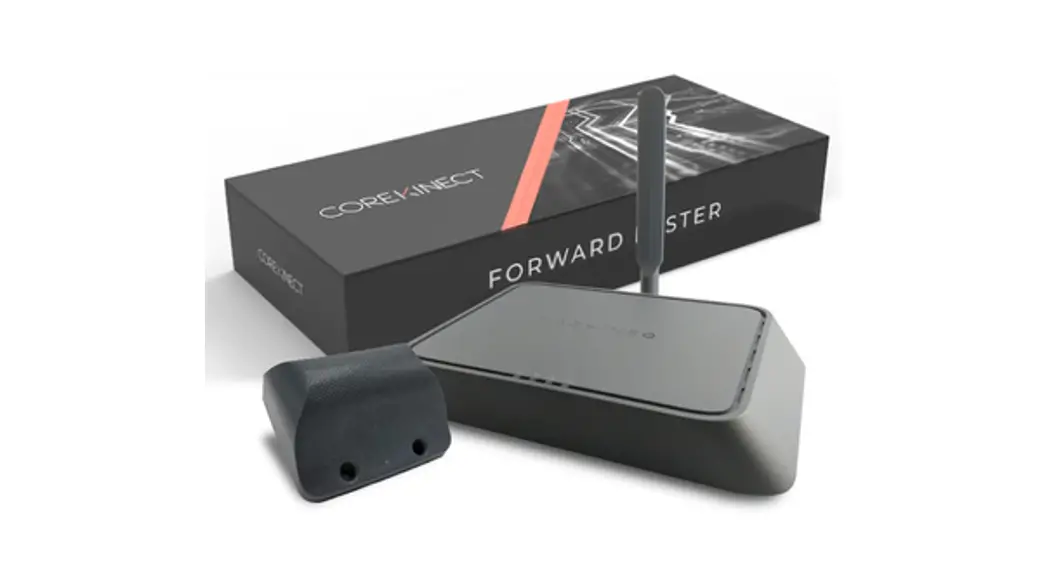
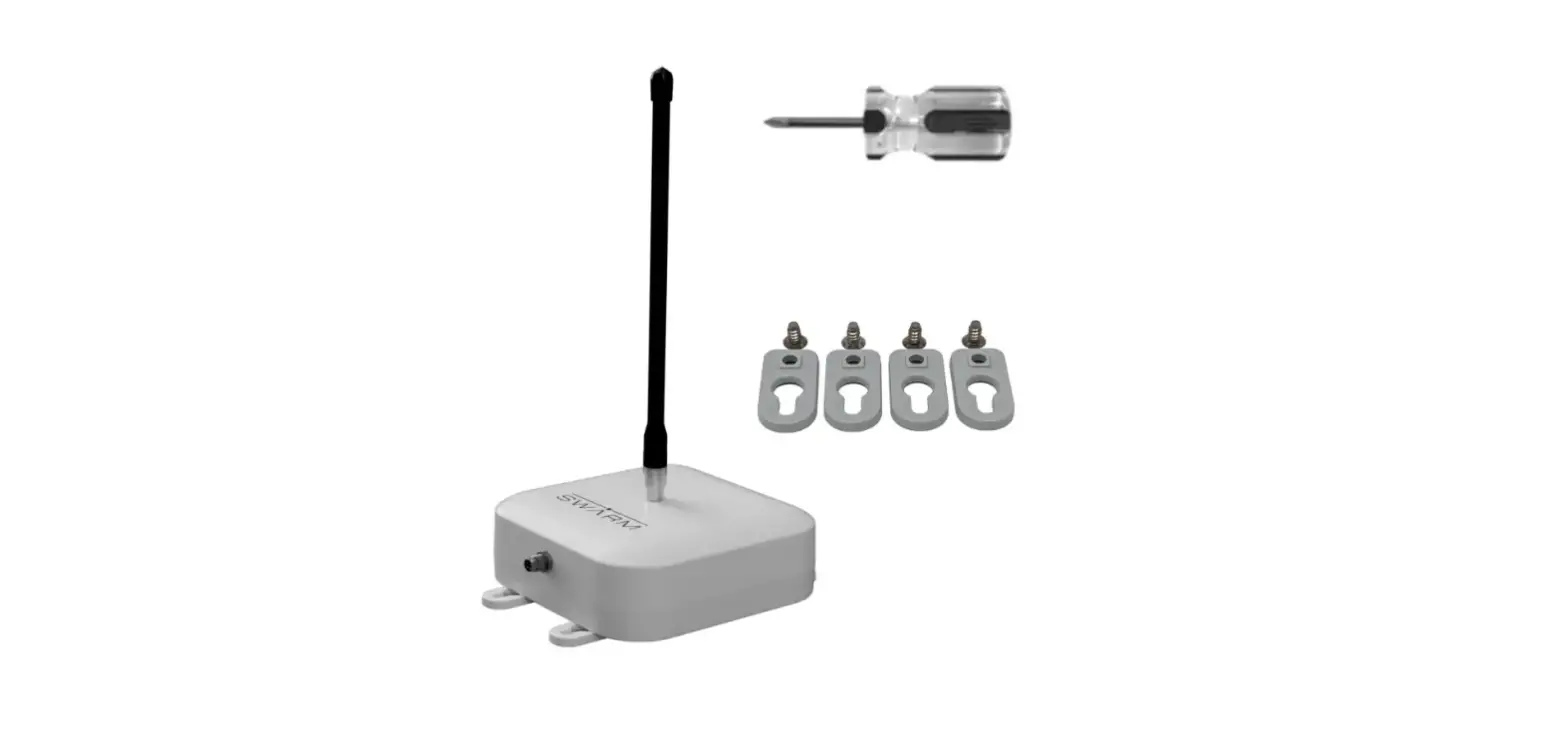
Install your gateway device (ProxPoint)
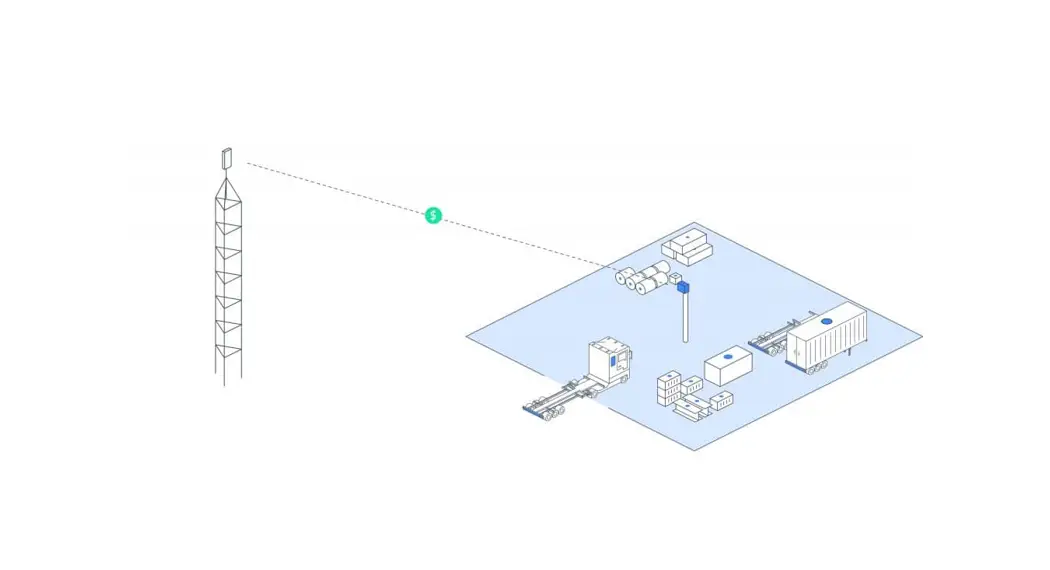
Get started by setting up your ProxPoint with a 100 meter radius of where you would like to like to track. For this demo, you will use an LTE connection (but ethernet and wireless are also available).
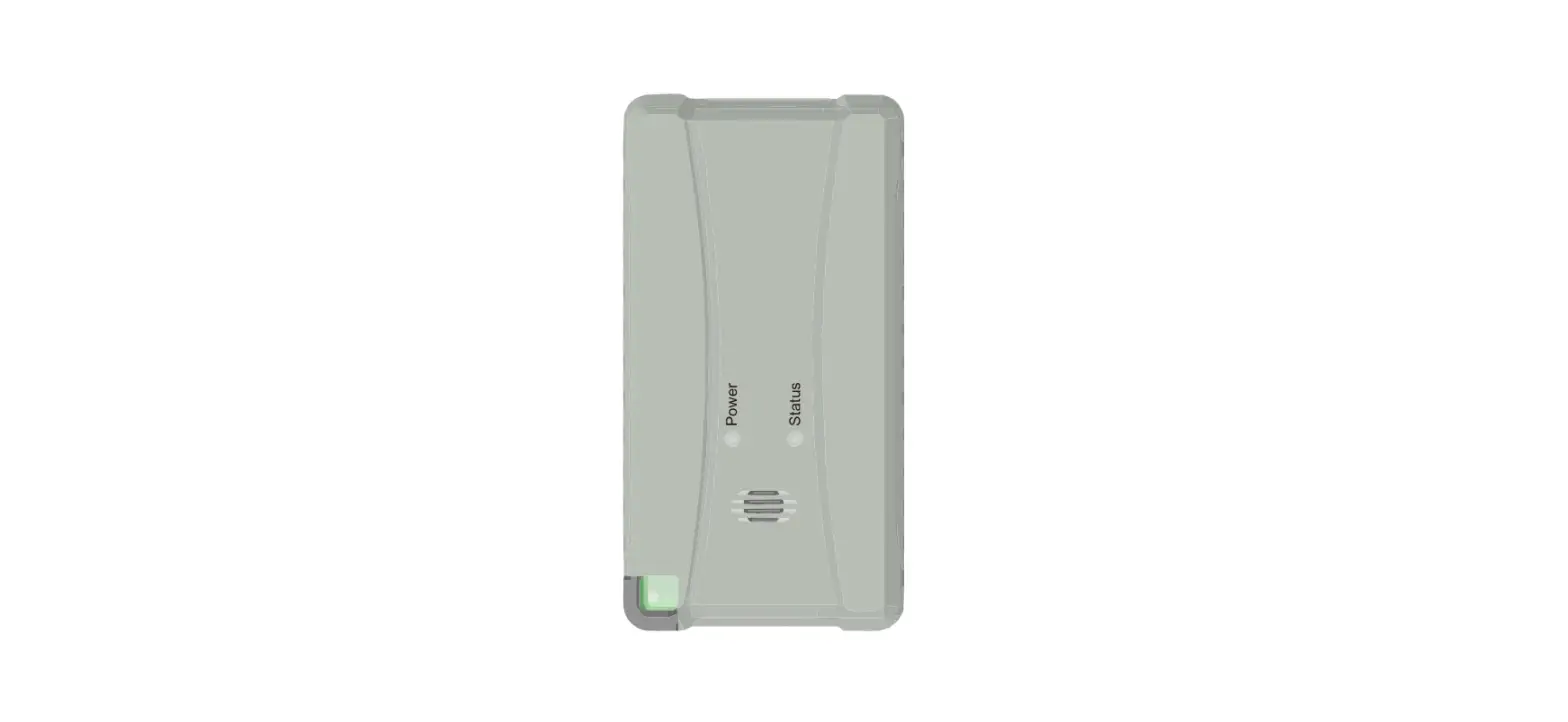
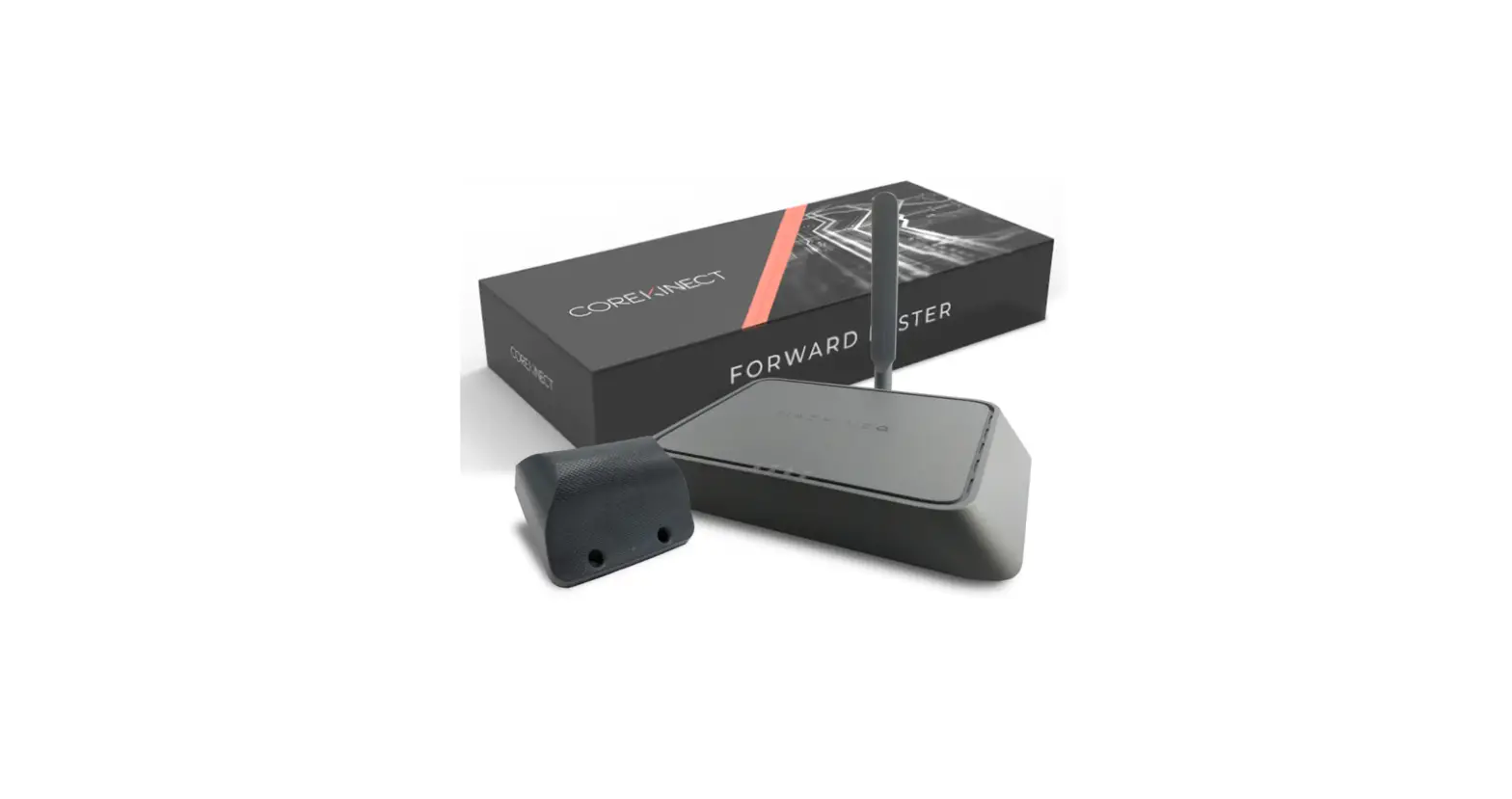
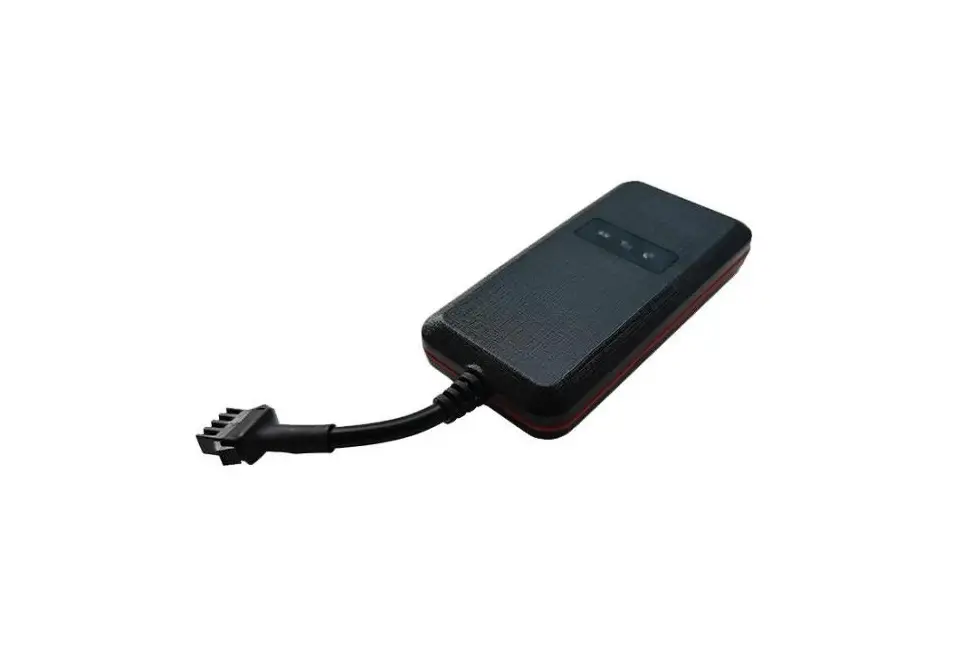
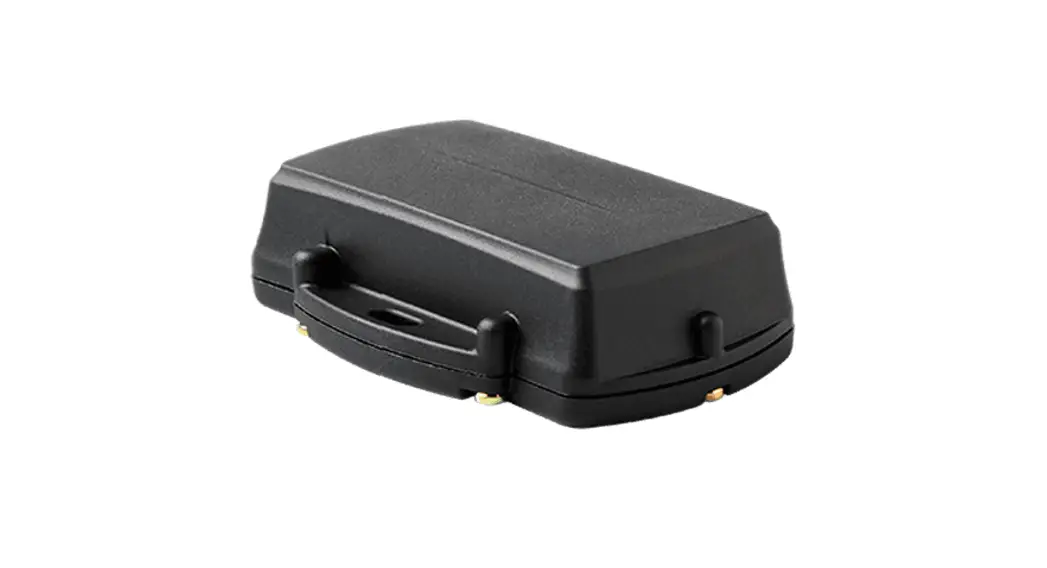
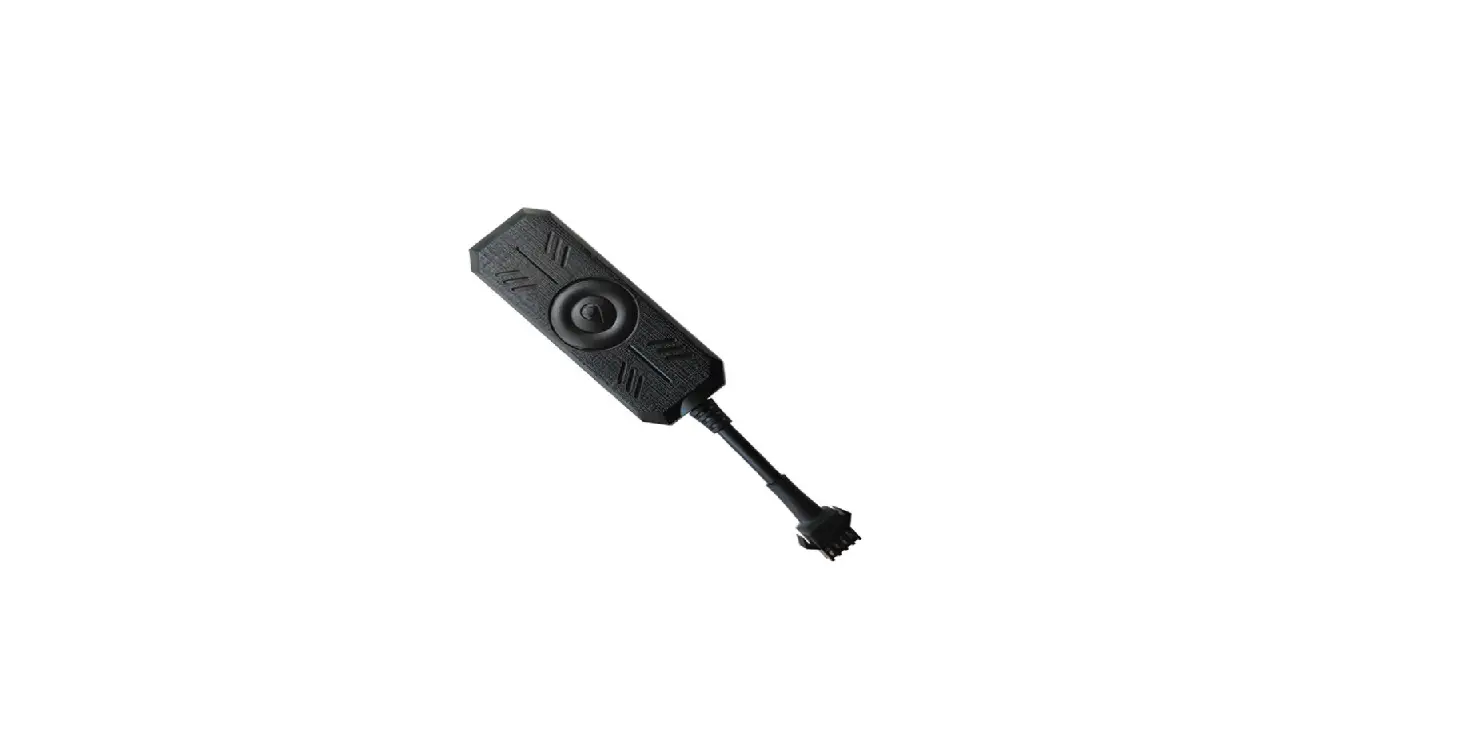
A. Unbox the ProxPoint, power supply, and all antennas. | B. Attach the antennas to the ProxPoint using the table below. | C. Mount the ProxPoint (using screws, double sided tape, or cable ties) somewhere with mobile reception. Ensure the LTE antenna is positioned vertically as shown below. | D. Connect the ProxPoint to a power supply. When the LED is solid green, the ProxPoint is connected and ready to use (this can take up to 2 minutes). |
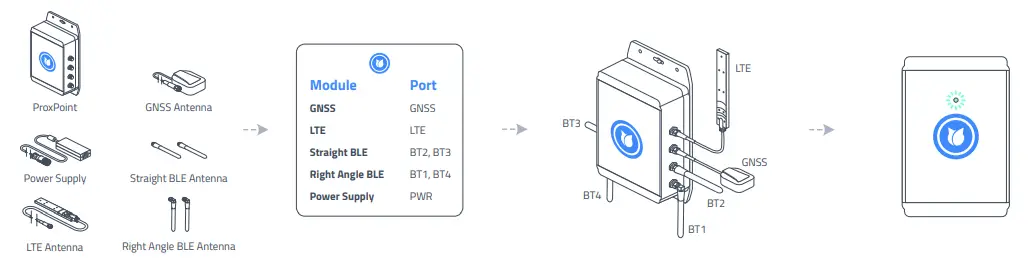 | |||
Create your site and meaningful zones
To get the most out of BlueCats Asset Tracking, create your sites and then add zones that are meaningful to your tracking needs. This will help you view detailed movement history reports.
A. Visit gnss.bluecats.com to log in to the Loop Cloud dashboard using | B. Navigate to Places in Loop Cloud. Click ‘Add New Site’. Draw your new site on the map and click ‘Save’. More details can be found at |
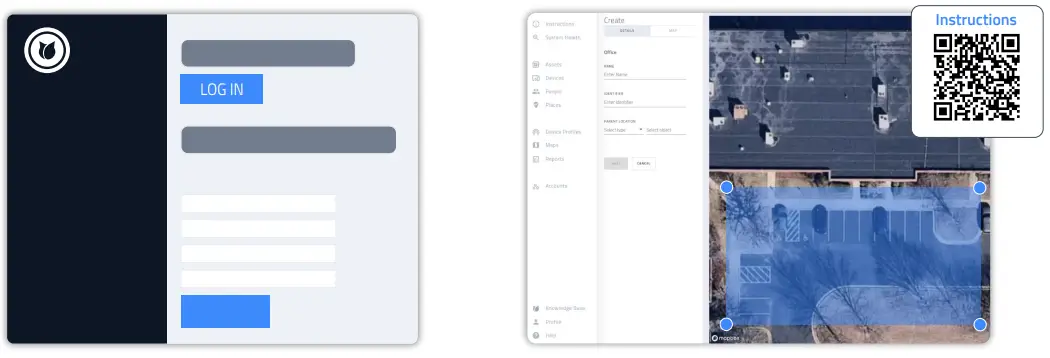 | |
2. Create your site and meaningful zones (continued)
| C. Once your first site is created, add additional zones within the original perimeter by clicking ‘Add New Zone’. | D. Now you can even create additional sub-zones to track your assets with as much granularity as GPS technology can provide. A common example is to create a parking spot, within a parking lot, within your site. |
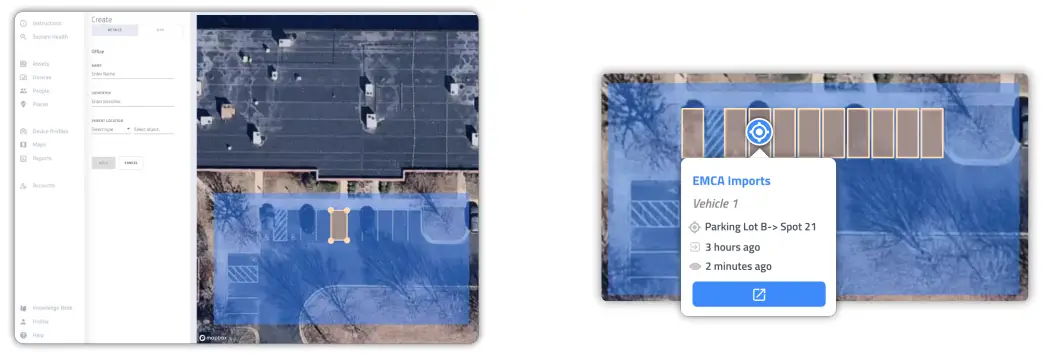 | |
Assign your ProxPoint to a place
When your ProxPoint is assigned to your site, Loop Cloud will have visibility over all your tags.
A. Navigate to Devices. You will notice that we have already preloaded your devices into Loop Cloud for you.
B. Select Proxpoint on the left hand side panel.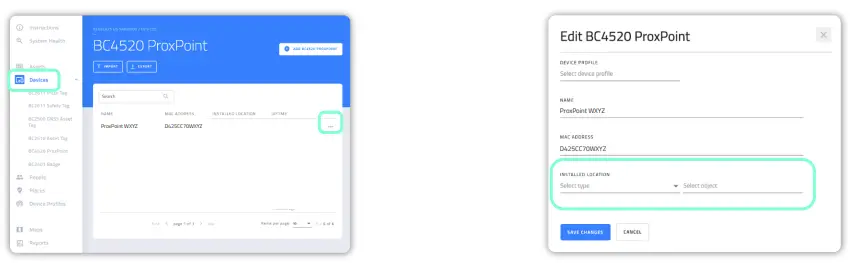 C. Select ‘Edit’ from the ‘…’ drop down beside your ProxPoint. Choose the Site or Zone your ProxPoint is located in, and save your changes.
Download the app and log in
| A. Download the BlueCats Loop Mobile app by scanning the applicable QR code below. | B. Open the app and select GNSS Demo Kit from the menu. | C. Log in with the same username and password you used to access Loop Cloud. You will be taken to the main menu. |
 | ||
https://play.google.com/store/apps/details?id=com.bluecats.loop&authuser=0
https://apps.apple.com/au/app/bluecats-loop-mobile/id1514522192
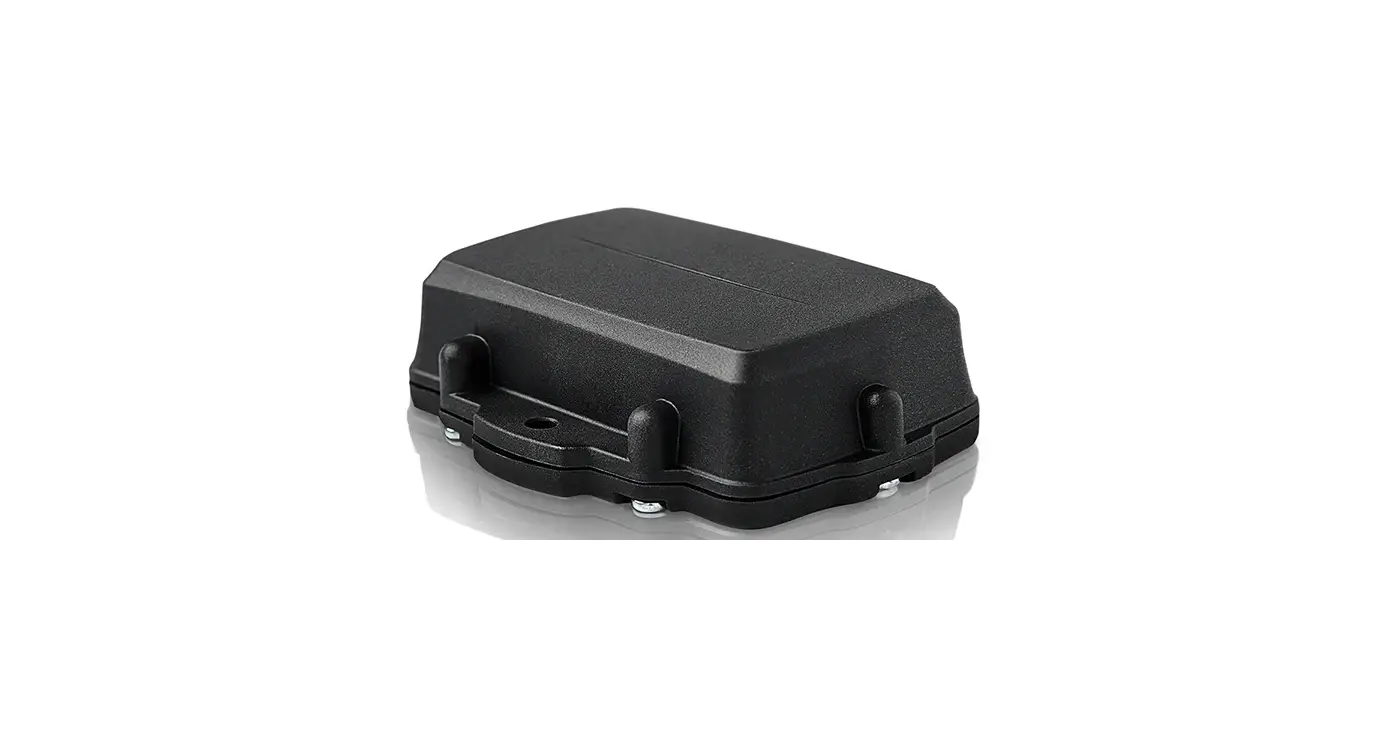
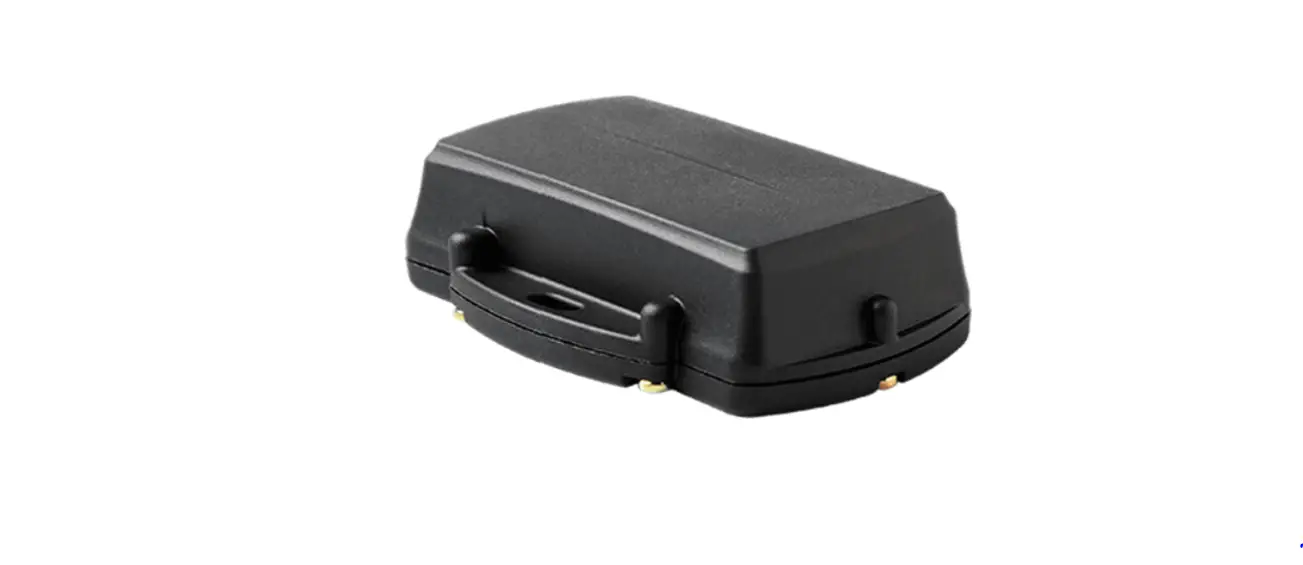
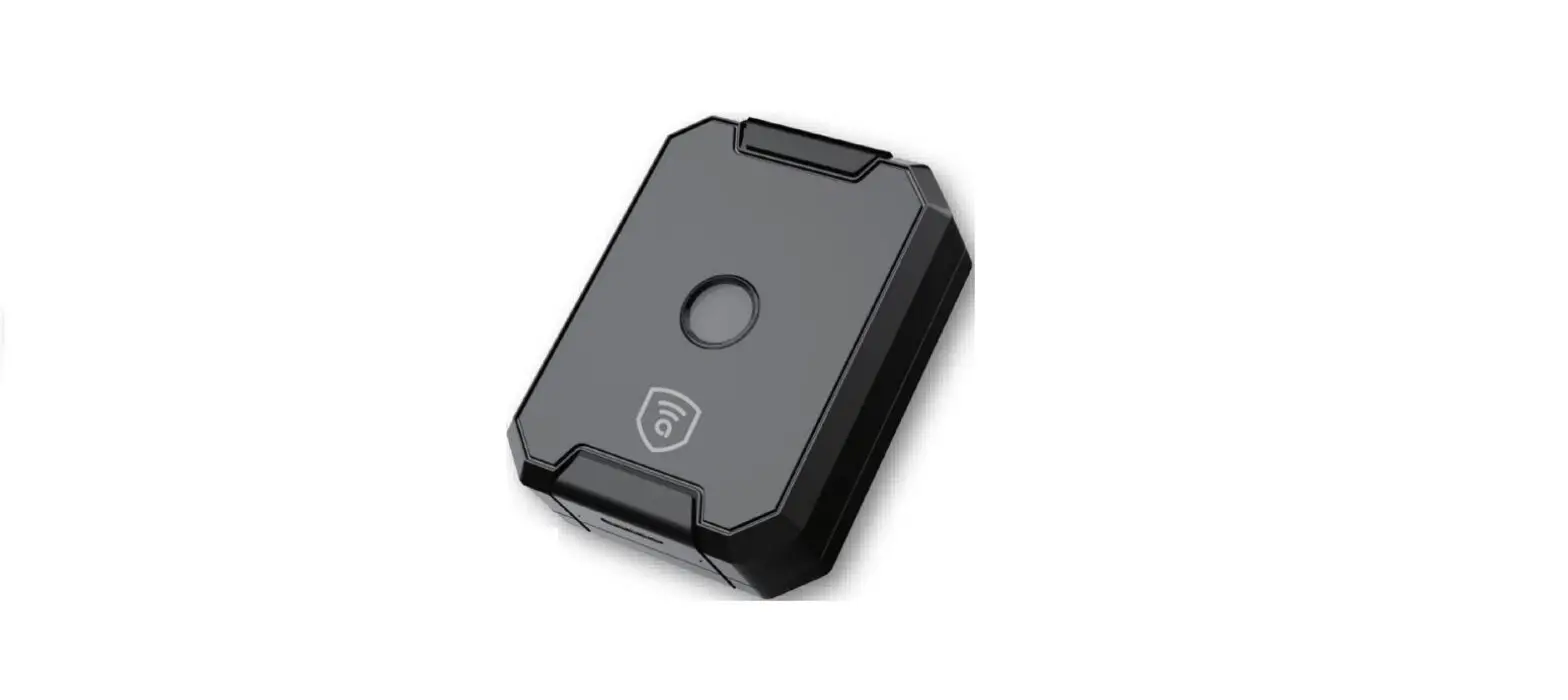
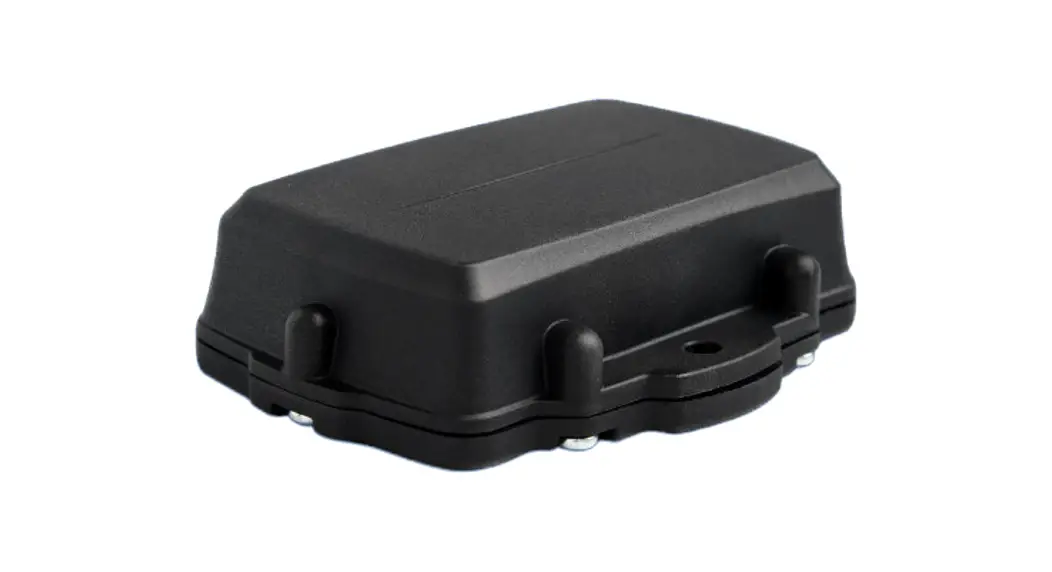
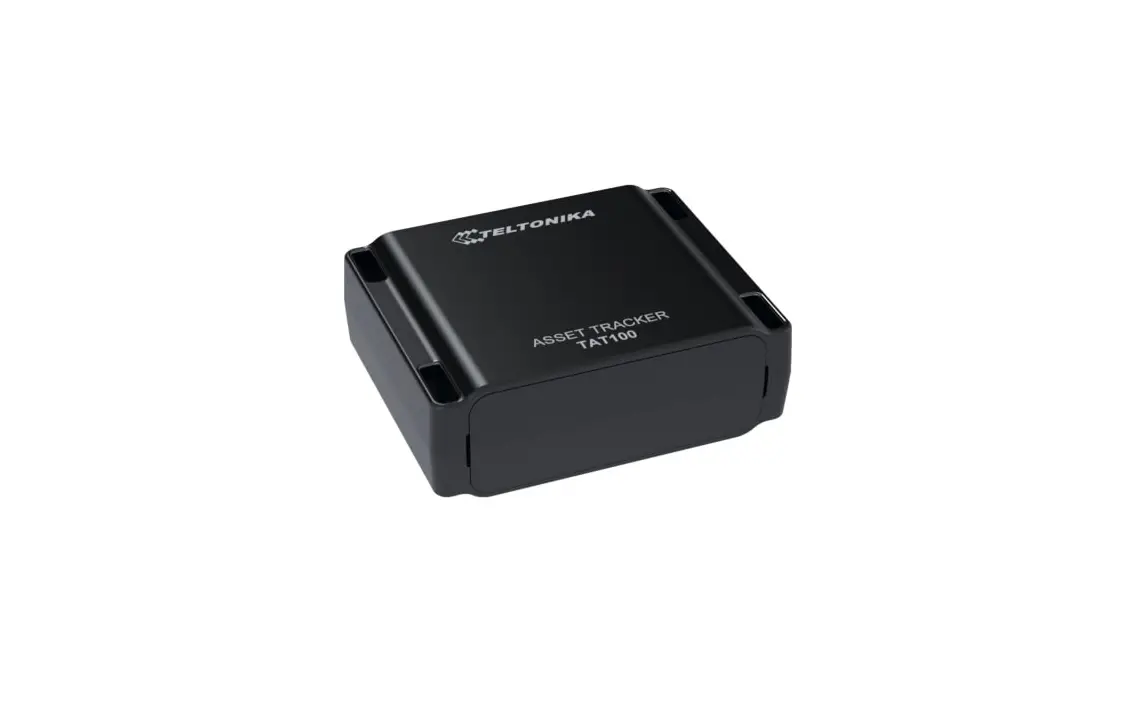
| A. Unbox the BC2500 Asset Tags and detach the “Remove before use” labels. | B. On the main screen of Loop Mobile, select ‘Assign Tag to Asset’ then scan the QR code on top of the Tag. | C. If your asset has its own barcode scan it now; alternatively use one of our sample cards included in the kit. |
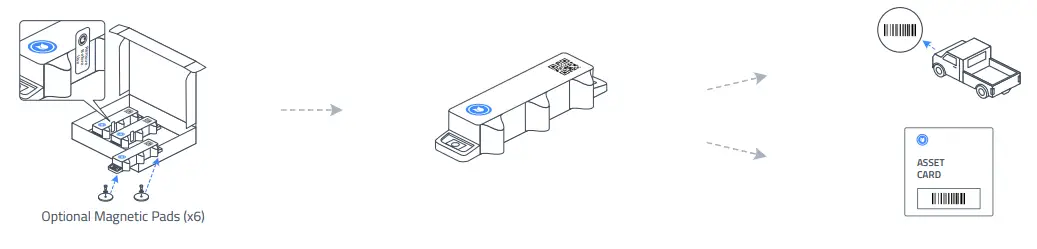 | ||
| D. Complete the details to create a new asset. | E. Place the Asset Tag on the item to be tracked. It must be outside with a clear view of the sky. Keep the Tag stationary for 1 minute to acquire a fix. | F. The ProxPoint will hear the Tag’s location and send that data to Loop Cloud. |
 | ||
Find your assets
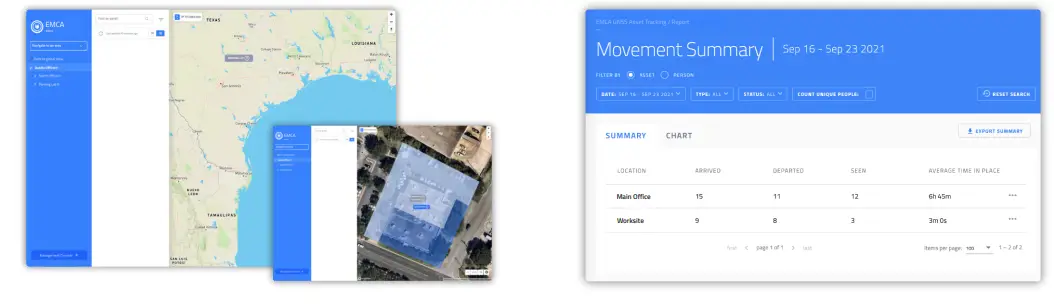
Now you can see the location of your assets within the site and zones you have created; as well as access or export tailored, detailed reports.
| A. In Loop Cloud, navigate to Maps to see your Sites, Zones, and a global view of all your assets. | B. Select Reports to access your tracking data, search for assets, or you can download a .csv of your Asset’s locations and status. You can access custom asset data based on location, time arrived or departed, average time in a place, plus much more. All data is also available via API for integration into your systems. |
 | |
We’re here to help
BlueCats is the only Real Time Location System (RTLS) provider with solutions that scale across Ultra-Wide Band (UWB) and Bluetooth. A technology innovator for more than 10 years, we specialize in real-time proximity and sensing technology to increase safety, efficiency and productivity, and our realtime asset tracking solutions have tracked everything from cattle and forklifts to NFL players and employees. Our solutions provide real-time metrics on what is happening within the business, allowing you to make mission critical business decisions. BlueCats’ vision is to provide digital awareness to every business on the planet. Please contact us with any questions at [email protected].
| Sydney Australia | Huntsville, Alabama | Austin, Texas |
| Ground Floor, 1 Northcliff St | 6767 Old Madison Pike NW, Suite 250 | 2404 Rutland Drive, Suite 175 |
| Milsons Point NSW 2061, Australia | Huntsville, AL 35806 | Austin, TX 78758 |
Visit our Knowledge Base for more details on using the app and tracking your Tags:
https://www.bluecats.com/knowledge-base-outdoor-tracking-loop-cloud/
Copyright BlueCats 2022
 GNSS Asset Tracking | Outdoor GPS Solution | BlueCats
 BlueCats Support | Product & Developer Documentation