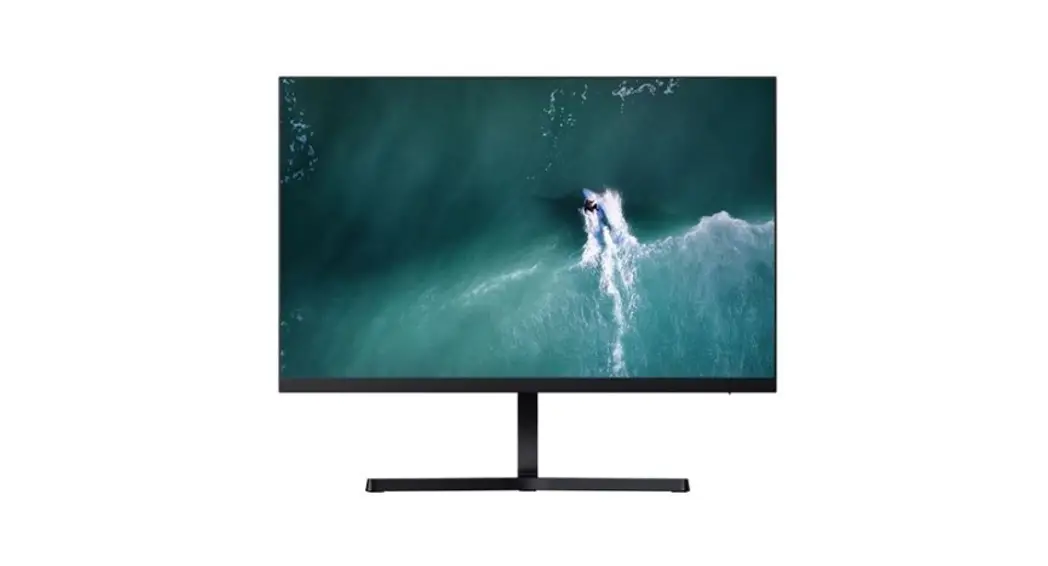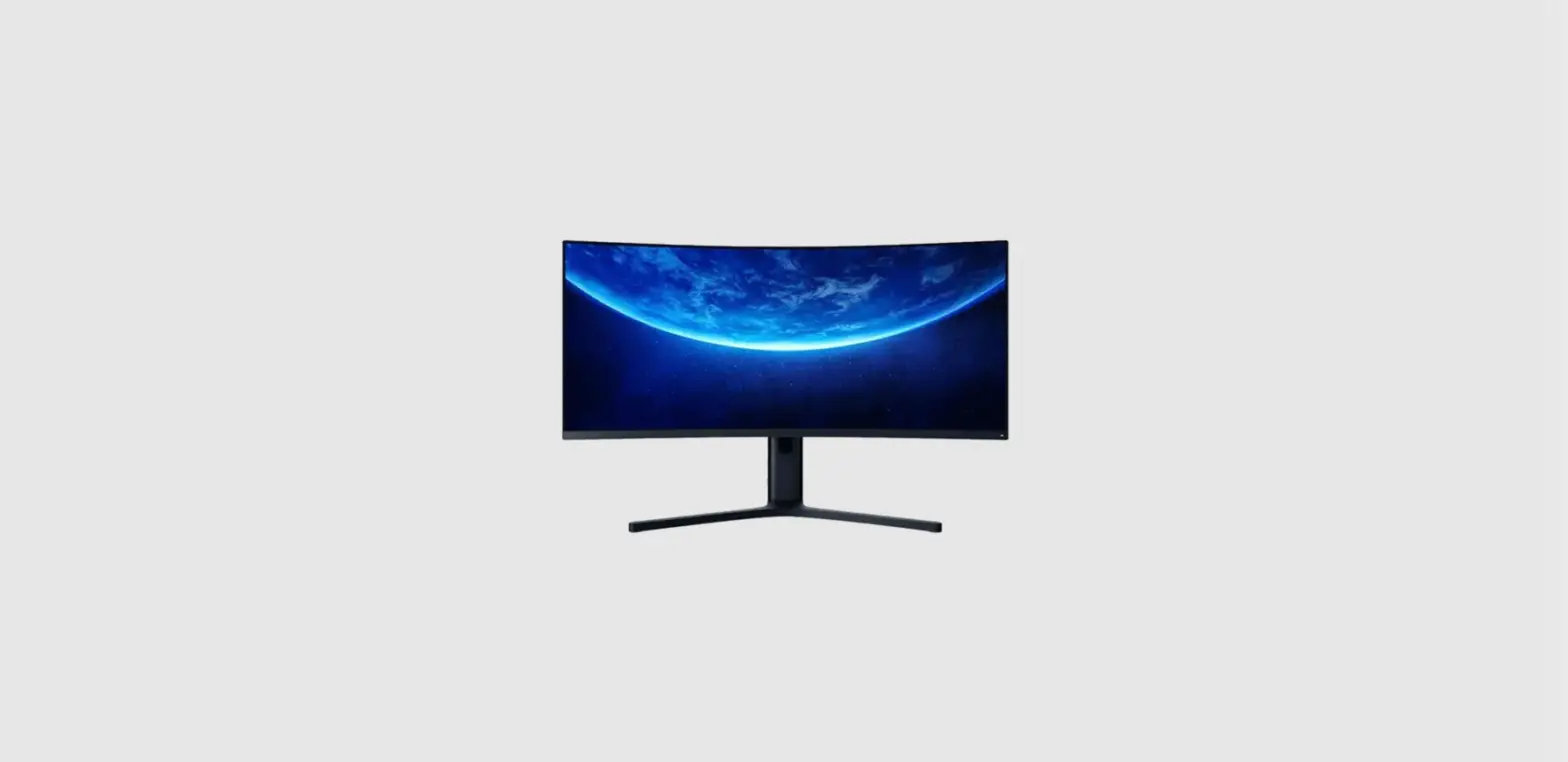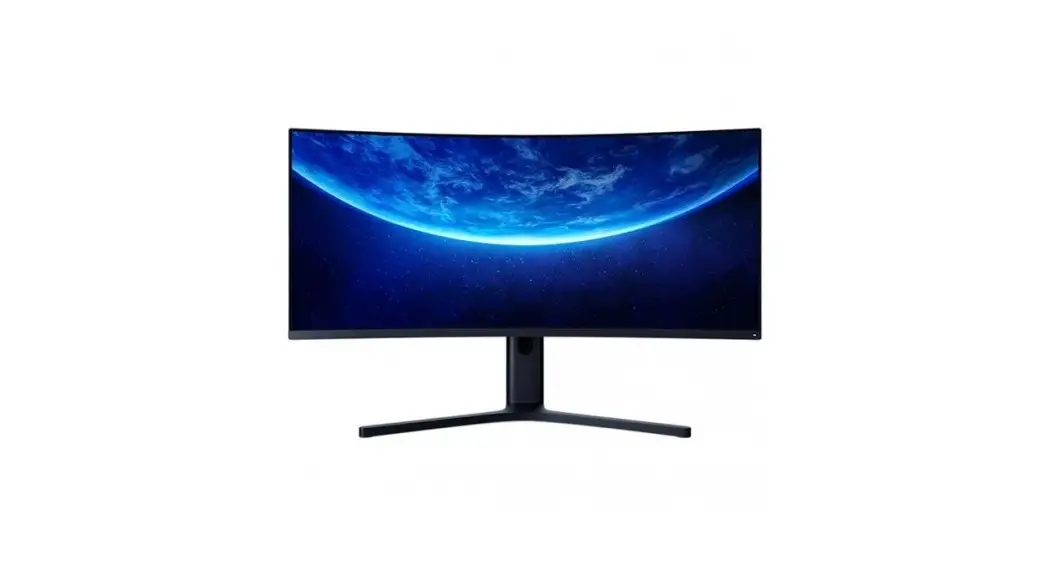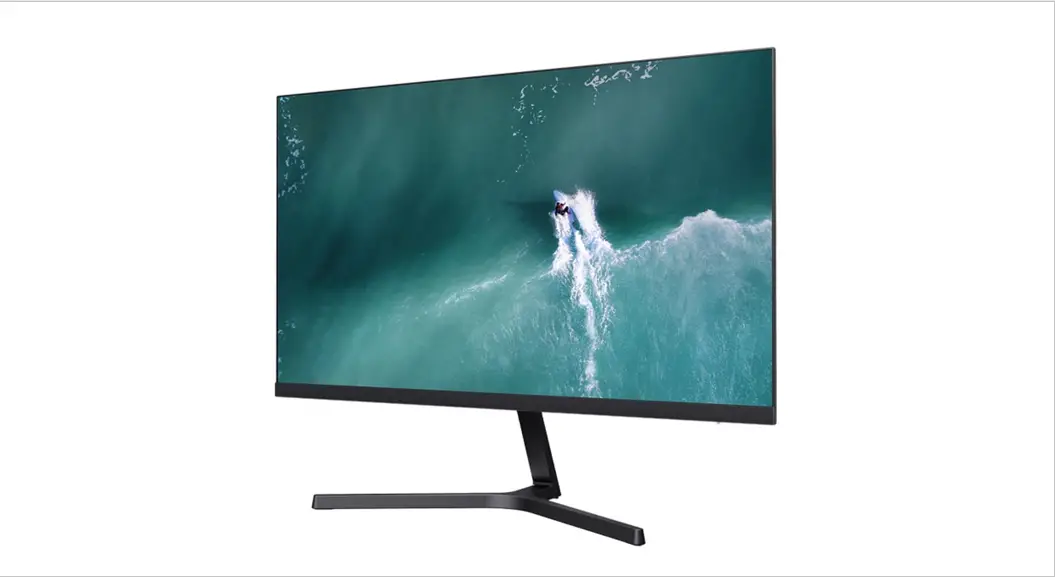

Mi 23.8’’ Desktop Monitor 1C
User Manual
Product Overview
Read this manual carefully before use, and retain it for future reference.
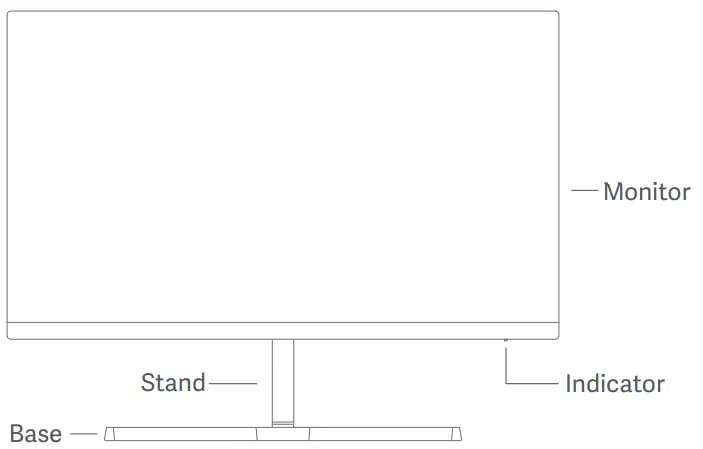
Accessories
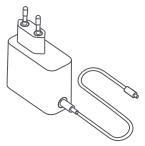 | AC Adapter×1 |
 | User Manual×1 |
| Warranty Notice×1 |
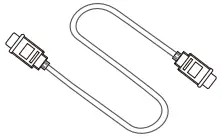 | HDMI Cable×1 |
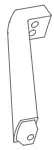 | Stand×1 |
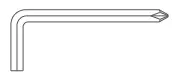 | L-shaped Screwdriver×1 |
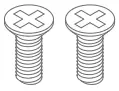 | Stand Screw×2 |
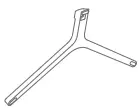 | Base×1 |
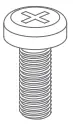 | Base Screw×1 |
Installation
- Install the stand onto the back of the monitor, then fix firmly with the stand screws.

- Connect the stand to the base, then tighten the base screw securely.

- Adjust the angles forward or backward based on your needs.

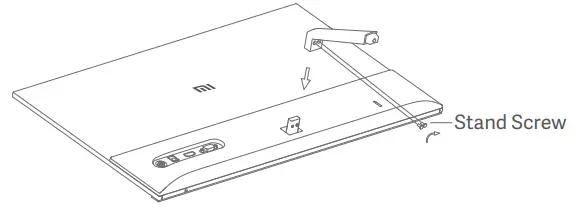
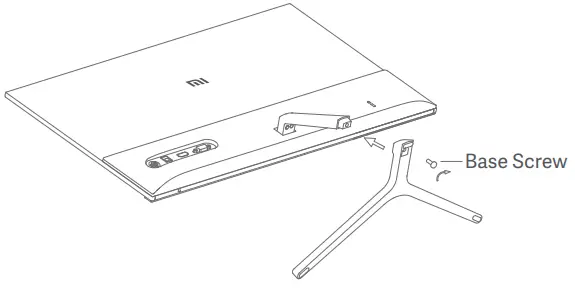
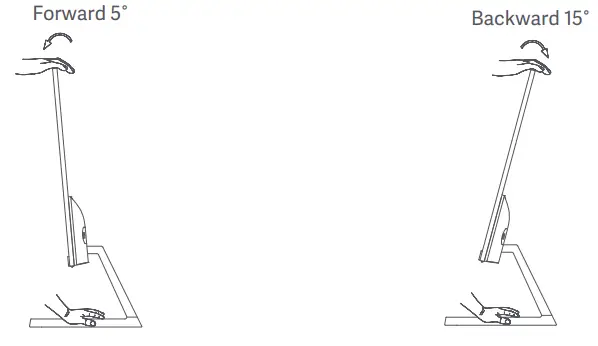
Note: When adjusting the angles, it is recommended to use one hand to hold down the base and use the other hand to adjust the monitor. Otherwise, the monitor may fall down.
How to Use
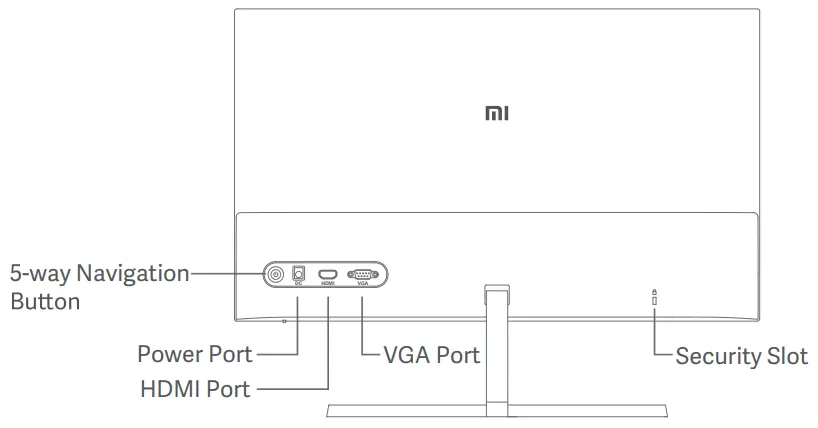
Port Description
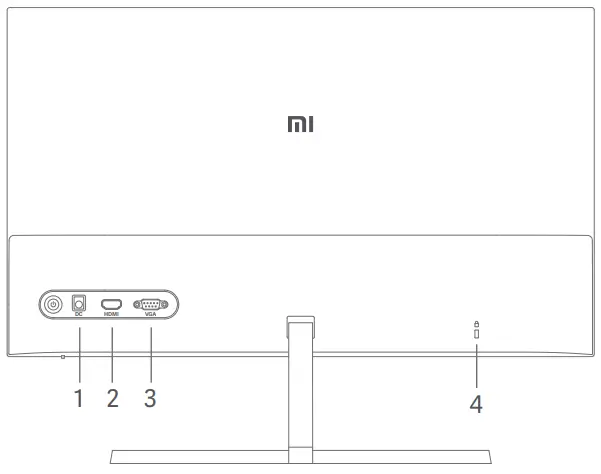
- Power Port: Input
- HDMI Port: Version: 1.4
Output Device: Computer, DVD player, camera, etc.
Signal Formats: 480i, 480p, 720p, 1080i, 1080p
Maximum Refresh Rate: 1080p/60 Hz - VGA Port: Output Device: Computer, DVD player, etc.
Maximum Refresh Rate: 1080p/60 Hz - Security Slot: Suitable for 3 × 7 mm cable lock (not included and sold separately).
Note: When the AC adapter or HDMI cable is damaged, it must be replaced with a genuine AC adapter or HDMI cable purchased from the manufacturer or after-sales service department.
Bottom Description
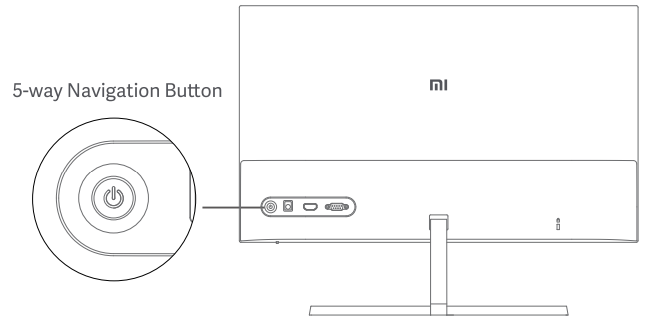
Turning On/Off
| Press the middle of the 5-way navigation button |  | Turn the monitor on |
| Press and hold the middle of the 5-way navigation button for 2 seconds | | Turn the monitor off |
Indicator Status
 | Dimmed | Off |
 | Lit | On |
 | Blinking | In sleep mode |
5-way Navigation Batton Instruction
| Operation | Result | |
| When the menu is not displayed on the monitor | When the menu is displayed on the monitor | |
Press right  | Open menu | Switch between menu options/ Select |
Press up/down  | Switch between menu or submenu options/Adjust values | |
Press left  | Return | |
Menu Description
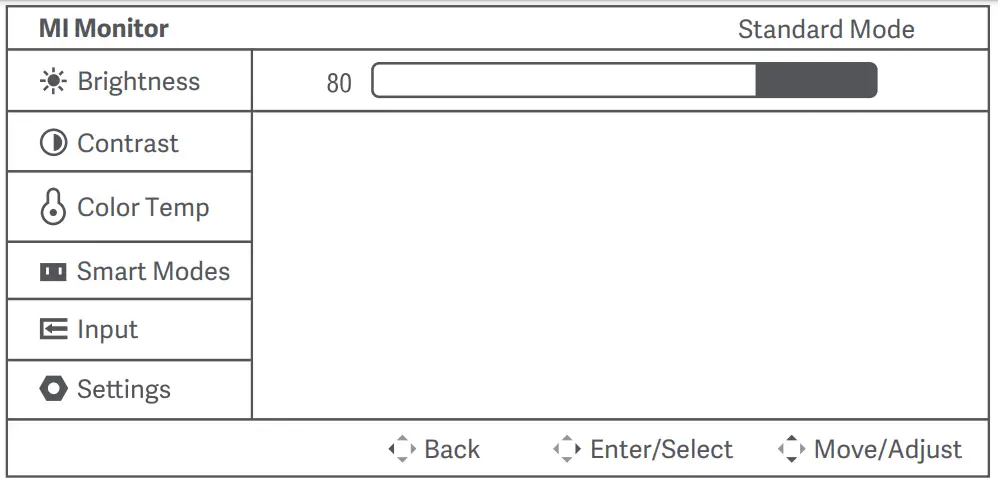
| Main Menu | Submenu | Description | Adjustable Range | Default |
| Brightness | 0-100 | Adjust the monitor’s brightness | 0-100 | 80 |
| Contrast | Adjust | Adjust the monitor’s contrast | 0-100 | 75 |
| DCR | Dynamic contrast function | On/Off | Off | |
| Color Temp | Standard | Set to the standard color temperature | Only one color temperature can be selected at a time | Standard |
| Cool | Set to the cool color temperature | |||
| Warm | Set to the warm color temperature | |||
| Custom | Manually adjust RGB color temperature | |||
| Smart Modes | Standard Mode | Set to standard mode | Only one display the mode can be set cited at a time | Standard Mode |
| ECO Mode | Set to eco mode | |||
| Game Mode | Set to game mode | |||
| Movie Mode | Set to movie mode | |||
| Low Blue Light Mode | Set to the low blue light mode | |||
| Input | VGA | Set to VGA signal source | Only one signal source can be selected at a time | / |
| HDMI | Set to HDMI signal source | |||
| Settings | Language | Select the menu language | English/Espahol/P)could/ Francaisfitaliano/ Deutsch/Polski | English |
| Overdrive | Decrease the monitors’ response time | °ffiLereviiiirel 2/ | Off | |
| Image Auto-adjust | Adjust the image automatically when using the VGA signal source | 1 | / | |
| Color Auto-adjust | Adjust the color automatically when using the VGA signal source | / | / | |
| Information | Display monitor related information | / | / | |
| Reset | Restore the monitor to the factory settings | OK/Cancel | Cancel |
Precautions
- Do not use this monitor in damp or humid environments such as bathrooms, kitchens, basements, or near swimming pools.
- Make sure the monitor is placed on a stable surface. When the monitor falls down or is knocked over, it may cause personal injuries or damage.
- Store and use the monitor in a cool, dry, ventilated place. Keep the monitor away from radiation and heat sources. Do not cover or block the heat dissipation vents on the back of the monitor.
- Do not place the monitor on a bed, sofa, or blanket, etc.
- The monitor operating voltage range is indicated on a label on the back of the monitor. If you are unsure what voltage your power supply is, please contact the monitors’ distributor or local power company.
- When you do not plan to use the monitor for a long period of time, unplug it from the electrical outlet so as to prevent possible damage from power surges or lightning strikes.
- Do not overload electrical outlets, as this may cause a fire or an electric shock.
- Do not insert any foreign objects into the monitor, as this may cause a short circuit which can lead to a fire or an electric shock.
- Do not attempt to disassemble or repair the monitor yourself. If the monitor is not functioning properly, please contact our after-sales service department for assistance.
- Do not excessively pull, twist, or bend the AC adapter’s cord.
- There is a polarizer attached to the screen (not the protective film), please do not tear it off. Any damage caused by the user will void the warranty.
Troubleshooting
| Issue | Possible Cause | Solutions |
| Unable to turn on | No power | · Make sure the AC adapter is plugged in properly. · Press the middle of the 5-way navigation button. |
| Image is dark | Brightness/ Contrast not adjusted properly | · Adjust the brightness and contrast |
| Image is jittery or rippled | Interference reference | · Keep the monitor away from electronic devices that may cause electrical interference. |
| The indicator is lit, but no image | No signal | · Turn on the computer. · Make sure the computer’s graphics card is working properly. · Make sure the HDMI or VGA cable is properly plugged in. |
| Monitor displays: Out of range | Resolution is incorrect | · Use the specified recommended resolution settings. |
| The image is not in the middle or out of range when using the VGA signal source | Image is not adjusted | · Select the Image Auto-adjust from the menu to adjust the image. |
Specifications
| Model | RMM NT238NF |
| Input | 12 V= 2 A |
| Rated Power | 24 W Max. |
| Screen Size | 23.8′ |
| Viewable Image Size (Diagonal) | 60.5 cm |
| Dot Pitch | 0.275 * 0.275 mm |
| Brightness | 250 cd/m2(TYP) |
| Contrast | 10001 (TYP) |
| Color Gamut | 16.7 M |
| Aspect Ratio | 16:9 |
| Response Time | 6 ms (GTG) |
| Maximum Resolution | 1920 * 1080 |
| Recommended Resolution | 1920 * 1080 |
| Item Dimensions | 539.2(L)*181.2(W)* 419.5(H) mm |
| Net Weight | 2.7 kg |
| Operating Temperature | CI*C to 40*C |
| Operating Humidity | 20-90% RH |
| Atmospheric Pressure | 86-106 a |
External AC Adapter Specifications
| Model identifier | BLJ24W120200P-V |
| Input voltage | 100-240 V AC |
| Input AC frequency | 50/60 Hz, 0.6 A |
| Output voltage | 12.0 V DC |
| Output current | 2.0 A |
| Output power | 24.0 W |
| Average active efficiency | 86.20% |
| Efficiency at low load (10 %) | 76.80% |
| No-load power consumption | 0.1 W |
| Manufacturer | Zhongshan Baolijin Electronic Co., Ltd. |
Regulatory Compliance Information
WEEE Disposal and Recycling Information
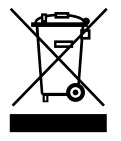
All products bearing this symbol are waste electrical and electronic equipment (WEEE as in directive 2012/19/EU) which should not be mixed with unsorted household waste. Instead, you should protect human health and the environment by handing over your waste equipment to a designated collection point for the
recycling of waste electrical and electronic equipment, appointed by the government or local authorities. Correct disposal and recycling will help prevent potential negative consequences to the environment and human health. Please contact the installer or local authorities for more information about the location as well as the terms and conditions of such collection points.
EU Declaration of Conformity

The manufacturer hereby, declares that this equipment is in compliance with the applicable Directives and European Norms, and amendments. The full text of the EU declaration of conformity is available at the following internet address: http://www.mi.global/sarvice/support/declaration.html
Eye Health
To avoid eyestrain, or neck, arm, elbow, and shoulder pain caused by using the computer for a long time, please follow the suggestions listed below:
- Keep the monitor at a distance of 20-28 inches (approx. 50-70 cm) from your eyes.
- Blink more often to relieve eye fatigue when staring at the monitor.
- Give your eyes a 20-minute break after using the monitor for two hours.
- Take your eyes off the monitor and look at something a certain distance away for at least 20 seconds.
- Stretch your body to help relieve tension on the neck, arms, back, and shoulders.
Low Blue Light Description
In recent years, eye damage caused by blue light has attracted more and more attention. In general, the wavelength of blue light is 400-480 nm, and the wavelength of harmful blue light is 415-455 nm. This monitor has a function to help reduce your exposure to blue light emission. You can enable the low blue light mode via the settings menu.
Xiaomi Communications Co., Ltd.
Address: #019, 9th Floor, Building 6, 33 Xi’erqi Middle Road, Haidian District,
Beijing, China, 100085
For further information, please go to www.mi.com
Importer:
Beryko s.r.o.
Na Roudné 1162/76, 301 00 Plzeň
www.beryko.cz
 Beryko.cz
 Mi United States