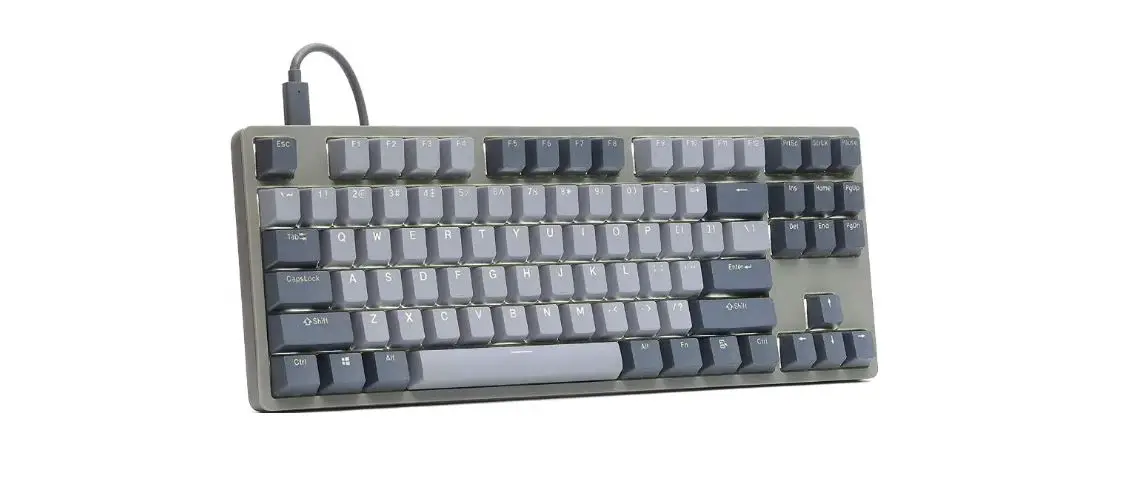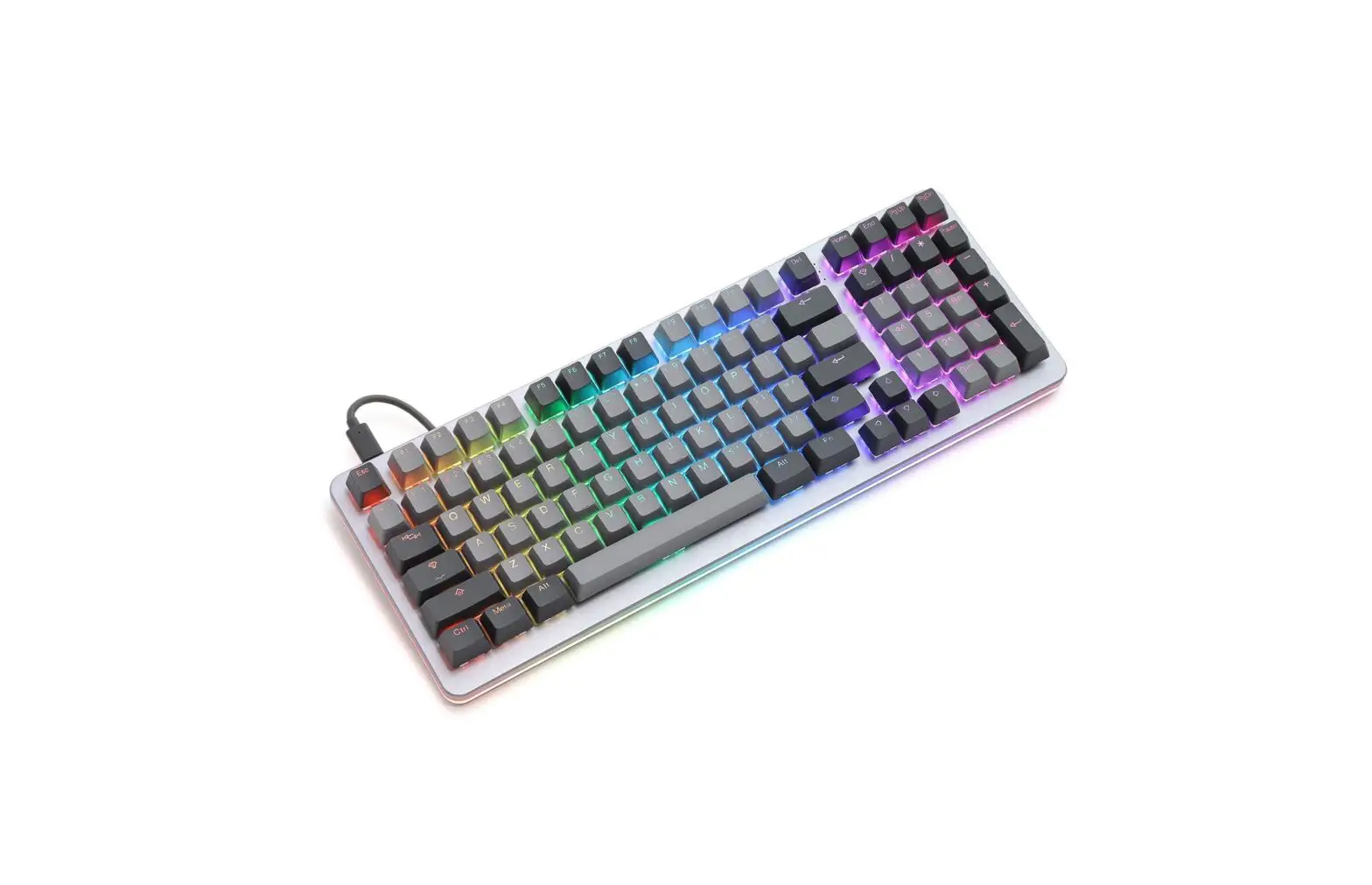
DROP B08L96PV42 Shift Mechanical Keyboard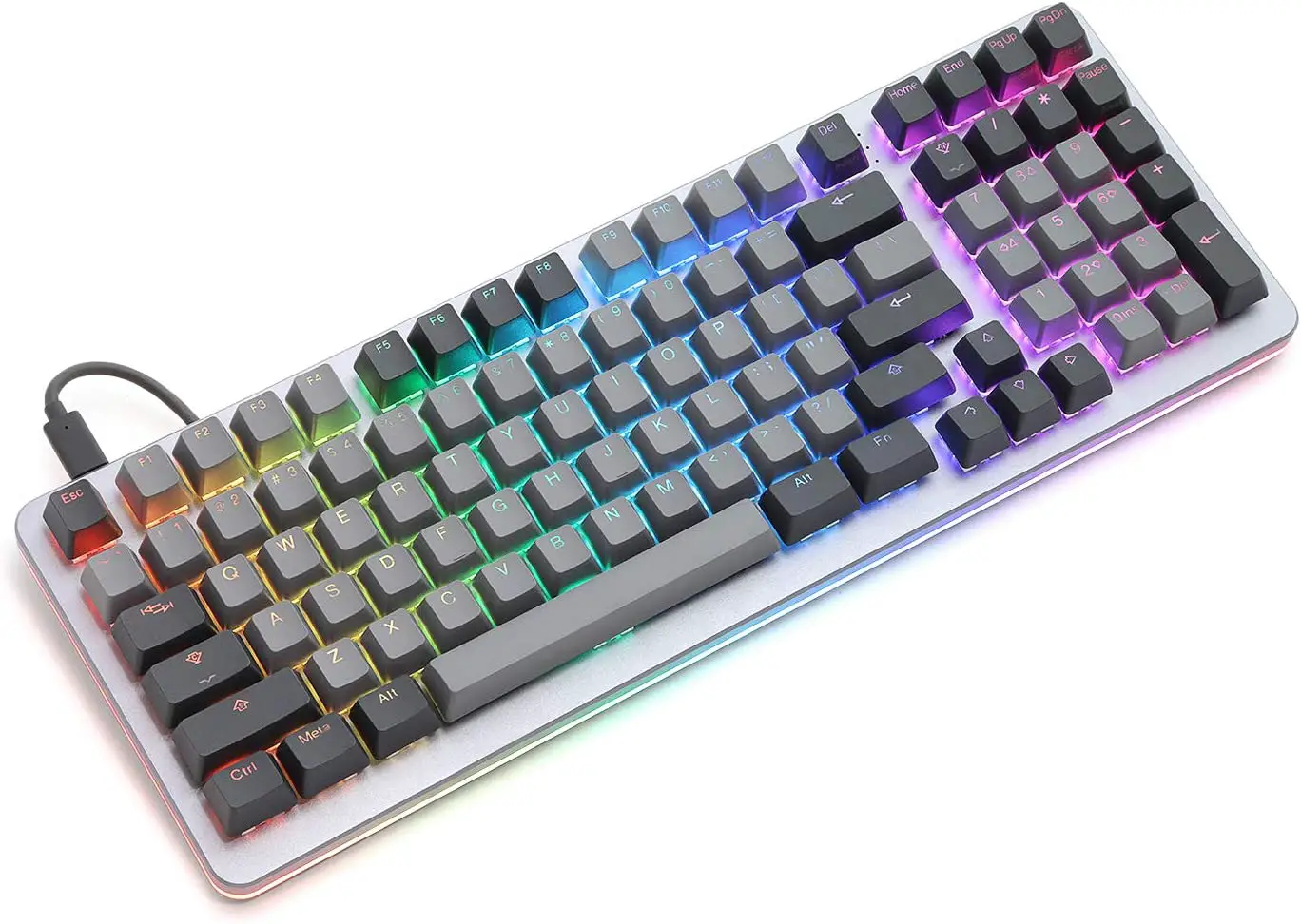
GETTING STARTED WITH YOUR NEW SHIFT KEYBOARD
INITIAL START-UP
- Either USB-C port on the SHIFT can be used to connect your keyboard to your computer.
- The keyboard should work out of the box with macOS, Windows and Linux operating systems.
USB HUB FUNCTIONALITY
After connecting the SHIFT keyboard to your computer, the unused USB-C port on the keyboard can be used as an 1/0 port for your computer. Note: The keyboard dynamically measures and manages power utilization on the USB Vbus.
Typical capacity will vary depending upon the host computer but can be expeccted to range between 2 and 4 watts.
SHIFT WARRANTY
- In the event that the product purchased experiences defect or fa ilure, please contact the place of purchase and provide your proof of purchase with a description of the issue. Include photos or videos, if applicable.
- Drop Support might ask for additional information, such as the product’s serial number, so be sure to have that information ready.
- Drop will request for the product to be sent back to a specified return address, which will be provided to you via email.
- Upon receipt of the defective product, Drop will make every effort possible to ensure your satisfaction before shipping you a replacement.
- You are responsible for the cost of return shipping if a request is submitted after 2 weeks of receiving the item.
- Drop reserves the right to refund the purchase price as it’s exclusive warranty remedy if a replacement cannot be sourced.
DEFAULT HOT KEYS
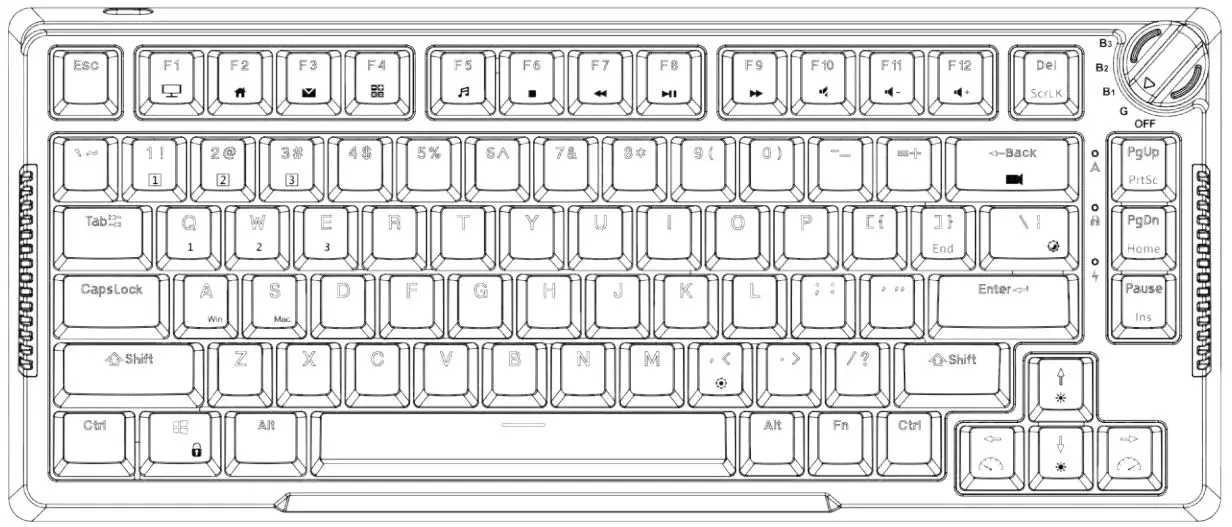
Hold Fn key + listed keys to activate
LED KEYS
Fn + A ……….. ……. LED Pat tern Select Previous
D …. ………….. LED Pattern Select Next
W …………….. LED Brightness Increase
S ………………. LED Brightness Decrease
Q ……………… LED Scrolling Pattern Speed Decrease
R ……………… LED Edge Brightness Increase
F ……………… LED Edge Brightness Decrease
E ……………… LED Scrolling Pattern Speed Increase
Tab ………….. Toggle Breathe Effect
Capslock …. LED Toggle Scrolling Pattern Direction
X ……………… LED On/Off
Z ……………… LED Toggle Mode (Keys+Edge, Keys
Only, Edge Only)
V ……………… Toggle Edge LED Intensity
MEDIA KEYS
Fn + Page Up ………… Volume Up
* ……………………. Volume Down
Page Down …… Mute
Home ……………. Play/Pause
End ……………….. Stop
Numlock ……….. Previous
I ……………………. Next
KEYBOARD OPTION KEYS
Fn + N ….. Toggle keyboard 6KRO/NKRO
(Default state is 6KRO)
NUMPAD KEYMAP
w/ Numlock off
7 ….. Home
9 ….. PgUp
1 …… End
3 ….. PgDn
8 ….. Up
4 ….. Left
6 ….. Right
2 ….. Down
0 …. Insert Delete
MISC CONTROLS
Fn + Print ………………………… Scroll Lock
Fn + R Alt ………………………… Menu
Fn + B (Hold 3 seconds) …. DFU mode
CUSTOMIZABLE FIRMWARE
To build new keymaps and hotkeys, please visit the keyboard configurator. dro.ps/a/t-setup-guide