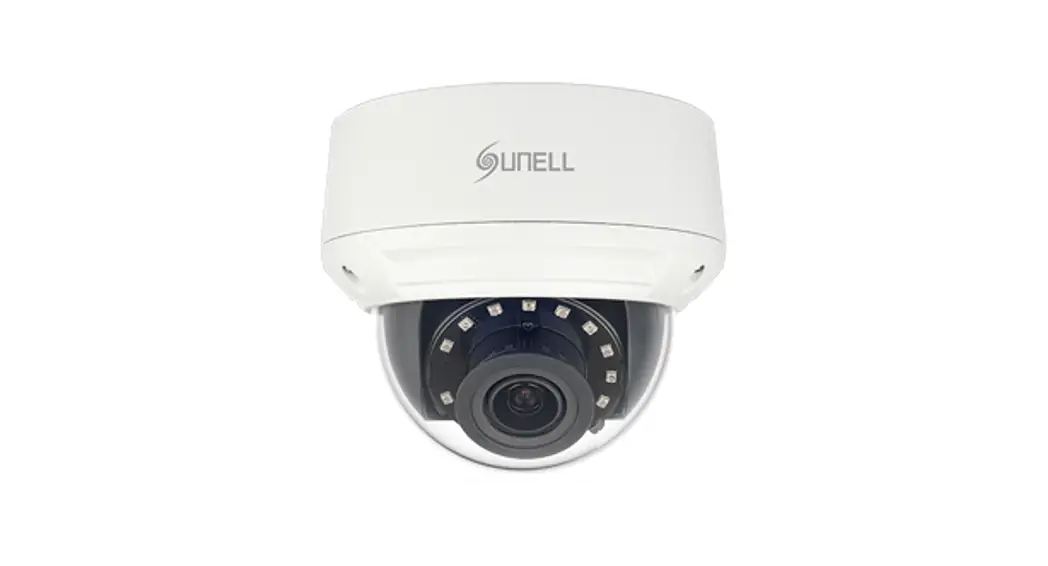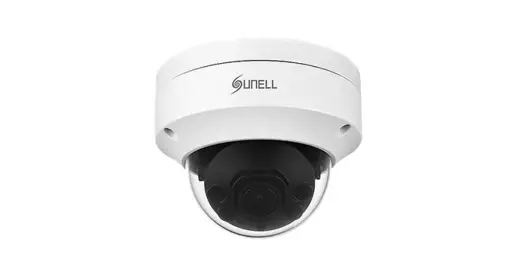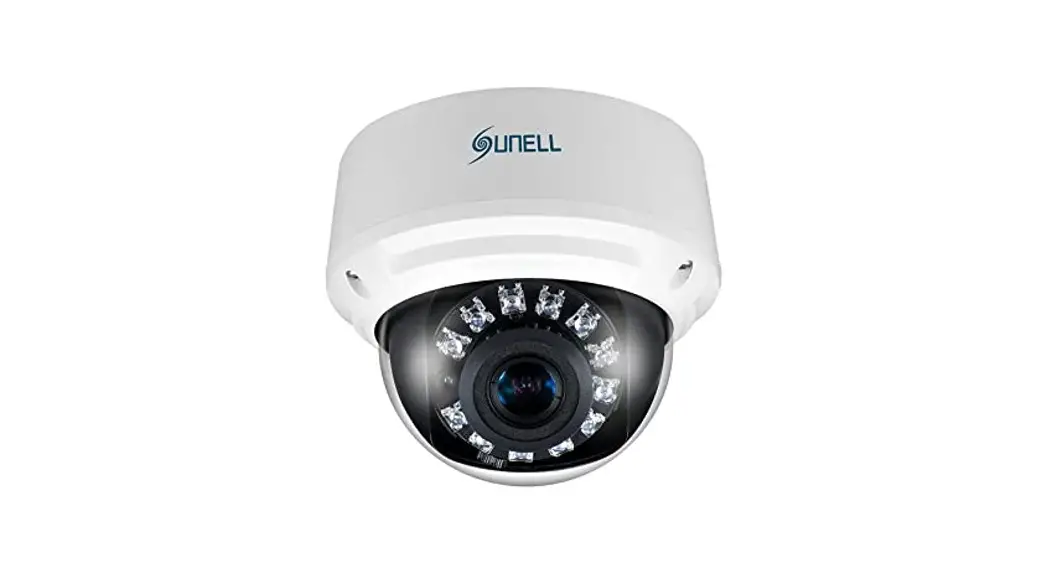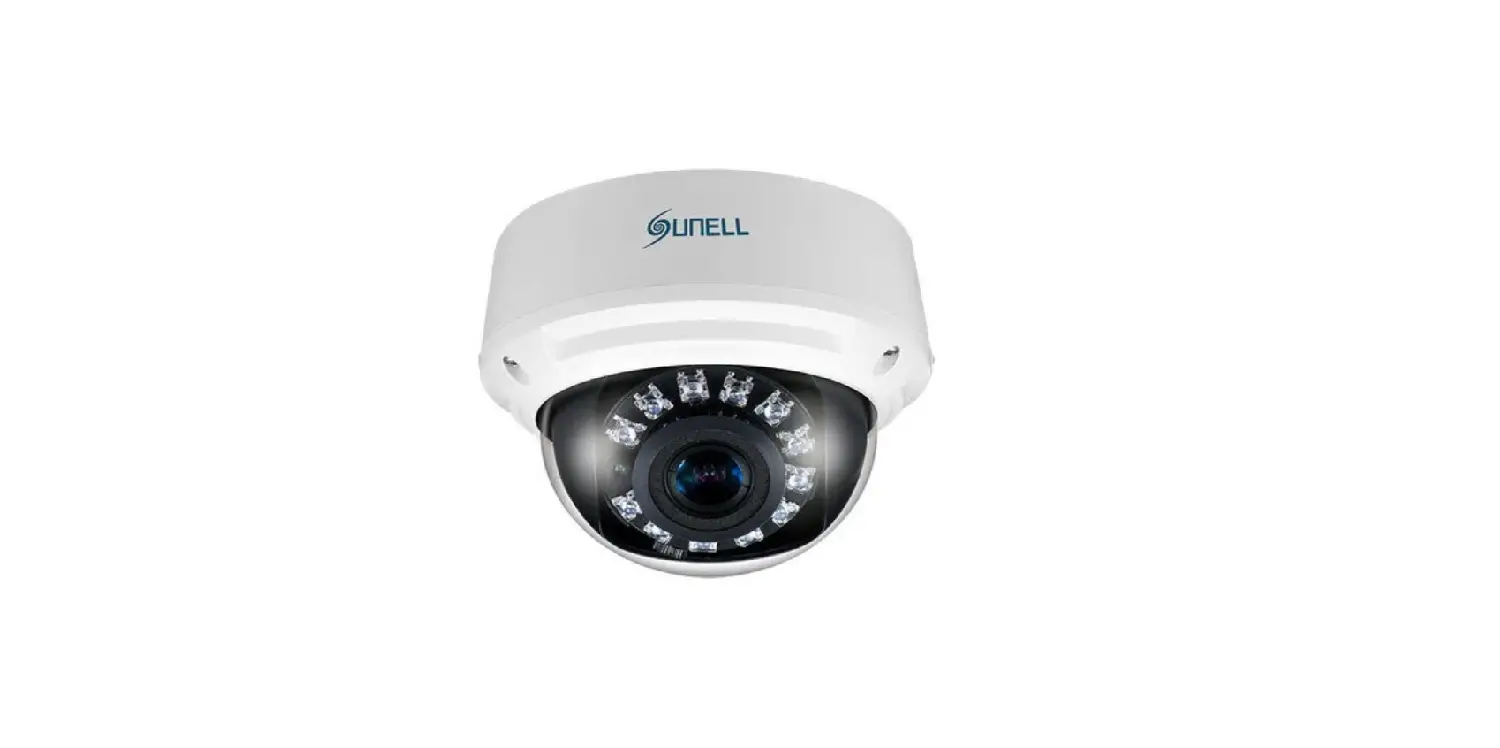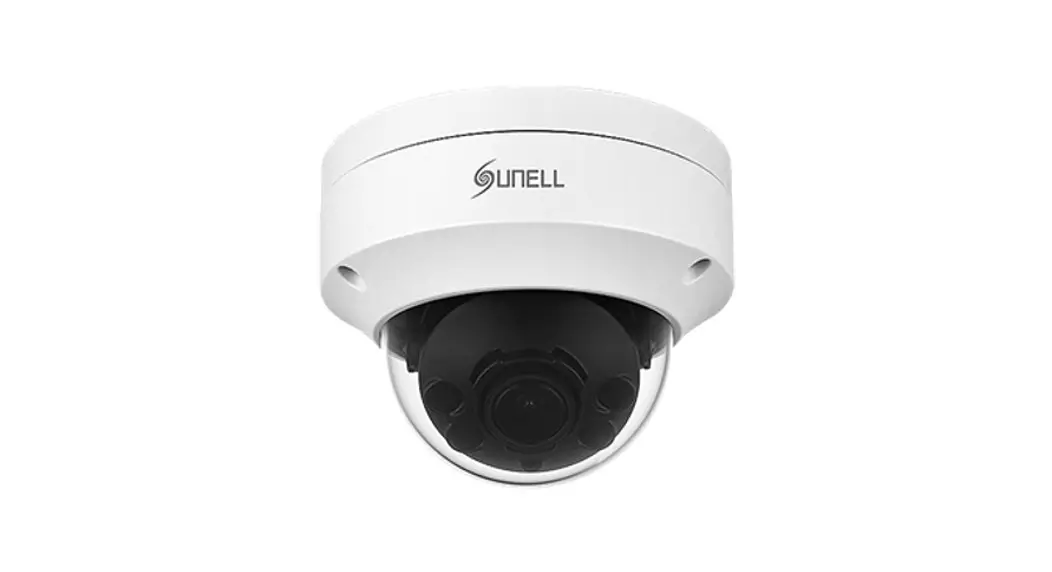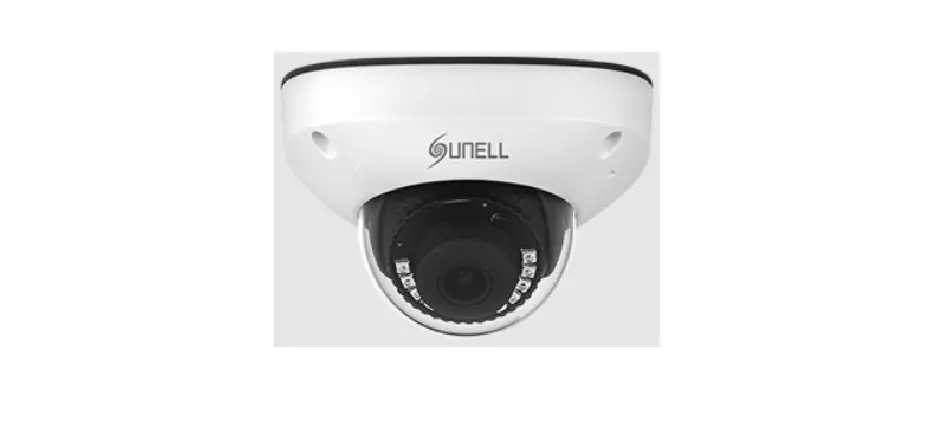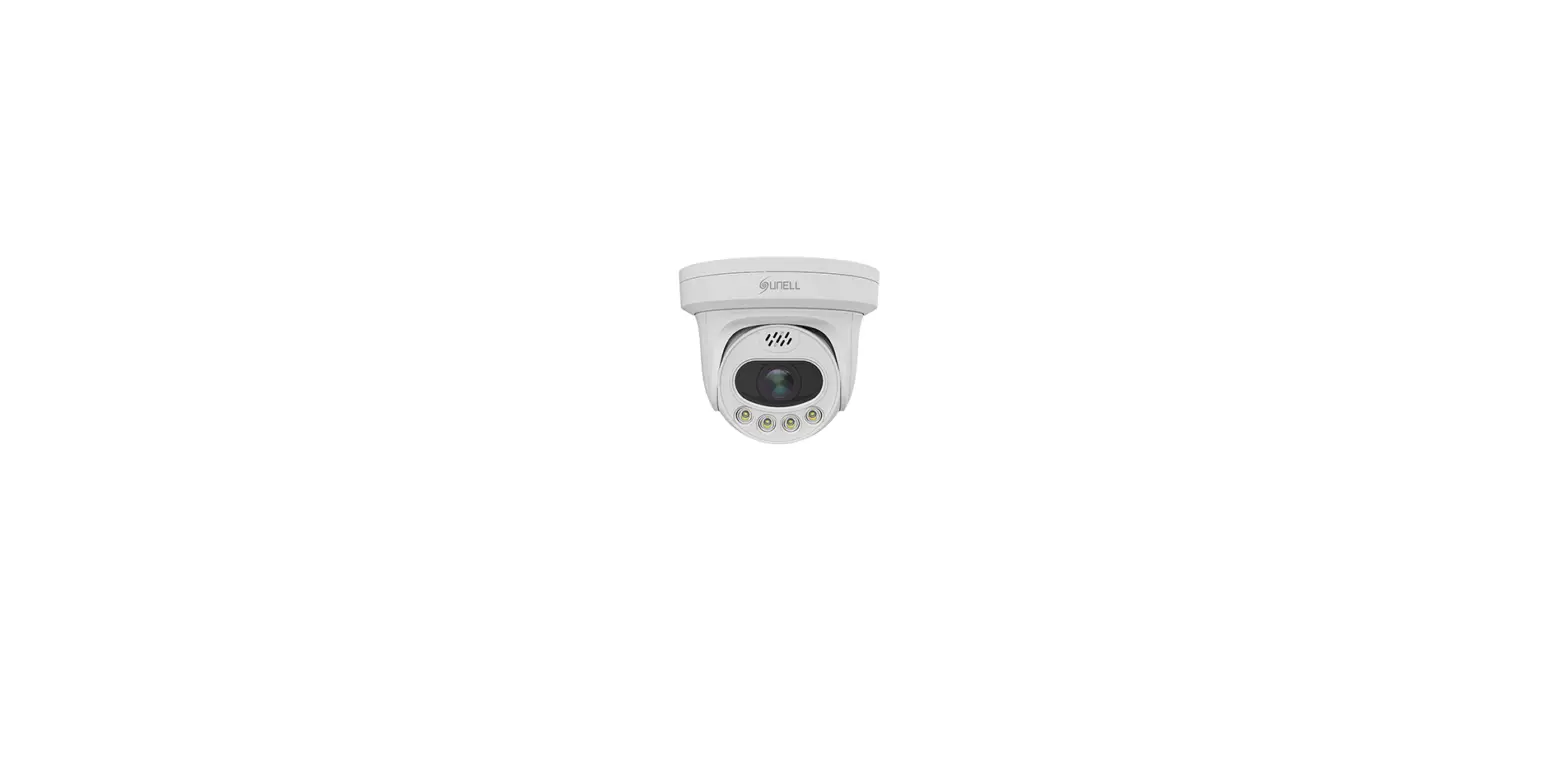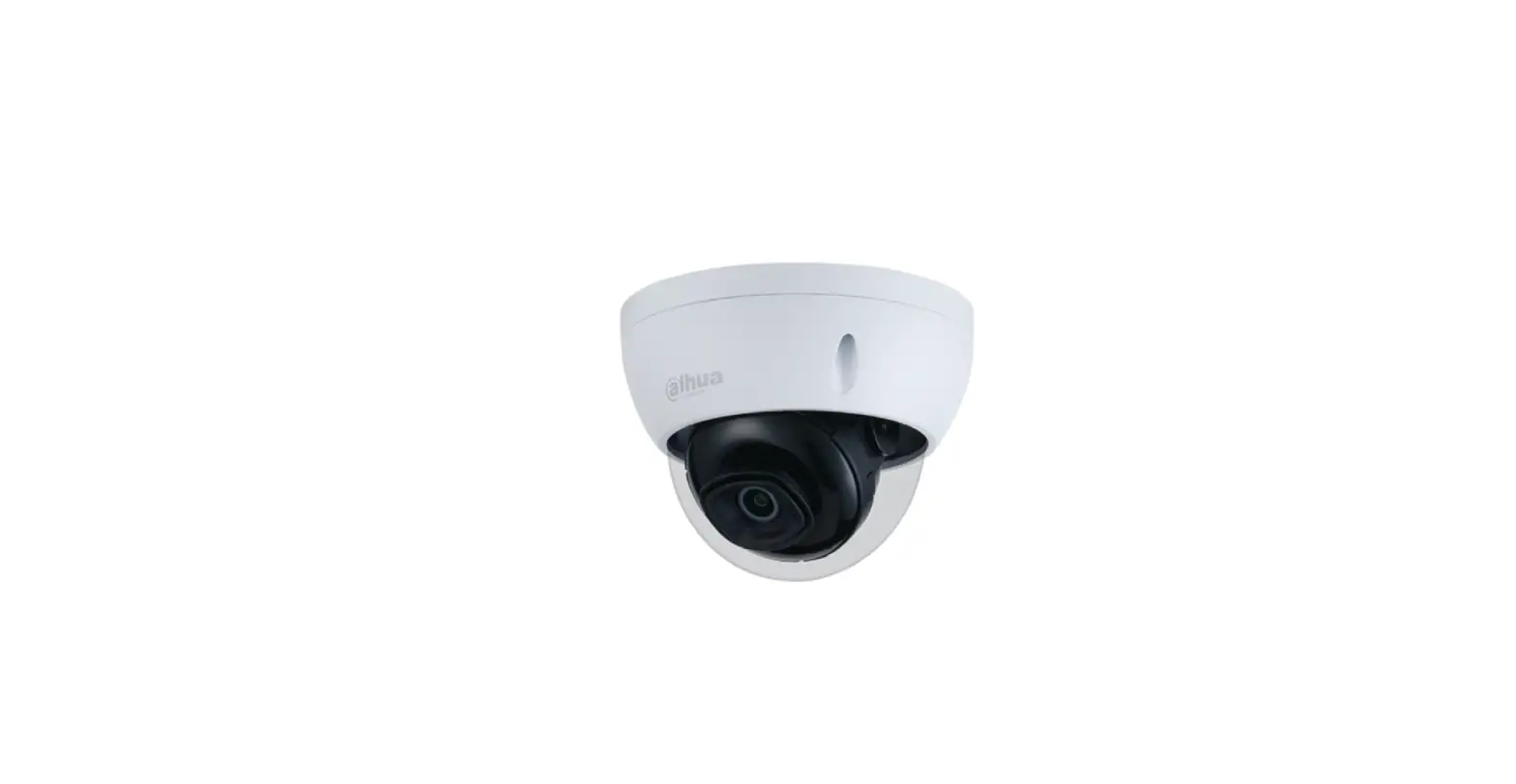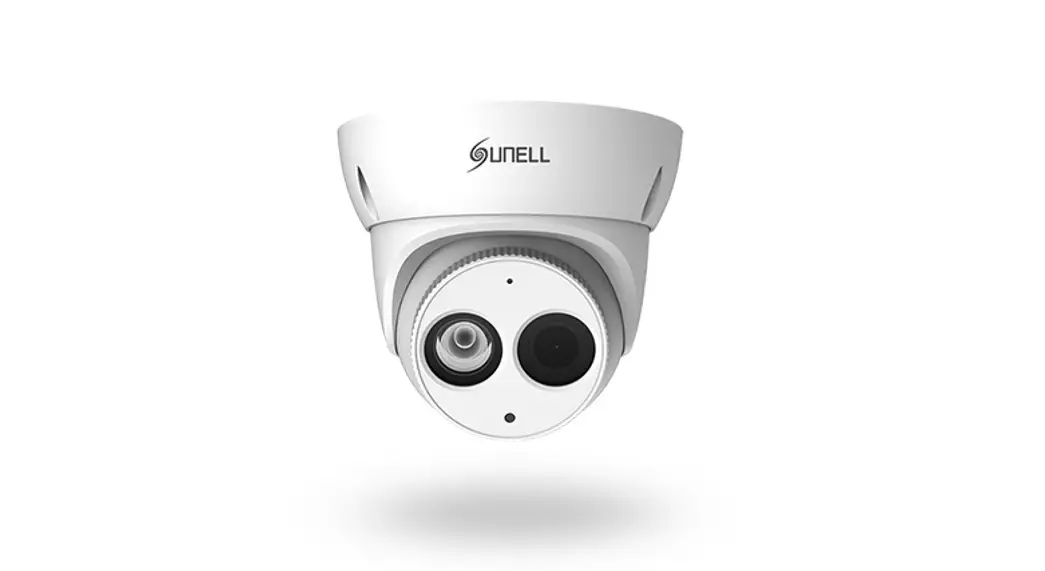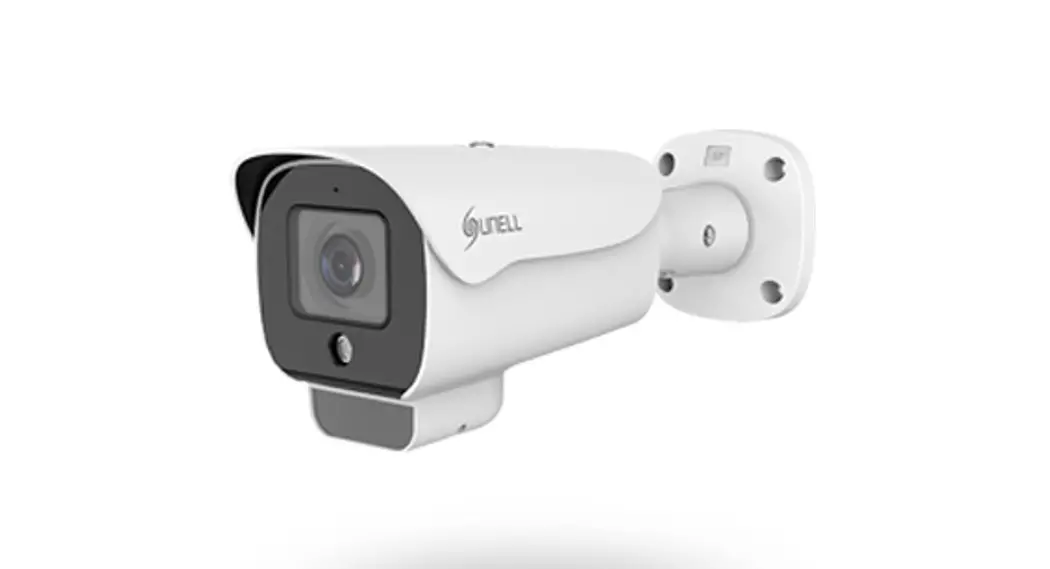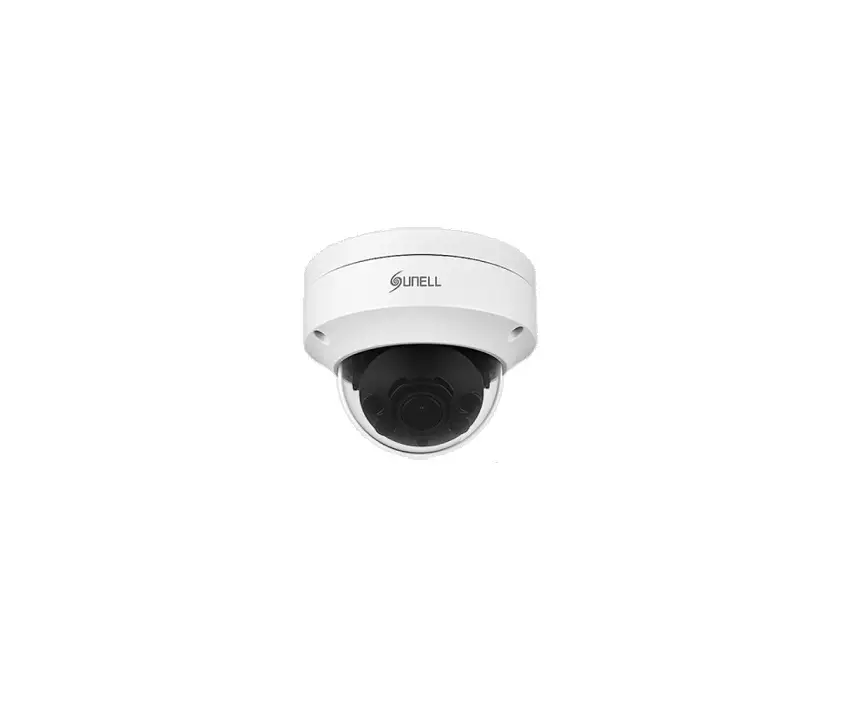
Sunell SN-IPV8040EFAR-B Vandal Dome Network Camera User Manual

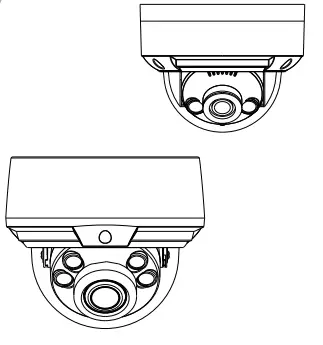
Precautions
Fully understand this document before using this device, and strictly observe rules in this document when using this device. If you install this device in public places, provide the tip “You have entered the area of electronic surveillance” in an eye-catching place. Failure to correctly use electrical products may cause fire and severe injuries
| WARNING | It alerts you to moderate dangers which, if not avoided, may cause minor or moderate injuries. |
| CAUTION | It alerts you to risks. Neglect of these risks may cause device damage, data loss, device performance deterioration, or unpredictable results. |
| NOTE | It provides additional information. |
WARNING
- Strictly observe installation requirements when installing the The manufacturer shall not be held responsible for device damage caused by users’ non-conformance to these requirements.
- Strictly conform to local electrical safety standards and use power adapters that are marked with the LPS standard when installing and using this Otherwise, this device may be damaged.
- Use accessories delivered with this The voltage must meet input voltage requirements for this device.
- If this device is installed in places with unsteady voltage, ground this device to discharge high energy such as electrical surges in order to prevent the power supply from burning
- When this device is in use, ensure that no water or any liquid flows into the If water or liquid unexpectedly flows into the device, immediately power off the device and disconnect all cables (such as power cables and network cables) from this device.
- Do not focus strong light (such as lighted bulbs or sunlight) on this device. Otherwise, the service life of the image sensor may be shortened.
If this device is installed in places where thunder and lightning frequently occur, ground the device nearby to discharge high energy such as thunder strikes in order to prevent device
CAUTION
- Clean the device with a soft dry For stubborn dirt, dip the cloth into slight neutral cleanser, gently wipe the dirt with the cloth, and then dry the device.
- Do not jam the ventilation opening. Follow the installation instructions provided in this document when installing the
- Keep the device away from heat sources such as radiators, electric heaters, or other heat
- Keep the device away from moist, dusty, extremely hot or cold places, or places with strong electric
- If the device is installed outdoors, take insect- and moisture- proof measures to avoid circuit board corrosion that can affect
- Remove the power plug if the device is idle for a longAvoid heavy loads, intensive shakes, and soaking to prevent damages during transportation and The warranty does not cover any device damage that is caused during secondary packaging and transportation after the original packaging is taken apart. shocks.
Special Announcement
- All complete products sold by the manufacturer are delivered along with nameplates, quick setup guide and accessories afterstrict inspection. The manufacturer shall not be heldn responsible for counterfeit products.
- The manufacturer will update this manual according to product function enhancement or changes and regularly update the software and hardware described in this manual. Update information will be added to new versions of this manual without prior notice.
- This manual may contain misprints, technology information that is not accurate enough, or product function and operation description that is slightly inconsistent with the actual product,n the final interpretation of company is as a standard.
- This manual is only for reference and does not ensure that the information is totally consistent with the actual product. For consistency, see the actual product.
NOTE
For more information, please refer to website
1 Open Package Examination
Open the package, check the appearance of product for no obvious damage, and confirm the item list for table 1-1 is consistent.
| Component | Quantity | Remark |
| Vandal Dome Network Camera | 1 | |
| Quick Setup Guide | 1 | |
| T15 Screw driver | 1 | Large Dome |
| T10 Screw driver | 1 | Mini Dome |
| Installation location sticker | 1 | |
| Stainless self-tapping screw | 3 | |
| Plastic anchor | 3 | |
| Network access port protective cover | 1 | |
| Waterproof rubber seal | 1 | |
| Terminal block | 1 | Optional |
| Phillips stainless screw (install on bracket) | 3 |
Device Structure
2.1 Device Ports
NOTE
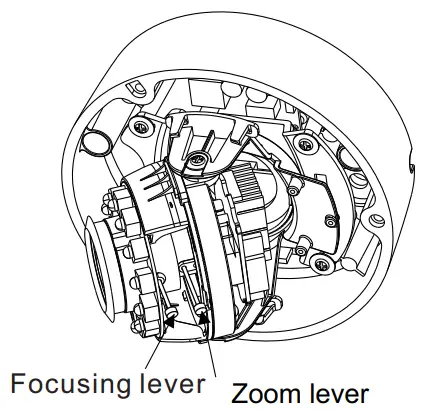
Len adjustment is only applied for large dome.
Figure 2–1 Lens adjustment
| Port Name | Description |
| Focusing lever | Adjust the focus of lens, the default status is lock. |
| Zoom lever | Adjust the lens focal length, the default status is lock. |
NOTE
Different devices may have different multi-heads; Please refer to the actual product.
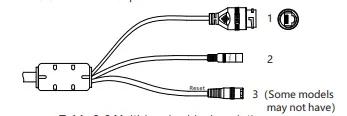
Table 2-2 Multi-head cable description
| ID | Core | Description | Remark |
| 1 | Network access port | Connects to a standard Ethernet cable or PoE . The green light is on, the network connection is normal; the yellow light flashes when the data is transmitted. Some models maybe not have the lights; Please refer to the actual product. | Support PoE supply. |
| 2 | Power supply (DC 12V) | Connects to a 12V direct current (DC) power supply. | |
| 3 | Reset button | Long press the button for 5 seconds to restore the original settings. |
Table 2-3 Multi-head cable 2 descriptiPounrple:AlarmCOM1
| ID | Core | Description | Remark |
| 1 | Network access port | Connects to a standard Ethernet cable or PoE . The green light is on, the network connection is normal; the yellow light flashes when the data is transmitted. Some models maybe not have the lights; Please refer to the actual product. | Support PoE supply. |
| 2 | Audio output | Connects to an external audio device such as a speaker. | Applied for camera with audio function |
| 3 | Audio input port | Receives an analog audio signal from devices such as a sound pickup device. | |
| 4 | Reset botton | Long press the reset button for 5 seconds to restore the original settings. | |
| 5 | Power supply (DC 12V) | Connects to a 12V direct current (DC) power supply. | |
| 6 | G | Alarm output COM | Applied for alarm function |
| OUT | Alarm output terminal | ||
| G | Alarm input COM | ||
| IN | Alarm input terminal |

3 Device Installation
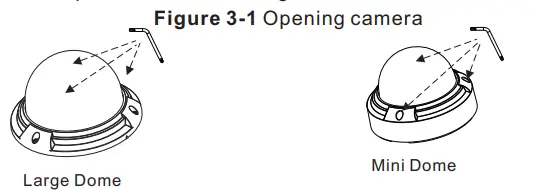
Step 2 Stick the Installation location sticker on the ceiling or wall.
Drill three holes based on the marks on the sticker. Drive the plastic anchors into the holes.
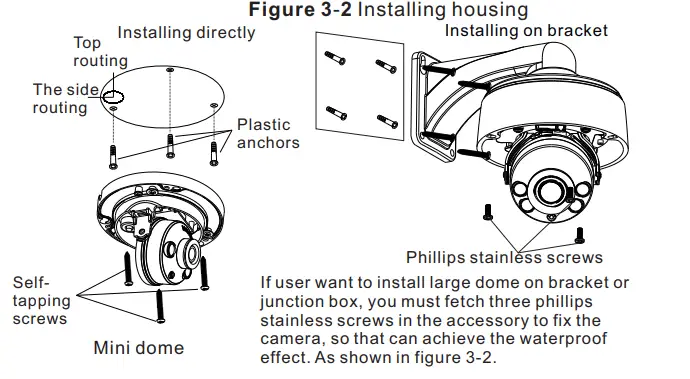
Step 3 Fetch three black self-tapping screws from the accessory package. Then fix the screws to fasten the camera on the ceiling as shown in figure 3-2.
Step 4 Connect the network access port and power supply of the multi-head cable
Step 5 Adjust the lens focal length and video angle range.
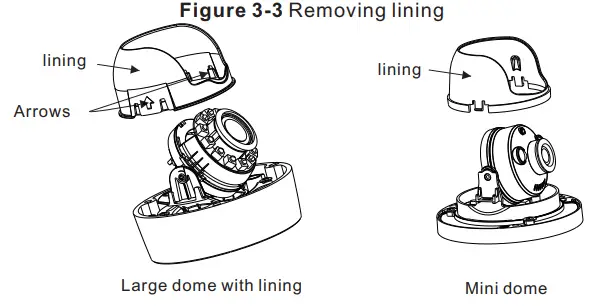
- Press the arrows marked on the lining to remove the lining aside, as shown in figure 3-3.

- .View the video, loosen the slotted screw slightly as shown in figure 3-4 & figure 3-5, make camera’s triaxial adjustments, adjust the screen to the scene you want to monitor, and then tighten the screws. Three-axis adjustment direction and angle are shown in figure 3-4 and figure 3-5.

Quick Configuration(e.g IE)
4.1 Login
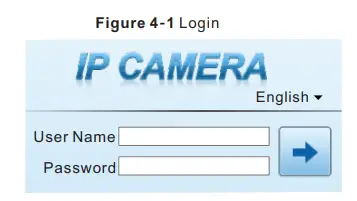
Step 1 Open the Internet Explorer, enter the IP address of IP camera (default value: 192.168.0.120) in the address box, and press Enter. The login page is displayed as shown in figure 4-1.
Step 2 Input the user name and password.
NOTE
- The default user name is admin. The default password is admin. Change the password when user logs into the system for first time to ensure system security.
- It is advised to restart the device three minutes later after modifying password to ensure modified successfully.
- You can change the system display language on the login
Step3 Click Login, the main page is displayed.
4.2 Modify IP address
Choose Configuration > Device > Local Network, the Local
Network page is display
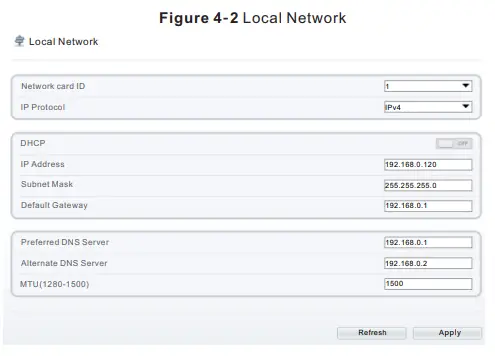
Enter the IP address in the IP Address box and click Apply as shown in figure 4-2.
After the IP address is set successfully, please use the new IP address to log in the Web interface.
Figure 4–2 Local Network
4.2 Browsing Video
To ensure the real-time video can be played properly, you must perform the following operation when you log in the web for the first time:
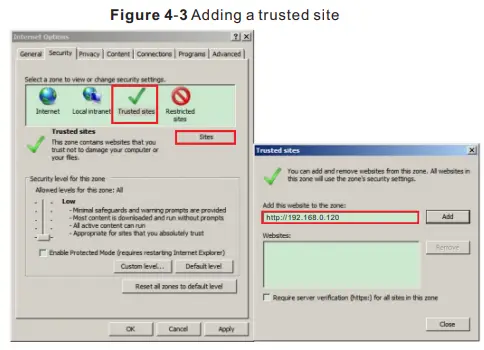
Step 1 the Internet Explorer. Choose Tools > Internet options > Security > Trusted sites > Sites, in the display dialog box, click Add, as shown in figure 4-3.
Figure 4–3 Adding a trusted site
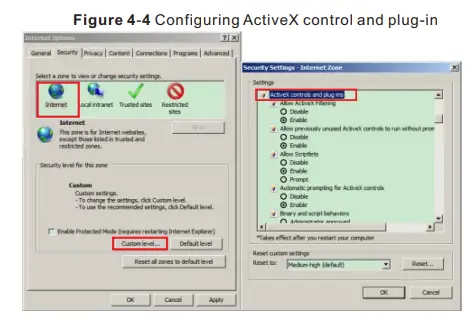
Step 2 In the Internet Explorer, choose Tool > Internet Options > Security > Customer level, and set Download unsigned ActiveX control and initialize and script ActiveX controls not marked as safe for scripting under ActiveX controls and plug-ins to Enable, as shown in figure 4-4.
Step 3 Download and install the player control as prompted.
If the repair tips displayed when installing the control , please ignore the prompt, and continue the installation, the login page is displayed when the control is loaded.
Figure 4-4 Configuring ActiveX control and plug-in
To browse a real-time video, click Live Video. The Live Video page is displayed, as shown in figure 4-5.
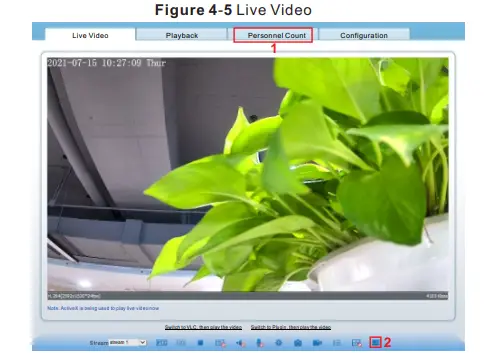
1 Personnel Count: User can query the data of personnel count,
data can be shown by line chart, histogram, list.
2 AI Live video: Click the icon to view the snapshots of human face or license plate (click “Face” or “Plate” to switch ).
The bottom page will show the captured images of vehicle and
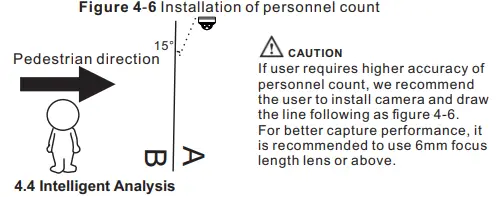
user requires higher accuracy of personnel count, we recommend the user to install camera and draw the line following as figure 4-6.
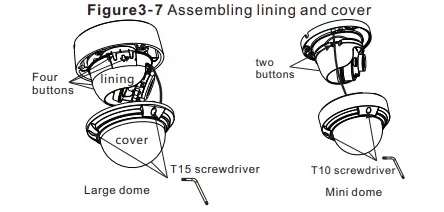
For better capture performance, it is recommended to use 6mm focus length lens or above.Self- tapping screwsMini dome Phillips stainless screws If user want to install large dome on bracket or junction box, you must fetch three phillips stainless screws in the accessory to fix the camera, so that can achieve the waterproof effect. As shown in figure 3-2. Four buttons lining cover buttons
T15 screwdriver
T10 screwdriver
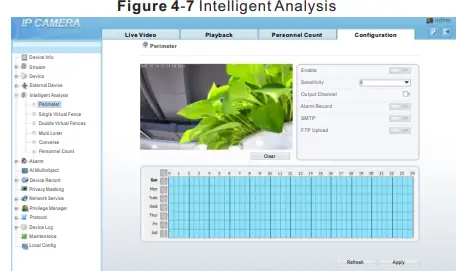
4.2 Intelligent Analysis
At “Configuration > Intelligent Analysis” interface, user can set the parameters of Perimeter, Single Virtual Fence, Double Virtual Fence, Multi Loiter, Converse and Personnel Count, as shown in figure 4-7 . Figure 4–7 Intelligent Analysis
4.4 AI Multi object
At “Configuration > AI Multi object” interface, user can enable face detection, full body detection, vehicle detection, set the other parameters of detection.