VUE Digital Radiation Monitoring Device
Product Information
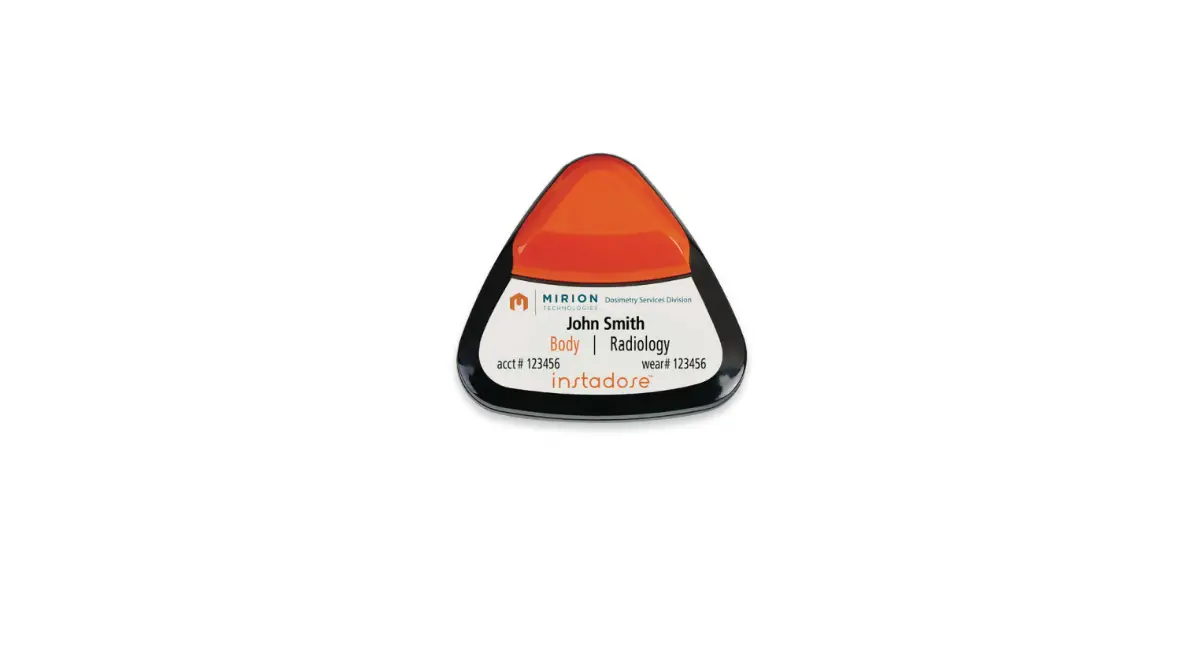
The product is the Radiology Autoreads 2WK 1M/3M, which includes
the following components:
- InstaLinkTM3 Gateway
- Instadose Companion Mobile App
- Internet-enabled computer (access to instadose.com)
Product Usage Instructions
Wearing Your Dosimeter
1. Wear the dosimeter according to the body position indicated
on the screen (collar, torso, fetal).
2. Consult your RSO or Dosimeter Administrator for wear
questions.
3. To better understand the icons displayed on the screen,
please refer to the section titled “Features” on pages 10-11.
Dosimeter Care
To avoid any issues:
- Do not immerse the dosimeter in water.
- Do not allow the dosimeter to overheat.
- Do not allow the dosimeter to freeze.
- Do not store the dosimeter in a car, outdoors, or in a place
with extreme temperatures.
At the end of a work shift, remove the dosimeter and store it on
the designated dosimeter badge board or in accordance with your
organizational instructions. Dosimeters should be stored within 30
feet of an InstaLinkTM3 Gateway (if your facility has one) to
ensure the automatic scheduled dose readings occur
successfully.
For specific dosimeter cleaning instructions, visit
https://cms.instadose.com/assets/dsgm-25_rebranded_dosimeter_cleaning_guide_flyer_final_r99jwWr.pdf
Icons and Communication
To initiate or read the dosimeter, a communication device is
required to transmit the dose data from the dosimeter to the online
reporting system. The dosimeter MUST be within range of a
communication device, either the InstaLinkTM3 Gateway or the smart
device running the Instadose Companion mobile app.
User Guide
Getting Started with Instadose®VUE
#123123123
JANE SMITH
RADIOLOGY AUTOREADS 2WK 1M/3M
TABLE OF CONTENTS
Introducing the Instadose®VUE
Page #
4
Exploring the Instadose®VUE Dosimeter
6
Wearing Instadose®VUE Dosimeter
8
Caring and Storage of Instadose®VUE Dosimeter
9
Features of Instadose®VUE Dosimeter
10
Instadose®VUE Iconography
12
Compliance Star & Motion Detection
13
Icons for Dose Communication
14
Temperature Error Icons
16
Service & Support Icons
17
Instadose®VUE Communication Devices
18
InstaLinkTM3 Gateway
20
Scan to access the InstaLinkTM3 User Guide
21
InstaLinkTM3 Gateway Status LEDs
22
Instadose Companion mobile app
24
Manual Read via the Instadose Companion mobile app
25
Communicating Dose Reads
26
Calendar Read
27
Manual Read
27
Accessing Dose Data & Reports
28
Compliance Notices
30
2
3
Introducing the Instadose®VUE
Combining the science of better radiation monitoring with state-of-the-art wireless processing and communication technologies, Instadose®VUE effectively captures, measures, wirelessly transmits, and reports occupational radiation exposure anytime, ON-DEMAND. The active electronic display screen enhances user visibility, engagement, and compliance. Now, dynamic wearer, dose communication, device status, and compliance information are available on-screen, enabling users to see and know more. Save time and money with Instadose®VUE by eliminating the time-consuming process of collecting, mailing, and redistributing dosimeters every wear period. On-demand (manual) and automatic calendar-set dose reads enables users to self-process dose reads whenever and wherever internet access is available.
4
Instadose®VUE Dosimetry System
The Instadose®VUE dosimetry system consists of three main components: a wireless dosimeter, a communication device (either a smart device with the Instadose Companion Mobile App or an InstaLinkTM3 Gateway), and an online reporting system accessed through a PC. These three components work together to capture, monitor, and transmit an individual’s exposure to ionizing radiation and maintain a comprehensive archive of official dose records for both dosimeters and wearers.
#123123123
JSAMNIETH
A2UWTOKR1EMA/D3SM
Instadose®VUE Dosimeter
InstaLinkTM3 Gateway
Instadose Companion Mobile App
Internet-enabled computer (access to instadose.com)
5
Exploring the Instadose®VUE Dosimeter
The Instadose®VUE dosimeter features the latest Bluetooth® 5.0 Low Energy (BLE) Technology, allowing for rapid and wireless transmission of radiation dose exposure data at anytime, and as often as needed.
On-screen visibility and feedback enable users to verify the health and status of the device and provides operational feedback about dose reads and wireless transmissions (communications).
New features include: · Dynamic wearer details such as the wearer’s name (up to 15
characters for the first name and up to 18 characters for the last name), account number, location/department (up to 18 characters), and dosimeter wear region.
· Visual reminder of the upcoming scheduled calendar read · Dose communication status for both on-demand and scheduled
calendar reads (reading/uploading/success/error)
· Temperature warnings (high, low, fatal) · Compliance Star indicator with motion detection · Support and service alerts that eliminate the uncertainty surrounding
dosimeter operations and quality assurance.
6
Instadose®VUE Dosimeter
Front
A B C
F
Back
H
#123123123
JANE SMITH
RADIOLOGY
AUTOREADS 2WK 1M/3M
G
D E
I
A Wearer’s Name
B Location/ Department C Auto-Read Schedule
D Account Number
E
Dosimeter Wear Location
(Body Region)
F Detector Location
G Read Button
H Clip/Lanyard Holder I Dosimeter Serial Number
(Located Under Clip)
Side
G H
7
#123123123 JANE SMITH RADIOLOGY AUTOREADS 2WK 1M/3M
JANE #123123123 SMITH RADIOLOGY 2AWUTKO1RME/A3DMS
#123123123 JSAMNIETH
RAA2DUWITOOKLRO1EGMAY/D3SM
Wearing Your Dosimeter
Wear the dosimeter according to the body position indicated on the screen (collar, torso, fetal). Consult your RSO or Dosimeter Administrator for wear questions. To better understand the icons displayed on screen, please refer to the section titled: Features on pages 12-17.
8
#123123123 JANE SMITH RADIOLOGY AUTOREADS 2WK 1M/3M
DO
DON’T
Storing the Instadose®VUE Dosimeter
Extreme temperatures (high or low) can impact dosimeter performance, compromising dosimeter operations, and may permanently damage critical internal components. Similar to modern smartphones, if the Instadose®VUE dosimeter is exposed to extreme temperatures, communication (dose transmission) is not possible until it cools down and recovers to room temperature.
To avoid any issues:
Do not immerse in water.
Do not allow to overheat.
Do not allow to freeze.
Do not store in a car, outdoors, or in a place with extreme
temperatures.
At the end of a work shift, remove the dosimeter and store it on the designated dosimeter badge board or in accordance with your organizational instructions. Dosimeters should be stored within 30 feet of an InstaLinkTM3 Gateway (if your facility has one) to ensure the automatic scheduled dose readings occur successfully.
Cleaning the Instadose®VUE Dosimeter
To clean an Instadose®VUE dosimeter, simply wipe it down with a damp cloth over all surface areas. DO NOT saturate or submerge the dosimeter in any liquid.
For specific DOs and DON’Ts regarding dosimeter cleaning, visit https://cms.instadose.com/assets/dsgm-25_rebranded_dosimeter_ cleaning_guide_flyer_final_r99jwWr.pdf
9
Features
10
11
Instadose®VUE Iconography
The display screen provides wearer information, device status, and dose read/communication feedback using icons. The following section provides a guide of common icons that will appear on the display screen.
Dosimeter Wear Location Where to wear the Dosimeter: · Collar Icon · Torso Icon · Fetal Icon
· Area Icon
Collar Wear Location
Torso Wear Location
Fetal Wear Location
Area Wear Location
12
Star Icon
Checkmark Icon
COMPLIANCE STAR &
MOTION DETECTION
· Checkmark Icon will briefly appear to confirm that the dose communication has been successfully completed.
· Star Icon* The compliance status can be found in the top left corner, indicated by a star icon. To achieve compliance, the dosimeter must be actively worn for the minimum number of hours required by the organization/ facility. Advanced motion sensing technology detects and captures sustained motion exhibited when the dosimeter is consistently worn throughout a work shift. Additionally, a successful automatic calendar reading within the last 30 days is required. These measures assure wearers and administrators that the dosimeter is functioning properly and being utilized appropriately.
*This feature may not be available to all customers outside of the United States as data privacy and sharing laws vary.
13
ICONS FOR DOSE COMMUNICATION
To initiate or read the dosimeter, a communication device is required to transmit the dose data from the dosimeter to the online reporting system. The dosimeter MUST be within range of a communication device, either the InstaLinkTM3 Gateway or the smart device running the Instadose Companion mobile app.
To find out which transmission methods are approved for your account and where they are located, please contact your account administrator or RSO.
Communication in Progress: Indicates the dosimeter is establishing connection with a communication device:
· Hourglass Icon Dosimeter is looking for an active communication device and establishing the connection for on-demand reads.
· Cloud with an Arrow Icon Connection with the communication device is established and the transmission of dose data is uploading for on-demand reads.
Communication Successful Indicates the dose communication was transmitted successfully:
· Checkmark Icon The on-demand read performed was successfully completed and dose data was transmitted to the organization’s online account.
Communication Warnings Indicates dose communication was unsuccessful and the dose was not transmitted:
· Cloud Warning Icon Communication was unsuccessful during the last manual dose read.
· Calendar Warning Icon Communication was unsuccessful during the last automatic calendar-set/ scheduled dose read.
14
Establishing Connection for On-Demand Reads
Uploading Dose Data for On-Demand Reads
Communication Successful for On-Demand Reads
On-Demand Communication
Unsuccessful
Scheduled Communication
Unsuccessful
15
TEMPERATURE ERROR ICONS
Temperature Error · High Temperature IconDosimeter has reached a high temperature above 122°F (50°C). It must stabilize to room temperature (between 41°F -113°F or 5-45 °C) for the icon to disappear from the screen, indicating the dosimeter is able to communicate again. · Low Temperature IconDosimeter has reached a low temperature below 41°F (5°C). It must stabilize to room temperature for the icon to disappear from the screen, indicating the dosimeter is able to communicate again. · Fatal Temperature IconDosimeter has crossed a critical threshold where permanent damage from excessive/sustained temperatures (outside of acceptable ranges) has rendered the device inoperable. The dosimeter must be returned to the manufacturer. Contact your RSO or Account Administrator to coordinate returning the dosimeter.
Note: A recall notification with instructions for returning the dosimeter and receiving a replacement will be sent to the
email address on file.
SERVICE & SUPPORT ICONS
Service/Support required: · Recall Initiated IconDosimeter has been recalled and must be returned to the manufacturer. Contact your Program Administrator or Dosimeter Coordinator for instructions. Recall and replacement instructions will be emailed to account administrators. · Contact Customer Support IconDosimeter requires service or troubleshooting support from a Customer Service Representative. Contact your Program Administrator or Dosimeter Coordinator for instructions.
16
High Temperature Error
Low Temperature Error
Fatal Temperature Error
Recall Initiated
Call Customer Support
17
Instadose®VUE Communication Devices.
A communication device must be used to perform dose readings and transmit dose data to the legal dose-of-record: 1. The InstaLinkTM3 Gateway device is recommended
when there are 10 or more dosimeters in one location. 2. The Instadose Companion mobile app is available for free on the Google Play Store for Android devices and the Apple App Store for iOS devices.
18
19
InstaLinkTM3 Gateway
The InstaLinkTM3 serves as a secure and proprietary communication gateway designed specifically to enable fast and reliable connection and transmission of dose data from Instadose wireless dosimeters. With a unique hardware and software design, advanced security technologies, and robust diagnostic and management capabilities, the InstaLinkTM3 Gateway improves communication reliability and data transmission speeds. The InstaLinkTM3 Gateway supports wireless Instadose®+, Instadose®2, and Instadose®VUE dosimeters.
20
Scan to access the InstaLinkTM3 User Guide
Scan the QR code with the camera of your smartphone or tablet to link directly to the InstaLinkTM3 Gateway User Guide for more details on how to set-up, operate, and troubleshoot
the InstaLinkTM3 Gateway communication device.
21
InstaLinkTM3 Gateway Status LEDs
The four LEDs on the top of the InstaLinkTM3 indicate the device status and will help guide troubleshooting, when necessary.
· LED 1: (Power) A green light indicates the device is receiving power.
· LED 2: (Network Connection) A green light indicates a successful network connection; yellow requires network attention.
· LED 3: (Operational Status) A green light indicates normal operations; yellow requires troubleshooting.
· LED 4: (Failure) A red light indicates an issue that requires further investigation/troubleshooting.
22
InstaLinkTM3 Gateway Status
Dosimeter Transmitting Data
Uploading Dose Data
LED 1 LED 2 LED 3 LED 4
Green
Blinking Green
Green
Off
Green
Blinking Blinking
Green
Green
Off
No Power To Unit
Off
Off
Off
Off
Dosimeter Unsuccessful Transmitting Data
Green
Blinking Yellow
Green
Off
NTP Failed
Green Yellow
Off
Red
No Internet Access
Green
Blinking Yellow
Off
Red
Network Hardware Error
Green
Off
Yellow
Red
Bluetooth® Error
Configuration Corrupted
High CPU Temperature Network Reset In Progress Factory Reset In Progress
Forced Shutdown
Green Green Green Green Green Green
Blinking Yellow
Off
Yellow
Off
Off Blinking Yellow
Off
Off
Off
Blinking Green Blinking Yellow Blinking Yellow
Blinking Red
Blinking Red
Blinking Red
Off
Off
Blinking Red
Temper Detection
Green Yellow Yellow
Red
23
Instadose Companion Mobile App
The Instadose Companion mobile app provides a wireless communication gateway that allows the dosimeter to be read via a smart device. Dose data to can be transmitted anytime/anywhere, as long as there is an established internet connection. The mobile app also allows users to access and view both current and historical dose results.
Download the Instadose Companion Mobile App
24
Manual Read via the Instadose Companion mobile app
To perform a manual read via the mobile app, follow the instructions below. You can verify that the dose was successfully transmitted by logging into the Instadose Companion mobile app or your AMP+ (Account Management Portal) online.
1
2
JANE #123123123 SMITH
RADIOLOGY 2AWUTKO1RME/A3DMS
Select `Badge reader’
Switch on `Looking for badges’
3
Press and Hold
Press and hold the Read Button for NO MORE than 2 seconds, or until the Hourglass Icon appears on the
dosimeter’s display screen.
4
Response
When the message `badge has been read’ is displayed on the mobile app, the
transfer of data is complete.
Verify Transfer
Press the read history button on the mobile app to verify that the dose data (showing the current date) has been transferred.
25
Communicating Dose Reads.
To initiate or read the dosimeter, a communication device is required to transmit the dose data from the dosimeter to the online reporting system. The dosimeter must be within range of a communication device either the InstaLinkTM3 Gateway (30 feet) or the smart device running the Instadose Companion mobile app (5 feet).
To find out which transmission methods are approved for your account and where they are located, please contact your account administrator.
Automatic Calendar-Set Reads The Instadose®VUE dosimeter supports automatic calendarset reading schedules programmed by your RSO or Account Administrator. On the designated day and time, the dosimeter will attempt to wirelessly transmit dose data to a communication device. If the dosimeter is not within range of a communication device at the scheduled time, the transmission will not occur, and an unsuccessful communication icon will appear on the dosimeter’s display screen.
Manual Read
1
To perform a manual read. Move to within 30 feet of an InstaLinkTM3 Gateway, or within 5 feet of a wireless device
(smartphone or tablet/iPad) with the Instadose Companion
mobile app open and an active internet connection.
26
2
Press and hold the read button on the right side of the dosimeter for 2 seconds until the hourglass icon appears.
Connection with InstaLinkTM3 is active and device is uploading data to the reading device
3
If the transmission of dose data is successful, a checkmark icon will appear on the dosimeter screen. Transmission can be
verified by logging into the Instadose Companion mobile app
or your Amp+ (Account Management Portal) online account.
Communication Successful
On-Demand Communication
Unsuccessful
4
If the dosimeter shows the cloud warning icon (an exclamation point inside of a black triangle), the dose read/transmission
was unsuccessful. Wait a few minutes and attempt the
manual dose read again.
27
Accessing Dose Data & Reports
All standard monthly, quarterly and other frequency reports can be accessed via the AMP+ and Instadose.com online account management portals. Special Instadose® reports are available to assist in managing dosimeters and exposure data. The Instadose Companion mobile app allows a current and historical view of dose data via the selected smartphone or iPad. On Demand Reports allow you to run on-demand reports for Instadose®VUE dosimeters. The reports Inbox includes all other (non-Instadose) dosimeter reports, such as: TLD, APex, ring, fingertip, and eye dosimeters.
28
Mobile App (via a smart device)* To view current and historical dose data, sign in to the Instadose Companion mobile app on your smart device.
*The app is only available for wireless Instadose® dosimeters.
1 Select the My Badge icon (at the bottom).
2 Select Read History.
All the successfully transmitted dose data in your dose record is viewed from the Read History screen.
Online Amp+ To view dose data online or to print/email reports, sign into your AMP+ account and look in the right column for specific reports.
1 Under Reports, select the report type needed.
2 Enter the report settings.
3
Select “Run Report”. Your report will open a new window where you can view, save or print the report.
User Wearer information
Dose overview
Read History
Welcome to Amp+
29
Compliance Notice
FCC Compliance Statement
This device complies with part 15 of the FCC Rules. Operation is subject to the following two conditions:
1. This device may not cause harmful interference.
2. This device must accept any interference received, including interference that may cause undesired operation.
CAUTION: The grantee is not responsible for any changes or modifications not expressly approved by the party responsible for compliance. Such modifications could void the user’s authority to operate the equipment.
NOTE: This equipment has been tested and found to comply with the limits for a Class B digital device, pursuant to part 15 of the FCC Rules. These limits are designed to provide reasonable protection against harmful interference in a residential installation. This equipment generates, uses, and can radiate radio frequency energy, and if not installed and used in accordance with the instructions, may cause harmful interference to radio communications. However, there is no guarantee that interference will not occur in a particular installation. If this equipment does cause harmful interference to radio or television reception, which can be determined by turning the equipment off and on, the user is encouraged to try to correct the interference by one or more of the following measures:
· Reorient or relocate the receiving antenna. · Increase the separation between the equipment and receiver. · Connect the equipment into an outlet on a circuit different from
that to which the receiver is connected. · Consult the dealer or an experienced radio/TV technician for
help. This equipment has been tested and meets applicable limits for radio frequency (RF) exposure.
30
Canadian Compliance Statement
This device contains license-exempt transmitter(s)/receiver(s) that comply with Innovation, Science and Economic Development Canada license-exempt RSS(s). Operation is subject to the following two conditions:
1. This device may not cause interference. 2. This device must accept any interference, including interfer-
ence that may cause undesired operation of the device. L’émetteur/récepteur exempt de licence contenu dans le présent appareil est conforme aux CNR d’Innovation, Sciences et Développement économique Canada applicables aux appareils radio exempts de licence. L’exploitation est autorisée aux deux conditions suivantes :
1. L’appareil ne doit pas produire de brouillage; 2. L’appareil doit accepter tout brouillage radioélectrique subi,
même si le brouillage est susceptible d’en compromettre le fonctionnement. NOTE: This equipment has been tested and meets the applicable limits for radio frequency (RF) exposure under RSS-102. REMARQUE: Cet équipement a été testé et respecte les limites applicables pour l’exposition aux radiofréquences (RF) sous RSS-102
31
Want to learn more?
Visit instadose.com
104 Union Valley Road, Oak Ridge, TN 37830
+1 800 251-3331
 Instadose
 Sign in ・ Cloudflare Access