
SOPHOS XGS 2100 Bypass Pair

Before Deploying
Congratulations on the purchase of your Sophos XGS appliance. This Quick Start Guide describes in short steps how to connect your appliance and explains how to open the web-based Admin Console from your administration PC. The Admin Console allows you to configure every aspect of the appliance.
What is included in the box
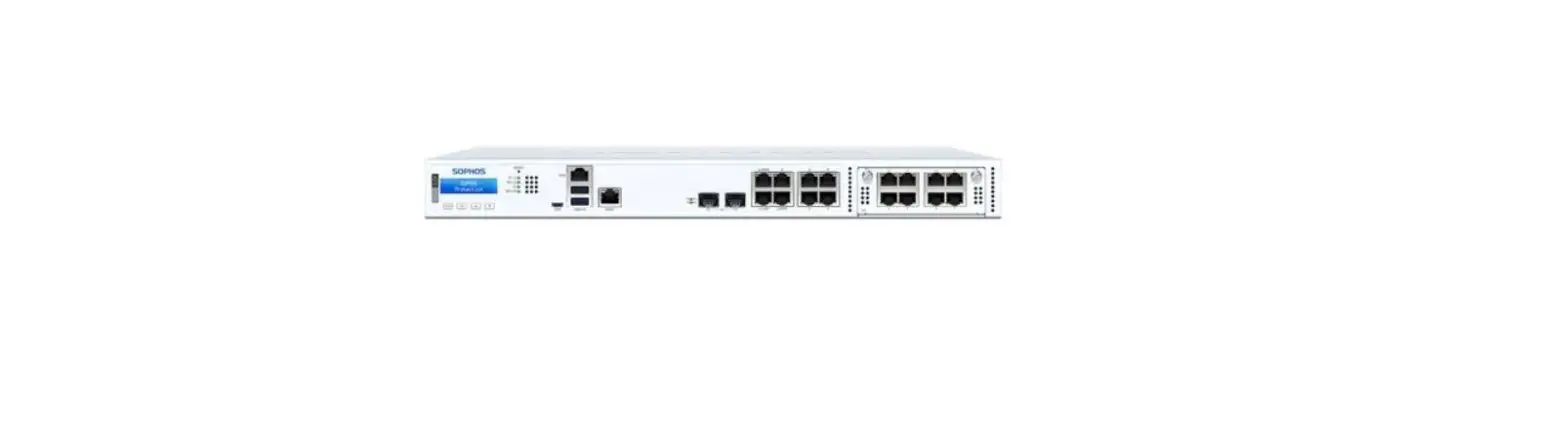
Appliance images: front and back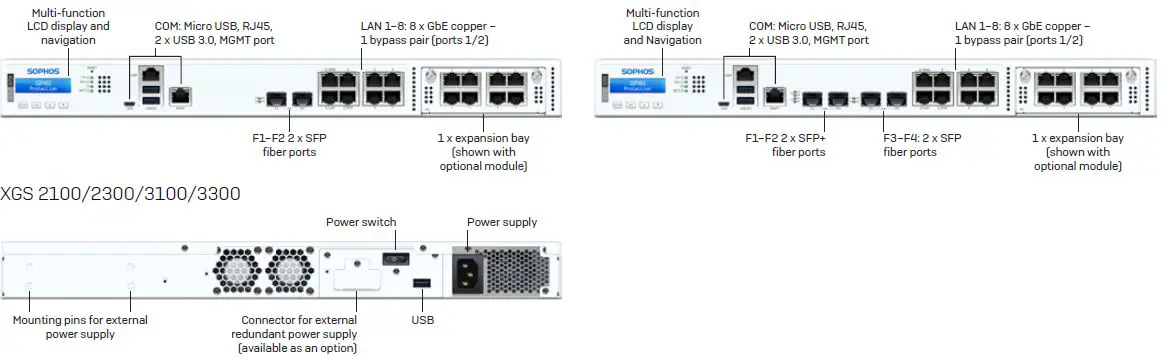
Interfaces (front)
| LAN Ports | Type | Speed | Comment |
| 1–8 | RJ45 | 10/100/1000 Mbps | Ports 1/2 can be configured as a bypass pair. |
| F1–F2 (XGS 2100/2300 only) | SFP | 1 Gbps | |
| F1–F2 (XGS 3100/3300 only) | SFP+ | 1/10 Gbps | |
| F3–F4 (XGS 3100/3300 only) | SFP | 1 Gbps |
| Other Ports | Type | Comment |
| COM | RJ45/Micro USB | You can connect a serial console to either the RJ45 or micro USB COM port to access the CLI. Only one port can be used at any time. If both ports are connected then the micro USB port will take precedence. The required connection settings are: Ì Bits per second: 38,400 Ì Data bits: 8 Ì Parity: N (none) Ì Stop bits: 1 |
| USB | USB 3.0 (Type A) | You can connect a USB 2.0 or 3.0 compatible device to this port (e.g. USB thumb drive, UPS, 3G/4G dongles). |
| MGMT | RJ45 (10/100/1000 Mbps) | We recommend using this dedicated port to connect your Admin PC. |
| USB (rear) | USB 2.0 (Type A) | You can connect a USB 2.0 compatible device to this port (e.g. keyboard). |
| Module Slots | Type | Comment |
| A | Flexi Port | Can be used for any Flexi Port module listed in the table below |
| Compatible Modules* | Comment |
| 8 port GbE copper | Flexi Port |
| 8 port GbE SFP | Flexi Port |
| 4 port GbE copper – 2 Bypass groups | Flexi Port |
| 4 port 10 GbE SFP+ | Flexi Port |
| 2 port GbE fiber (LC) Bypass + 4 port GbE SFP | Flexi Port |
| 4 port 2.5 GbE copper PoE | Flexi Port |
| 4 port GbE copper PoE + 4 port GbE copper | Flexi Port |
Mount and Connect the Appliance
Please follow the rack mounting instructions as described in the XGS Operating Instructions Guide* or the separate instructions provided with your rack mount rails.
Connect the ports to the internal and external networks
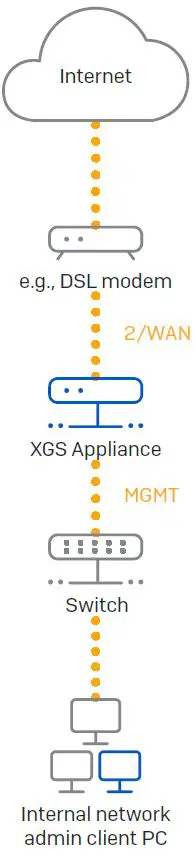
- Connect the MGMT port via a switch to the internal network. For this purpose, use the RJ45 Ethernet cable provided. Note that your Administration PC must also be connected to this network.
- Connect Port 2 to the external network. The connection to the WAN depends on the type of Internet access.
XGS appliances are shipped with the following default settings:
| Ethernet Port | IP Address | Zone |
| 1/LAN | 172.16.16.16/255.255.255.0 | LAN |
| 2/WAN | DHCP | WAN |
| MGMT | 10.0.1.1/255.255.255.0 | LAN |
| Admin Console Username | Admin Console Password | CLI Console Password |
| admin | admin | admin |
| Default Gateway | DNS | DHCP Service |
| DHCP | DHCP | Enabled |
Power Up the Appliance
Connect the power cable and turn on the appliance
Connect the appliance to the power supply using the power cable(s). Turn the appliance on. The power switch is on the back of the appliance next to the power connection. Once the appliance has booted completely, you will hear an acoustic signal: five beeps in a row.
Connect Your Administration PC
Please note: We recommend that you use the MGMT interface to connect the Administration PC and all other network interfaces for regular network traffic. Therefore, the following settings are for the MGMT port only. However, if required, you can also connect your Admin PC to any other LAN port. Please make sure that you use the correct IP address.
Administration PC connection properties:
Use the settings below to configure your (PC/laptop) network interface:
- IP address: 10.0.1.2
- Netmask: Enter 255.255.255.0
- Default Gateway: Enter the IP address of the appliance’s internal network card (MGMT): 10.0.1.1
- DNS Server: Enable this option and enter the IP address of the internal network card (MGMT): 10.0.1.1
Connect your PC/laptop to the MGMT port of the appliance:
Start the browser and enter the IP address of the appliance’s MGMT port that your PC is connected to: https://10.0.1.1:4444
Login with the default details below:
- Username: admin
- Password: admin
Set Up the Appliance
Start network configuration
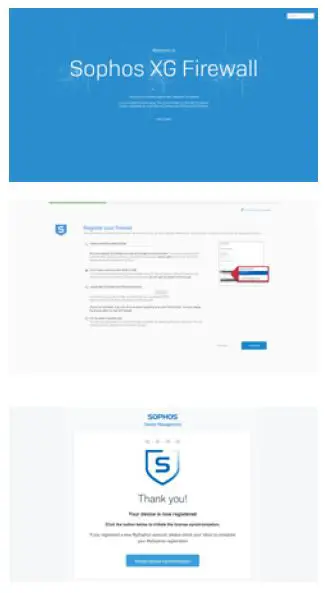
Select ‘Click to begin’ on the ‘Welcome’ screen to start your basic appliance configuration. Change the interface IP addresses, default gateway, DNS settings and date/time zone to match your local network settings.
Register the appliance
f you have not previously registered your appliance on MySophos, you will see the registration screen “Register Your Firewall.” The appliance requires Internet connectivity for it to be registered with MySophos. If you want to register later, click the check box “I do not want to register now” and proceed with section c). If you have a serial number provided on your License Schedule please enter it into the first field and click “I have an existing serial number,” otherwise click “I don’t have a serial number (Start a Trial).” If you are upgrading from an existing UTM/SG appliance and want to migrate your existing UTM license to your new firewall, click the respective button on the screen and browse for your UTM license to upload it to your firewall. After clicking ‘Continue’, you will be redirected to the MySophos portal. If you already have a MySophos account, enter your login credentials under ‘Log in to MySophos’. If you are a new user, sign up for a MySophos account by entering the details under ‘Register for MySophos’. Click ‘Continue’ to complete the registration process. Please wait while the process completes – it will take a few seconds. After successful registration, you will see a screen with the message, ‘Your device is now registered. Please note that you should proceed with the next step, i.e. ‘Synchronize License’ only after the appliance is successfully registered.
Synchronize license
Click ‘Initiate License Synchronization’ to get the license information from Sophos onto the appliance. After synchronization, you will see a screen with the message, “Synchronization with server was successful.”
Set Up Bypass Mode
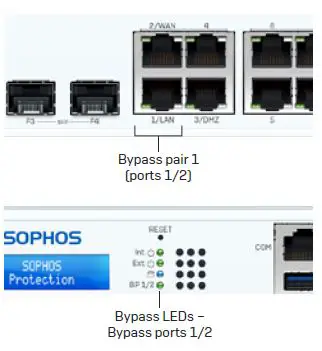
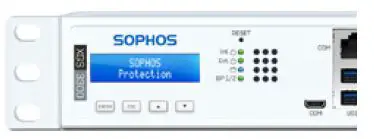
Your XGS appliance can go into LAN Bypass Mode (Hardware Bypass Mode) in case of a power failure or hardware malfunction. In Bypass Mode, the firewall allows all traffic to pass through without any scanning. In this mode, one pair of interfaces are bridged allowing uninterrupted traffic flow. Your XGS appliance comes with one pair of bypass ports as shown on the picture to the right. After a power failure, the firewall automatically resumes normal functionality when power is restored. In case of a hardware failure, please contact Sophos Support. By default, LAN Bypass Mode is disabled on your XGS appliance. You can enable/disable LAN Bypass Mode by following the steps given below.
- Log in to the CLI Console via Telnet or SSH.
- Choose ‘Option 4. Device Console’ and press ‘Enter’.
- View the LAN Bypass Mode status by executing the following command: console> show LAN bypass
- Enable or disable Bypass Mode by executing the following command: console> set LAN bypass <on/off>
The LED on the front panel of the appliance (see picture to the right) turns on when Bypass Mode is enabled for the specific port pair. Please note: Within initial SFOS releases Bypass Mode can only be enabled/disabled for all Bypass ports/pairs at once (LEDs for all available bypass pairs will turn ON/OFF synchronously). Enabling/disabling Bypass Mode for each bypass port pair individually will be added in a future SFOS release. Please check the KBA at https://community.sophos.com/kb/en-us/127014 for further information.
Appliance LED codes
| Status LEDs | |||
| Power 1 | Green | Solid | Power Supply 1 Active. |
| Red | Solid | Power Supply 1 Failure. | |
| Power 2 | Green | Solid | Power Supply 2 Active. |
| Red | Solid | Power Supply 2 Failure. | |
| SSD | Blue | Flashing | SSD reading/writing data. |
| BP 1/2 | Green | Solid | Bypass mode on Ports 1/2 enabled. |
| Off | Bypass mode on Ports 1/2 disabled and inactive. | ||
| LEDs on each RJ45 Ethernet connector | |||
| ACT/LNK (Left LED) | Green | Solid | 1. The Ethernet port has established link. 2. Good connection between the Ethernet port and hub. |
| Flashing | The adapter is sending or receiving network data. | ||
| Off | 1. The adapter and switch are not receiving power. 2. No connection between both ends of network. 3. Network drivers have not been loaded or do not function correctly. | ||
| Speed (Right LED) | Amber | On | If Ethernet port is operating at 1000 Mbps. |
| Green | On | If Ethernet port is operating at 100 Mbps. | |
| Off | If Ethernet port is operating at 10 Mbps. |
| LEDs on each SFP connector | |||
| ACT/LNK | Green | Solid | 1. The SFP connector is receiving power. 2. Good connection between the SFP port and hub. |
| Flashing | The adapter is sending or receiving network data. | ||
| Off | 1. The adapter and switch are not receiving power. 2. No connection between both ends of network. 3. Network drivers have not been loaded or do not function correctly. | ||
| LEDs on each SFP+ connector | |||
| ACT/LNK | Green | Solid | 1. The SFP+ connector is receiving power. 2. Good connection between the SFP+ port and hub. |
| Flashing | The adapter is sending or receiving network data. | ||
| Off | 1. The adapter and switch are not receiving power. 2. No connection between both ends of network. 3. Network drivers have not been loaded or do not function correctly. | ||
| Speed | Blue | On | If SFP+ connector is operating at 10,000 Mbps. |
| Amber | On | If SFP+ connector is operating at 1,000 Mbps. | |
| Off | Either the LED is not working or the SFP+ connector is operating at a speed below 1,000 Mbps. |
Support and Documentation
For more information and technical support, please visit www.sophos.com/en-us/support or contact your local Sophos reseller. Check our Getting Started resources to find out how you can get the most out of your purchase www.sophos.com/get-started-firewall
For more information about your appliance, scan the QR code or visit www.sophos.com/get-started-firewall
Before you begin, please confirm that you have a working Internet connection and make sure you have the account information available that was provided by your ISP.
References
 Sophos Technical Support: SophosTalk, Knowledgebase, User Bulletin Board und Customer Resource Center
-
Contact Sophos Technical Support: Support Plans, Sophos Community and Customer Resources
-
Soporte técnico de Sophos: SophosTalk, base de conocimiento, boletín para usuario y centros de recursos para clientes
-
Sophos (XG) Firewall - Sophos Product Support and Documentation | Sophos Customer Resource Centers
-
Support technique Sophos : SophosTalk, base de connaissances, bulletin d'informations utilisateur et centre de ressources client
-
Sophos Community
-
ソフォス テクニカルサポート:SophosTalk、サポートデータベース、ユーザー向けフォーラム、カスタマー リソース センター
-
Contact Sophos Technical Support: Support Plans, Sophos Community and Customer Resources
 Service and Support
-
Service and Support
-
Service and Support
-
Service and Support
-
Service and Support
-
Service and Support
-
Service and Support
 Sophos Technical Support: SophosTalk, Knowledgebase, User Bulletin Board und Customer Resource Center
 Service and Support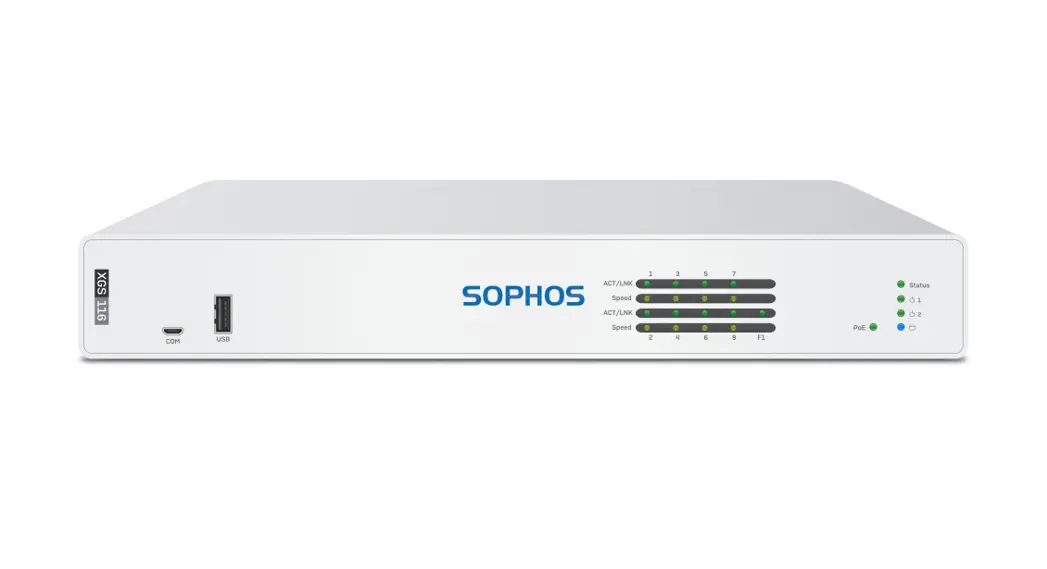
![Jbl Xtreme User Manual [extreme Pairing Instructions]](https://static-data1.manualsee.com/1/img/239/2490/2018/08/JBL-XTREAM-MANUAL-1.png "Jbl Xtreme User Manual [extreme Pairing Instructions]")

![Monster Isport User Manual [pairing Instructions]](https://static-data1.manualsee.com/1/img/243/2486/2018/08/190688-MONSTER-BLUETOOTH-HEADPHONES.jpg "Monster Isport User Manual [pairing Instructions]")

![Harman Jbl Party Xpert User Manual [pairing]](https://static-data1.manualsee.com/1/img/484/4552/2019/05/Harman-JBL-Party-Xpert.png "Harman Jbl Party Xpert User Manual [pairing]")