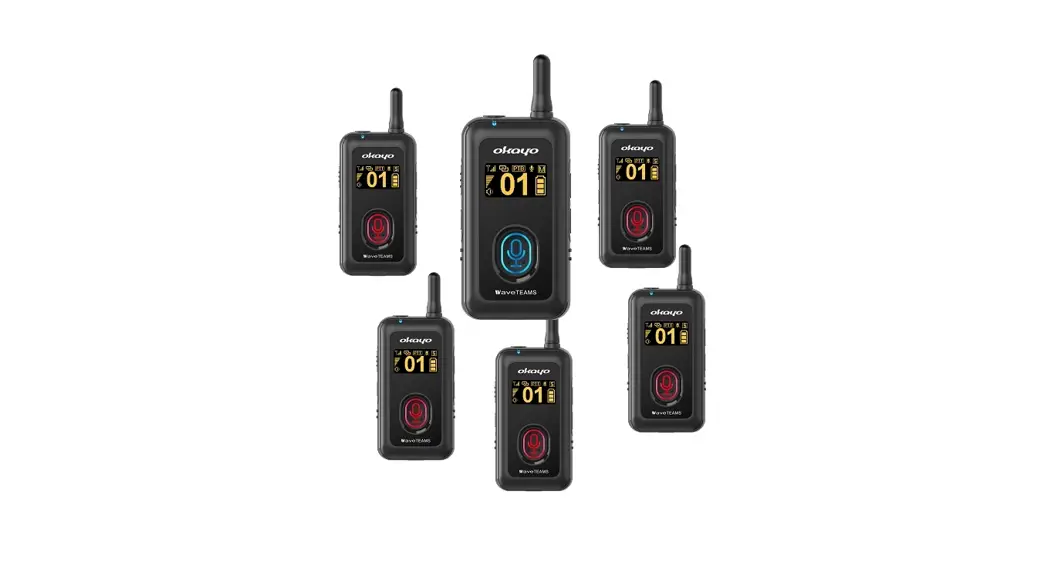

Wave Teams TS3 Digital Wireless Full-Duplex Communication System
WaveTEAMS
Digital Wireless Full-Duplex Communication System
- 3 full-duplex conversations per team
- Hands-free
Overview
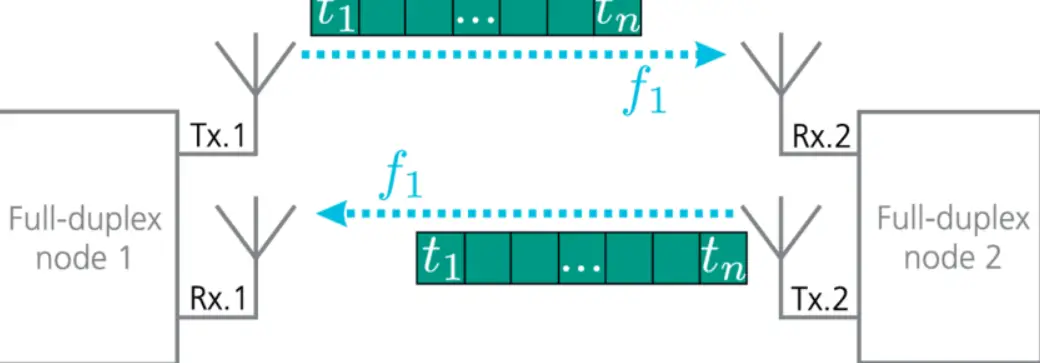
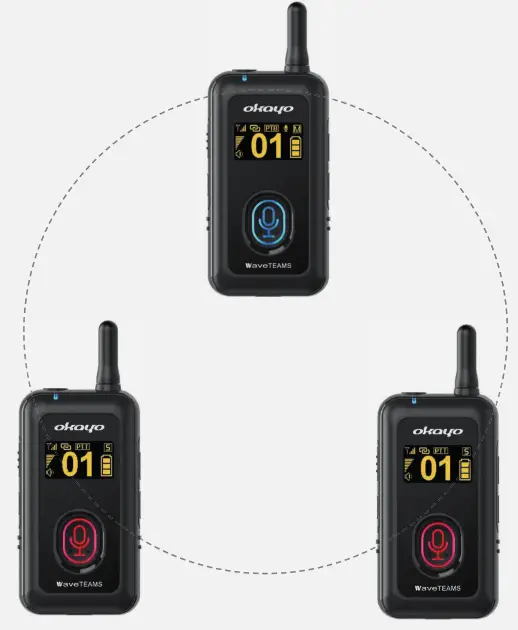
WaveTEAMS is a duplex communication system that allows 1 Master and 2 Sub-Masters to perform full-duplex communication at a time. Two roles can be set in a team:
- Master (M)
—This is used by Chairman/Team Leader. - Sub-Master (S)
—This is used by Participants.
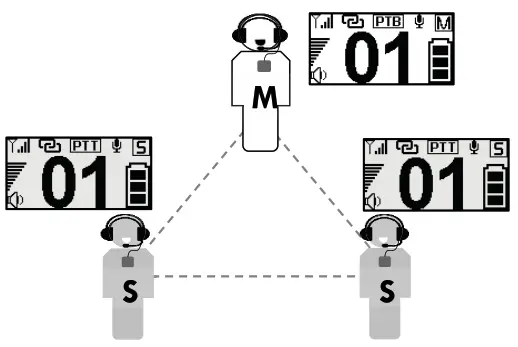
Application sample
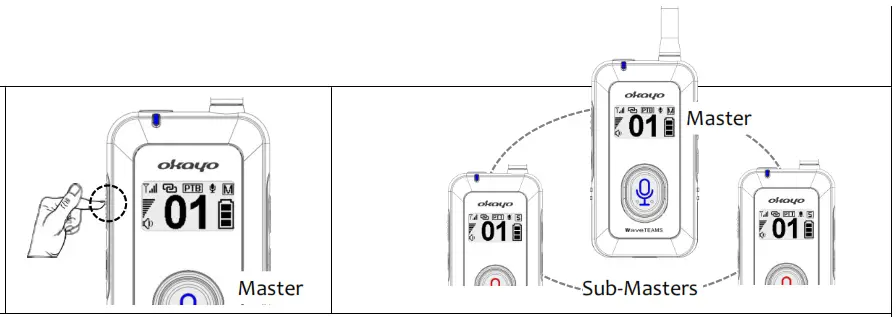
A Chairman (Master) and two Participants (Sub-Masters) talk freely in a team.
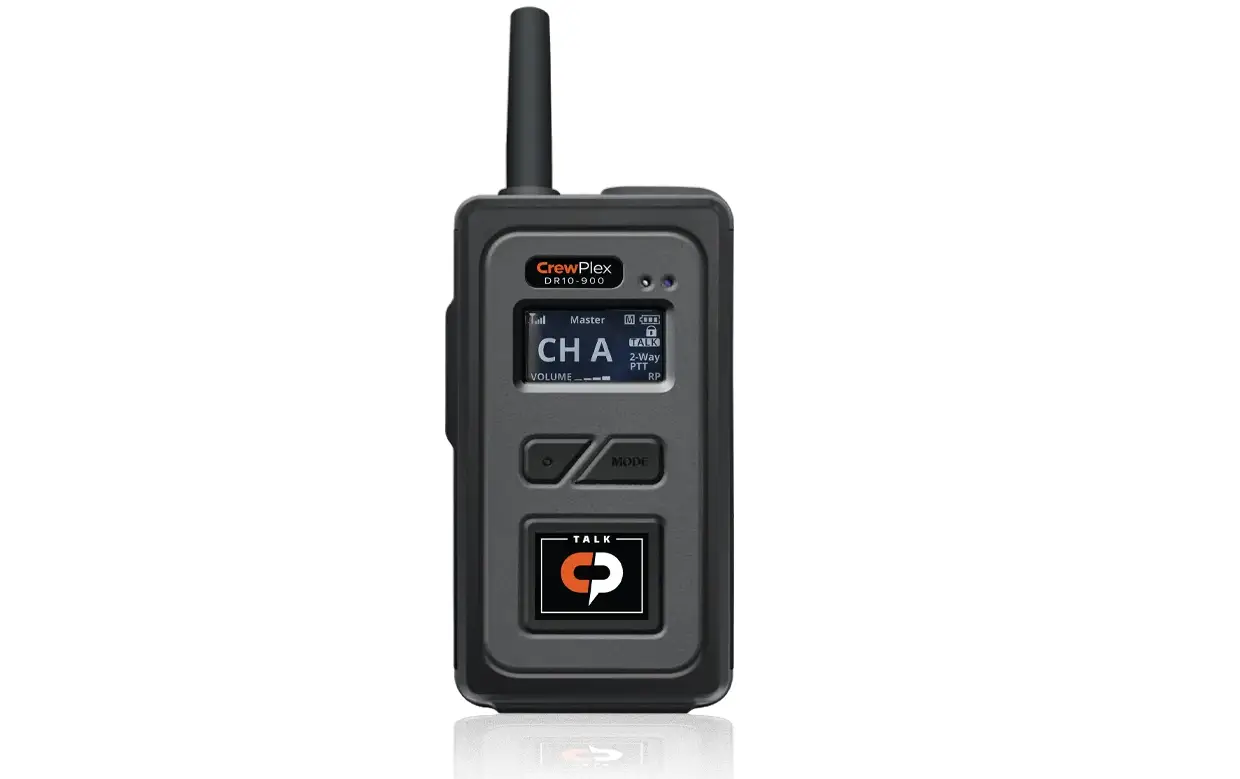
 Interface
 Interface
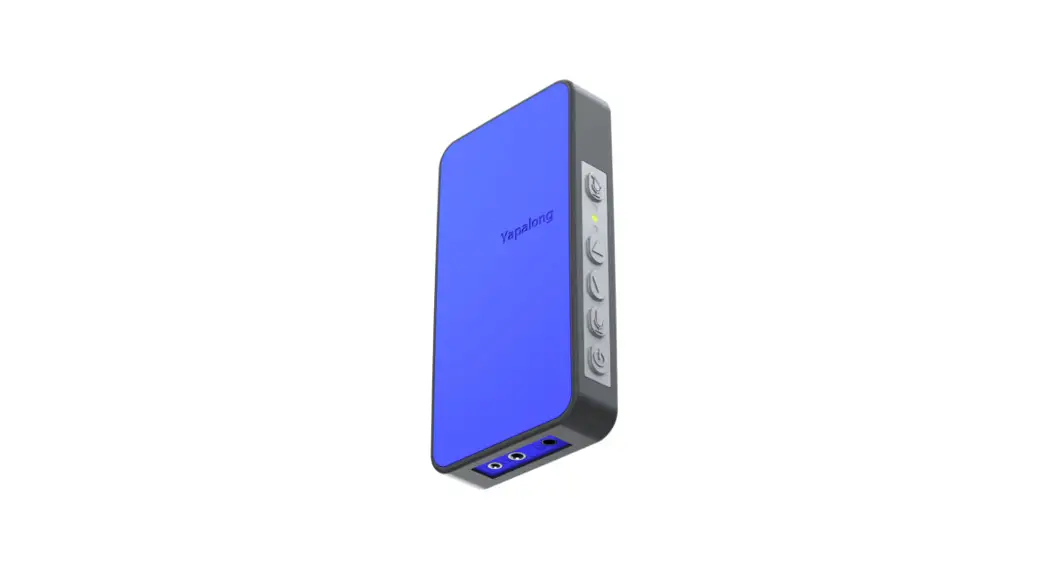
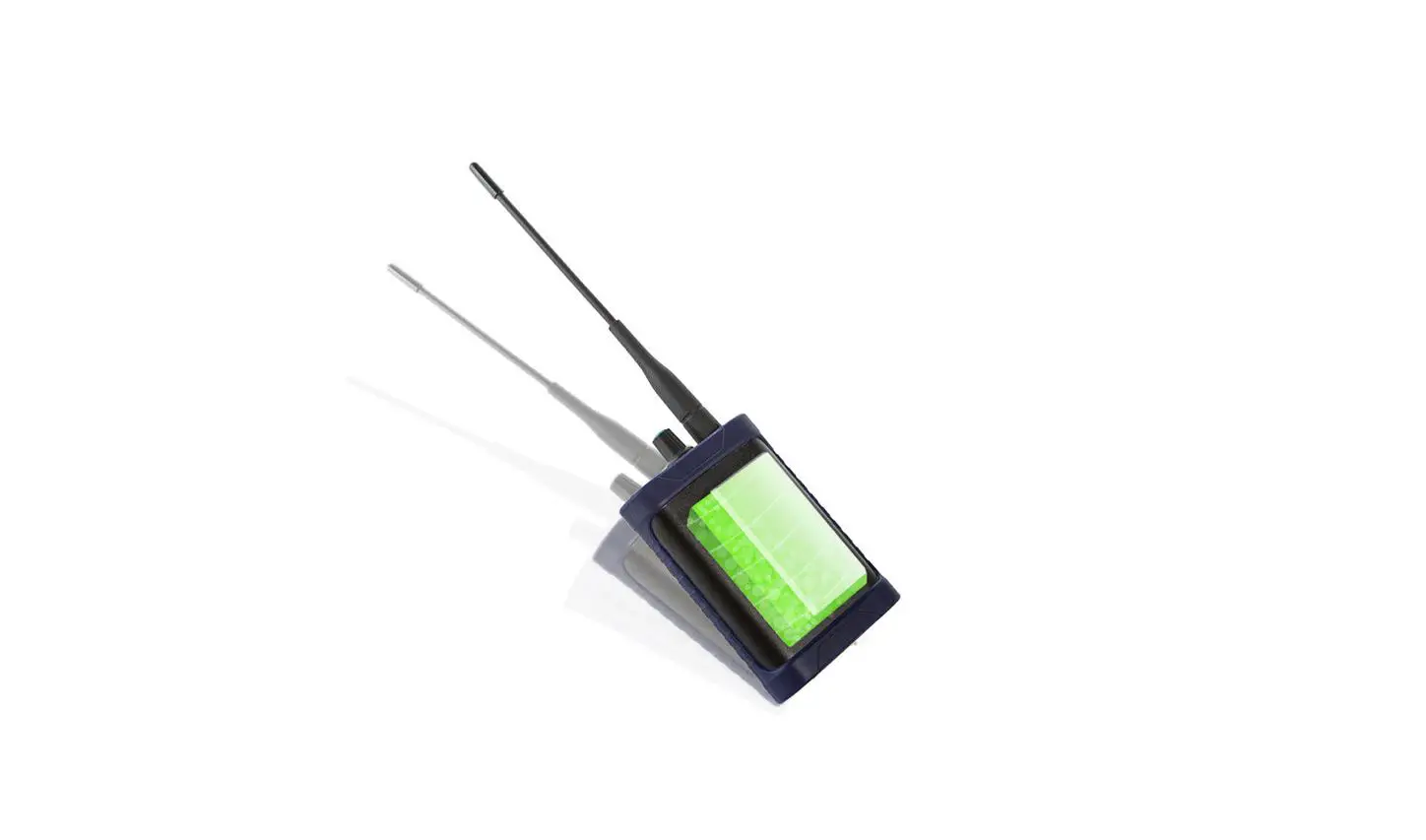
 Antenna
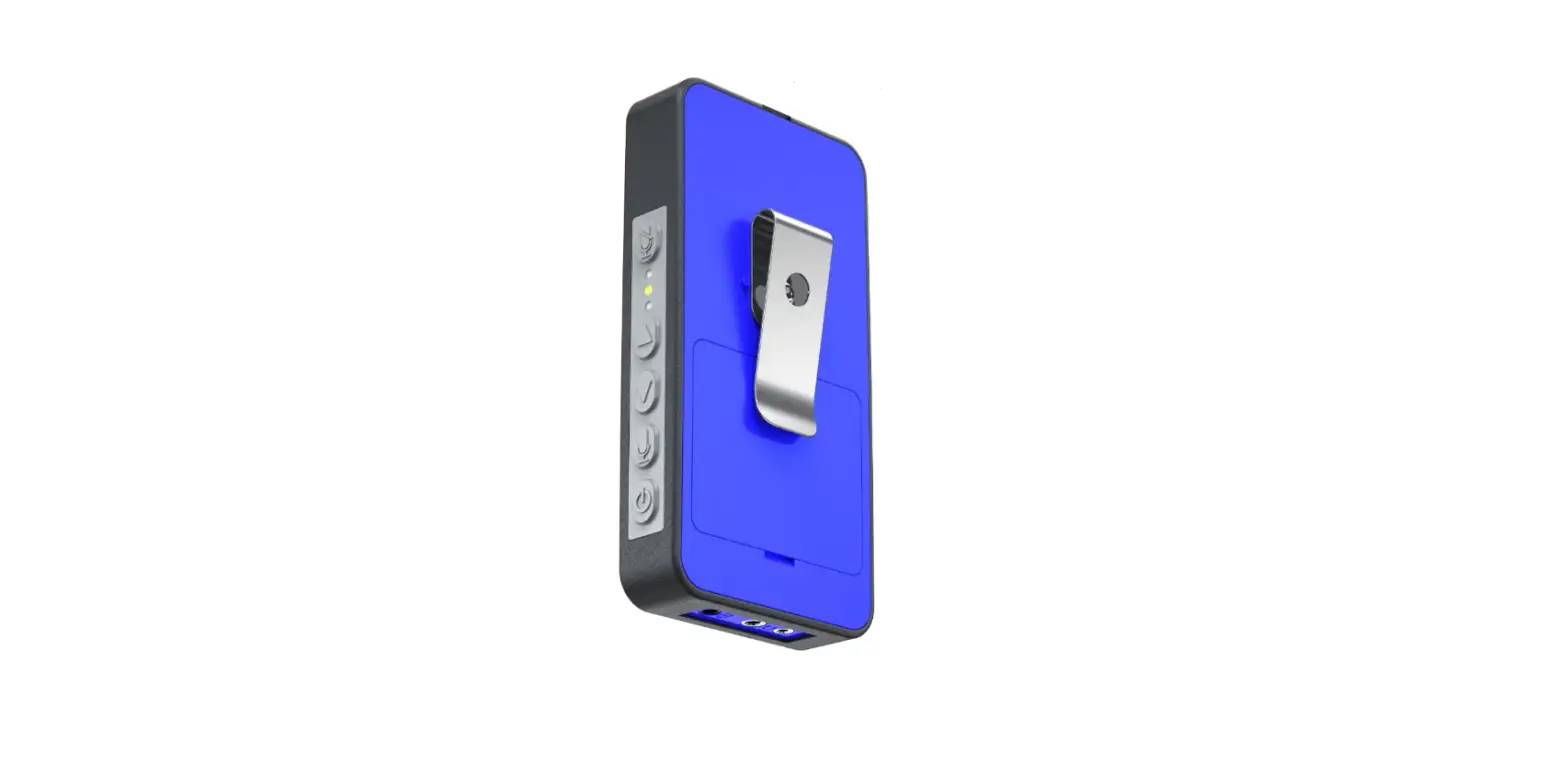
- LED indicator
- Function button

- Power button

- Talk/Mute button (Mic indicator)
- OLED screen
- Up/Down button

- Inbuilt battery
- USB-C charging port
- Headset jack
- Belt clip
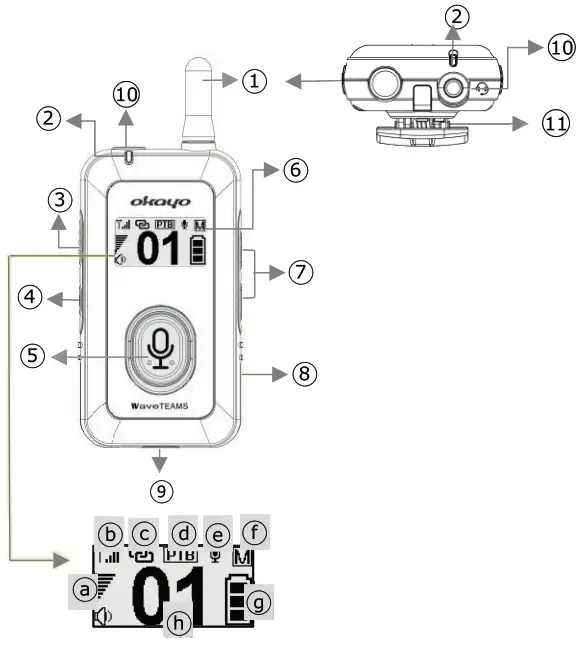 Antenna

a. Headphone volume
b. RF power / Signal strength
c. Encoded on .
.
d. Talk mode
e. Mic is live (  ) or muted (
 )
)
f. Role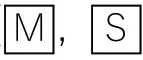
g. Battery status
h. Channel number
Create a (confidential) team
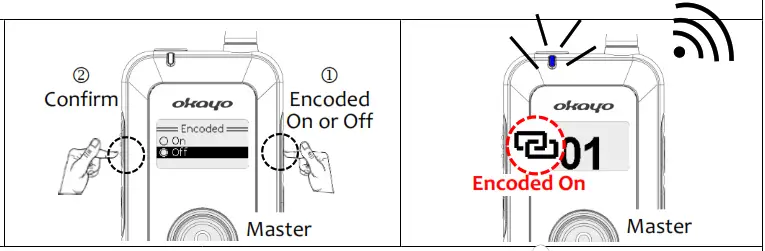
1st step – Create a Master to send a pairing signal. Press both function and power buttons simultaneously to create a Master. (1) Press the button to choose a live channel and confirm with a press of the function button. Then, the “Encoded” screen shows up press the button to decide if a confidential (co) team is needed and press the function button to confirm. (3) Its LED indicator starts to flash quickly. This Master is ready and sending a pairing signal. Do not press any button on the Master now
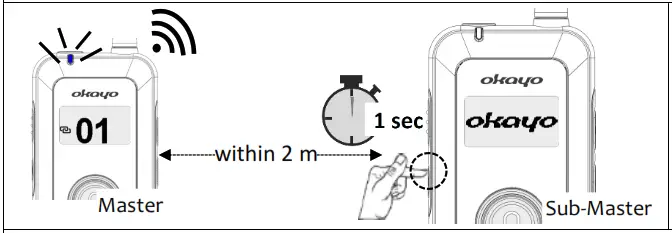
2nd step — Power on Sub-Masters to receive pairing signal. Press the power button of any unit to turn it on. Its screen shows the same live channel as Masters. If a different live channel shows up, power it off and then on again. Sub-Masters are created now.
Note Get Sub-Masters close to Master within 2 meters.
‘Last step — Your (confidential) team is ready! When the pairing of all Sub-Masters is finished, short press the function button on Master to leave and start your team.
Note Your live channel is secured and unchangeable if in a confidential team ).
Operation at a glance
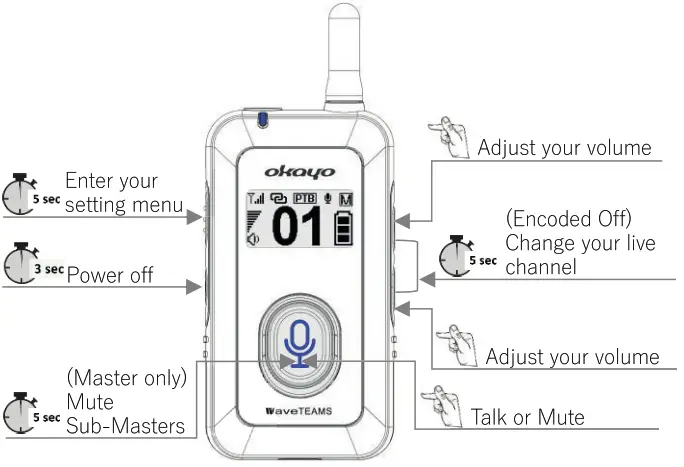
Operation
Mute Sub-Masters (Master Priority, MP)
Master can mute all Sub-Masters by pressing and holding its talk/mute button for 3 seconds during the conversation. All mic indicators start to flash and the MP symbol ( .)) shows up on screens. Simply press the Master’s talk/mute button again to unmute all Sub-Masters.
Note Only Master with PTB mode can mute Sub-Masters.
Change your live channel
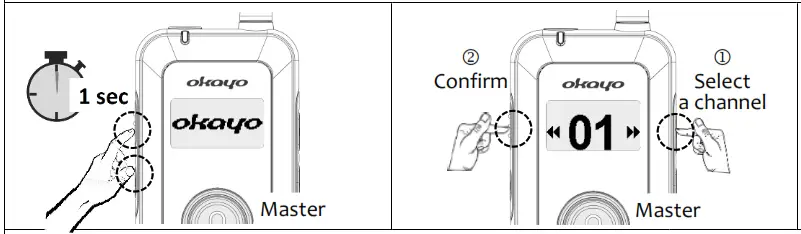
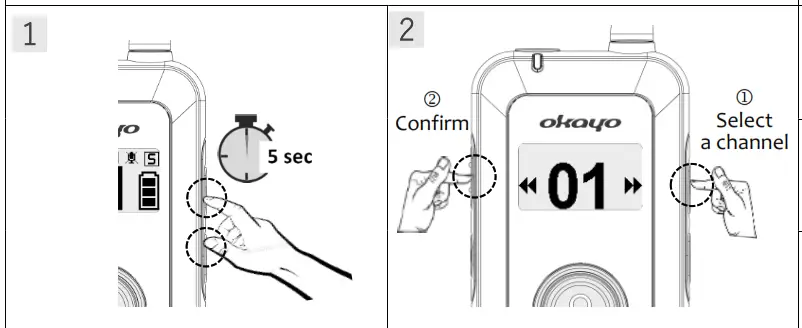
All units in an open team (Encoded Off) can manually adjust their live channel if needed. Press both + and buttons simultaneously for 5 seconds until the symbol disappears. Then, press the +- button to select another channel and confirm with a press of the function button.
Adjust headphone volume
Short press the +- button on any unit to adjust the volume during your conversation. Note listening at a high volume for long periods may damage your hearing
Power off
Press the power button for 5 seconds to turn it off. In addition, Sub-Masters will be off automatically when receiving no Master’s signal for 20 minutes. When Encoded On, shut Master off will also turn Sub-Masters off.
Setting menu
Press and hold the function button for 5 seconds to enter the setting menu. Then, press the +-button to scroll the menu or change each setting and confirm with a press of the function button. Remember to select “Save & Exit” after all setting changes are completed.
| Ear out | Regular , HAC , HAC  |
| Mic gain | Low, Medium, High |
| Side tone | Off, Low, High |
| Talk | PTB, PTT, PT |
| Save & Exit | – |
Mic indicators
| Blue | Mic is live |
| Red | Mic is muted |
| No light | No right to make a speech |
| Flash | Master Priority activated (Sub-Masters are being muted) |
LED indicators
| Blue | Encoded Off |
| Purple | Encoded On |
| Red | Battery low |
| Solid | Signal received |
| Flash slowly | No signal received |
| Flash quickly | Pairing (Master) |
Troubleshooting tips
No audio is heard
- Make sure the headphone volume is set correctly.
- Make sure the headset is correctly plugged in.
- Make sure your channel is set correctly in the team.
- You are not authorized in this confidential team (
 ).
).
Cannot talk to the team
- Make sure the correct headset is plugged in.
- Make sure Master Priority is not activated by Master.
- Make sure your talk button lights up. If it doesn’t, wait till one of Sub-Masters releases its talk right?
Cannot mute Sub-Masters
- Make sure Talk mode PTB is correctly set on Master.
Manufacturer’s Declaration
This product meets the following standards:
Federal Communications Commission Interference Statement
This device complies with part 15 of the FCC Rules. Operation is subject to the following two conditions: (1) This device may not cause harmful interference, and(2) this device must accept any interference received, including interference that may cause undesired operation.
Notice: The changes or modifications not expressly approved by the party responsible for compliance could void the user’s authority to operate the equipment.
FCC INFORMATION
The Federal Communication Commission Radio Frequency Interference Statement includes the following paragraph: The equipment has been tested and found to comply with the limits for a Class B Digital Device, pursuant to part 15 of the FCC Rules.
These limits are designed to provide reasonable protection against harmful interference in a residential installation. This equipment generates, uses, and can radiate radio frequency energy and, if not installed and used in accordance with the instruction, may cause harmful interference to radio communication. However, there is no guarantee that interference will not occur in a particular installation. If this equipment does cause harmful interference to radio or television reception, which can be determined by turning the equipment off and on, the user is encouraged to try to correct the interference by one or more of the following measures:
— Reorient or relocate the receiving antenna. — Increase the separation between the equipment and receiver. — Connect the equipment into an outlet on a circuit different from that to which the receiver is connected. — Consult the dealer or an experienced radio/TV technician for help.
IMPORTANT NOTE: To comply with the FCC RF exposure compliance requirements, no change to the antenna or the device is permitted. Any change to the antenna or the device could result in the device exceeding the RF exposure requirements and void the user’s authority to operate the device.
WEEE Statement Electrical and electronic equipment must be disposed of at the end of their lifespan separately from household waste. Please dispose of this equipment at your local waste collection or recycling center. Please help to protect our environment.
Compliance (country dependent)
Standard Compliance
- RoHS
- UK
- CE
- SELECT
- FCC
- NCC
Disclaimer
This manual was made for the purpose to provide detailed product information about WaveTEAMS that Okayo Electronics Co., Ltd. (Okayo) builds and delivered to the market at the time of its birth. Okay promises its best effort was made to give accurate, complete, and informative product information to the contents disclosed above. However, users shall be aware of the fact that improvements and up-to-date products could be made from time to time. Okay, reserves the right to amend, revise and change in part or in total the product information at the time it believes there is a must. The publication of this manual and products are given as it is. Okay is not accountable for the change/error on contents and text contained in this manual and involved products taking place in the future.
Quick Start Guide
- Create a Master


- Create Sub-Masters

- Leave pairing
- TEAMS UP!

Mute Sub-Masters (Fers mode only)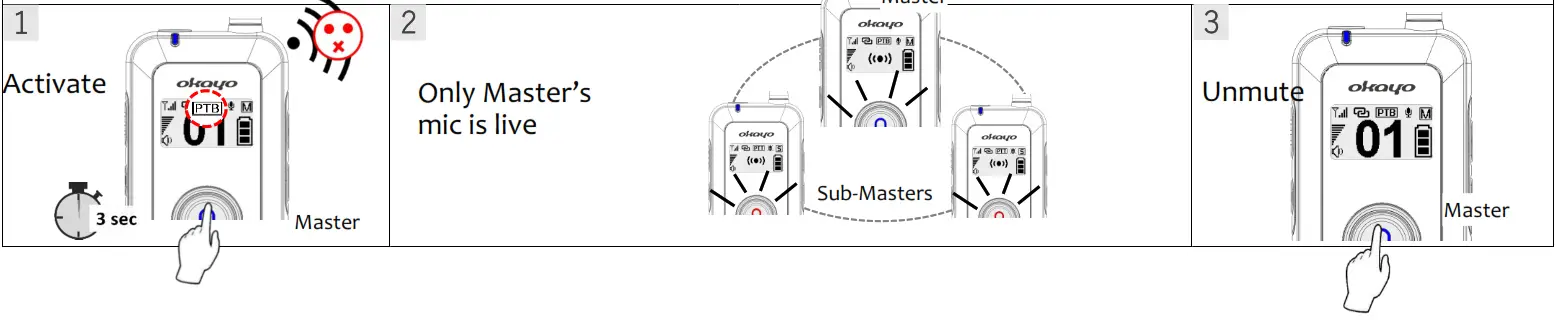
Tip 1. Max. 3 units (country dependent), Master included, can work in full-duplex communication at a time.
Tip 2. Allow unlimited Sub-Masters in the same team (channel).
Tip 3. When Master sets “Encoded On”, the channel is secured and unchangeable. CHARGE BEFORE FIRST USE. RECHARGE EVERY SIX MONTHS. FULLY CHARGED BEFORE STORAGE.
Change your live channel (Encoded Off)
Mic indicator
 Blue mic — Your mic is live.
 Red mic — Your mic is muted.
 No light —No right to make a speech.
Charge your device
Recharge ‘ asap when as the RED indicator shows up.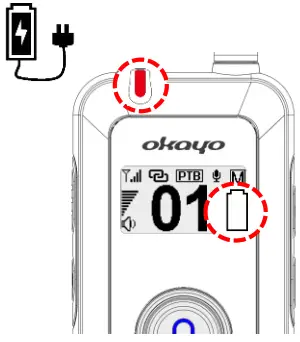
- Compatible charger C6
- 5V lA USB-C wall charger
End your team
Encoded off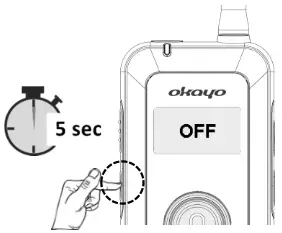 | Encoded off Shut Master off will also turn Sub-Masters off 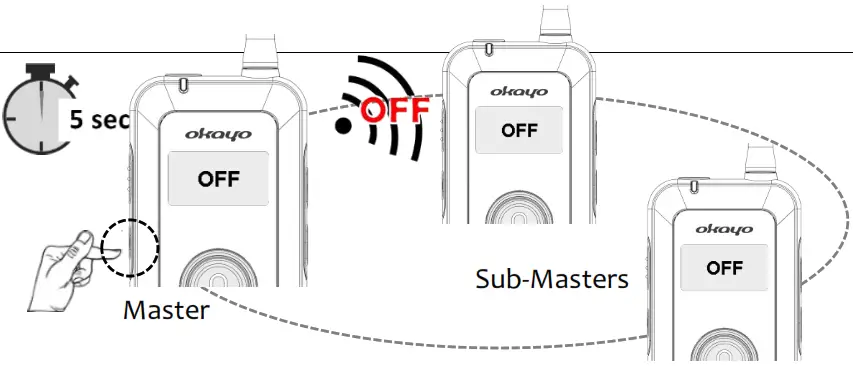 |
Visit www.okayo.com for more product information or contact us at [email protected].
OKAY ELECTRONICS CO., LTD. I Printed in Taiwan I Publication 09/21