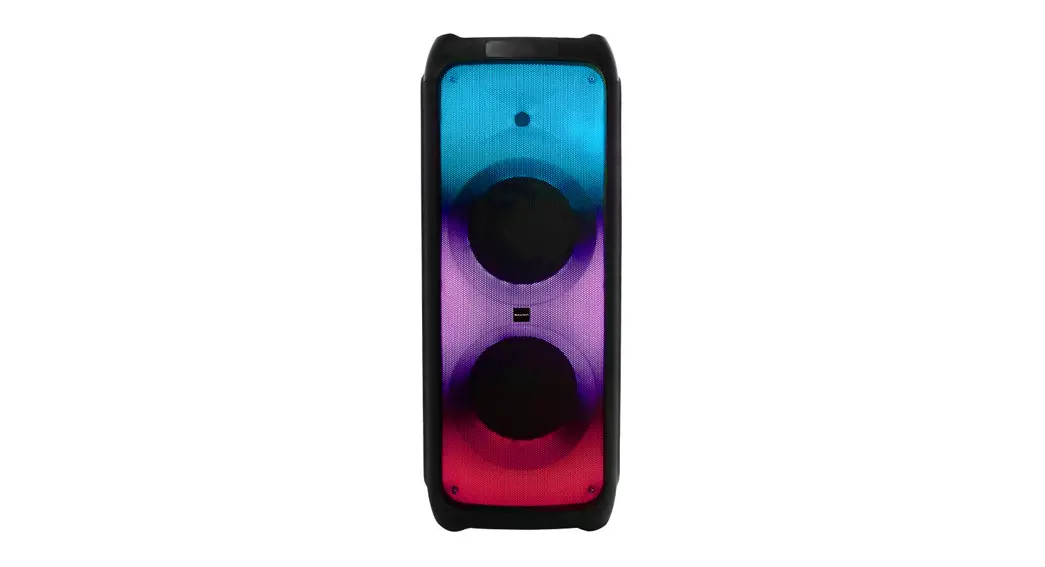
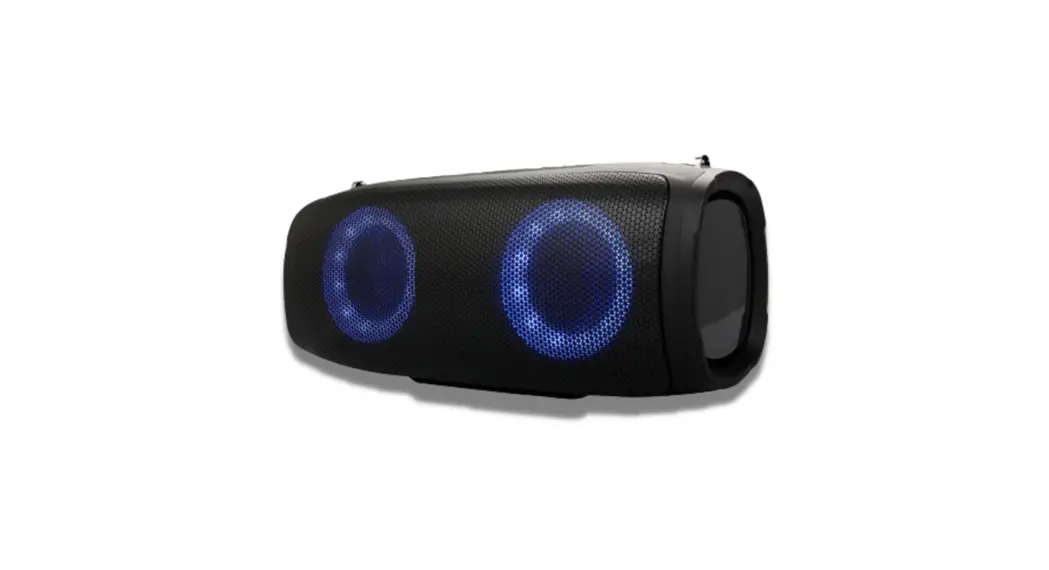
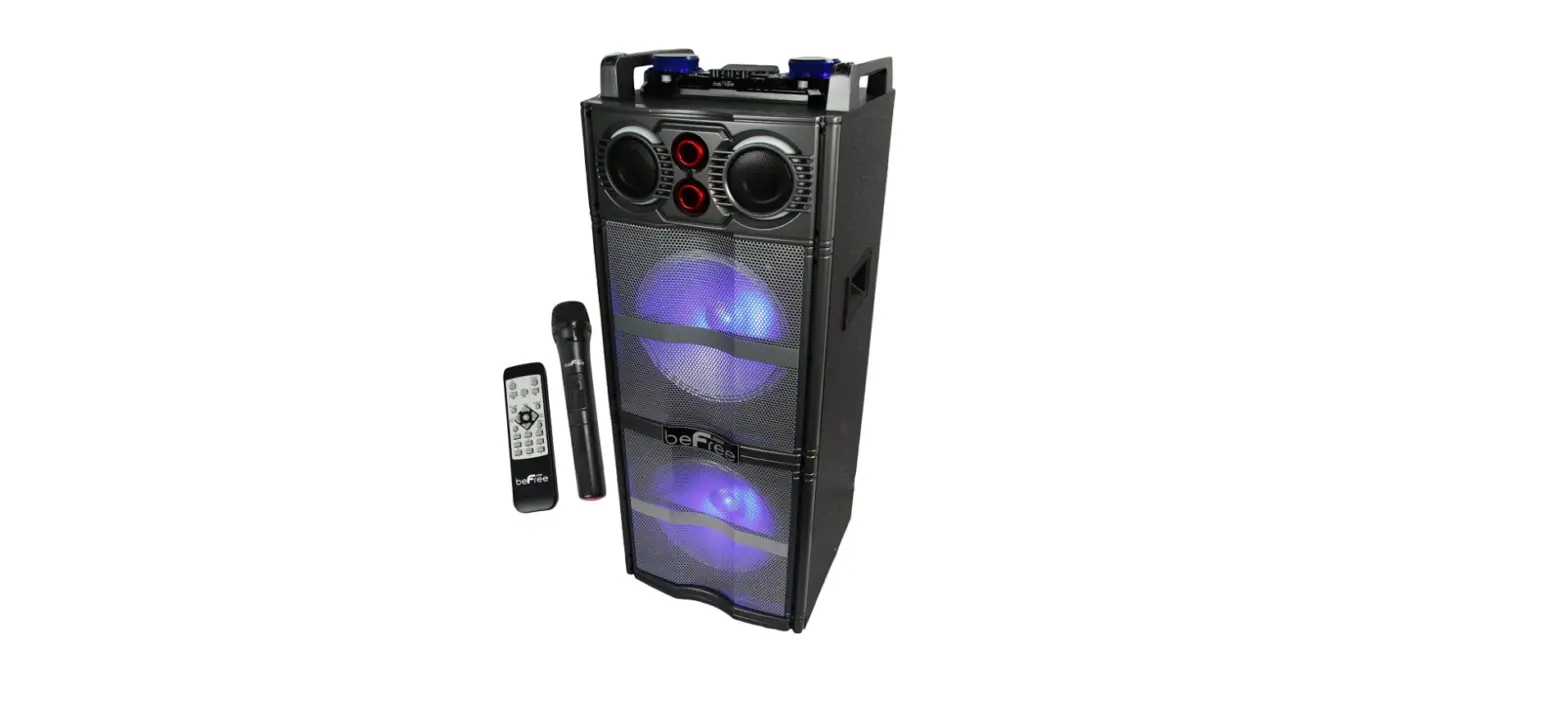
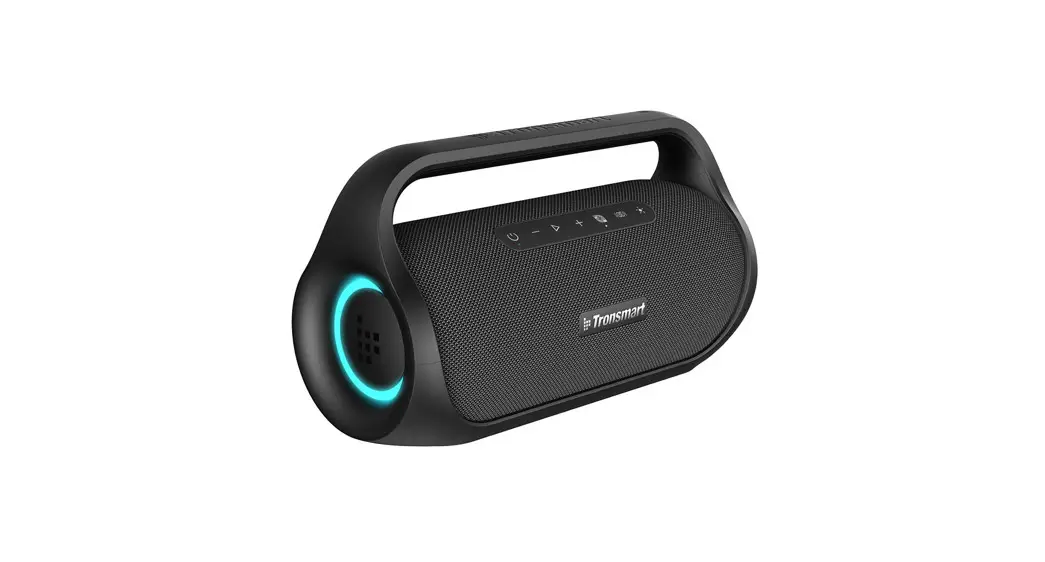
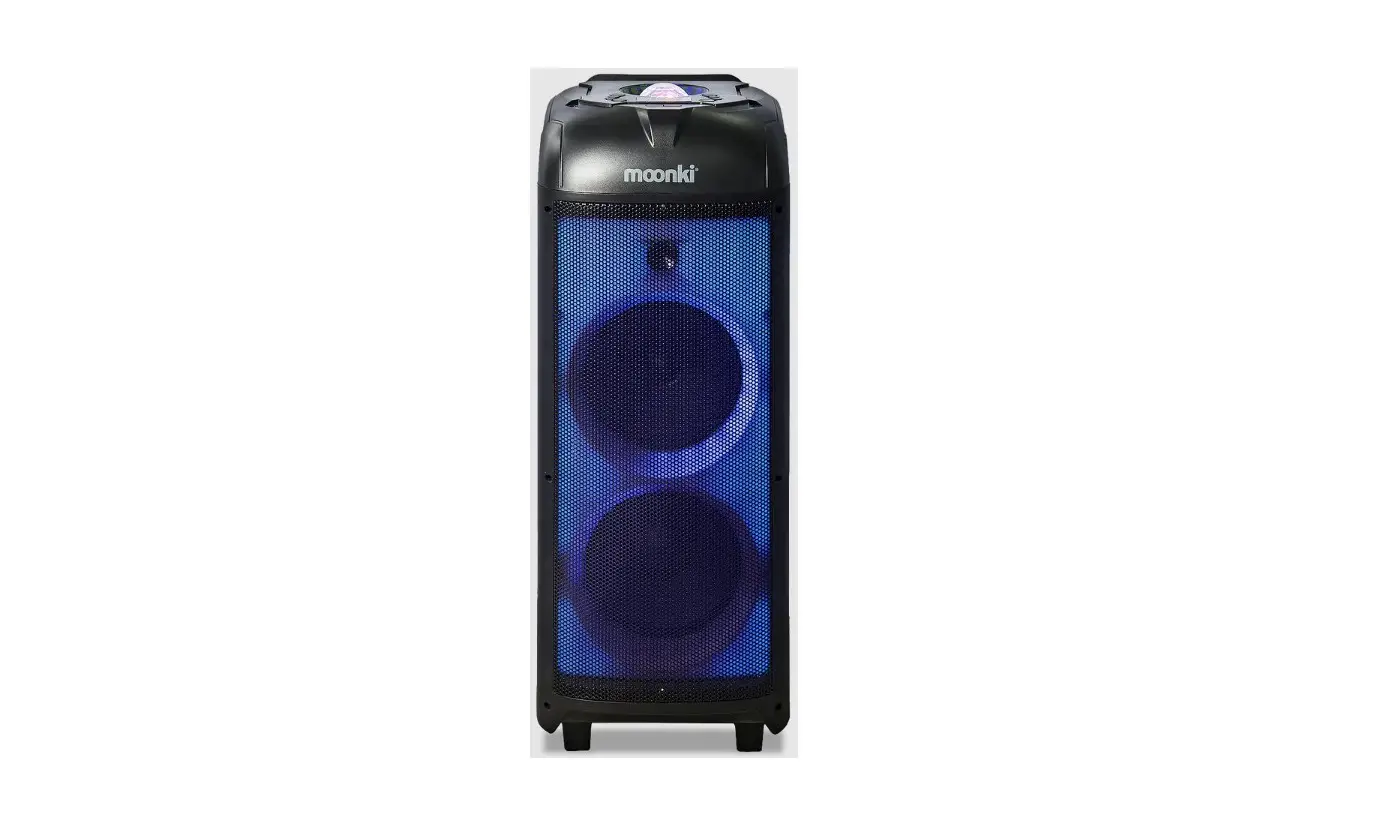
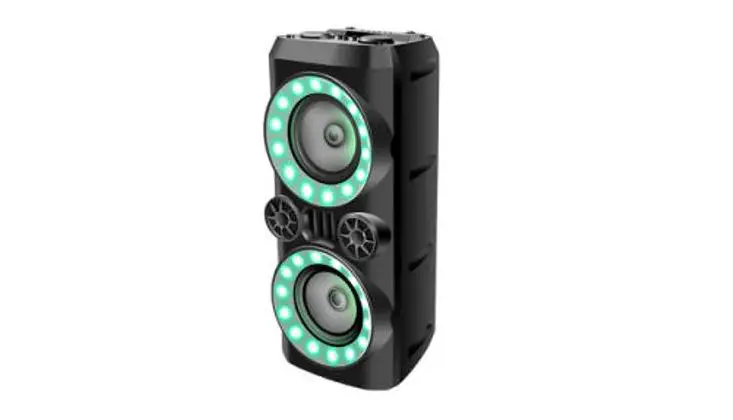
APPS-0723 Portable Party Speaker
Product Information
Product Name: Portable Party Speaker
Model: APPS-0723
Product Code: 712896
After Sales Support: AUS 1300 002 534
Product Overview:
- Speaker with control panel and LED display screen
- FM antenna located at the back of the speaker
- Tweeter for high-frequency sound reproduction
- Woofers for low-frequency sound reproduction
- DC input for connecting the supplied AC-DC power adaptor
Product Usage Instructions
- Unpack and Prepare:
- Check the box contents to ensure you have all the following
items:- Portable Party Speaker
- Remote Control
- AAA Activ Energy Batteries (2)
- Wireless Microphone
- AA Activ Energy Batteries (2)
- AC-DC Power Adaptor
- Warranty Certificate
- General Safety Warnings
- User Manual
- Connect the supplied AC-DC power adaptor to an external power
supply and plug it into the DC input on the back panel of the
speaker. - Insert the supplied AAA Activ Energy Batteries into the remote
control according to the polarity markings (+ / -) inside the
compartment.
- Press the POWER button on the control panel or remote control
to turn the speaker on/off. - Use the control panel buttons or remote control to adjust
various settings, such as volume levels, echo levels, bass and
treble levels, and switch between different input modes. - Insert a Micro SD/TF card or USB device into the corresponding
slots for music playback. - Connect a guitar or wired microphones to the respective input
ports for instrument or vocal input. - Use the REC button to record and playback voice recordings to a
USB or TF card. - Use the control panel buttons or remote control to control
playback (previous song, play/pause, next song) and change repeat
mode or sound EQ modes. - Press the LIGHT button to change the speaker light effect or
turn it off.
- If you encounter any issues with the product, refer to the
troubleshooting section in the user manual for possible
solutions.
- Refer to the specifications section in the user manual for
detailed technical information about the product.
- Follow the guidelines in the user manual regarding compliance
and responsible disposal of the product.
- Refer to the warranty information section in the user manual
for details about the product warranty.
- Read the repair and refurbished goods or parts notice section
in the user manual for important information regarding repairs and
refurbished components.
Portable Party Speaker
MODEL: APPS-0723
User Manual
AFTER SALES SUPPORT AUS 1300 002 534
tempo.org/support MODEL: APPS-0723 PRODUCT CODE: 712896 07/2023
Welcome
Congratulations on your purchase! This manual tells you all you need to know about using your new BAUHN® product. Please take special note of any important safety and usage information presented with the symbol. All products brought to you by BAUHN® are manufactured to the highest standards of performance and safety and, as part of our philosophy of customer service and satisfaction, are backed by our comprehensive 1 Year Warranty. Domestic use only: This product is intended for indoor domestic use only. Do not use this product for anything other than its intended purpose, and only use it as described in this manual. We hope you will enjoy using your purchase for many years to come.
2
Contents
Welcome
2
Unpack and Prepare
4
Product Overview
5
Remote Control
7
Wireless Microphone
9
Operation
10
Troubleshooting
14
Specifications
16
Compliance and Responsible Disposal
17
Warranty Information
18
Repair and Refurbished Goods or Parts Notice
19
3
Unpack and Prepare
What’s in the box
Before setting up your new product, check you have everything: A. Portable Party Speaker B. Remote Control C. AAA Activ Energy Batteries (2) D. Wireless Microphone E. AA Activ Energy Batteries (2) F. AC-DC Power Adaptor G. Warranty Certificate H. General Safety Warnings I. User Manual
4 | UNPACK AND PREPARE
F
I
G
H
Product Overview
Speaker Overview
Control Panel (see next page) LED display screen & Remote sensor
FM antenna (back of speaker)
Tweeter
Back Panel
DC INPUT 15V 2.4A
Woofers
See the next page for the control panel buttons
DC Input: connect the supplied AC-DC power adaptor to an external power supply to power the speaker.
PRODUCT OVERVIEW | 5
Control Panel
12 3 4 56
7
8 9
10
11 12
POWER
TF
USB
MIC VOLUME
2cm
AUX GUITAR IN MIC 1
MIC 2
2cm
VOLUME
ECHO+ GT+ TREBLE+ BASS+
MODE
ECHO- GT- TREBLE- BASS-
REC
REPEAT/E
LIGHT
24 23
22
21 20
13 14 15 16 17 18 19 1 Micro SD (TF) Card Slot : insert Micro SD/TF card (not
included) for music playback 2 USB Slot: insert your USB (not included) for music playback 3 AUX In Port 4 GUITAR IN: input for guitar (not included) 5 MIC 1/MIC 2: input for wired microphones (not included) 6 Charging LED indicator: indicates charging status 7 POWER: press to turn speaker on/off 8 GT + : increase guitar volume level
9 ECHO+ : increase microphone echo volume level
10 MIC VOLUME control knob : use to adjust microphone volume level. The LED lights on the knob will flash
11 ECHO- : decrease microphone echo volume level
12 GT- : decrease guitar volume level
13 MODE: press to switch between different input modes. Press and hold to enter/exit microphone priority mode
14 REC: to record and playback voice recordings to USB/ TF card
15 : play previous song
16 : play/pause song
17 : play next song
18 REPEAT/EQ : press to change repeat mode when in USB/Micro SD card mode. Press and hold to switch between EQ sound modes
19 LIGHT : press to change the speaker light effect. Press repeatedly to change between light effects. Press and hold to turn light effect off
20 TREBLE- : decrease treble level
21 BASS- : decrease bass level
22 VOLUME control knob : use to adjust volume level. The LED lights on the knob will flash
23 BASS+ : increase bass level
24 TREBLE+ : increase treble level
6 | PRODUCT OVERVIEW
Remote Control
1
AAA size batteries included
2
3
Setup
Insert the supplied AAA Activ Energy Batteries according to the polarity markings (+ / -) inside the compartment. Make sure the batteries are correctly aligned and properly pushed into place.
Precautions When Using Batteries
· Do not use old and new batteries together. · Do not use different types of batteries (e.g.
Manganese and Alkaline batteries) together. · Remove the batteries from the remote if you do not
intend to use it for a long time. · When discarding used batteries, follow any
guidelines for recycling and disposal of batteries that apply in your local area. · Keep batteries away from children and pets. · Never throw batteries into a fire or expose them to extreme heat.
REMOTE CONTROL | 7
Remote Overview
: press to enter standby mode MODE : press to switch between input modes. Press and hold to enter/exit microphone priority mode LED : press to change the speaker light effect. Press repeatedly to change between light effects. Press and hold to turn light effect off VOL+ : increase volume level
: play previous song : play/pause song REPE : press to change repeat mode when MI in USB/Micro SD card mode
8 | REMOTE CONTROL
MUTE : mute the sound. Press again to unmute
: play next song
VOL- : decrease volume level
EQ : change EQ mode
NUMBER BUTTONS : Numerical input to directly play a track.
Wireless Microphone
1 2
3
1 Battery indicator (red LED when mic is on) 2 On/Off switch 3 Battery cover (twist to open)
Setup
Insert the supplied AA Activ Energy Batteries according to the polarity markings (+ / -) inside the compartment. Make sure the batteries are correctly aligned and properly pushed into place.
AA size batteries included
Precautions When Using Batteries
· Do not use old and new batteries together.
· Do not use different types of batteries (e.g. Manganese and Alkaline batteries) together.
· Remove the batteries from the microphone if you do not intend to use it for a long time.
· When discarding used batteries, follow any guidelines for recycling and disposal of batteries that apply in your local area.
· Keep batteries away from children and pets.
· Never throw batteries into a fire or expose them to extreme heat.
WIRELESS MICROPHONE | 9
Operation
Charging and Power on
· Charging: plug in the supplied AC power adaptor to the DC IN port (located back of speaker) to charge the speaker for 8 hours before use. During charging, the battery icon on the LED display screen will display the remaining battery capacity and the charging LED indicator will light up red. Please disconnect and unplug the power adaptor after charging.
· Power on: press the POWER switch on the speaker to turn the speaker on.
Control Panel Operations
· Use the / buttons on the speaker or the remote control to navigate between songs/FM stations. · Use the VOLUME control knob on the speaker or the VOL- / VOL+ buttons on the remote control to adjust the volume. · Use the MODE button to switch between the input modes. The LED display screen will show the current input mode. Press and
hold to enter/exit microphone priority mode.
Battery Status
· You can view the battery status of the speaker on the LED display screen. When the battery is low, a voice notification will be heard. Please plug in the supplied AC power adaptor to charge the speaker.
LED Light
· The speakers have LED lights across the front of the speaker. Press the LIGHT button on the speaker or LED button on the remote control repeatedly to switch between the different light effects. Press and hold the button to turn the light effect on/off. (Note: when on FM mode, the LED light may generate interference when the FM signal is weak, please switch off the LED light if interference occurs).
10 | OPERATION
Bluetooth® Mode
· Press the MODE button on the speaker until Bluetooth® is selected; “bLUE” will flash on the LED display screen and you will hear “Bluetooth mode.”
· On your smart phone, search for “BAUHN APPS-0723.” If a password is required, enter “0000”. If pairing is successful, the LED display screen on the speaker will display “bLUE”. You can now play music from your smart phone.
· Press the button on the speaker or on the remote control to play/pause music. · Press the / buttons on the speaker or on the remote control to select the previous or next track. · Use the volume control knob on the speaker or the VOL- / VOL+ buttons on the remote control to adjust volume level. · Alternatively, you can control music playback from your smart phone. · Once connected to your smart phone, it will auto pair with the speaker for next time use. Please disconnect your smart phone’s
Bluetooth connection to the speaker if you wish to pair the speaker with a different device. · After disconnecting Bluetooth® connection, “bLUE” will flash on the LED display screen. · Note: only one playback unit can be connected to the speaker. If the speaker is already connected to another playback unit, the
speaker will not appear in the Bluetooth® selection list. To disconnect the existing paired device, please disconnect your smart phone’s Bluetooth connection to the speaker
TWS (True Wireless Stereo) Mode
· This speaker supports TWS and can pair with another speaker (same model). · Turn both speakers on and ensure both are in Bluetooth mode, and on one speaker press and hold the
display screen will display “t-ON”, indicating it is ready to pair with each other. · Once successfully paired with each other, music will now be played on both speakers simultaneously. · Powering off one of the TWS paired speakers will automatically unpair each other.
button. The LED
AUX Mode
· Use an audio cable (not included) to connect your external device through the AUX In port on the speaker. Press the MODE button to change to AUX mode (AUX will show on the LED display screen).
· Use the volume control knob on the speaker or the VOL- / VOL+ buttons on the remote control to adjust volume level. · Note: to play/pause, play previous or next tracks, please control from your external device.
OPERATION | 11
USB Mode
· Insert your USB device (not included) into the USB slot on the speaker. The speaker will automatically play the files. · Press the button on the speaker or on the remote control to play/pause music. · Press the / buttons on the speaker or on the remote control to select the previous or next track. · Use the volume control knob on the speaker or the VOL- / VOL+ buttons on the remote control to adjust volume level. · Note: If a USB device is not inserted in the speaker, USB mode will not be available.
FM Mode
· Press the MODE button on the speaker until FM is selected; “FM” will display on the LED display screen and you will hear “FM mode.”
· Press the / buttons on the speaker simultaneously to scan for available stations. · Press the / buttons on the speaker or on the remote control to select the previous or next station. · Press the button on the speaker or on the remote control to mute/unmute. · Use the VOLUME control knob on the speaker or the VOL – / VOL + buttons on the remote control to adjust volume level. · Note: if FM station signal is weak, please use the FM antenna on the back of the speaker. · Note: the LED light may generate interference when the FM signal is weak, please switch off the LED light if
interference occurs
Micro SD Card Mode
· Insert your Micro SD (TF) card (not included and only up to 32G Max.) into the Micro SD
(TF) Card slot on the speaker. The speaker will automatically play the files.
Note: please insert your
· Press the button on the speaker or on the remote control to play/pause music.
Micro SD (TF) card into the
· Press the / buttons on the speaker or on the remote control to select the previous
MICRO SD CARD slot on
or next track.
the speaker as illustrated.
· Use the volume control knob on the speaker or the VOL- / VOL+ buttons on the remote control to adjust volume level.
· Note: If a Micro SD (TF) card is not inserted in the speaker, Micro SD (TF) Card mode will not be available.
12 | OPERATION
Recording
· Plug in your USB device or Micro SD (TF) card into the USB/Micro SD (TF) card slot on the speaker. The speaker will automatically play the music files.
· Press the REC button on the speaker to playback the recordings on the USB/ Micro SD (TF) card. Press the / buttons on the speaker to select the previous or next recording.
· Test the microphone and ensure your voice is audible from the speaker. · Press and hold the REC button on the speaker to start your new recording. Press the REC button again to stop recording. · The speaker will automatically play the saved recording. Press the button on the speaker or on the remote control to pause
playback. · Note: the recording function can only record your voice and background music on AUX and FM mode. Ensure to select AUX or
FM mode before recording.
Microphone
· Plug in a wired microphone (not included) into the MIC 1 port of the speaker. Another wired microphone can be plugged into the MIC 2 port of the speaker if 2 microphones are desired.
· Use the MIC VOLUME control knob on the speaker to adjust the microphone volume level. · Press the ECHO+ / ECHO- buttons on the speaker to adjust the echo level. · Press and hold the MODE button on the speaker on remote control to turn microphone priority on/off. This function is off by
default. Your vocals will overpower the background music. · Press and hold the ECHO+ button to turn on/off karaoke accompaniment function. · After use, unplug the microphone and store away if not in use.
Guitar
· Plug in a wired guitar (not included) into the GUITAR IN port on the speaker. · Press the GT +/GT- buttons on the speaker to adjust the guitar volume level · After use, unplug the guitar and store away if not in use.
OPERATION | 13
Troubleshooting
To keep the warranty valid, never try to repair the system yourself. If you encounter problems when using this unit, check the following points before requesting service.
Problem No power
Remote control does not work
Echo function not working for wired microphone
Solution
· Ensure that the battery is charged or the power adaptor is connected.
· Use the remote control closer to the speaker. Aim directly at the sensor on the front of the unit. · Please check the battery is installed correctly. · Replace the battery.
· Check that the wired microphone is properly plugged into the Mic port of the speaker. · Adjust the microphone echo volume by pressing the MIC button on the speaker. · Note: echo function is not supported for guitar microphones.
Wired microphone/ guitar not working
· Turn the MIC VOLUME control knob and GT+ button to max. · Check that it is properly plugged into the MIC/GUITAR ports.
Distorted noise coming from microphone
No response from the speaker
· Have at least 1m between the microphone and speaker as having the microphone too close to the speaker will cause interference.
· Ensure that the microphone is not too close to the power source as having the microphone too close to a power source will cause interference.
· Turn off the power switch, wait around 5 seconds and then turn on the switch.
14 | TROUBLESHOOTING
Problem
Solution
Unable to find BAUHN APPS-0723 in the Bluetooth device list when pairing
· Ensure you have paired the speaker with your Bluetooth enabled device. · Ensure the Bluetooth function is activated on your Bluetooth enabled device. · Onl once device can be connected paired with the speaker at a time. Please disconnect Bluetooth
connection from your smart phone when wanting to use a different Bluetooth device to pair with the speaker. · Press the / buttons on the speaker simultaneously to disconnect the existing paired device.
General sound issues
· Make sure the speaker is set to the correct mode; make sure the volume control knob is not set to minimum.
· Turn the volume knob to increase the volume. · Press the VOL + button on the remote to increase the volume. · Bluetooth mode: make sure the speaker is paired to the correct Bluetooth device.
· AUX mode: ensure you have connected the audio cable to the AUX port of the speaker, and the external device’s volume is on.
TROUBLESHOOTING | 15
Specifications
AC-DC Adaptor – input AC-DC Adaptor – output Sealed Lead Acid Battery Speaker Audio output power Bluetooth® pairing name Bluetooth® pairing operation range Dimensions (W x H x D) Net weight Gross weight
AC 100-240V, 50/60Hz DC 15V 2.4A 12V, 4.5A 2 x 50W 80W RMS BAUHN APPS-0723 > 8m 320mm x 700mm x 320mm 10kg 12kg
The Bluetooth® word mark and logos are registered trademarks owned by Bluetooth SIG, Inc., and any use of such marks by Hands (IP) Holdings Pty Ltd is under license. Other trademarks and trade names are those of their respective owners.
For Technical Support:
tempo.org/support Distributed by Tempo (Aust) Pty Ltd, PO Box 132, Frenchs Forest NSW 1640
16 | SPECIFICATIONS
Compliance and Responsible Disposal
Packaging
The packaging of your product has been selected from environmentally friendly materials and can usually be recycled. Please ensure these are disposed of correctly. Plastic wrapping can be a suffocation hazard for babies and young children, please ensure all packaging materials are out of reach and are safely disposed of. Please recycle these materials rather than throwing them away.
Compliance
This product complies with the Australian Safety Standard AS/NZS 62368.1 to ensure the safety of the product.
Product
At the end of its working life, do not throw this product out with your household rubbish. An environmentally friendly method of disposal will ensure that valuable raw materials can be recycled. Electrical and electronic items contain materials and substances which, if handled or disposed of incorrectly, could potentially be hazardous to the environment and human health.
SPECIFICATIONS | 17
Warranty Information
The product is guaranteed to be free from defects in workmanship and parts for a period of 12 months from the date of purchase. Defects that occur within this warranty period, under normal use and care, will be repaired, replaced or refunded at our discretion, solely at our option with no charge for parts and labour. The benefits conferred by this warranty are in addition to all rights and remedies in respect of the product that the consumer has under the Competition and Consumer Act 2010 and similar state and territory laws. Our goods come with guarantees that cannot be excluded under the Australian Consumer Law. You are entitled to a replacement or refund for a major failure and to compensation for any other reasonably foreseeable loss or damage. You are also entitled to have the goods repaired or replaced if the goods fail to be of acceptable quality and the failure does not amount to a major failure.
18
Repair and Refurbished Goods or Parts Notice
Unfortunately, sometimes faulty products are manufactured, which need to be returned to the supplier for repair. Please be aware that if your product is capable of retaining user-generated data (such as files stored on a computer hard drive, telephone numbers stored on a mobile telephone, songs stored on a portable media player, games saved on a games console or files stored on a USB memory stick) during the process of repair, some or all of your stored data may be lost. We recommend you save this data elsewhere prior to sending the product for repair. You should also be aware that rather than repairing goods, we may replace them with refurbished goods of the same type or use refurbished parts in the repair process. Please be assured though, refurbished parts or replacements are only used where they meet ALDI’s stringent quality specifications. If at any time you feel your repair is being handled unsatisfactorily, you may escalate your complaint. Please telephone us on 1300 002 534 or write to us at: Tempo (Aust) Pty Ltd ABN 70 106 100 252 PO Box 132, Frenchs Forest, 1640 NSW, Australia Telephone: 1300 002 534 (Aust) – Fax: (02) 8977 3765 Tempo Help Desk: 1300 002 534 (Aust) (Operating Hours: Mon-Fri 8:30am-6pm; Sat 9am-6pm AEST) Email: tempo.org/support
19
Online support
Visit bauhn.com.au for the latest User Manual for information on the updated features.
Warranty returns
Should you for any reason need to return this product for a warranty claim, make sure to include all accessories with the product.
Product does not work?
If you encounter problems with this product, or if it fails to perform to your expectations, please contact our After Sales Support Centre on 1300 002 534.
tempo.org/support
ALDI guarantees that our products are developed to our stringent quality specifications. If you are not entirely satisfied with this product, please return it to your nearest ALDI store within 60 days from the date of purchase for a full refund or replacement, or take advantage of our after sales support by calling the supplier’s Customer Service Hotline.
AFTER SALES SUPPORT
W2
AUS 1300 002 534
tempo.org/support
MODEL: APPS -0723 PRODUCT CODE: 712896 07/2023
1
YEAR WARRANTY
 Bauhn – Effortless Technology
 Support Centre | Tempo Global