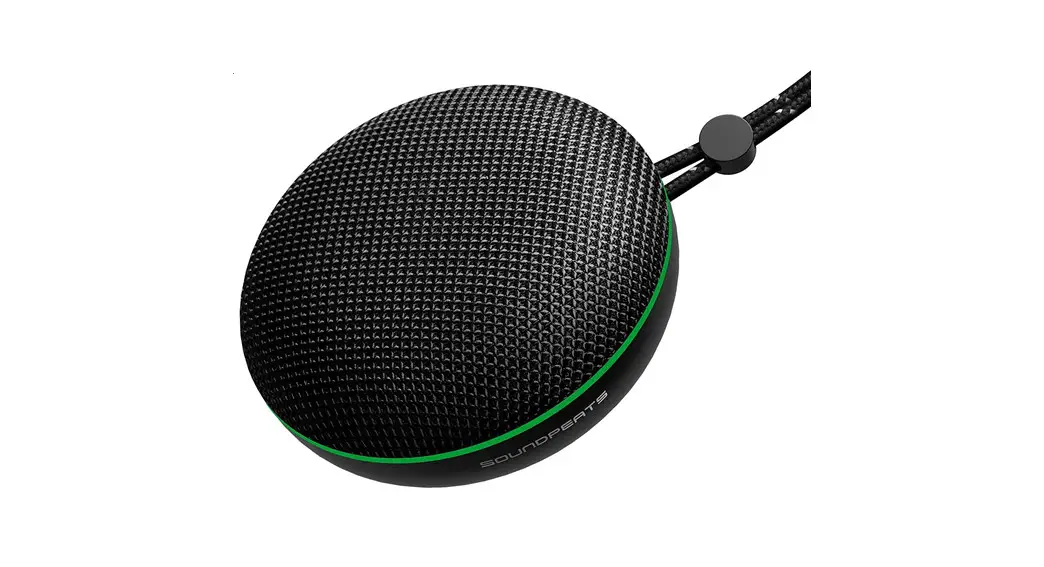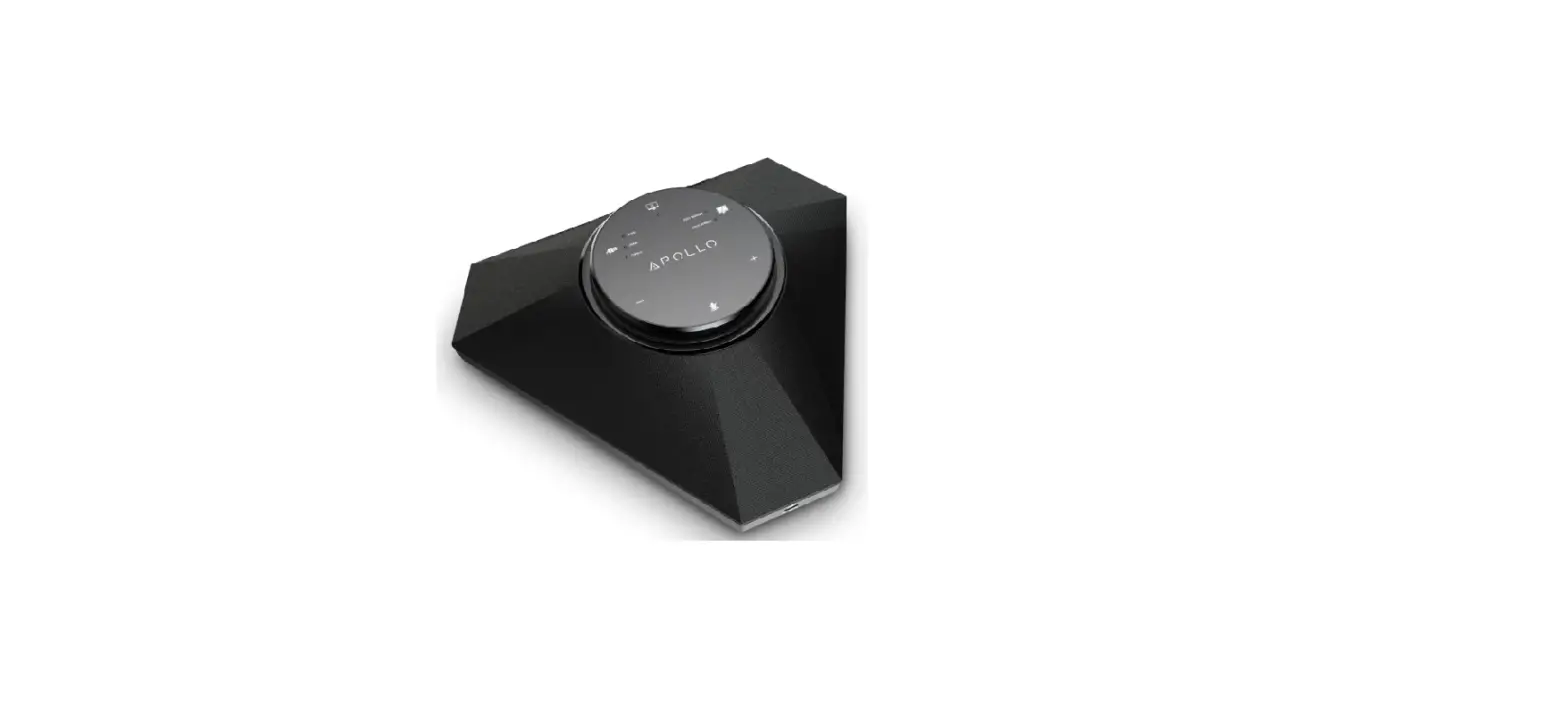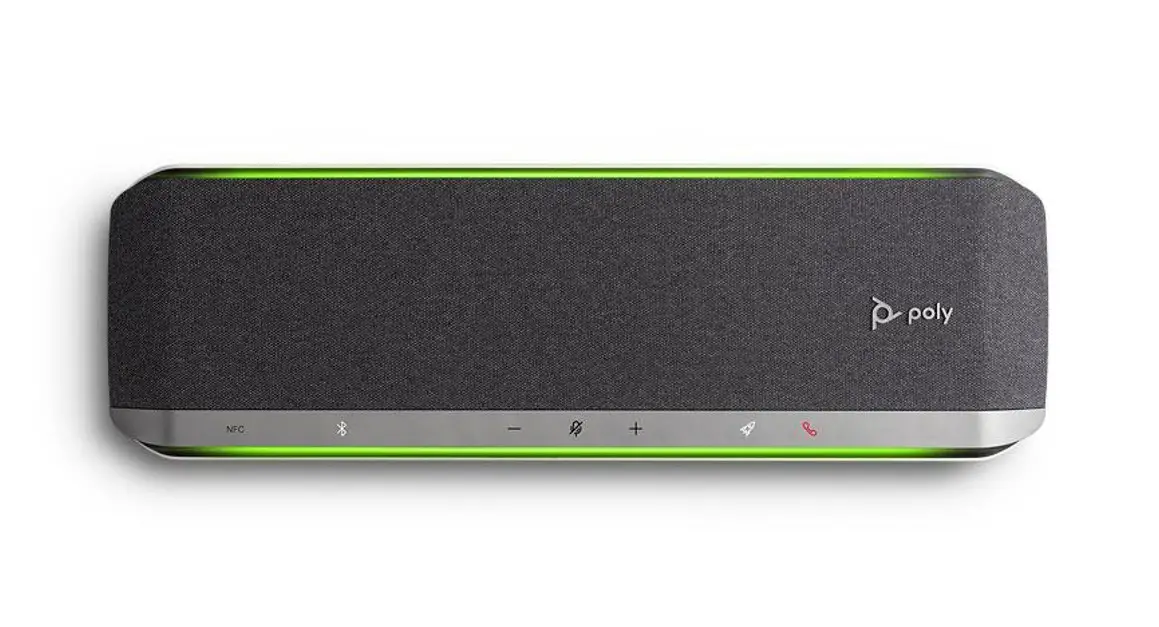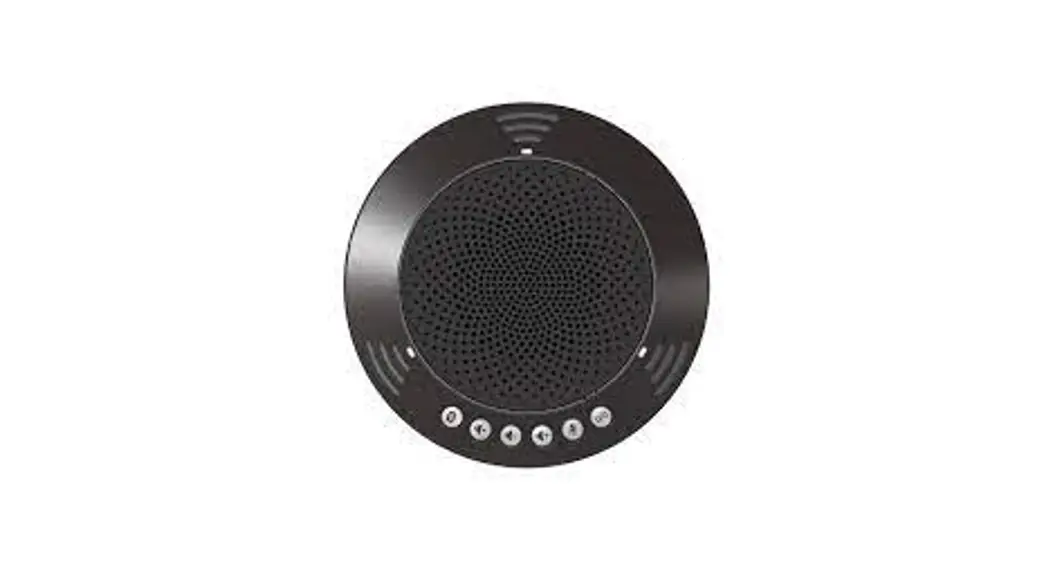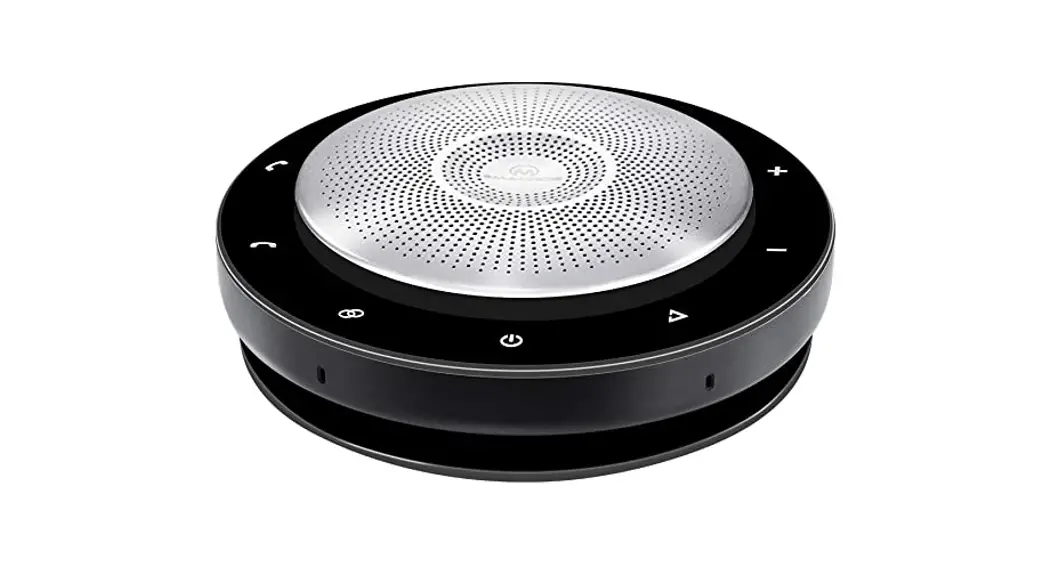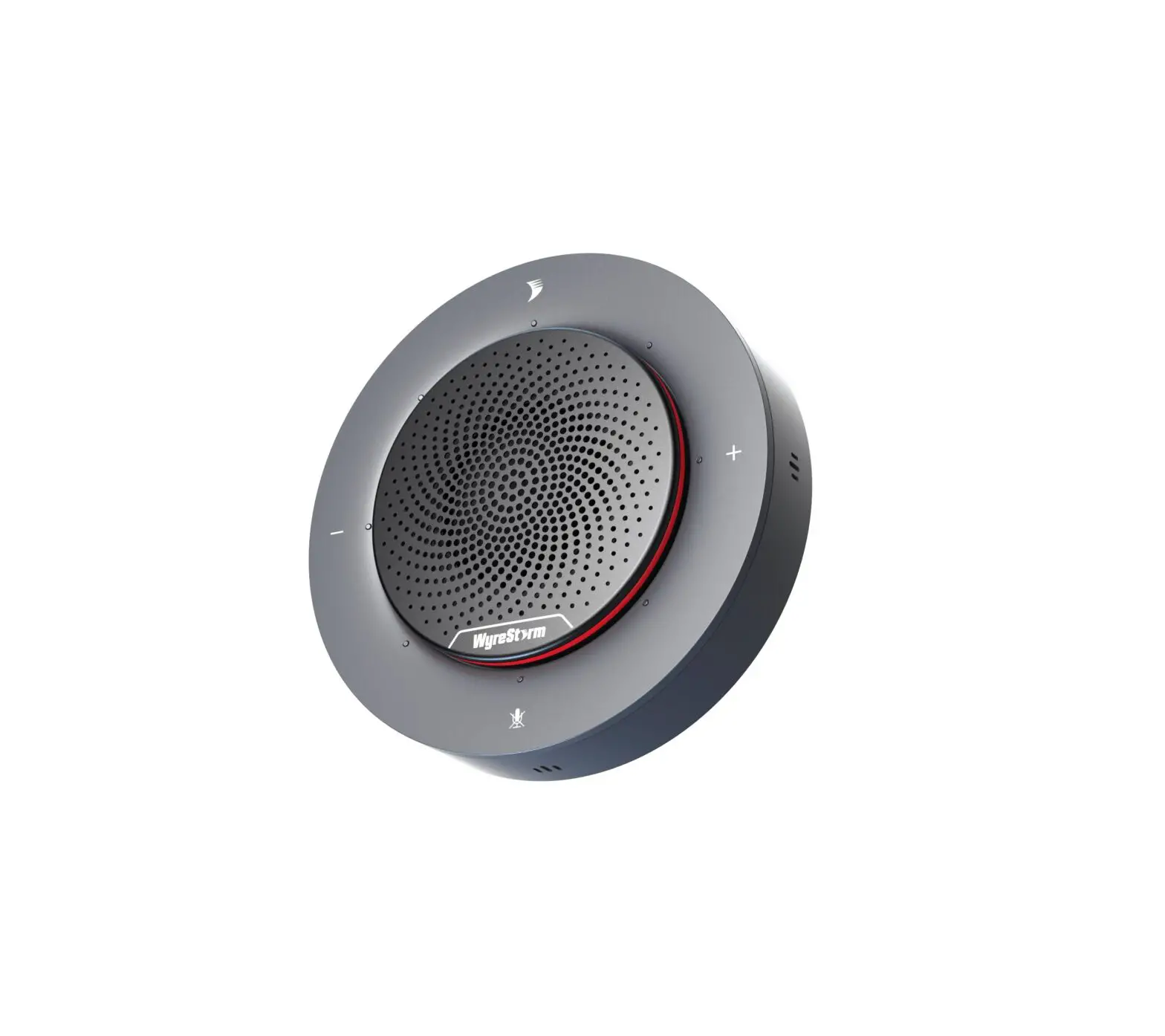
WyreStorm HALO 30 Halo Series Plug and Play Portable Conference Speakerphone
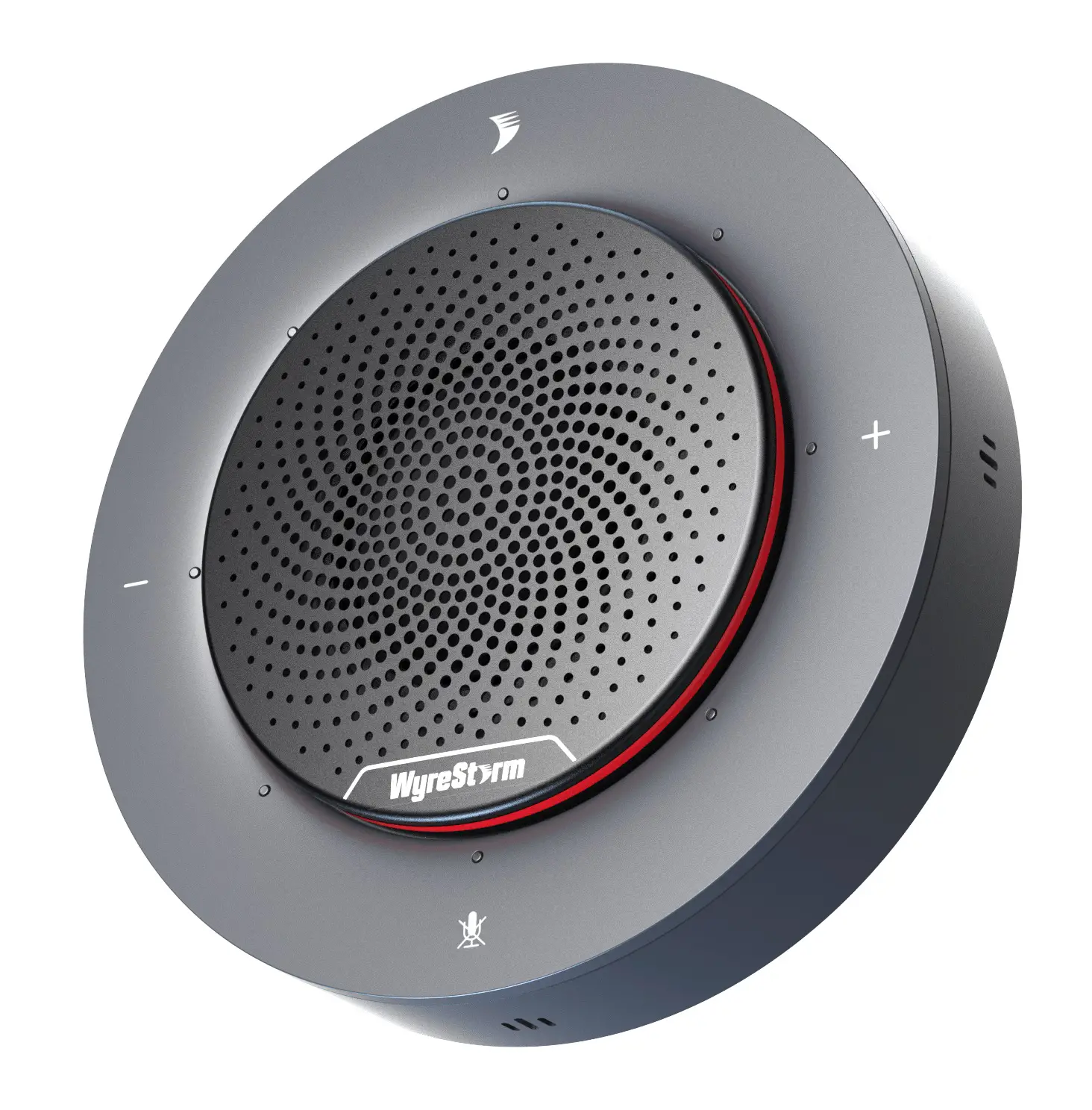
Setting up the Speakerphone
CONNECTING THE SPEAKERPHONE
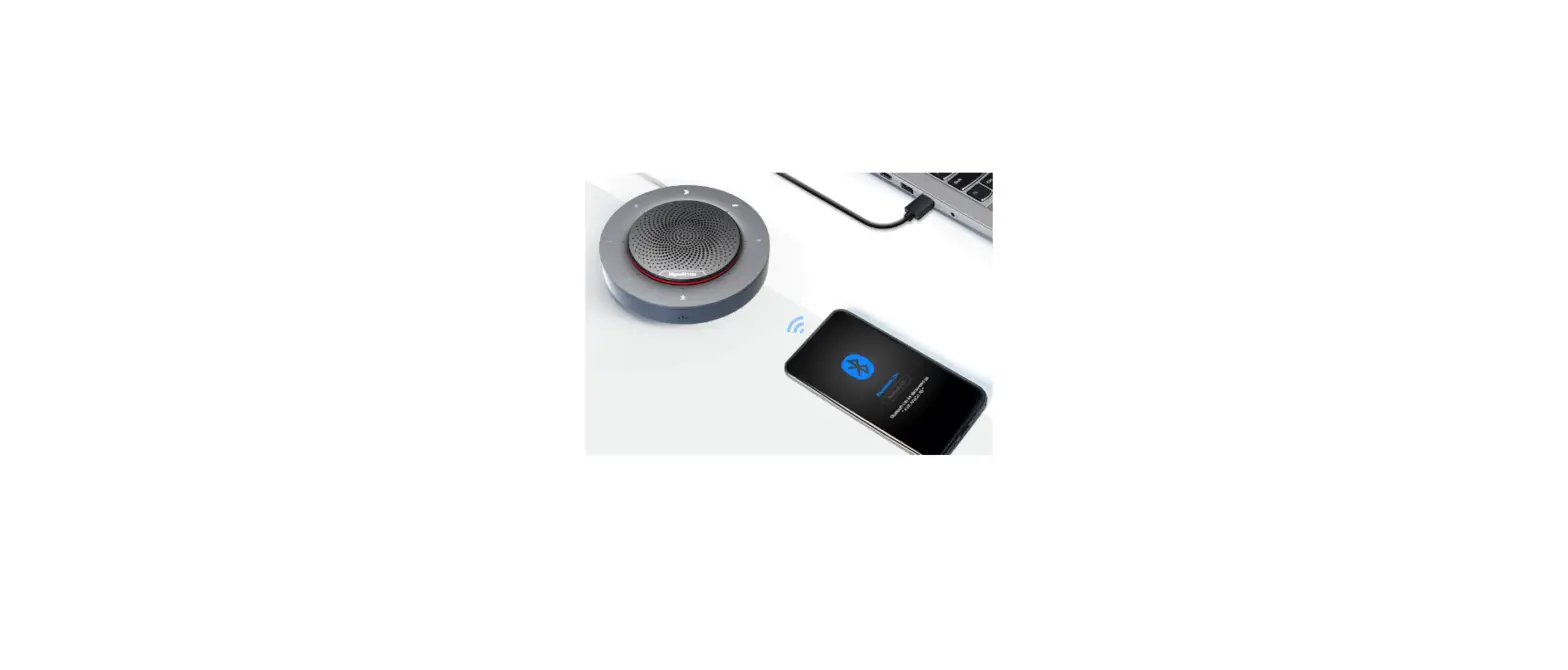
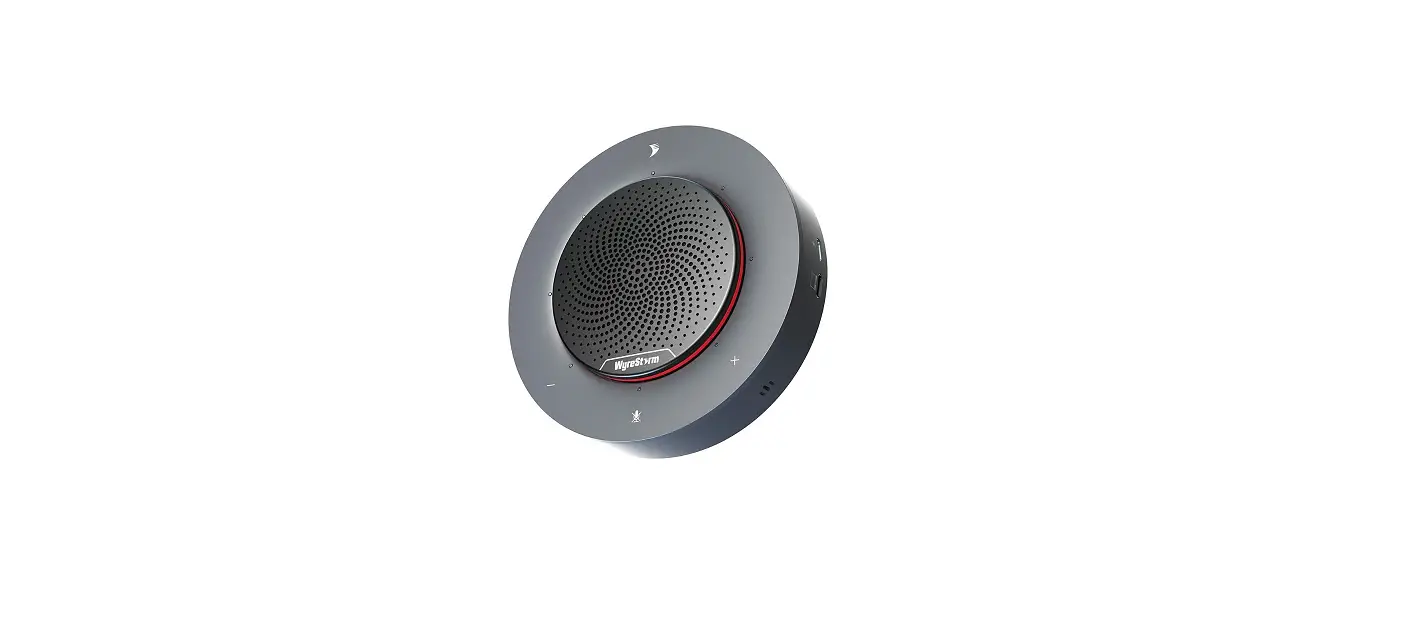
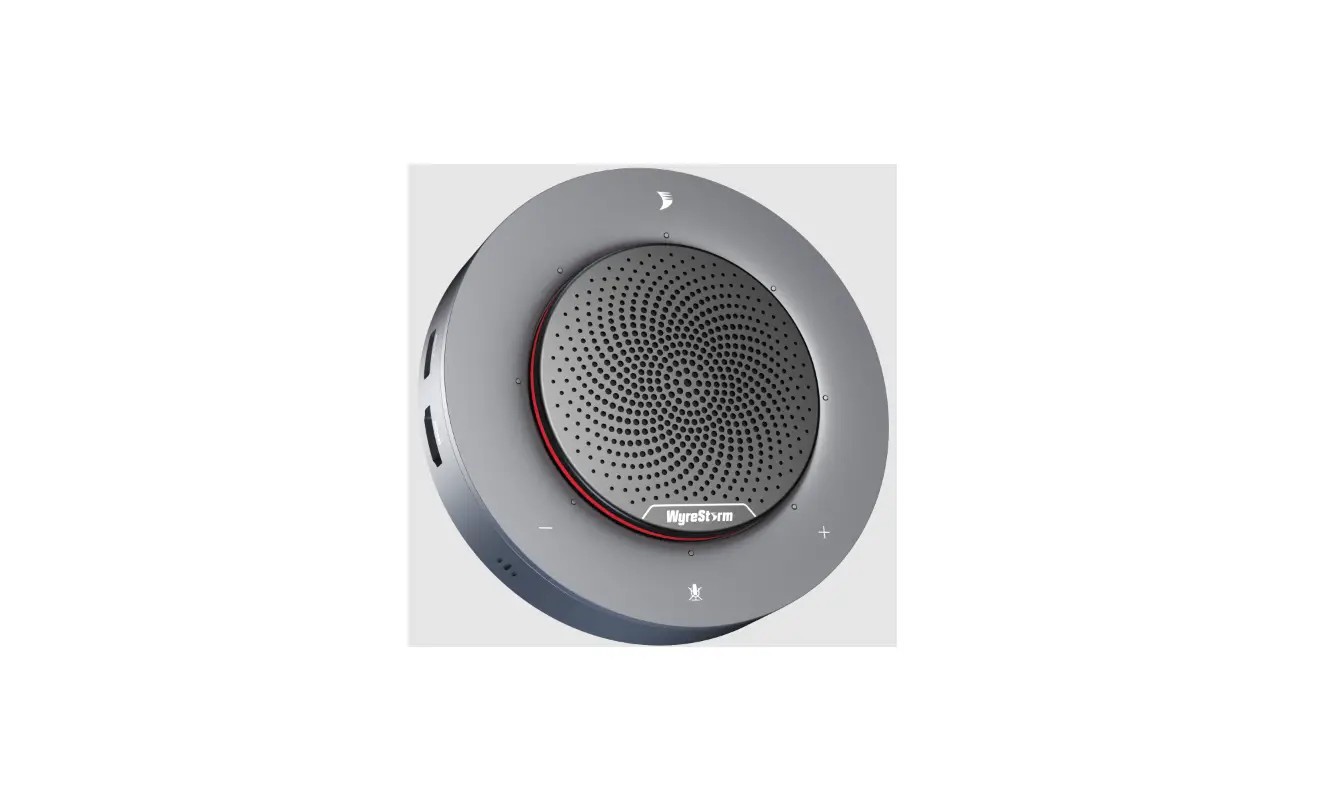
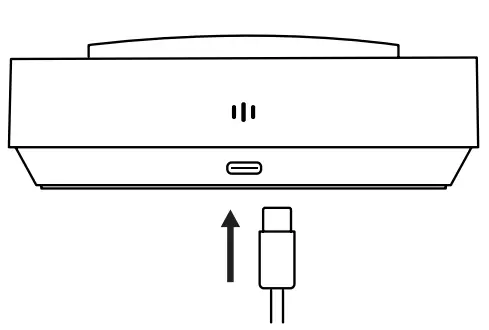
- Connect the supplied USB Type-C cable into the port at the base of the speakerphone.

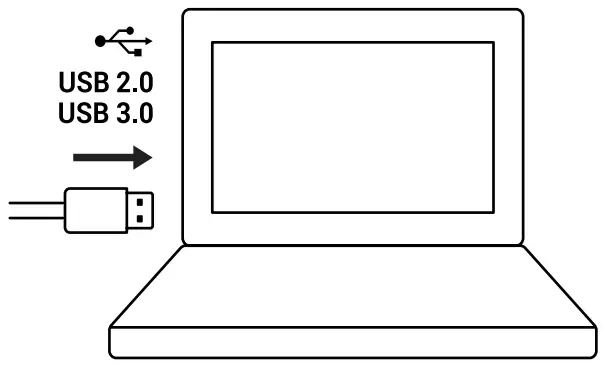
- Connect the other end of the supplied cable into an available port on your PC or Laptop.

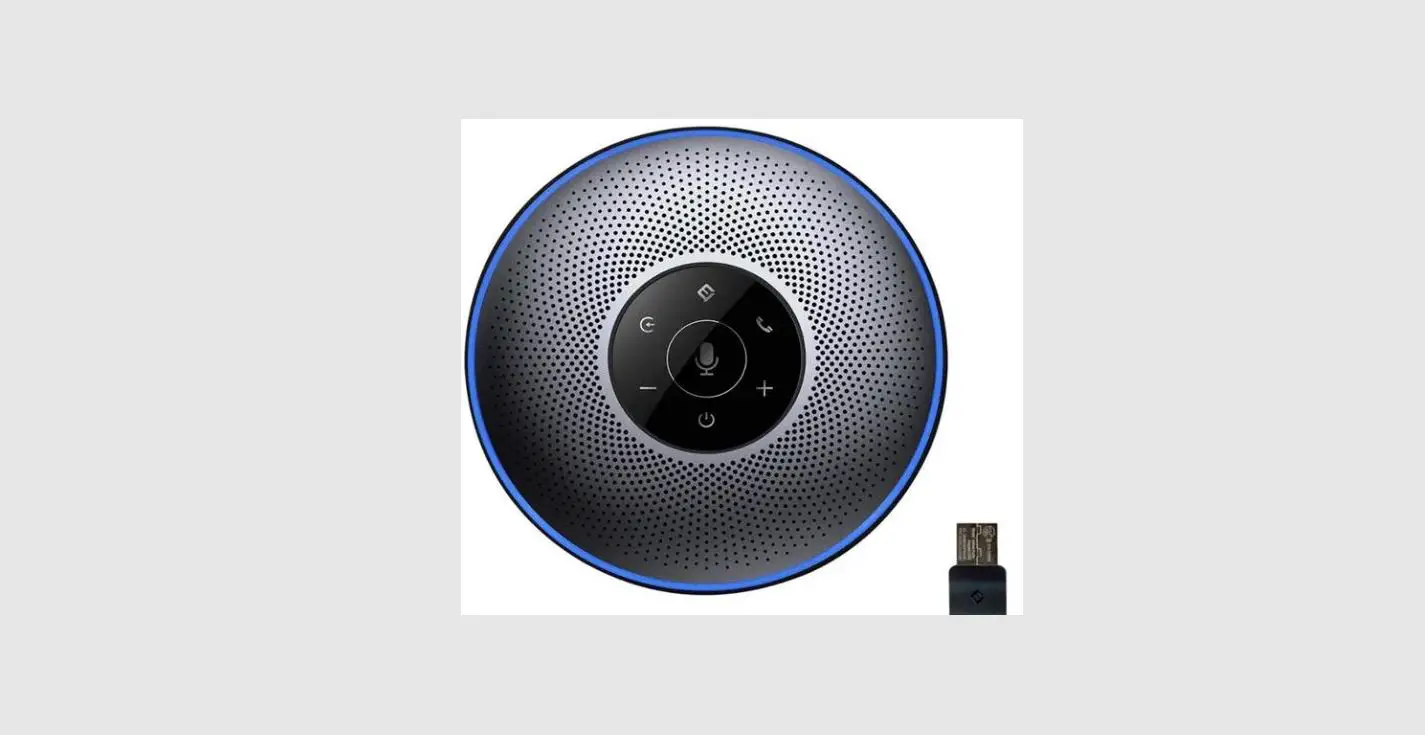
- The speakerphone will automatically power on, which is indicated by the Power LED shown below.

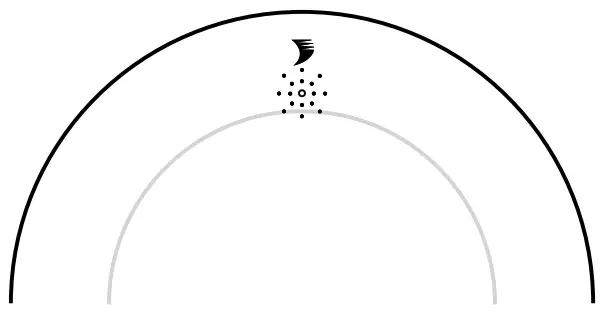
Note: If the Speakerphone is powered off and there is still a USB device connected, simply hold the Power button for 2 seconds and the device will power on.
Connecting via Bluetooth®
(ONLY APPLICABLE FOR HALO 60)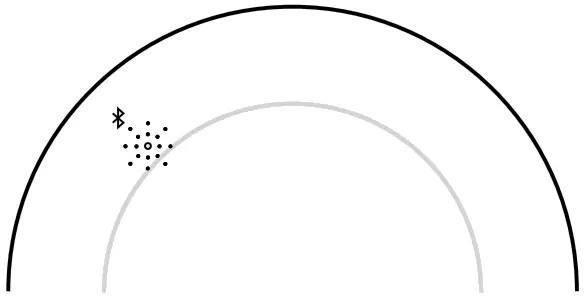
To begin, make sure that the Halo 60 is discoverable. To do this, turn Bluetooth on by tapping the Bluetooth button on the device. The LED will illuminate white, indicating Bluetooth is on. Next, press and hold the Bluetooth button until the LED flashes blue. Now the Halo 60 is discoverable.
CONNECTING TO A LAPTOP/PC
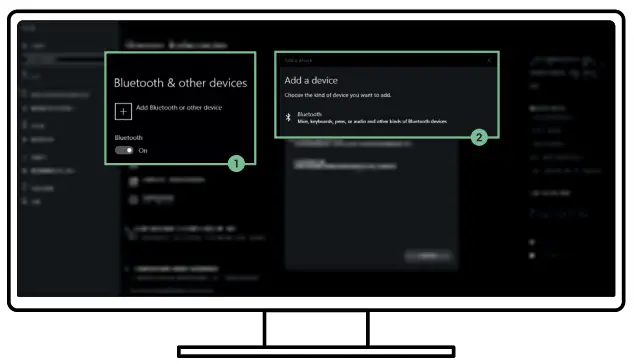
- Navigate to your connectivity settings on your device and ensure Bluetooth is switched on.
- Click on Add Bluetooth or other device. Then a new menu should appear. Click the Bluetooth option.
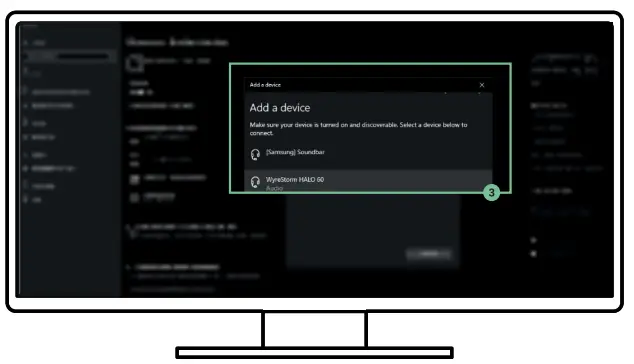
- A list of all discoverable Bluetooth devices should now appear. Click on the Device named WyreStorm HALO 60 and after a few seconds, you will be connected.

CONNECTING TO A MOBILE DEVICE
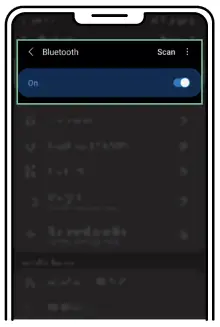
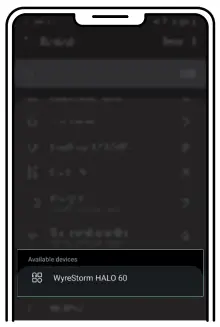
- Navigate to your connectivity settings on your mobile device and ensure Bluetooth is switched on.

- All nearby Bluetooth devices should now show. Press WyreStorm HALO 60 and after a few seconds, you will be connected.
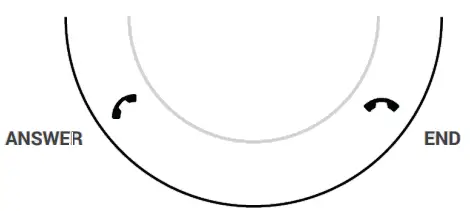
Answer/End buttons are for use with the paired Bluetooth device only and not
compatible with conferencing software.
Software Device Setup
Connecting To Zoom
To connect the WyreStorm HALO Speakerphone to your Zoom software, first navigate to your settings pane which can be found by clicking the gear icon in the top right hand corner, then click on the Audio tab. Here you can change the speaker and microphone by using the dropdown menus. Select WyreStorm HALO device under the applicable options.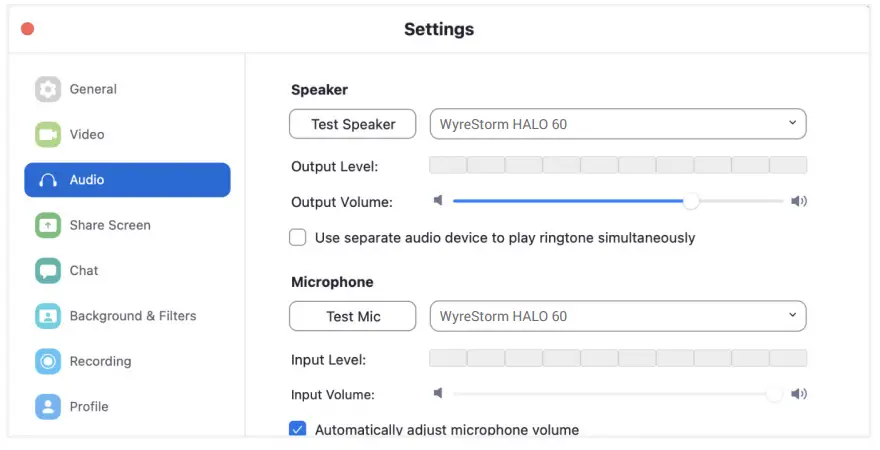
Connecting To Microsoft Teams
To connect the WyreStorm HALO Speakerphone to your Microsoft Teams software, first navigate to your settings pane which can be found by clicking on your display image in the top right hand corner, then click on the devices tab. Here you can change the Audio device by using the dropdown menu. Select WyreStorm HALO device under the applicable options.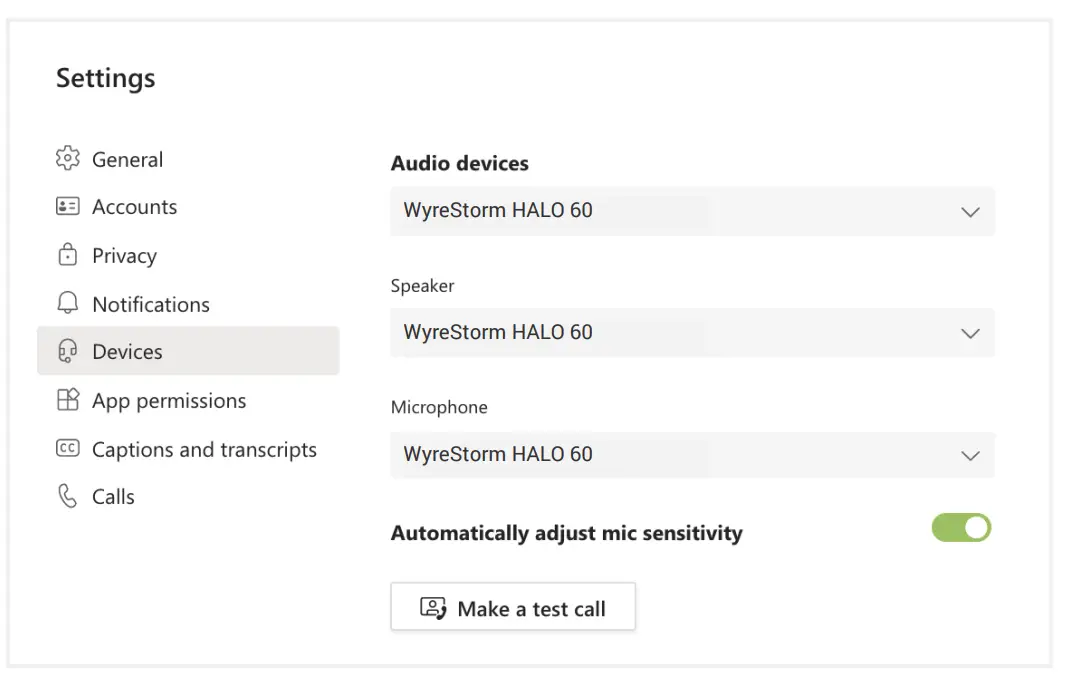
Specifications
| HALO 30 |
|
Audio and Video | ||
| Inputs | 1x USB-C Input | |
| Supported Standards | USB 2.0 | |
Speakerphone | ||
| Microphone | 360° 4x Omni-directional Mic Array with Echo Cancellation | |
| Microphone Pickup and Audio Range | 3m/10ft | |
| Microphone Frequency Range | 100~10kHz | 100~10kHz |
| Microphone Type | Digital MEMS | Digital MEMS |
| Speaker | 2 watts | 3 watts |
| Speaker Frequency Range | 10~20kHz | 10~20kHz |
| Signal-to-Noise Ratio | 80dB | 80dB |
| Max Speaker Audio Pressure | 102dB SPL | 104dB SPL |
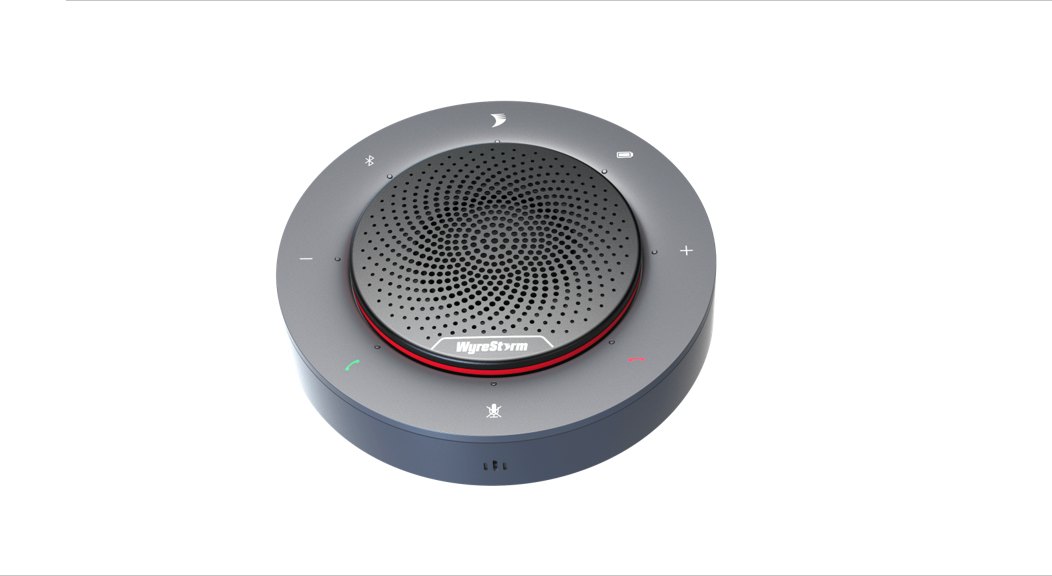
| Control | Capacitive touch power on/off, volume +/- and microphone mute buttons | Capacitive touch power on/off, Bluetooth® on/off, battery level indicator, call/end, volume +/- and microphone mute buttons |
Power | ||
| Power Supply | 5V DC 1A | 5V DC 1A |
| Power Consumption | Max: 2.5 watts | Max 5 watts |
| Battery Life | NA | Up to 10 hours |
| Battery Capacity | NA | 2500mAh |
Environmental | ||
| Operating Temperature | 0 to + 45°C (32 to + 113 °F), 10% to 90%, non-condensing | |
| Storage Temperature | -20 to +70°C (-4 to + 158 °F), 10% to 90%, non-condensing | |
| Max BTU | 34 BTU/hr | |
Dimensions and Weight | ||
| Height | 36mm/1.42in | |
| Diameter | 120mm/4.72in | |
| Weight | 0.22kg/0.49lb | 0.29kg/0.64lb |
Note: WyreStorm reserves the right to change product specification, appearance or dimensions of this product at any time without prior notice.
 This equipment has been tested and found to comply with the limits for a Class B digital device, pursuant to part 15 of the FCC Rules. These limits are designed to provide reasonable protection against harmful interference in a residential installation. This equipment generates, uses and can radiate radio frequency energy and, if not installed and used in accordance with the instructions, may cause harmful interference to radio communications. However, there is no guarantee that interference will not occur in a particular installation. If this equipment does cause harmful interference to radio or television reception, which can be determined by turning the equipment off and on, the user is encouraged to try to correct the interference by one or more of the following measures:
- Reorient or relocate the receiving antenna.
- Increase the separation between the equipment and receiver.
- Connect the equipment into an outlet on a circuit different from that to which the receiver is connected.
- Consult the dealer or an experienced radio/TV technician for help.
Changes or modifications not expressly approved by the party responsible for compliance could void the user’s authority to operate the equipment.
The distance between user and products should be no less than 20cm.
 We declare that this device is in compliance with the essential requirements and other relevant provisions of Directive 2014/53/EU. Manufacturer: Shen Zhen Proitav Technology Co.,Ltd Address: 301-401, Building 16, Hejing Industrial Park, No.87, Hexiu west Road,Heping Community, Fuhai street, Baoan District, Shenzhen, China Accessory Manufacturer: ShenZhen Tianweixun Wireless Technology Co., Ltd Adapter: Antenna Address of Manufacturer: 9/F, Building 1, Guole Science and Technology Park, No. 1 Lirong Road, Dalang Street, Longhua New District, Shenzhen Accessory Manufacturer: Dongguan NB Power Electronic Limited Adapter: Power supply Address of Manufacturer: No.365, South Dongkeng Road, Dongkeng Town, Dongguan City, 523443, P. R. China The adapter shall be installed near the equipment and shall be easily accessible. Accessory Manufacturer: Shenzhen Ohonda Technoligy Co., LTD Adapter: Terminal block Address of Manufacturer: Room 609, Block D, Hongtaifu Building, Zone No.34, Baoan District, Shenzhen Operating temperature: 0°C to 45°C Wi-Fi Operation Frequency: 2412MHz~2472MHz Maximum Power: 16.74dBm(E.I.R.P.)
Warranty Information WyreStorm Technologies ProAV Corporation warrants that its products to be free from defects in material and workmanship under normal use for a period of two (2) years from the date of purchase. Refer to the Product Warranty page on wyrestorm.com for more details on our limited product warranty.
Copyright © 2022 WyreStorm Technologies | wyrestorm.com HALO 30 | HALO 60 Quickstart Guide | 220820
UK: +44 (0) 1793 230 343 | ROW: 844.280.WYRE (9973) [email protected]

 WyreStorm - Professional Audio Visual Solution Provider