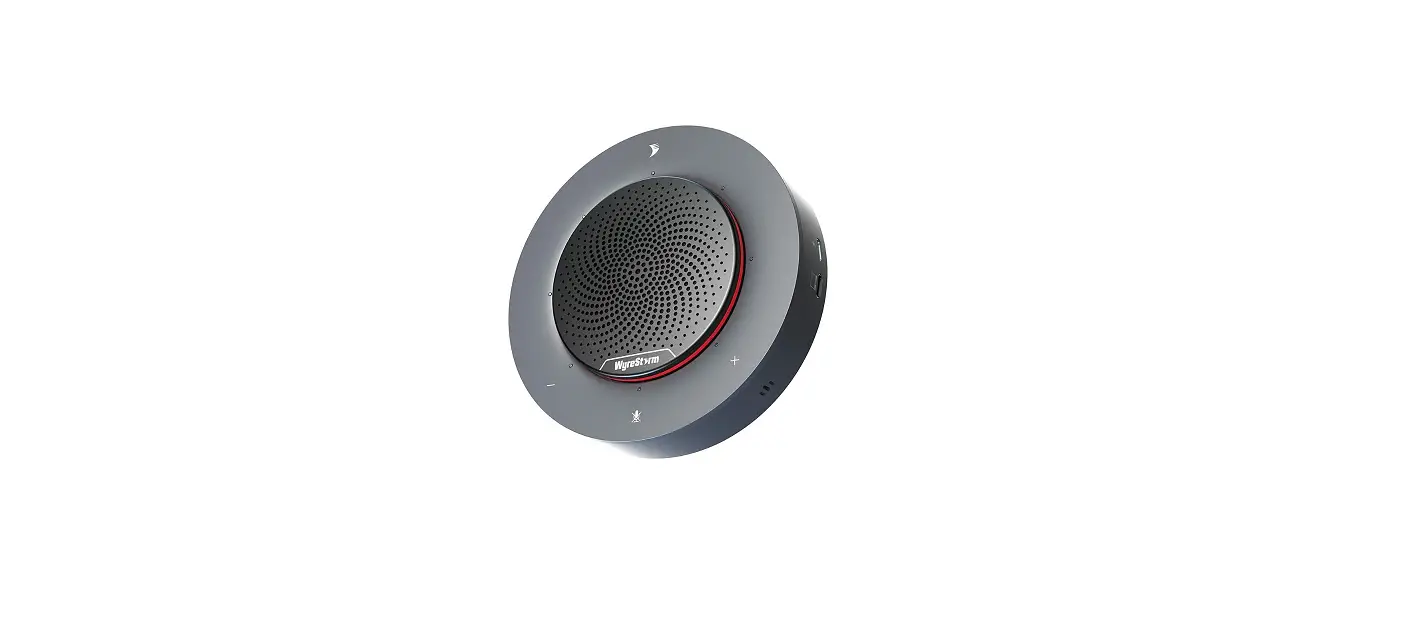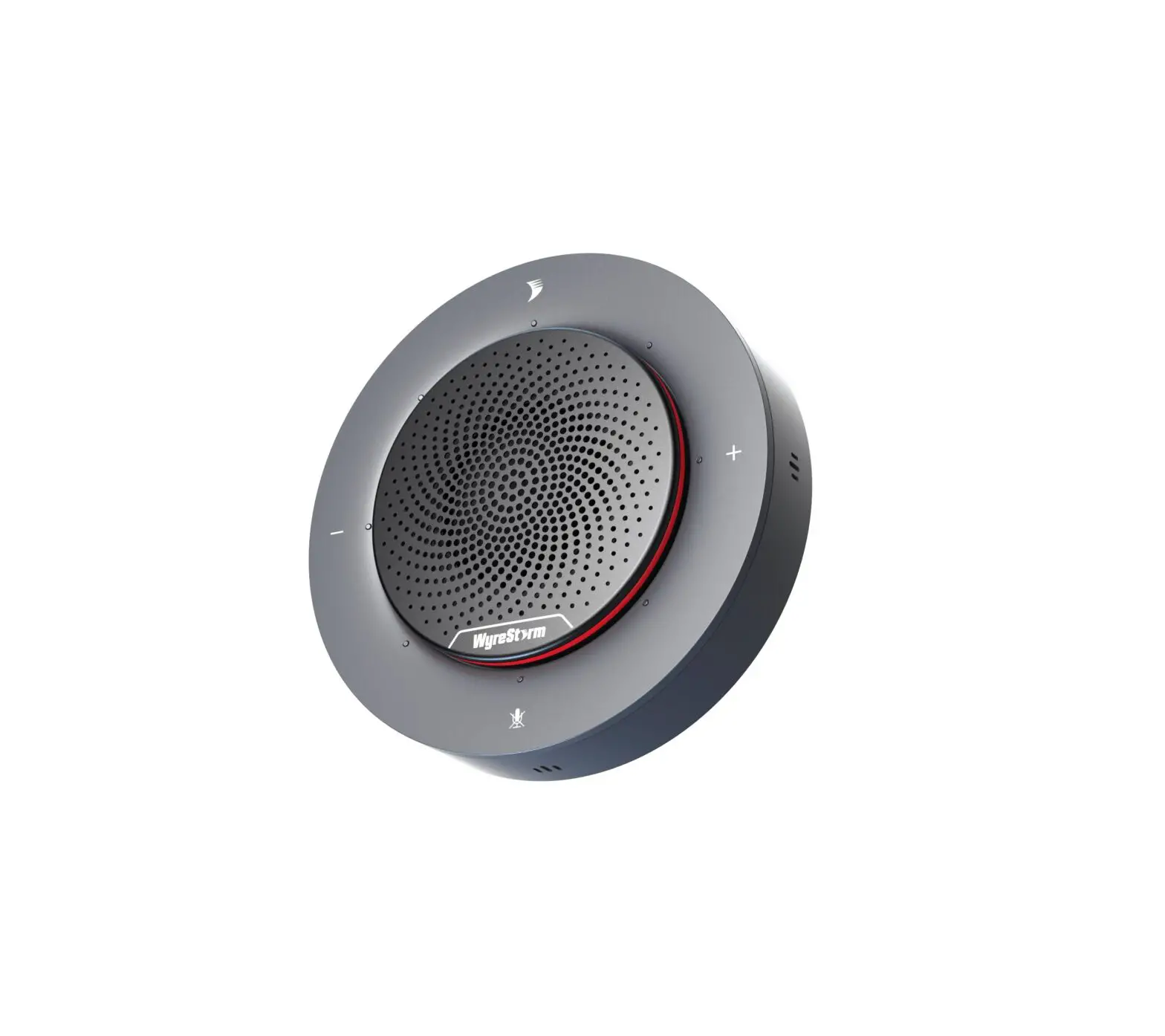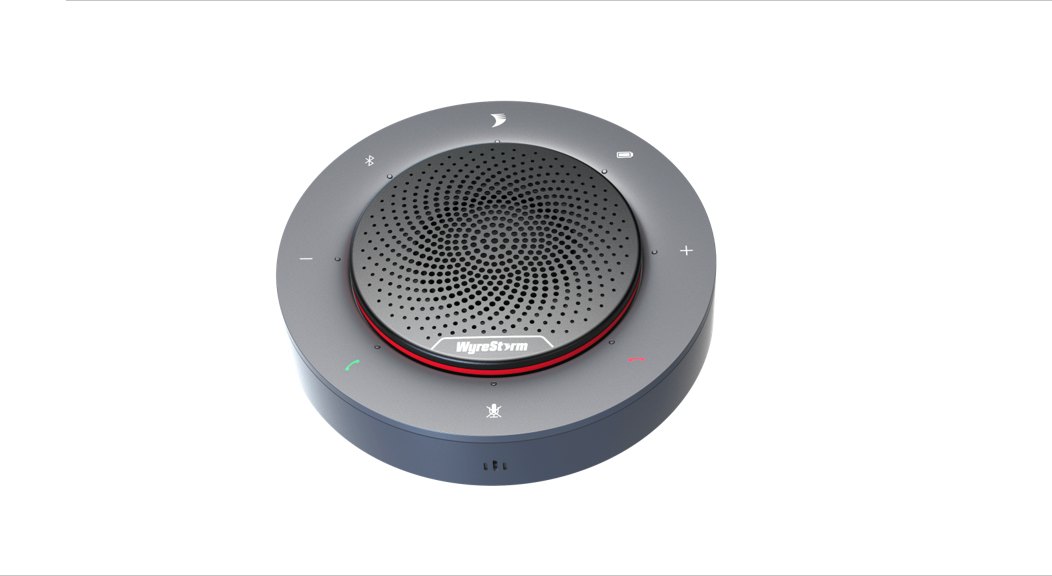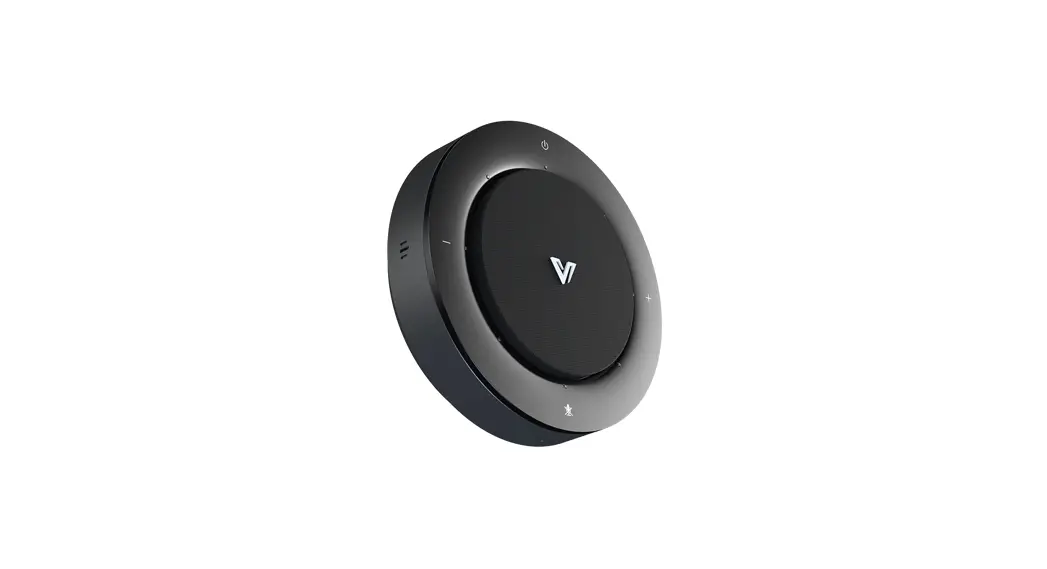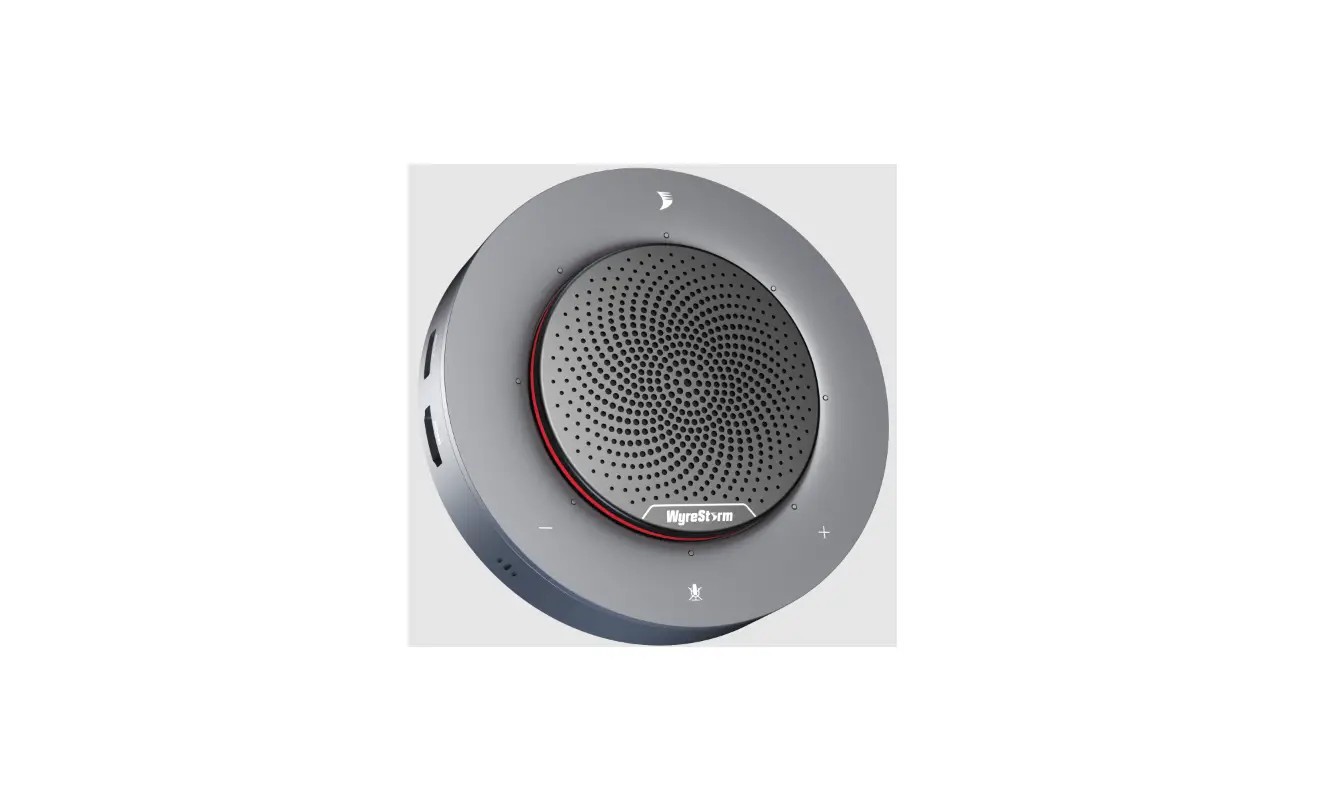

All-in-One USB-C Docking Speakerphone
HALO 90
Setting up the Speakerphone
CONNECTING THE SPEAKERPHONE
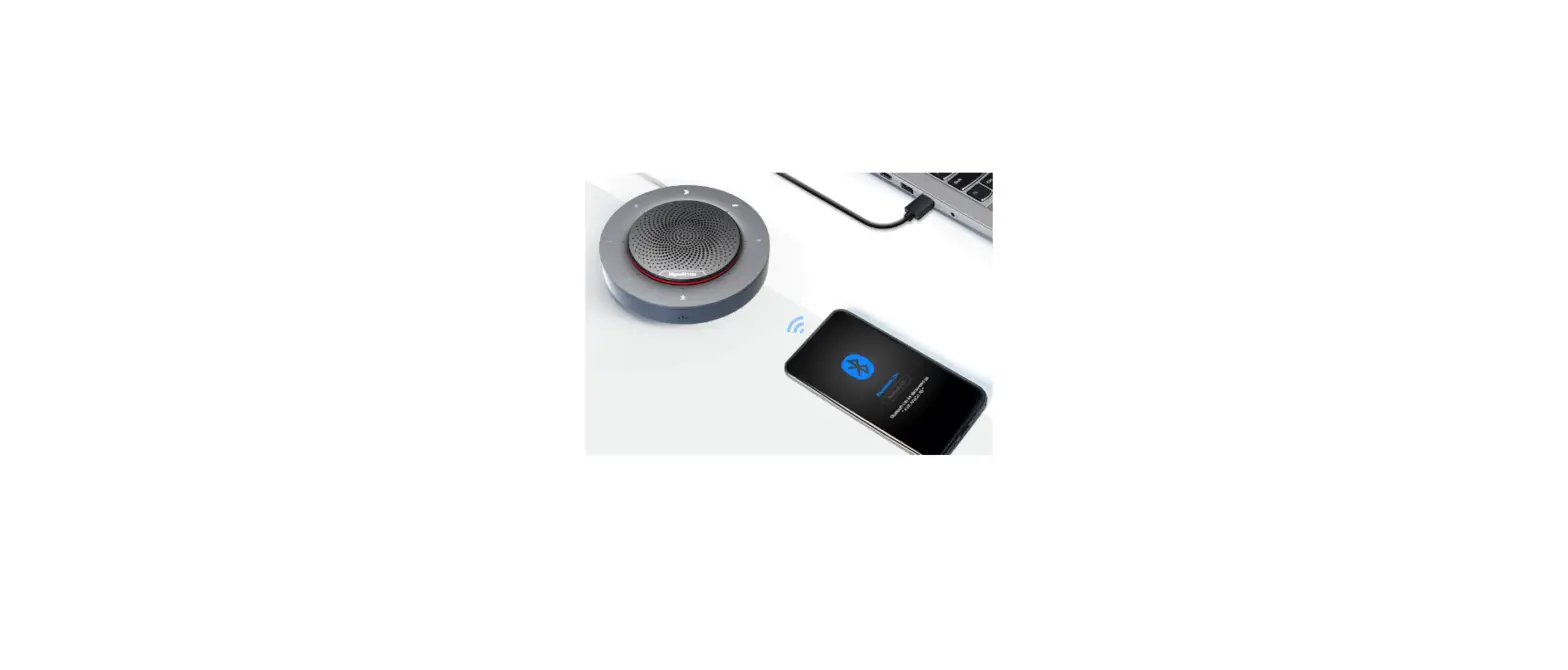
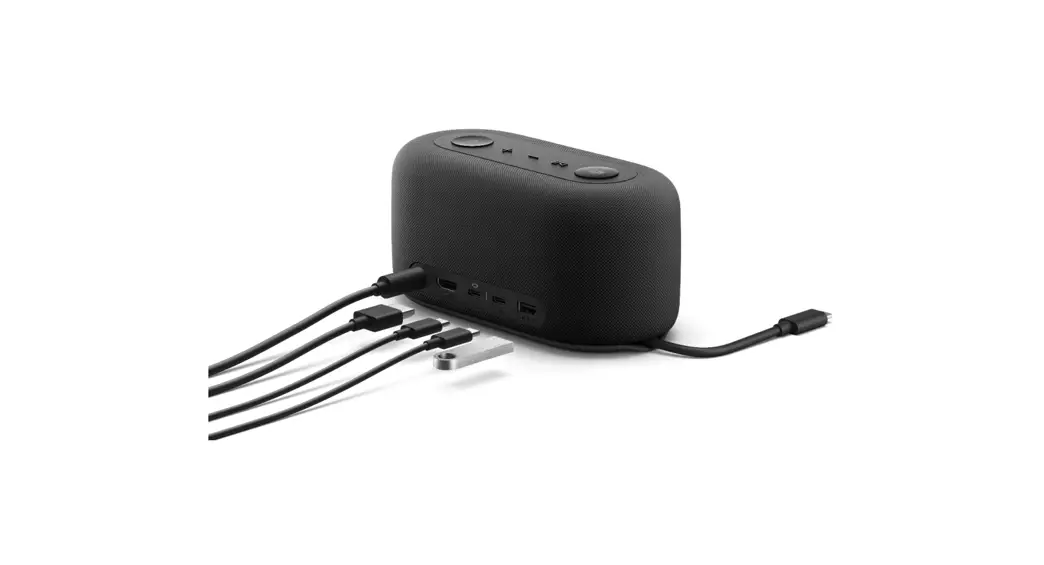
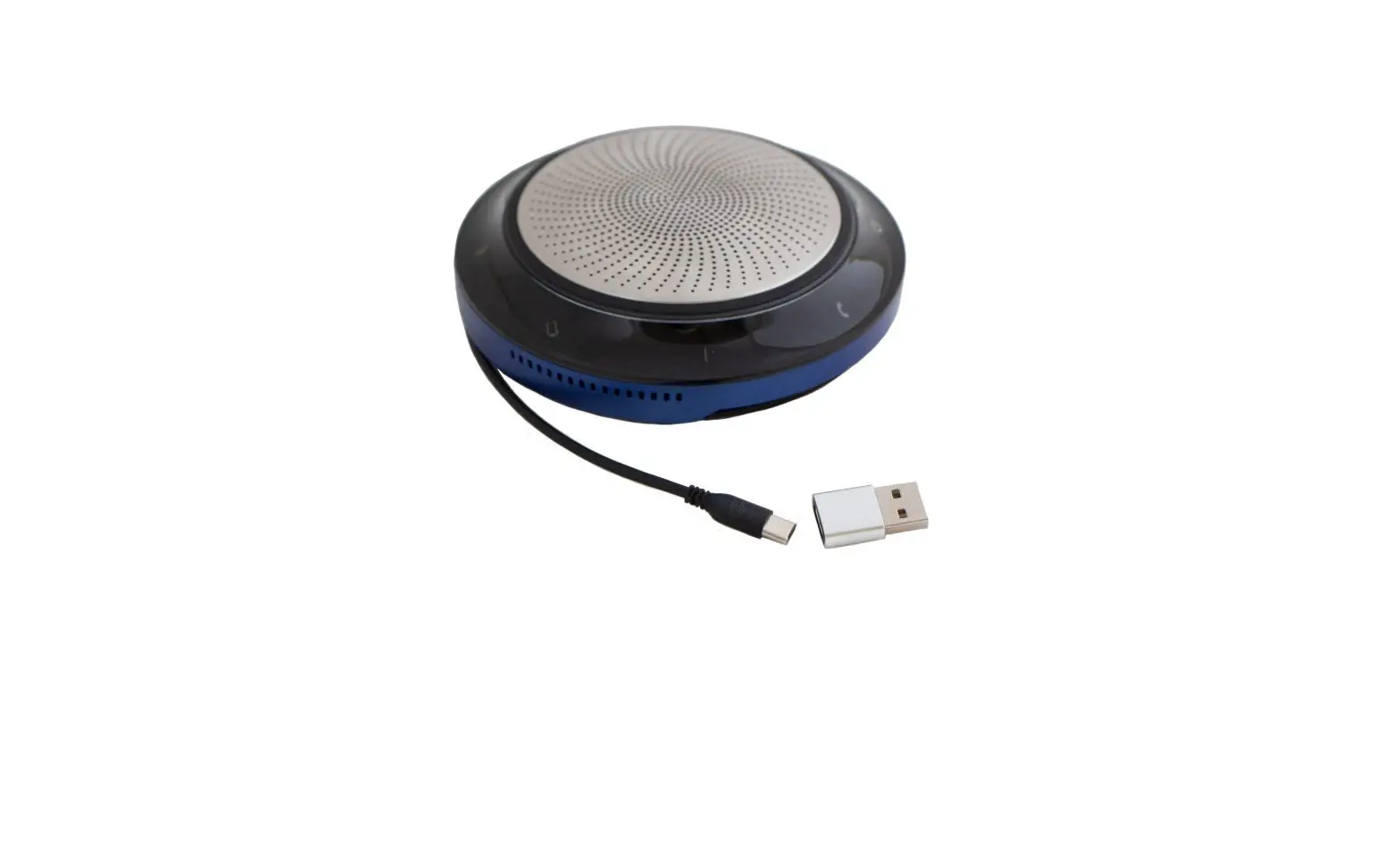
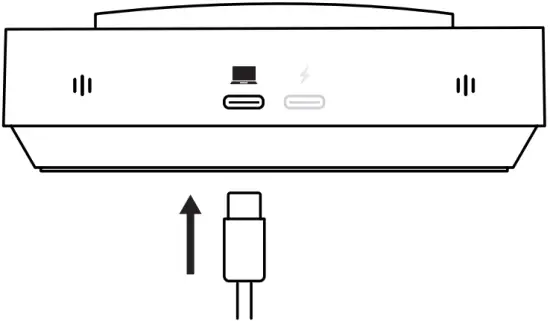
1. Connect the supplied USB Type-C cable into the port on the side of the speakerphone.
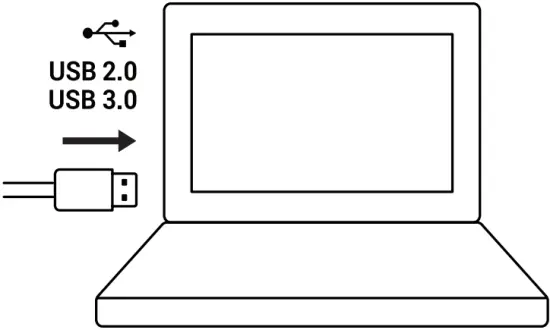
2. Connect the other end of the supplied cable into an available port on your PC or Laptop.
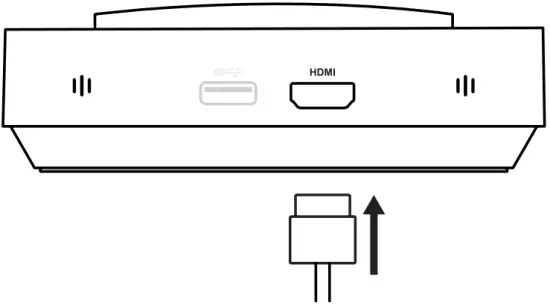
3. Connect an HDMI cable from your display into the port on the side of the speakerphone.
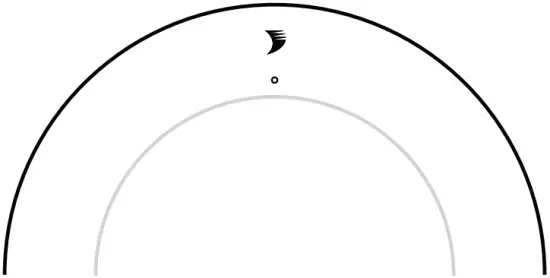
4. When a USB device is connected, the speakerphone will automatically power on.
Additional Connections
Power Adapter to provide direct USB-C power and charging of connected devices such as laptops and mobile devices. A minimum of 60 and maximum of 85 watts is required for additional charging capabilities.
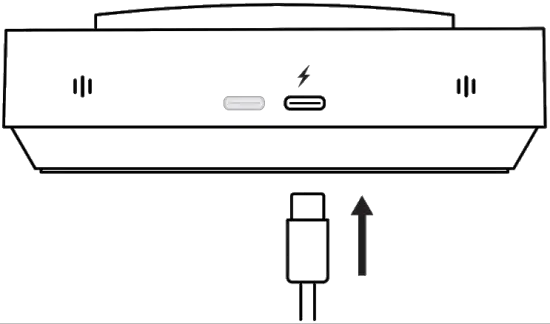
Connect a USB Type-C cable into the port at the base of the speakerphone from a power adapter marked with a lightning symbol.
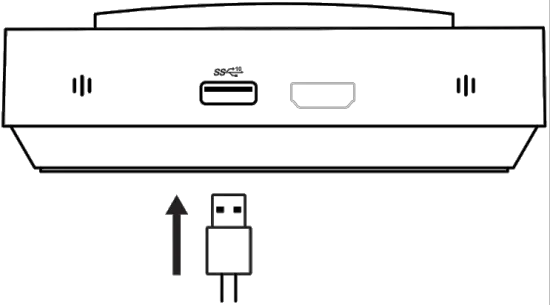
The Halo 90 Speakerphone allows for the connection of up to two USB-A device ports for connection of keyboard/mouse or webcams.
Connect a USB Type-A cable into the port at the base of the speakerphone marked with a SS USB symbol.
Software Device Setup
Connecting To Zoom
To connect the WyreStorm HALO Speakerphone to your Zoom software, first navigate to your settings pane which can be found by clicking the gear icon in the top right hand corner, then click on the Audio tab. Here you can change the speaker and microphone by using the dropdown menus. Select WyreStorm HALO device under the applicable options.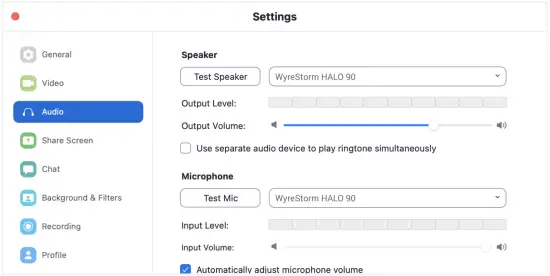
Connecting To Microsoft Teams
To connect the WyreStorm HALO Speakerphone to your Microsoft Teams software, first navigate to your settings pane which can be found by clicking on your display image in the top right hand corner, then click on the devices tab. Here you can change the Audio device by using the dropdown menu. Select WyreStorm HALO device under the applicable options.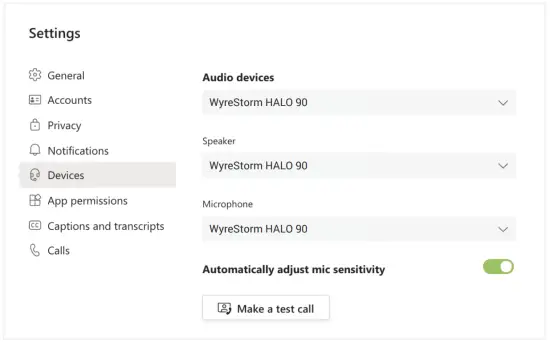
Specifications
| Audio and Video | ||
| Inputs | 1x USB-C | |
| Outputs | 1x HDMI | 2x USB-A | 1x USB-C | |
| Supported Standards | USB 3.0 | |
| Speakerphone | ||
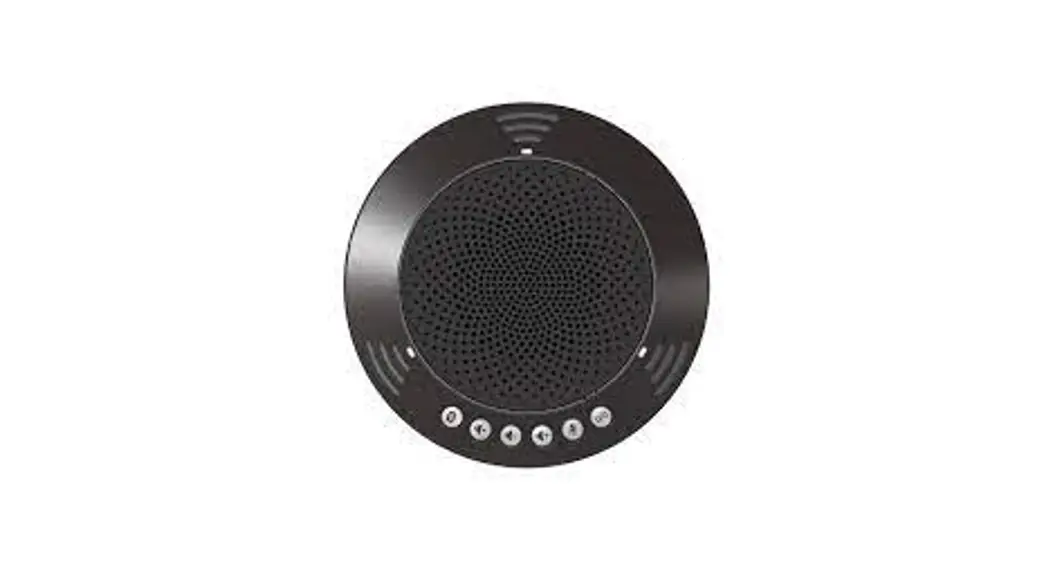
| Microphone | 360° 4x Omni-directional Mic Array with Echo Cancellation | |
| Microphone Pickup and Audio Range | 5m/16ft | |
| Speaker | 3 watts | |
| Control | Capacitive touch volume +/- and microphone mute buttons | |
| Power | ||
| Power Supply | Via Laptop: 5V 3A Via Power Adapter: 60W – 85W | |
| Max Power Consumption | 15 watts | |
| Environmental | ||
| Operating Temperature | 0 to + 45°C (32 to + 113 °F), 10% to 90%, non-condensing | |
| Storage Temperature | -20 to +70°C (-4 to + 158 °F), 10% to 90%, non-condensing | |
| Max BTU | Standard: 51 BTU/hr | With 60w USB-C Charging: 256 BTU/hr | |
| Dimensions and Weight | ||
| Height | 37.3mm/1.46in | |
| Diameter | 128mm/5.03in | |
| Weight | 0.46kg/1.01lb | |
| Regulatory | ||
| Safety and Emission | CE | FCC | RoHS | RCM | EAC | |
Note: WyreStorm reserves the right to change product specification, appearance or dimensions of this product at any time without prior notice.

Warranty Information
WyreStorm Technologies LLC warrants that its products to be free from defects in material and workmanship under normal use for a period of two (2) years from the date of purchase. Refer to the Product Warranty page on wyrestorm.com for more details on our limited product warranty.
Copyright © 2021 WyreStorm Technologies | wyrestorm.com
HALO 90 Quickstart Guide | 210914
UK: +44 (0) 1793 230 343 | ROW: 844.280.WYRE (9973)
[email protected]
 WyreStorm - Professional Audio Visual Solution Provider