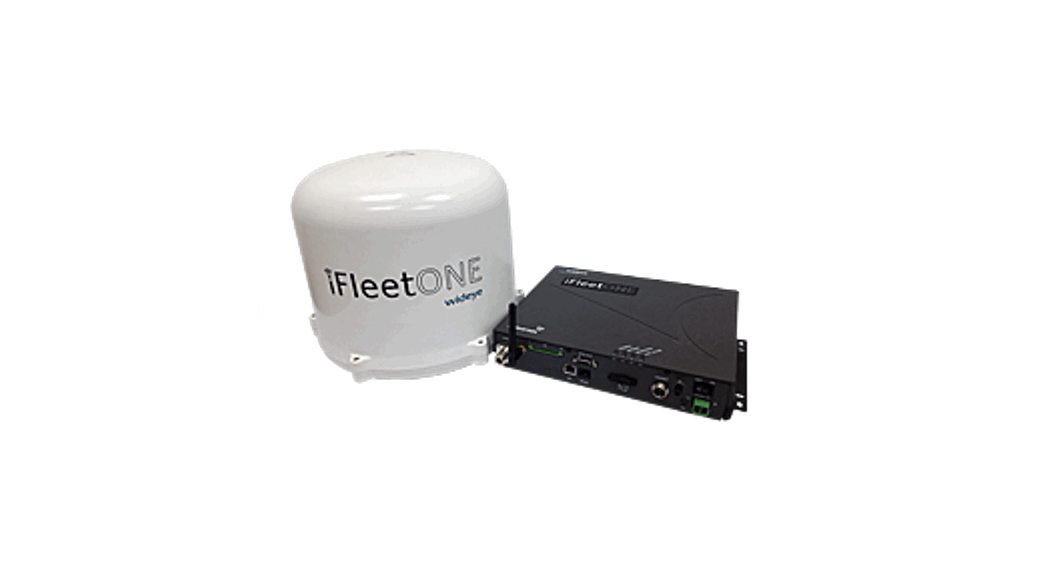

 Satellite Terminal
User Guide
Ver: 2.0
Date: 26 August 2021
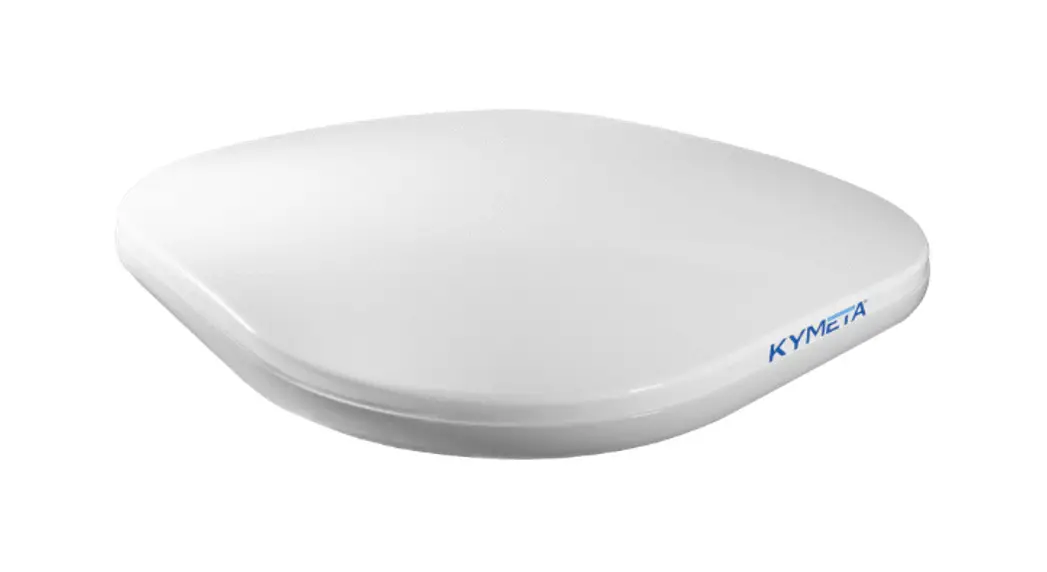
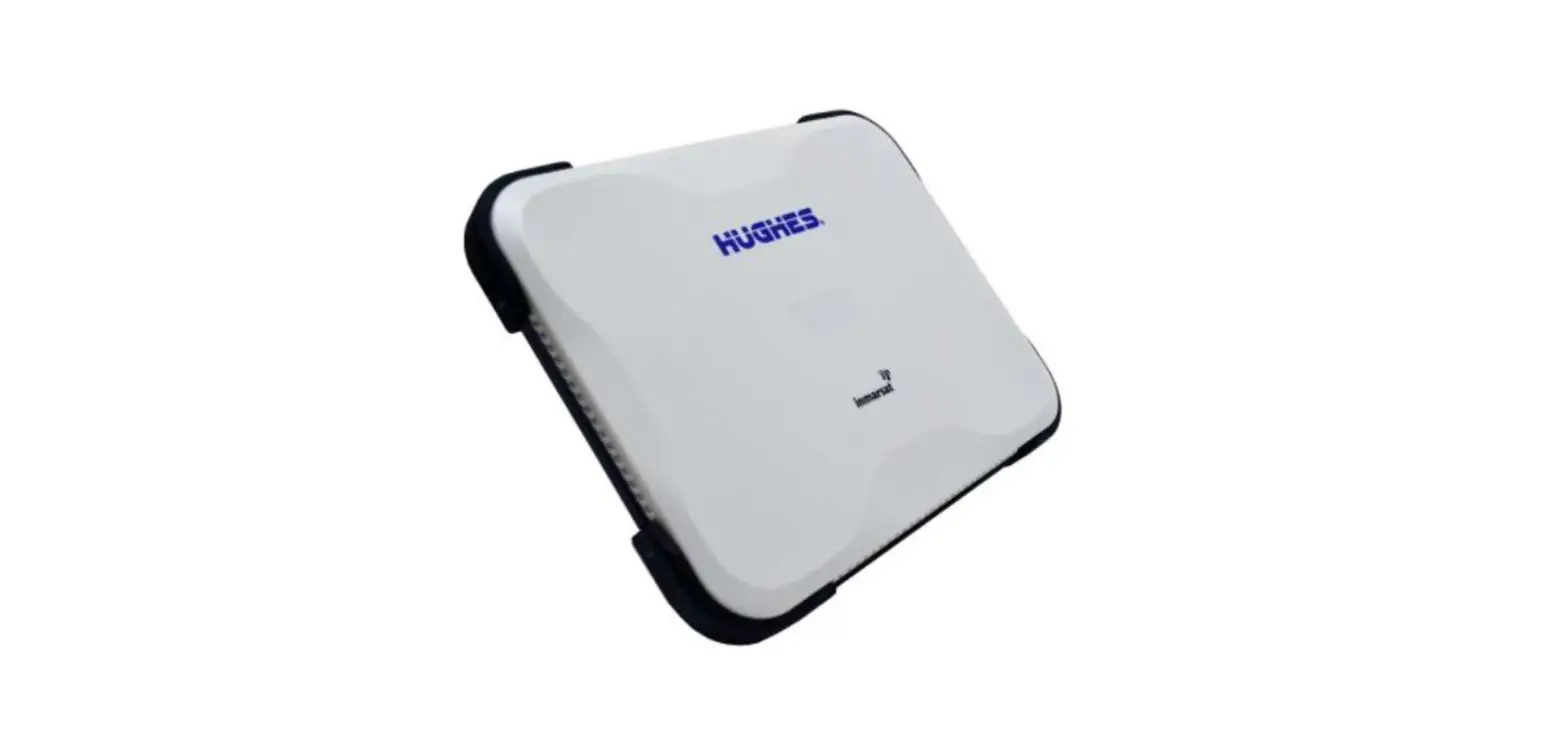
iFleetONE Antenna Unit
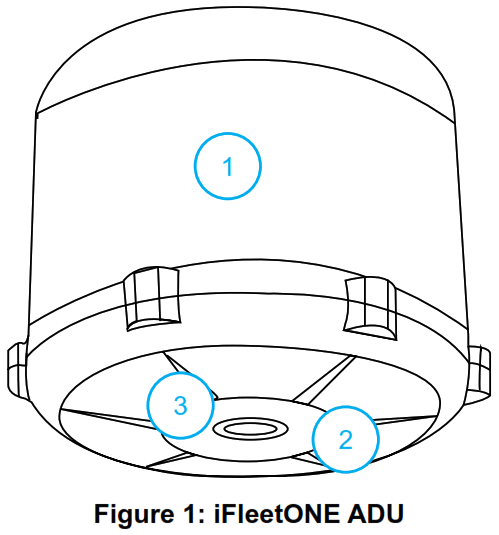
- Radome Top
- Radome Bottom
- Antenna Connector (N-Type)
IFleetONE Modem Unit
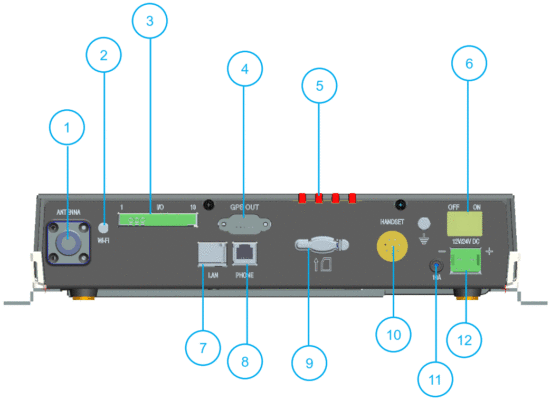
| 1. Antenna Connector (N-Type) 2. Wi-Fi Antenna 3. I/O Port 4. GPS Output Port 5. Status LEDs 6. ON / OFF Switch | 7. LAN Port 8. RJ11 Port 9. SIM Card Slot 10. Primary Handset Port 11. Circuit Breaker Reset 12. DC Input |
iFleetONE Terminal Simplified Block Diagram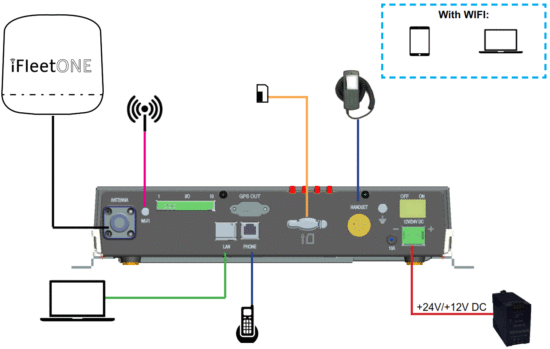
Above Deck Unit (ADU) Installation
- Connect a coaxial cable to ADU properly without kinking it, before installing it on the pole mount or mast’s mounting surface

- Secure ADU to the pole mount or mast by using M6 x 20mm screws and flat washers.

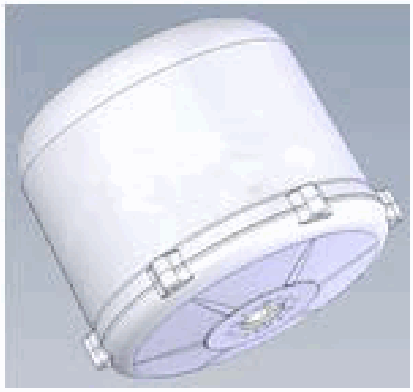
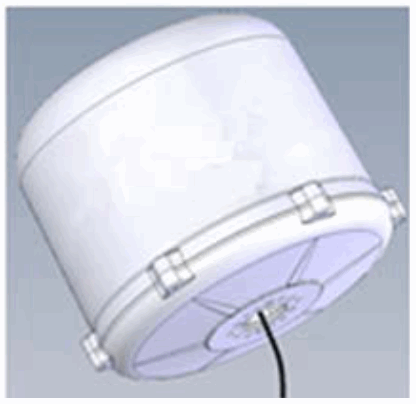
Refer to Installation Manual for more detailed information on the mounting of ADU.
Below Deck Unit (BDU) Installation
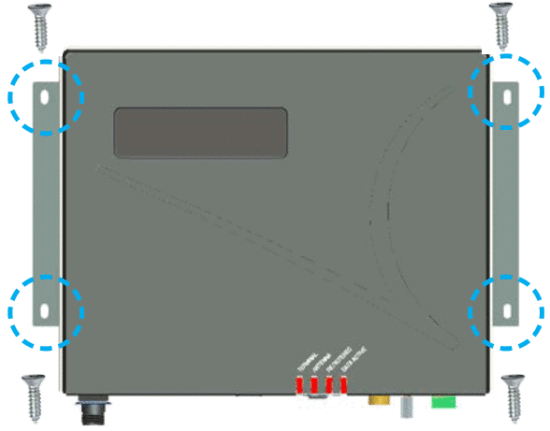
Place BDU onto the desired installation area.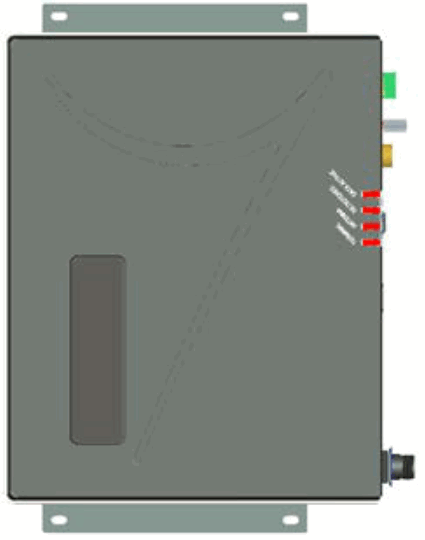 Secure the right and left mounting bracket using M5 x 12mm Self-Tapping Screws (2x).
 Connect and secure the DC power cable, antenna cable, and primary handset cable to the BDU’s front panel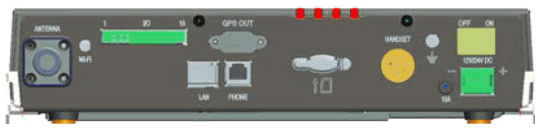
Getting Started
- Connect the cables and accessories as shown in Terminal Simplified Block Diagram.
- Insert a Fleet One SIM card, with the gold printed circuit facing down.
- Switch on the terminal.
- Users can access the web console when the Terminal LED turns green.
- The system is ready for normal operation when the Terminal, Antenna, and Registered LEDs turn green.
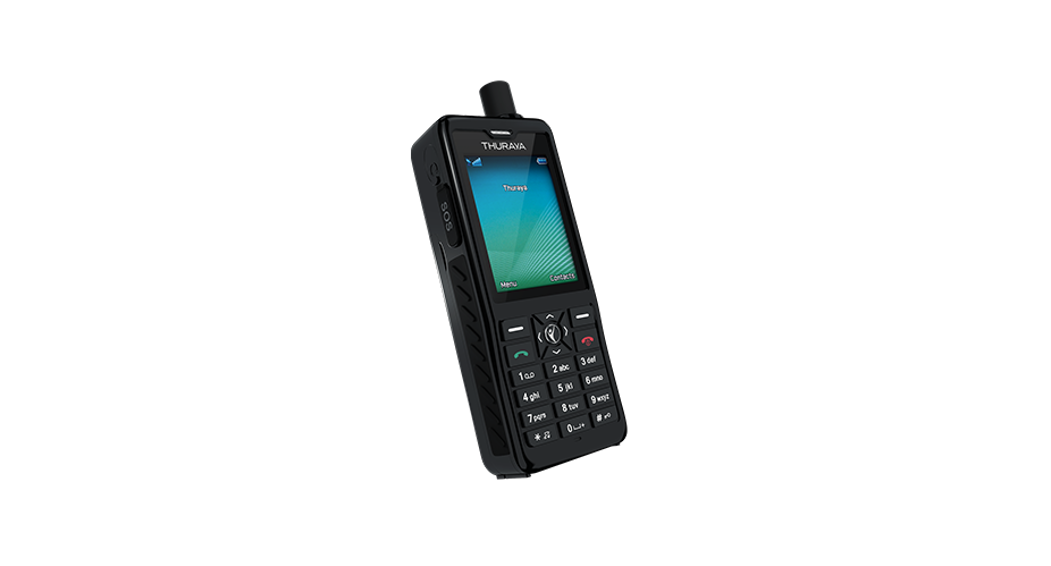
Using the Optional Primary Handset
- On the optional primary handset, dial the phone number in the format: <00><CountryCode><Telephone Number>
 ,
, - Disconnect the call by pressing the
 , key.
 ,
, , key.
Using a Corded Analog Telephone
- Lift the handset or press the off-hook button, listen for the dial tone and dial the phone number in the following format: <00><Country Code. Telephone Number)<#>.
- Hang-up to disconnect.
Sending an SMS using the Optional Primary Handset
- Select Menu>Messaging>OK>New message>OK. Enter your text message using the keypad.
- Select OK > Send.
- Enter the destination mobile number format: <00><Country Code><Telephone Number>
OR
Select OK to choose an existing contact and then select OK to send a text message.
BDU LED States
| Status | Meaning |
| TERMINAL | |
| Steady Amber | Terminal (BDU) is powering up. |
| Steady Green | The Terminal (BDU) has powered up successfully. |
| Steady Red | Terminal (BDU) has detected a failure state. |
| Blinking Red | VMS Alarm Notification. |
| ANTENNA | |
| Steady Amber | ADU is powering up. |
| Steady Red | ADU has detected a failure state. |
| Blinking Amber | ADU is calibrating. |
| Blinking Green | The system is performing a satellite search. |
| Steady Green | The system has locked onto the satellite. |
| No light (off) | ADU is in an OFF state. |
| REGISTERED | |
| Steady Amber | Attempting network registration |
| Steady Green | Ready for all (Voice and Data). |
| Steady Red | Network failure / Registration error. |
| Blinking Amber | Ready for Voice only. |
| Blinking Green | Ready for Data only. |
| No light (off ) | No network service. |
| DATA ACTIVE | |
| Steady Amber | Activating data connection. |
| Steady Green | The data connection is ready. |
| Steady Red | Data activation failure |
| No light (off ) | No data connection. |
Useful Password Reference:
- Web Console Username: admin (Default)
- Web Console Password: 1234 (Default)
- Terminal Pin: 0000 (Default)
Also applies to the Factory Reset password.
Accessing Web Console
- Open the web browser, and type http://192.168.1.35 in the Address field.

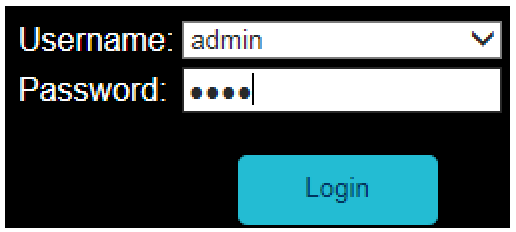
- Type in admin in the Username field and 1234 in the Password field. Click Login.

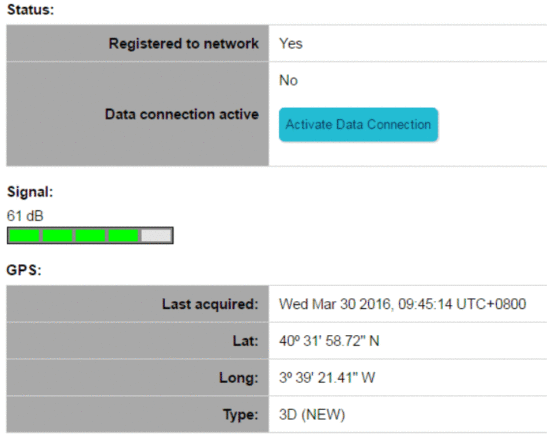
- The terminal will automatically acquire the GPS location and register to the network. This would take 1.5 to 2 minutes.


Deactivating / Activating a Data Session with the Web Console
- On the Web Console, click on the “Home” icon.



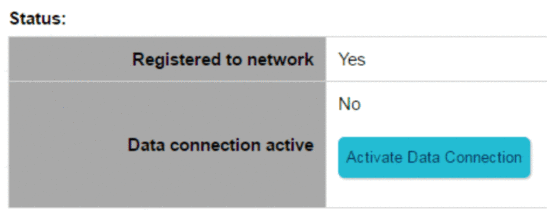
- Click on the “Activate Data Connection” icon. Standard Data Session is now active and users can access the Internet.
- To disconnect Data Session, click on “Deactivate Data Connection”.
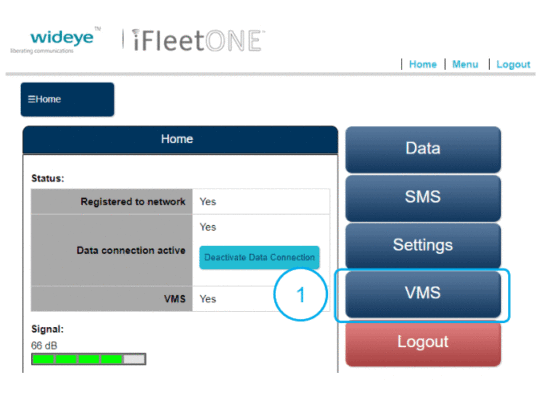
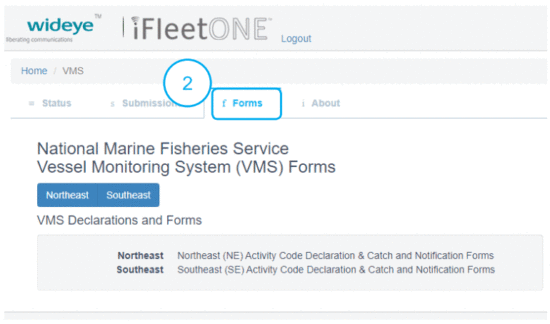
Accessing VMS Forms / Declarations:
Tips and Troubleshooting
Primary Handset
Unable to make outgoing calls
- Ensure a correct number format is being dialed.
- Ensure proper BDU LED states;
Terminal: Green
Antenna: Green
Registered: Green
Data Active: Off or Green
Unable to receive an incoming call
- Ensure all other telephony devices are hung up properly.
Web Console
Unable to access Web Console
- Ensure that there is no problem with the Ethernet connectivity.
- Ensure that the IP address is entered correctly.
- Try to refresh the browser after correcting the problem.
Data Connection
Unable to activate Data Session
- Ensure you are using a valid APN.
- Ensure that the signal strength is good.
- Ensure your Fleet One SIM card supports PS services.
- Ensure your prepaid credit is not exhausted.
Unable to access the internet after Data Session is activated.
- Ensure proper PC/Laptop Ethernet settings.
- Ensure no firewall/proxy settings are preventing access to the BDU.
- Ensure that the PC/Laptop is configured to obtain an IP address automatically (DHCP).
Whilst the information in this User Manual has been prepared by Addvalue Innovation P. Ltd (“Addvalue) in good faith, and .1 reasonable efforts have been made to ensure its accuracy, Addvalue makes no warranty or representation as to the accuracy, completeness, or fitness for purpose or use of the information. Addvalue shall not be liable for any loss or damage of any kind, including indirect or consequential loss, arising from the use of the information, and all warranties and conditions, whether express or implied by statute, common law, or otherwise, are hereby excluded to the extent permitted by the law of Singapore. Addvalue, the Addvalue Enabled logo, Wideye, Wideye logo, IFIeetONE, and milestone logo are either trademarks or registered trademarks of Addvalue Technologies Ltd and/or its affiliates in Singapore and/or other countries. Inmarsat, the Inrnarsat logo registered trademark of Inmarsat Global Limited in the United Kingdom and/or other countries and is used by Addvalue Innovation Pte Ltd under license.
PM 74800001003
Revision 2.0