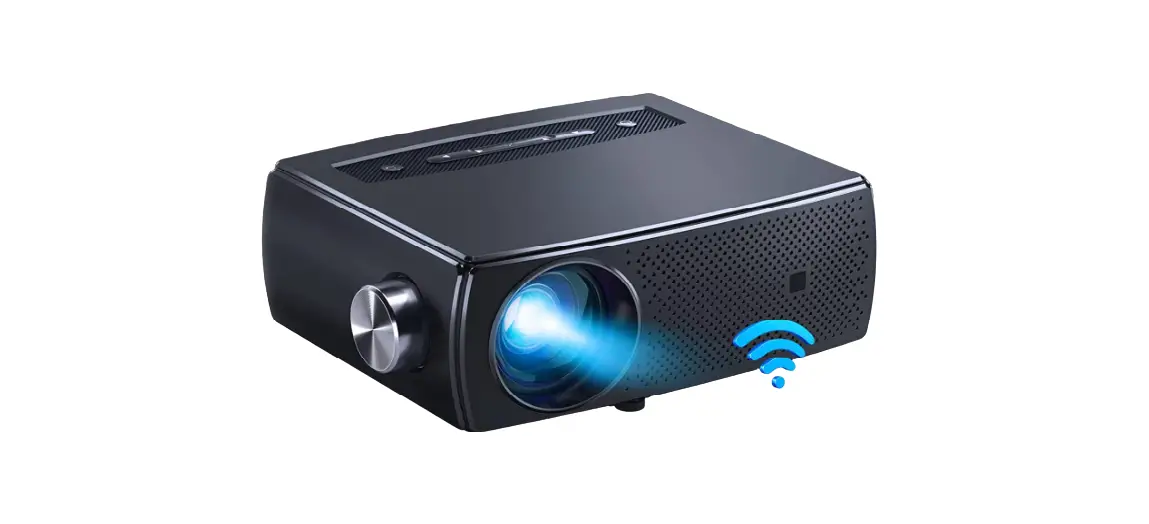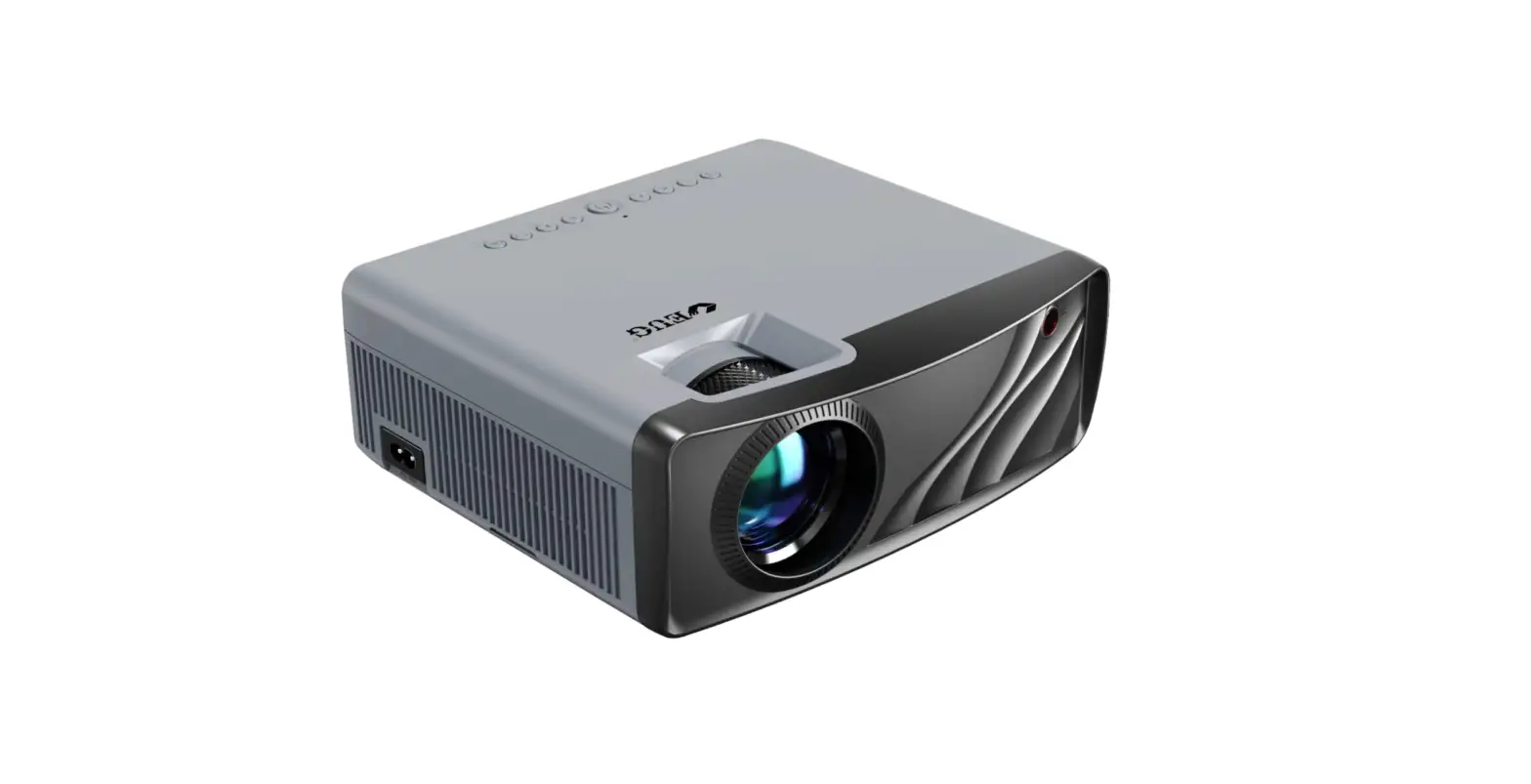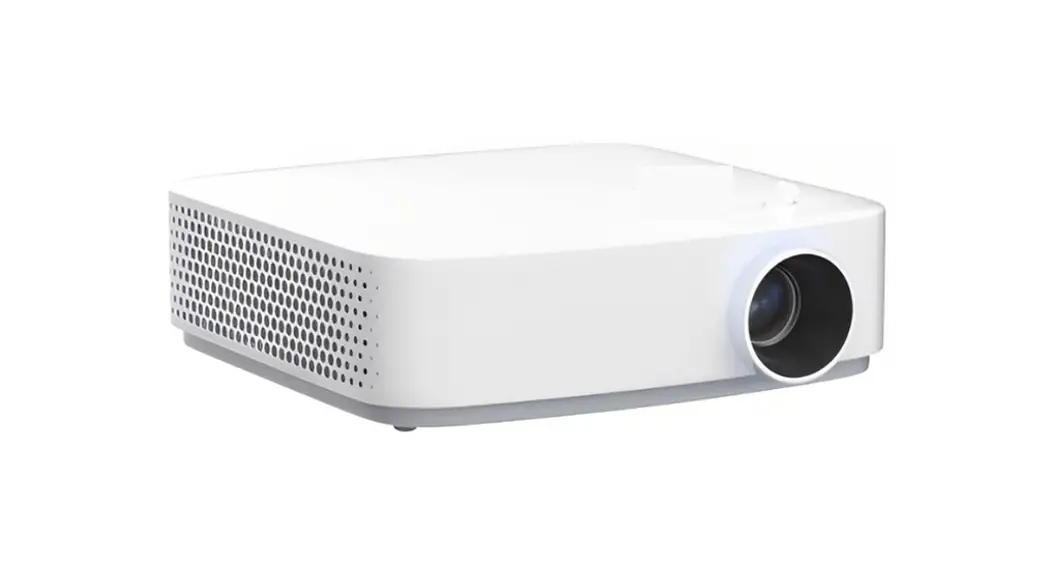
 SIRIUS-F410 WiFi Bluetooth Projector
User Manual SIRIUS-F410
SIRIUS-F410 WiFi Bluetooth Projector
Please read this manual throughly before using and keep it for future reference.
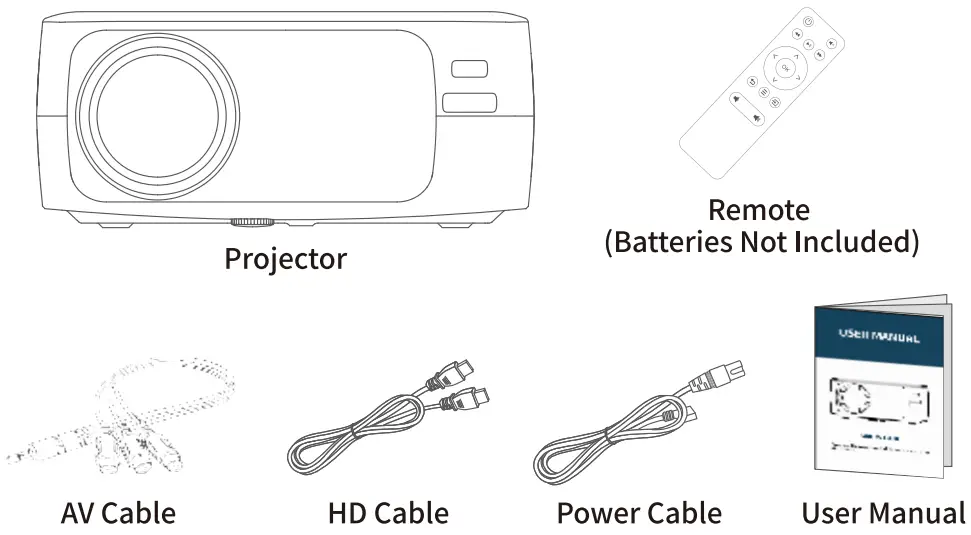
WHAT’S INCLUDED & NOTICE
WHAT’S INCLUDED
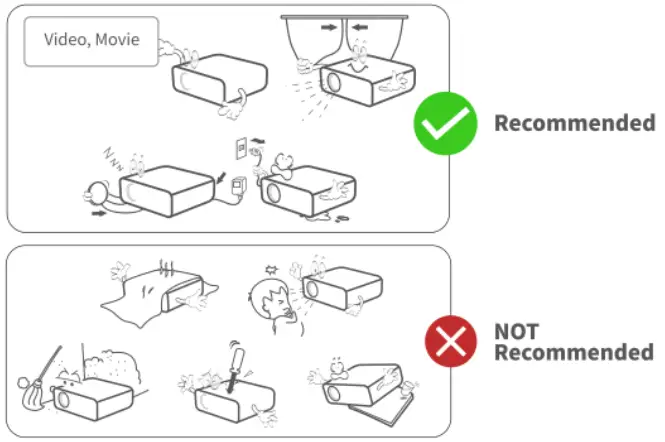
NOTICE
PRODUCT OVERVIEW
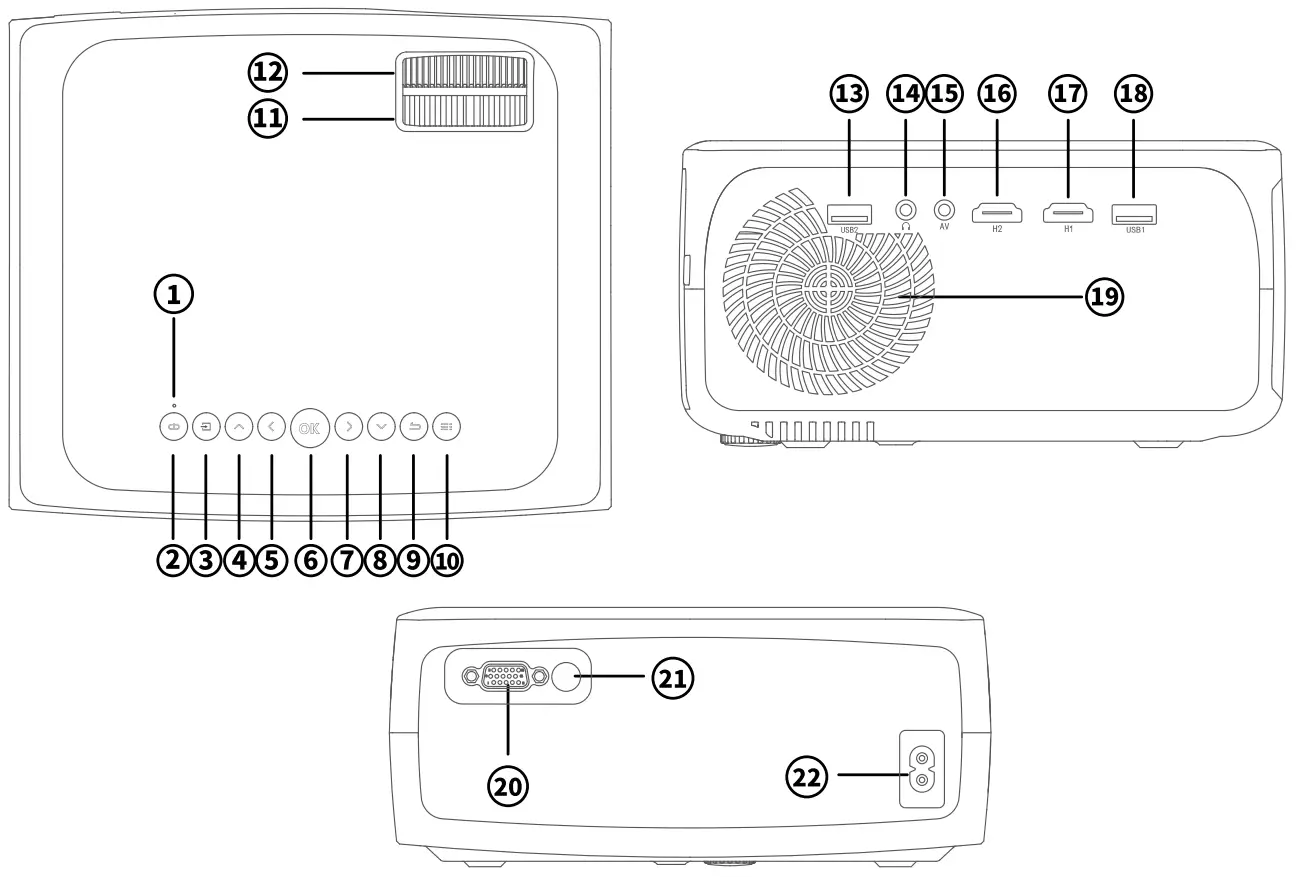
| 1. LED Signal 2. Power Button 3. Signal source 4. UP 5. Left 6. OK 7. Right 8. Down 9. Return 10. Menu 11. Keystone Correction Ring | 12. Focus Ring 13. USB2 14. Audio Out 15. AV In 16. HDMI 2 17. HDMI 1 18. USB1 19. Air Outlet 20. VGA 21. Infrared Receiver 22. Power Inlet |
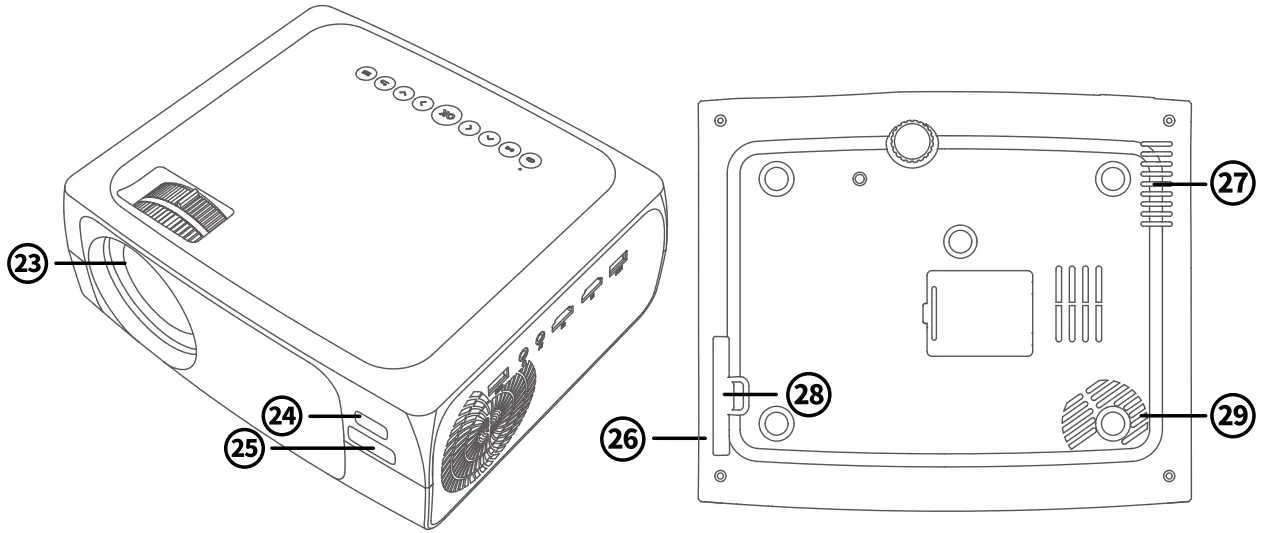
| 23. Lens 24. Infrared Receiver 25. Brand | 26. Air Inlet 27. Air Outlet 28. Detachable Dust filter 29. Speaker |
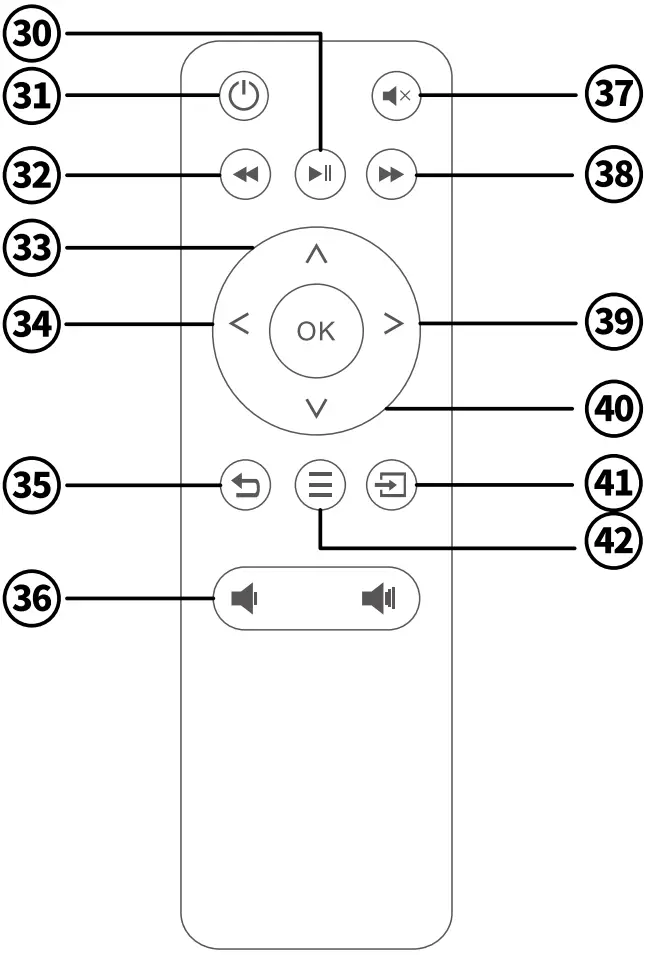
| 30. Play/Pause 31. Power button 32. Fast reverse 33. Up 34. Left 35. Return 36. Volume- + | 37. Mute 38. Fast Forward 39. Right 40. Down 41. Input Source 42. Menu |
QUICK START
4.1 Projector Installation
*Front
Note: This is the most common way to position the projector.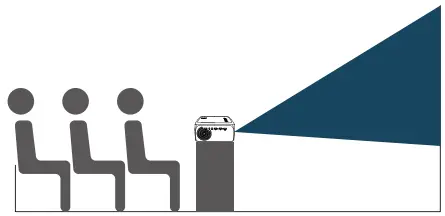 *Front Ceiling
Note: A projector mount is required to install the projector in a ceiling.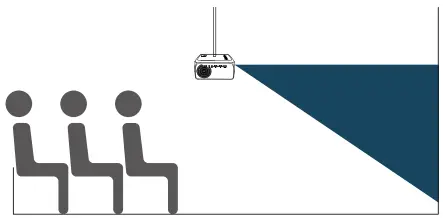
Rear
Note: That a special rear projection screen is required.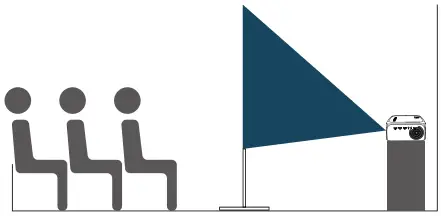
- Rear Ceiling
Note: Requires a projector mount and special rear projection screen.
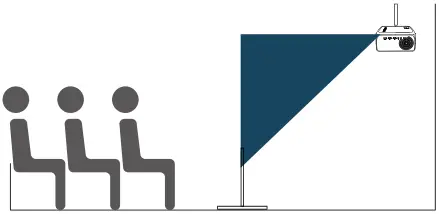
Tip:
- Whichever installation option you select, please make sure: the projector is centered directly in front of the wall/screen and s not tilted or placed at an angle toward the wall/screen.
- Go to HOME page > Setting > PICTURE > Projection Direction, you can select the corresponding installation method.
4.2 Power On/off
| Plug the power cord into an outlet. | Take off the lens cover. |
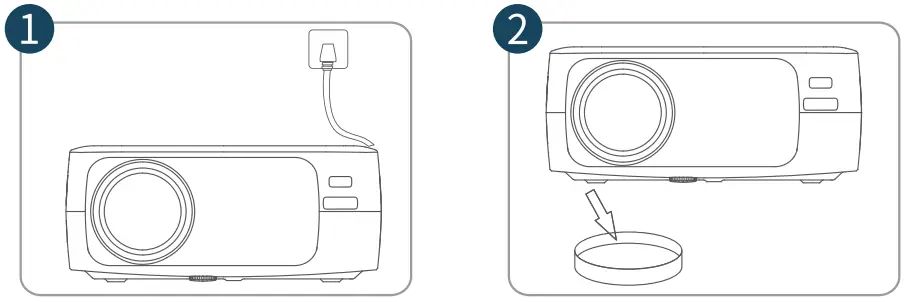 | |
| Press the Power Button to turn on the projector. | Press the Power Button twice to tum off the projector. |
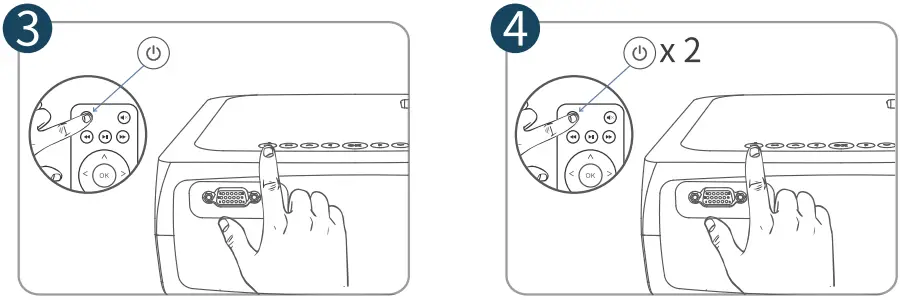 | |
4.3 Images Adjustment
- Rotate the Keystone Correction Ring to correct Vertical Keystone Distortion until the image is evenly rectangular.

- Rotate the Focus Ring to sharpen the Image Focus until the blurred image becomes clear.

- In Homepage interface, enter [ Setting | > [ PICTURE ] > [ Reduce Display to enlarge o reduce the Image Size from 50% to100% (optional)


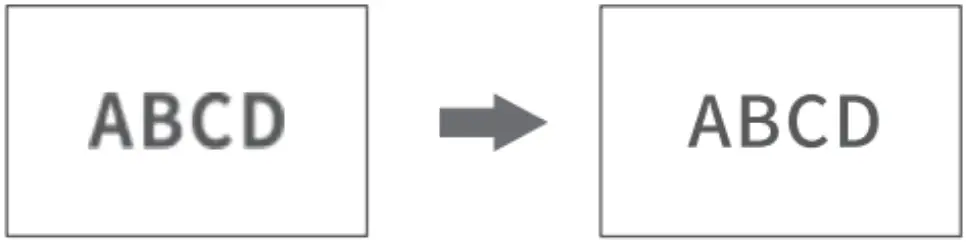
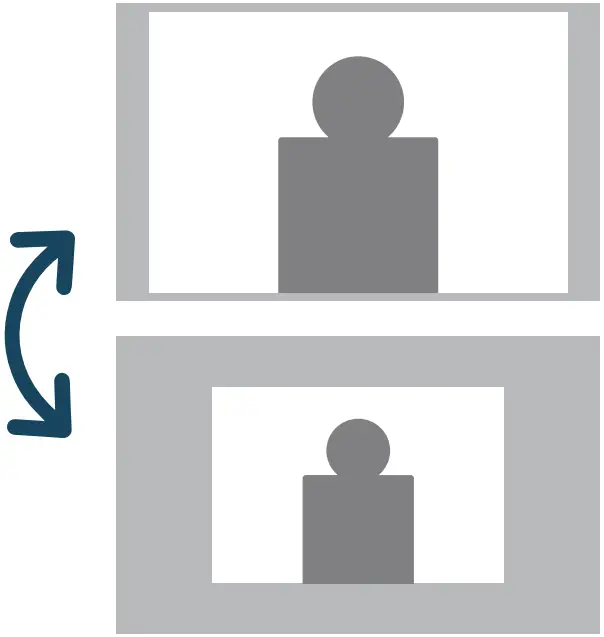
4.4 Homepage Overview
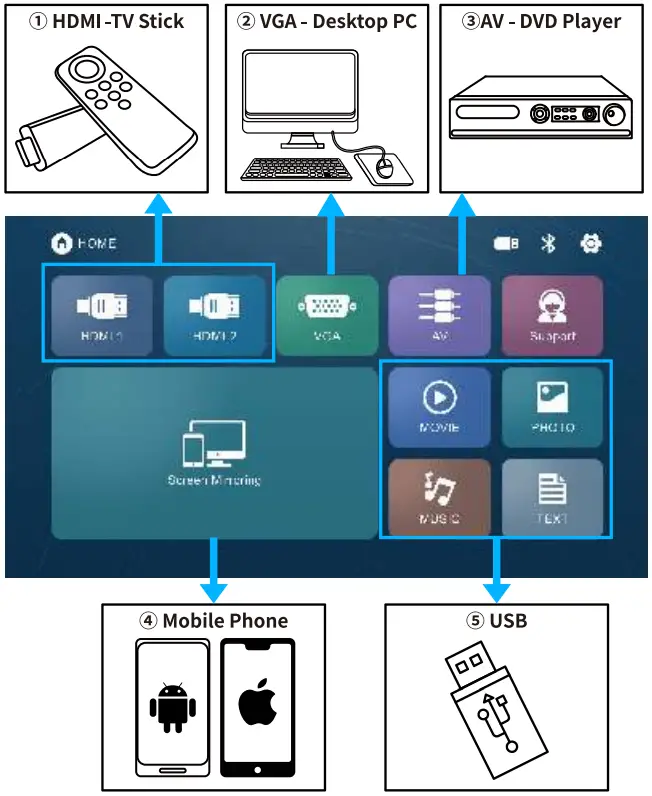
Note:
- No matter which connection method you use, you must enter the corresponding signal source interface to play the content
- In the “Screen Mirroring” interface, you need to long press the
 or click
  toselect the [USB] signal source to return to the HOME interface.
 - When the projectoris successfully connected to the USB Device/Bluetooth Audio Device, the icon will change from
 /
/  to
to  / .
/ .
 or click
  toselect the [USB] signal source to return to the HOME interface.
 /
/  to
to  /
/  .
.MULTIMEDIA CONNECTION
5.1 USB Disk Connection
- Dinsert your USB disk into the USB 1/USB 2 port of the projector.
- In the HOME interface, select the file category to be displayed: MOVIE/MUSIC /PHOTO/TEXT, click to go to the inserted USB flash drive to view the corresponding file category.
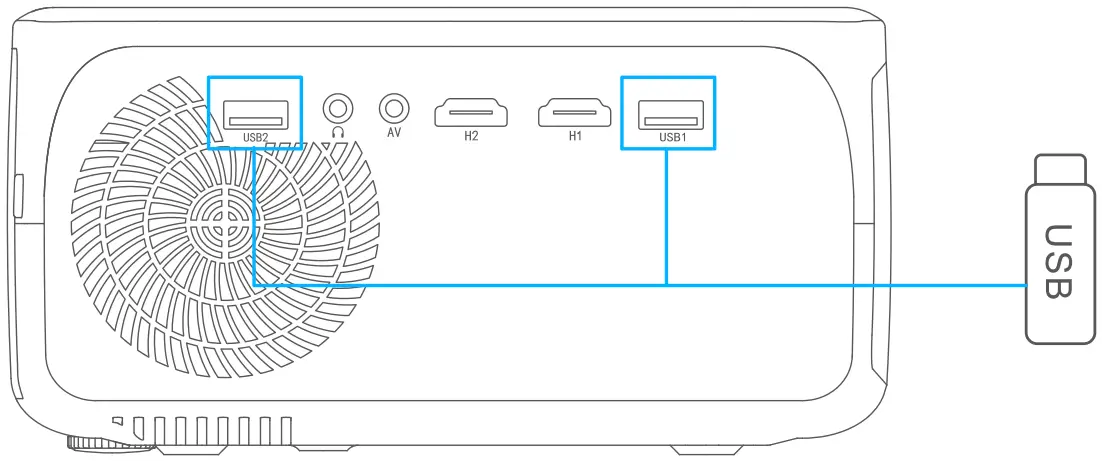
Note:
- Press
 / on the projectoriltemote while playing Movie/ Music/Photo Text to bring up the tool bar to control the content playback 2 Malke sure to select the correct file category, i.e.. select MOVIE when playing a video file; similarly, for music, select MUSIC„ for text- select .TEXT, and for picture, select PFIOTO.
 /
/ | U disk formats: supported FAT16, FAT32, NTFS; exFAT and compressed files are not supported | ||
| U disk formats | The maximum capacity supported | The maximum single file supported |
| FAT32 | 192GB | 4GB |
| NTFS | 2TB | 2TB |
5.2 HDMI connection
Connect your TV stick o laptop to any HDMI port of the projector.
Enter the HOME page to select the corresponding HDMIL or HDMI2 as the signal source.
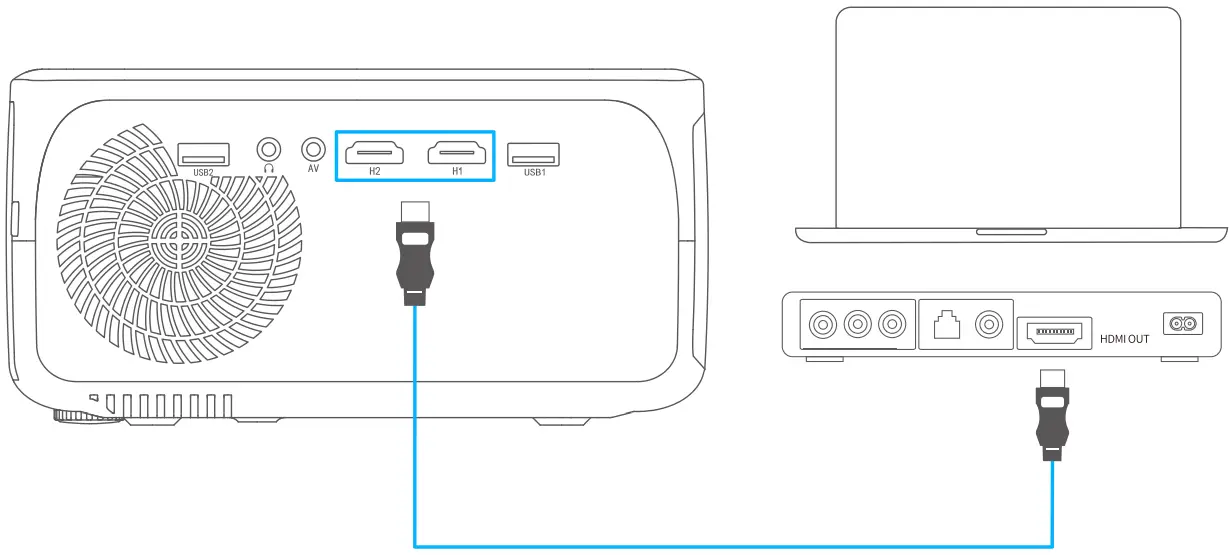
5.3 VGA Connection
Connect your Desktop PC to VGA port of the projector.
Enter the HOME page to select the VGA as the signal source.
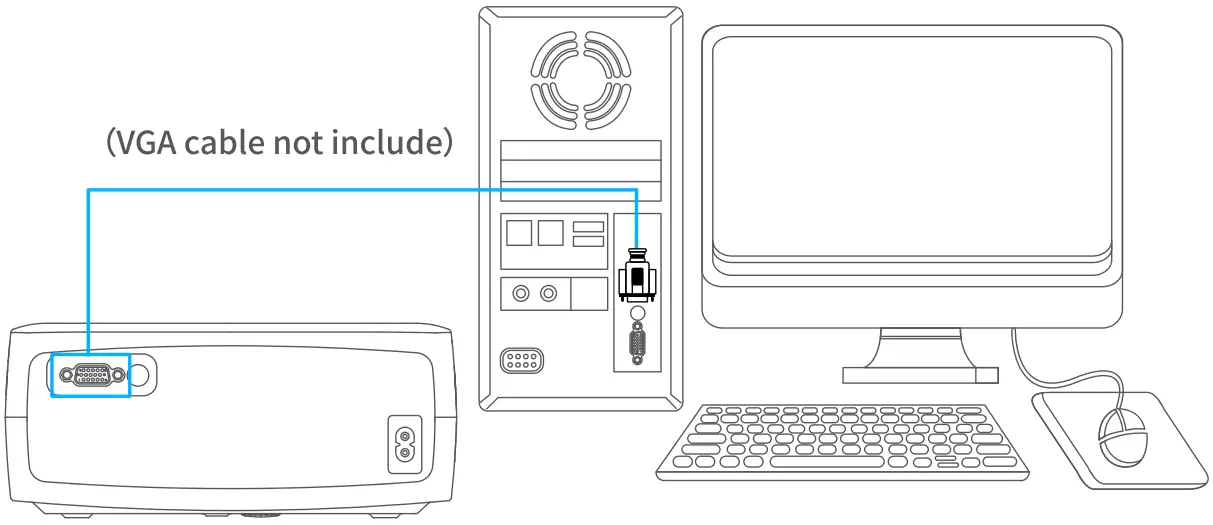
Note:
VGAIs a video transmission channel, which only transmits video information, so there is no sound when the projector is connected to VGA to play a movie.
Tip:
For Windows 7 or higher system, press the ”  + P” key combination to access the below four display modes.
- PC screen only option displays contents on computer screen only.
- Duplicate option displays the same contents on both computer screen and projected screen.
- Extend option splits the display between the computer screen and the projected screen.
- Second screen only option displays contents only on the projected screen.
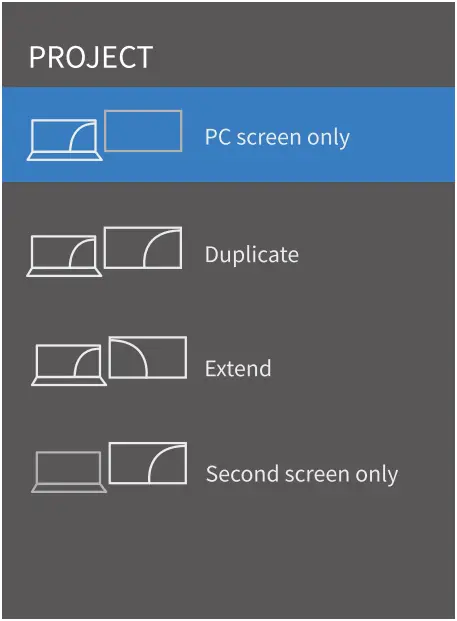
5.4 AV Connection
- Connect your device to the AV Port of the projector with an 3-in-1 AV cable.
- Enter the HOME page to select the AV as the signal source.
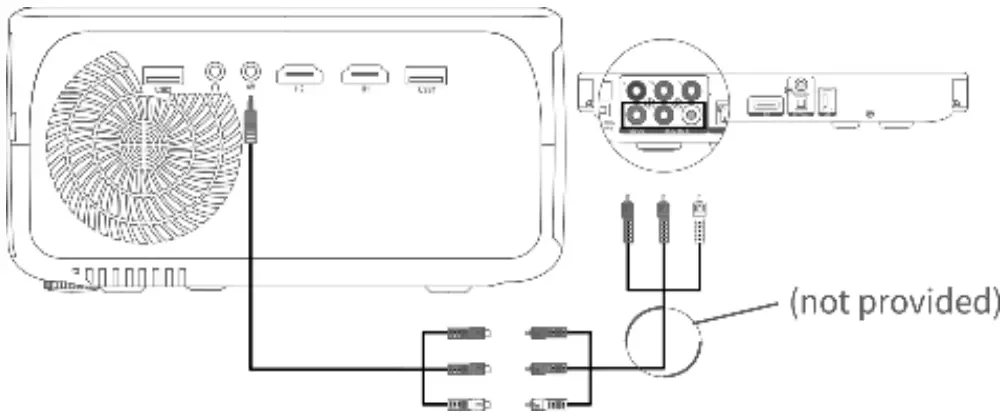
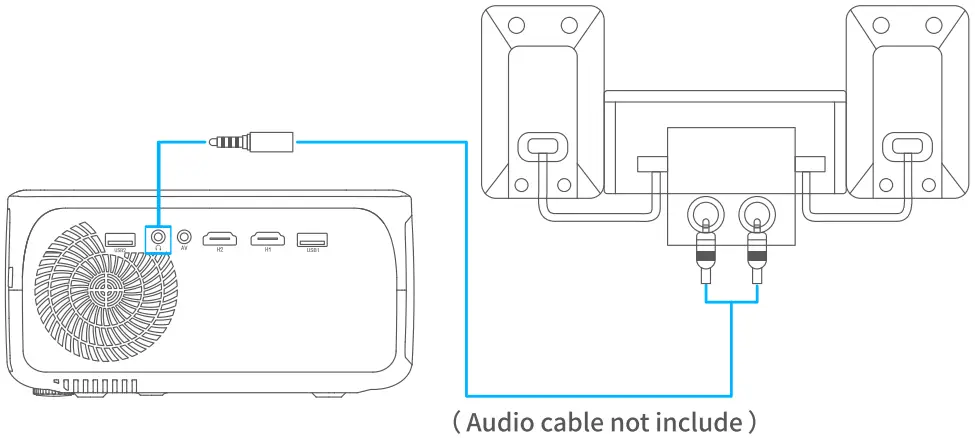
5.5 Audio Output Connection
If your speaker has an AUX port, use a 3.5mm audio cable to connect the projector and your speaker, then you can let the sound come out from the speaker.
SCREEN MIRRORING
Note:
Due to copyright restrictions of Hulu, Netflix, and similar services, the contents on these streaming services CAN NOT be mirrored or cast, but a wired connection makes them play fine.
When performing Wireless Screen Mirroring operation, the projector must be in this interface, otherwise the screen cannot be projected.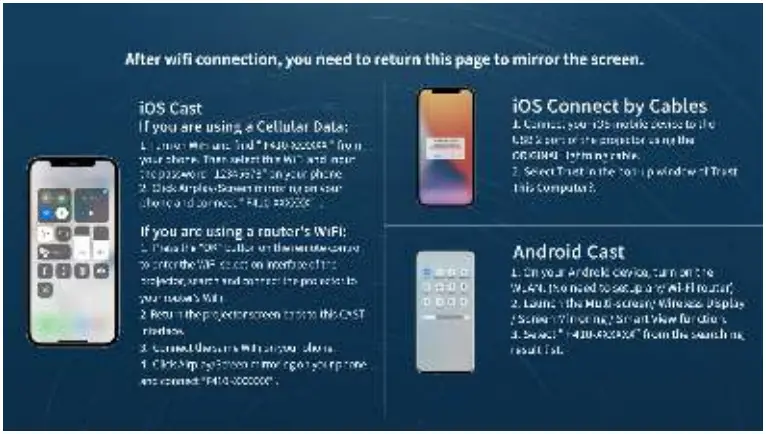
6.1 For iOS System
6.1.1 i0S Cast
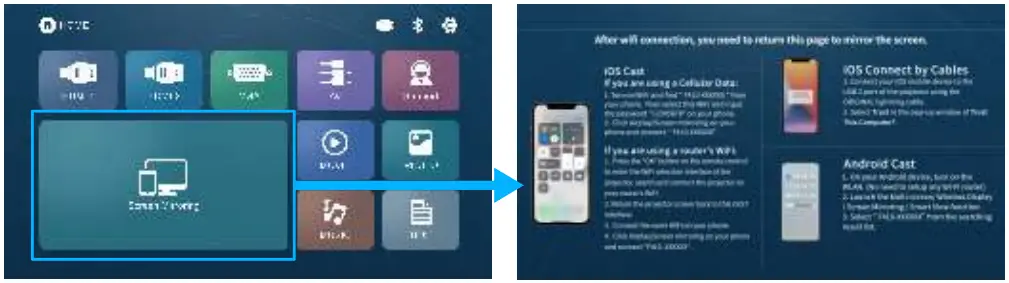
In the HMOE page, click [ Screen Mirroring ] to enter the CAST interface.
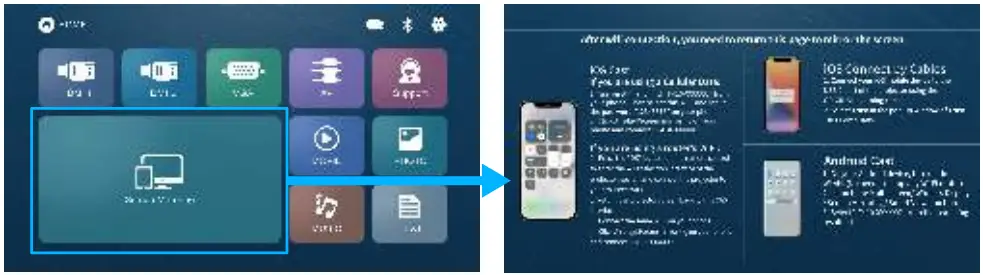
If you are using a Cellular Data:
- Turn on the WiFi switch on your iOS device, search for [ F410-XXXXXX ] and enter the password [12345678 ] to connect.
- Click [ Screen Mirroring ] on your iOS device and select F410-XXXXXX ] to connect.
- The contents on your iOS device will be mirrored to the projector screen after a successful connection.
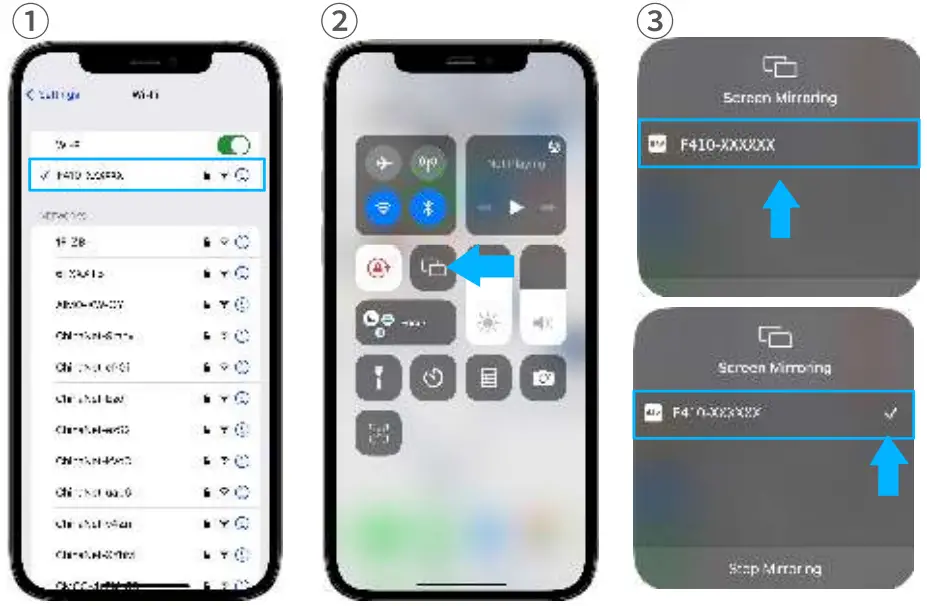
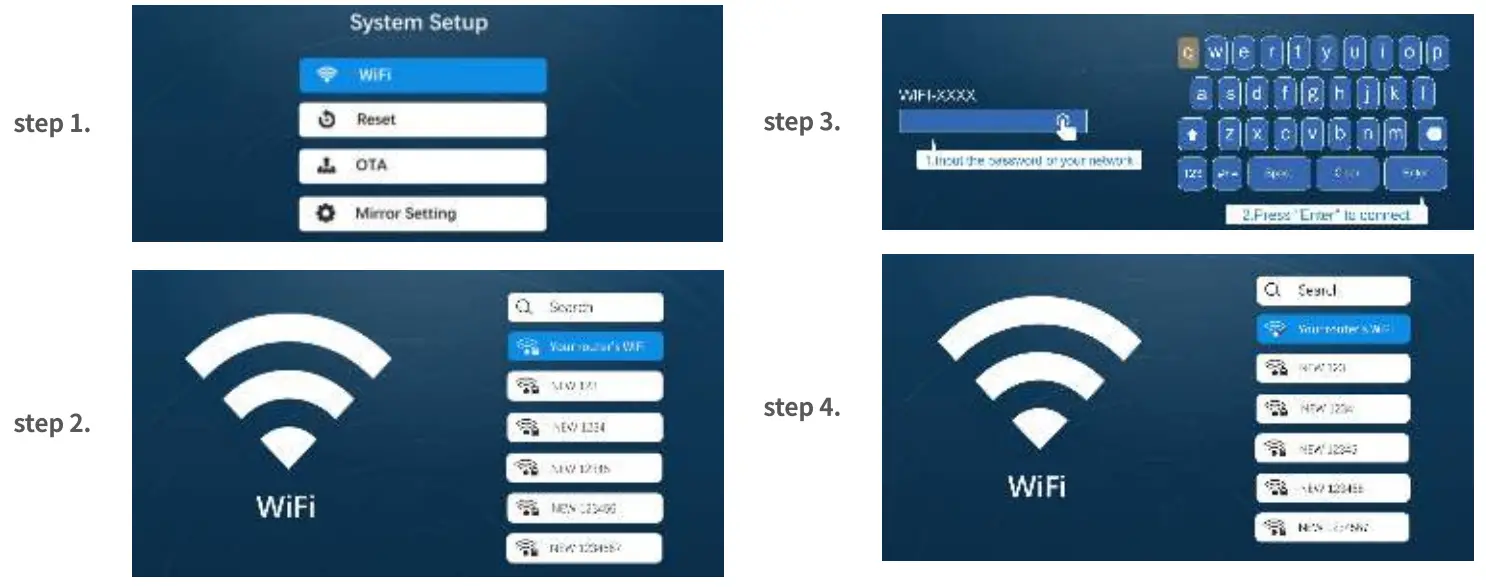
If you are using a router’s WiFi:
- Press the “OK” button on the remote/projector to enter the WiFi selection interface of the projector, search and connect the projector to your router’s WiFi.
Connection method:
- Return the projector screen back to the CAST interface.
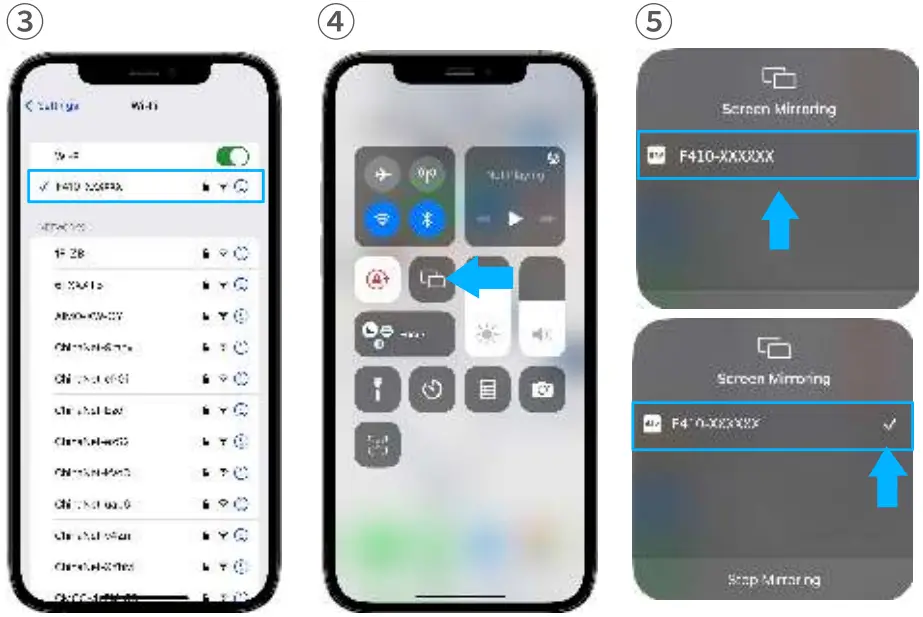
- Connect your i0S device to the same router’s WiFi as the projector.
- Click [ Screen Mirroring ] on your phone and select [ F410 -XXXXXX ] to connect.
- The contents on your i0S device will be mirrored to the projector screen after a successful connection.

6.1.2 MacBook Cast
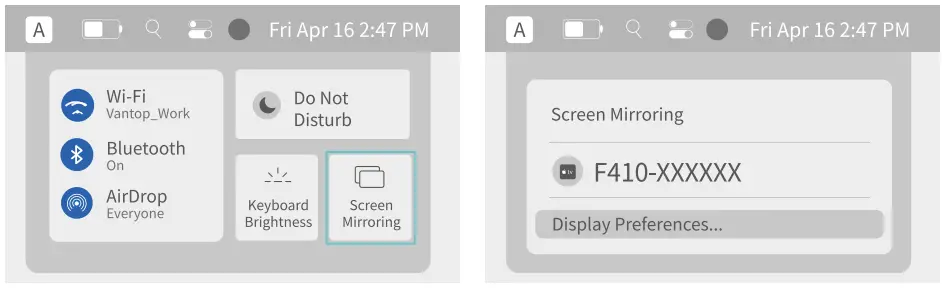
- In the projector HOME page, click [Screen Mirroring ] to enter the CAST interface.
- Click Control Center icon in the menu bar at the top of the Mac screen.
- Click [ Screen Mirroring] to search the projector.
- Select [ FA10-XXXXXX ] to connect.
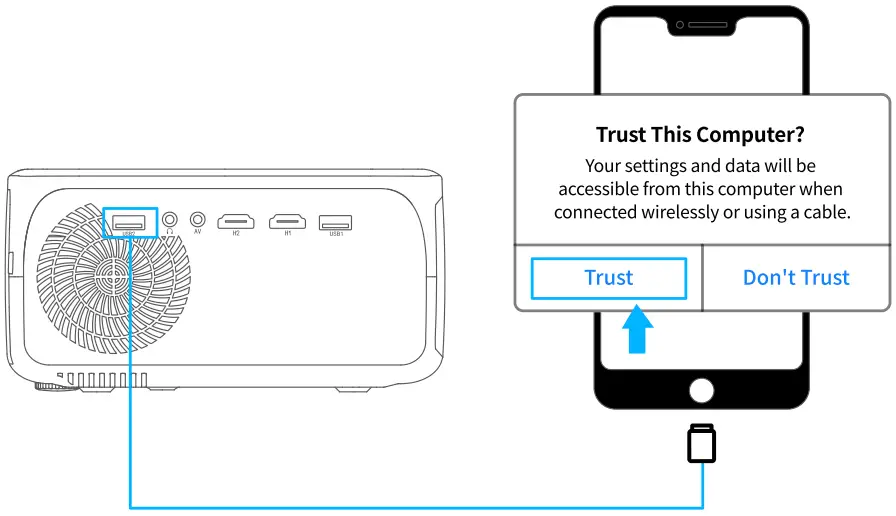
6.1.3 i0S Cast via a Lightning Cable
- In the projector HOME page, click [ Screen Mirroring ] to enter the CAST interface.
- Connect your i0S mobile device to the USB 2 port of the projector using the ORIGINAL lightning cable.
- Select Trust in the pop-up window of Trust This Computer?.
- The contents on your iOS device will be mirrored to the projector screen after a successful connection.
6.2 For Android System
In the HMOE page, click [ Screen Mirroring ] to enter the CAST interface.
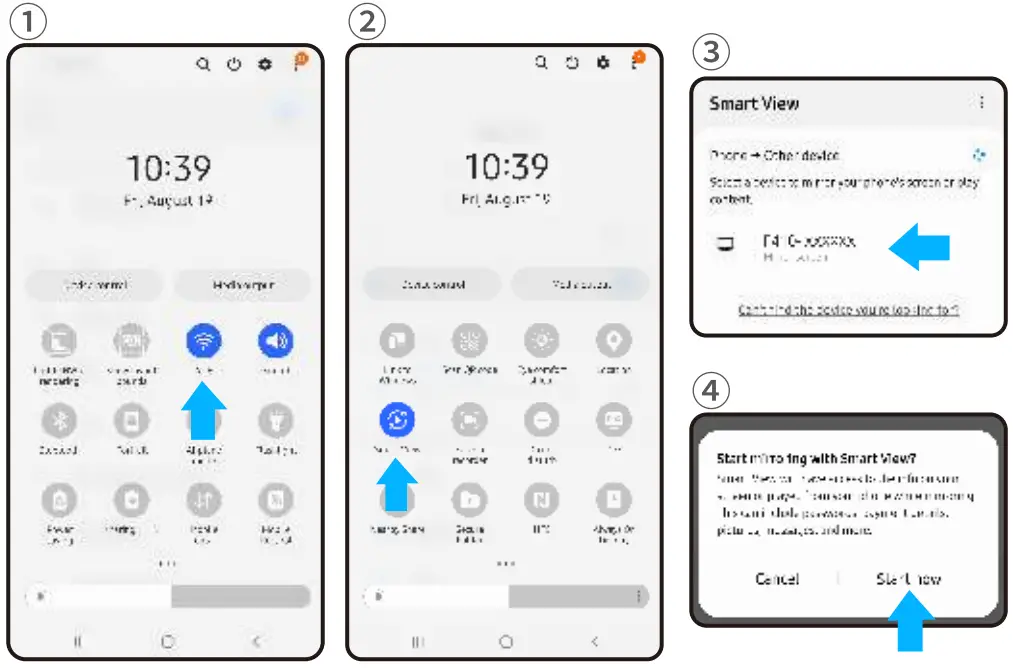
- On your Android device, turn on the WLAN switch.
- Launch the [ Smart View ] function on your Android device.
- Select and connect [ F410-XXXXXX ] from the searching result lst.
- The contents on your Android device will be mirrored to the projector screen after a successful connection.
Note:
- Different brands of Android phones have different operations for select Screen Mirroring Display, please refer to your phone’s manual.
[Smart view/Multi-screen/Wireless display/WLAN display/Screen mirroring/Wireless projection etc. ] - Not all Android phones support this function, please make sure itis supported before use.
SCREEN CASTING
- Connect your mobile device and the projector to the same router’s WiFi.
- In the projector HOME page, click [ Screen Mirroring ] to enter the CAST interface.
- Launch a video player APP on your mobile device and select a video to play.
- Tap the
 in the upper right corner of the video to search for projectors.
 - Select [ F410-XXXXXX ] to connect.
- The contents on your device will be cast to the projector screen.
 in the upper right corner of the video to search for projectors.
Note:
When you cast a video from your mobile device, the video will only be displayed on the projected screen and you can still use your mobile device without interrupting the video or showing any of your other content.
BLUETOOTH CONNECTION
8.1 Bluetooth speaker connection (BT Setting On)
- Make sure the Bluetooth audio device is ready to pair.
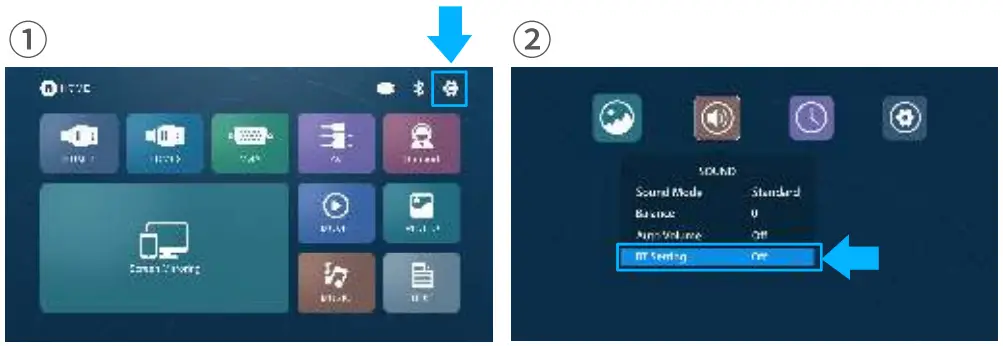
- In the HOME page > Setting > SOUND > BT Setting, press (o%) to enter Bluetooth mode.

- Press the
 button on the remote to turn on the BT setting [ On ] state, search and connect your Bluetooth speaker.
 - After the connection is successful, [ Connected ] will be displayed after the Bluetooth name.
 button on the remote to turn on the BT setting [ On ] state, search and connect your Bluetooth speaker.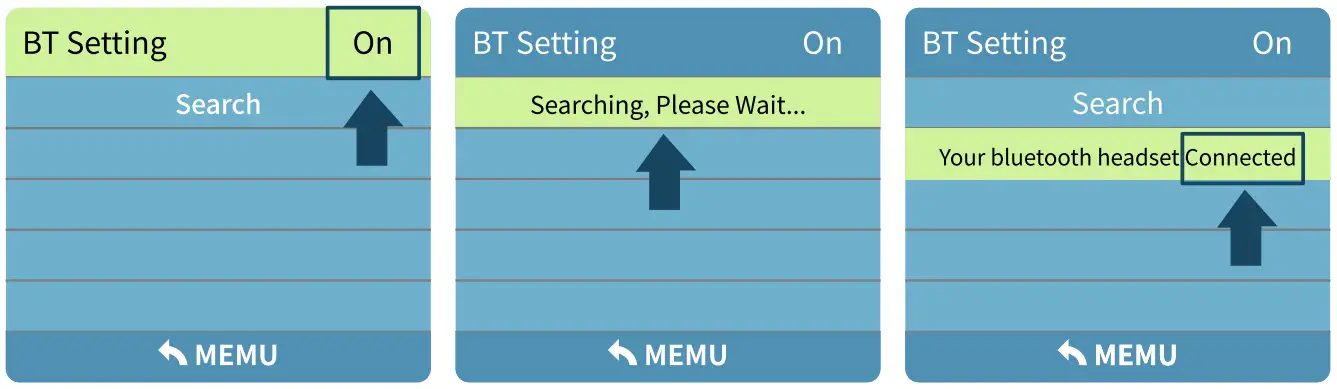
Note:
When a Bluetooth audio device is paired with the projector, the projector’s built-in speaker system and audio out port are disabled.
8.2 Mobile phone Bluetooth Connection (BT Setting Receiver)
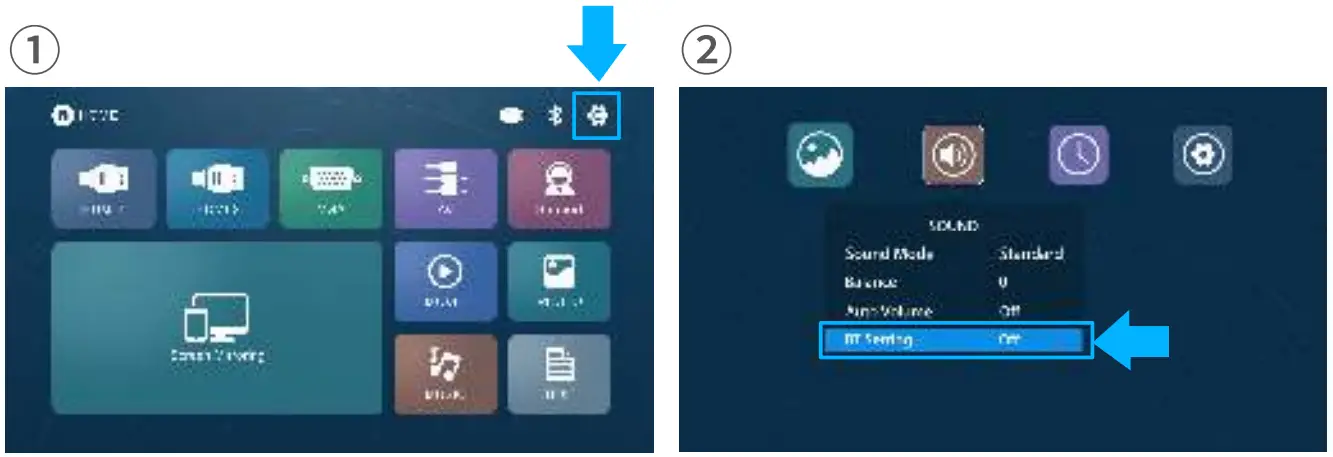
- In the HOME page > Setting > SOUND > BT Setting, press to enter Bluetooth mode.
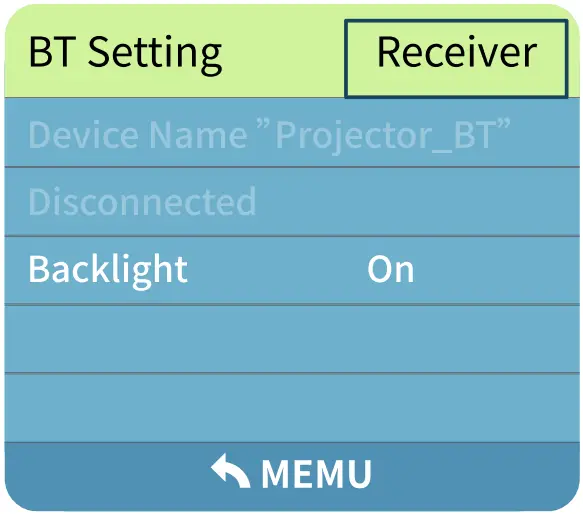
- Press the button on the remote twice to turn on the BT setting [ Receiver ] state.


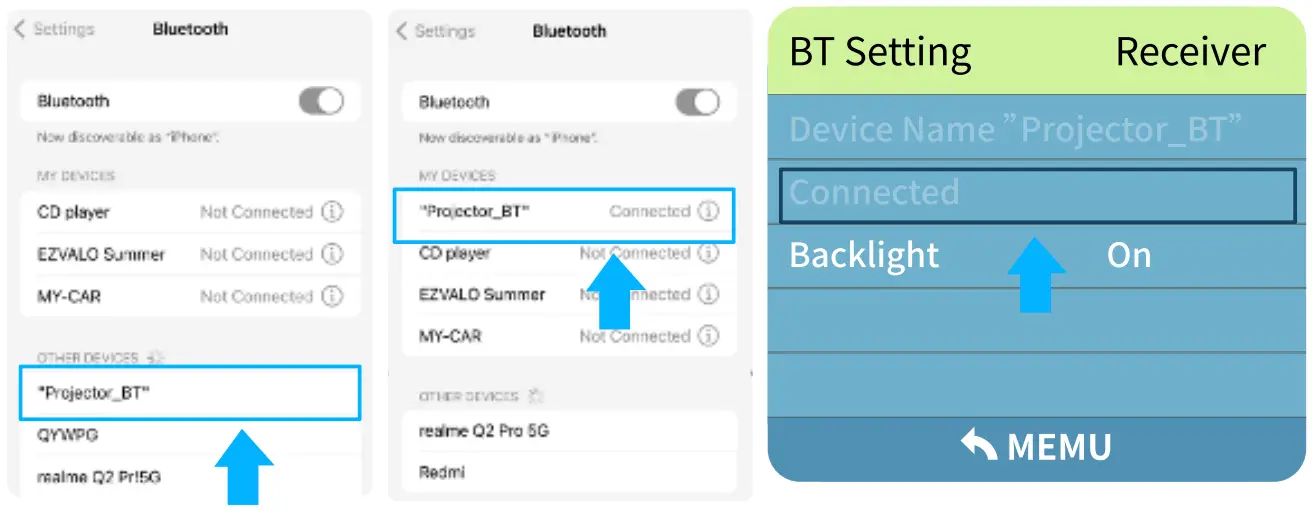
- Turn on the Bluetooth function of the mobile phone, search for and select [Projector_BT ] to pair.
- After successful pairing, the interface will show [ Connected ] status.
Note:
- The Bluetooth connection of the mobile phone only transmits the audio, and the projector is used as a Bluetooth speaker.
- The Bluetooth connection has a memory function. If there is no sound when using the projector to play the video, please confirm whether the channel is automatically occupied by the Bluetooth of the mobile phone.
- When using the “Receiver” function, you can select “Backlight”, click to turn off the screen brightness and fan; then just press any button to wake up the projector again.
In the HOME page > Setting, or press  to enter the Settings option.
9.1 PICTURE Settings
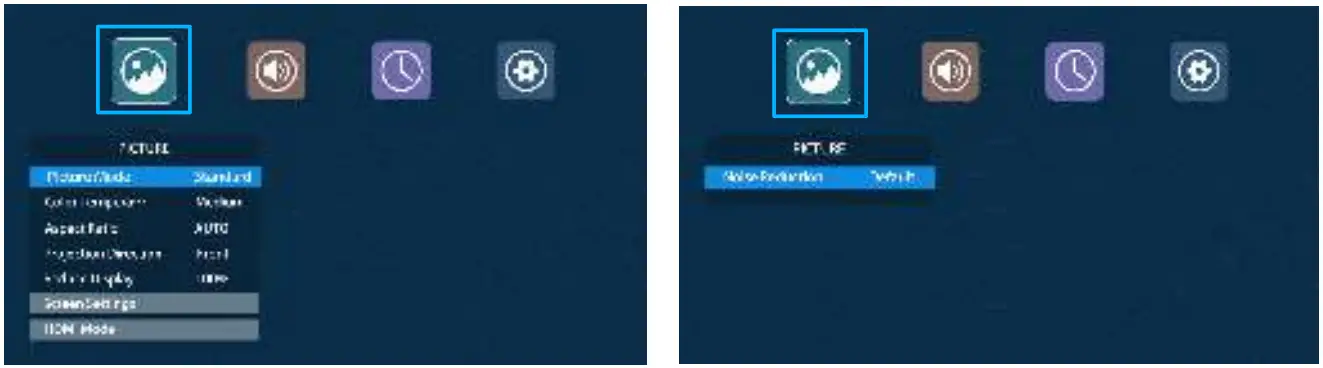
| PICTURE MENU | MODE | FUNTION |
| Picture Mode | Standard, Soft, User, Vivid | Switch image modes for different projection content |
| Color Temperature Setting | Medium, Cool, User, Warm | Set up for different color preferences |
| Aspect Ratio | AUTO(default), 1.6:9, 4:3 | Set the aspect ratio of the projected screen |
| Projection Direction | Front(default), Rear, Front/Ceiling,Rear/Ceiling | Select the appropriate mode according to the different projector placement positions |
| Reduce Display | 50%-100% | Adjust the size of the projected screen |
| Screen Settings | / | Use when VGA is connected |
| HDMI Mode | PC, AV | Connect the computer with HDMI cable, select “PC”; connect DVD, camera with HDMI cable, select “AV” |
| Noise Reduction | Default, Low, Medium,High | Picture noise adjustment |
9.2 SOUND Settings
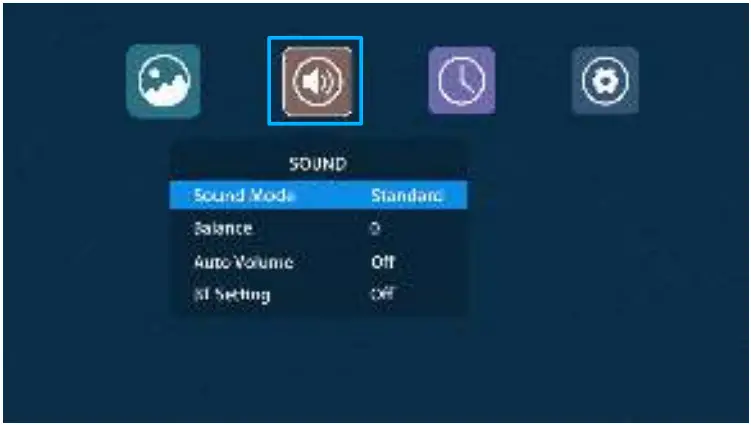
| SOUND MENU | MODE | FUNTION |
| Sound Mode | Standard, Music, User Sports, Movie | Set up for different playback types |
| Balance | +50 – -50 | Sets the left and right channel gain difference |
| Auto Volume | Off, On | Automatic volume switch |
| BT Setting | Off, On, Receiver | Three modes of Bluetooth |
9.3 TIME Settings
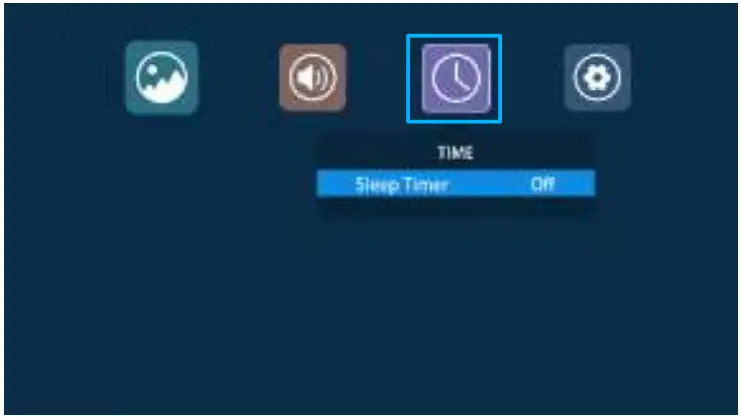
| TIME MENU | MODE | FUNTION |
| Sleep Timer | Off, 10, 20, 30, 60, 90, 120, 180, 240 minutes | Set the time for the projector to automatically turn off |
9.4 OPTION Settings
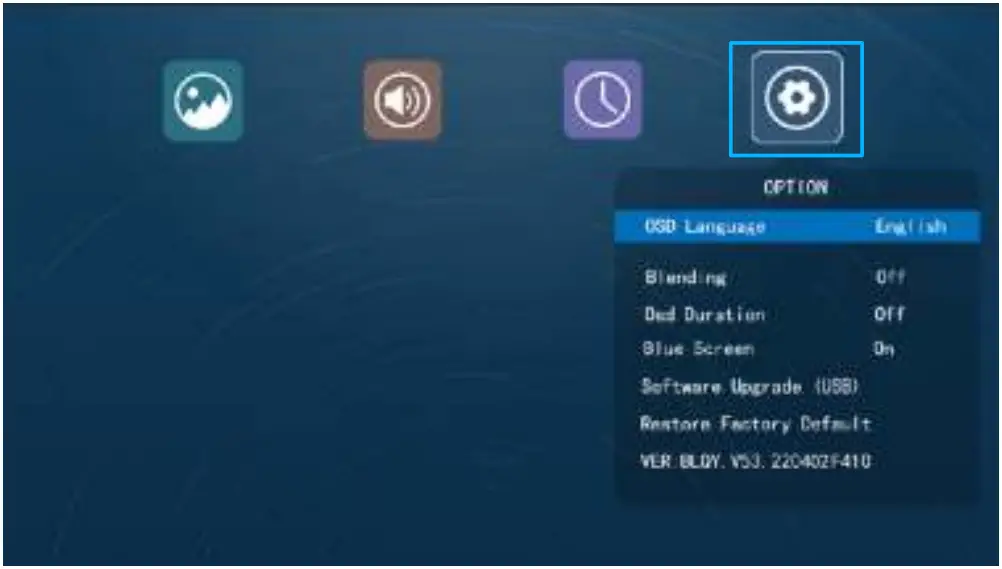
| PICTURE MENU | MODE | FUNTION |
| OSD Language | 23 languages | Switch between different languages |
| Blending | Off, Low, Middle, High | Set the transparency of the menu |
| Osd Duration | Off, 5 Sec, 10 Sec, 15 Sec | Set menu page display time |
| Blue Screen | On, Off | Set the screen color when entering the source |
| Software Upgrade (USB) | / | Used for software upgrades |
| Restore Factory Default | / | Restore the projector to the factory settings |
| VER:BLQY.V53.XXXXXXF410 | / | Machine version number |
PROJECTION DISTANCE&SIZE
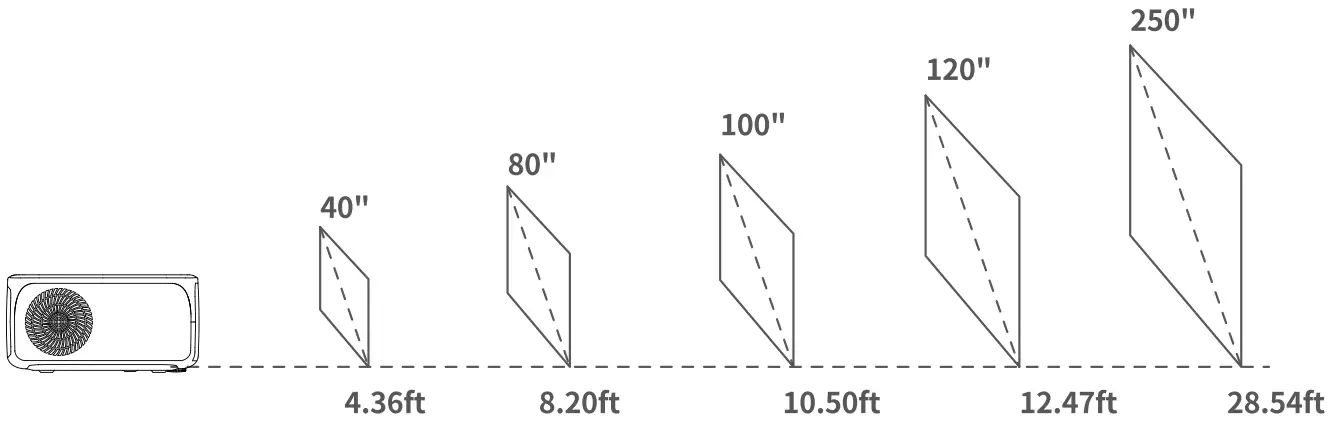
Note:
Ambient darkness will improve the clarity of the projected images.
SPECIFICATION
| Display Technology | LCD | Light Source | LED |
| Resolution | Native 1920 x 1080 | Input interface | H DM I*2/USB*2/AV/VGA |
| Power Supply | AC 100-240V, 50/60Hz | Output Interface | 3.5mm headphone jack |
| Focus | Manual focus | Electronic Keystone | ±15° |
| Aspect Ratio | 4:3, 16:9 | Installation Type | Front, Rear, Front/Ceiling Rear/Ceiling |
| Unit Dimension | 8.7 x 7.52 x 3.58inches (221 x 191 x 91mm) | it Net Weight Unit | 1472g |
| Photo Format Supported | JPG/JPGE/BMP/PNG | Audio Format Supported | MP3/WMA/VOB/WMV MPEG |
| Supported video formats | 3GP/MKV/MOV/MP4/MPG/MPEG/VOB/AVI/TS/MSTS | ||
TROUBLESHOOTING GUIDE
| Question | Solution |
| Remote control not responding | •Make sure remote points at IR receiver directly. •Do not cover IR receiver. •Try a new pair of AAA batteries. |
| Blurry image | •Adjust focus ring/keystone. •Projector and screen/wall must be in effective distance. |
| No sound when playing | •Make sure the video has sound and turn up the volume on the machine. •Make sure that BT setting is not in the [Receiver] state in the machine settings. •There is no sound when using a VAG connection because VGA only transmits video. •Unsupported audio format, please try to replace the video with MP3/WMA/VOB audio format. |
| Unable to mirror some videos only sound, no picture | •Due to copyright restrictions of some movies, they cannot be played via wireless mirroring, but wired connection can be played normally, such as using HDMI connection. |
| Unable to mirror play Netflix, Prime Video | •You can enjoy Prime Video, Netflix, Hutu via HDMI connection, such as use a Roku or Fire TV Stick. •Due to copyright restrictions of Hulu, Netflix, and similar services, Nearly 99% projector on the market can’t mirror play these APPS . Hope you can understand Betife projector should comply with the copyright laws. |
| Can’ t detect or connect my Android phone | •Please make sure that the projector is projecting the “Screen Mirroring” interface; •Due to the connection of the signal source, please confirm that the WLAN/Bluetooth/ Location switches have been turned on according to the prompts of the mobile phone; •When pairing with mobile phone mirroring for the first time, the activation of the signal channel is slow, you can restart the projector and try again. |
If you have any questions, please feel free to contact us at [ [email protected]], you will be answered within 24 hours.
FCC Warning
Any Changes or modifications not expressly approved by the party responsible for compliance could void the user’s authority to operate the equipment.This device complies with part 15 of the FCC Rules. Operation is subject to the following two conditions:
(1) This device may not cause harmful interference, and
(2)This device must accept any interference received,including interference that may cause undesired operation.
NOTE: This equipment has been tested and found to comply with the limits for a Class B digital device, pursuant to part 15 of the FCC Rules. These limits are designed to provide reasonable protection against harmful interference in a residential installation.
This equipment generates, uses and can radiate radio frequency energy and, if not installed and used in accordance with the instructions. may cause harmful interference to radio communications. However there is no guarantee that interference will not occur in a particular installation. If this equipment does cause harmful interference to radio or television reception, which can be determined by turning the equipment off and on, the user is encouraged to try to correct the interference by one or more of the following measures:
~Reorient or relocate the receiving antenna.
-Increase the separation between the equipment and receiver.
~Connect the equipment into an outlet on a circuit different from that to which the receiver is connected.
-Consult the dealer or an experienced radio/TV technician for help
This equipment complies with FCC radiation exposure limits set forth for an uncontrolled environment. This equipment should be installed and operated with minimum distance 20cm between the radiator& your body. This transmitter must not be co-located or operating in conjunction with any other antenna or transmitter.