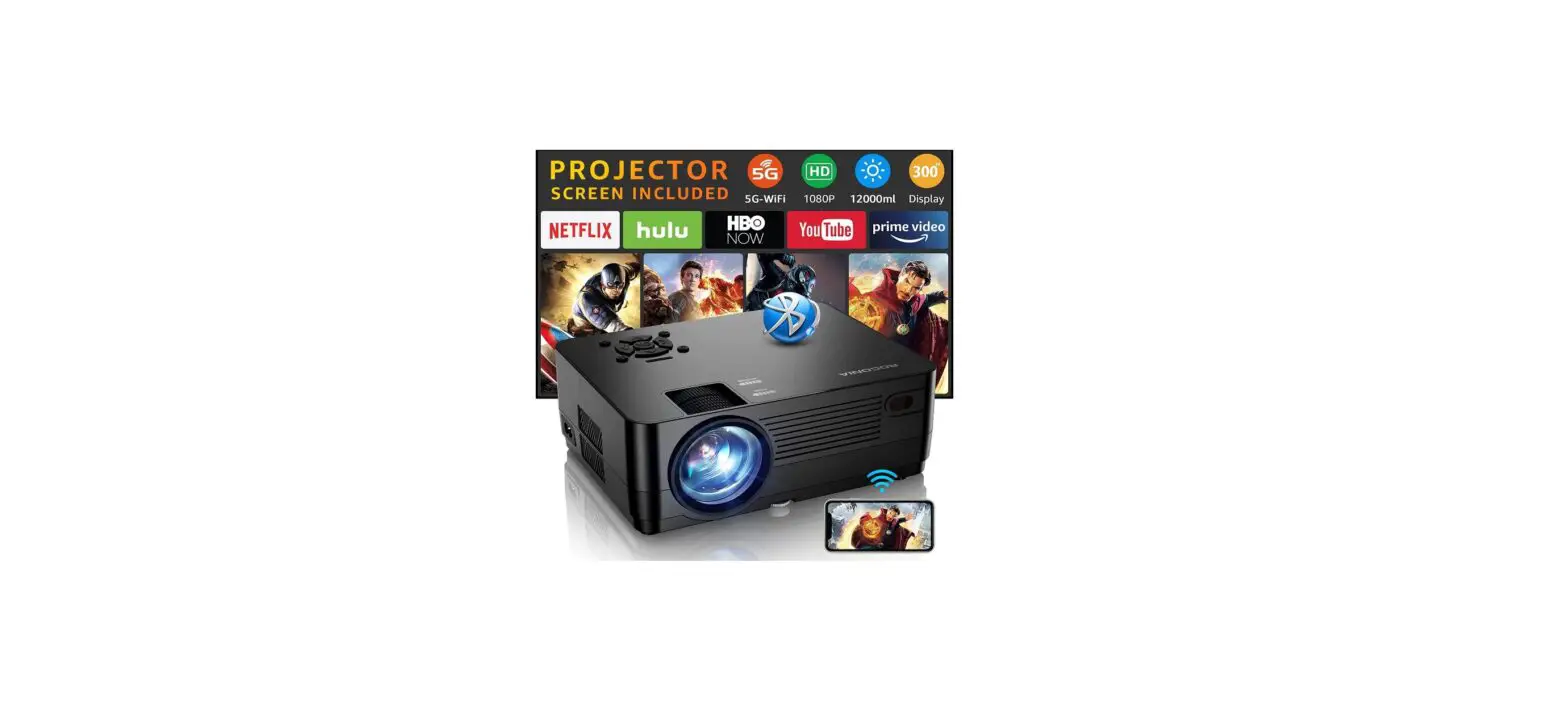
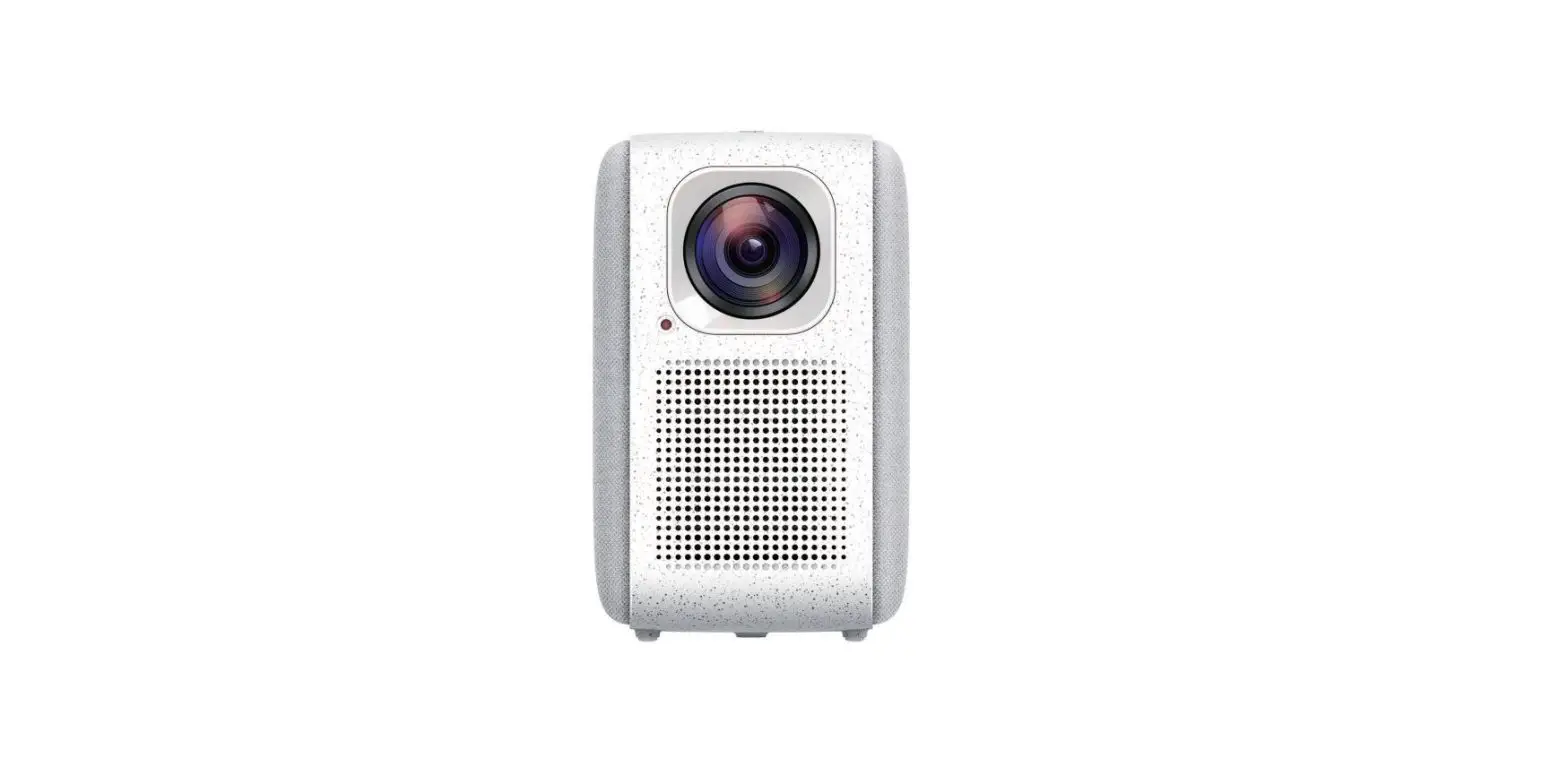
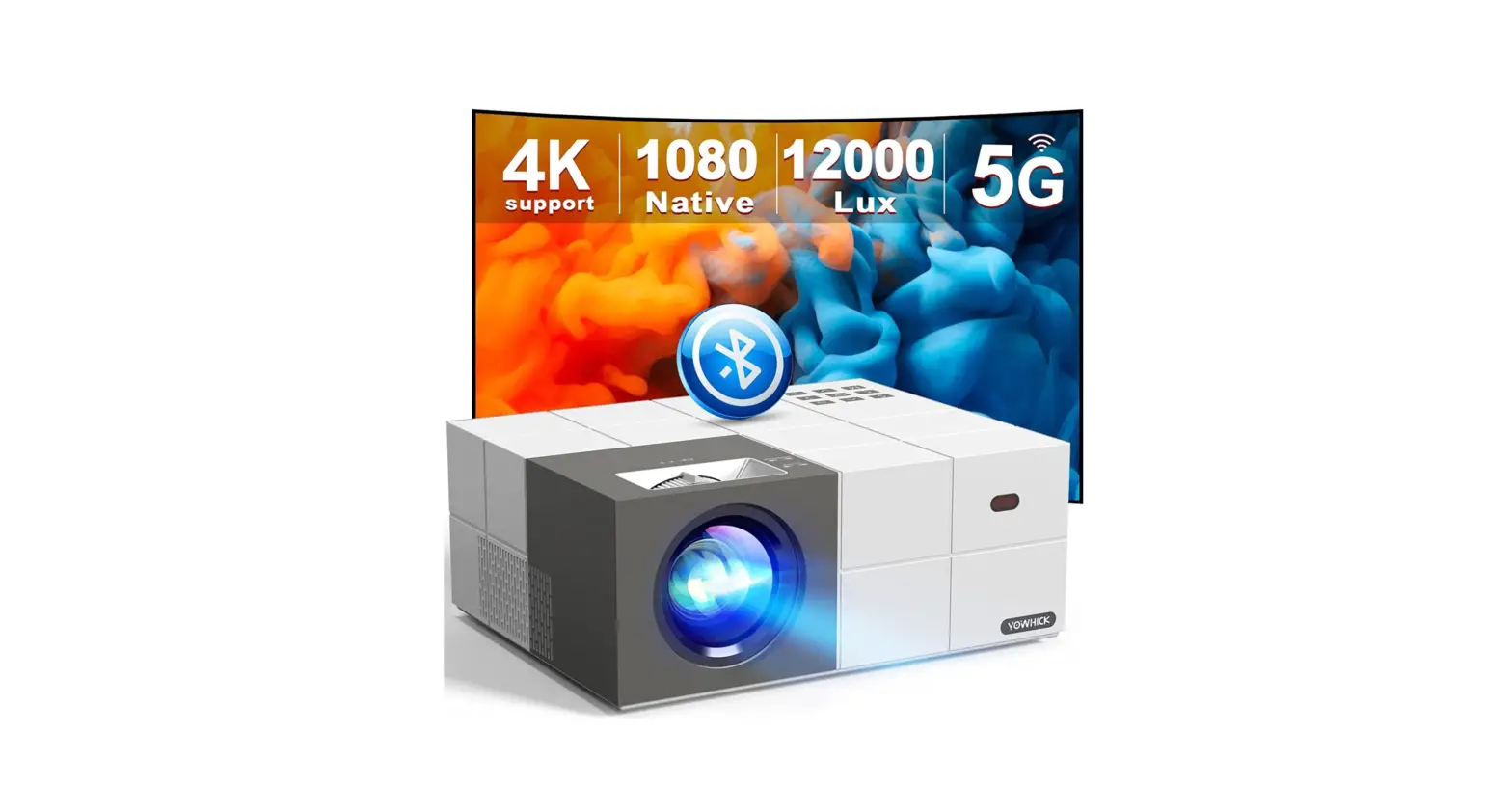
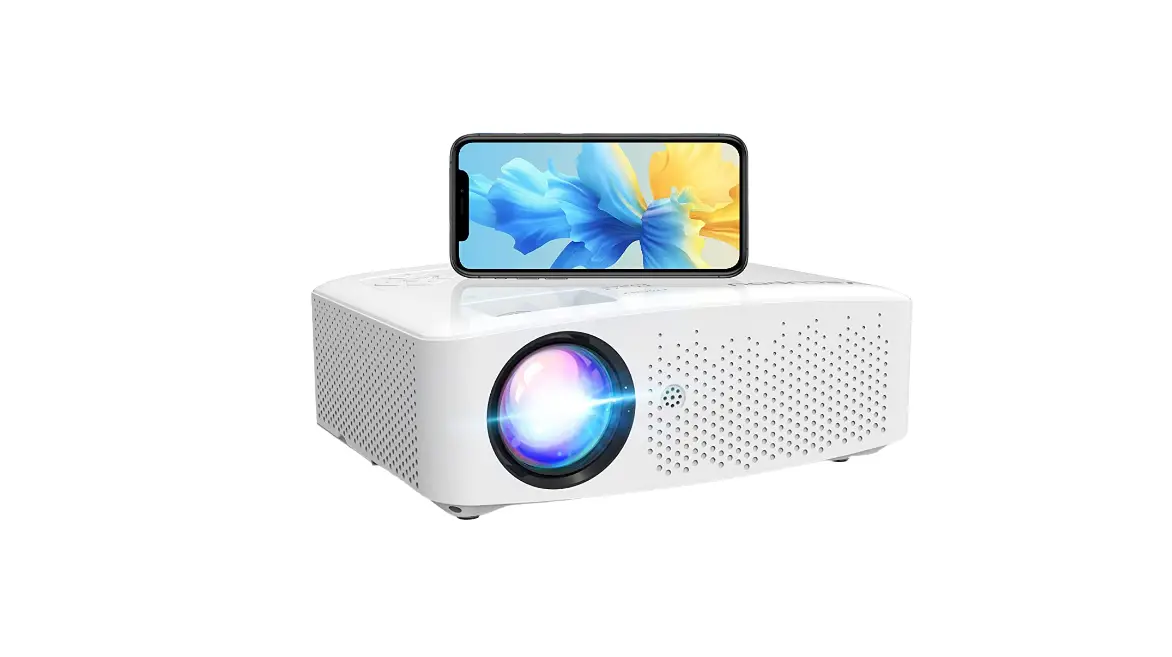
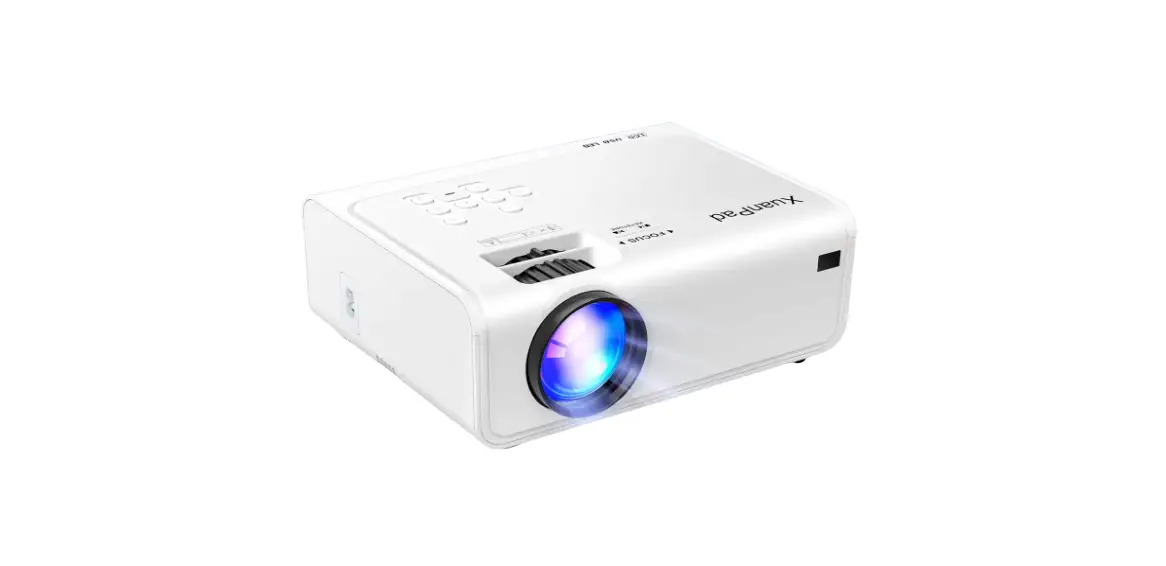
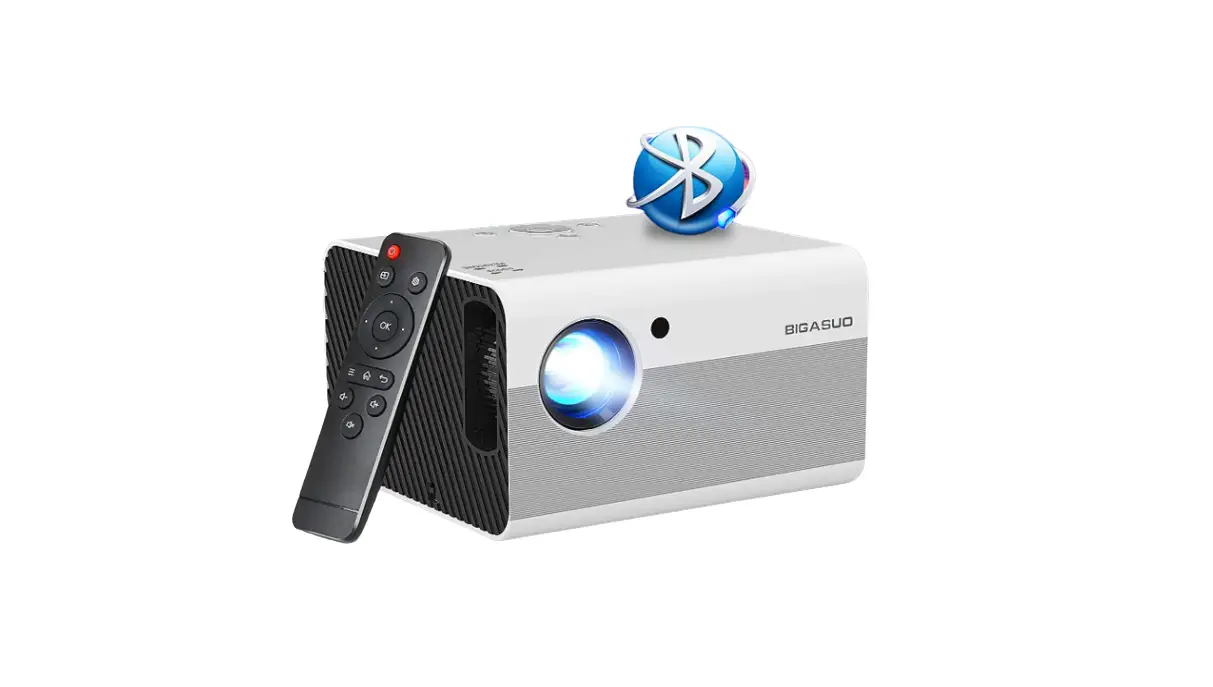
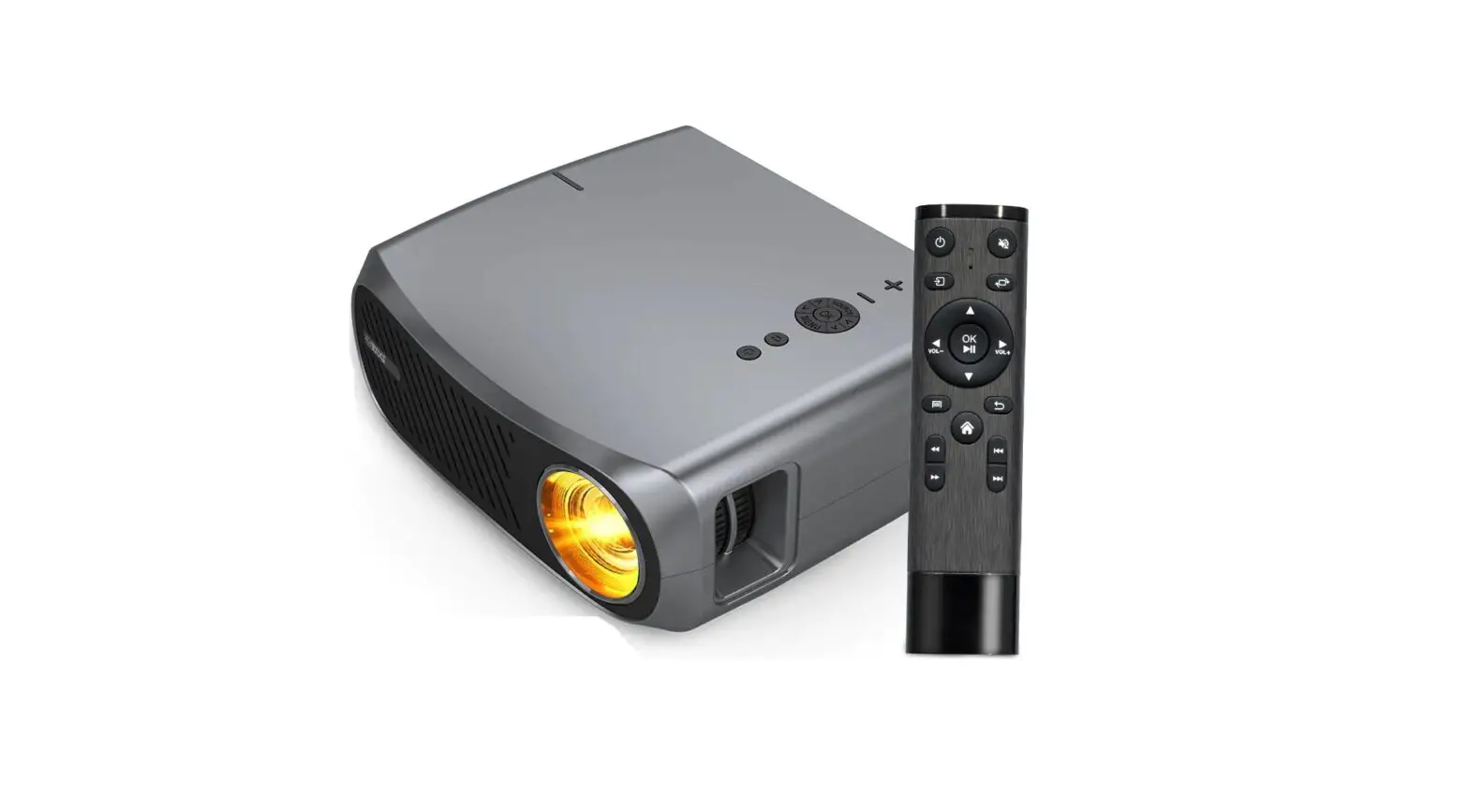
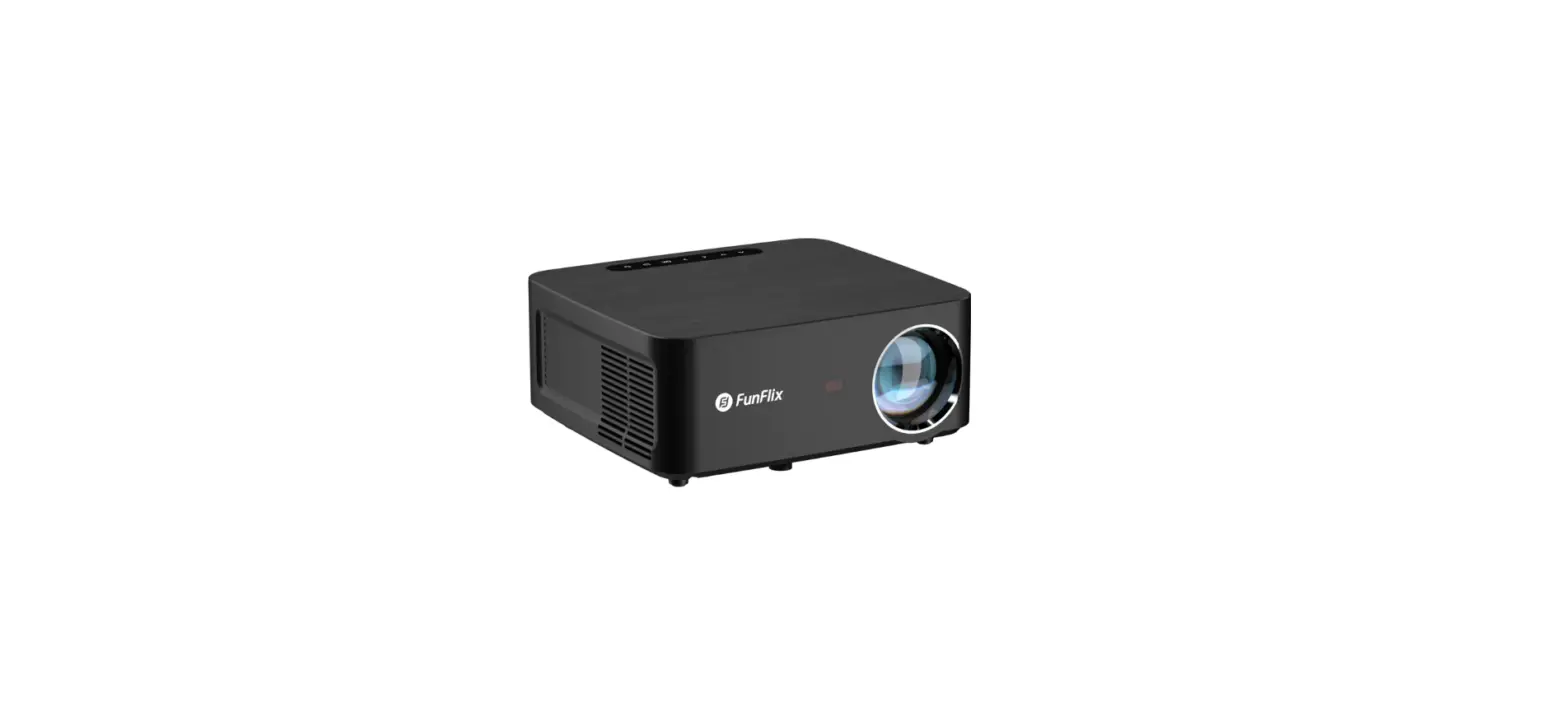
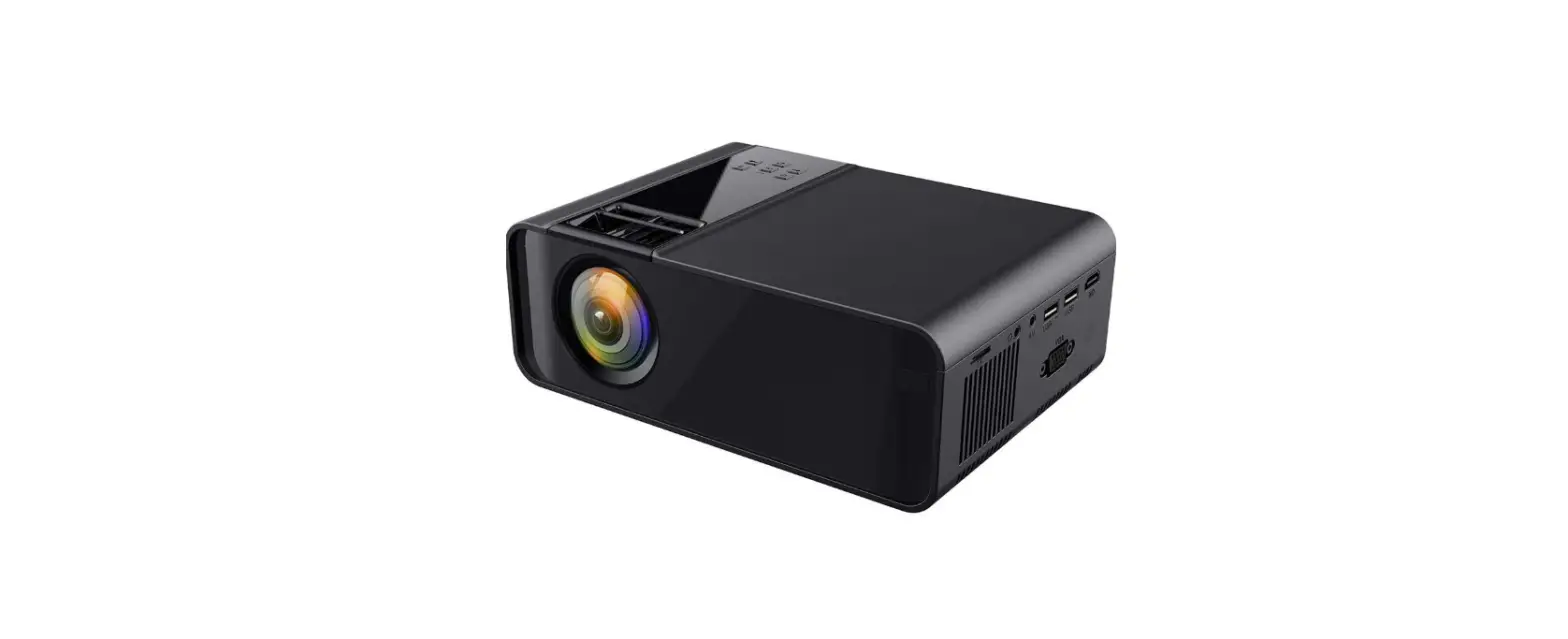
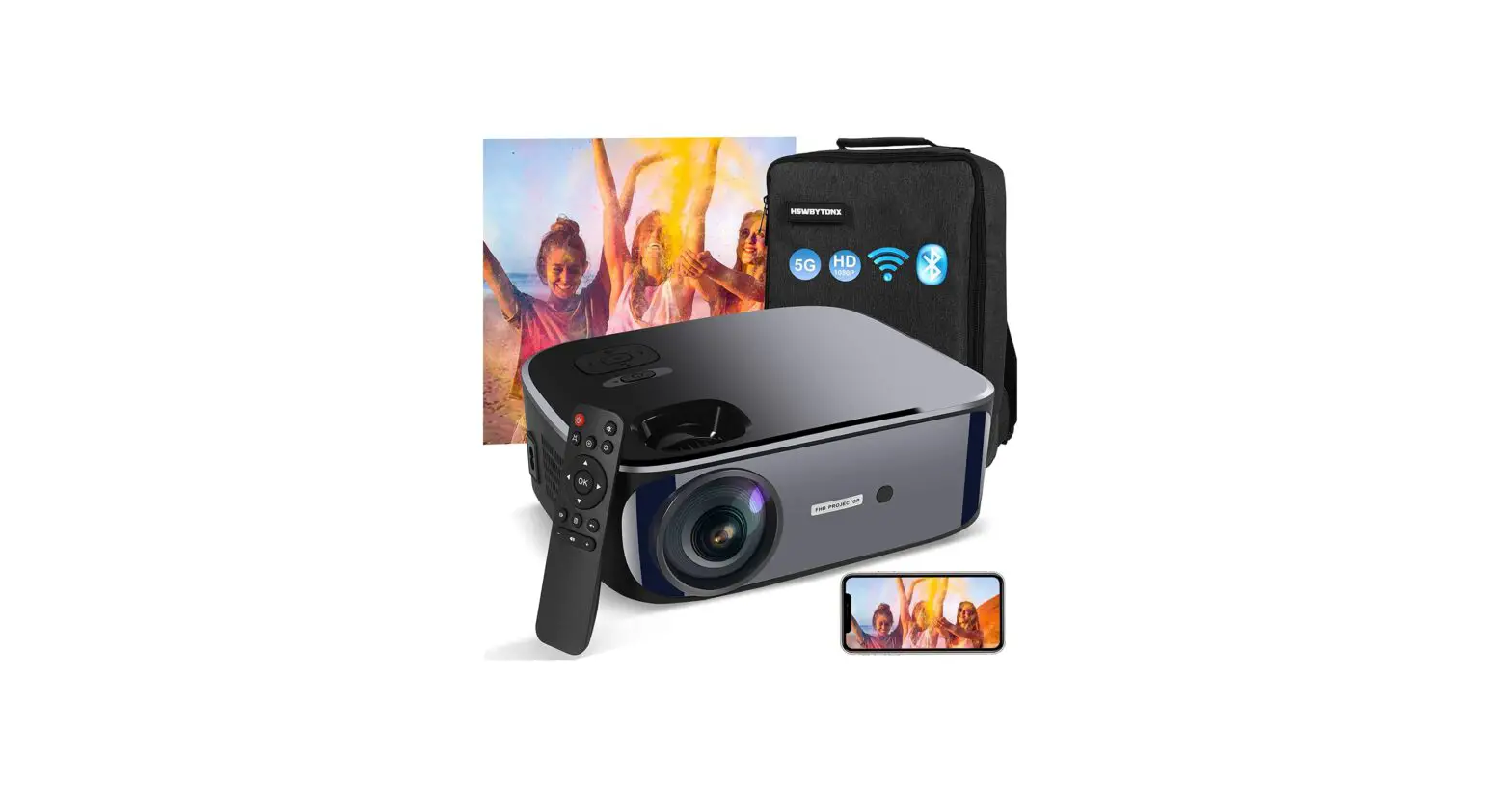
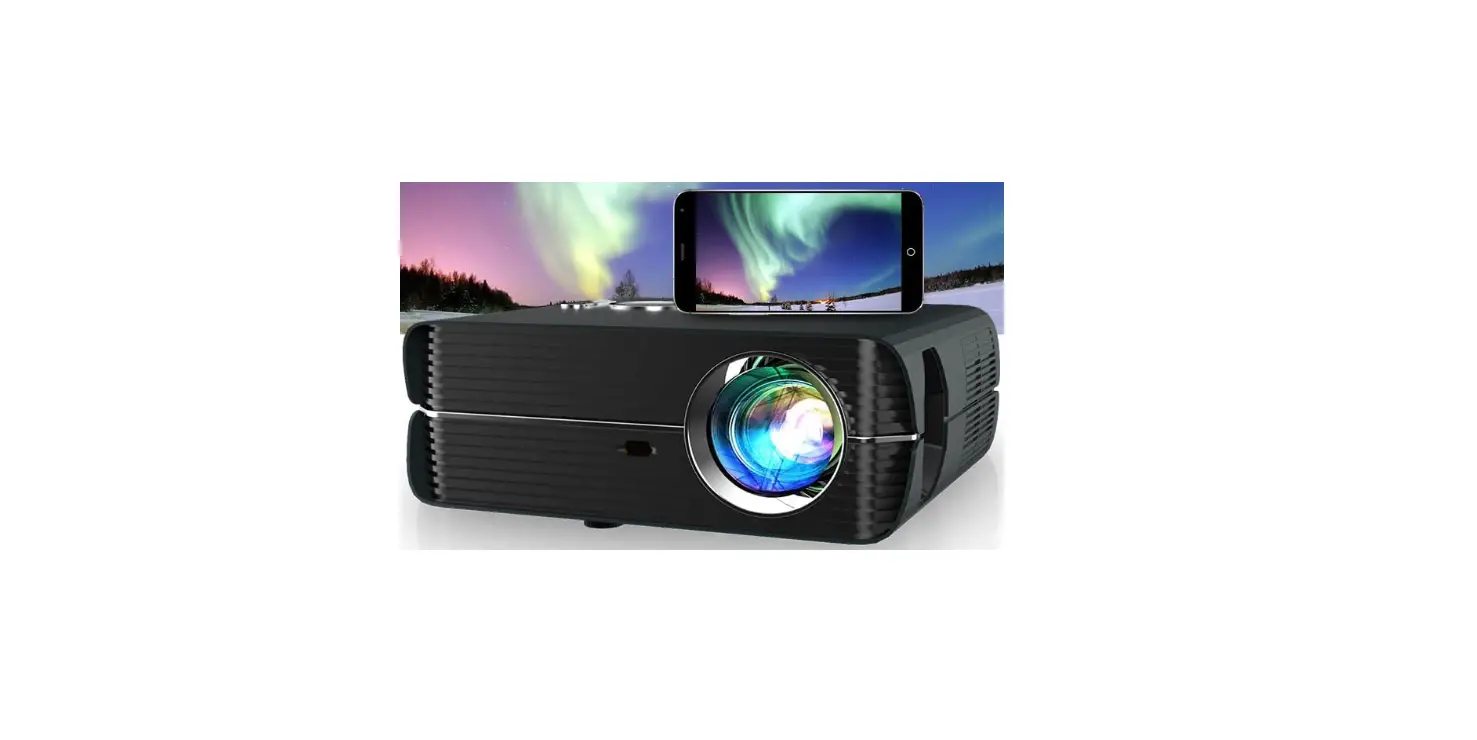
Q8 Series WiFi Bluetooth HD Projector
Product Information
The Q5/Q6/Q8 models are projectors produced by ROCONIA. They are
designed for home and small office use. The projectors support HDMI
and Airplay connectivity for video input. The device has a built-in
keystone function to adjust the image if it’s wider at the
top/bottom of the screen. The projector also has a static screen
that is prone to dust accumulation. The device is equipped with an
exhaust fan to cool the device and avoid overheating issues. If the
lamp (bulb) switches off after a period of time, the device may
have some blockages in the ventilation vents.
Product Usage Instructions
Before using the projector, remove the lens cover. If you
encounter any problems while using the device, please contact the
ROCONIA customer team by email ([email protected]) or phone (02
03 03 04 04 05 07 08 09 10 14 15 17 18 21 24 26 28 29 30 31 32 32
01).
Problem: No Image, a Projected Image, or a No Signal Message is
Displayed
- Leave the projector to cool for a few moments
- Once cooled, check if anything is blocking the ventilation
vents - Turn on the projector. If the issue persists, please contact
your support provider for further assistance.
Problem: The Image is Wider at the Top/Bottom of the Screen
(Keystone)
Use the projector’s built-in keystone function to adjust the
image and make it perpendicular to the screen.
Problem: Stains on the Screen
- Turn off the projector
- Gently vibrate or shake the projector to remove dust
- Use a vacuum cleaner to absorb the inside of the projector and
suck the dust from the screen
Problem: The Image Brightness Has Faded
If the ambient light in the room is not causing the issue, the
lamp (bulb) may need replacement.
Problem: There is No Sound
- When playing video from laptop via an HDMI cable, make sure
that the Bluetooth receiver status on the Bluetooth setting page is
not selected. Press setting button-Bluetooth-Press ok-Choose
Bluetooth ON/OFF - When using Airplay/ScreenMirroring function wirelessly, make
sure that the Bluetooth receiver status on the Bluetooth setting
page is not selected. Press setting button-Bluetooth-Press
ok-Choose Bluetooth ON/OFF
If you require additional guidance, ROCONIA provides
instructional videos that are simple to follow. Please contact
their service team via email ([email protected]).
IC Caution
The device complies with Industry Canada licence-exempt RSS
Standard(s). The operation is subject to the following two
conditions:
- The device may not cause interference
- The device must accept any interference, including interference
that may cause undesired operation of the device.
To maintain compliance with RSS-102 RF Exposure guidelines, this
equipment should be installed and operated with a minimum 20cm
distance between the radiator and your body. Use only the supplied
antenna.
MODEL-Q5/Q6/Q8
ROCONIA Customer Team guarantee every customers the best services and the best of your experience with us, any problem, please feel free to contact us by email
[email protected]
[email protected]
02 03 03 04 04 05 07 08 09 10 14 15 17 18 21 24 26 28 29 30 31 32 32
01
rcoitcooonrsiae@rvhicoet@ magiml.caoilm.com
Before resorting the maintenance service, please check by yourself with the following chart
No Image, s Proiected or a “No Signal” message is displayed
1. Is the power high on? If ,tis not on, check the projector ,s plugged into the m, a n s, that the socket is switched on, and then press the power button on the projector 2. Check the lens cover has been removed 3. Check the cables are secuely attached and installed as per the User Manual 4. The image source may not be set correctly. Press the Source button on the Control Panel or the Remote, to select the correct setting 5. Check in the Menu section under Video input signal to make sure that has been set correctly
The Lamp (Bulb) switches off after a period of time
1 L eave the projector to cool for a few moments 2.0nce cooled, check if anything is blocking the ventilation vents 3.Tun on the projecto If the issue persists please contact you supportprovide for further assistance
The Image is wider at the top/bottom of the screen
This is called keystone and is due to the projection angle not being perpendicular to the screen. To correct use the projectors inbuilt keystone function to adjust the image
Stains on the screen
The screen of theunningprojector is static, so it is easy to adsorb dust. Please turn off the projector, 1. Gently vibrate or shake the pojecto to remove dust 2. In the air outlet of the projector, use the vacuum cleaner to absorb the inside of the projector, and suck the dust from the screen
The image brightness has faded
This could possible be caused by the ambient light in the room If not, the chances are that you need to replace the lamp (bulb)
There 1s no sound
1 When playing video from laptop via an HDMI cable 2.When using Airplay/ScreenMirroring function wirelessly Please make sure that you do not choose Bluetooth Receiver status on the Bluetooth Setting page Steps: Press setting button-Bluetooth-Press ok-Choose Bluetooth ON/OFF
We have prepared a lot of instructional videos, the operation is very simple, if you have any questions, please contact our service team by email: [email protected]
2
rcoitcooonrsiae@rvhicoet@ magiml.caoilm.com
1. Read these Instruct1ons 2. Keep these Instructions 3. Heed all Warnings 4. Follow all instructions 5. Do not use this apparatus near wate 6. Clean only with a dry cloth 7. Do not block any ventilation openings. Install in accordance with the manufacturers instructions 8. Do not install near any heat souces such as radiatos, heat registes, stoves, or other apparatus (including amplifie)that product heat 9. Protect the power cod from being walked on or pinched particularly at plugs, convenience receptacles, and the point where they exit from the apparatus 10. Only use attachments/accessories specified by the manufacturer 11. Unplug this apparatus during lightning storms or when unused for long periods of time 12. Refer all servicing to qualified service personnel. Servicing is equired when the apparatus has been damaged in any way, such as power-supply cord or plug is damaged, liquid has been spilled or objects have fallen into the apparatus, the apparatus has been exposed to rain o moisture does not operate normally, or has been dropped 13.Use only with a cart, stand, tripod, bracket, or table specified by the manufacture or sold with the appa atus. When a cart is used, use caution when moving the cart/ apparatus combination to avoid inu ry from tip-over
1. Do not look directly into the projector light 2. Don’t touch the projector lens 3. Mains adapter is used as disconnect device and it should remain readily operable during intended use. In order to disconnect the apparatus from the mains completely the mains plug should be disconnected from the mains socket outlet completely 4. CAUTION: Use of controls o adjustments or performance of procedues other than those specified may result in hazardous radiation exposure 5. WARNING: Changes or modified to this unit not expressly approved by the party responsible for compliance could void the user’s authority to operate the equipment 6. WARNING: Use of this unit near fluorescent lighting may cause interfeence
3
citoroorcsoenrviaic@[email protected]
IC Caution
–
English:
This device complies with Industry Canada licence-exempt RSS Standard(s).
Operation is subject to the following two conditions:
(1) This device may not cause interference, and
(2) This device must accept any interference,including interference that may
4
citoroorcsoenrviaic@[email protected]
cause undersired operation of the device.
To maintain compliance with RSS-102 RF Exposure guidelines, This equipment
should be installed and operated with minimum 20cm distance between the radiator
and your body: Use only the supplied antenna.
–
French:
Le présentappareilestconf orme aux CNR d’ Industrie Canada applicables aux
appareils radio exempts de licence. L’exploitationestautorisée aux deux conditions
suivantes:
(1) l’appareil ne doit pas produire de brouillage, et
(2) l’ utilisateur de l’appareildoit accepter tout brouillageradioélectriquesubi, mêmesi
le brouillageest susceptible d’encompromettre le fonctionnement.
Pour être conforme aux lignes directrices d’exposition RF RSS-102, cet équipement
doit être installé et exploité à une distance minimale de 20cm entre le radiateur et votre
corps: n’utilisez que l’antenne fournie.
5
croitcooonrsiae@[email protected]
Remove the lens cover before using
t Lens Cover .–<1 ,’ emove
l l
9
o
Close the lens cove
when unit not using
Lens Cover
i Close
The pojector can be installed ,n fou different configurations (see picture below) Press Setting button .. Enter “PICTURE” option .. Select the “Projection D1rec”
I> Front/Rear/Front Ce1l1ng/Rear Ceiling
Front Table:
Select this location with the projector placed nea the floor in front of the sc een. This 1s the most common way to position the projector for quick setup and portab I ty
FRONTTABLE
Front Ceiling:
Select this location with the projector suspended upside-down from the ceiling in front of the sc een NOTE: A projector mount is required to in-stall the projector in a ceiling
, 1
:
FRONT CEILING
_ :::,._, Rear Table:
Select this location with the projector placed near the floor behind the screen. NOTE: That a special rear projection screen is required
REAR TABLE
Rear Ceiling:
Select this location with the projector suspended upside-do wn from the ceiling behind the screen NOTE: A proecor mount is required to install the projector in a ceiling A special rear projection screen is required
)_
REAR CEILING
6
l
It is recommended to move the projector as close to center of screen
Measure the distance between the where you want to position the screen This 1s the projection distance
croitcooonrsiae@[email protected]
Square / Rectangle Screen
Li Pro1ector
When 1nstall1ng the proector ,n the ceihng,please purchase a projector mount recommended by an installation professional and follow the instructions that come with the mount
Before installing the projector in the ceng ,ple ase check to make sure the ceiling structure can support the weight of the projector and the mount. If in doubt,please ask the advice from an installation professorial
NOTE: Projector mount and screw(s) not included
FIXED HANGER HOLE
,-::-
e:::::::3
0
2 ”
ii
·
7
croitcooonrsiae@[email protected]
Follow below picture to adjust the vertical location
I
–
eren_e-vm iC–tranes-i
C
S –
jo r
– tce
r
Screen Vertical
8 .,;; – Projector
-D
n
Adjust this knob(ANGLE ADJ.knob} to fine-tune the display angle to highe
Follow below picture to adjust the focus and trapezoidal screen
* Adjust the focus by turning the knob while observing the image pixels nea the center of the
screen. Optimal focus is obtained when the pixels are clearly visible. Depending on the
proected screen size, the focus near the screen edges maybe less sharp than the screen
center.
* Keystone image 1s created when the proector beam is poiected to the sceen in an angle
Keystone correction will restore the distorted image to a rectangular or square shape
g-
8
FOCUS ADJ.KNOB
Then sharpen the image by rotating focus knob
TRAPEZOIDAL ADJ.KNOB
@6v@
8
I Remote Control
citoroorcsoenrviaic@[email protected]
1 werOn/Off 2 Mute 3 Source 4 SoundBar Function 5 Setup 6 Arrow Keys 7 Home 8 Menu 9 Exit 10Volume Key
Caution:
Do not submerge the remote control in water Do not put the remote con t ol near fire o in weUhot places Do not use old and new batteries together in the remote control Please take the batteries out if not using the remote control for a long time to avoid battery leakage Please point the remote control at the IRece1ver
9
croitcooonrsiae@[email protected]
Focusing ring Keystone correct1on
Keyboards
@ ©
e-6 @
Audio
1
video input interface USB
g
|
|
The lens
IR
VGA IR
10
citoroorcsoenrviaic@[email protected]
11
citoroorcsoenrviaic@[email protected]
12
3. Multimedia boot screen
croitcooonrsiae@[email protected]
After 10-20 seconds, the multimedia screen will be displayed
4. Focus & keystone correction
A. If the image is displayed as a trapezoid shape, you can adjust it with the keystone correction function by pressing button 3, this should normalize the display image
B. lmage focusing: Make sure the projector is horizontal to the projector screen and adjust the focus by pressing button 2, you can display video or the menu screen to check theadustment
1
3
2
13
croitcooonrsiae@[email protected] The projector uses an optical keystone correction function, so the image can be adjusted as
Howeve, this projector does not have a horizontal keystone corectionfunction The projector must be placed horizontally to the projection screen. If you encounter the problem as shown above, It is probably because the projector has not been placed horizontally to the projection screen, or the projection screen is not vertically positioned Solution: Adjust the projector’s position so that it is horizontal to the screen
Connect multiple devices and applications
14
citoroorcsoenrviaic@[email protected] B
15
citoroorcsoenrviaic@[email protected] C D
16
citoroorcsoenrviaic@[email protected] Multi-screen interactive connection for mobile andprojector
Setup WiFi network
1. Press the button to turn on unit and power indicator will light GREEN.
2. Press the home button ,use
buttons to select the Wireless Screen
Mirroring and press button to enter screen mirroring for iOS/Androidsystem.
3. Press button to enter Wi-Fisetting.
4. Choose “search” and press button to search available WiFi .
5. Select your home Wi-Fi and input password (using password ) then press “Enter” to connect.
buttons to input
6. After connected, press the exit button twice to return to “Screen Mirroring for
Android/iOS System” page.
7. Turn on your phone WiFi to search and select the same home WiFi router and
input the password to connect.
8. 5150-5250MHz indoor use only.
Note:
1.Select and press
2.Press to enter
3.Press to enter
New York-201C
4.Select your home WiFi
WIFI-XXXX 1.Input the password of your network 2.Press “Enter” to connect
5.Input password and press “Enter”
New York-201C
6.Press
to return here 7.Connect your phone to the sameWiFi
17
rcoitcooonrsiae@rvhicoet@ magiml.caoilm.com
Connection guide
Wireless Connection Wired Connection
10S (Two Methods)
Android (Two Methods) 10S(One Method) Android(One Method)
WithWiF, Without W WithWiF1 Without WiF1 USB/SM to Lightning Cable USB/SM to Micro USB/Type C Cable (Need to Download the APP)
Please check your wireless environment first and then connect your device with the correct way by below introduction
A.w·1reless connection
10S screen
1. Airplay Function Method: W i eless connection with Wi-Fiouter
Connect the same W netwo k as previous Setup WiFi network section for
projector and mobile device (Page 17). After connected, press exit button twice toeturn “waiting for projection” page @ Open the App and Select the video / movie on your phone @ Click Pro ection Screen ” ” and connect with projector device Roconia-XXX XXX are numbers and letters. It shows on the projector screen Note: No matter the projector is connected to a 5GHZ or 2.4GHZ network, the phone must be connected to the same WIFI as the projecto
Roconia-XXX-12BF04-ITV
18
rcoitcooonrsiae@rvhicoet@ magiml.caoilm.com 2. Screen Mirroring Function (1)Wireless connection with Wi-Fiouter Connectthe same Wifi network as peviousSetup W network section fo
projecto and mobile device (Page 17) , stay on “wang for projection”page @ Swipe up from the bottom of your phone, and click sceen moring ” @ Connect with projecto device Roconia-XXX
ote: No matter the projector is connected to a 5GHZ or 2.4GHZ network, the phone must be connected to the same WIFI as the projecto.
(2)Wireless connection without Wi-Fi router Make sure the projector disconnect with any W Note:lf the projector has been connected to Wi-Fi, you can enter W setting and select “Forget” W @Press home button and Choose Wireless Mirroring Screen to enter ” wang for
projection ” page @Turn on the W on your 10S device to Search the WLAN @Input the PIN (12345678) to connect with projecto device Roconia-XXX @Swipe up from the bottom of your phone, and click sceen moring ” 6 Connect with proector device Roconia-XXX
ocorna-XXX
19
rcoitcooonrsiae@rvhicoet@ magiml.caoilm.com
Android screen 1. Airplay / DLAN Function Method: Wireless connection with Wi-Fi router
Connect the same W netwok as previous Setup WiFi network section for
projector and mobile device (Page 17) @ After connected, pess exit button twice toeturn “waiting for projection” page @ Open the App and Select the video/ movie on your phone
© Click Projection Screen “J” and connect with projector device Roconia-XXX
Note: No matter the pector is connected to a 5GHZ o 2.4GHZ netwok, the phone must be connected to the same WIFI as the projector. 2.Screen Mirroring Function (1)Wireless connection with Wi-Fi router
Connect the same W network as previous Setup W network section for
projector and mobile device (Page 17), stay on “waiting for projection”page
. . @ Swipe up from the bottom of your phone, and click screen mirroring “[ ” (different mobile models with different names for example: Multi-screen, Wireless Display, Screen Mirroring, Smart View etc… ). @ Connect with projector device Roconia-XXX.
Note: No matter the projector is connected to a 5GHZ or 2.4GHZ network, the phone must be connected to the same WIFI as the projector. (2)Wireless connection without Wi-Fi router
Turn on the W on your phone and do not connect any W
@ Enter control cente and open “Multi- screen” @ Search and connect pro ector device Roconia-XXX
Note: When using Airplay/Screen Mirroring function wirelessly, please make sure that you do not choose Bluetooth Receive status on the Bluetooth Setting page
20
rcoitcooonrsiae@rvhicoet@ magiml.caoilm.com
B.Wired connection
pess the home button fu’, use
buttons to select the Wired Sceen
Mi roring and press button to enter.
10S Screen Mirroring Function
1. Make SUe to use the original Lightning cable 2. Use Lightning cable to connect iPhone with USB/SM interface 3.For the first time, your 10S device will pop up a trust prompt 4.Click “Trust” on your phone
Note: Do not turn off screen m1rronng on your iPhone, othe wise, you need toestart your iPhone to use this function If you want to stop the mirroring function, please unplug the lightning cable directly
r,
Android Screen Mirroring Function
Press the homebutton
buttons to select the Wired Sceen
Mi raring and press button to ente.
1.Make sure to use the original data cable
2. Use USB to Micro/Type-C cable to connect your Phone with USB/SM interface
3. Choose USB Transfe Method(Transferfiles) and download the app “ByteFly
mi r or” accordingthe prompts
21
citoroorcsoenrviaic@[email protected] 4. Press menu button ” ” on the pOector to enter Bluetooth setting, then select
Bluetooth and press ” <II/ ” to select “Bluetooth receiver”
5. Enter Bluetooth setting on your phone and turn on Bluetooth, then you can find the name ” Roconia-BT ” of projecto Bluetoothand connect
R oc onia- B T
Remind: Some phones ae not compatible and cannot use this funct on
@ When connecting the Android phone and the pojector with the original data cable, please be sure to select the Bluetooth receiver” status, otherwise, there will be no sound
Please switch Bluetooth to “on/off ‘ state after use, do not stay in Bluetooth “receiver” state,otherwise there will be no sound when using other functions
22
citoroorcsoenrviaic@[email protected]
If you have any questions, please contact us via the after-sale email:
[email protected]
23
croitcooonrsiae@[email protected] 1. Bluetooth Function Press the ” ” Key to enter the main menu, then press / ” to enter.
Bluetooth Sub-menus A.Bluetooth On
1.0pen the Bluetooth function of you Bluetoothdevices 2. Press” .,./ ” to choose Bluetooth on and the p ojector will begin searching
for Bluetooth devices, the Bluetooth devices will be shown on the screen 3. Select it and you can connect the pOector to your Bluetooth devices B.B luetooth Off C.Bluetooth Receiver 1. Select Bluetooth Receive 2. Enter Bluetooth setting on your phone and turn on Bluetooth, then you can
find the name ” Roconia-BT ” of projector Bluetooth. 3. Connect the projector Bluetooth ” Roconia-BT ” and you can use it as an
independent speaker
24
croitcooonrsiae@[email protected]
NOTE: 1. Bluetooth is OFF by default when the proector first powers ON, and it can be
turned ON o OFF from the Bluetooth sub-menu
2. Power on the projector and open the projector Bluetooth,the projector will begin
searching for near by Bluetooth devices to connect to, the Bluetooth devices will
be shown on the sceen,selectit and press the OK key to connect it
3. When successfully paired, the Bluetooth receive should indicate it 1s
connected, usually with a chime or other audible noise. Check the user manual on
your Bluetooth receiver for more information
4. When successfully connected, the projector will display the Bluetooth receiver’s
name on the top right portion of the Main Menu screen, and sound played from
the projecto will be heard through the Bluetooth receiver
5. After initial pairing, the projector and the Bluetooth speake s will keep the
pairing status all the time when Bluetooth functions for both devices are opened.
6.To ensure that you can hear the sound clearly when playing video next time, we
suggest that you turn off the Bluetooth function before you are ready to turn off
the projector each time.Otherwise the projector will automatically connect to your
previous Bluetooth device and may lead to no sound emitted from the projector
?.When you try to connect a new Bluetooth speaker, please turn off the previous
speaker headphone andesearchyour new Bluetooth device for connecting
8. Please switch Bluetooth to”on/off “state after use,do not stay in Bluetooth
“receiver”state, otherwise there will be no sound when using other functions. (Press
setting button–Bluetooth–Press “OK”–Choose Bluetooth ON/OFF)
If there is no sound with Bluetooth speaker, please follow the steps below to
troubleshoot
1. Make sure the mute button is turned off
2. Check if the Bluetooth is turned on correctly. When you turn on the projector’s
Bluetooth and Bluetooth speakers, they will automatically connect. If the Bluetooth
speake emits a “beep” sound, the connection is complete
3.
Use the HDMI cable in the package to connect to your computer and
play music to test
4. If you find that a movie cannot play sounds, please try another movie. Since the proector does not support Dolby sound, the movie with Dolby sound cannot play
the sound. You can check if the movie’s audio number is “ac3” (Dolby sound)
5.Turn off Dolby Digital on your device (Settings> Display and Sound> Audio>
Dolby Digital Out>, and then choose another Sound effect)
6. A few types of Bluetooth speakes are not compatible with the projecto’s
Bluetooth, please try other Bluetooth speakes to see if it works
We have prepaed many Instructive videos so you can learn how to operate
visually. If you need it please let us know
25
citoroorcsoenrviaic@[email protected] 2
26
citoroorcsoenrviaic@[email protected]
27
citoroorcsoenrviaic@[email protected] 3 .HDMI connection Use the HDMI slot to connect computers and HDMI compatible devices. Once connected, select the HDMI ode to enter
Supported resolutions 576P.480P,720P,1080P,640X600,800X746,1280X1024,1280X720,1440X900, 1366X768,1920X1080,1280X800,1440X960,680X1050
te: When playing video from laptop via an HDMI cable, please make sure that you do not choose Bluetooth “Receive “status on the Bluetooth Setting page Steps: Press Setting button –BLUETOOTH–press ok–choose Bluetooth On/Off
28
citoroorcsoenrviaic@[email protected] 4
29
citoroorcsoenrviaic@[email protected] 5
30
croitcooonrsiae@[email protected]
6. VGA Connection Follow below picture to connect VGA cable and device 1. Turn off the unit before connect VGA cable 2. Press the button to turn off power of your projector before connection
3. After connect, press the button to turn on unit and powe indicatorwill light
green. 4. pess the direction button to VGA mode in home menu and the video on the VGA device will be displayed on the projector screen
( VGA cod is not included) Computer Cable
– c.=,
To VGA Port
or Computer Cable
17
Note Book
Deck Top
Please refer to the following table to adjust the output signal from computer
Type
Resolution
I Frequency
Field Frequency
,
31.5
60
34.7
70
VGA
640×480
37.9
72
37.5
75
31.4
50
35.1
56
PC SVGA
800×600
37.9
60
46.6
70
48.1
72
46.9
75
40.3
50
XGA
1024×768
48.4
60
56.5
70
31
croitcooonrsiae@[email protected]
Light Source Type HDMI Input Supported Video Resolution. Power Consumption Power Supply Display Color Signal Port
USB Port
Weight D1mens1on Bluetooth
LED
1080p.1080i. 720p. 576i. 480p and 4801
Operating 75W ; Stand by 1.5W AC 100-240V 7000-SOOOK Video/ VGA/ HDMI Support USB device up to 64GB Support format MPEG1. MPEG2 .MPEG4. MP3. JPEG 1.4KG 235x 168x 83 mm Version 5.0
Ideal for dark viewing environments for optimal performance
We are committed to improving the quality of service. It would be highly appreciated if you could make suggestions for us about our products or our store, which will be a great encouragement for us. If you have any questions about the assembly of the poduct, accessories, the quality of the product or etc, please contact us via ema
[email protected]
We will do our best to solve the problem.Thankyou’
32