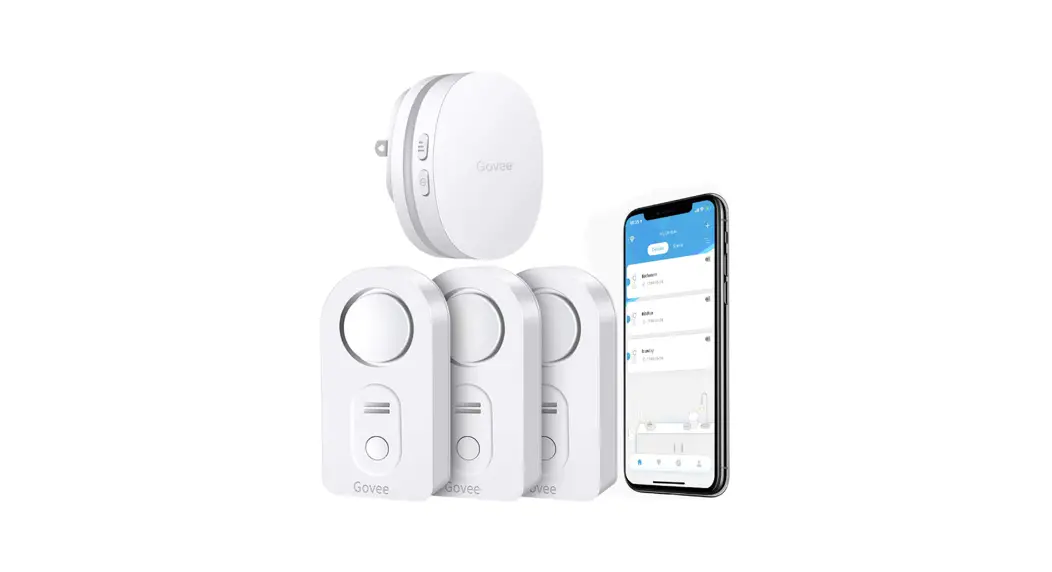
 Model: H5043+H5058
Water Detector Pro with WiFi Gateway Pro
User Manual
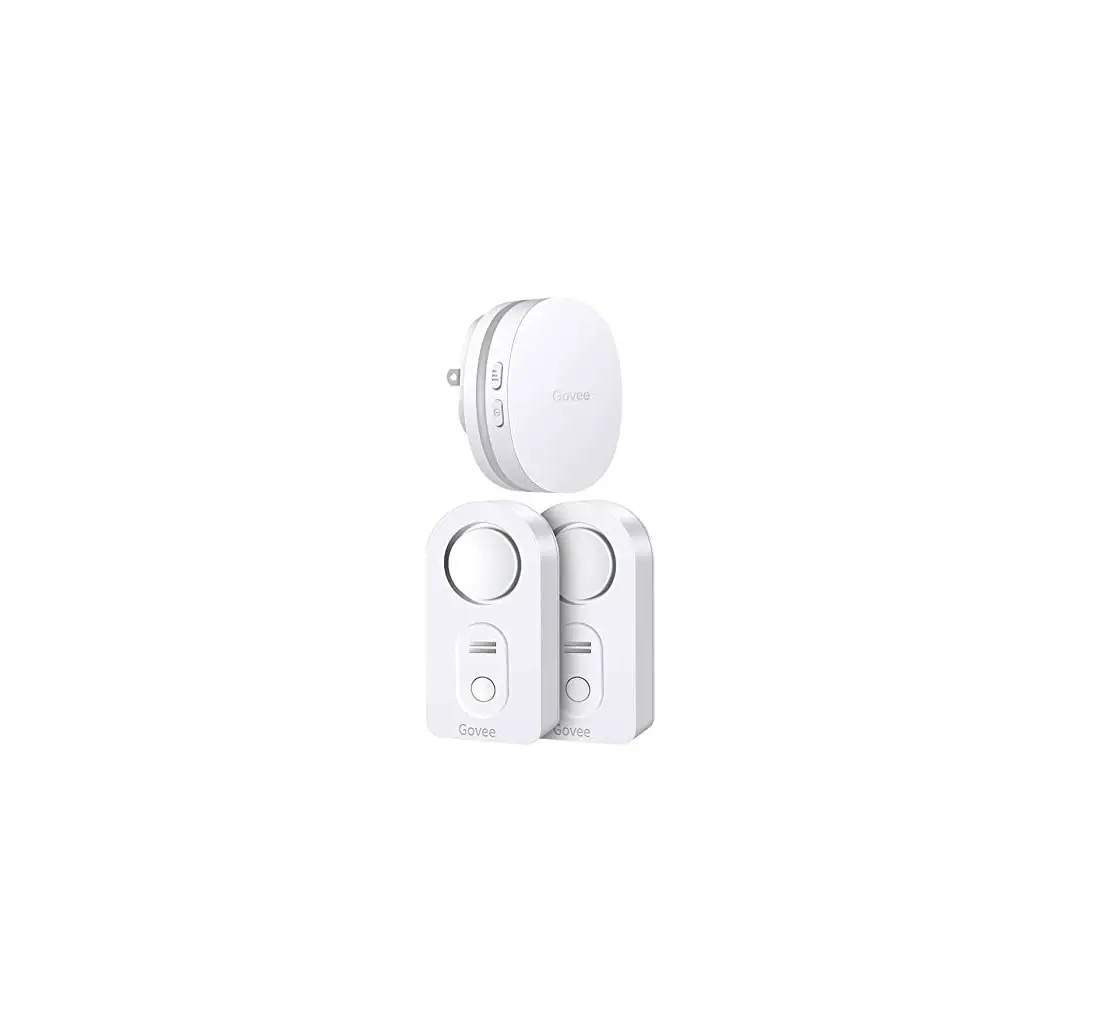
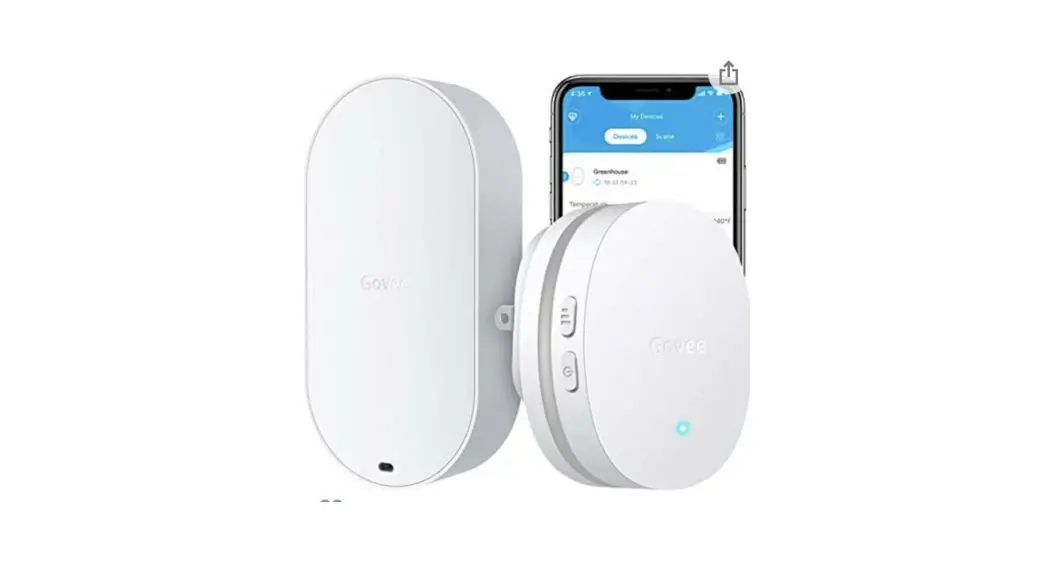
H5043 Water Detector Pro with WiFi Gateway
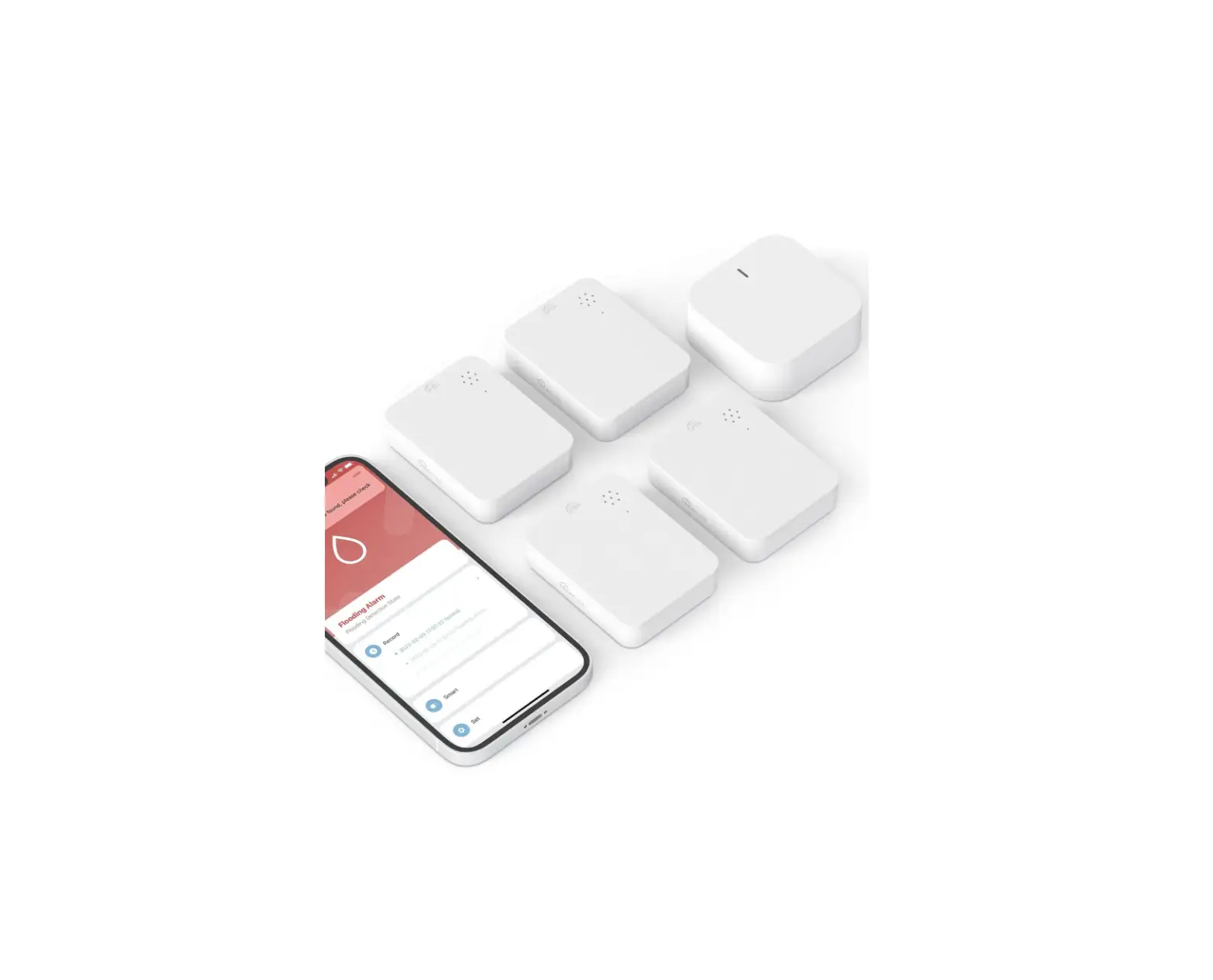
 Detectors have paired with the gateway in advance. You only need to connect the gateway to the network. Please see pages 01-08.
At a Glance
 WiFi Gateway
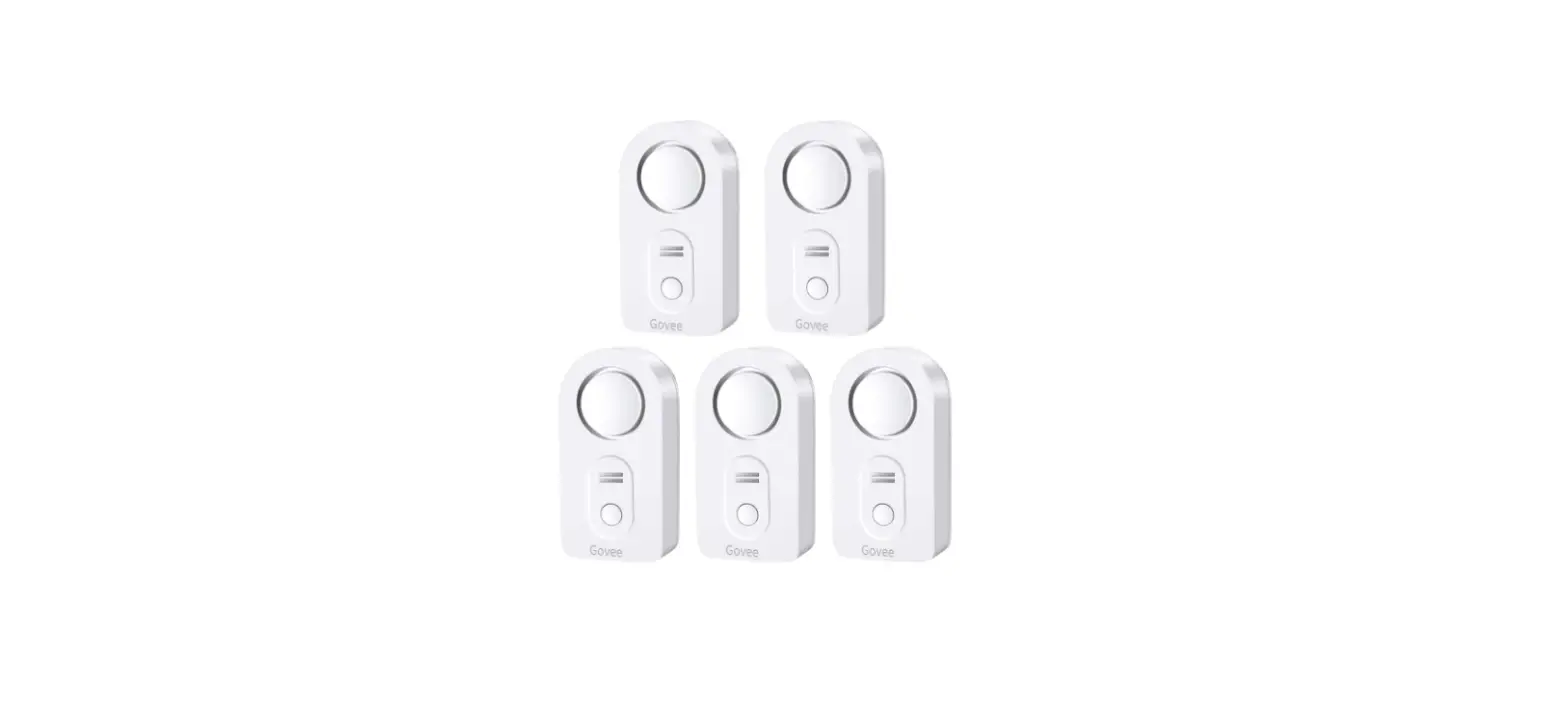
 Water Leak Detector
Water Leak Detector is a device that sounds an alarm once detecting water drip or leak. Connecting to Wi-Fi via the gateway, it instantly sends you alert notifications of water leaking by app or email whether you are at home or outside.
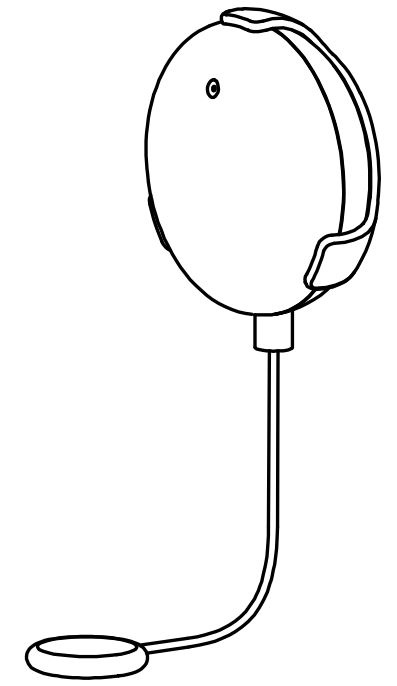
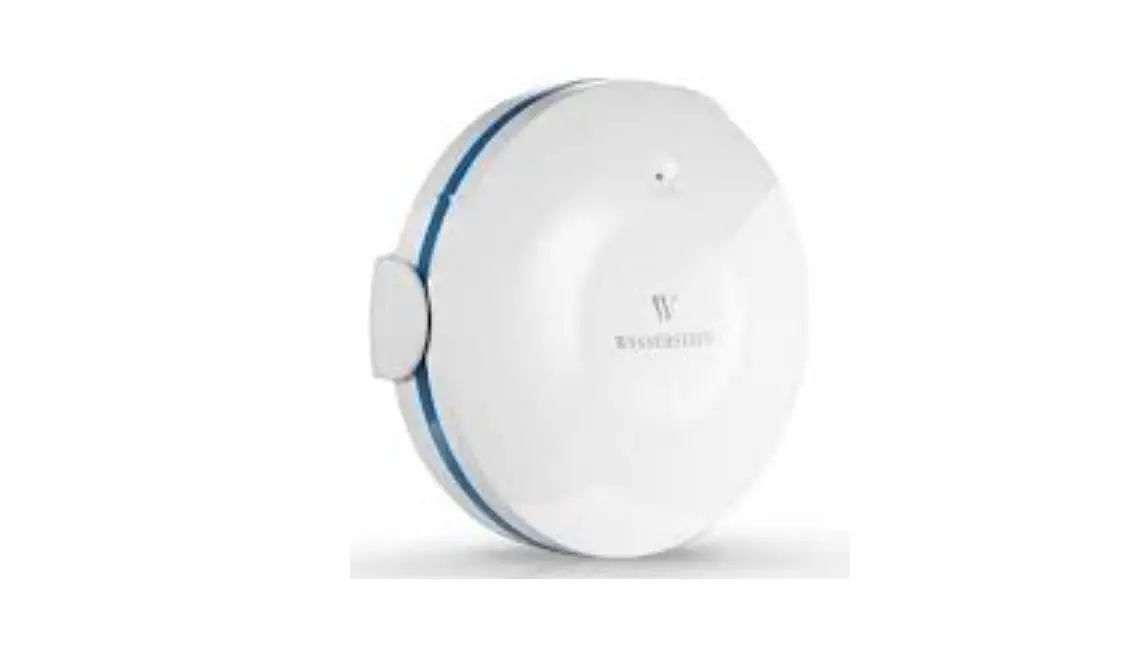
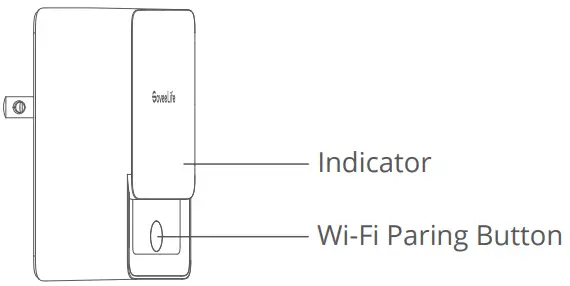
WiFi Gateway
Wi-Fi Pairing Button: Connect the gateway to Wi-Fi.
LED Indicator: Show status of the gateway.
| LED Indicator | Gateway Status |
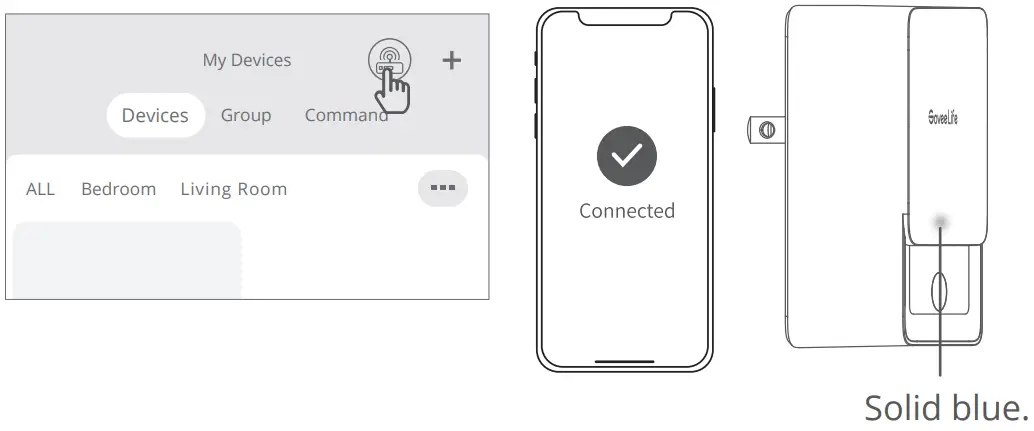
Solid blue  | Has connected to Wi-Fi. |
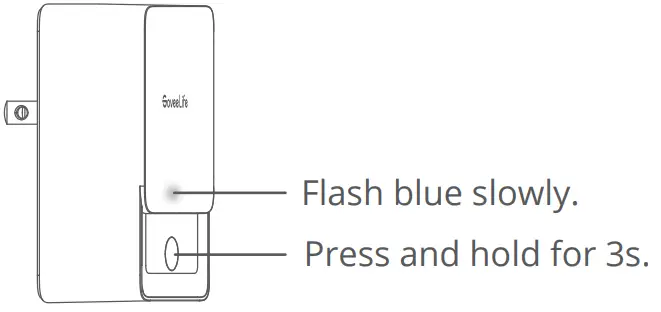
Flash blue slowly  | Ready to connect to Wi-Fi. |
Flash blue quickly  | Connecting to Wi-Fi. |
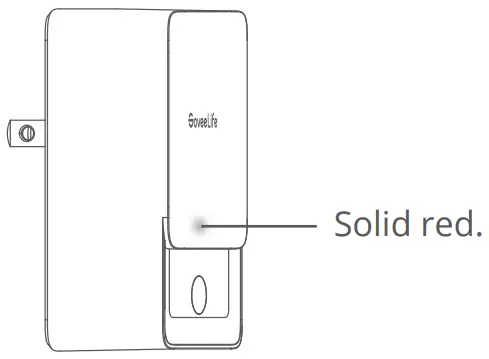
| Solid red | Fail to connect to Wi-Fi. |
Flash blue and red alternately  | Ready to pair with the water leak detector. |
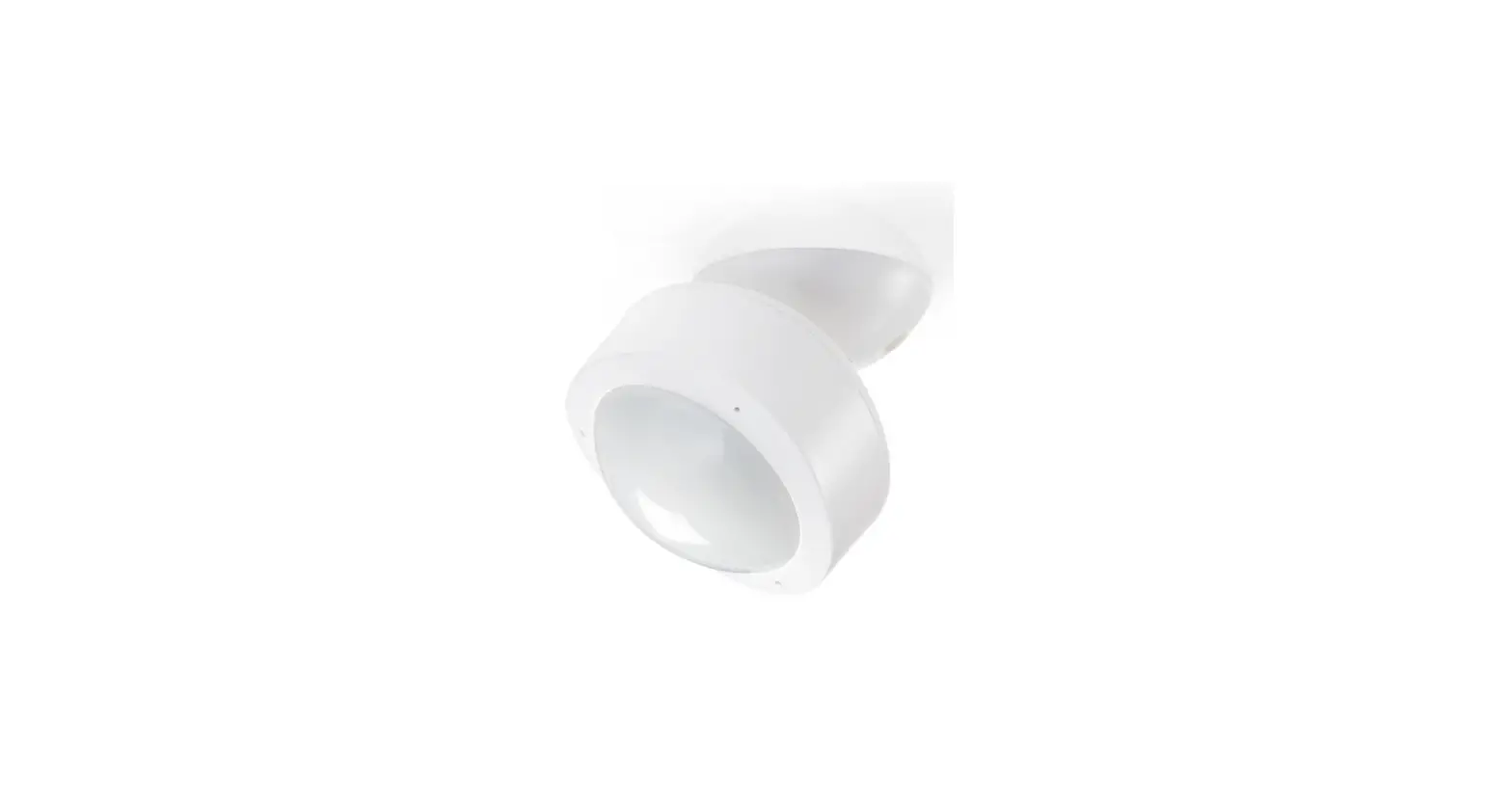
Water Leak Detector
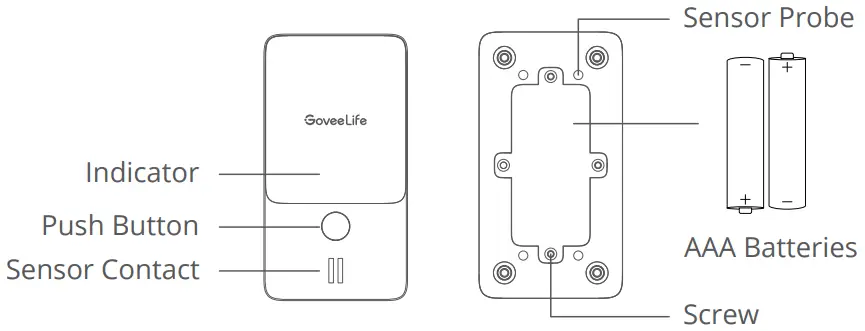
Sensor Contact: Detect water drip.
Sensor Probe: Detect water leak.
Push Button: Pause alarm / Adjust volume.
Batteries: 2 X AAA Battery.
Packing List
| SKU | B5043101 | B5043102 |
| Water Leak Detector | 4 | 6 |
| WiFi Gateway AAA Battery User Manual | 1 8 1 | 1 12 1 |
| Service Card | 1 | 1 |
Checking the Water Leak Detector
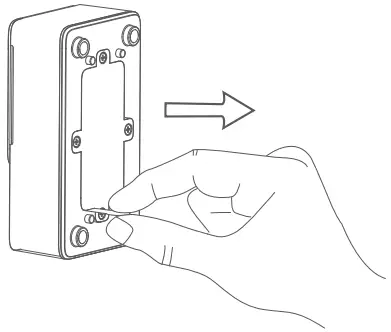
- Insulation sheet removal.
Pull out the insulation sheet vertically.
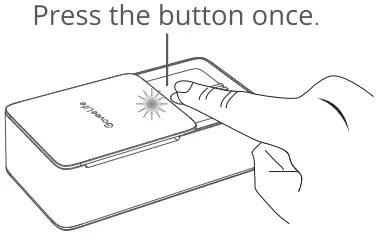
- Press the button and the detector beeps 1s later, indicating it works well. If not, please open the back cover via a PH00/PH0 screwdriver to replace new batteries.

- Adjust alarm volume by pressing the button twice within 1s and the indicator will flash quickly. The volume level
 cycles through HIGH – MEDIUM – LOW, and default volume is high.
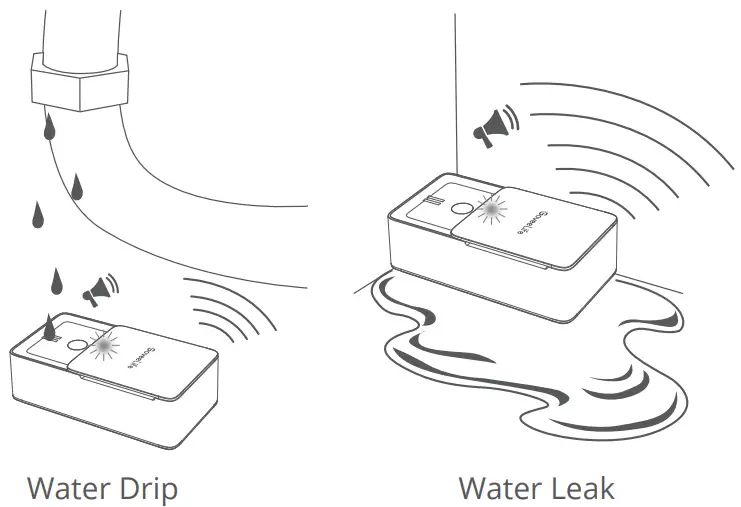
- The detector will alarm if you drip some water on the sensor contact or put it on the surface with water.

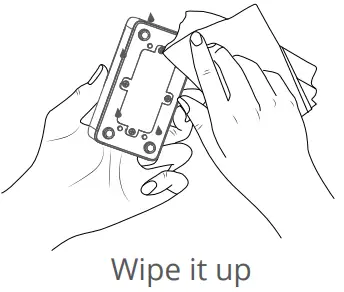
- Press the Push Button to stop alarm for 1 hour. Remove the device from water and wipe it up to stop alarm completely.
 Notice: When the battery is low, the device sounds “dididi” and flash red slowly.
 cycles through HIGH – MEDIUM – LOW, and default volume is high.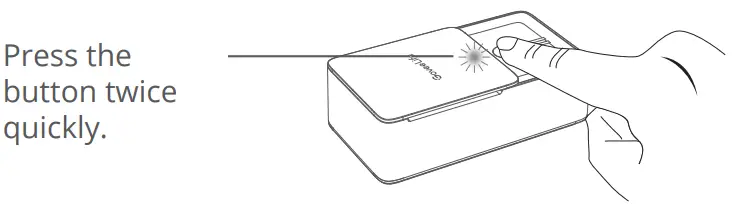
 Notice: When the battery is low, the device sounds “dididi” and flash red slowly.
Installing Your Device
- Plug the gateway into a power outlet;
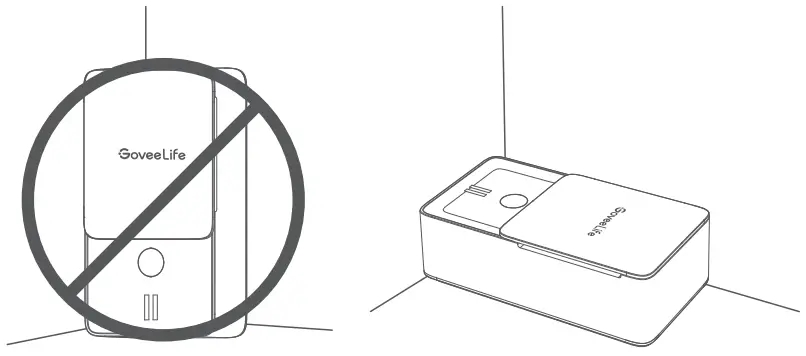
- Lay the water leak detector flat.
Notice: Keep distance between the gateway and the detector less than 500m/1640ft.
Preparation Before Connecting
- A Wi-Fi router supporting the 2.4GHz (NOT 5GHz) and 802.11 b/g/n bands.
(Notice: Most of 5GHz routers can also be set to 2.4GHz band or dual band.) - Make sure Wi-Fi name and password are correct.
- A smartphone or tablet supporting 2.4GHz network.
- Download the app named Govee Home from the App Store (iOS devices) or Google Play (Android devices).

Connecting to a Wi-Fi Network
- Turn on Bluetooth on your phone and place it close to the WiFi Gateway (Location Services/GPS should be turned on for Android users).
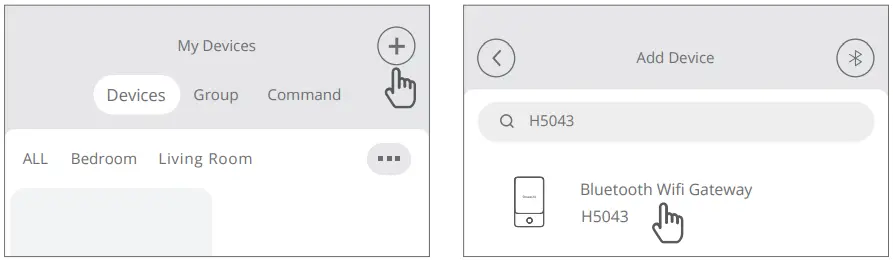
- Open Govee Home App, tap”+” icon at the top right corner and select “H5043”

- Follow the in-app instructions to complete pairing.

- The WiFi Gateway icon will show in the top left corner on the “My Devices” page when pairing is completed.

- The indicator keeps solid red if it failed to connect to Wi-Fi;

Please check the above steps and try again; or you can select “H5043” in the app and tap “Video Guide” for more instructions.
Notification Setting
App notification: Open app, select “water leak detector” in the device list, and tap setting icon in the top right corner. Receive information push
Turn on/off notification push for water leak. Sound alarm
Turn on/off the sound of app notification. Vibration alarm
Turn on/off the vibration of app notification.
Email notification: Open app, and tap “My Profile”  in the lower rightcorner — “Notification settings”. Receive information push
Turn on/off email notification for water leak.
Add or Re-add Water Leak Detector
Notice: The detector is added by default when the gateway connects to Wi-Fi successfully.
- Open Govee Home App, enter the Gateway page and select H5043.
- After entering the details page of the H5043, click “Add a new sub-device” to start pairing.
- Put the detector nearby the gateway. Press the Push Button and the detector will send pairing signal;
The indicator keeps flashing red for 30 seconds. After 30 seconds, it will exit the pairing mode.
- Select the sub-device found on the details page of the gateway. Click to add the device. Then, complete pairing by following the later instructions.
- The gateway has paired with the water leak detector;

- Swipe down the device list page in app to refresh and you can find the new-added device;
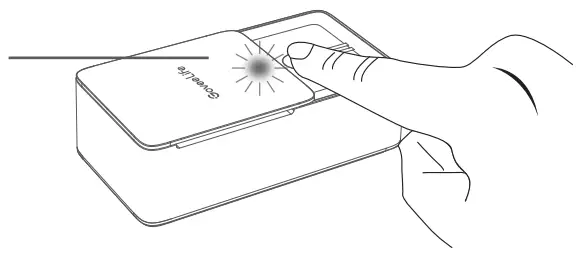
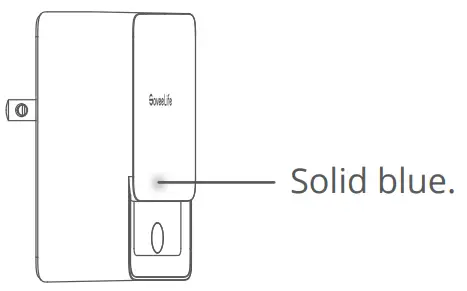
Notice:
- If the gateway fails to pair to the detector in 60s, its indicator will flash blue quickly and it will exit the pairing mode.
- There’s 1s delay for beep sound after you press the Push Button.
- Please check the above steps and try again if pairing fails.
Troubleshooting
- The gateway cannot connect to Wi-Fi. / The connection is unstable.
a. 5GHz network is not supported. The device only supports 2.4GHz.
b. Check the name of the network and password.
c. Place the gateway within coverage of the router signal.
d. No obstructions like metal door or wall between the gateway and the detector are suggested. - The water leak detector cannot work.
a. Pull out the insulation sheet before using.
b. Open the back cover via a PH00/PH0 screwdriver, remove and re-install the battery.
c. Check whether the battery is running low. - No/Delayed notification in the app.
a. Make sure that Android device users turn on Location and iOS users select “Setting – Govee Home – Location – Always” in the phone.
b. Keep the distance between the gateway and the detector as close as possible.
c. No obstructions between the gateway and the detector is suggested.
d. The time interval between two water detection should be longer than 1 hour, otherwise the app won’t push notification.
e. Check whether the indicator of the gateway flashes when the detector is triggered. If not, please re-add the detector.
Warning
- Keep devices work temperature within 32 ℉ – 140 ℉ and humidity below 90%RH.
- Do not disassemble devices violently.
Specifications
| WiFi Gateway | |
| Voltage | AC 110-240V 50/60Hz |
| Wi-Fi Frequency | 2.4GHz |
| Wi-Fi-enabled Distance | 100m/328ft |
| Water Leak Detector | |
| Voltage | DC 3V |
| Working Distance (No obstructions) | 500m/1640ft |
| Maximum Alarm Decibel | 100dB |
| Radio Frequency | 915MHz |
| Waterproof Rating | IP66 |
Customer Service
 Warranty: 12-Month Limited Warranty
 Support: Lifetime Technical Support
 Email: [email protected]
 Official Website: www.govee.com
 @Govee
 @govee_official
 @govee.official
 @Goveeofficial
 @Govee.smarthome
FCC and ISED Canada Statement
This device complies with Part 15 of the FCC Rules and Industry Canada licence-exempt RSS standard(s). Operation is subject to the following two conditions:
(1)This device may not cause harmful interference, and (2) This device must accept any interference received, including interference that may cause undesired operation.
Warning: Changes or modifications not expressly approved by the party responsible for compliance could void the user’s authority to operate the equipment.
NOTE: This equipment has been tested and found to comply with the limits for a Class B digital device, pursuant to Part 15 of the FCC Rules.
These limits are designed to provide reasonable protection against harmful interference in a residential installation. This equipment generates uses and can radiate radio frequency energy and, if not installed and used in accordance with the instructions, may cause harmful interference to radio communications. However, there is no guarantee that interference will not occur in a particular installation.
If this equipment does cause harmful interference to radio or television reception, which can be determined by turning the equipment off and on, the user is encouraged to try to correct the interference by one or more of the following measures:
- Reorient or relocate the receiving antenna.
- Increase the separation between the equipment and receiver.
- Connect the equipment into an outlet on a circuit different from that to which the receiver is connected.
- Consult the dealer or an experienced radio/TV technician for help.
This Class B digital apparatus complies with Canadian ICES-003.
FCC and IC Radiation Exposure Statement
This equipment complies with FCC and IC radiation exposure limits set forth for an uncontrolled environment. This equipment should be installed and operated with minimum distance 20cm between the radiator & your body.
Responsible party:
Name: GOVEE MOMENTS(US) TRADING LIMITED
Address: 2501 Chatham Rd Suite R Springfield IL 62704
Email: [email protected]
Contact information: https://www.govee.com/support
The trademark GoveeLife has been authorised to Shenzhen Qianyan Technology LTD.
Copyright ©2021 Shenzhen Qianyan Technology LTD. All Rights Reserved.
The Bluetooth® word mark and logos are registered trademarks owned by Bluetooth SIG, Inc. and any use of such marks by Shenzhen Qianyan Technology LTD is under license.
 Govee Home App
For FAQs and more information,
please visit: www.govee.com
https://www.govee.com/apps/qrcode
 govee.com