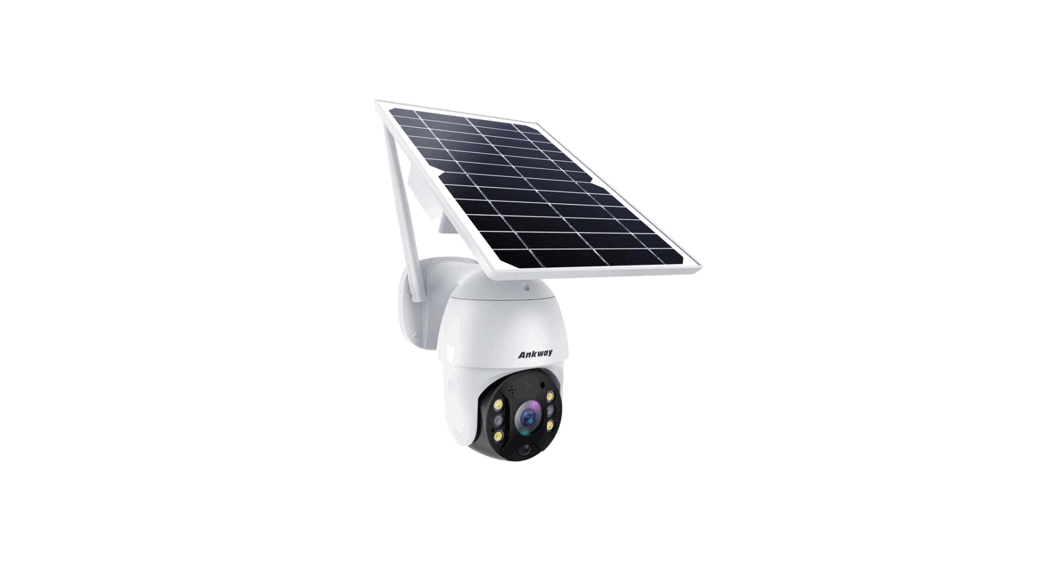
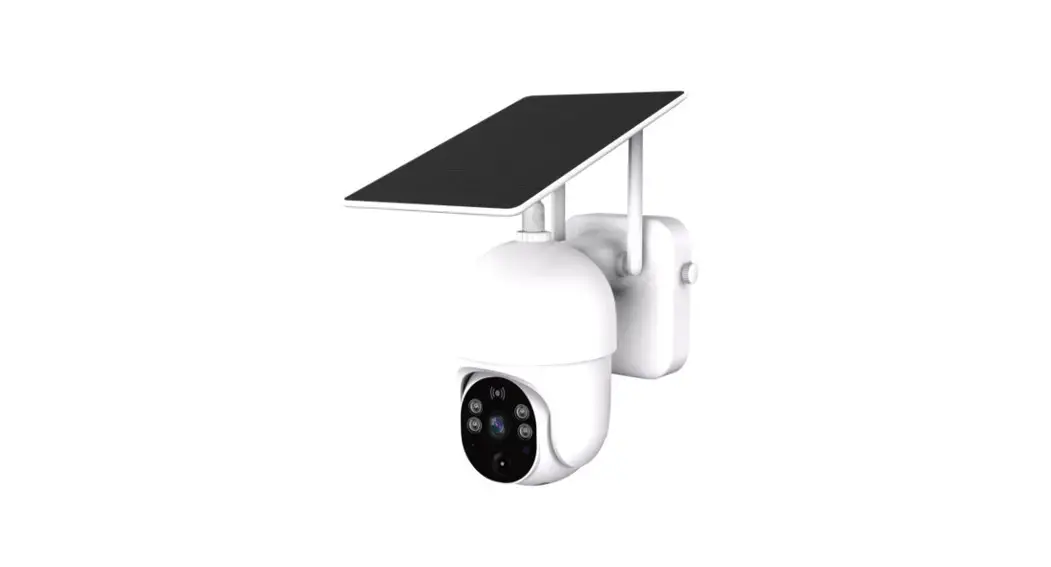
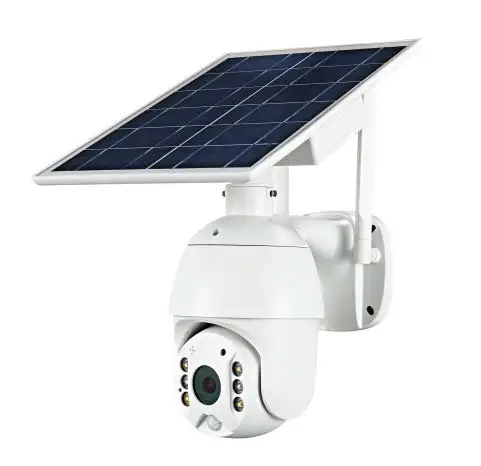
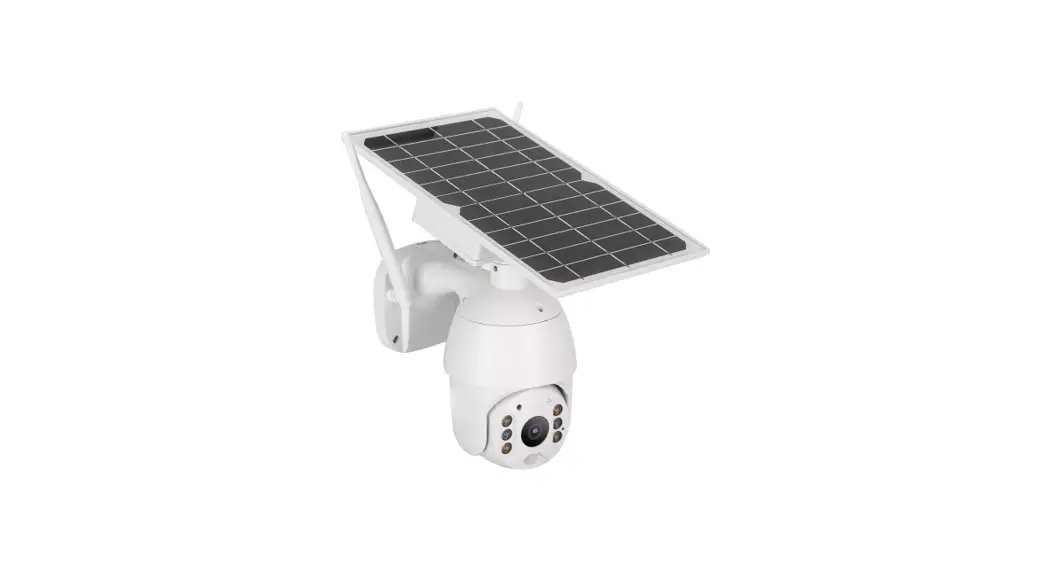
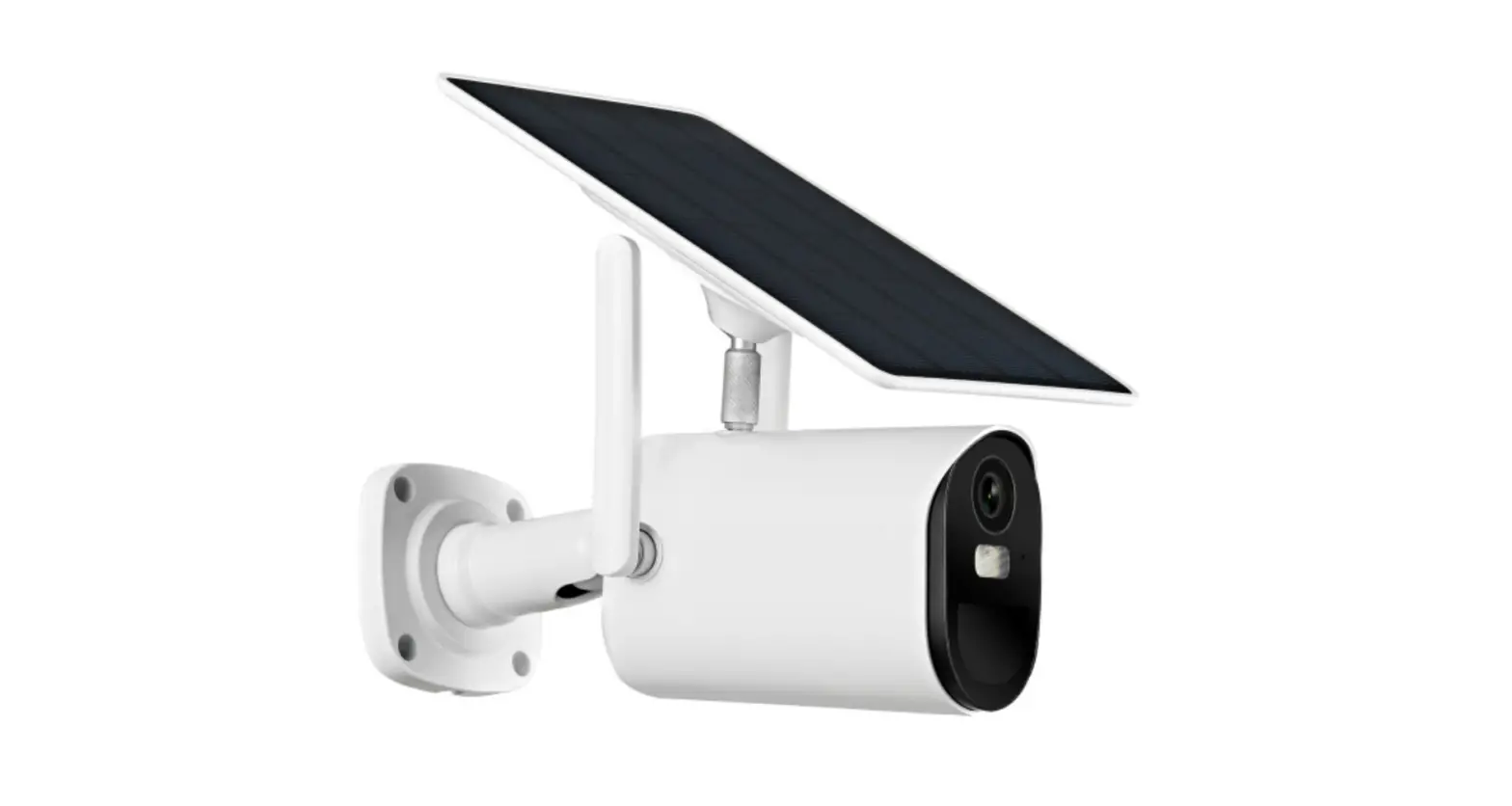
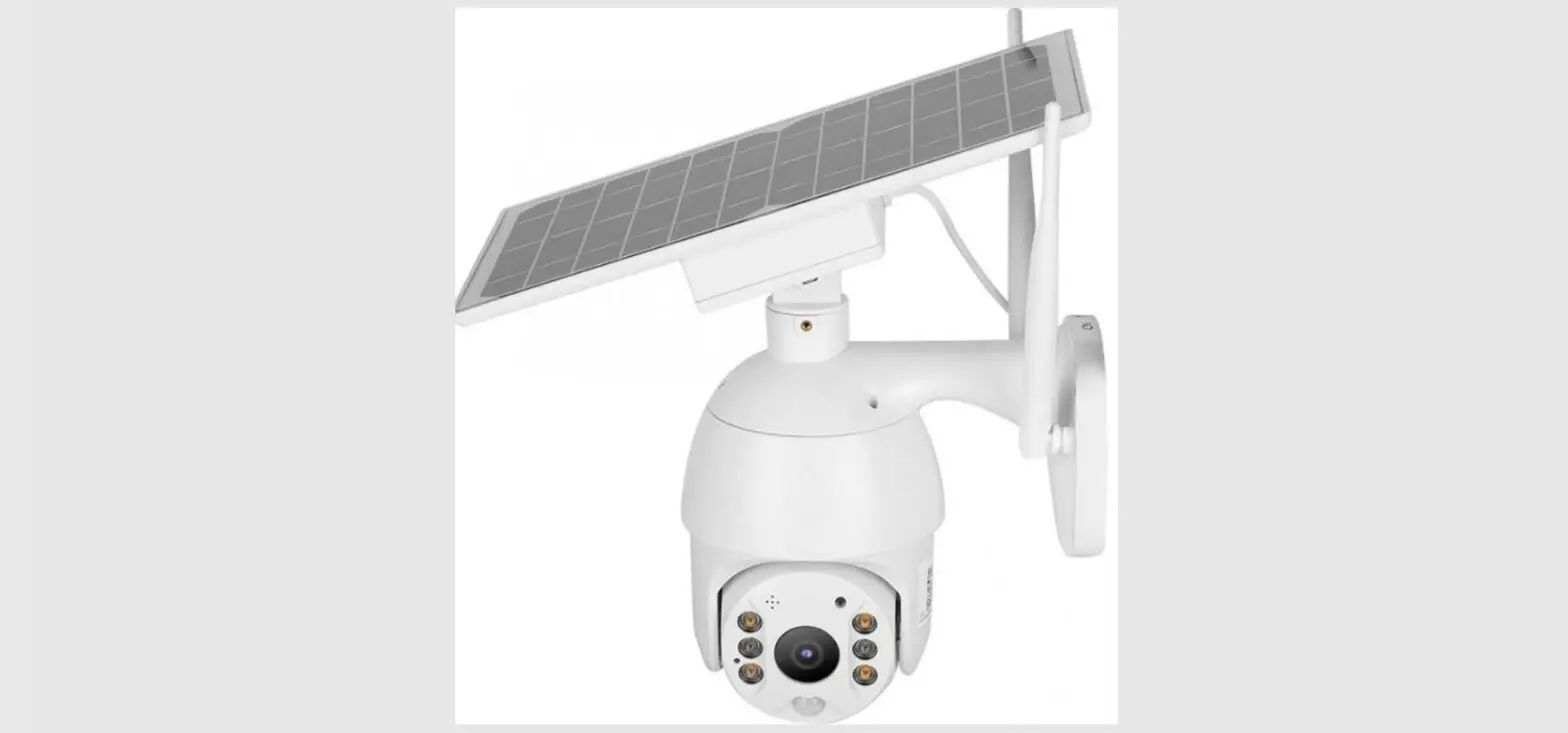
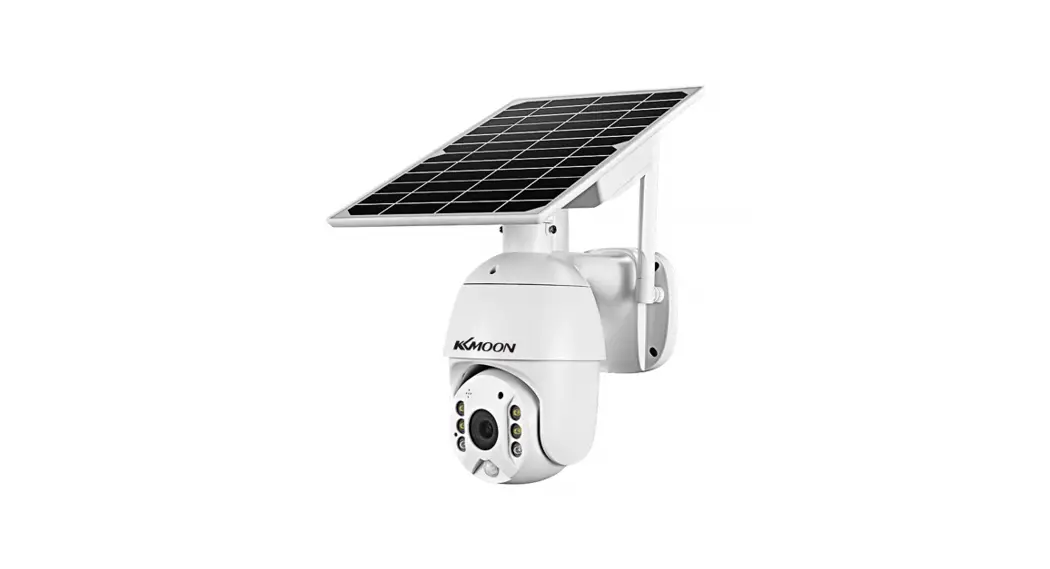
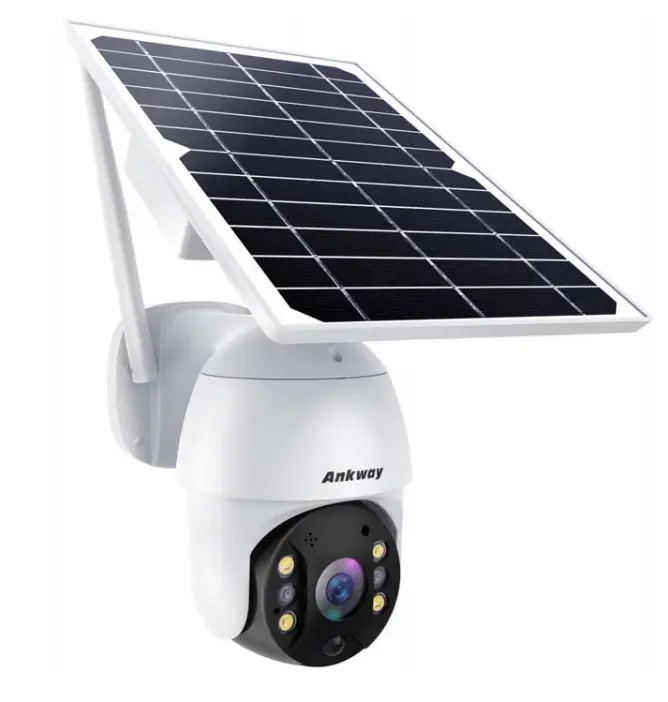
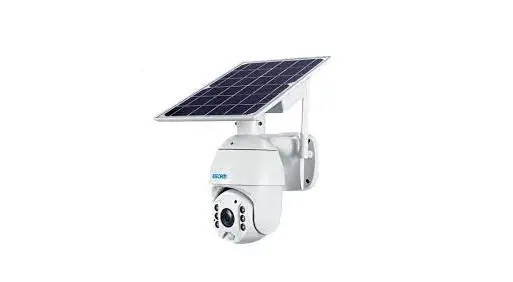
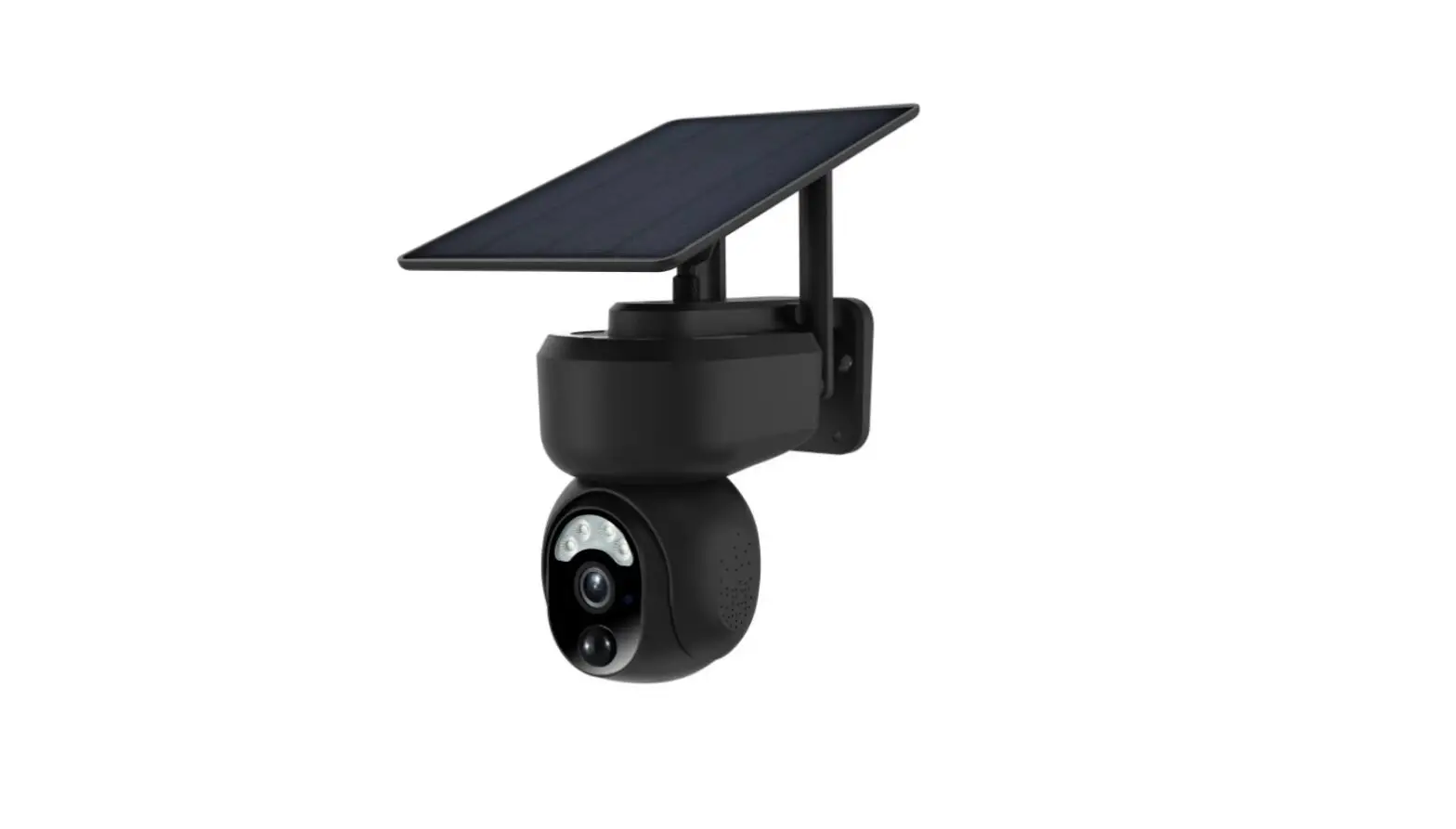
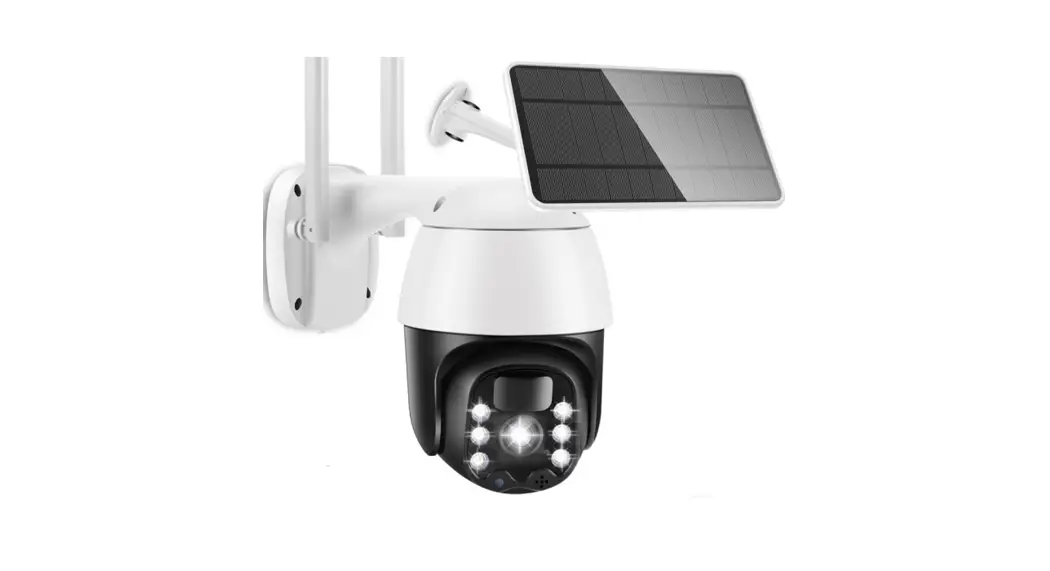
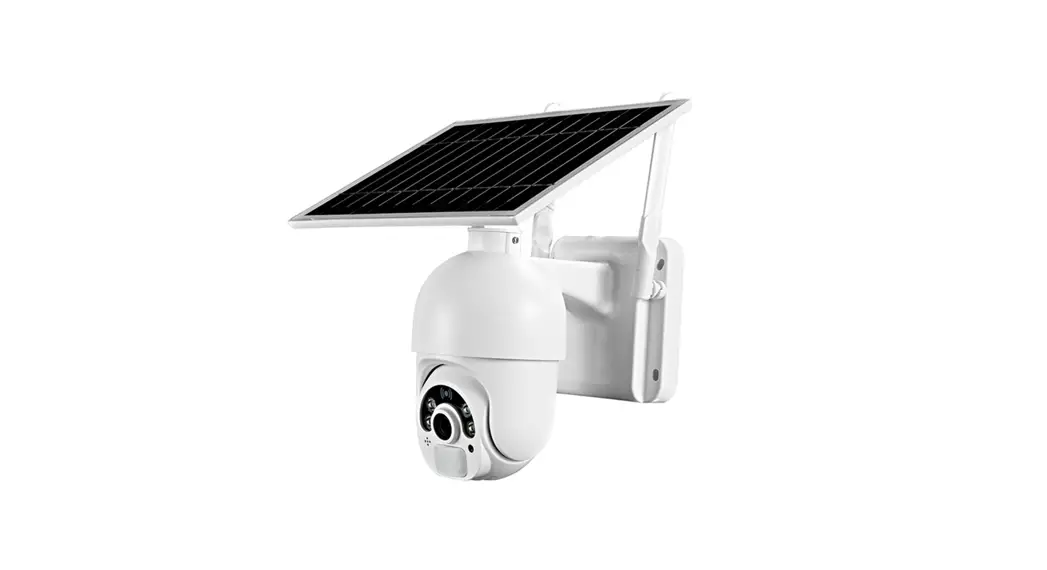
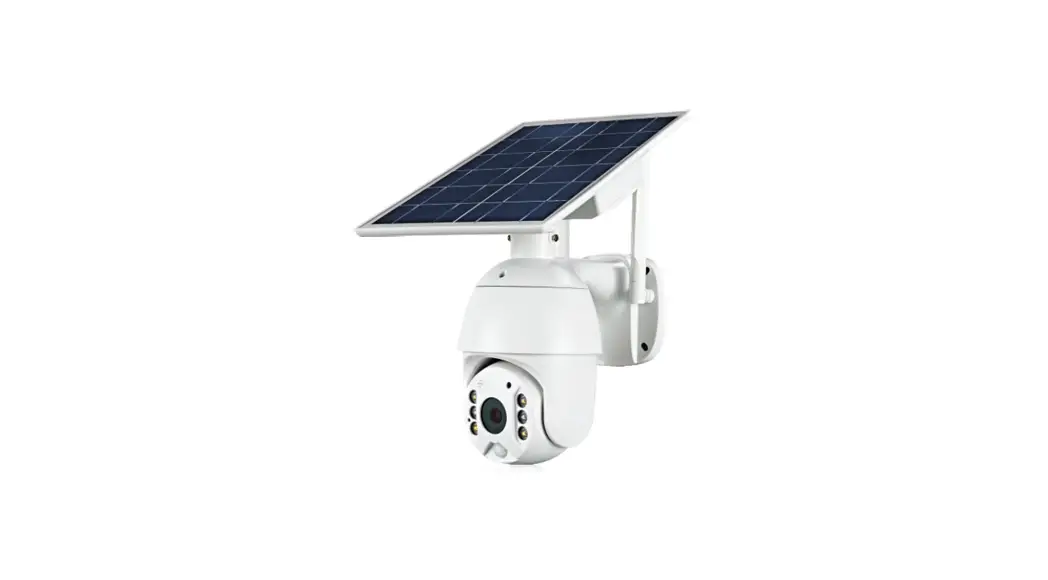
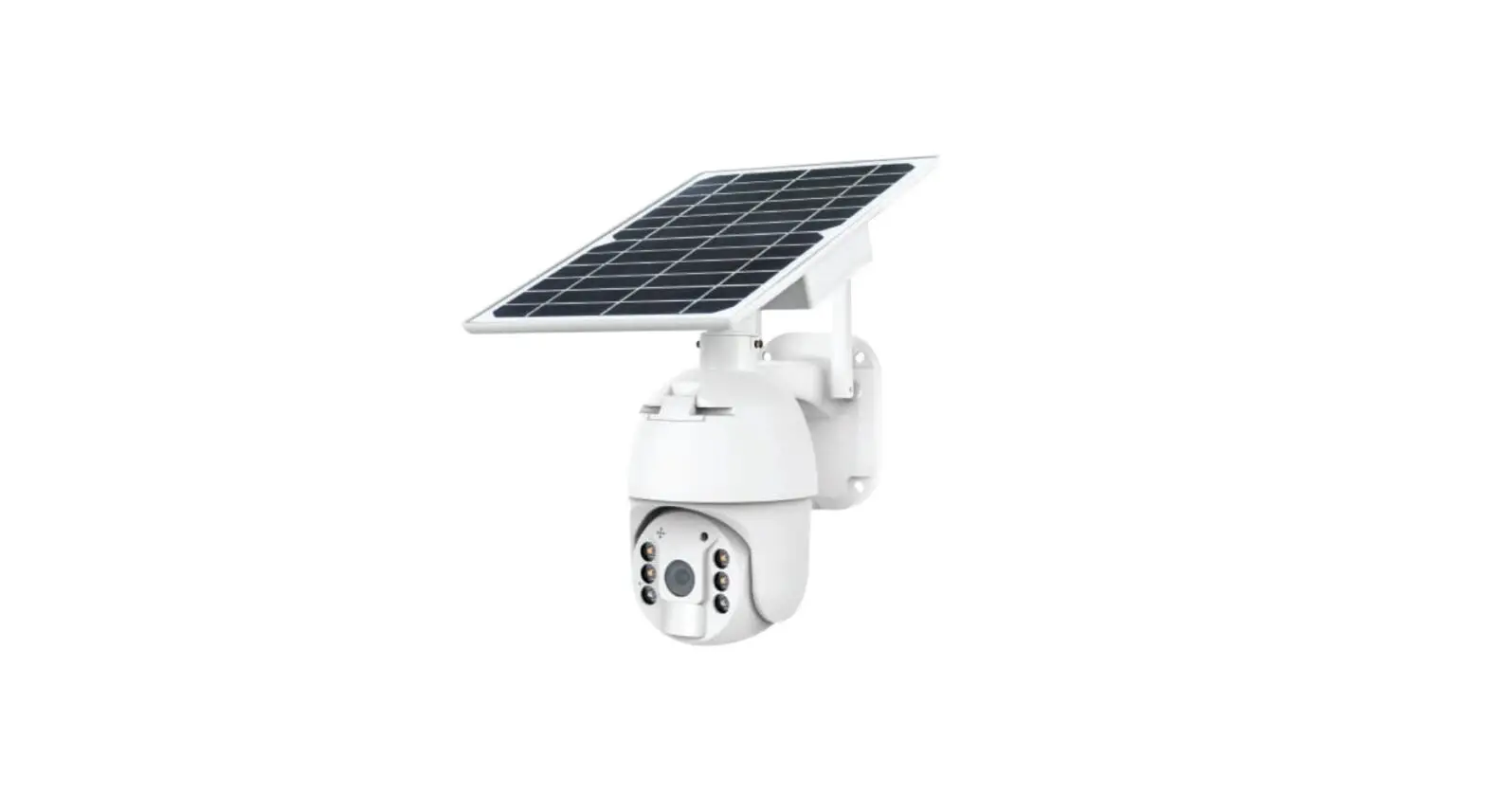
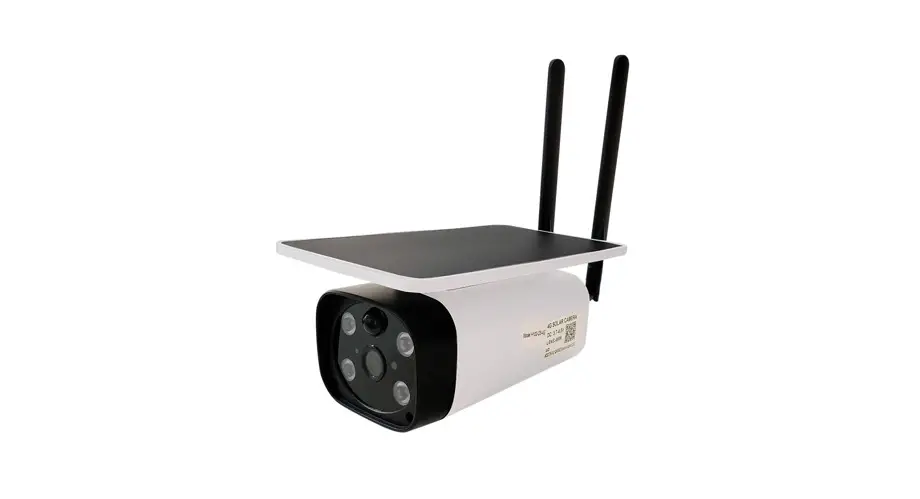
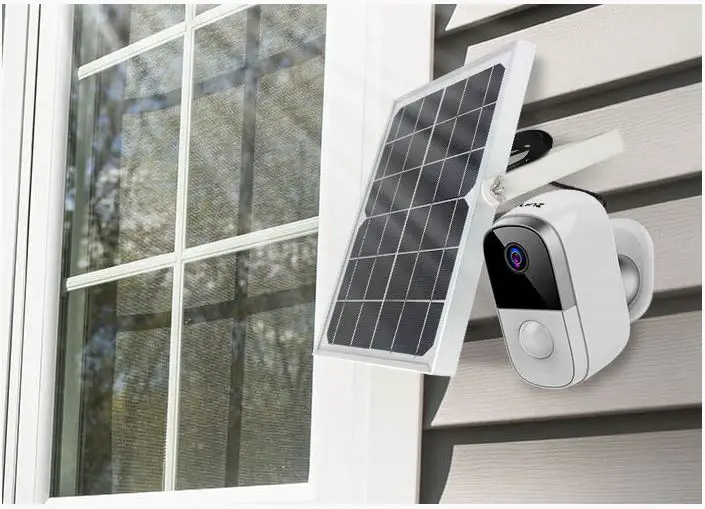
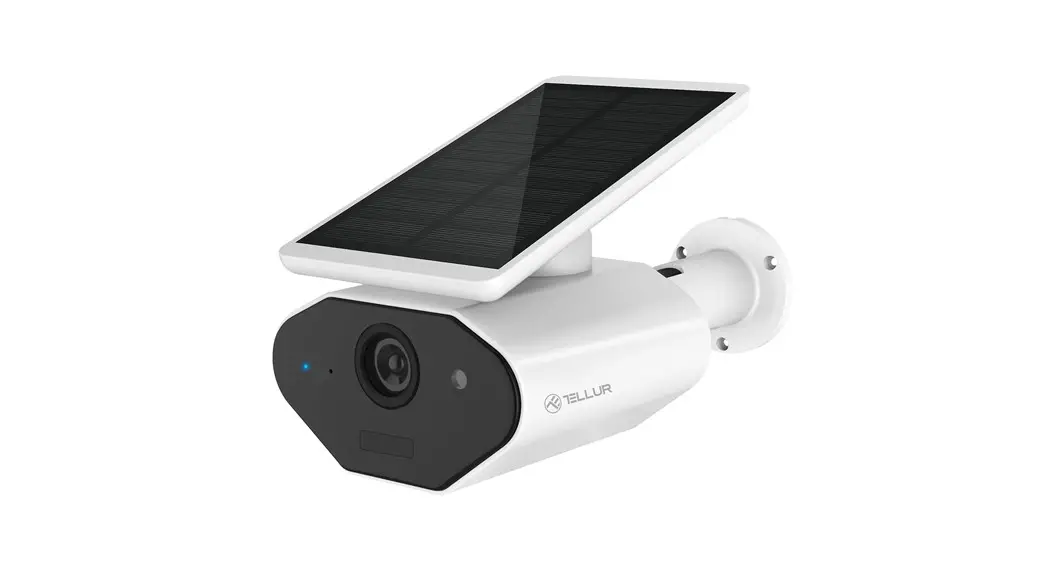
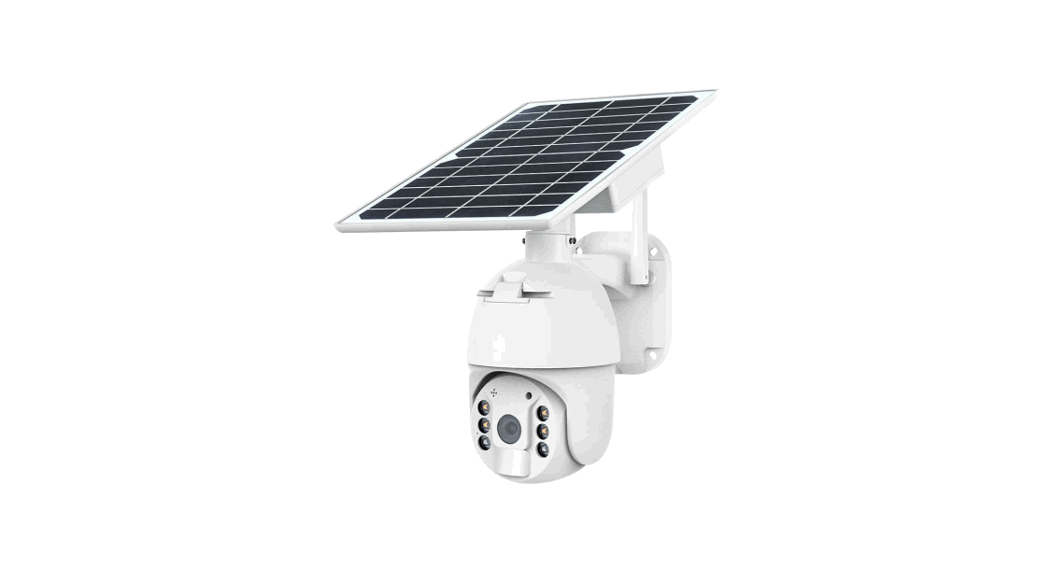
Q8S-4G-20 Intelligent Solar Energy Alert PTZ Camera
Product Information
The product is a solar-powered PTZ camera that comes with a
universal bracket, a user manual, a screw kit, a hexagon spanner,
and a guarantee card. The camera features a microphone,
photosensitive white light LED, lens, indicator, infrared LED,
reset switch, TF card, and SIM card (for 4G cameras). The product
has two installation options – integrated and separated. The solar
panel is included in the packing list along with accessories like a
power cable, waterproof cap, antenna, and interface cover. The
product requires app installation for usage and can be connected to
Wi-Fi for remote access.
Product Usage Instructions
- Unpack the product and ensure all the items mentioned in the
packing list are present. - Choose the installation option as per your requirement –
integrated or separated. - If you choose an integrated installation, follow the product
diagram to assemble the camera and solar panel. - If you choose a separated installation, place the camera and
solar panel separately in the desired location and connect them
using the power cable and socket hexagon screw. - Download and install the UBox app from the App Store (for iOS
devices) or Google Play Store (for Android smartphones). - Register on the app using your email address and verification
code. - Set a login password with more than 8 characters and a
combination of letters for security purposes. - Add your family name and necessary information like country and
province on the app. - Add the device to the app by connecting it to power supply and
ensuring your mobile phone is connected to an available Wi-Fi
network. - Follow the voice prompt or press the reset button to enter the
pairing state. - Input the correct Wi-Fi password and choose the ‘QR code
configuration’ or ‘Sound wave configuration’ for setup. - Complete the configuration process as per the instructions
shown on the mobile app. - Select the family name or device location and finish the setup
process. - The device will be added to the device list automatically and
is ready to use.
1:PRODUCTS & PACKING LIST
1.2 Packing list: 1* Solar panel
1* Universal bracket 1* PTZ Camera
1*User manual
1*Screw kit
1*Hexagon spanner 1*Screw driver 8*Screws 2*Socket hexagon screws 4*Tapping screw
Guarantee card
1*Guarantee card
1*Qualification
Product Diagram
Electricity test Battery compartments Waterproof rubber plug
USB charge port Battery 18650 Battery compartments cover Screw Socket hexagon screw Universal bracket
Screw
Bracket base Microphone Photosensitive White light LED Lens Indicator Infrared LED
Reset switch
TF card SIM card (4G camera)
2 .INSTALLATION
2.1 Intergrated installation
2.2 Separated installation
Solar panel
Power switch Solar power cable Camera power cable Waterproof cap Socket hexagon screw Antenna
Interface cover Screw of the Cover
Accessories needed (not standard configuration)
3. APP INSTALLATION
1*Bracket 1*Extral power cable 2M
3.1. Scan the following QR codes or seach forUBoxfrom the App
Store(for iOS devices) or Google Play Store (for Android smartphones)
to download and install the app.
3.2. APP REGISTRATION
3.2.1.Open the app then input your E-mail address then press ‘Register’. Check and select to agree the agreement then your E-mail box will get an verification code.( For better user’s experience, please allow to open all permissions to avoid missing any notifications from the app.)
3.2.2. Input the “Verification codeand press ‘Next’.if you not found the mail you might find the code in your email spam box.
3.2.3. Set the login password and confrim the login password.Then press ‘Register’ to next step.(For your password safety, the password requires more than 8 characters plus a combination of letters)
3.2.4.Enter your E-mail address, and input your login password. Then press ‘Login’.
4. WI-FI CONNECTION
4.1. Press ‘Add Family’ then set the room or position as per reminders. 4.2.Enter your family name and then press ‘Next’. 4.3.Input the necessary information just like Country, Province, then press ‘Done’. 4.4. Press ‘Add a device’ to add a smart device
4.5.Connect the device with power supply, and make sure your mobile phone is connected to an available Wi-Fi. Then press ‘Setup device’.
4.6.After the power on the device, wait for the voice promptThe device is waiting for pairing,Which means your device is in pairing mode.
4.7.If you did not hear the voice prompt, please press the RESET button until the blue indicator to lighup and then release. The device will reboot and enter the pairing state.
4.8.The app will input the Wi-Fi name automatically, please input the correct Wi-Fi Password. Then you can choose the ‘QR code configuration’ or ‘Sound wave configuration’ .
4.9.Sound wave configuration:Make sure camera and mobile phone within 1M distance,you will hear the wave sound DI DI,follow the tips showed in the mobile to finish configuration.
4.10. QR code configuration: Select the QR code configuration then the mobile phone display a QR code. Use the device to scan to the QR code 10cm away from the mobile phone.
4.11.Select the family name or device location then press ‘Done.’
4.11.The device will enter to the device list automatically. Setup success! The device is ready to use.
5. DEVICE SETTING
Enter to select your family or smart device location Turn on/off the push notification. Settings: Sharing, Cloud storage, Delete the device..
Press to enter the preview section.
Press to add a smart device
Checkmy accountname and change password;
Check and purchase the Cloud storage;
Check and purchase the AI Cloud Facial Recognition;
Check and add my friends list and permission;
Set the default voice and resolution for the devices;
Press to add a smart device
Click theCalendaricon on the right top corner , then choose the date to playback
the vicoes from cloud storage.
Choose the desired date to check all videos from the cloud.
Account and value-added account management
Smart device basic settings Could set Storage management, Flip screen, Environmental model,PIR detection, Sleep time, Power frequency, LED indicator, Device name Could check the information of Device name, Device ID, Model, FW version, Manufacurter, Check for the FW updates..
Press to add a smart device Screenshot Playback switch ‘Micro SD memory’ and ‘Cloud storage’ Take a video for the live view Microphone – Speak to the smart device side.
6. SPECIAL NOTES!
6.1 .The device is equipped with a rechargeable lithium battery. The battery life will be affected by the device wake-up time and the number of wake-ups. Therefore, the PIR sensor alarm detection function is used in an environment with a lot of people. It is recommended to turn off or set the device to low sensitivity to reduce device wake-up and call times extend battery life. When the battery is low, please charge the battery immediately.
6.2. Keep the device in range of your router.Make sure the device is placed close to the Wi-Fi router. If there has to be thick or insulated objects between the device and the Wi-Fi router, which may lead to weak Wi-Fi signal, please make sure the Wi-Fi signal is in good level before you start using the device.
6.3.It is a delicated device with low power consumption design. Everytime the device is awakened and will work for few seconds.After that, the device will enter standy mode to save power. You can set the work time in the app settings.
6.4.Because the mainland China does not receive Google’s system push messages, you need to open the app’s self-starting function in your phone to receive push messages.
6.5. This device provides one month of free cloud storage services. If you need to continue using value-added services after the trial period expires, you need to purchase them in the app.
7